ad blue Acura ILX 2013 Navigation Manual
[x] Cancel search | Manufacturer: ACURA, Model Year: 2013, Model line: ILX, Model: Acura ILX 2013Pages: 234, PDF Size: 4.99 MB
Page 125 of 234
124Audio
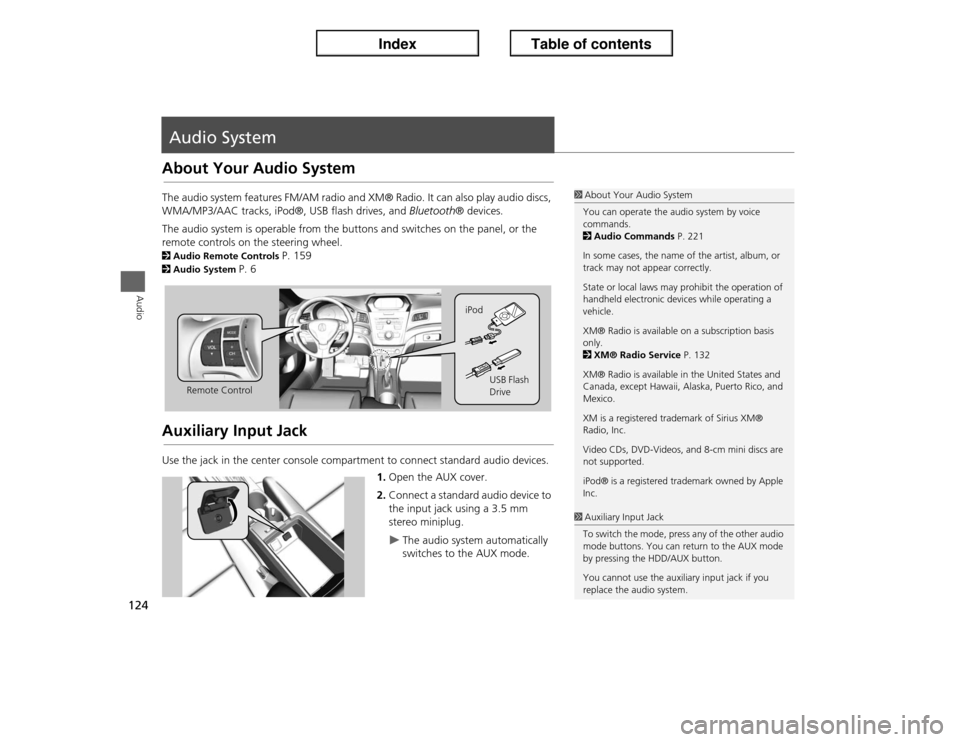
Audio SystemAbout Your Audio SystemThe audio system features FM/AM radio and XM® Radio. It can also play audio discs,
WMA/MP3/AAC tracks, iPod®, USB flash drives, and Bluetooth® devices.
The audio system is operable from the buttons and switches on the panel, or the
remote controls on the steering wheel.2Audio Remote Controls
P. 159
2Audio System
P. 6
Auxiliary Input JackUse the jack in the center console compartment to connect standard audio devices.
1.Open the AUX cover.
2.Connect a standard audio device to
the input jack using a 3.5 mm
stereo miniplug.
X
The audio system automatically
switches to the AUX mode.
1About Your Audio System
You can operate the audio system by voice
commands.
2Audio Commands P. 221
In some cases, the name of the artist, album, or
track may not appear correctly.
State or local laws may prohibit the operation of
handheld electronic devices while operating a
vehicle.
XM® Radio is available on a subscription basis
only.
2XM® Radio Service P. 132
XM® Radio is available in the United States and
Canada, except Hawaii, Alaska, Puerto Rico, and
Mexico.
XM is a registered trademark of Sirius XM®
Radio, Inc.
Video CDs, DVD-Videos, and 8-cm mini discs are
not supported.
iPod® is a registered trademark owned by Apple
Inc.
Remote ControliPod
USB Flash
Drive
1Auxiliary Input Jack
To switch the mode, press any of the other audio
mode buttons. You can return to the AUX mode
by pressing the HDD/AUX button.
You cannot use the auxiliary input jack if you
replace the audio system.
Page 157 of 234
156Audio
Playing Bluetooth® AudioYour audio system allows you to listen to music tracks stored on your Bluetooth-
compatible phone.
This function is available when the phone is linked to the vehicle’s Bluetooth®
HandsFreeLink® (HFL) system. 2Bluetooth® HandsFreeLink®
P. 161
Selecting Bluetooth® Audio Mode1.Make sure that your phone is on, paired, and linked to HFL. 2Pairing a Phone
P. 164
2.Press the HDD/AUX button to select Bluetooth® Audio mode.
X
A Bluetooth® message and icon are displayed on the display and screen.
3.If necessary, follow the cell phone operating instructions for playing audio tracks.
Check the following if the phone is not recognized:
•Another HFL-compatible phone, which is not compatible for Bluetooth® Audio, is
already connected.
1Playing Bluetooth® Audio
d “Display audio screen”
You can control the Bluetooth® Audio using
voice commands.
2Bluetooth® Audio Commands P. 223
Not all Bluetooth-enabled phones with
streaming audio capabilities are compatible. To
check if your phone is compatible:•Canada: Visit www.handsfreelink.ca.•Call HandsFreeLink customer support at
(888) 528-7876.
In some provinces, it may be illegal to perform
some data device functions while driving.
Only one phone can be used with HFL at a time.
When there are more than two paired phones in
the vehicle, the first paired phone the system
finds will be automatically linked.
Pressing the TITLE button switches the centre
display between the Bluetooth® Audio message
and the device name.
Page 158 of 234
157
XX
Playing Bluetooth® Audio
XSwitching to HFL Mode
Audio
Switching to HFL Mode
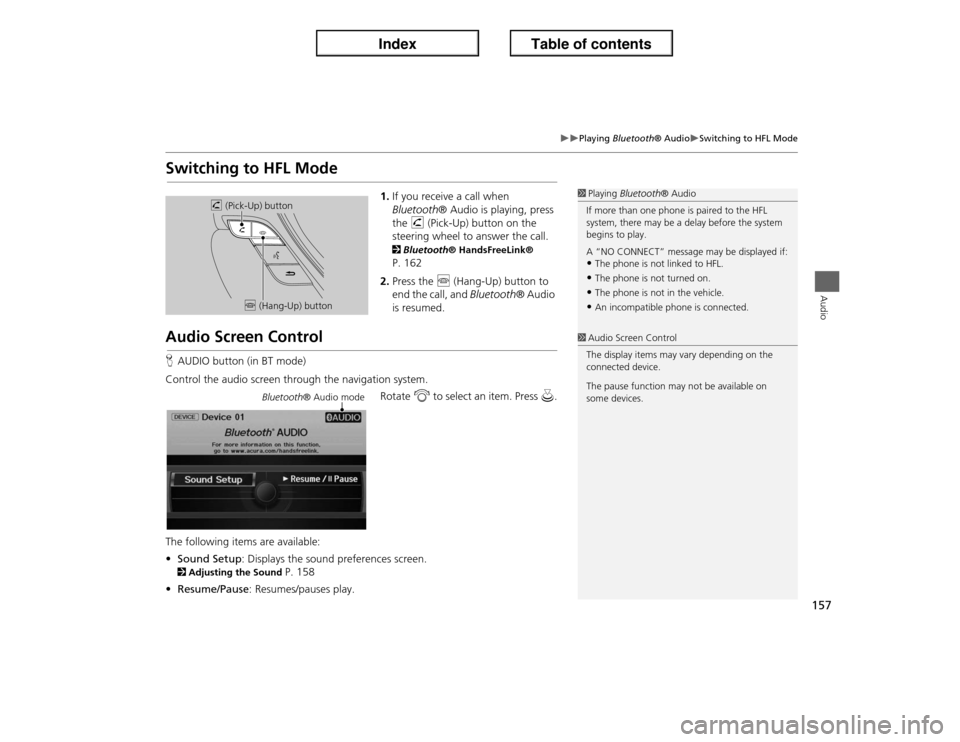
1.If you receive a call when
Bluetooth® Audio is playing, press
the h (Pick-Up) button on the
steering wheel to answer the call. 2Bluetooth® HandsFreeLink® P. 162
2.Press the j (Hang-Up) button to
end the call, and Bluetooth® Audio
is resumed.
Audio Screen ControlHAUDIO button (in BT mode)
Control the audio screen through the navigation system.
Rotate i to select an item. Press u.
The following items are available:
•Sound Setup: Displays the sound preferences screen. 2Adjusting the Sound
P. 158
•Resume/Pause: Resumes/pauses play.
1Playing Bluetooth® Audio
If more than one phone is paired to the HFL
system, there may be a delay before the system
begins to play.
A “NO CONNECT” message may be displayed if:•The phone is not linked to HFL.•The phone is not turned on.•The phone is not in the vehicle.•An incompatible phone is connected.
h (Pick-Up) button
j (Hang-Up) button
1Audio Screen Control
The display items may vary depending on the
connected device.
The pause function may not be available on
some devices.
Bluetooth® Audio mode
Page 159 of 234
158Audio
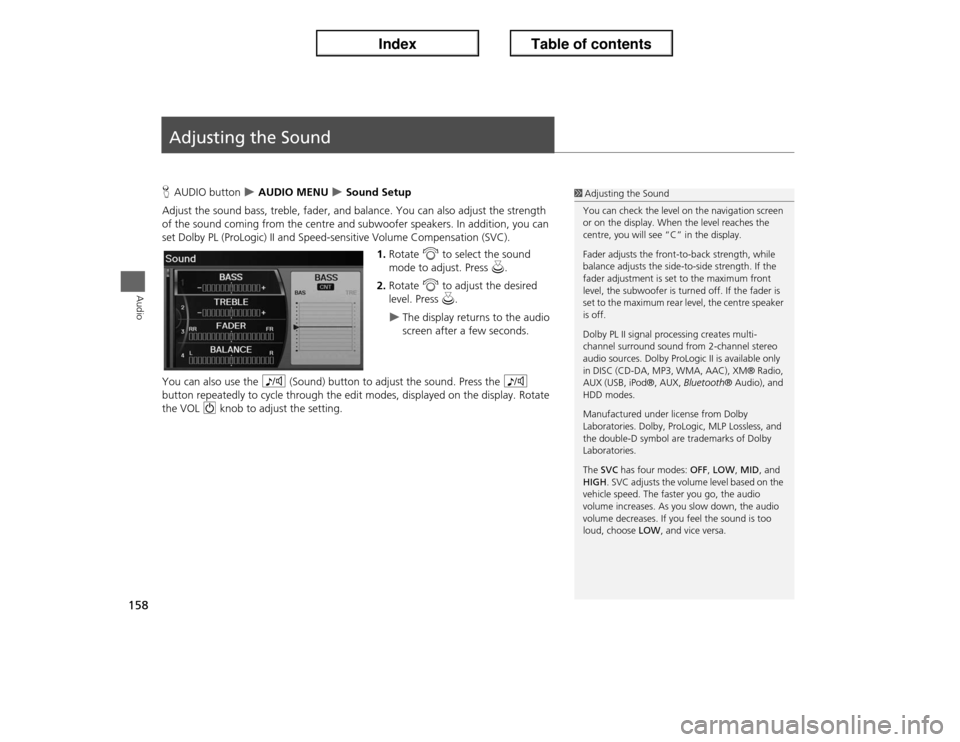
Adjusting the SoundHAUDIO button
X AUDIO MENU
X Sound Setup
Adjust the sound bass, treble, fader, and balance. You can also adjust the strength
of the sound coming from the centre and subwoofer speakers. In addition, you can
set Dolby PL (ProLogic) II and Speed-sensitive Volume Compensation (SVC).
1.Rotate i to select the sound
mode to adjust. Press u.
2.Rotate i to adjust the desired
level. Press u.
X
The display returns to the audio
screen after a few seconds.
You can also use the 8 (Sound) button to adjust the sound. Press the 8
button repeatedly to cycle through the edit modes, displayed on the display. Rotate
the VOL 9 knob to adjust the setting.
1Adjusting the Sound
You can check the level on the navigation screen
or on the display. When the level reaches the
centre, you will see “C” in the display.
Fader adjusts the front-to-back strength, while
balance adjusts the side-to-side strength. If the
fader adjustment is set to the maximum front
level, the subwoofer is turned off. If the fader is
set to the maximum rear level, the centre speaker
is off.
Dolby PL II signal processing creates multi-
channel surround sound from 2-channel stereo
audio sources. Dolby ProLogic II is available only
in DISC (CD-DA, MP3, WMA, AAC), XM® Radio,
AUX (USB, iPod®, AUX, Bluetooth® Audio), and
HDD modes.
Manufactured under license from Dolby
Laboratories. Dolby, ProLogic, MLP Lossless, and
the double-D symbol are trademarks of Dolby
Laboratories.
The SVC has four modes: OFF, LOW, MID, and
HIGH. SVC adjusts the volume level based on the
vehicle speed. The faster you go, the audio
volume increases. As you slow down, the audio
volume decreases. If you feel the sound is too
loud, choose LOW, and vice versa.
Page 160 of 234
159Audio
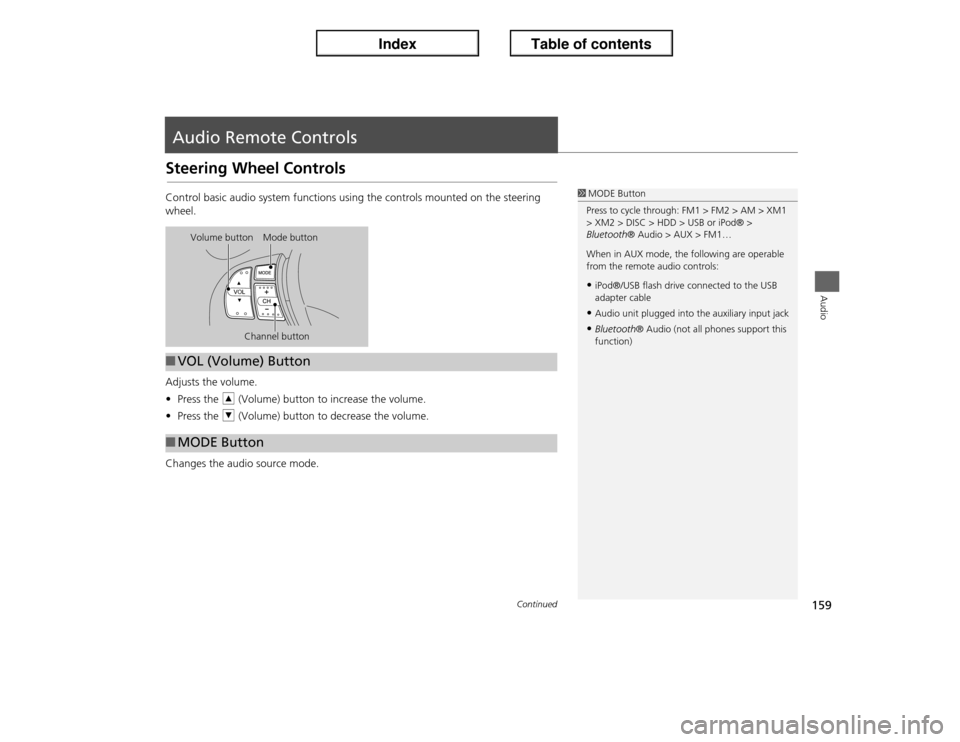
Audio Remote ControlsSteering Wheel ControlsControl basic audio system functions using the controls mounted on the steering
wheel.
Adjusts the volume.
•Press the R (Volume) button to increase the volume.
•Press the U (Volume) button to decrease the volume.
Changes the audio source mode.
1MODE Button
Press to cycle through: FM1 > FM2 > AM > XM1
> XM2 > DISC > HDD > USB or iPod® >
Bluetooth® Audio > AUX > FM1…
When in AUX mode, the following are operable
from the remote audio controls:•iPod®/USB flash drive connected to the USB
adapter cable•Audio unit plugged into the auxiliary input jack•Bluetooth® Audio (not all phones support this
function)
Volume button Mode button
Channel button
■VOL (Volume) Button■MODE Button
Continued
Page 161 of 234

160
XX
Audio Remote Controls
XSteering Wheel Controls
Audio
FM/AM, XM
•Press the N (Channel) button to select the next preset station (channel).
•Press the B (Channel) button to select the previous preset station (channel).
•FM/AM: Press and hold for one second to scan for a station with a strong signal.
•XM: Press and hold for one second to skip to the next or previous station
(channel) in the current category.
DISC, HDD, iPod®, USB, Bluetooth® Audio (on some phones)
•Press the N button to skip to the end of the current track.
•Press the B button to skip to the beginning of the current track. Press the B
button again to go to the beginning of the previous track.
•Press and hold to skip forward or backward to the first track of the next folder.■CH (Channel) Button
Page 162 of 234
161
Bluetooth® HandsFreeLink®
This section describes how to operate Bluetooth® HandsFreeLink®. You
can place and receive phone calls using your vehicle’s audio system
without handling your cell phone.
Bluetooth® HandsFreeLink®............... 162
Pairing a Phone .................................... 164
Setting Up Speed Dialing...................... 169
Editing User Name and PIN................... 171
Phone Setup ........................................ 172
Making a Call....................................... 174
Receiving a Call .................................... 177
HFL Menus ........................................... 178
Text Messages....................................... 181
Page 163 of 234
162Bluetooth® HandsFreeLink®
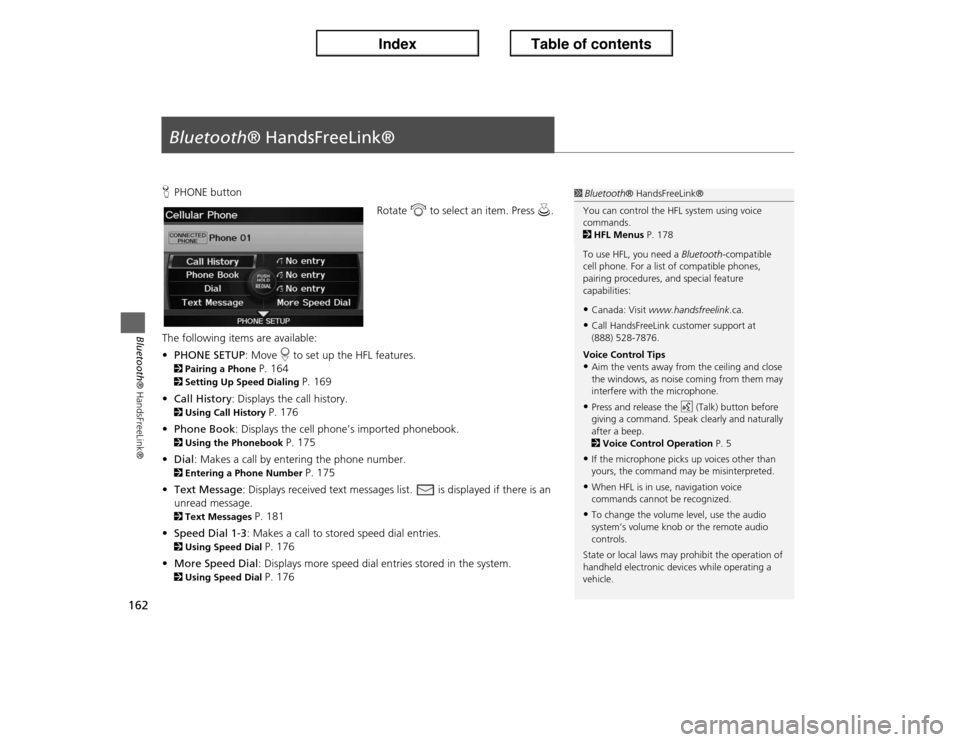
Bluetooth® HandsFreeLink®HPHONE button
Rotate i to select an item. Press u.
The following items are available:
•PHONE SETUP: Move r to set up the HFL features.2Pairing a Phone
P. 164
2Setting Up Speed Dialing
P. 169
•Call History: Displays the call history.
2Using Call History
P. 176
•Phone Book: Displays the cell phone’s imported phonebook.
2Using the Phonebook
P. 175
•Dial: Makes a call by entering the phone number.
2Entering a Phone Number
P. 175
•Text Message: Displays received text messages list. is displayed if there is an
unread message.
2Text Messages
P. 181
•Speed Dial 1-3: Makes a call to stored speed dial entries.
2Using Speed Dial
P. 176
•More Speed Dial: Displays more speed dial entries stored in the system.
2Using Speed Dial
P. 176
1Bluetooth® HandsFreeLink®
You can control the HFL system using voice
commands.
2HFL Menus P. 178
To use HFL, you need a Bluetooth-compatible
cell phone. For a list of compatible phones,
pairing procedures, and special feature
capabilities:•Canada: Visit www.handsfreelink.ca.•Call HandsFreeLink customer support at
(888) 528-7876.
Voice Control Tips•Aim the vents away from the ceiling and close
the windows, as noise coming from them may
interfere with the microphone.•Press and release the d (Talk) button before
giving a command. Speak clearly and naturally
after a beep.
2Voice Control Operation P. 5•If the microphone picks up voices other than
yours, the command may be misinterpreted.•When HFL is in use, navigation voice
commands cannot be recognized.•To change the volume level, use the audio
system’s volume knob or the remote audio
controls.
State or local laws may prohibit the operation of
handheld electronic devices while operating a
vehicle.
Page 164 of 234

163
XX
Bluetooth® HandsFreeLink®
X
Bluetooth® HandsFreeLink®
Say d “Help” any time to get help or hear a list of commands.2Voice Help
P. 5
■Help Features
1Bluetooth® HandsFreeLink®
Bluetooth® Wireless Technology
Bluetooth® word mark and logos are registered
trademarks owned by Bluetooth SIG, Inc., and
any use of such marks by Honda Motors Co.,
Ltd., is under license. Other trademarks and
trade names are those of their respective owners.
HFL Limitations
An incoming call on HFL will interrupt
Bluetooth® Audio when it is playing. Audio will
resume when the call is ended.
Certain functions are disabled while the vehicle is
moving.
2Limitations for Manual Operation P. 21
Page 165 of 234
164
XX
Bluetooth® HandsFreeLink®
XPairing a Phone
Bluetooth® HandsFreeLink®
Pairing a PhoneHPHONE button
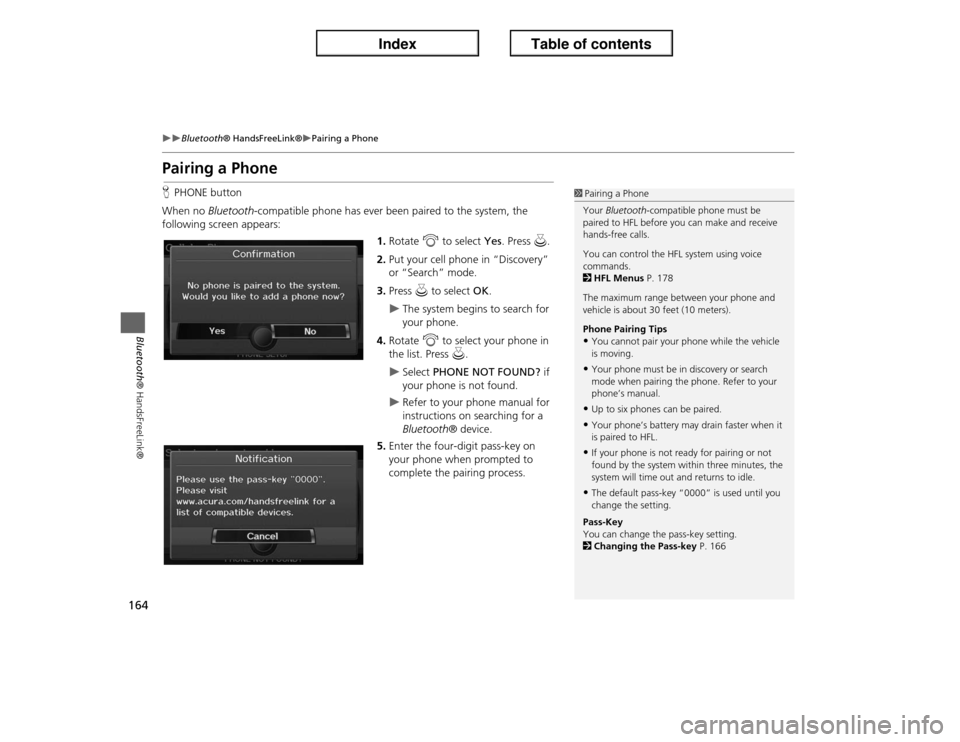
When no Bluetooth-compatible phone has ever been paired to the system, the
following screen appears:
1.Rotate i to select Yes. Press u.
2.Put your cell phone in “Discovery”
or “Search” mode.
3.Press u to select OK.
X
The system begins to search for
your phone.
4.Rotate i to select your phone in
the list. Press u.
X
Select PHONE NOT FOUND? if
your phone is not found.
X
Refer to your phone manual for
instructions on searching for a
Bluetooth® device.
5.Enter the four-digit pass-key on
your phone when prompted to
complete the pairing process.
1Pairing a Phone
Your Bluetooth-compatible phone must be
paired to HFL before you can make and receive
hands-free calls.
You can control the HFL system using voice
commands.
2HFL Menus P. 178
The maximum range between your phone and
vehicle is about 30 feet (10 meters).
Phone Pairing Tips•You cannot pair your phone while the vehicle
is moving.•Your phone must be in discovery or search
mode when pairing the phone. Refer to your
phone’s manual.•Up to six phones can be paired.•Your phone’s battery may drain faster when it
is paired to HFL.•If your phone is not ready for pairing or not
found by the system within three minutes, the
system will time out and returns to idle.•The default pass-key “0000” is used until you
change the setting.
Pass-Key
You can change the pass-key setting.
2Changing the Pass-key P. 166