audio Acura ILX 2015 User Guide
[x] Cancel search | Manufacturer: ACURA, Model Year: 2015, Model line: ILX, Model: Acura ILX 2015Pages: 353, PDF Size: 16.19 MB
Page 146 of 353

145
Features
Audio System Basic Operation
To use the audio system function, the power mode must be in ACCESSORY or ON.
Use the selector knob or SETUP button to
access some audio functions.
Press to switch between the normal and
extended display fo r some functions.
Selector knob: Rotate left or right to scroll
through the available ch oices. Press to set
your selection.
SETUP button: Press to select any mode such
as the RDS Information , Sound Settings,
Play Mode , Resume/Pause , or Adjust
Clock .
BACK button: Press to go back to the
previous display. button: Press to change the audio/
information screen brightness. The brightness
can be set differently for the day time and
night time.
Pressing the button switches the modes
between daytime and night time.
Adjust the brightness using .1 Audio System Basic Operation
These indications are used to show how to operate
the selector knob.
Rotate to select.
Press to enter.
Press the MODE,
( +, (-, or button on the
steering wheel to cha nge any audio setting.
2 Audio Remote Controls P. 149
Setup Menu Items
2 RDS Information P. 152
2 Sound Settings P. 150
2 Play Mode P. 157, 160, 165
2 Resume/Pause P. 167
2 Adjust Clock P. 92
BACK ButtonSETUP Button
Selector Knob Button
Menu Display
15 ACURA ILX-31TX66200.book 145 ページ 2014年3月27日 木曜日 午前10時34分
Page 147 of 353
146
uuAudio System Basic Operation uAudio/Information Screen
Features
Audio/Information Screen
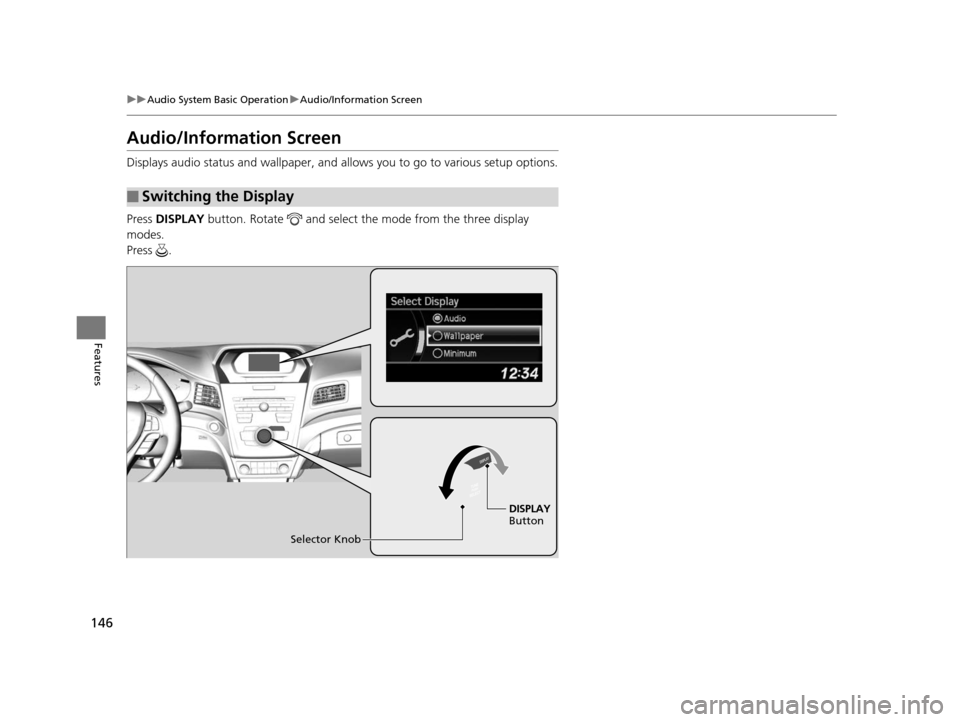
Displays audio status and wallpaper, and allows you to go to various setup options.
Press DISPLAY button. Rotate and select the mode from the three display
modes.
Press .
■Switching the Display
Selector Knob DISPLAY
Button
15 ACURA ILX-31TX66200.book 146 ページ 2014年3月27日 木曜日 午前10時34分
Page 148 of 353

147
uuAudio System Basic Operation uAudio/Information Screen
Continued
Features
Shows the current audio information.
2 Audio System Basic Operation P. 145
Shows a clock screen or an image you import.
2Wallpaper Setup P. 168
Minimizes the display by only showing the clock and audio status on the display.
1.Press the SETUP button.
2. Rotate and select the setup option you
want to change. Press .
■Audio Display
■Wallpaper
■Minimum Display
■Setting Options
15 ACURA ILX-31TX66200.book 147 ページ 2014年3月27日 木曜日 午前10時34分
Page 149 of 353
148
uuAudio System Basic Operation uAudio/Information Screen
Features
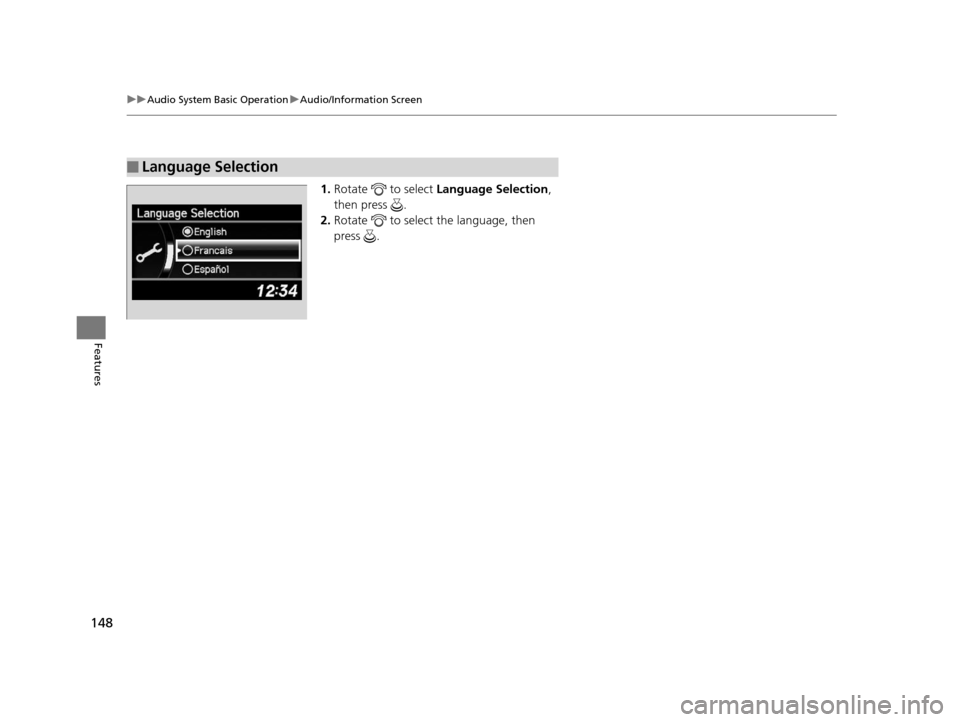
1. Rotate to select Language Selection ,
then press .
2. Rotate to select the language, then
press .
■Language Selection
15 ACURA ILX-31TX66200.book 148 ページ 2014年3月27日 木曜日 午前10時34分
Page 150 of 353
149
uuAudio System Basic Operation uAudio Remote Controls
Features
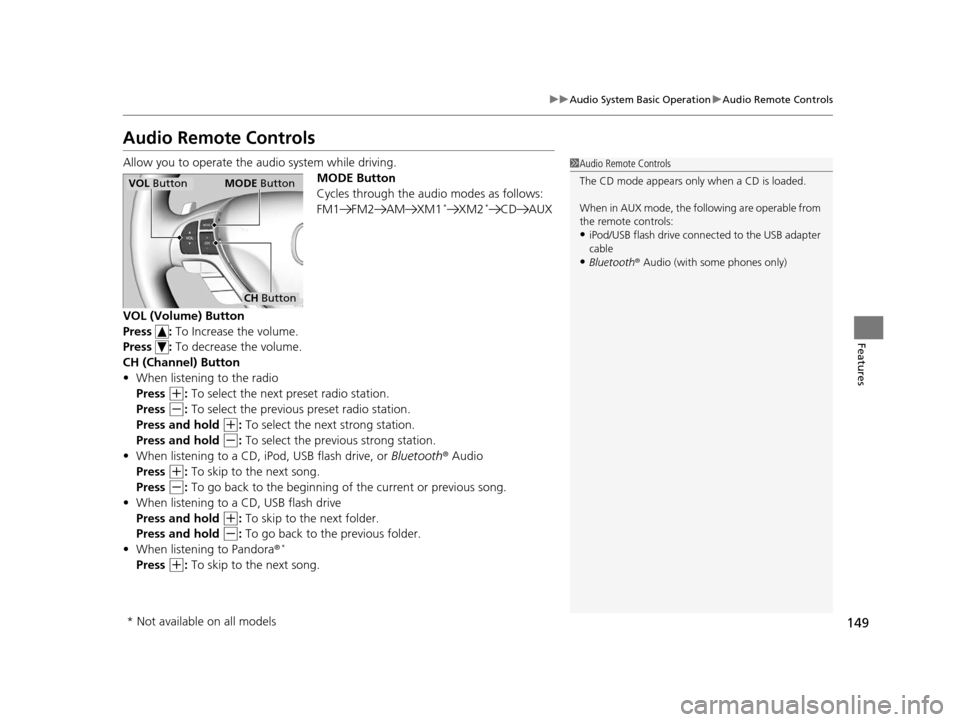
Audio Remote Controls
Allow you to operate the au dio system while driving.
MODE Button
Cycles through the audio modes as follows:
FM1 FM2 AM XM1
*XM2*CD AUX
VOL (Volume) Button
Press : To Increase the volume.
Press : To decrease the volume.
CH (Channel) Button
• When listening to the radio
Press
(+: To select the next preset radio station.
Press
(-: To select the previous preset radio station.
Press and hold
(+: To select the next strong station.
Press and hold
(-: To select the previous strong station.
• When listening to a CD, iPod, USB flash drive, or Bluetooth® Audio
Press
(+: To skip to the next song.
Press
(-: To go back to the beginning of the current or previous song.
• When listening to a CD, USB flash drive
Press and hold
(+: To skip to the next folder.
Press and hold
(-: To go back to the previous folder.
• When listening to Pandora ®*
Press (+: To skip to the next song.
1 Audio Remote Controls
The CD mode appears only when a CD is loaded.
When in AUX mode, the following are operable from
the remote controls:
•iPod/USB flash drive connect ed to the USB adapter
cable
•Bluetooth ® Audio (with some phones only)
VOL Button MODE Button
CH Button
* Not available on all models
15 ACURA ILX-31TX66200.book 149 ページ 2014年3月27日 木曜日 午前10時34分
Page 151 of 353
150
uuAudio System Basic Operation uAdjusting the Sound
Features
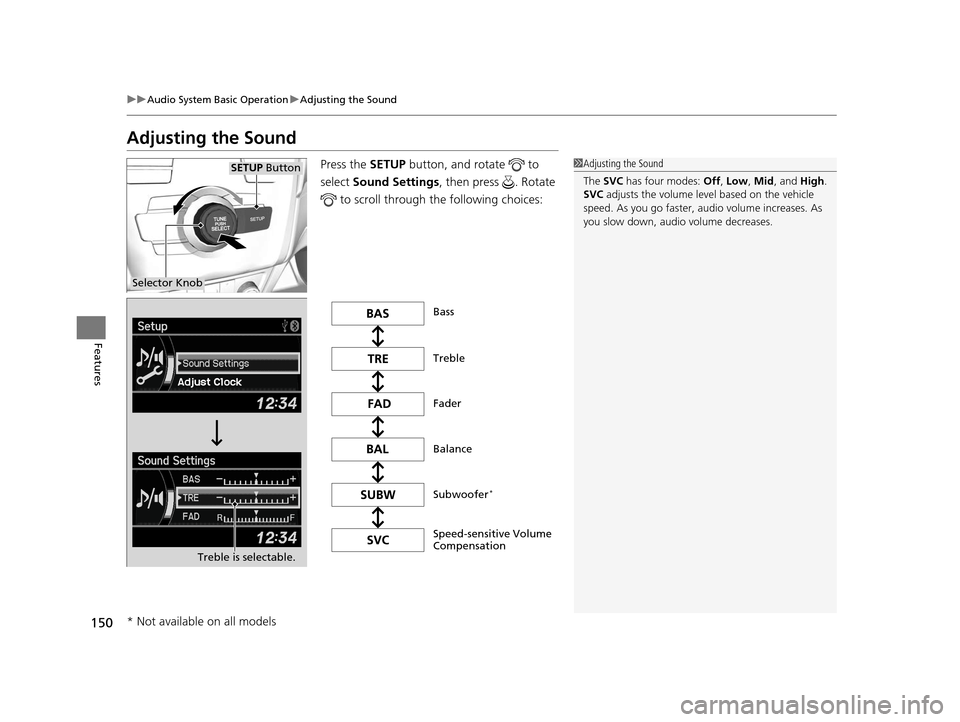
Adjusting the Sound
Press the SETUP button, and rotate to
select Sound Settings, then press . Rotate
to scroll through th e following choices:1Adjusting the Sound
The SVC has four modes: Off, Low , Mid , and High.
SVC adjusts the volume level based on the vehicle
speed. As you go faster, audio volume increases. As
you slow down, audi o volume decreases.
Selector Knob
SETUP Button
Treble is selectable.
Speed-sensitive Volume
Compensation Subwoofer
*
Bass
Treble
Fader
Balance
* Not available on all models
15 ACURA ILX-31TX66200.book 150 ページ 2014年3月27日 木曜日 午前10時34分
Page 152 of 353
151
uuAudio System Basic Operation uPlaying AM/FM Radio
Continued
Features
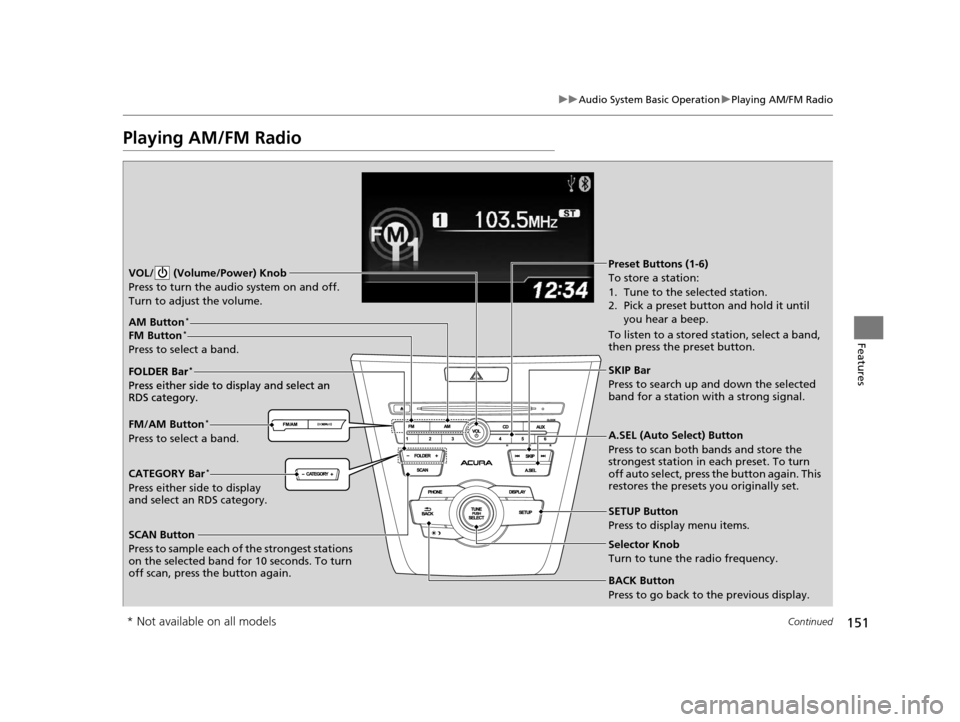
Playing AM/FM Radio
SCAN Button
Press to sample each of the strongest stations
on the selected band for 10 seconds. To turn
off scan, press the button again. VOL/ (Volume/Power) Knob
Press to turn the audi o system on and off.
Turn to adjust the volume.
A.SEL (Auto Select) Button
Press to scan both bands and store the
strongest station in each preset. To turn
off auto select, press the button again. This
restores the presets you originally set.
SETUP Button
Press to display menu items.
Selector Knob
Turn to tune the radio frequency.
CATEGORY Bar*
Press either side to display
and select an RDS category. FM/AM Button
*
Press to select a band. FOLDER Bar
*
Press either side to display and select an
RDS category.
FM Button*
Press to select a band.
AM Button*
BACK Button
Press to go back to the previous display.
SKIP Bar
Press to search up and down the selected
band for a station with a strong signal.
Preset Buttons (1-6)
To store a station:
1. Tune to the selected station.
2. Pick a preset button and hold it until you hear a beep.
To listen to a stored station, select a band,
then press the preset button.
FOLDER Bar
*
Press either side to display and select an
RDS category.
* Not available on all models
15 ACURA ILX-31TX66200.book 151 ページ 2014年3月27日 木曜日 午前10時34分
Page 153 of 353
uuAudio System Basic Operation uPlaying AM/FM Radio
152
Features
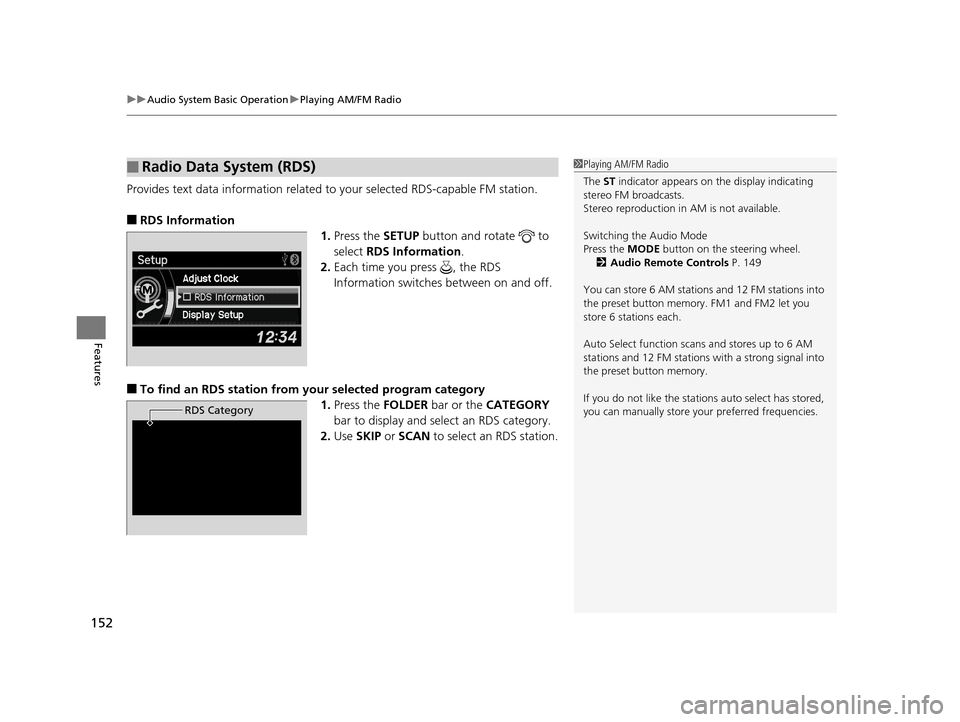
Provides text data information related to your selected RDS-capable FM station.
■RDS Information
1.Press the SETUP button and rotate to
select RDS Information .
2. Each time you press , the RDS
Information switches between on and off.
■To find an RDS station from your selected program category
1.Press the FOLDER bar or the CATEGORY
bar to display and select an RDS category.
2. Use SKIP or SCAN to select an RDS station.
■Radio Data System (RDS)
RDS Category
1Playing AM/FM Radio
The ST indicator appears on the display indicating
stereo FM broadcasts.
Stereo reproduction in AM is not available.
Switching the Audio Mode
Press the MODE button on the steering wheel.
2 Audio Remote Controls P. 149
You can store 6 AM stations and 12 FM stations into
the preset button memory. FM1 and FM2 let you
store 6 stations each.
Auto Select function scans and stores up to 6 AM
stations and 12 FM stations with a strong signal into
the preset button memory.
If you do not like the stati ons auto select has stored,
you can manually store your preferred frequencies.
15 ACURA ILX-31TX66200.book 152 ページ 2014年3月27日 木曜日 午前10時34分
Page 154 of 353
153
uuAudio System Basic Operation uPlaying XM ® Radio*
Continued
Features
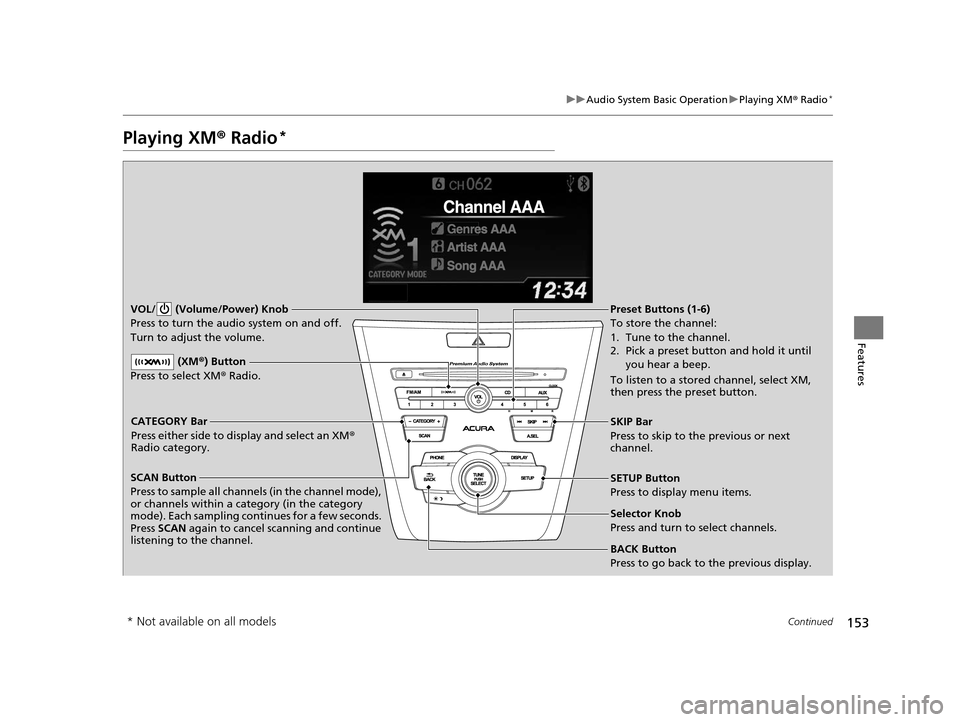
Playing XM ® Radio*
SCAN Button
Press to sample all channels (in the channel mode),
or channels within a category (in the category
mode). Each sampling contin ues for a few seconds.
Press SCAN again to cancel scanning and continue
listening to the channel. VOL/ (Volume/Power) Knob
Press to turn the audio system on and off.
Turn to adjust the volume.SETUP Button
Press to display menu items.
Selector Knob
Press and turn to select channels.
CATEGORY Bar
Press either side to display and select an XM
®
Radio category. SKIP Bar
Press to skip to the previous or next
channel.
(XM
®) Button
Press to select XM ® Radio.
Preset Buttons (1-6)
To store the channel:
1. Tune to the channel.
2. Pick a preset button and hold it until
you hear a beep.
To listen to a stored channel, select XM,
then press the preset button.
BACK Button
Press to go back to the previous display.
* Not available on all models
15 ACURA ILX-31TX66200.book 153 ページ 2014年3月27日 木曜日 午前10時34分
Page 155 of 353
uuAudio System Basic Operation uPlaying XM ® Radio*
154
Features
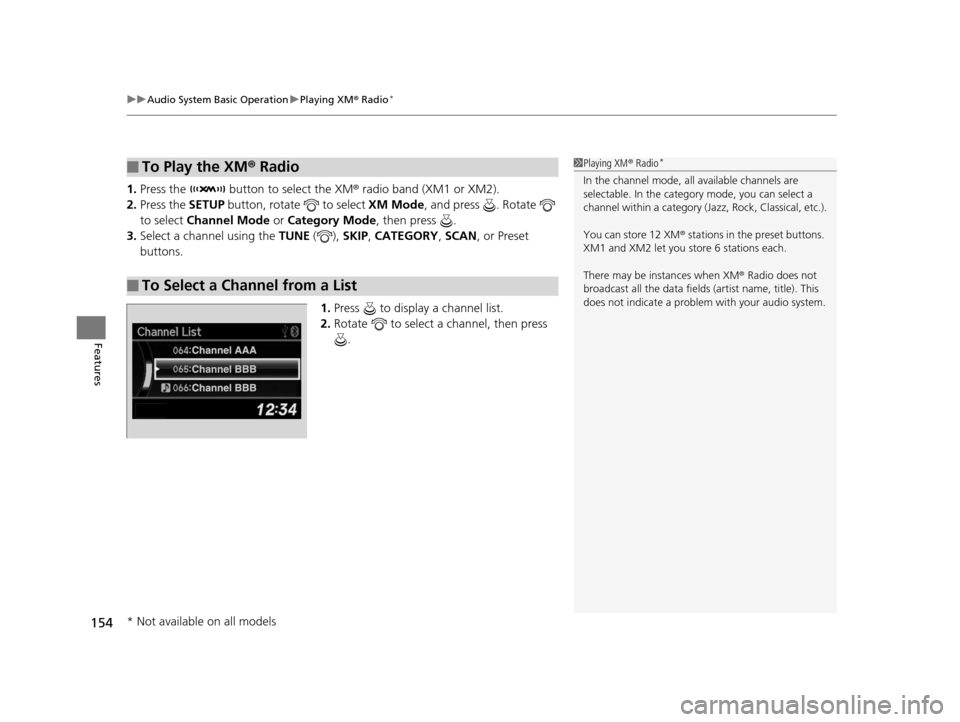
1. Press the button to select the XM ® radio band (XM1 or XM2).
2. Press the SETUP button, rotate to select XM Mode, and press . Rotate
to select Channel Mode or Category Mode , then press .
3. Select a channel using the TUNE ( ), SKIP, CATEGORY , SCAN, or Preset
buttons.
1.Press to display a channel list.
2. Rotate to select a channel, then press
.
■To Play the XM ® Radio
■To Select a Channel from a List
1 Playing XM ® Radio*
In the channel mode, all available channels are
selectable. In the categor y mode, you can select a
channel within a ca tegory (Jazz, Rock, Classical, etc.).
You can store 12 XM ® stations in the preset buttons.
XM1 and XM2 let you store 6 stations each.
There may be instances when XM ® Radio does not
broadcast all the data fields (artist name, title). This
does not indicate a problem with your audio system.
* Not available on all models
15 ACURA ILX-31TX66200.book 154 ページ 2014年3月27日 木曜日 午前10時34分