Radio Acura ILX 2016 User Guide
[x] Cancel search | Manufacturer: ACURA, Model Year: 2016, Model line: ILX, Model: Acura ILX 2016Pages: 521, PDF Size: 24.09 MB
Page 188 of 521
187
uuAudio System Basic Operation uPlaying Internet Radio
Features
You can operate some of the Pandora menu items from your vehicle’s audio system.
The available items are:
• Station List (QuickMix is also available)
• Like
• Dislike
• Resume/Pause
• SKIP
• Bookmark This Song
• Bookmark This Artist
■Operating a menu item
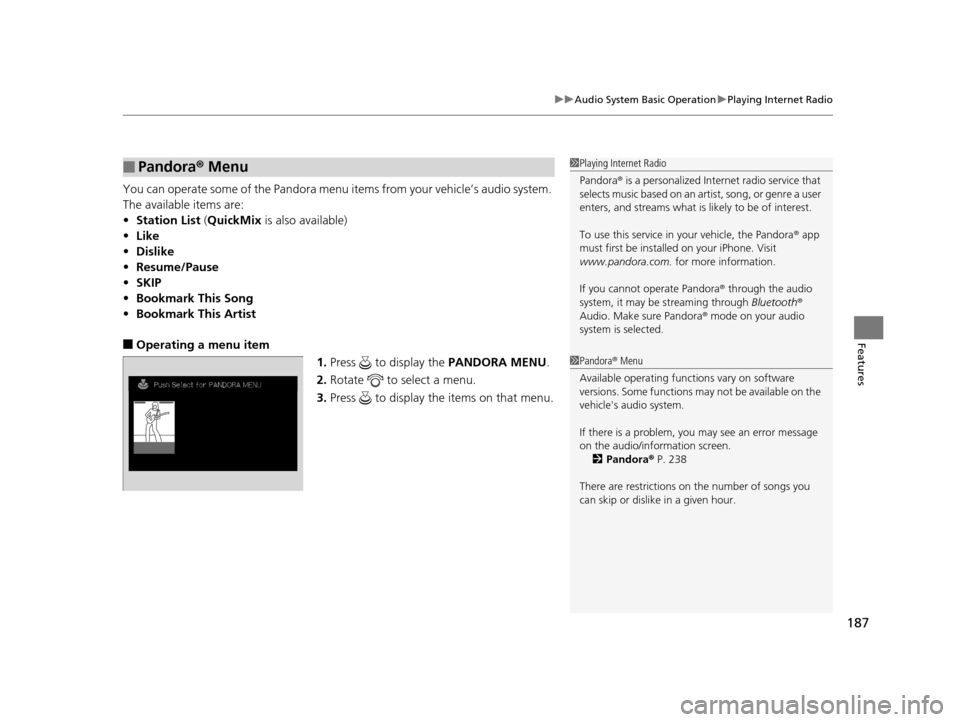
1.Press to display the PANDORA MENU.
2. Rotate to select a menu.
3. Press to display the items on that menu.
■Pandora ® Menu1 Playing Internet Radio
Pandora ® is a personalized Internet radio service that
selects music based on an artist, song, or genre a user
enters, and streams what is likely to be of interest.
To use this service in your vehicle, the Pandora ® app
must first be installe d on your iPhone. Visit
www.pandora.com. for more information.
If you cannot operate Pandora ® through the audio
system, it may be streaming through Bluetooth®
Audio. Make sure Pandora ® mode on your audio
system is selected.
1 Pandora ® Menu
Available operating functi ons vary on software
versions. Some functions ma y not be available on the
vehicle's audio system.
If there is a problem, you may see an error message
on the audio/information screen. 2 Pandora ® P. 238
There are restrictions on the number of songs you
can skip or dislike in a given hour.
16 ACURA ILX-31TX66300.book 187 ページ 2014年12月22日 月曜日 午後10時15分
Page 194 of 521
193
Features
Audio System Basic Operation
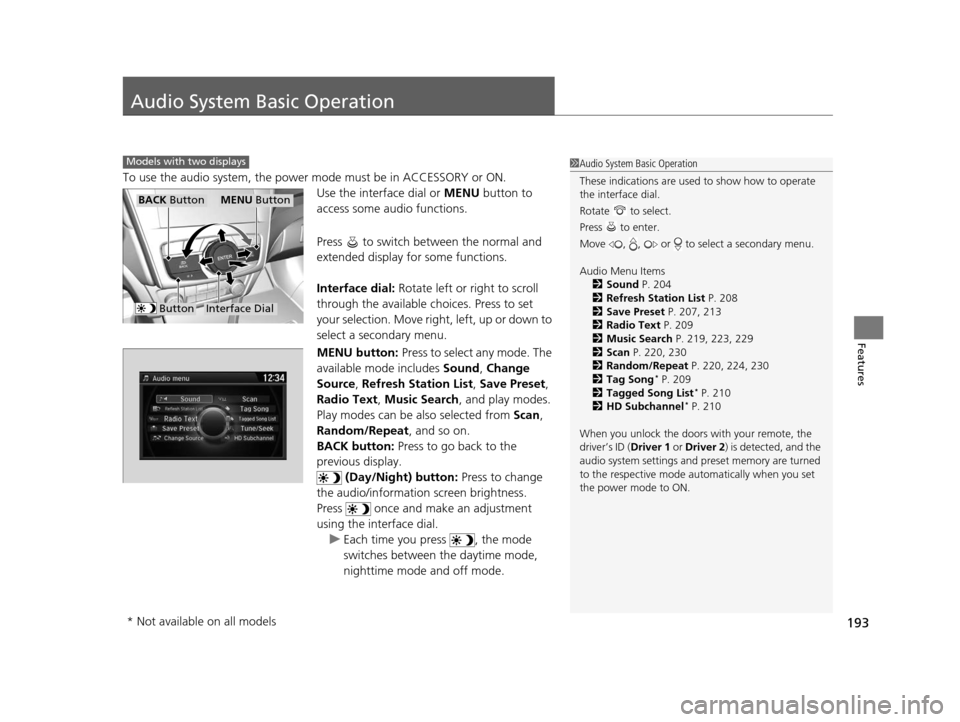
To use the audio system, the power mode must be in ACCESSORY or ON.Use the interface dial or MENU button to
access some audio functions.
Press to switch between the normal and
extended display fo r some functions.
Interface dial: Rotate left or right to scroll
through the available ch oices. Press to set
your selection. Move right, left, up or down to
select a secondary menu.
MENU button: Press to select any mode. The
available mode includes Sound, Change
Source , Refresh Station List , Save Preset,
Radio Text , Music Search , and play modes.
Play modes can be also selected from Scan,
Random/Repeat , and so on.
BACK button: Press to go back to the
previous display.
(Day/Night) button: Press to change
the audio/information screen brightness.
Press once and make an adjustment
using the interface dial. u Each time you press , the mode
switches between the daytime mode,
nighttime mode and off mode.
Models with two displays1Audio System Basic Operation
These indications are used to show how to operate
the interface dial.
Rotate to select.
Press to enter.
Move , , or to se lect a secondary menu.
Audio Menu Items 2 Sound P. 204
2 Refresh Station List P. 208
2 Save Preset P. 207, 213
2 Radio Text P. 209
2 Music Search P. 219, 223, 229
2 Scan P. 220, 230
2 Random/Repeat P. 220, 224, 230
2 Tag Song
* P. 209
2 Tagged Song List* P. 210
2 HD Subchannel* P. 210
When you unlock the doors with your remote, the
driver’s ID ( Driver 1 or Driver 2) is detected, and the
audio system settings and pr eset memory are turned
to the respective mode automatically when you set
the power mode to ON.
Interface Dial
MENU ButtonBACK Button
Button
* Not available on all models
16 ACURA ILX-31TX66300.book 193 ページ 2014年12月22日 月曜日 午後10時15分
Page 199 of 521
uuAudio System Basic Operation uOn Demand Multi-Use DisplayTM
198
Features
■Audio
You can store up to six radio stations when playing AM, FM, or SiriusXM ® Radio.
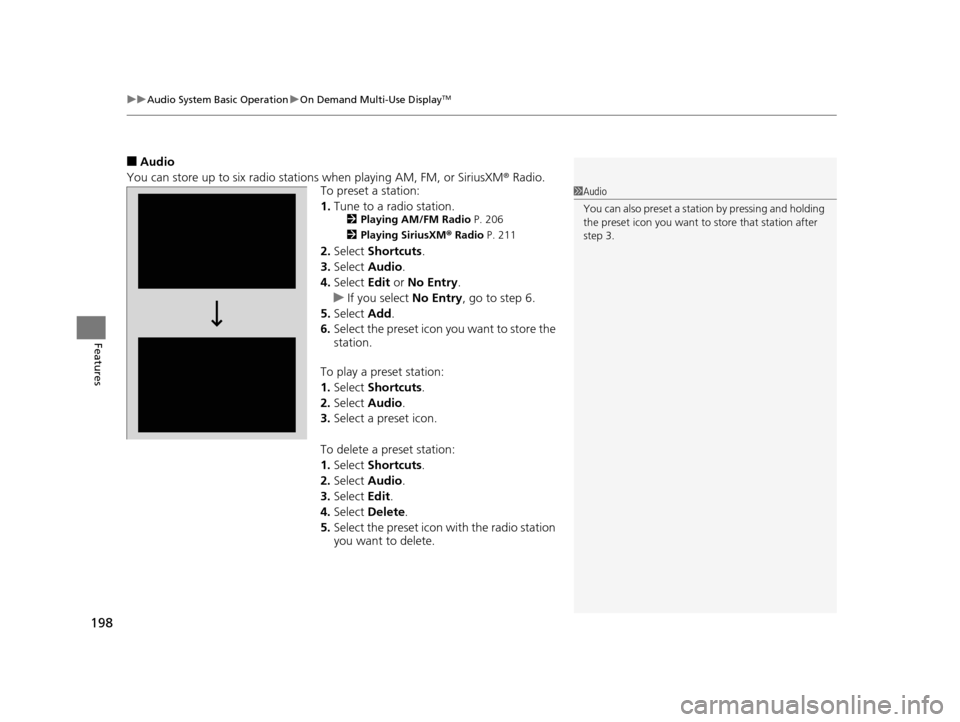
To preset a station:
1. Tune to a radio station.
2 Playing AM/FM Radio P. 206
2 Playing SiriusXM ® Radio P. 211
2.Select Shortcuts .
3. Select Audio .
4. Select Edit or No Entry .
u If you select No Entry, go to step 6.
5. Select Add.
6. Select the preset icon you want to store the
station.
To play a preset station:
1. Select Shortcuts .
2. Select Audio .
3. Select a preset icon.
To delete a preset station:
1. Select Shortcuts .
2. Select Audio .
3. Select Edit.
4. Select Delete.
5. Select the preset icon with the radio station
you want to delete.
1Audio
You can also preset a stat ion by pressing and holding
the preset icon you want to store that station after
step 3.
16 ACURA ILX-31TX66300.book 198 ページ 2014年12月22日 月曜日 午後10時15分
Page 207 of 521
206
uuAudio System Basic Operation uPlaying AM/FM Radio
Features
Playing AM/FM Radio
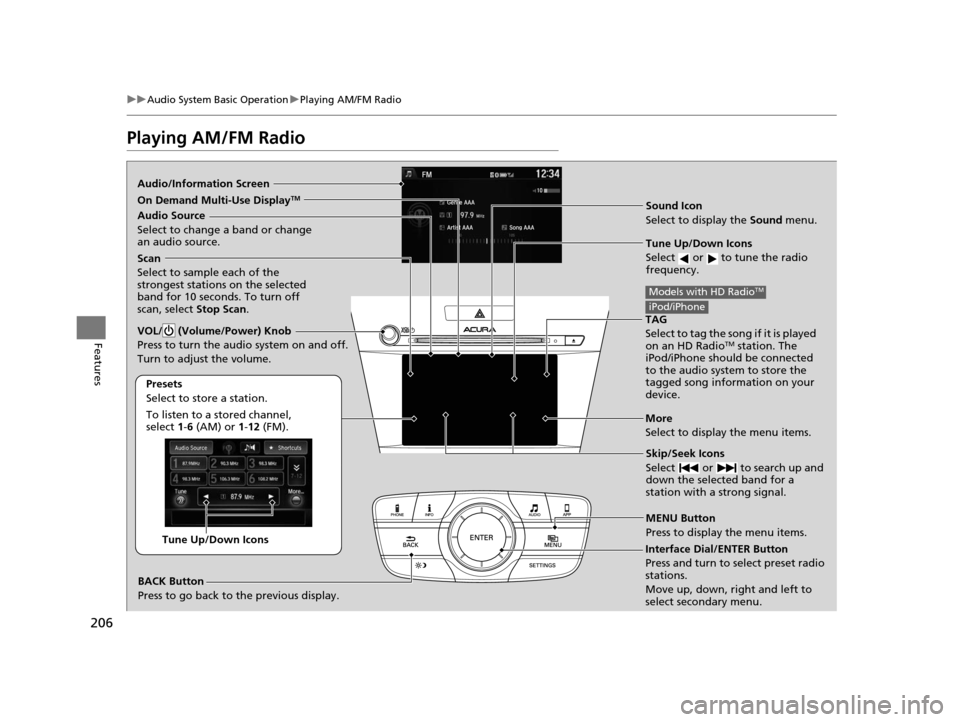
Audio/Information Screen
Sound Icon
Select to display the Sound menu.
Tune Up/Down Icons
Select or to tune the radio
frequency.
MENU Button
Press to display the menu items.
Audio Source
Select to change a band or change
an audio source.
To listen to a stored channel,
select 1-6 (AM) or 1-12 (FM).
Presets
Select to store a station.
Skip/Seek Icons
Select or to search up and
down the selected band for a
station with a strong signal.More
Select to display the menu items.
BACK Button
Press to go back to the previous display.
VOL/ (Volume/Power) Knob
Press to turn the audio system on and off.
Turn to adjust the volume.
Interface Dial/ENTER Button
Press and turn to select preset radio
stations.
Move up, down, right and left to
select secondary menu.Tune Up/Down Icons
Scan
Select to sample each of the
strongest stations on the selected
band for 10 seconds. To turn off
scan, select Stop Scan.
TAG
Select to tag the song if it is played
on an HD Radio
TM station. The
iPod/iPhone should be connected
to the audio system to store the
tagged song information on your
device.
Models with HD RadioTM
iPod/iPhone
On Demand Multi-Use DisplayTM
16 ACURA ILX-31TX66300.book 206 ページ 2014年12月22日 月曜日 午後10時15分
Page 208 of 521
Continued207
uuAudio System Basic Operation uPlaying AM/FM Radio
Features
To store a station:
1. Tune to the desired station.
2. Move to select Preset tab.
3. Rotate to select the preset number you want to store the station.
4. Press and hold for a few seconds.
You can also store a station by the following procedure.
1. Tune to the desired station.
2. Press the MENU button.
3. Rotate to select Save Preset, then press .
4. Rotate to select the preset number you want to store that station, then press
.
1. Tune to the desired station.
2. Change the display to the preset screen.
3. Select and hold the preset number you want to store that station.
You can also store a station by the following procedure.
1. Tune to the desired station.
2. Select More.
3. Select Save Preset .
4. Select the preset number you want to store that station.
■Preset Memory1Playing AM/FM Radio
The ST indicator appears on the display indicating
stereo FM broadcasts.
Stereo reproduction in AM is not available.
Switching the Audio Mode
Press the MODE button on the steering wheel.
2 Audio Remote Controls P. 170
You can also switch the mode by pressing the MENU
button and selecting Change Source on the Audio
menu screen.
You can store 6 AM stations and 12 FM stations into
the preset memory.
HD Radio Technology manufactured under license
from iBiquity Digital Cor poration. U.S. and Foreign
Patents. HD Radio
TM and the HD, HD Radio, and
“Arc” logos are proprietary trademarks of iBiquity
Digital Corp.
Interface Dial
On Demand Multi-Use DisplayTM
16 ACURA ILX-31TX66300.book 207 ページ 2014年12月22日 月曜日 午後10時15分
Page 209 of 521
208
uuAudio System Basic Operation uPlaying AM/FM Radio
Features
Provides text data information related to your selected RDS-capable FM station.
■To find an RDS station from Station List
1. Rotate to select the station, then press .
■Manual update
Updates your available station list at any time.
1. Rotate to select Refresh, then press .
You can also update a station by the following procedure.
1. Press the MENU button while listening to an FM station.
2. Rotate to select Refresh Station List , then press .
■Radio Data System (RDS)
16 ACURA ILX-31TX66300.book 208 ページ 2014年12月22日 月曜日 午後10時15分
Page 210 of 521
209
uuAudio System Basic Operation uPlaying AM/FM Radio
Continued
Features
■Radio text
Display the radio text information of the selected RDS station.
1. Press the MENU button.
2. Rotate to select Radio Text, then press .
■Scan
Samples each of the strongest stations on the selected band for 10 seconds.
1. Press the MENU button.
2. Rotate to select Scan, then press .
To turn off scan, press to select Stop Scan, or press the BACK button.
1. Select More.
2. Select Scan.
To turn off scan, select Stop Scan.
■Tag song to device
If your a iPhone/iPod is connected to the USB port you can store the TAG
information.
If the iPod/iPhone is not connected to the audio system, the information is stored in
the audio unit temporarily, then once the de vice is connected to the system, data is
transferred to the iPod/iPhone.
To store the TAG information to th e iPod/iPhone, or the audio system:
1. Press the MENU button.
2. Rotate to select Tag Song, then press .
3. Select the song for which you wa nt to save the information.
Interface Dial
On Demand Multi-Use DisplayTM
Models with HD RadioTM
16 ACURA ILX-31TX66300.book 209 ページ 2014年12月22日 月曜日 午後10時15分
Page 211 of 521
210
uuAudio System Basic Operation uPlaying AM/FM Radio
Features
■Tagged song list
Displays the TAG information saved to the audio system.
1. Press the MENU button.
2. Rotate to select Tagged Song List, then press .
■HD subchannel
Displays the subchannel list when an HD RadioTM station is selected.
1. Press the MENU button.
2. Rotate to select HD Subchannel, then press .
3. Rotate to select a channel from a list, then press .
Select the or when the subchannel number is displayed.
You can also select the channe l by the following procedure.
1. Select More.
2. Select HD Subchannel .
3. Select the channel number.
Interface Dial
On Demand Multi-Use DisplayTM
16 ACURA ILX-31TX66300.book 210 ページ 2014年12月22日 月曜日 午後10時15分
Page 212 of 521
211
uuAudio System Basic Operation uPlaying SiriusXM ® Radio
Continued
Features
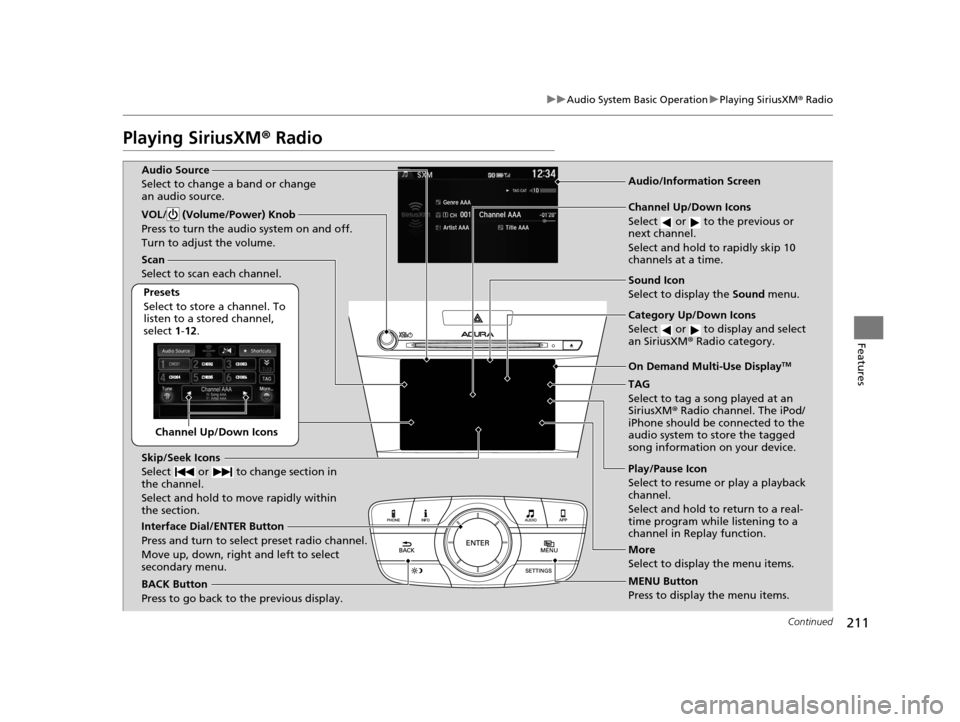
Playing SiriusXM® Radio
Channel Up/Down Icons
Scan
Select to scan each channel.
Presets
Select to store a channel. To
listen to a stored channel,
select 1-12.
Skip/Seek Icons
Select or to change section in
the channel.
Select and hold to move rapidly within
the section.
Interface Dial/ENTER Button
Press and turn to select preset radio channel.
Move up, down, right and left to select
secondary menu.
BACK Button
Press to go back to the previous display. Channel Up/Down Icons
Select or to the previous or
next channel.
Select and hold to rapidly skip 10
channels at a time.
Category Up/Down Icons
Select or to display and select
an SiriusXM
® Radio category.
TAG
Select to tag a song played at an
SiriusXM ® Radio channel. The iPod/
iPhone should be connected to the
audio system to store the tagged
song information on your device.
Play/Pause Icon
Select to resume or play a playback
channel.
Select and hold to return to a real-
time program while listening to a
channel in Replay function.
MENU Button
Press to display the menu items.
VOL/ (Volume/Power) Knob
Press to turn the audio system on and off.
Turn to adjust the volume.
More
Select to display the menu items.
Audio/Information ScreenAudio Source
Select to change a band or change
an audio source.
Sound Icon
Select to display the
Sound menu.
On Demand Multi-Use DisplayTM
16 ACURA ILX-31TX66300.book 211 ページ 2014年12月22日 月曜日 午後10時15分
Page 213 of 521
uuAudio System Basic Operation uPlaying SiriusXM ® Radio
212
Features
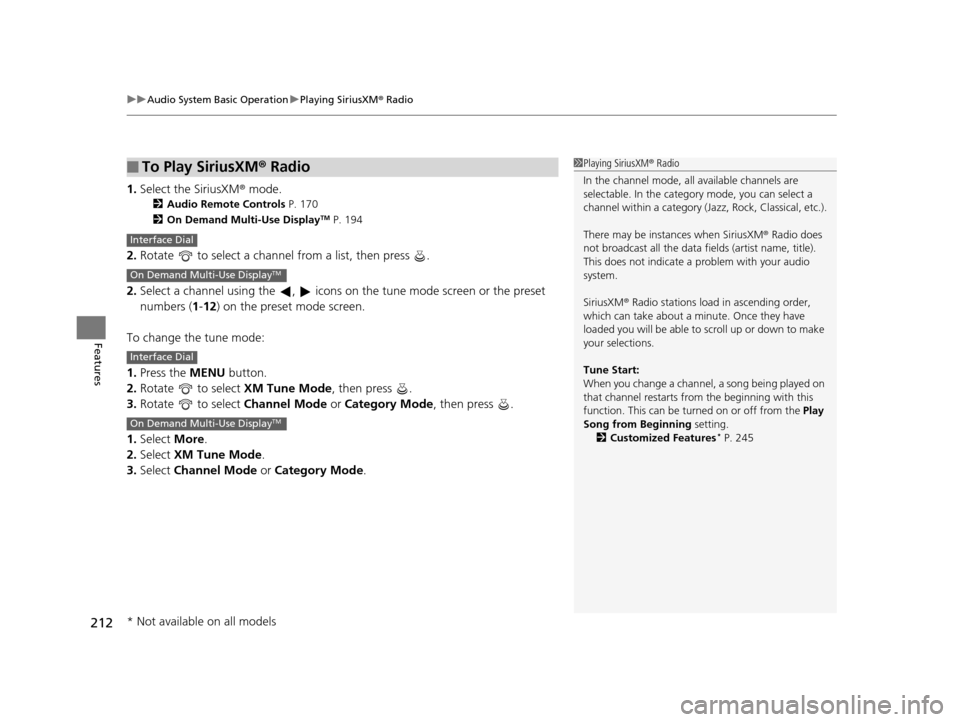
1. Select the SiriusXM® mode.
2 Audio Remote Controls P. 170
2 On Demand Multi-Use DisplayTM P. 194
2.Rotate to select a channel from a list, then press .
2. Select a channel using the , icons on the tune mode screen or the preset
numbers ( 1-12 ) on the preset mode screen.
To change the tune mode:
1. Press the MENU button.
2. Rotate to select XM Tune Mode, then press .
3. Rotate to select Channel Mode or Category Mode , then press .
1. Select More.
2. Select XM Tune Mode .
3. Select Channel Mode or Category Mode .
■To Play SiriusXM ® Radio1 Playing SiriusXM ® Radio
In the channel mode, all available channels are
selectable. In the categor y mode, you can select a
channel within a ca tegory (Jazz, Rock, Classical, etc.).
There may be instances when SiriusXM ® Radio does
not broadcast all the data fi elds (artist name, title).
This does not indicate a problem with your audio
system.
SiriusXM ® Radio stations load in ascending order,
which can take about a minute. Once they have
loaded you will be able to scroll up or down to make
your selections.
Tune Start:
When you change a channel, a song being played on
that channel restarts from the beginning with this
function. This can be turned on or off from the Play
Song from Beginning setting. 2 Customized Features
* P. 245
Interface Dial
On Demand Multi-Use DisplayTM
Interface Dial
On Demand Multi-Use DisplayTM
* Not available on all models
16 ACURA ILX-31TX66300.book 212 ページ 2014年12月22日 月曜日 午後10時15分