Radio Acura ILX 2016 Owner's Guide
[x] Cancel search | Manufacturer: ACURA, Model Year: 2016, Model line: ILX, Model: Acura ILX 2016Pages: 521, PDF Size: 24.09 MB
Page 214 of 521
Continued213
uuAudio System Basic Operation uPlaying SiriusXM ® Radio
Features
To store a channel:
1. Tune to the selected channel with channel list tab.
2. Move to select Preset tab.
3. Rotate to select the preset number you want to store the channel.
4. Press and hold for a few seconds.
You can also store a channel in the following steps.
1. Tune to the selected channel.
2. Press the MENU button.
3. Rotate to select Save Preset, then press .
4. Rotate to select the preset number you want to store that channel, then press
.
1. Tune to the selected channel.
2. Change the display to the preset screen.
3. Select and hold the preset number you want to store that channel.
You can also store a channel in the following steps.
1. Tune to the selected channel.
2. Select More.
3. Select Save Preset .
4. Select the preset number you want to store that channel.
■Preset Memory1Playing SiriusXM ® Radio
You can store 12 SiriusXM ® channels into the preset
memory.
Interface Dial
On Demand Multi-Use DisplayTM
16 ACURA ILX-31TX66300.book 213 ページ 2014年12月22日 月曜日 午後10時15分
Page 215 of 521
uuAudio System Basic Operation uPlaying SiriusXM ® Radio
214
Features
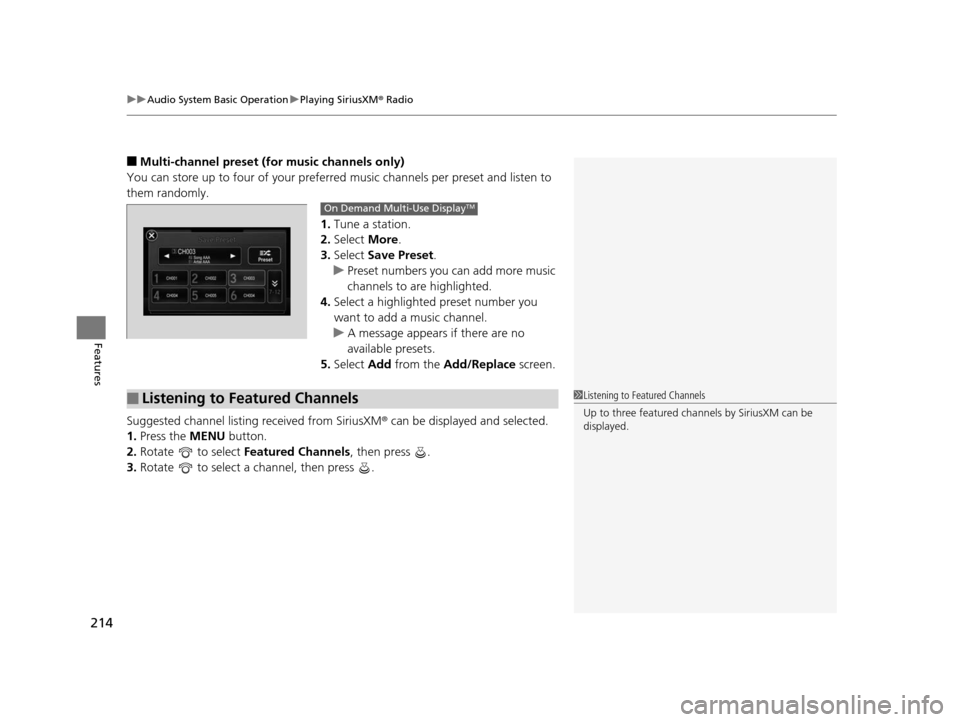
■Multi-channel preset (for music channels only)
You can store up to four of your preferred music channels per preset and listen to
them randomly.
1.Tune a station.
2. Select More.
3. Select Save Preset.
u Preset numbers you can add more music
channels to are highlighted.
4. Select a highlighted preset number you
want to add a music channel.
u A message appears if there are no
available presets.
5. Select Add from the Add/Replace screen.
Suggested channel listing received from SiriusXM ® can be displayed and selected.
1. Press the MENU button.
2. Rotate to select Featured Channels , then press .
3. Rotate to select a channel, then press .
On Demand Multi-Use DisplayTM
■Listening to Featured Channels1Listening to Featured Channels
Up to three featured cha nnels by SiriusXM can be
displayed.
16 ACURA ILX-31TX66300.book 214 ページ 2014年12月22日 月曜日 午後10時15分
Page 216 of 521
Continued215
uuAudio System Basic Operation uPlaying SiriusXM ® Radio
Features
The system constantly records up to the last 60 minutes of your currently tuned
channel and all the preset channel broadc ast, starting from the moment you turn
the power mode to ON. You can rewind and replay the last 60 minutes of each
broadcast.
1. Press the MENU button.
2. Rotate to select Playback, then press .
3. Rotate to select a channel then press .
To play or pause in playback mode:
Select icon.
1. Press the MENU button.
2. Rotate to select Play/Pause, then press .
■Returning to real-time broadcast
Select and hold the icon or select More then, select Go to Live.
1. Press the MENU button.
2. Rotate to select Go to Live, then press .
■Replay Function1Replay Function
The system starts storing broadcast in memory when
the power mode is turned ON. You can go back to
the program from that point.
You can no longer repl ay any program once the
power mode is turned OFF as it erases memory.
You can check how long the program has been
stored in memory from th e audio/information screen.
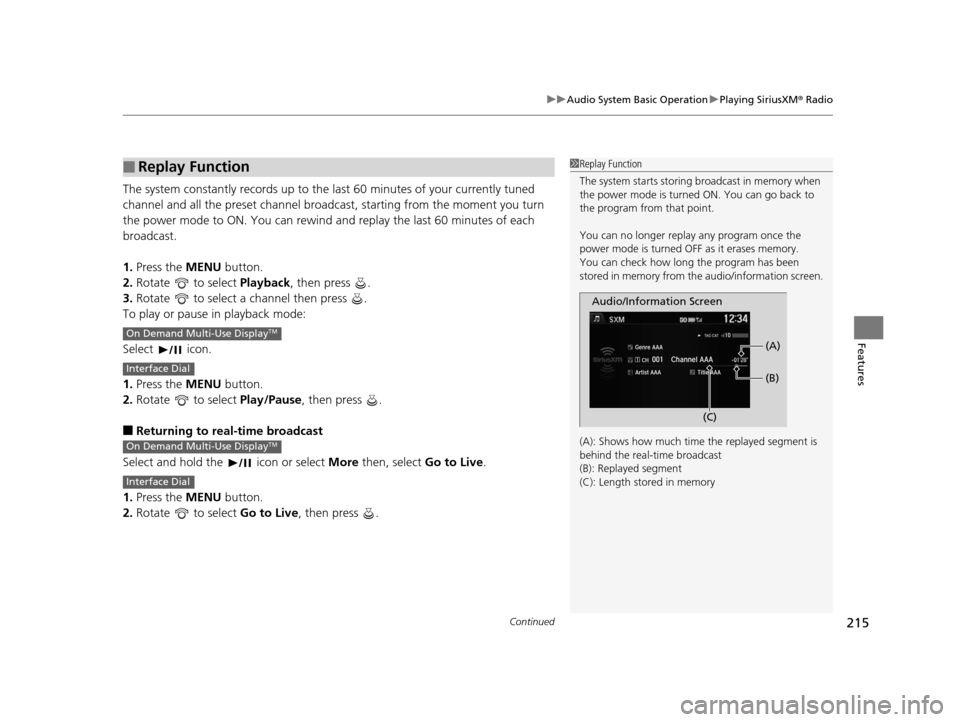
(A): Shows how much time the replayed segment is
behind the real-time broadcast
(B): Replayed segment
(C): Length stored in memory
Audio/Information Screen (C)(B) (A)
On Demand Multi-Use DisplayTM
Interface Dial
On Demand Multi-Use DisplayTM
Interface Dial
16 ACURA ILX-31TX66300.book 215 ページ 2014年12月22日 月曜日 午後10時15分
Page 217 of 521
uuAudio System Basic Operation uPlaying SiriusXM ® Radio
216
Features
While listening to other channels you can re ceive sports alerts such as scores from
your favorite teams.
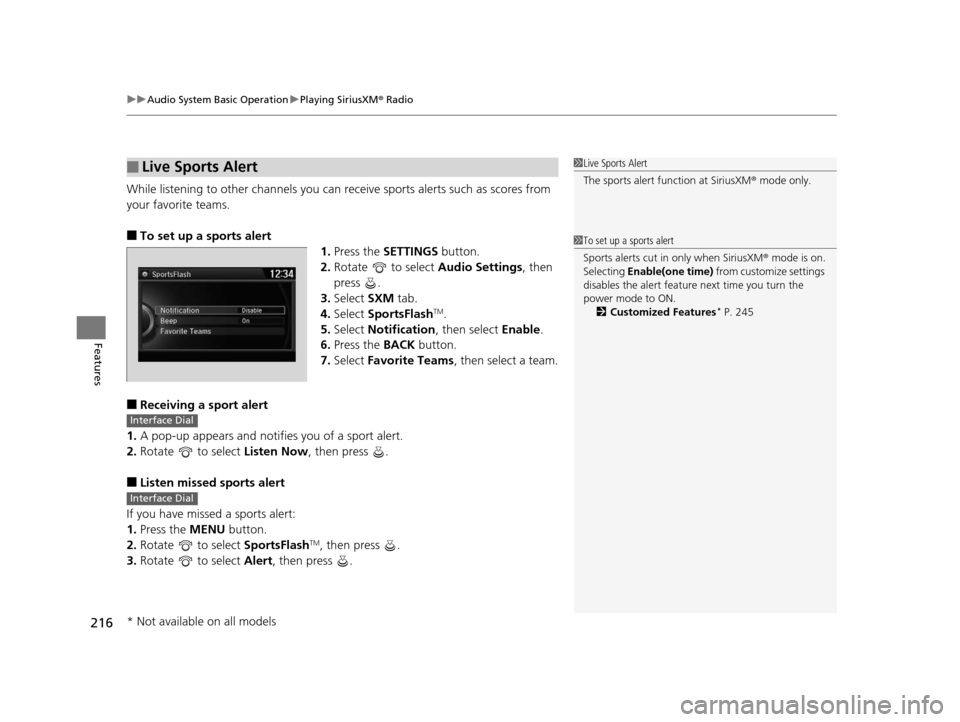
■To set up a sports alert 1.Press the SETTINGS button.
2. Rotate to select Audio Settings, then
press .
3. Select SXM tab.
4. Select SportsFlash
TM.
5. Select Notification , then select Enable.
6. Press the BACK button.
7. Select Favorite Teams , then select a team.
■Receiving a sport alert
1. A pop-up appears and notifies you of a sport alert.
2. Rotate to select Listen Now, then press .
■Listen missed sports alert
If you have missed a sports alert:
1. Press the MENU button.
2. Rotate to select SportsFlash
TM, then press .
3. Rotate to select Alert, then press .
■Live Sports Alert1Live Sports Alert
The sports alert function at SiriusXM ® mode only.
1 To set up a sports alert
Sports alerts cut in only when SiriusXM ® mode is on.
Selecting Enable(one time) from customize settings
disables the alert feature next time you turn the
power mode to ON. 2 Customized Features
* P. 245
Interface Dial
Interface Dial
* Not available on all models
16 ACURA ILX-31TX66300.book 216 ページ 2014年12月22日 月曜日 午後10時15分
Page 218 of 521
217
uuAudio System Basic Operation uPlaying SiriusXM ® Radio
Features
Sample each channel on the selected mode for 10 seconds.
1. Press the MENU button.
2. Rotate to select Scan, then press .
3. Rotate to select an item, then press .
To turn off scan, press to select Stop Scan, or press the BACK button.
1. Select More.
2. Select Scan.
To turn off scan, select Stop Scan.
If your iPhone/iPod is connected to the USB port you can store the TAG information.
If the iPod/iPhone is not connected to the audio system, the information is stored in
the audio unit temporarily. Once the device is connected to the system, data is
transferred to the iPod/iPhone.
To store the TAG information to th e iPod/iPhone, or the audio system:
1. Press the MENU button.
2. Rotate to select Tag Song, then press .
3. Select the song for which you wa nt to save the information.
Displays the TAG information saved to the audio system.
1. Press the MENU button.
2. Rotate to select Tagged Song List, then press .
■Scan
■Tag Song to Device
■Tagged Song List
1Scan
You can select desired channel by songs using Scan
Songs in presets.
The “Scan Songs in Preset s” function is based on
TuneScan
TM technology of SiriusXM ®.
The “Featured Channels ” function is based on
Featured Favorites
TM technology of SiriusXM ®.
TuneScan
TM and Featured FavoritesTM are registered
trademarks of SiriusXM ® Radio, Inc.
Interface Dial
On Demand Multi-Use DisplayTM
16 ACURA ILX-31TX66300.book 217 ページ 2014年12月22日 月曜日 午後10時15分
Page 226 of 521
225
uuAudio System Basic Operation uPlaying Internet Radio
Continued
Features
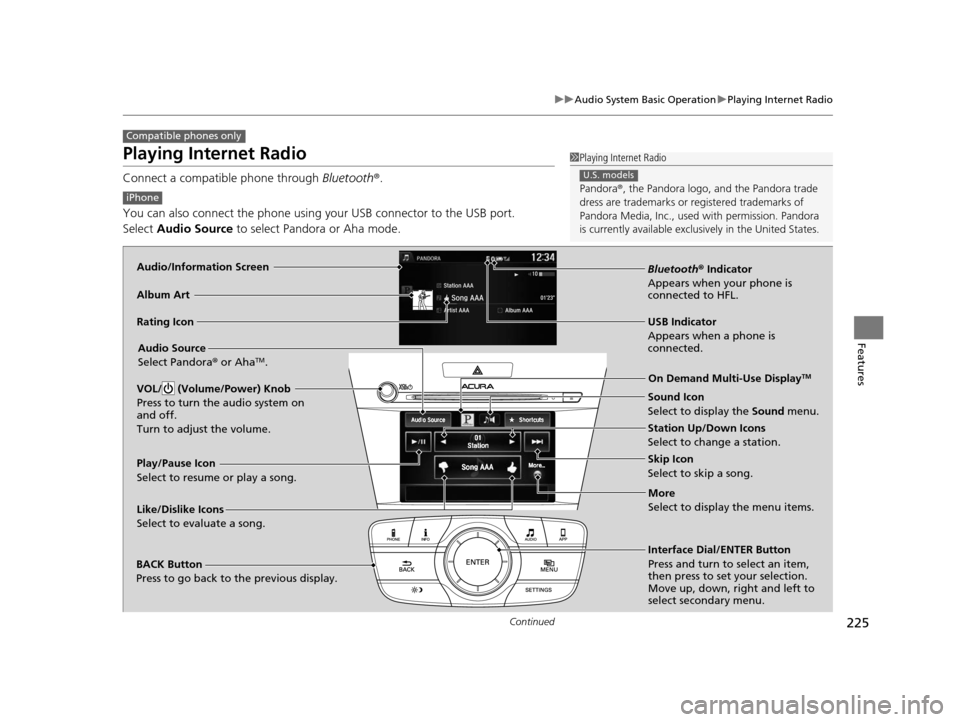
Playing Internet Radio
Connect a compatible phone through Bluetooth®.
You can also connect the phone using your USB connector to the USB port.
Select Audio Source to select Pandora or Aha mode.
Compatible phones only
1Playing Internet Radio
Pandora ®, the Pandora logo, and the Pandora trade
dress are trademarks or registered trademarks of
Pandora Media, Inc., used with permission. Pandora
is currently available exclusively in the United States.
U.S. models
iPhone
Audio/Information Screen
Album Art
USB Indicator
Appears when a phone is
connected.Rating Icon
BACK Button
Press to go back to the previous display.
Skip Icon
Select to skip a song.
More
Select to display the menu items.
Station Up/Down Icons
Select to change a station.
Audio Source
Select Pandora
® or Aha
TM.
Play/Pause Icon
Select to resume or play a song.
Like/Dislike Icons
Select to evaluate a song. Interface Dial/ENTER Button
Press and turn to select an item,
then press to set your selection.
Move up, down, right and left to
select secondary menu.On Demand Multi-Use Display
TM
Bluetooth
® Indicator
Appears when your phone is
connected to HFL.
VOL/ (Volume/Power) Knob
Press to turn the audio system on
and off.
Turn to adjust the volume.
Sound Icon
Select to display the Sound menu.
16 ACURA ILX-31TX66300.book 225 ページ 2014年12月22日 月曜日 午後10時15分
Page 227 of 521
uuAudio System Basic Operation uPlaying Internet Radio
226
Features
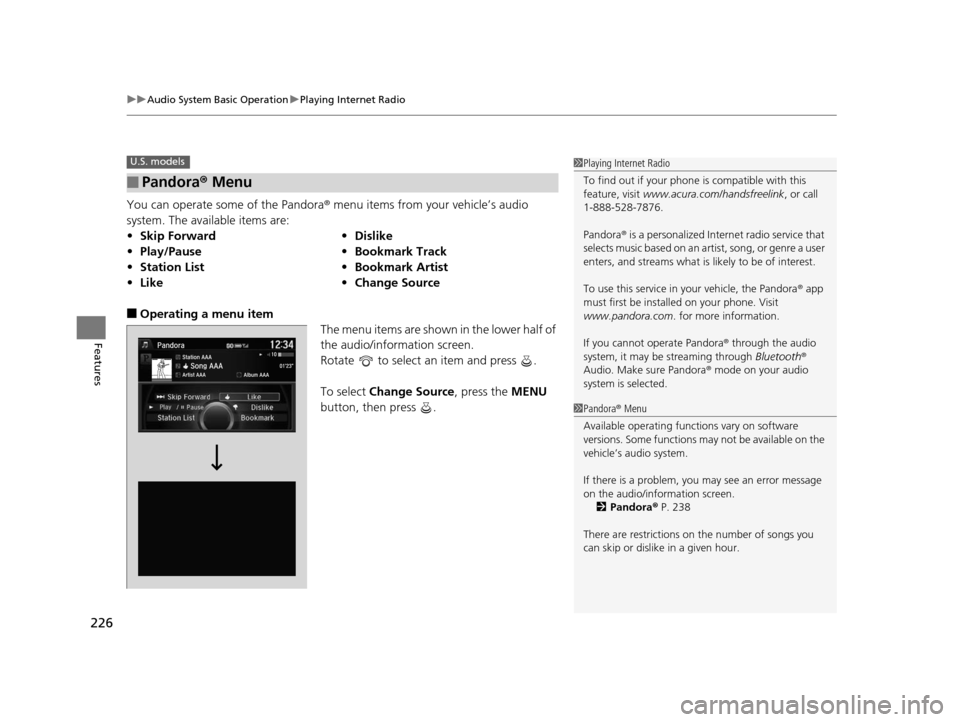
You can operate some of the Pandora ® menu items from your vehicle’s audio
system. The available items are:
■Operating a menu item The menu items are shown in the lower half of
the audio/information screen.
Rotate to select an item and press .
To select Change Source, press the MENU
button, then press .
■Pandora® Menu
•Skip Forward •Dislike
• Play/Pause •Bookmark Track
• Station List •Bookmark Artist
• Like •Change Source
U.S. models1Playing Internet Radio
To find out if your phone is compatible with this
feature, visit www.acura.com/handsfreelink , or call
1-888-528-7876.
Pandora ® is a personalized Internet radio service that
selects music based on an artist, song, or genre a user
enters, and streams what is likely to be of interest.
To use this service in your vehicle, the Pandora ® app
must first be installed on your phone. Visit
www.pandora.com . for more information.
If you cannot operate Pandora ® through the audio
system, it may be streaming through Bluetooth®
Audio. Make sure Pandora ® mode on your audio
system is selected.
1 Pandora ® Menu
Available operating functi ons vary on software
versions. Some functions ma y not be available on the
vehicle’s audio system.
If there is a problem, you may see an error message
on the audio/information screen.
2 Pandora ® P. 238
There are restrictions on the number of songs you
can skip or dislike in a given hour.
16 ACURA ILX-31TX66300.book 226 ページ 2014年12月22日 月曜日 午後10時15分
Page 228 of 521

227
uuAudio System Basic Operation uPlaying Internet Radio
Features
You can operate some of the AhaTM menu items from your vehicle’s audio system.
The available items are:
■Operating a menu item The menu items are shown in the lower half of
the audio/information screen.
Rotate to select an item and press .
To select Change Source or Stations , press
the MENU button, then press .
■AhaTM Radio Menu
•Like •Tracks
• Dislike •Reply
• Play/Pause •Change Source
• 15sec rewind •Stations
• 30sec Skip
1AhaTM Radio Menu
Aha
TM by Harman is a clou d-based service that
organizes your favorite we b content into live radio
stations. You can access podcasts, internet radio,
location-based services , and audio updates from
social media sites.
Available operating functi ons vary on software
versions. Some functions ma y not be available on the
vehicle’s audio system.
If there is a problem, you may see an error message
on the audio/information screen. 2 Aha
TM Radio P. 240
The menu items vary depending on the station you
selected.
To use this service in your vehicle, the AcuraLink app
must be installed on your phone. Visit
owners.acura.com/apps for more information.
You must have a previously set up Aha account prior
to using the service in your vehicle. Visit
www.aharadio.com for more information.
16 ACURA ILX-31TX66300.book 227 ページ 2014年12月22日 月曜日 午後10時15分
Page 241 of 521
240
uuAudio Error Messages uAhaTM Radio
Features
AhaTM Radio
If an error occurs while playing AhaTM Radio, you may see the following error
messages.
If you cannot clear the error message, contact a dealer.
Error MessageSolution
Cannot connect to aha. When stopped, check your mobile
device.Appears when the AhaTM app is not activated. Check your device.
Incompatible USB Device
Please Check Owner’s ManualAppears when an incompatible device is connected. Disconnect
the device. Then turn the audio syst em off, and turn it on again.
Do not reconnect the device that caused the error.
Models with two displays
16 ACURA ILX-31TX66300.book 240 ページ 2014年12月22日 月曜日 午後10時15分
Page 242 of 521
241
Features
General Information on the Audio System
SiriusXM® Radio Service*
1.You need your radio ID ready before regist ering for subscription. To see the ID in
the On Demand Multi-Use DisplayTM, select CH 000 and the radio ID appears.
2. Have your radio ID and credit card numb er ready, and either call or visit the
SiriusXM ® website to subscribe.
Switch to the SiriusXM ® mode by pressing the MODE button repeatedly or
operating the On Demand Multi-Use Display
TM, and stay in this mode for about 30
minutes until the service is activated. Make su re your vehicle is in an open area with
good reception.
Loading:
SiriusXM ® is loading the audio or program information.
Ch off air:
The channel is not currently broadcasting.
Ch unauthorized:
SiriusXM ® radio is receiving informat ion update from the network.
No signal:
The signal is too weak in the current location.
Ch unavailable:
No such channel exists, the channel is not part of your subscription, or the artist or
title information is unavailable.
Check antenna:
There is a problem with the SiriusXM ® antenna. Contact a dealer.
■Subscribing to SiriusXM® Radio
■Receiving SiriusXM ® Radio
■SiriusXM ® Radio Display Messages
1 Subscribing to SiriusXM ® Radio
Contact Information for SiriusXM ® Radio:
US: SiriusXM ® Radio at www.siriusxm.com or 1-800-
852-9696
Canada: SiriusXM ® Canada at www.xmradio.ca , or
1-877-209-0079
1 Receiving SiriusXM ® Radio
The SiriusXM ® satellites are in orbit over the equator;
therefore, objects south of the vehicle may cause
satellite rece ption interruptions. Sa tellite signals are
more likely to be blocked by tall buildings and
mountains the farther north you travel from the
equator.
You may experience rece ption problems under the
following circumstances:
•In a location with an obstruction to the south of
your vehicle.
•In tunnels
•On the lower level of a multi-tiered road
•Large items carried on the roof rack
* Not available on all models
16 ACURA ILX-31TX66300.book 241 ページ 2014年12月22日 月曜日 午後10時15分