audio Acura ILX 2016 User Guide
[x] Cancel search | Manufacturer: ACURA, Model Year: 2016, Model line: ILX, Model: Acura ILX 2016Pages: 521, PDF Size: 24.09 MB
Page 122 of 521

121
uuLocking and Unlocking the Doors uAuto Door Locking/Unlocking
Controls
Auto Door Locking/Unlocking
Your vehicle locks all doors and unlocks the driver’s door automatically when a
certain condition is met.
■Drive lock mode
All doors lock when the vehicle’s speed reaches about 10 mph (15 km/h).
■Driver’s door open mode
All doors unlock when the driver’s door is opened.
■Auto Door Locking
■Auto Door Unlocking
1 Auto Door Locking/Unlocking
You can turn off or cha nge to another auto door
locking/unlocking sett ing using the audio/
information screen or mu lti-information display.
2 Customized Features P. 97, 245
16 ACURA ILX-31TX66300.book 121 ページ 2014年12月22日 月曜日 午後10時15分
Page 134 of 521

133Continued
Controls
Operating the Switches Around the Steering Wheel
ENGINE START/STOP Button
■Changing the Power Mode1ENGINE START/STOP Button
ENGINE START/STOP Button Operating Range
You can start the engine when the keyless access
remote is inside the vehicle.
The engine may also run if the keyless access remote
is close to the door or window, even if it is outside the
vehicle.
ON mode:
Indicator in the button is of f, if the engine is running.
If the keyless access remote battery is weak, beeper
sounds and the To Start, Hold Remote Near Start
Button message appears on the multi-information
display. 2 If the Keyless Access Remote Battery is
Weak P. 483
Operating RangeVEHICLE OFF (LOCK)
Indicator in the button is off.
The power to all electrical
components is turned off.
Press the button without the shift
lever in
( P.
Shift to
( P then press the button. Press the button.
Without pressing
the brake pedal ACCESSORY
Indicator in the button is on.
Indicator in the button blinks
(from ON to ACCESSORY).
Operate the audio system and
other accessories in this position.
ON
Indicator in the button is on.
All electrical components can be
used.
IndicatorShift to (
P.
16 ACURA ILX-31TX66300.book 133 ページ 2014年12月22日 月曜日 午後10時15分
Page 145 of 521

144
uuOperating the Switches Around the Steering Wheel uDriving Position Memory System*
Controls
Driving Position Memory System*
You can store two driver’s seat positions with the driving position memory system.
When you unlock and open th e driver’s door with a remote transmitter, or keyless
access system, the seat adjust automatica lly to one of the two preset positions.
The multi-information display shows you which remote transmitter you used to
unlock the vehicle when you enter.
• DRIVER 1 transmitter is linked to memory button 1.
• DRIVER 2 transmitter is linked to memory button 2.1Driving Position Memory System*
Using the audio/information screen or multi-
information display, you can disable the automatic
seat adjustment function. 2 Customized Features P. 97, 245
DRIVER 1 DRIVER 2
* Not available on all models
16 ACURA ILX-31TX66300.book 144 ページ 2014年12月22日 月曜日 午後10時15分
Page 166 of 521
165
Features
This chapter describes how to operate technology features.
Audio System.................................... 166
USB Adapter Cable*........................ 167
Auxiliary Input Jack*........................ 167
Audio System Theft Protection ......... 169
Audio Remote Controls .................... 170
Audio System Basic Operation ........ 171
Audio/Information Screen ................ 172
Playing AM/FM Radio ....................... 178
Playing a CD .................................... 180
Playing an iPod ................................ 183
Playing Internet Radio ...................... 186
Playing a USB Flash Drive ................. 188
Models with one display
Playing Bluetooth ® Audio................. 191
Audio System Basic Operation ........ 193
On Demand Multi-Use Display
TM...... 194
Audio/Information Screen ................ 200
Display Setup ................................... 205
Playing AM/FM Radio ....................... 206
Playing SiriusXM ® Radio ................... 211
Playing a CD .................................... 218
Playing an iPod ................................ 221
Playing Internet Radio ...................... 225
Playing a USB Flash Drive ................. 228
Playing Bluetooth ® Audio................. 231
Models with two displaysSmartphone Navi Apps .................... 233
Siri Eyes Free .................................... 234
Audio Error Messages ...................... 235
General Information on the Audio System.. 241Customized Features*..........................245HomeLink® Universal Transceiver*......266Bluetooth® HandsFreeLink®
Using HFL ........................................ 268
HFL Menus ...................................... 270
Using HFL ........................................ 297
HFL Menus ...................................... 299Models with one display
Models with two displays
* Not available on all models
16 ACURA ILX-31TX66300.book 165 ページ 2014年12月22日 月曜日 午後10時15分
Page 167 of 521
166
Features
Audio System
About Your Audio System
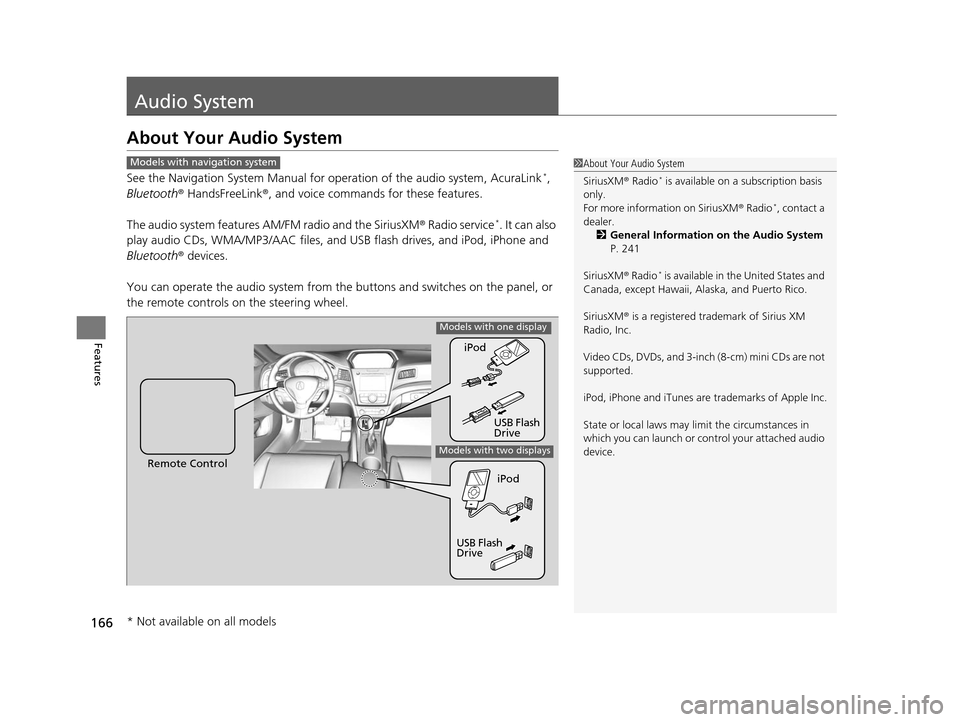
See the Navigation System Manual for operation of the audio system, AcuraLink*,
Bluetooth ® HandsFreeLink ®, and voice commands for these features.
The audio system features AM/FM radio and the SiriusXM ® Radio service
*. It can also
play audio CDs, WMA/MP3/AAC files, and USB flash drives, and iPod, iPhone and
Bluetooth ® devices.
You can operate the audio system from the buttons and switches on the panel, or
the remote controls on the steering wheel.
1About Your Audio System
SiriusXM ® Radio
* is available on a subscription basis
only.
For more information on SiriusXM ® Radio
*, contact a
dealer. 2 General Information on the Audio System
P. 241
SiriusXM ® Radio
* is available in the United States and
Canada, except Ha waii, Alaska, and Puerto Rico.
SiriusXM ® is a registered trademark of Sirius XM
Radio, Inc.
Video CDs, DVDs, and 3-inch (8-cm) mini CDs are not
supported.
iPod, iPhone and iTunes are trademarks of Apple Inc.
State or local laws may li mit the circumstances in
which you can launch or cont rol your attached audio
device.
Models with navigation system
Remote Control iPod
USB Flash
DriveiPod
USB Flash
Drive
Models with one display
Models with two displays
* Not available on all models
16 ACURA ILX-31TX66300.book 166 ページ 2014年12月22日 月曜日 午後10時15分
Page 168 of 521
167
uuAudio System uAuxiliary Input Jack*
Features
Auxiliary Input Jack*
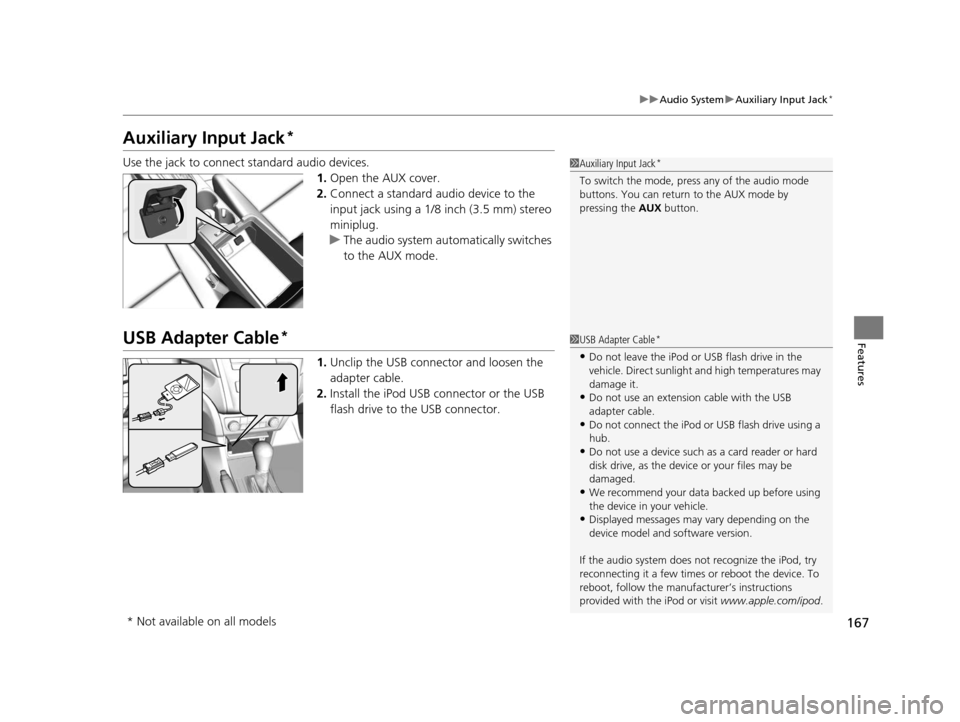
Use the jack to connect standard audio devices.
1.Open the AUX cover.
2. Connect a standard audio device to the
input jack using a 1/8 inch (3.5 mm) stereo
miniplug.
u The audio system auto matically switches
to the AUX mode.
USB Adapter Cable*
1. Unclip the USB connec tor and loosen the
adapter cable.
2. Install the iPod USB connector or the USB
flash drive to the USB connector.
1Auxiliary Input Jack*
To switch the mode, pres s any of the audio mode
buttons. You can return to the AUX mode by
pressing the AUX button.
1USB Adapter Cable*
•Do not leave the iPod or USB flash drive in the
vehicle. Direct sunlight and high temperatures may
damage it.
•Do not use an extension cable with the USB
adapter cable.
•Do not connect the iPod or USB flash drive using a
hub.
•Do not use a device such as a card reader or hard
disk drive, as the device or your files may be
damaged.
•We recommend your data backed up before using
the device in your vehicle.
•Displayed messages may vary depending on the
device model and software version.
If the audio system does not recognize the iPod, try
reconnecting it a few times or reboot the device. To
reboot, follow the manufac turer’s instructions
provided with the iPod or visit www.apple.com/ipod.
* Not available on all models
16 ACURA ILX-31TX66300.book 167 ページ 2014年12月22日 月曜日 午後10時15分
Page 169 of 521
168
uuAudio System uUSB Port*
Features
USB Port*
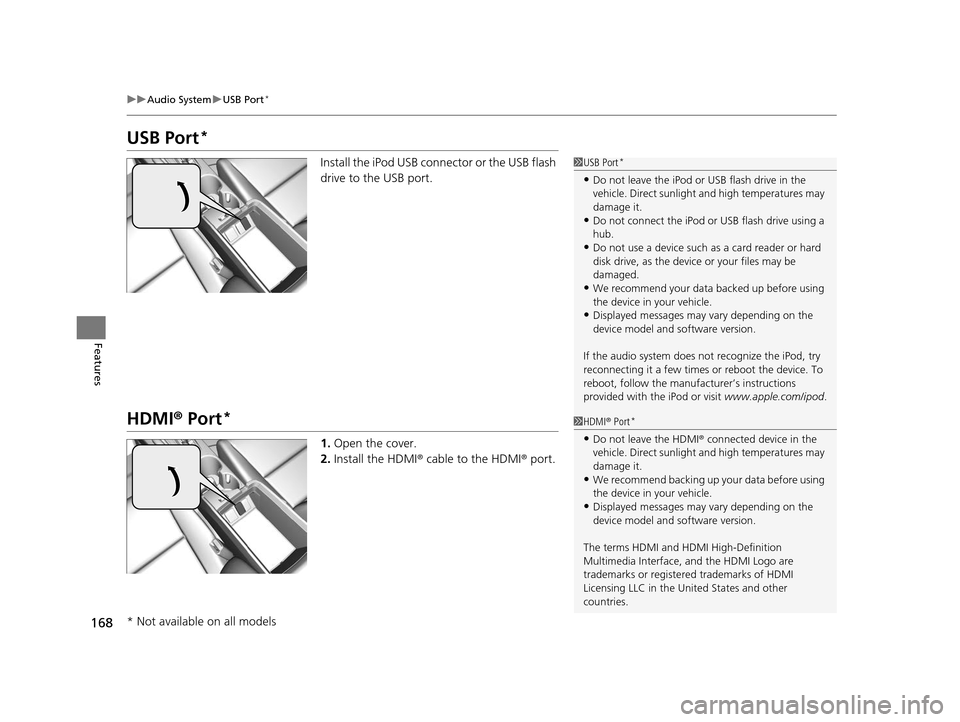
Install the iPod USB connector or the USB flash
drive to the USB port.
HDMI ® Port*
1. Open the cover.
2. Install the HDMI ® cable to the HDMI ® port.
1 USB Port*
•Do not leave the iPod or USB flash drive in the
vehicle. Direct sunlight and high temperatures may
damage it.
•Do not connect the iPod or USB flash drive using a
hub.
•Do not use a device such as a card reader or hard
disk drive, as the device or your files may be
damaged.
•We recommend your data backed up before using
the device in your vehicle.
•Displayed messages may vary depending on the
device model and software version.
If the audio system does not recognize the iPod, try
reconnecting it a few times or reboot the device. To
reboot, follow the manufac turer’s instructions
provided with the iPod or visit www.apple.com/ipod.
1HDMI ® Port*
•Do not leave the HDMI ® connected device in the
vehicle. Direct sunlight and high temperatures may
damage it.
•We recommend backing up yo ur data before using
the device in your vehicle.
•Displayed messages may vary depending on the
device model and software version.
The terms HDMI and HDMI High-Definition
Multimedia Interface, and the HDMI Logo are
trademarks or registered trademarks of HDMI
Licensing LLC in the United States and other
countries.
* Not available on all models
16 ACURA ILX-31TX66300.book 168 ページ 2014年12月22日 月曜日 午後10時15分
Page 170 of 521
169
uuAudio System uAudio System Theft Protection
Features
Audio System Theft Protection
The audio system is disabled when it is disconnected from the power source, such as
when the battery is disconnected or goes dead. In certain conditions, the system
may display ENTER CODE
*1/Enter code*2.
■Reactivating the audio system
1. Set the power mode to ON, and turn on the audio system.
2. Press and hold the power button again for more than two seconds.
u The audio system is reac tivated when the audio co ntrol unit establishes a
connection with the vehicl e control unit. If the control unit fails to recognize
the audio unit, you must go to a deal er and have the audio unit checked.
*1: Models with one display
*2: Models with two displays
16 ACURA ILX-31TX66300.book 169 ページ 2014年12月22日 月曜日 午後10時15分
Page 171 of 521
170
uuAudio System uAudio Remote Controls
Features
Audio Remote Controls
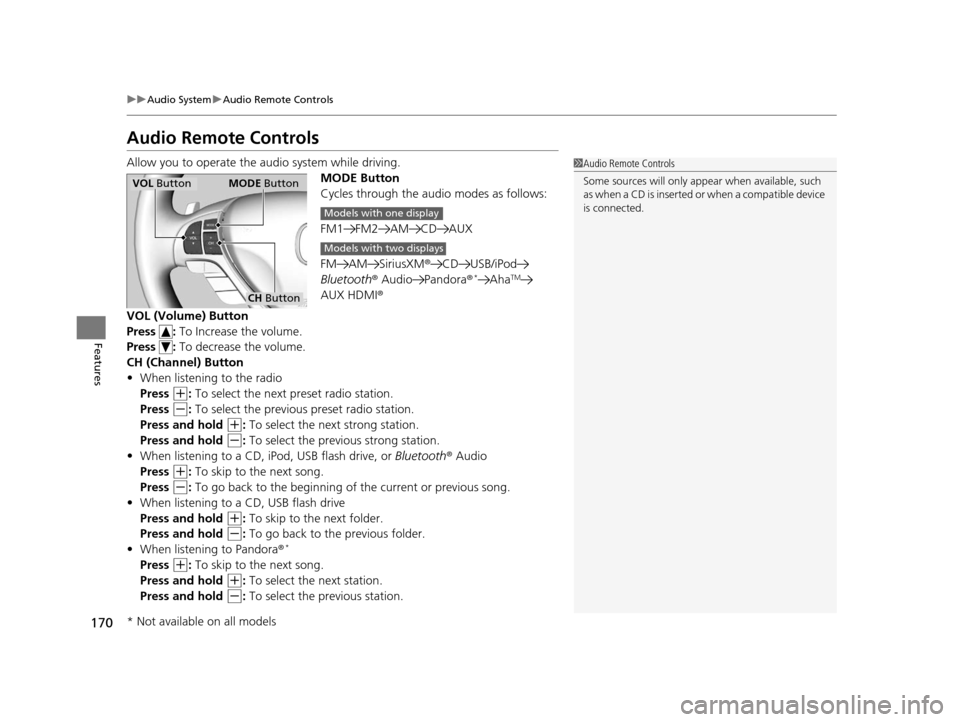
Allow you to operate the au dio system while driving.
MODE Button
Cycles through the audio modes as follows:
FM1 FM2 AM CD AUX
FM AM SiriusXM® CD USB/iPod
Bluetooth ® Audio Pandora ®
*AhaTM
AUX HDMI®
VOL (Volume) Button
Press : To Increase the volume.
Press : To decrease the volume.
CH (Channel) Button
• When listening to the radio
Press
(+: To select the next preset radio station.
Press
(-: To select the previous preset radio station.
Press and hold
(+: To select the next strong station.
Press and hold
(-: To select the prev ious strong station.
• When listening to a CD, iPod, USB flash drive, or Bluetooth® Audio
Press
(+: To skip to the next song.
Press
(-: To go back to the beginning of the current or previous song.
• When listening to a CD, USB flash drive
Press and hold
(+: To skip to the next folder.
Press and hold
(-: To go back to the previous folder.
• When listening to Pandora ®*
Press (+: To skip to the next song.
Press and hold
(+: To select the next station.
Press and hold
(-: To select the previous station.
1 Audio Remote Controls
Some sources will only appe ar when available, such
as when a CD is inserted or when a compatible device
is connected.
VOL Button MODE Button
CH Button
Models with one display
Models with two displays
* Not available on all models
16 ACURA ILX-31TX66300.book 170 ページ 2014年12月22日 月曜日 午後10時15分
Page 172 of 521
171
Features
Audio System Basic Operation
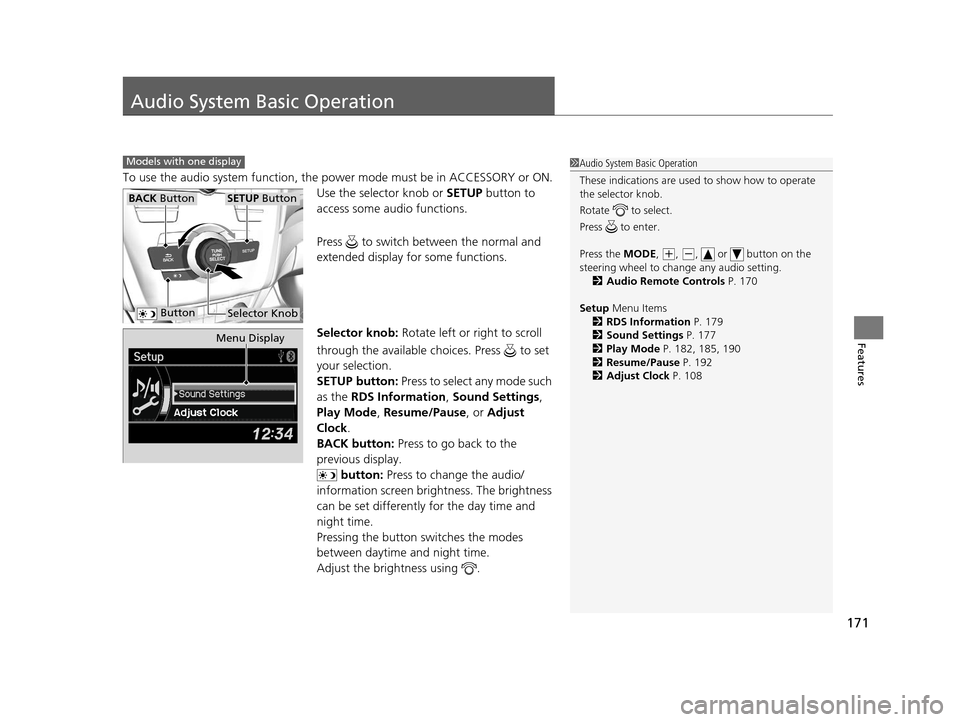
To use the audio system function, the power mode must be in ACCESSORY or ON.
Use the selector knob or SETUP button to
access some audio functions.
Press to switch between the normal and
extended display fo r some functions.
Selector knob: Rotate left or right to scroll
through the available ch oices. Press to set
your selection.
SETUP button: Press to select any mode such
as the RDS Information , Sound Settings,
Play Mode , Resume/Pause , or Adjust
Clock .
BACK button: Press to go back to the
previous display.
button: Press to change the audio/
information screen brightness. The brightness
can be set differently for the day time and
night time.
Pressing the button switches the modes
between daytime and night time.
Adjust the brightness using .
Models with one display1 Audio System Basic Operation
These indications are used to show how to operate
the selector knob.
Rotate to select.
Press to enter.
Press the MODE,
( +, (-, or button on the
steering wheel to cha nge any audio setting.
2 Audio Remote Controls P. 170
Setup Menu Items
2 RDS Information P. 179
2 Sound Settings P. 177
2 Play Mode P. 182, 185, 190
2 Resume/Pause P. 192
2 Adjust Clock P. 108
BACK ButtonSETUP Button
Selector Knob Button
Menu Display
16 ACURA ILX-31TX66300.book 171 ページ 2014年12月22日 月曜日 午後10時15分