phone Acura ILX 2017 User Guide
[x] Cancel search | Manufacturer: ACURA, Model Year: 2017, Model line: ILX, Model: Acura ILX 2017Pages: 521, PDF Size: 29.65 MB
Page 192 of 521
191
uuAudio System Basic Operation uPlaying Bluetooth ® Audio
Continued
Features
Playing Bluetooth ® Audio
Your audio system allows you to listen to music from your Bluetooth-compatible
phone.
This function is available when the phone is paired and linked to the vehicle's
Bluetooth ® HandsFreeLink ® (HFL) system.
2Phone Setup P. 276
1Playing Bluetooth ® Audio
Not all Bluetooth-enable d phones with streaming
audio capabilities are compatible with the system.
For a list of compatible phones:
•U.S.: Visit www.acura.com/handsfreelink , or call 1-
888-528-7876.
•Canada: Visit www.handsfreelink.ca , or call 1-888-
528-7876.
In some states, it may be illegal to operate devices
that use data while driving.
If more than one phone is paired to the HFL system,
there will be a delay before the system begins to play.
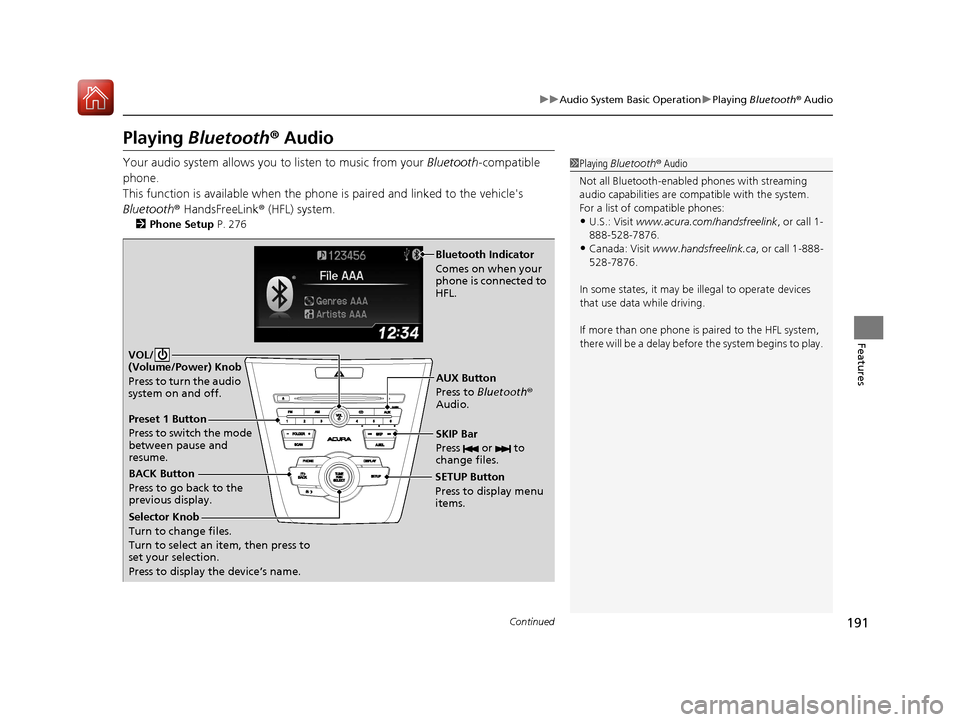
BACK Button
Press to go back to the
previous display. SETUP Button
Press to display menu
items.SKIP Bar
Press or to
change files.
AUX Button
Press to
Bluetooth®
Audio.
VOL/
(Volume/Power) Knob
Press to turn the audio
system on and off.
Selector Knob
Turn to change files.
Turn to select an item, then press to
set your selection.
Press to display the device’s name.
Bluetooth Indicator
Comes on when your
phone is connected to
HFL.
Preset 1 Button
Press to switch the mode
between pause and
resume.
17 ACURA ILX-31TX66400.book 191 ページ 2016年3月15日 火曜日 午後5時0分
Page 193 of 521
uuAudio System Basic Operation uPlaying Bluetooth ® Audio
192
Features
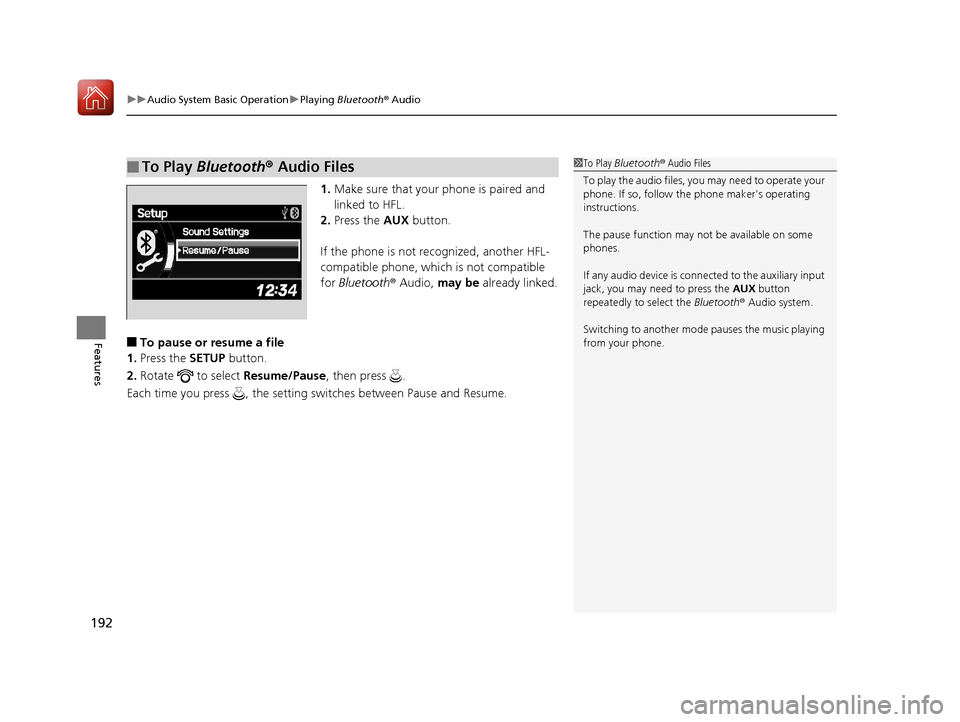
1. Make sure that your phone is paired and
linked to HFL.
2. Press the AUX button.
If the phone is not recognized, another HFL-
compatible phone, which is not compatible
for Bluetooth ® Audio, may be already linked.
■To pause or resume a file
1. Press the SETUP button.
2. Rotate to select Resume/Pause, then press .
Each time you press , the setting switches between Pause and Resume.
■To Play Bluetooth® Audio Files1To Play Bluetooth ® Audio Files
To play the audio files, y ou may need to operate your
phone. If so, follow the phone maker's operating
instructions.
The pause function may no t be available on some
phones.
If any audio device is conne cted to the auxiliary input
jack, you may need to press the AUX button
repeatedly to select the Bluetooth® Audio system.
Switching to another mode pauses the music playing
from your phone.
17 ACURA ILX-31TX66400.book 192 ページ 2016年3月15日 火曜日 午後5時0分
Page 196 of 521
Continued195
uuAudio System Basic Operation uOn Demand Multi-Use DisplayTM
Features
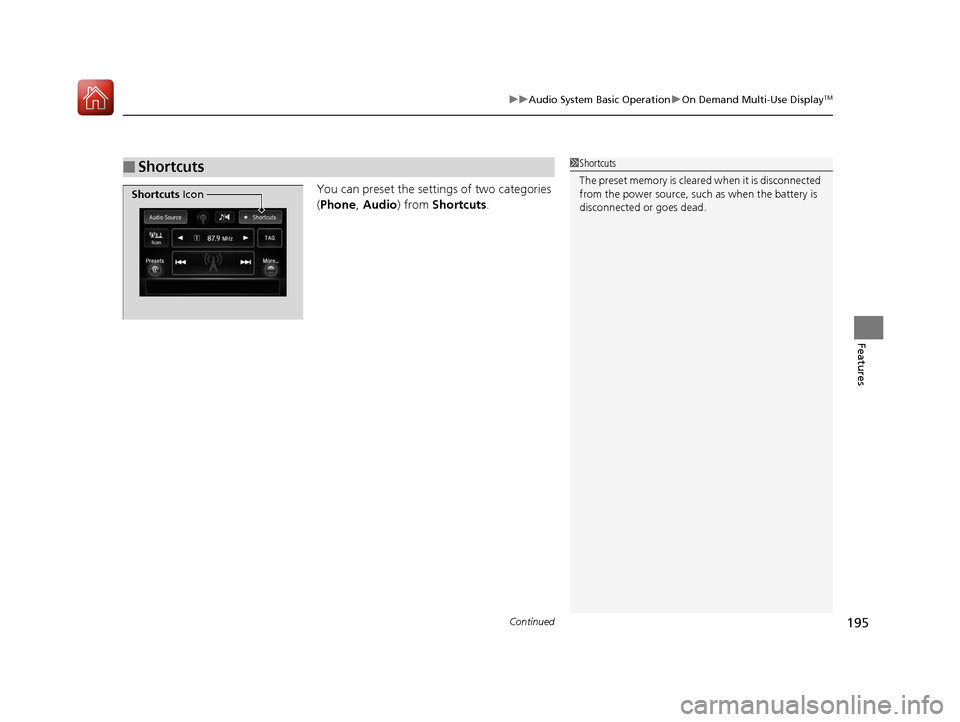
You can preset the setti ngs of two categories
( Phone , Audio ) from Shortcuts .
■Shortcuts1Shortcuts
The preset memory is cleare d when it is disconnected
from the power source, such as when the battery is
disconnected or goes dead.
Shortcuts Icon
17 ACURA ILX-31TX66400.book 195 ページ 2016年3月15日 火曜日 午後5時0分
Page 197 of 521
uuAudio System Basic Operation uOn Demand Multi-Use DisplayTM
196
Features
■Phone
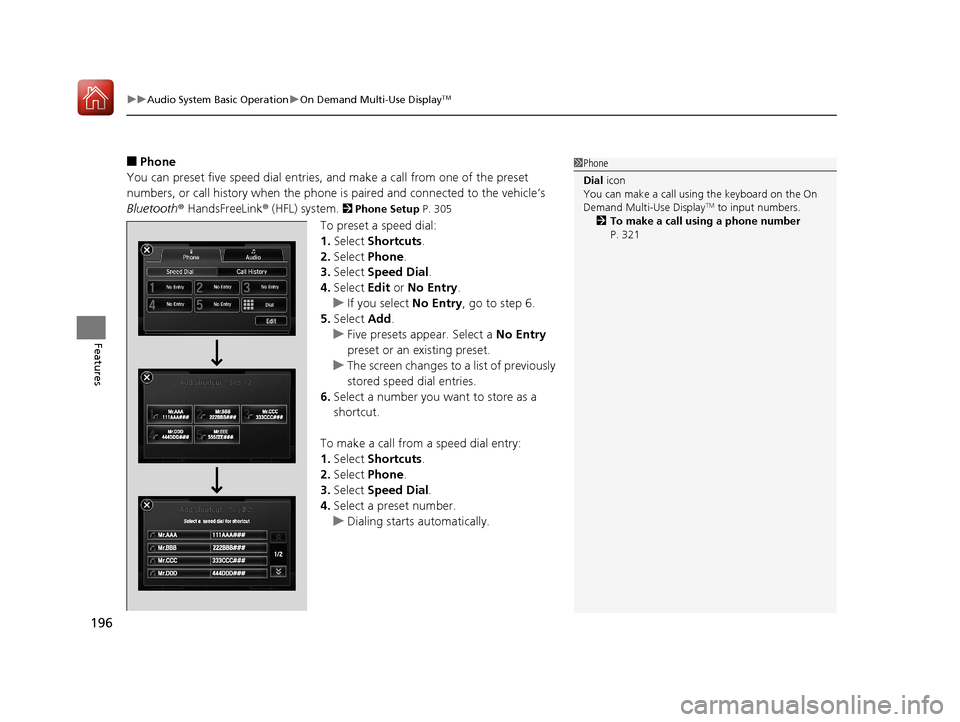
You can preset five speed dial entries, and make a call from one of the preset
numbers, or call history when the phone is paired and connected to the vehicle‘s
Bluetooth ® HandsFreeLink ® (HFL) system.
2 Phone Setup P. 305
To preset a speed dial:
1.Select Shortcuts .
2. Select Phone .
3. Select Speed Dial .
4. Select Edit or No Entry .
u If you select No Entry, go to step 6.
5. Select Add.
u Five presets appear. Select a No Entry
preset or an existing preset.
u The screen changes to a list of previously
stored speed dial entries.
6. Select a number you want to store as a
shortcut.
To make a call from a speed dial entry:
1. Select Shortcuts .
2. Select Phone .
3. Select Speed Dial .
4. Select a preset number.
u Dialing starts automatically.
1Phone
Dial icon
You can make a call using the keyboard on the On
Demand Multi-Use Display
TM to input numbers.
2 To make a call using a phone number
P. 321
17 ACURA ILX-31TX66400.book 196 ページ 2016年3月15日 火曜日 午後5時0分
Page 198 of 521
Continued197
uuAudio System Basic Operation uOn Demand Multi-Use DisplayTM
Features
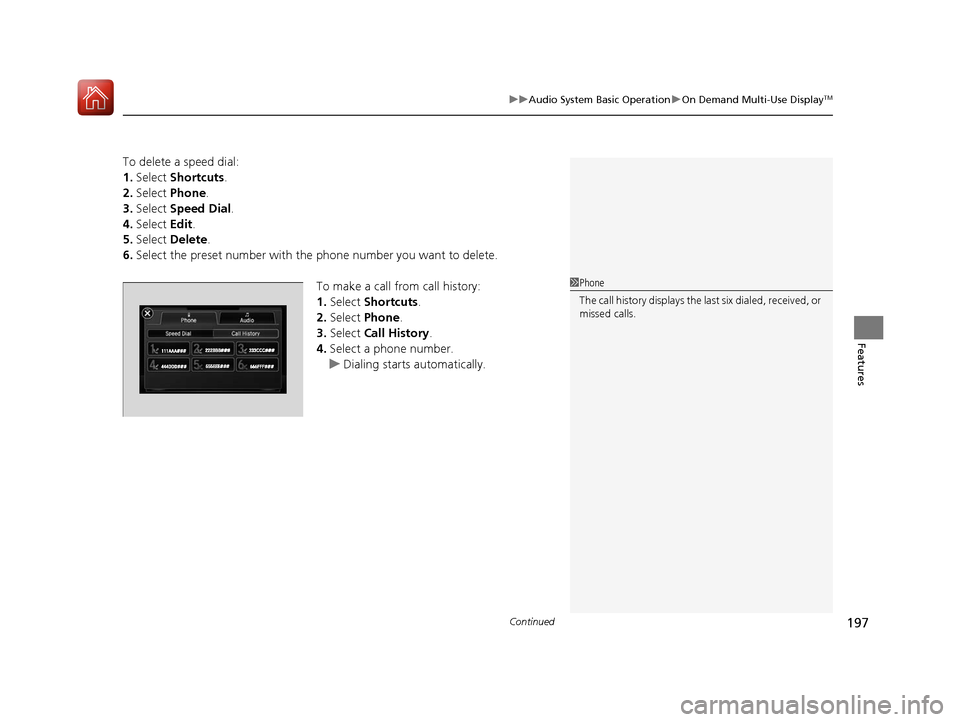
To delete a speed dial:
1. Select Shortcuts .
2. Select Phone .
3. Select Speed Dial .
4. Select Edit.
5. Select Delete .
6. Select the preset number with the phone number you want to delete.
To make a call from call history:
1.Select Shortcuts .
2. Select Phone.
3. Select Call History .
4. Select a phone number.
u Dialing starts automatically.
1Phone
The call history displays the last six dialed, received, or
missed calls.
17 ACURA ILX-31TX66400.book 197 ページ 2016年3月15日 火曜日 午後5時0分
Page 201 of 521
200
uuAudio System Basic Operation uAudio/Information Screen
Features
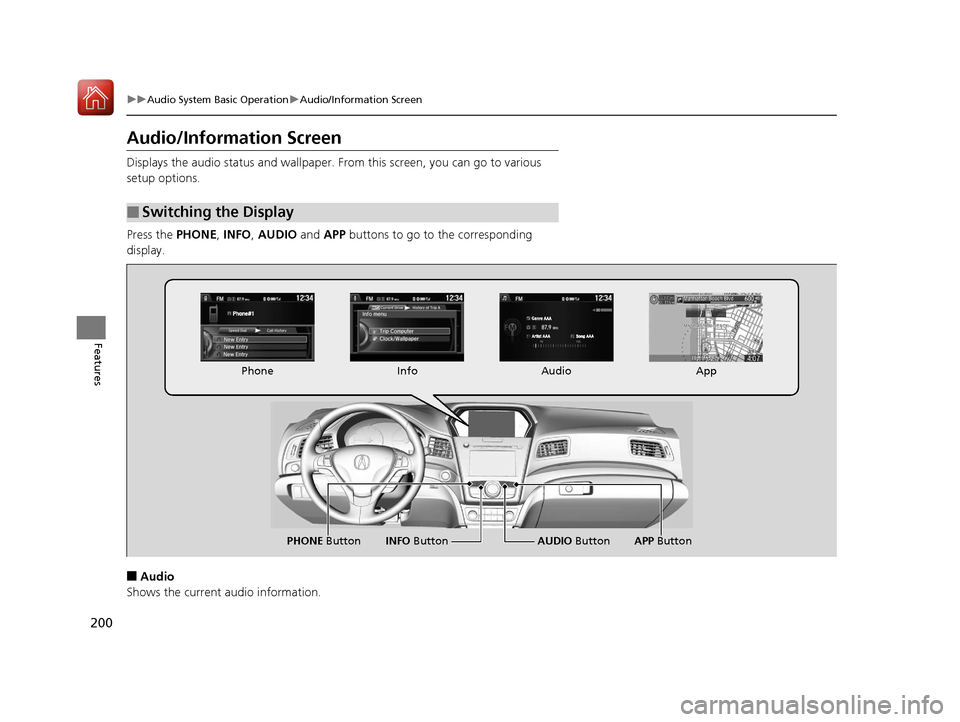
Audio/Information Screen
Displays the audio status and wallpaper. From this screen, you can go to various
setup options.
Press the PHONE, INFO , AUDIO and APP buttons to go to the corresponding
display.
■Audio
Shows the current audio information.
■Switching the Display
Audio
Info
Phone
AUDIO Button
PHONE Button INFO ButtonApp
APP Button
17 ACURA ILX-31TX66400.book 200 ページ 2016年3月15日 火曜日 午後5時0分
Page 202 of 521
201
uuAudio System Basic Operation uAudio/Information Screen
Continued
Features
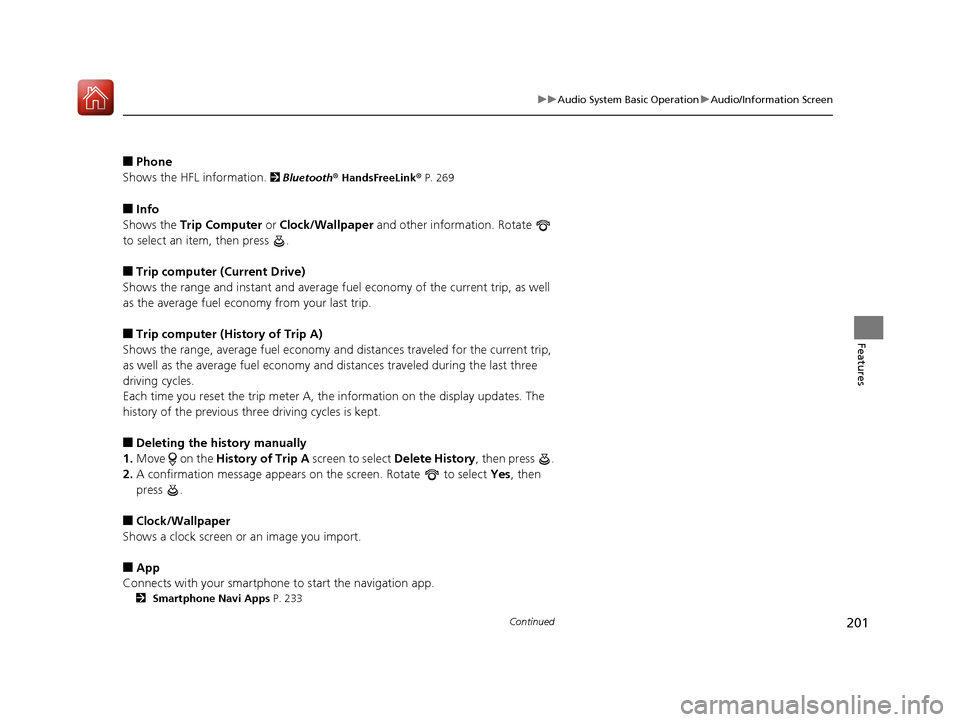
■Phone
Shows the HFL information.
2 Bluetooth ® HandsFreeLink® P. 269
■Info
Shows the Trip Computer or Clock/Wallpaper and other information. Rotate
to select an item, then press .
■Trip computer (Current Drive)
Shows the range and instant and average fu el economy of the current trip, as well
as the average fuel economy from your last trip.
■Trip computer (History of Trip A)
Shows the range, average fuel economy and distances traveled for the current trip,
as well as the average fuel economy and distances traveled during the last three
driving cycles.
Each time you reset the trip meter A, th e information on the display updates. The
history of the previous three driving cycles is kept.
■Deleting the history manually
1. Move on the History of Trip A screen to select Delete History , then press .
2. A confirmation message appears on the screen. Rotate to select Yes, then
press .
■Clock/Wallpaper
Shows a clock screen or an image you import.
■App
Connects with your smartphone to start the navigation app.
2 Smartphone Navi Apps P. 233
17 ACURA ILX-31TX66400.book 201 ページ 2016年3月15日 火曜日 午後5時0分
Page 207 of 521
206
uuAudio System Basic Operation uPlaying AM/FM Radio
Features
Playing AM/FM Radio
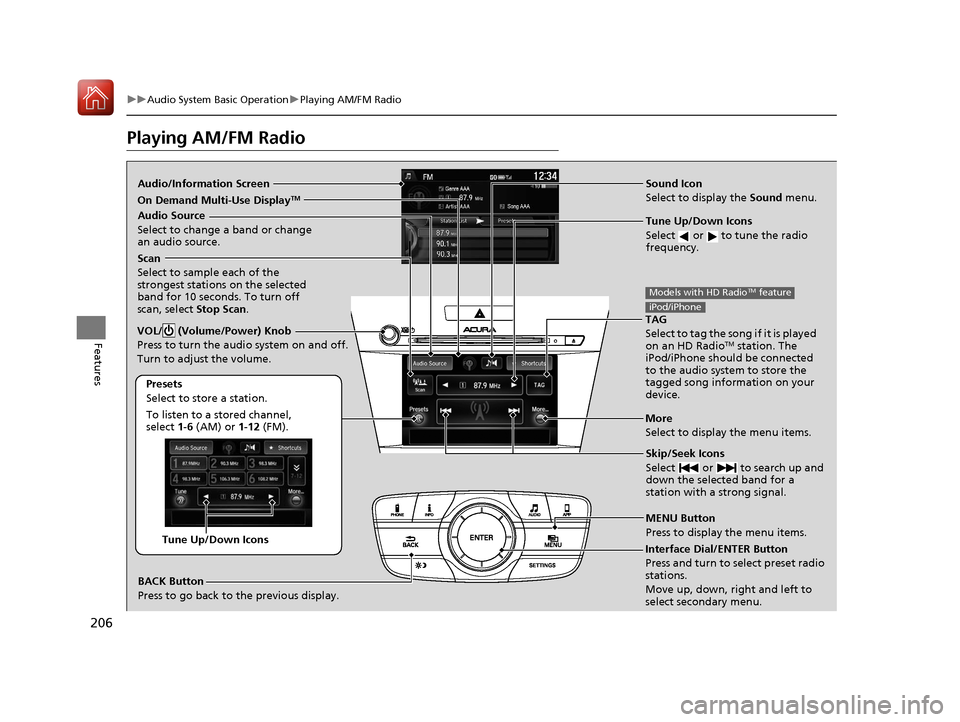
Audio/Information Screen Sound Icon
Select to display the Sound menu.
Tune Up/Down Icons
Select or to tune the radio
frequency.
MENU Button
Press to display the menu items.
Audio Source
Select to change a band or change
an audio source.
To listen to a stored channel,
select 1-6 (AM) or 1- 12 (FM).
Presets
Select to store a station.
Skip/Seek Icons
Select or to search up and
down the selected band for a
station with a strong signal.More
Select to display the menu items.
BACK Button
Press to go back to the previous display.
VOL/ (Volume/Power) Knob
Press to turn the audio system on and off.
Turn to adjust the volume.
Interface Dial/ENTER Button
Press and turn to select preset radio
stations.
Move up, down, right and left to
select secondary menu.Tune Up/Down Icons
Scan
Select to sample each of the
strongest stations on the selected
band for 10 seconds. To turn off
scan, select Stop Scan.
TAG
Select to tag the song if it is played
on an HD Radio
TM station. The
iPod/iPhone should be connected
to the audio system to store the
tagged song information on your
device.
Models with HD RadioTM feature
iPod/iPhone
On Demand Multi-Use DisplayTM
17 ACURA ILX-31TX66400.book 206 ページ 2016年3月15日 火曜日 午後5時0分
Page 209 of 521
uuAudio System Basic Operation uPlaying AM/FM Radio
208
Features
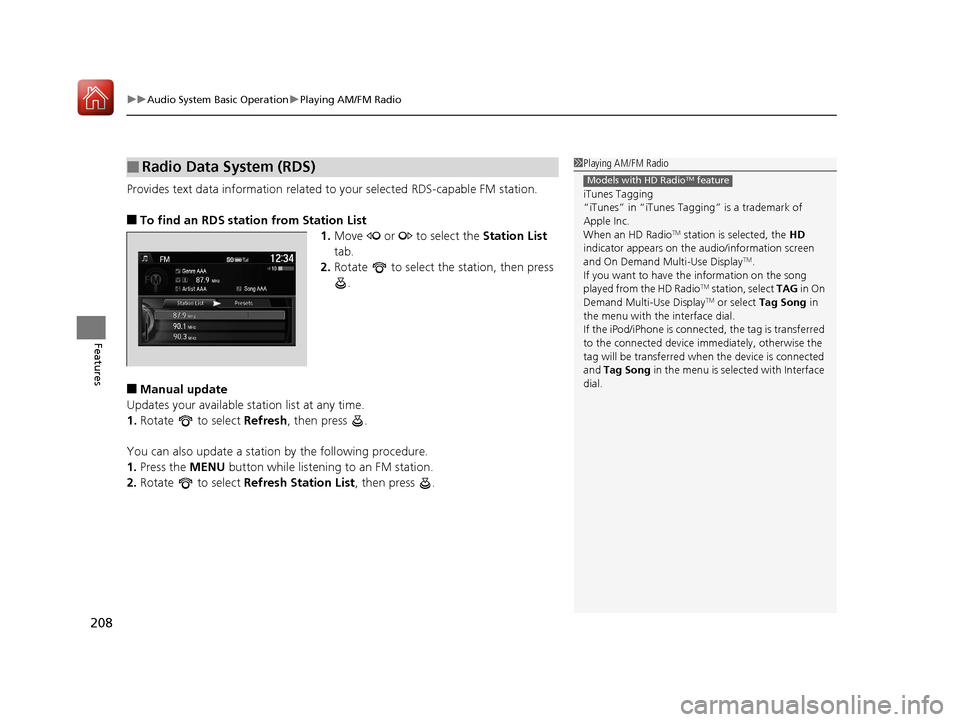
Provides text data information related to your selected RDS-capable FM station.
■To find an RDS station from Station List
1.Move or to select the Station List
tab.
2. Rotate to select th e station, then press
.
■Manual update
Updates your available station list at any time.
1. Rotate to select Refresh, then press .
You can also update a station by the following procedure.
1. Press the MENU button while listening to an FM station.
2. Rotate to select Refresh Station List , then press .
■Radio Data System (RDS)1Playing AM/FM Radio
iTunes Tagging
“iTunes” in “iTunes Ta gging” is a trademark of
Apple Inc.
When an HD Radio
TM station is selected, the HD
indicator appears on the a udio/information screen
and On Demand Multi-Use Display
TM.
If you want to have the information on the song
played from the HD Radio
TM station, select TAG in On
Demand Multi-Use DisplayTM or select Tag Song in
the menu with the interface dial.
If the iPod/iPhone is connect ed, the tag is transferred
to the connected device i mmediately, otherwise the
tag will be transferred when the device is connected
and Tag Song in the menu is selected with Interface
dial.
Models with HD RadioTM feature
17 ACURA ILX-31TX66400.book 208 ページ 2016年3月15日 火曜日 午後5時0分
Page 210 of 521
209
uuAudio System Basic Operation uPlaying AM/FM Radio
Continued
Features
■Radio text
Display the radio text information of the selected RDS station.
1. Press the MENU button.
2. Rotate to select Radio Text, then press .
■Scan
Samples each of the strongest stations on the selected band for 10 seconds.
1. Press the MENU button.
2. Rotate to select Scan, then press .
To turn off scan, press to select Stop Scan, or press the BACK button.
2Playing AM/FM Radio P. 206
To turn off scan, select Stop Scan.
■Tag song to device
If your a iPhone/iPod is connected to the USB port you can store the TAG
information.
If the iPod/iPhone is not connected to the audio system, the information is stored in
the audio unit temporarily, then once the de vice is connected to the system, data is
transferred to the iPod/iPhone.
To store the TAG information to th e iPod/iPhone, or the audio system:
1. Press the MENU button.
2. Rotate to select Tag Song, then press .
3. Select the song for which you want to save the information.
Interface Dial
On Demand Multi-Use DisplayTM
Models with HD RadioTM feature
17 ACURA ILX-31TX66400.book 209 ページ 2016年3月15日 火曜日 午後5時0分