reset Acura ILX 2020 Owner's Guide
[x] Cancel search | Manufacturer: ACURA, Model Year: 2020, Model line: ILX, Model: Acura ILX 2020Pages: 621, PDF Size: 34.94 MB
Page 205 of 621

204
uuAudio System Basic Operation uPlaying Bluetooth ® Audio
Features
Playing Bluetooth ® Audio
Your audio system allows you to listen to music from your Bluetooth-compatible
phone.
This function is available when the phone is paired a nd linked to the vehicle's
Bluetooth ® HandsFreeLink ® (HFL) system.
2 Phone Setup P. 346
1Playing Bluetooth ® Audio
Not all Bluetooth-enabled phones with streaming
audio capabilities are compatible with the system.
For a list of compatible phones:
•U.S.: Visit www.handsfreelink.com/Acura, or call 1-
888-528-7876.
•Canada: For more info rmation on smartphone
compatibility, call 1-855-490-7351.
In some states, it may be il legal to perform some data
device functions while driving.
If more than one phone is paired to the HFL system,
there will be a delay before the system begins to play.
In some cases, the name of the artist, album, or track
may not appear correctly.
Some functions may not be available on some
devices.
BACK Button
Press to go back to the
previous display. SETUP Button
Press to display menu
items.SKIP Bar
Press or to
change files.
AUX Button
Press to
Bluetooth®
Audio.
VOL/
(Volume/Power) Knob
Press to turn the audio
system on and off.
Selector Knob
Turn to change files.
Turn to select an item, then press to
set your selection.
Press to display the device’s name.
Bluetooth Indicator
Comes on when your
phone is connected to
HFL.
Preset 1 Button
Press to switch the mode
between pause and
resume.
20 ACURA ILX-31TX66710.book 204 ページ 2020年4月16日 木曜日 午後8時46分
Page 207 of 621
206
Features
Audio System Basic Operation
To use the audio system, the power mode must be in ACCESSORY or ON.
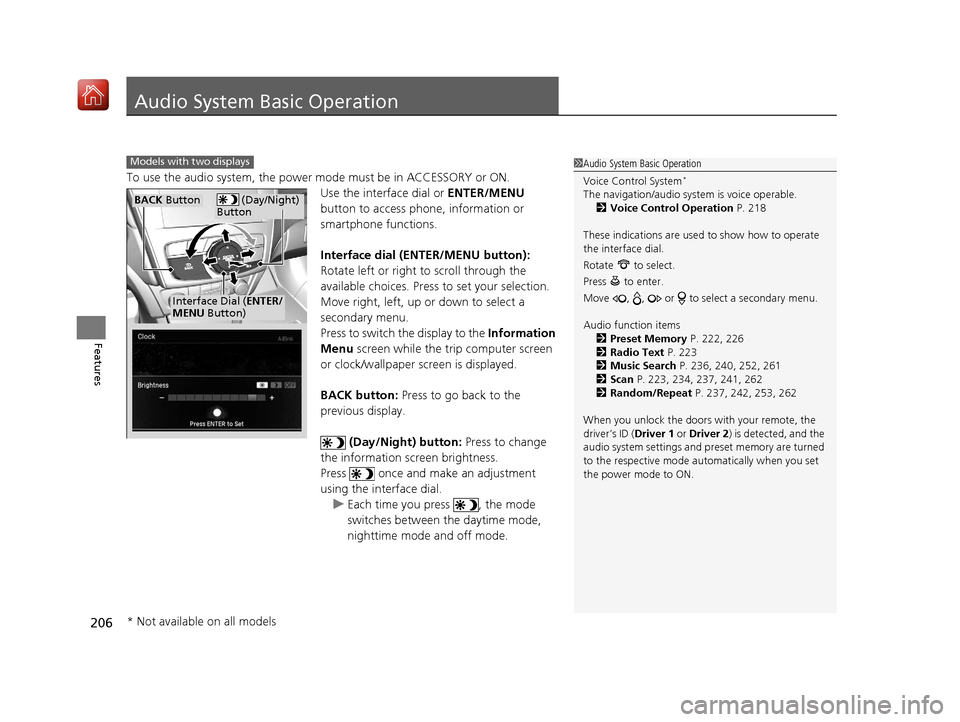
Use the interface dial or ENTER/MENU
button to access phone, information or
smartphone functions.
Interface dial (ENTER/MENU button):
Rotate left or right to scroll through the
available choices. Press to set your selection.
Move right, left, up or down to select a
secondary menu.
Press to switch the display to the Information
Menu screen while the trip computer screen
or clock/wallpaper screen is displayed.
BACK button: Press to go back to the
previous display.
(Day/Night) button: Press to change
the information screen brightness.
Press once and make an adjustment
using the interface dial. u Each time you press , the mode
switches between the daytime mode,
nighttime mode and off mode.
1Audio System Basic Operation
Voice Control System
*
The navigation/audio system is voice operable.
2 Voice Control Operation P. 218
These indications are used to show how to operate
the interface dial.
Rotate to select.
Press to enter.
Move , , or to se lect a secondary menu.
Audio function items 2 Preset Memory P. 222, 226
2 Radio Text P. 223
2 Music Search P. 236, 240, 252, 261
2 Scan P. 223, 234, 237, 241, 262
2 Random/Repeat P. 237, 242, 253, 262
When you unlock the doors with your remote, the
driver’s ID ( Driver 1 or Driver 2) is detected, and the
audio system settings and pr eset memory are turned
to the respective mode automatically when you set
the power mode to ON.
Models with two displays
(Day/Night)
ButtonBACK Button
Interface Dial ( ENTER/
MENU Button)
* Not available on all models
20 ACURA ILX-31TX66710.book 206 ページ 2020年4月16日 木曜日 午後8時46分
Page 213 of 621
212
uuAudio System Basic Operation uInformation Screen
Features
■Navigation*
Shows the navigation screen.
2 Refer to the Navigation System Manual
■Phone
Shows the HFL information.
2 Bluetooth ® HandsFreeLink ® P. 368
■Info
Shows the AcuraLink/Messages*, Trip Computer , Clock, Traffic Incidents* or
Voice Recognition Guide*. Press or INFO button to display the Information
Menu screen.
AcuraLink/Messages
*:
Shows a AcuraLink ® message menu list.
2AcuraLink®* P. 410
Trip Computer :
Current Drive
Shows the range and instant and average fuel economy of the current trip, as well
as the average fuel economy from your last trip.
History of Trip A
Shows the range, average fuel economy an d distances traveled for the current trip,
as well as the average fuel economy and distances traveled during the last three
driving cycles.
Each time you reset the trip meter A, the information on the display updates. The
history of the previous th ree driving cycles is kept.
* Not available on all models
20 ACURA ILX-31TX66710.book 212 ページ 2020年4月16日 木曜日 午後8時46分
Page 222 of 621

221
uuAudio System Basic Operation uPlaying AM/FM Radio
Continued
Features
Playing AM/FM Radio
On Demand Multi-Use DisplayTM
VOL/ (Volume/Power) Knob
Press to turn the audio system on
and off.
Turn to adjust the volume.
Skip/Seek Icons
Select or to search up and
down the selected band for a
station with a strong signal.
Audio Menu
Select to display the menu items.
Source
Select to change a band or
change an audio source. (Information) Icon
Select to display the current station
details.
Select to display the previous
screen.
Preset Icons
Tune the preset radio frequency. Select and
hold the preset icon to store that station.
Select or to display preset 6 onwards.
Tune
Select to display the manual input
screen of radio frequency.
Stations
Select to display the station list
screen.
HD Radio List
Select to display the sub-channel
list screen.
Models with HD RadioTM feature
20 ACURA ILX-31TX66710.book 221 ページ 2020年4月16日 木曜日 午後8時46分
Page 223 of 621
uuAudio System Basic Operation uPlaying AM/FM Radio
222
Features
To store a station:
1. Tune to the selected station.
2. Select and hold the preset number you want to store that station.
Provides text data information related to your selected RDS-capable FM station.
■To find an RDS station from Station List
1. Select Stations .
2. Select station on the list.
■Manual update
Updates your available station list at any time.
1. Select Stations .
2. Select Refresh on the list.
■Preset Memory
■Radio Data System (RDS)
1Playing AM/FM Radio
You can control the AM/FM radio using voice
commands
*.
2 Voice Control Operation P. 218
The ST indicator appears on the display indicating
stereo FM broadcasts.
Stereo reproduction in AM is not available.
Switching the Audio Mode
Press the MODE button on the steering wheel.
2 Audio Remote Controls P. 181
You can store 6 AM stations and 12 FM stations into
the preset memory.
HD Radio Technology manufactured under license
from iBiquity Digital Cor poration. U.S. and Foreign
Patents. HD Radio
TM and the HD, HD Radio, and
“Arc” logos are proprietary trademarks of iBiquity
Digital Corp.
Models with HD RadioTM feature
* Not available on all models
20 ACURA ILX-31TX66710.book 222 ページ 2020年4月16日 木曜日 午後8時46分
Page 225 of 621
224
uuAudio System Basic Operation uPlaying SiriusXM ® Radio
Features
Playing SiriusXM ® Radio
On Demand Multi-Use DisplayTM
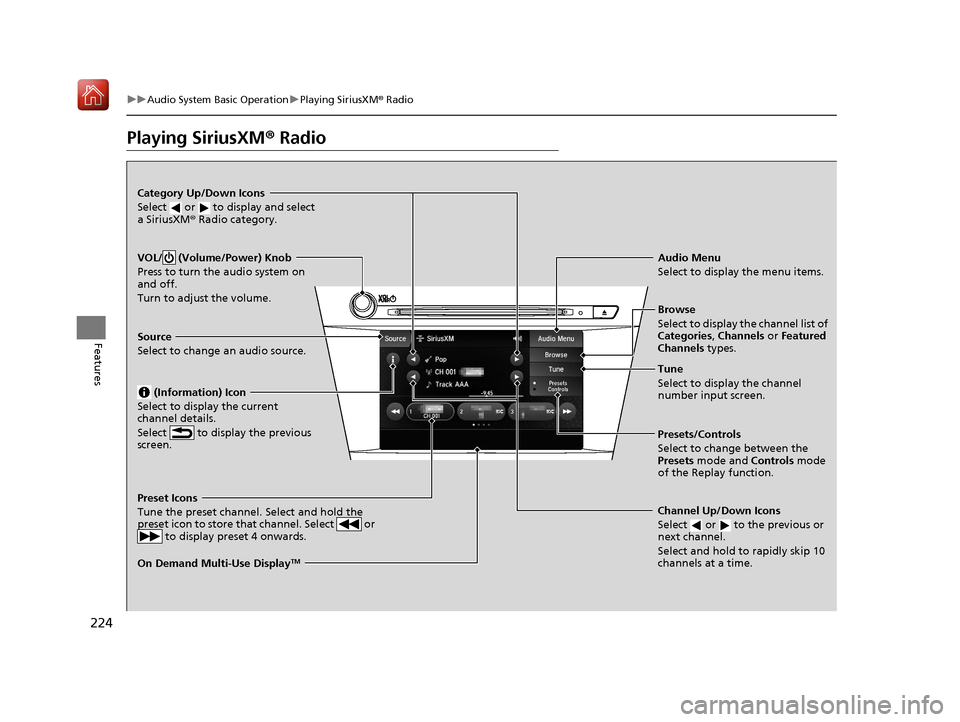
VOL/ (Volume/Power) Knob
Press to turn the audio system on
and off.
Turn to adjust the volume.
Category Up/Down Icons
Select or to display and select
a SiriusXM ® Radio category.
Audio Menu
Select to display the menu items.
Source
Select to change an audio source. (Information) Icon
Select to display the current
channel details.
Select to display the previous
screen.
Preset Icons
Tune the preset channel. Select and hold the
preset icon to store that channel. Select or to display preset 4 onwards.
Tune
Select to display the channel
number input screen.
Presets/Controls
Select to change between the
Presets mode and Controls mode
of the Replay function.
Browse
Select to display the channel list of
Categories, Channels or Featured
Channels types.
Channel Up/Down Icons
Select or to the previous or
next channel.
Select and hold to rapidly skip 10
channels at a time.
20 ACURA ILX-31TX66710.book 224 ページ 2020年4月16日 木曜日 午後8時46分
Page 226 of 621
Continued225
uuAudio System Basic Operation uPlaying SiriusXM ® Radio
Features
1. Select the SiriusXM ® mode.
2Audio Remote Controls P. 181
2 On Demand Multi-Use DisplayTM P. 207
2.Select a channel using the , icons or the preset numbers ( 1-12) on the preset
mode screen.
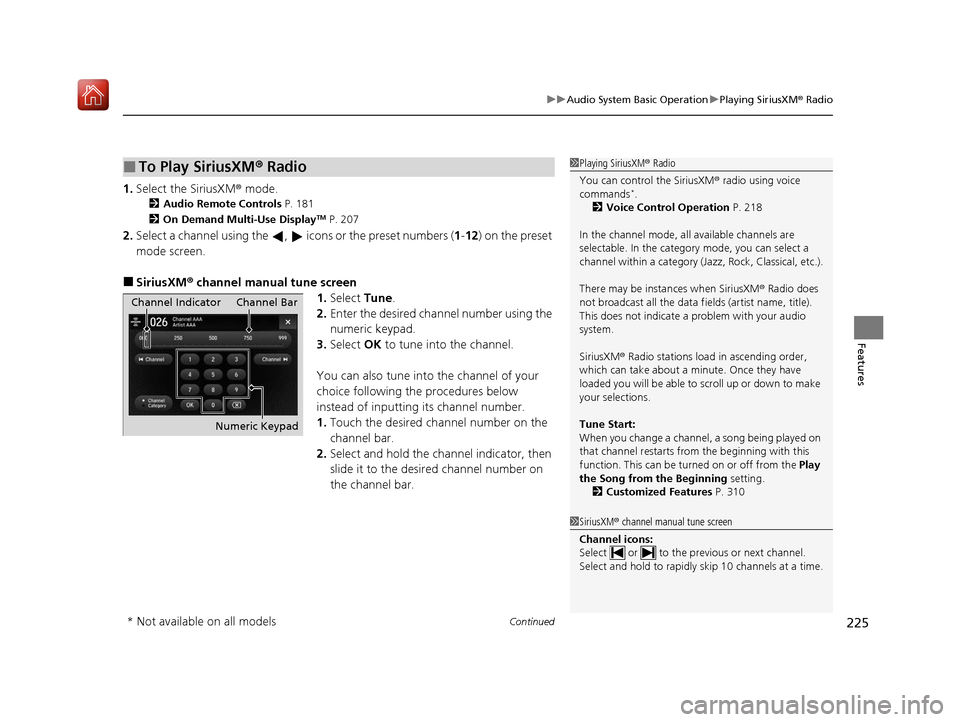
■SiriusXM ® channel manual tune screen
1.Select Tune.
2. Enter the desired channel number using the
numeric keypad.
3. Select OK to tune into the channel.
You can also tune into the channel of your
choice following the procedures below
instead of inputting its channel number.
1. Touch the desired channel number on the
channel bar.
2. Select and hold the channel indicator, then
slide it to the desire d channel number on
the channel bar.
■To Play SiriusXM ® Radio1 Playing SiriusXM ® Radio
You can control the SiriusXM ® radio using voice
commands
*.
2 Voice Control Operation P. 218
In the channel mode, all available channels are
selectable. In the category mode, you can select a
channel within a ca tegory (Jazz, Rock, Classical, etc.).
There may be instances when SiriusXM ® Radio does
not broadcast all the data fi elds (artist name, title).
This does not indicate a problem with your audio
system.
SiriusXM ® Radio stations load in ascending order,
which can take about a minute. Once they have
loaded you will be able to scroll up or down to make
your selections.
Tune Start:
When you change a channel, a song being played on
that channel restarts from the beginning with this
function. This can be turned on or off from the Play
the Song from the Beginning setting.
2 Customized Features P. 310
1SiriusXM ® channel manual tune screen
Channel icons:
Select or to the previous or next channel.
Select and hold to rapidly sk ip 10 channels at a time.
Channel Indicator Channel Bar
Numeric Keypad
* Not available on all models
20 ACURA ILX-31TX66710.book 225 ページ 2020年4月16日 木曜日 午後8時46分
Page 227 of 621
uuAudio System Basic Operation uPlaying SiriusXM ® Radio
226
Features
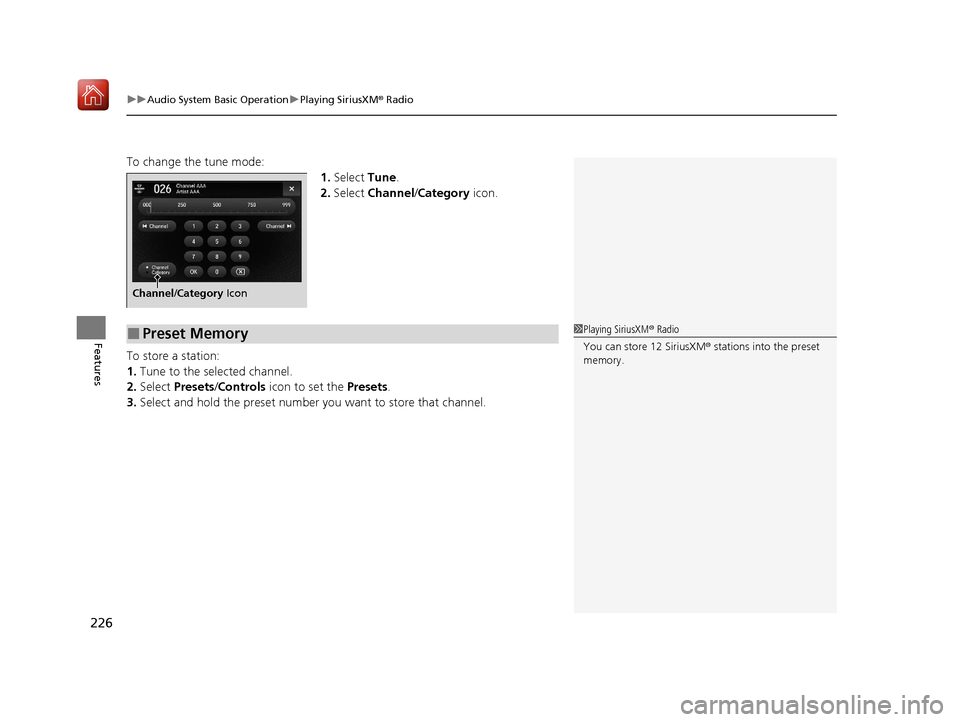
To change the tune mode:
1.Select Tune.
2. Select Channel /Category icon.
To store a station:
1. Tune to the selected channel.
2. Select Presets /Controls icon to set the Presets.
3. Select and hold the preset number you want to store that channel.
Channel/Category Icon
■Preset Memory1Playing SiriusXM ® Radio
You can store 12 SiriusXM ® stations into the preset
memory.
20 ACURA ILX-31TX66710.book 226 ページ 2020年4月16日 木曜日 午後8時46分
Page 228 of 621
Continued227
uuAudio System Basic Operation uPlaying SiriusXM ® Radio
Features
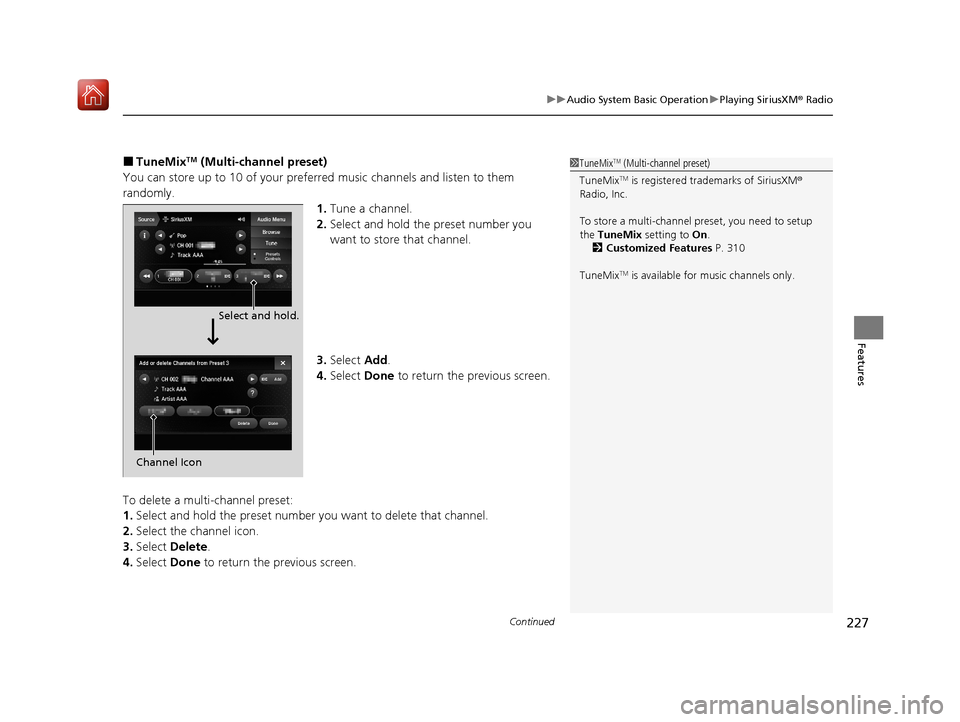
■TuneMixTM (Multi-channel preset)
You can store up to 10 of your preferred music channels and listen to them
randomly. 1.Tune a channel.
2. Select and hold the preset number you
want to store that channel.
3. Select Add.
4. Select Done to return the previous screen.
To delete a multi-channel preset:
1. Select and hold the preset number you want to delete that channel.
2. Select the channel icon.
3. Select Delete .
4. Select Done to return the previous screen.1TuneMixTM (Multi-channel preset)
TuneMix
TM is registered tra demarks of SiriusXM®
Radio, Inc.
To store a multi-channel preset, you need to setup
the TuneMix setting to On.
2 Customized Features P. 310
TuneMix
TM is available for music channels only.
Select and hold.
Channel Icon
20 ACURA ILX-31TX66710.book 227 ページ 2020年4月16日 木曜日 午後8時46分
Page 229 of 621
uuAudio System Basic Operation uPlaying SiriusXM ® Radio
228
Features
Suggested channel listing received from SiriusXM ® can be displayed and selected.
1. Select Browse .
2. Select Featured Channels .
3. Select a channel.
You can check a channel schedule by select ed channel list on the On Demand Multi-
Use Display
TM.
1. Select Audio Menu .
2. Select View Channel Schedule .
You can also check the other channel by the following procedure.
3. Select Categories, Channels or Presets.
4. Select a channel.
■Listening to Featured Channels
■Displaying a Channel Schedule
1Listening to Featured Channels
Up to three featured channels by SiriusXM ® can be
displayed.
20 ACURA ILX-31TX66710.book 228 ページ 2020年4月16日 木曜日 午後8時46分