reset Acura ILX Hybrid 2013 User Guide
[x] Cancel search | Manufacturer: ACURA, Model Year: 2013, Model line: ILX Hybrid, Model: Acura ILX Hybrid 2013Pages: 365, PDF Size: 8.63 MB
Page 98 of 365
97
uuGauges and Multi-Information DisplayuMulti-Information Display
Continued
Instrument Panel
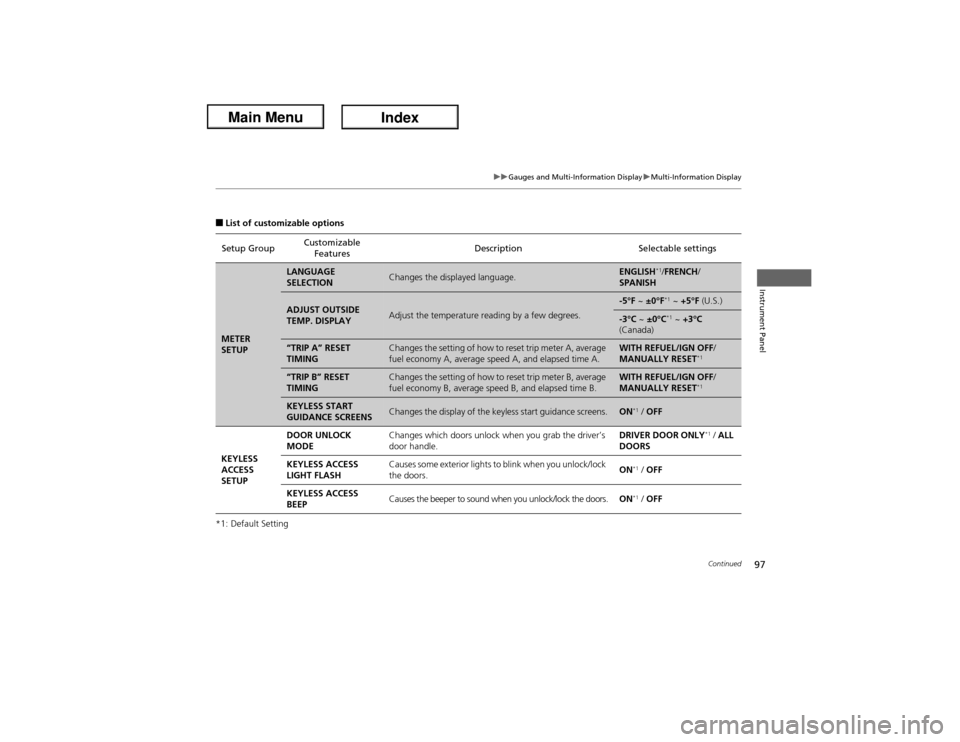
■List of customizable options
*1: Default SettingSetup GroupCustomizable
FeaturesDescription Selectable settingsMETER
SETUP
LANGUAGE
SELECTION
Changes the displayed language.
ENGLISH
*1/FRENCH/
SPANISH
ADJUST OUTSIDE
TEMP. DISPLAY
Adjust the temperature reading by a few degrees.
-5°F ~ ±0°F
*1 ~ +5°F (U.S.)
-3°C ~ ±0°C
*1 ~ +3°C
(Canada)
“TRIP A” RESET
TIMING
Changes the setting of how to reset trip meter A, average
fuel economy A, average speed A, and elapsed time A.
WITH REFUEL/IGN OFF/
MANUALLY RESET
*1
“TRIP B” RESET
TIMING
Changes the setting of how to reset trip meter B, average
fuel economy B, average speed B, and elapsed time B.
WITH REFUEL/IGN OFF/
MANUALLY RESET
*1
KEYLESS START
GUIDANCE SCREENS
Changes the display of the keyless start guidance screens.
ON
*1 / OFF
KEYLESS
ACCESS
SETUPDOOR UNLOCK
MODEChanges which doors unlock when you grab the driver’s
door handle.DRIVER DOOR ONLY
*1 / ALL
DOORS
KEYLESS ACCESS
LIGHT FLASHCauses some exterior lights to blink when you unlock/lock
the doors.ON
*1 / OFF
KEYLESS ACCESS
BEEPCauses the beeper to sound when you unlock/lock the doors.ON*1 / OFF
Page 100 of 365

99
uuGauges and Multi-Information DisplayuMulti-Information Display
Continued
Instrument Panel
Setup Group Customizable Features Description Selectable settings
MAINTENANCE INFO.
Reset the Maintenance Minder
TM.
RESET/CANCEL
DEFAULT ALLSets/Cancels all the customized settings as default.CANCEL/SET
Page 101 of 365
100
uuGauges and Multi-Information DisplayuMulti-Information Display
Instrument Panel
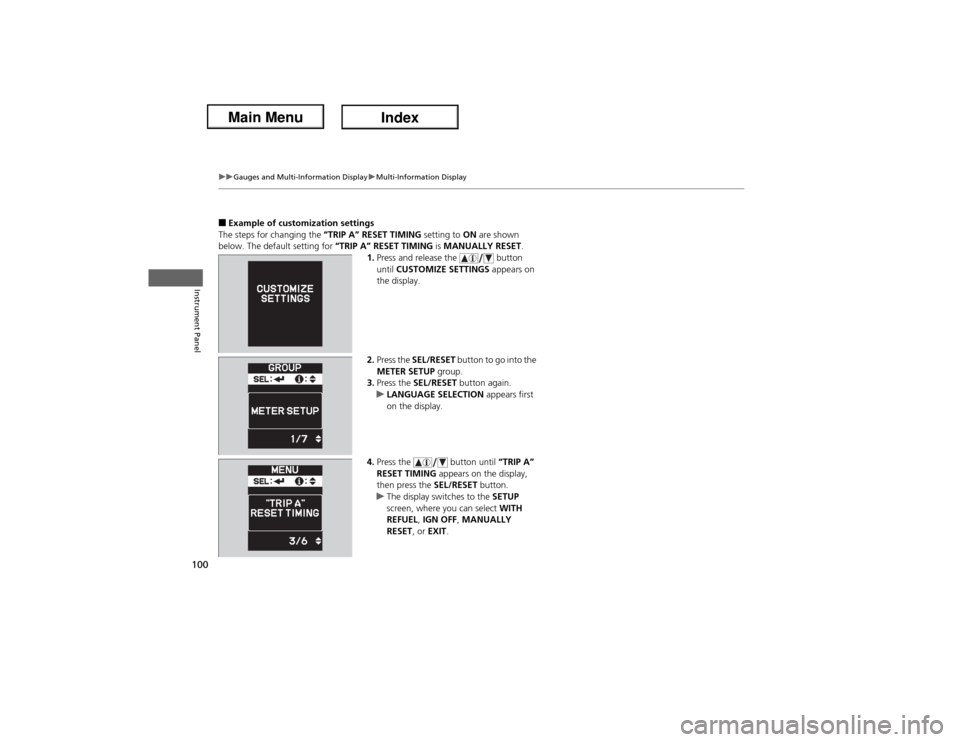
■Example of customization settings
The steps for changing the “TRIP A” RESET TIMING setting to ON are shown
below. The default setting for “TRIP A” RESET TIMING is MANUALLY RESET.
1.Press and release the button
until CUSTOMIZE SETTINGS appears on
the display.
2.Press the SEL/RESET button to go into the
METER SETUP group.
3.Press the SEL/RESET button again.
uLANGUAGE SELECTION appears first
on the display.
4.Press the button until “TRIP A”
RESET TIMING appears on the display,
then press the SEL/RESET button.
uThe display switches to the SETUP
screen, where you can select WITH
REFUEL, IGN OFF, MANUALLY
RESET, or EXIT.
Page 102 of 365
101
uuGauges and Multi-Information DisplayuMulti-Information Display
Instrument Panel
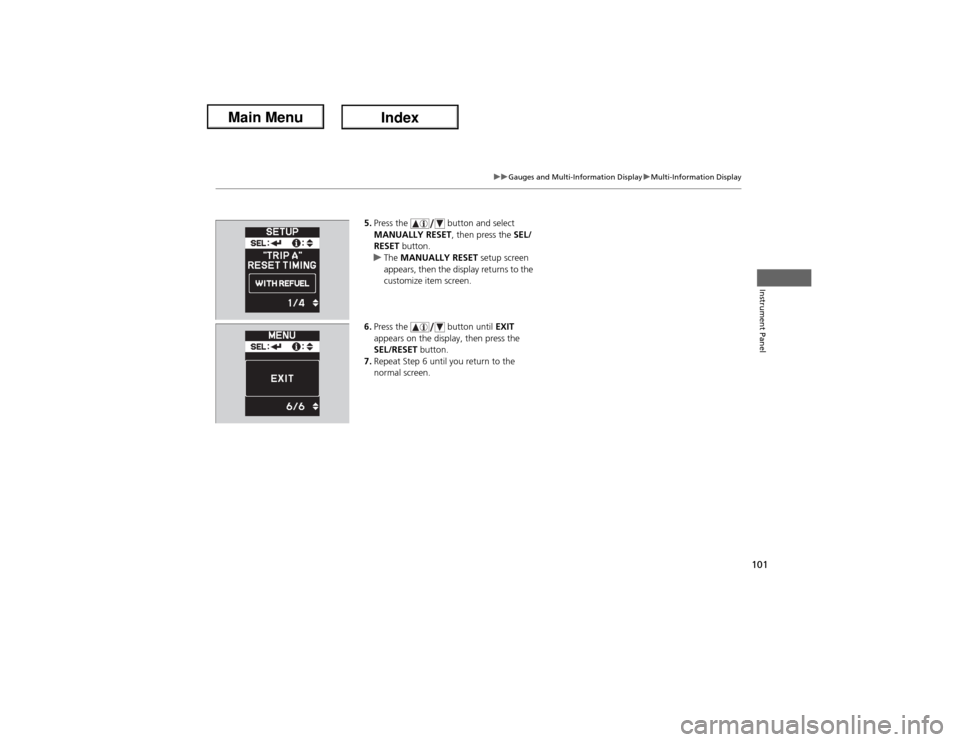
5.Press the button and select
MANUALLY RESET, then press the SEL/
RESET button.
uThe MANUALLY RESET setup screen
appears, then the display returns to the
customize item screen.
6.Press the button until EXIT
appears on the display, then press the
SEL/RESET button.
7.Repeat Step 6 until you return to the
normal screen.
Page 132 of 365
131
uuOperating the Switches Around the Steering WheeluBrightness Control
Controls
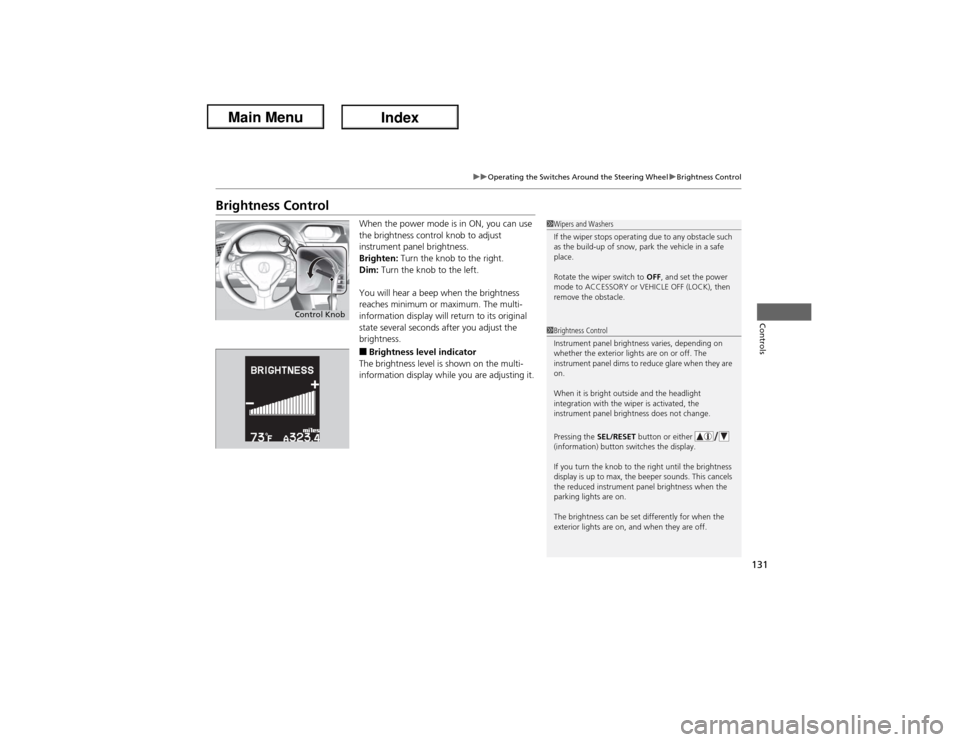
Brightness Control
When the power mode is in ON, you can use
the brightness control knob to adjust
instrument panel brightness.
Brighten: Turn the knob to the right.
Dim: Turn the knob to the left.
You will hear a beep when the brightness
reaches minimum or maximum. The multi-
information display will return to its original
state several seconds after you adjust the
brightness.■Brightness level indicator
The brightness level is shown on the multi-
information display while you are adjusting it.
1Wipers and Washers
If the wiper stops operating due to any obstacle such
as the build-up of snow, park the vehicle in a safe
place.
Rotate the wiper switch to OFF, and set the power
mode to ACCESSORY or VEHICLE OFF (LOCK), then
remove the obstacle.1Brightness Control
Instrument panel brightness varies, depending on
whether the exterior lights are on or off. The
instrument panel dims to reduce glare when they are
on.
When it is bright outside and the headlight
integration with the wiper is activated, the
instrument panel brightness does not change.
Pressing the SEL/RESET button or either
(information) button switches the display.
If you turn the knob to the right until the brightness
display is up to max, the beeper sounds. This cancels
the reduced instrument panel brightness when the
parking lights are on.
The brightness can be set differently for when the
exterior lights are on, and when they are off.
Control Knob
Page 155 of 365
154
uuAudio SystemuAudio System Theft Protection
Features
Audio System Theft ProtectionThe audio system is disabled when it is disconnected from the power source, such as
when the battery is disconnected or goes dead.■Reactivating the audio system
1.Set the power mode to ON, and turn on the audio system.
uIf you set the power mode to ACCESSORY, you will be requested to enter the
audio security code. See step 3.
2.Press and hold the power button again for more than two seconds.
uThe audio system is reactivated when the system’s control unit recognizes that
the system is in your vehicle.
If the control unit fails to recognize, ENTER CODE appears on the audio/
information screen.
3.Enter the audio security code using the preset buttons. If you enter an incorrect
digit, continue to the last digit, then try again. If you do not enter the code
correctly after 10 tries, leave the system for one hour before trying again, or visit
a dealer to have the system reset.
1Audio System Theft Protection
Find the audio system's security code and serial
number label in your owner’s manual kit.
We recommend that you write down the serial
number in this owner’s manual.
Do not store the label in your vehicle. If you lose the
label, you must first retrieve the serial number, and
then obtain the code.
You can find out about your serial number and
security code from a dealer.
You can register the security code at My Acura
(owners.acura.com.), and find information on how to
retrieve the serial number and obtain the code at
radio-navicode.acura.com.U.S. models
Page 160 of 365
159
uuAudio System Basic OperationuAudio Remote Controls
Features
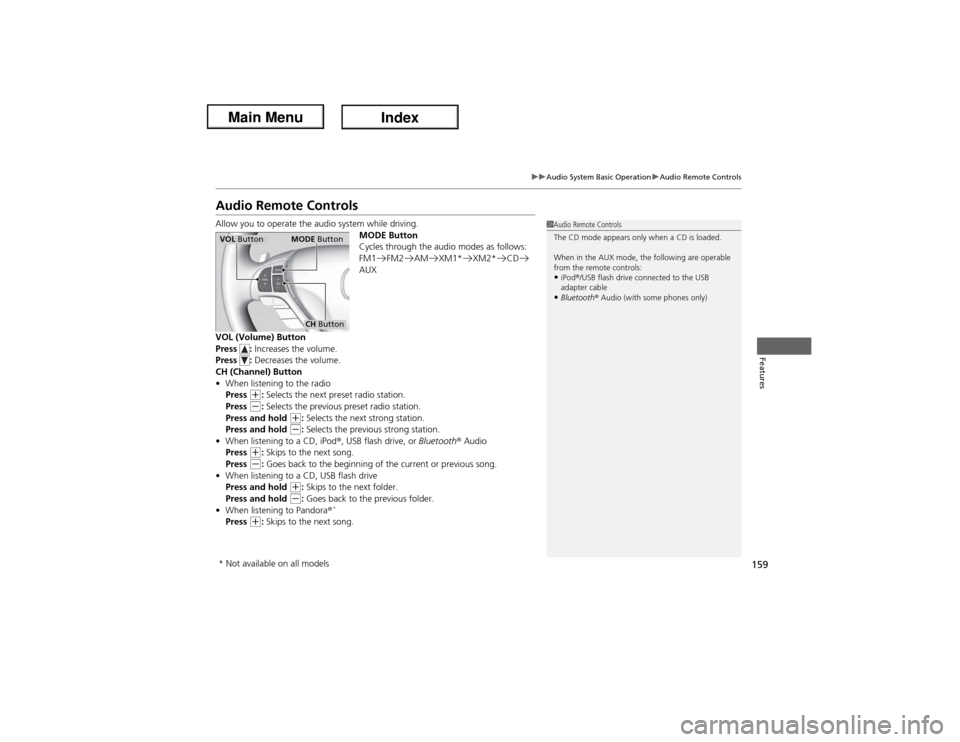
Audio Remote ControlsAllow you to operate the audio system while driving.
MODE Button
Cycles through the audio modes as follows:
FM1 FM2 AM XM1* XM2* CD
AUX
VOL (Volume) Button
Press : Increases the volume.
Press : Decreases the volume.
CH (Channel) Button
•When listening to the radio
Press
(+: Selects the next preset radio station.
Press (-: Selects the previous preset radio station.
Press and hold
(+: Selects the next strong station.
Press and hold (-: Selects the previous strong station.
•When listening to a CD, iPod®
, USB flash drive, or Bluetooth®
Audio
Press
(+: Skips to the next song.
Press (-: Goes back to the beginning of the current or previous song.
•When listening to a CD, USB flash drive
Press and hold
(+: Skips to the next folder.
Press and hold (-: Goes back to the previous folder.
•When listening to Pandora®
*
Press
(+: Skips to the next song.
1Audio Remote Controls
The CD mode appears only when a CD is loaded.
When in the AUX mode, the following are operable
from the remote controls:•iPod®/USB flash drive connected to the USB
adapter cable•Bluetooth® Audio (with some phones only)
VOL ButtonMODE Button
CH Button
* Not available on all models
Page 162 of 365

161
uuAudio System Basic OperationuPlaying the AM/FM Radio
Continued
Features
Playing the AM/FM RadioSCAN Button
Press to sample each of the strongest stations
on the selected band for 10 seconds. To turn
off scan, press the button again. VOL/ (Volume/Power) Knob
Press to turn the audio system on and off.
Turn to adjust the volume.
A.SEL (Auto Select) Button
Press to scan both bands and store the
strongest station in each preset. To turn
off auto select, press the button again. This
restores the presets you originally set.
SETUP Button
Press to display menu items.
Selector Knob
Turn to tune the radio frequency.
CATEGORY Bar
*
Press either side to display
and select an RDS category. FM/AM Button
*
Press to select a band. FOLDER Bar
*
Press either side to display and select an
RDS category.FM Button
*
Press to select a band.AM Button
*
BACK Button
Press to go back to the previous display.SKIP Bar
Press to search up and down the selected
band for a station with a strong signal.Preset Buttons (1-6)
To store a station:
1. Tune to the selected station.
2. Pick a preset button and hold it until
you hear a beep.
To listen to a stored station, select a band,
then press the preset button.
* Not available on all models
Page 163 of 365
uuAudio System Basic OperationuPlaying the AM/FM Radio
162Features
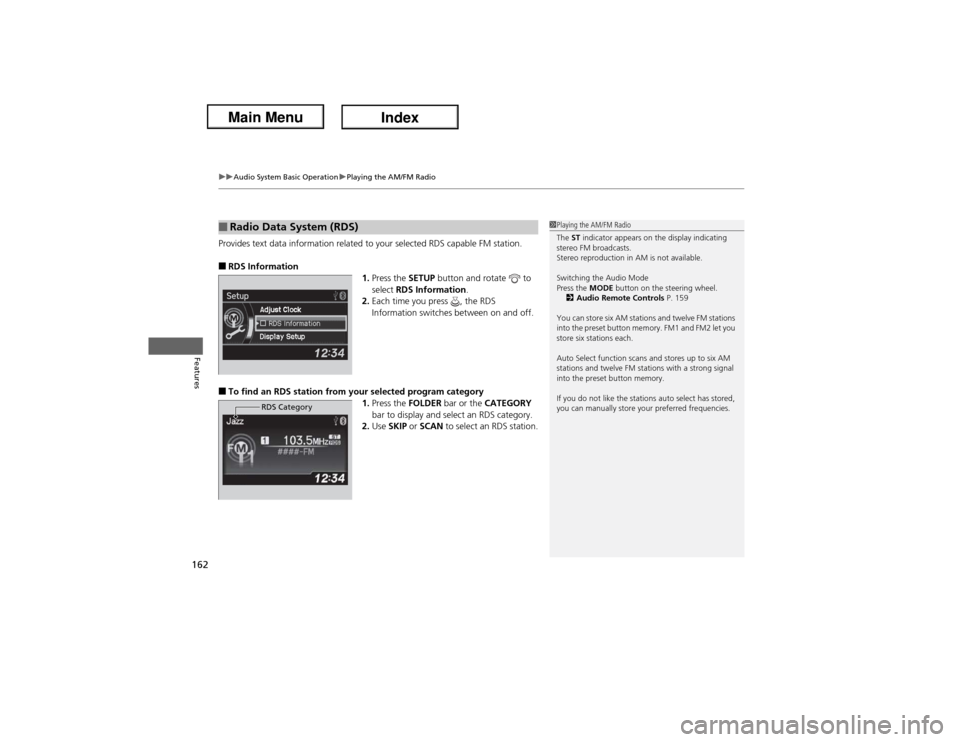
Provides text data information related to your selected RDS capable FM station.■RDS Information
1.Press the SETUP button and rotate to
select RDS Information.
2.Each time you press , the RDS
Information switches between on and off.■To find an RDS station from your selected program category
1.Press the FOLDER bar or the CATEGORY
bar to display and select an RDS category.
2.Use SKIP or SCAN to select an RDS station.■Radio Data System (RDS)
RDS Category
1Playing the AM/FM Radio
The ST indicator appears on the display indicating
stereo FM broadcasts.
Stereo reproduction in AM is not available.
Switching the Audio Mode
Press the MODE button on the steering wheel.
2Audio Remote Controls P. 159
You can store six AM stations and twelve FM stations
into the preset button memory. FM1 and FM2 let you
store six stations each.
Auto Select function scans and stores up to six AM
stations and twelve FM stations with a strong signal
into the preset button memory.
If you do not like the stations auto select has stored,
you can manually store your preferred frequencies.
Page 164 of 365

163
uuAudio System Basic OperationuPlaying the XM® Radio
*
Continued
Features
Playing the XM® Radio
*
SCAN Button
Press to sample all channels (in the channel mode),
or channels within a category (in the category
mode). Each sampling continues for a few seconds.
Press SCAN again to cancel scanning and continue
listening to the channel. VOL/ (Volume/Power) Knob
Press to turn the audio system on and off.
Turn to adjust the volume.
SETUP Button
Press to display menu items.
Selector Knob
Press and turn to select channels. CATEGORY Bar
Press either side to display and select an XM®
Radio category.SKIP Bar
Press to skip to the previous or next
channel.
(XM®) Button
Press to select XM® Radio.
Preset Buttons (1-6)
To store the channel:
1. Tune to the channel.
2. Pick a preset button and hold it until
you hear a beep.
To listen to a stored channel, select XM,
then press the preset button.BACK Button
Press to go back to the previous display.
* Not available on all models