phone ACURA INTEGRA 2023 User Guide
[x] Cancel search | Manufacturer: ACURA, Model Year: 2023, Model line: INTEGRA, Model: ACURA INTEGRA 2023Pages: 740, PDF Size: 22.94 MB
Page 229 of 740
227
uuAudio System uUSB Port(s)
Continued
Features
USB Port(s)
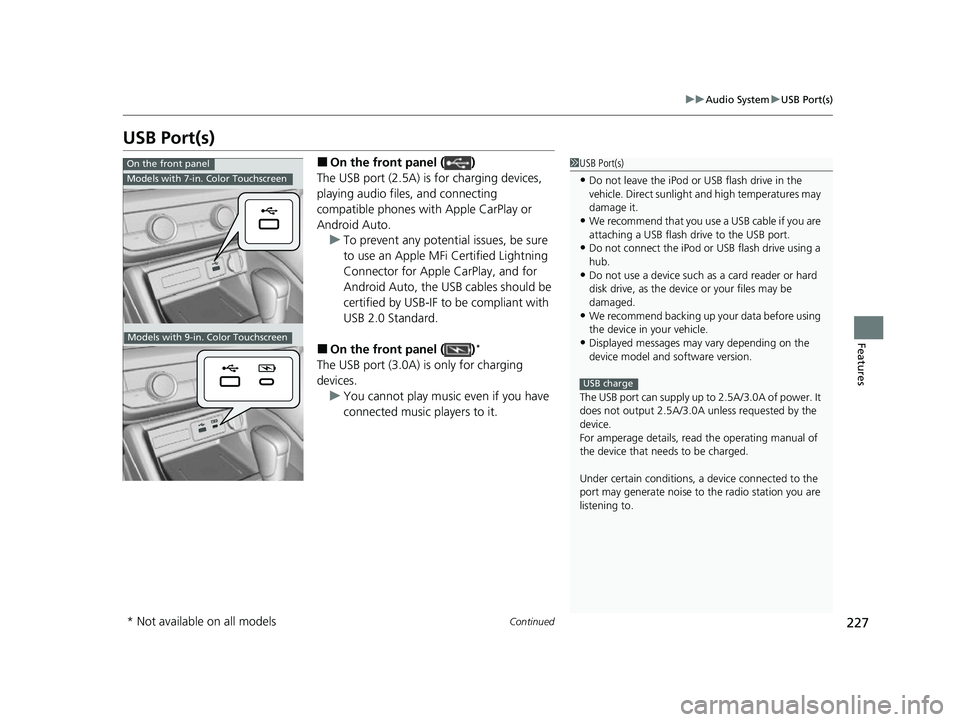
■On the front panel ( )
The USB port (2.5A) is for charging devices,
playing audio files, and connecting
compatible phones with Apple CarPlay or
Android Auto. u To prevent any potenti al issues, be sure
to use an Apple MFi Certified Lightning
Connector for Apple CarPlay, and for
Android Auto, the USB cables should be
certified by USB-IF to be compliant with
USB 2.0 Standard.
■On the front panel ( )*
The USB port (3.0A) is only for charging
devices. u You cannot play music even if you have
connected music players to it.
1USB Port(s)
•Do not leave the iPod or USB flash drive in the
vehicle. Direct sunlight and high temperatures may
damage it.
•We recommend that you us e a USB cable if you are
attaching a USB flash drive to the USB port.
•Do not connect the iPod or USB flash drive using a
hub.
•Do not use a device such as a card reader or hard
disk drive, as the device or your files may be
damaged.
•We recommend backing up yo ur data before using
the device in your vehicle.
•Displayed messages may vary depending on the
device model and software version.
The USB port can supply up to 2.5A/3.0A of power. It
does not output 2.5A/3.0A unless requested by the
device.
For amperage details, read the operating manual of
the device that ne eds to be charged.
Under certain condi tions, a device connected to the
port may generate noise to the radio station you are
listening to.
USB charge
On the front panel
Models with 7-in. Color Touchscreen
Models with 9-in. Color Touchscreen
* Not available on all models
23 ACURA INTEGRA-313S56000_03.book 227 ページ 2022年3月18日 金曜日 午前11時47分
Page 232 of 740

230
uuAudio System uAudio Remote Controls
Features
Audio Remote Controls
Allow you to operate the audio system while driving. The information is shown on
the driver information interface.
VOL
(+/VOL(- (Volume) Switch
Press Up: To increase the volume.
Press Down: To decrease the volume.
/ (Seek/Skip) Buttons
• When listening to the radio
Press : To select the next preset radio station.
Press : To select the previous preset radio station.
Press and hold : To select the next strong station.
Press and hold : To select the previous strong station.
• When listening to an iPod, USB flash drive, Bluetooth® Audio, or Smartphone
Connection
Press : To skip to the next song.
Press : To go back to the beginning of the current or previous song.
• When listening to a USB flash drive or Bluetooth® Audio
Press and hold : To skip to the next folder/group.
Press and hold : To go back to the previous folder/group.
1Audio Remote Controls
Some modes appear only when an appropriate
device or medium is used.
Depending on the Bluetooth® device you connect,
some functions may not be available.Models with 7-in. Color Touchscreen
/ (Seek/Skip) Buttons
Left
Selector
Wheel
VOL(+/VOL(- (Volume) Switch
23 ACURA INTEGRA-313S56000_03.book 230 ページ 2022年3月18日 金曜日 午前11時47分
Page 233 of 740
231
uuAudio System uAudio Remote Controls
Continued
Features
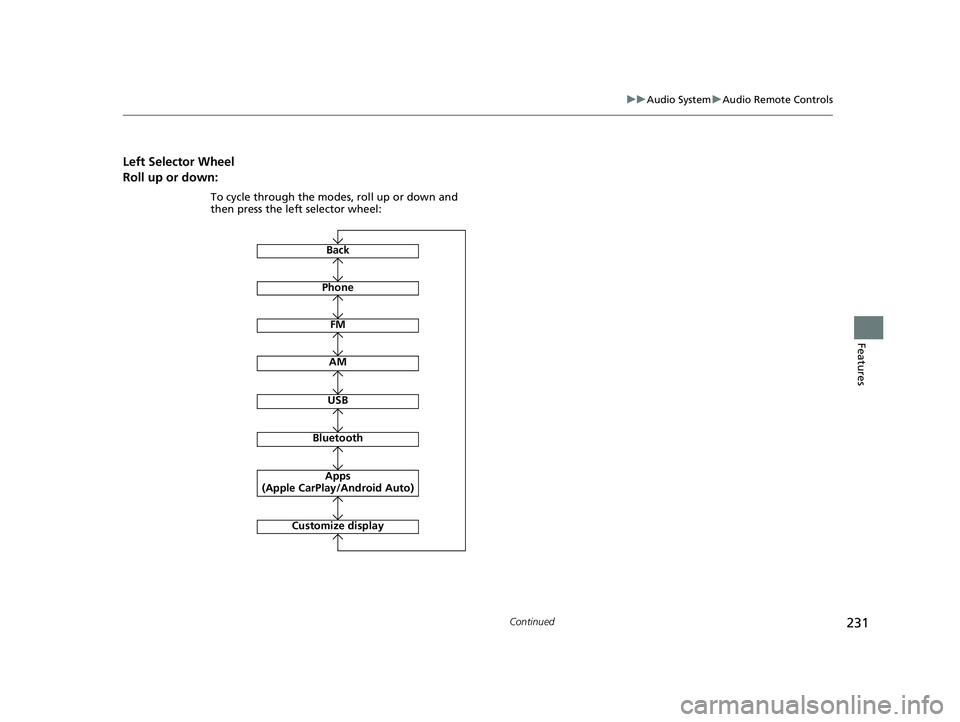
Left Selector Wheel
Roll up or down:
FM
AM
To cycle through the modes, roll up or down and
then press the left selector wheel:
Bluetooth
USB
Apps
(Apple CarPlay/Android Auto)
Phone
Back
Customize display
23 ACURA INTEGRA-313S56000_03.book 231 ページ 2022年3月18日 金曜日 午前11時47分
Page 234 of 740

232
uuAudio System uAudio Remote Controls
Features
Allow you to operate the audio system while driving. The information is shown on
the driver information interface.
VOL
(+/VOL(- (Volume) Switch
Press Up: To increase the volume.
Press Down: To decrease the volume.
/ (Seek/Skip) Buttons
• When listening to the radio
Press : To select the next preset radio station.
Press : To select the previous preset radio station.
Press and hold : To select the next strong station.
Press and hold : To select the previous strong station.
• When listening to an iPod, USB flash drive, Bluetooth® Audio, or Smartphone
Connection
Press : To skip to the next song.
Press : To go back to the beginning of the current or previous song.
• When listening to a USB flash drive
Press and hold : To skip to the next folder.
Press and hold : To go back to the previous folder.
Models with 9-in. Color Touchscreen
/ (Seek/Skip) Buttons
Left Selector
WheelVOL(+/VOL(-
(Volume) Switch
23 ACURA INTEGRA-313S56000_03.book 232 ページ 2022年3月18日 金曜日 午前11時47分
Page 235 of 740
233
uuAudio System uAudio Remote Controls
Features
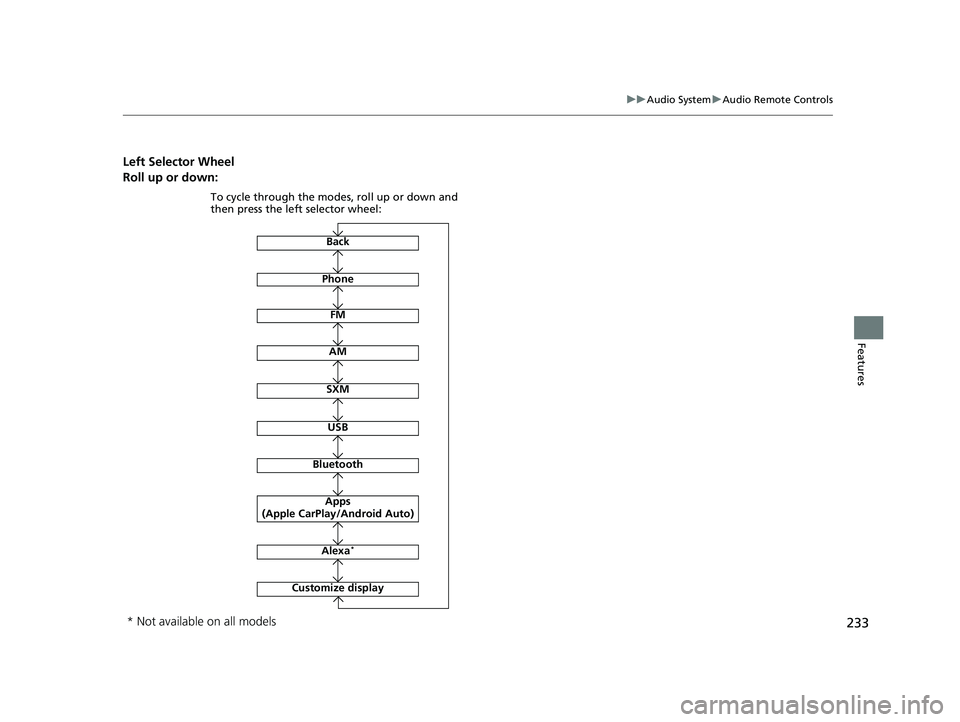
Left Selector Wheel
Roll up or down:
Back
Phone
FM
AM
SXM
To cycle through the modes, roll up or down and
then press the left selector wheel:
Customize display
Bluetooth
USB
Apps
(Apple CarPlay/Android Auto)
Alexa*
* Not available on all models
23 ACURA INTEGRA-313S56000_03.book 233 ページ 2022年3月18日 金曜日 午前11時47分
Page 247 of 740
245
uuAudio System Basic Operation uPlaying Bluetooth ® Audio
Continued
Features
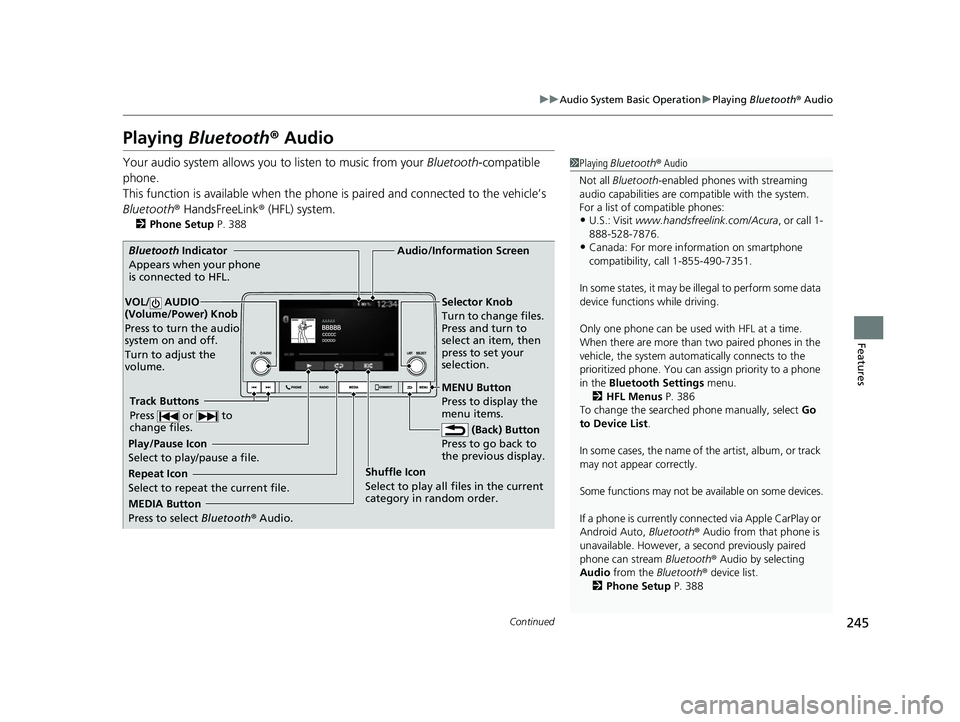
Playing Bluetooth ® Audio
Your audio system allows you to listen to music from your Bluetooth-compatible
phone.
This function is available when the phone is paired an d connected to the vehicle’s
Bluetooth ® HandsFreeLink ® (HFL) system.
2Phone Setup P. 388
1Playing Bluetooth ® Audio
Not all Bluetooth-enabled phones with streaming
audio capabilities are compatible with the system.
For a list of compatible phones:
•U.S.: Visit www.handsfreelink.com/Acura , or call 1-
888-528-7876.
•Canada: For more info rmation on smartphone
compatibility, call 1-855-490-7351.
In some states, it may be il legal to perform some data
device functions while driving.
Only one phone can be used with HFL at a time.
When there are more than two paired phones in the
vehicle, the system automatically connects to the
prioritized phone. You can a ssign priority to a phone
in the Bluetooth Settings menu.
2 HFL Menus P. 386
To change the searched phone manually, select Go
to Device List .
In some cases, the name of the artist, album, or track
may not appear correctly.
Some functions may not be available on some devices.
If a phone is currently conne cted via Apple CarPlay or
Android Auto, Bluetooth® Audio from that phone is
unavailable. However, a se cond previously paired
phone can stream Bluetooth® Audio by selecting
Audio from the Bluetooth® device list.
2 Phone Setup P. 388
MEDIA Button
Press to select Bluetooth® Audio.
VOL/ AUDIO
(Volume/Power) Knob
Press to turn the audio
system on and off.
Turn to adjust the
volume.
MENU Button
Press to display the
menu items.
Audio/Information Screen
Bluetooth Indicator
Appe ars
when your phone
is connected to HFL.
Track Buttons
Press or to
change files.
Repeat Icon
Select to repeat the current file. Shuffle Icon
Select to play all files in the current
category in random order.Selector Knob
Turn to change files.
Press and turn to
select an item, then
press to set your
selection.
(Back) Button
Pres s
to go back to
the previous display.
Play/Pause Icon
Select to play/pause a file.
23 ACURA INTEGRA-313S56000_03.book 245 ページ 2022年3月18日 金曜日 午前11時47分
Page 248 of 740
uuAudio System Basic Operation uPlaying Bluetooth ® Audio
246
Features
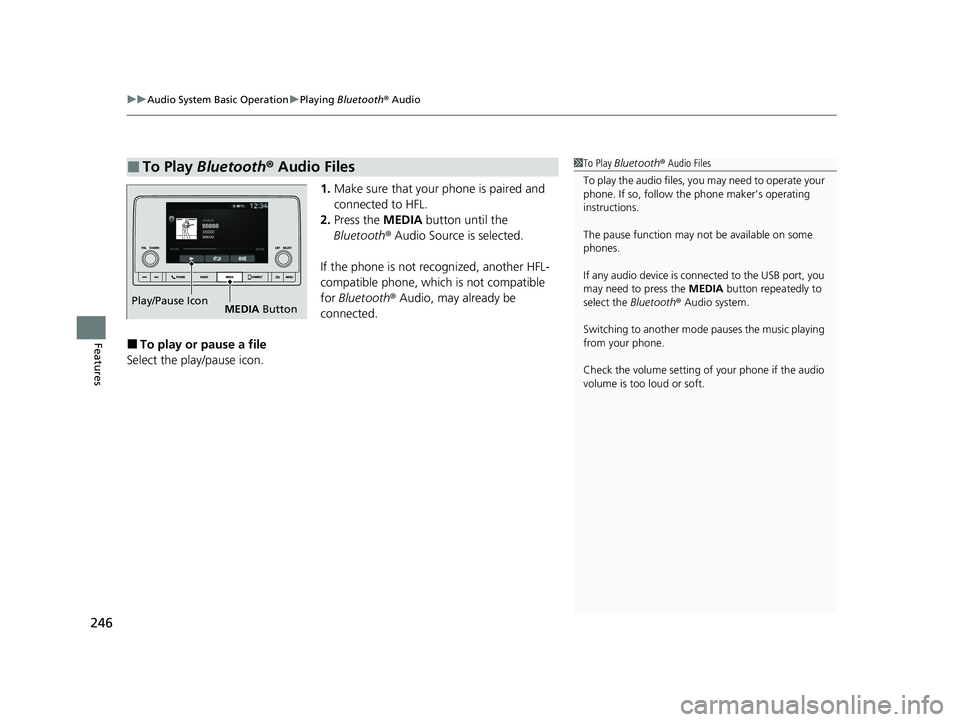
1. Make sure that your phone is paired and
connected to HFL.
2. Press the MEDIA button until the
Bluetooth ® Audio Source is selected.
If the phone is not recognized, another HFL-
compatible phone, which is not compatible
for Bluetooth ® Audio, may already be
connected.
■To play or pause a file
Select the play/pause icon.
■To Play Bluetooth ® Audio Files1 To Play Bluetooth ® Audio Files
To play the audio files, y ou may need to operate your
phone. If so, follow the phone maker's operating
instructions.
The pause function may no t be available on some
phones.
If any audio device is connected to the USB port, you
may need to press the MEDIA button repeatedly to
select the Bluetooth® Audio system.
Switching to another mode pauses the music playing
from your phone.
Check the volume setting of your phone if the audio
volume is too loud or soft.
Play/Pause Icon MEDIA Button
23 ACURA INTEGRA-313S56000_03.book 246 ページ 2022年3月18日 金曜日 午前11時47分
Page 251 of 740
249
uuAudio System Basic Operation uSiri Eyes Free
Features
Siri Eyes Free
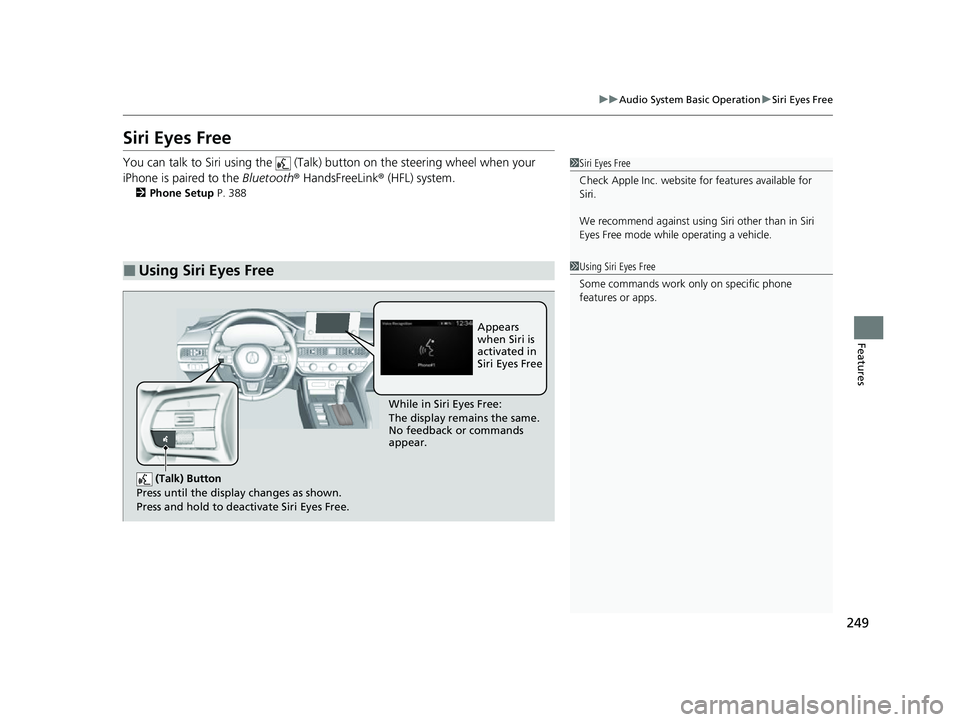
You can talk to Siri using the (Talk) button on the steering wheel when your
iPhone is paired to the Bluetooth® HandsFreeLink ® (HFL) system.
2Phone Setup P. 388
■Using Siri Eyes Free
1Siri Eyes Free
Check Apple Inc. website for features available for
Siri.
We recommend against using Si ri other than in Siri
Eyes Free mode whil e operating a vehicle.
1Using Siri Eyes Free
Some commands work only on specific phone
features or apps.
(Talk) Button
Press until the display changes as shown.
Press and hold to deactivate Siri Eyes Free.
While in Siri Eyes Free:
The display remains the same.
No feedback or commands
appear. Appears
when Siri is
activated in
Siri Eyes Free
23 ACURA INTEGRA-313S56000_03.book 249 ページ 2022年3月18日 金曜日 午前11時47分
Page 252 of 740
250
uuAudio System Basic Operation uSmartphone Voice Recognition
Features
Smartphone Voice Recognition
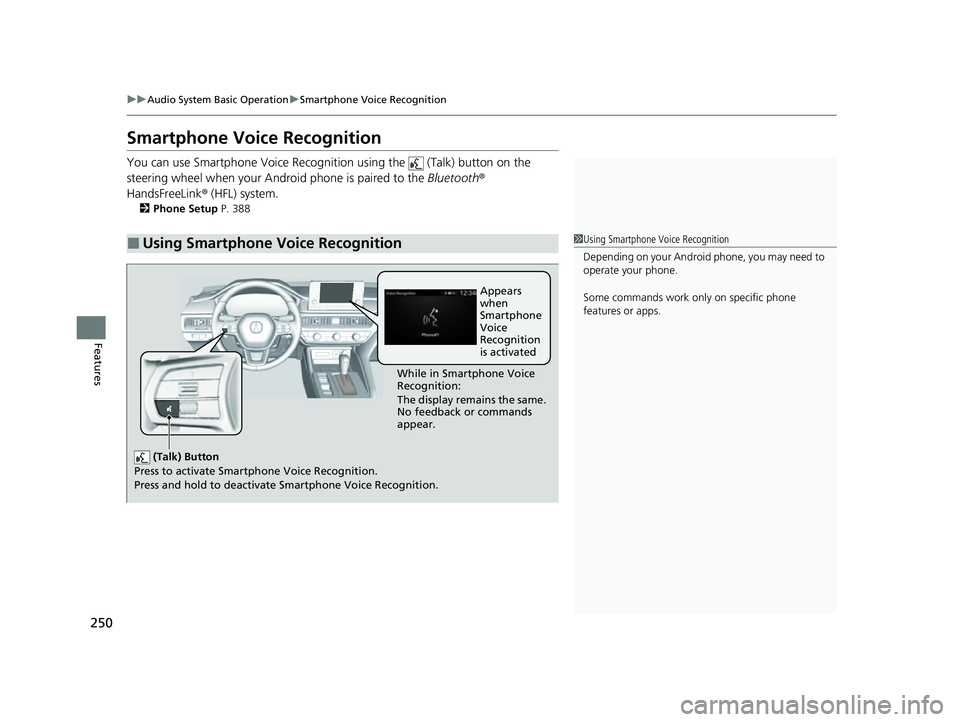
You can use Smartphone Voice Recognitio n using the (Talk) button on the
steering wheel when your Andr oid phone is paired to the Bluetooth®
HandsFreeLink ® (HFL) system.
2Phone Setup P. 388
■Using Smartphone Voice Recognition1Using Smartphone Voice Recognition
Depending on your Android phone, you may need to
operate your phone.
Some commands work only on specific phone
features or apps.
(Talk) Button
Press to activate Smartp hone Voice Recognition.
Press and hold to deactivate Smartphone Voice Recognition.
While in Smartphone Voice
Recognition:
The display remains the same.
No feedback or commands
appear.Appears
when
Smartphone
Voice
Recognition
is activated
23 ACURA INTEGRA-313S56000_03.book 250 ページ 2022年3月18日 金曜日 午前11時47分
Page 253 of 740
251
uuAudio System Basic Operation uApple CarPlay
Continued
Features
Apple CarPlay
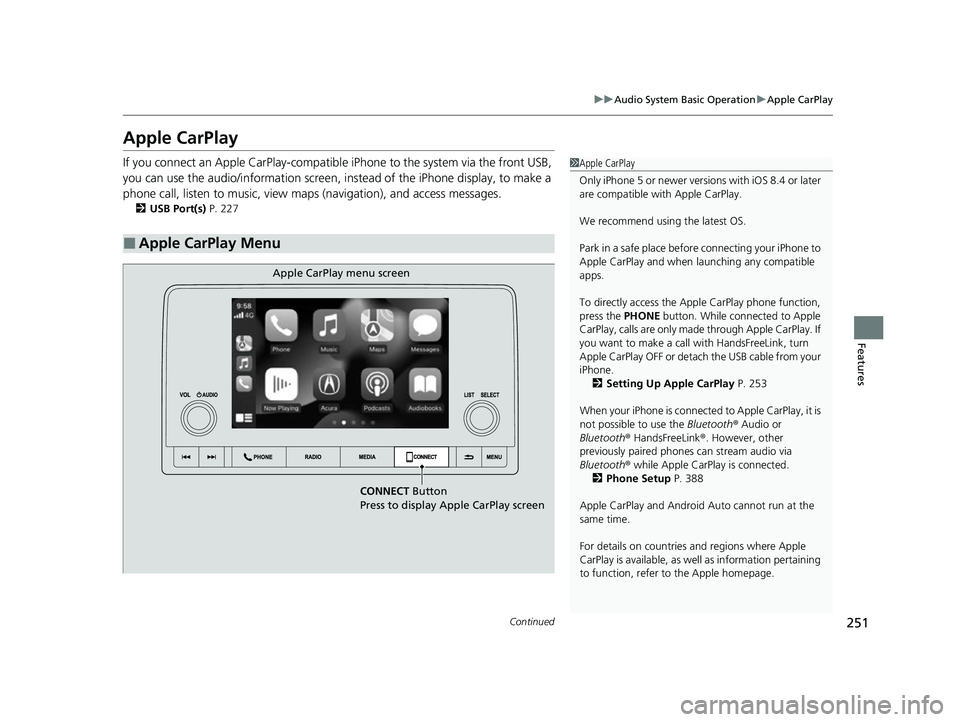
If you connect an Apple CarPlay-compatible iPhone to the system via the front USB,
you can use the audio/information screen, in stead of the iPhone display, to make a
phone call, listen to music, view maps (navigation), and access messages.
2USB Port(s) P. 227
■Apple CarPlay Menu
1Apple CarPlay
Only iPhone 5 or newer versi ons with iOS 8.4 or later
are compatible with Apple CarPlay.
We recommend using the latest OS.
Park in a safe place before connecting your iPhone to
Apple CarPlay and when launching any compatible
apps.
To directly access the Appl e CarPlay phone function,
press the PHONE button. While connected to Apple
CarPlay, calls are only made through Apple CarPlay. If
you want to make a call with HandsFreeLink, turn
Apple CarPlay OFF or detach the USB cable from your
iPhone. 2 Setting Up Apple CarPlay P. 253
When your iPhone is connected to Apple CarPlay, it is
not possible to use the Bluetooth® Audio or
Bluetooth ® HandsFreeLink ®. However, other
previously paired phones can stream audio via
Bluetooth ® while Apple CarPlay is connected.
2 Phone Setup P. 388
Apple CarPlay and Android Auto cannot run at the
same time.
For details on c ountries and regions where Apple
CarPlay is available, as well as information pertaining
to function, refer to the Apple homepage.
CONNECT Button
Press to display Apple CarPlay screen
Apple CarPlay menu screen
23 ACURA INTEGRA-313S56000_03.book 251 ページ 2022年3月18日 金曜日 午前11時47分