lock ACURA INTEGRA 2023 Manual PDF
[x] Cancel search | Manufacturer: ACURA, Model Year: 2023, Model line: INTEGRA, Model: ACURA INTEGRA 2023Pages: 740, PDF Size: 22.94 MB
Page 267 of 740
Continued265
uuAudio System Basic Operation uAudio/Information Screen
Features
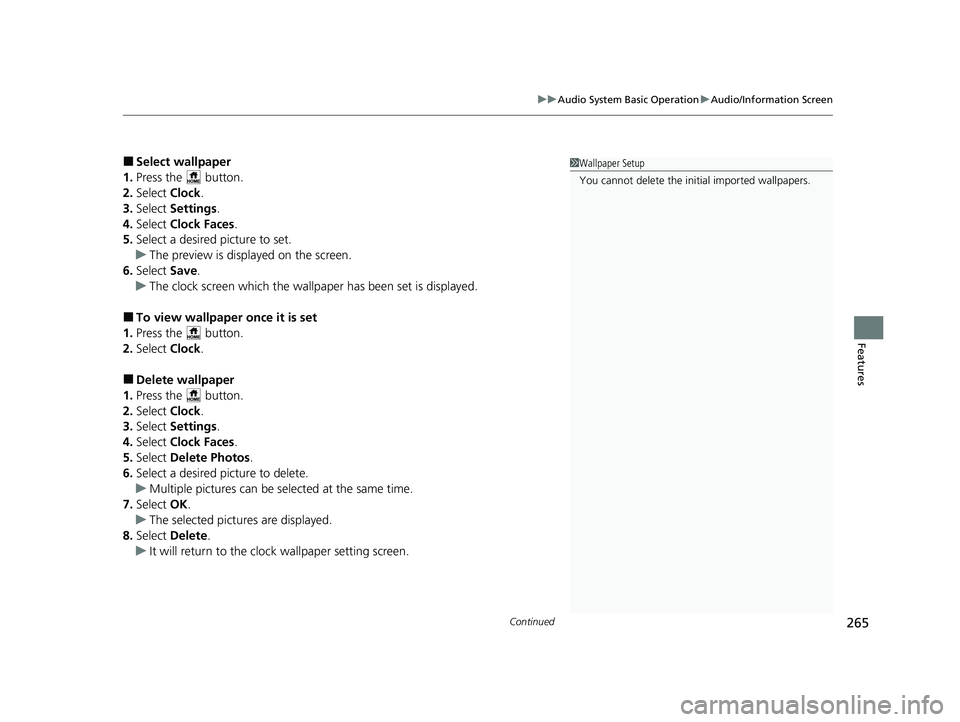
■Select wallpaper
1. Press the button.
2. Select Clock.
3. Select Settings .
4. Select Clock Faces.
5. Select a desired picture to set.
u The preview is displayed on the screen.
6. Select Save.
u The clock screen which the wallpa per has been set is displayed.
■To view wallpaper once it is set
1. Press the button.
2. Select Clock.
■Delete wallpaper
1. Press the button.
2. Select Clock.
3. Select Settings .
4. Select Clock Faces.
5. Select Delete Photos .
6. Select a desired picture to delete.
u Multiple pictures can be selected at the same time.
7. Select OK.
u The selected pictures are displayed.
8. Select Delete .
u It will return to the cloc k wallpaper setting screen.
1Wallpaper Setup
You cannot delete the initial imported wallpapers.
23 ACURA INTEGRA-313S56000_03.book 265 ページ 2022年3月18日 金曜日 午前11時47分
Page 275 of 740
273
uuAudio System Basic Operation uSystem Updates
Continued
Features
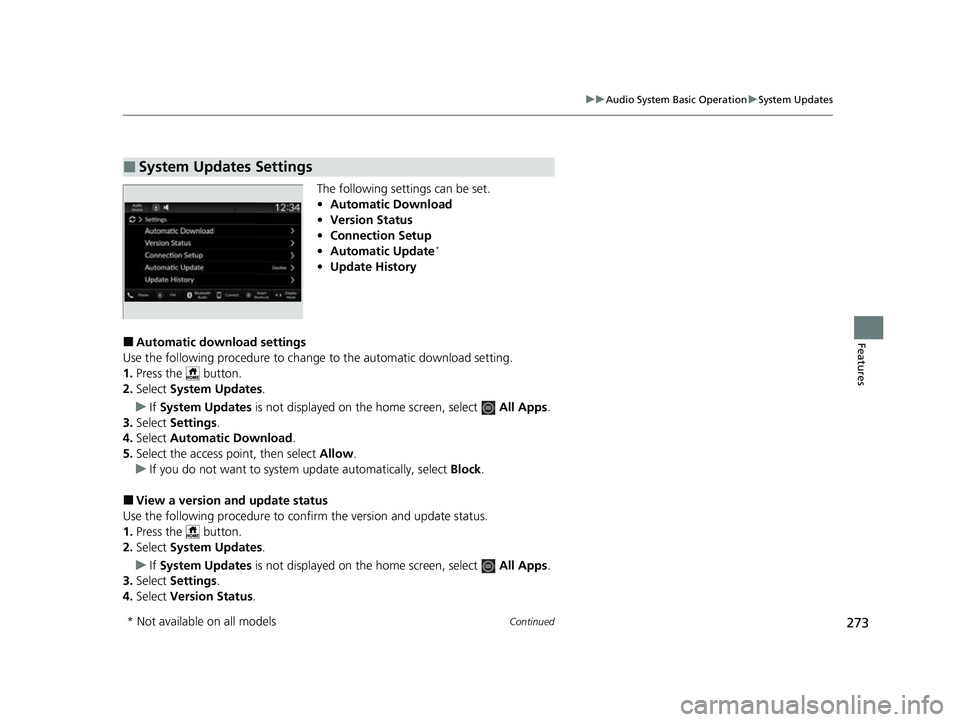
The following settings can be set.
• Automatic Download
• Version Status
• Connection Setup
• Automatic Update
*
•Update History
■Automatic download settings
Use the following procedure to change to the automatic download setting.
1. Press the button.
2. Select System Updates .
u If System Updates is not displayed on the home screen, select All Apps.
3. Select Settings .
4. Select Automatic Download .
5. Select the access point, then select Allow.
u If you do not want to system update automatically, select Block.
■View a version and update status
Use the following procedure to confirm the version and update status.
1. Press the button.
2. Select System Updates .
u If System Updates is not displayed on the home screen, select All Apps.
3. Select Settings .
4. Select Version Status .
■System Updates Settings
* Not available on all models
23 ACURA INTEGRA-313S56000_03.book 273 ページ 2022年3月18日 金曜日 午前11時47分
Page 332 of 740

330
Features
General Information on the Audio System
SiriusXM® Radio Service*
1. You need your radio ID ready before regist ering for subscription. To see the ID on
the screen, select Channel 0.
2. Have your radio ID ready, and either call or visit the SiriusXM® website to
subscribe.
Switch to the SiriusXM ® mode by using the audio remote controls on the steering
wheel, or through the audio/information screen, and stay in this mode for about 30
minutes until the service is activated. Make sure your vehicle is in an open area with
good reception.
Channel **** is not subscribed. Call SiriusXM to subscribe.
*1
You are not subscribed to the channel selected.
Subscription Updated:
SiriusXM ® radio is receiving information update from the network.
Channel Not Available:
No such channel exists, or the artist or title information is unavailable.
No Signal:
The signal is too weak in the current location.
Check Tuner:
There is a problem with the SiriusXM ® tuner. Contact a dealer.
Antenna Disconnected, Antenna Shorted:
There is a problem with the SiriusXM ® antenna. Contact a dealer.
*1 : ****part is variable characters, and will change depending upon the channel selected.
■Subscribing to SiriusXM® Radio
■Receiving SiriusXM ® Radio
■SiriusXM ® Radio Display Messages
1 Subscribing to SiriusXM ® Radio
Contact Information for SiriusXM ® Radio:
•U.S.: SiriusXM ® Radio at www.siriusxm.com/
subscribenow , or 1-866-635-2349
•Canada: SiriusXM ® Canada at www.siriusxm.ca/
subscribe-now , or 1-877-209-0079
1Receiving SiriusXM ® Radio
The SiriusXM ® satellites are in orbit over the equator;
therefore, objects south of the vehicle may cause
satellite rece ption interruptions. Sa tellite signals are
more likely to be blocked by tall buildings and
mountains the farther north you travel from the
equator.
You may experience rece ption problems under the
following circumstances:
•In a location with an obstruction to the south of
your vehicle.
•In tunnels•On the lower level of a multi-tiered road
•Large items carried on the roof rack
* Not available on all models
23 ACURA INTEGRA-313S56000_03.book 330 ページ 2022年3月18日 金曜日 午前11時47分
Page 333 of 740

331
uuGeneral Information on the Audio System uCompatible iPod, iPhone, and USB Flash Drives
Features
Compatible iPod, iPhone , and USB Flash Drives
•A USB flash drive of 256 MB or higher is recommended.
• Some digital audio players may not be compatible.
• Some USB flash drives (e.g., a device with security lockout) may not work.
• Some software files may not allow for audio play or text data display.
• Some versions of MP3, WMA, AAC, FLAC, or WAV formats may be unsupported.
*1: Models with 9-in. Color Touchscreen
*2: Models with 7-in. Color Touchscreen
■iPod and iPhone Model Compatibility
Model
Made for iPod touch (6th to 7th generation) released between 2015 and 2019
Made for iPhone 5s/iPhone 6/iPhone 6 Plus/iPhone 6s/iPhone 6s Plus/iPhone SE/
iPhone 7/iPhone 7 Plus/iPhone 8/iPhone 8 Plus/iPhone X/iPhone XS/iPhone XS Max/
iPhone XR/iPhone 11/iPhone 11 Pro/iPhone 11 Pro Max /iPhone SE (2nd generation)
Model
Made for iPod touch (5th to 6th generation) released between 2012 and 2015
Made for iPhone 4s/iPhone 5/iPhone 5s/iPhone 5c/iPhone 6/iPhone 6 Plus/iPhone 6s/
iPhone 6s Plus/iPhone SE/iPhone 7/iPhone 7 Plus/iPhone 8/iPhone 8 Plus/iPhone X/
iPhone XS/iPhone XS Max/iP hone XR/iPhone 11/iPhone 11 Pro/iPhone 11 Pro Max
1iPod and iPhone Model Compatibility
This system may not work with all software versions
of these devices.
The Lightning connector works with iPhone 5
*1,
iPhone 5s, iPhone 5c*1, iPhone 6, iPhone 6 Plus,
iPhone 6s, iPhone 6s Plus , iPhone SE, iPhone 7,
iPhone 7 Plus, iPhone 8, iPhone 8 Plus, iPhone X,
iPhone XS, iPhone XS Max, iPhone XR, iPhone 11,
iPhone 11 Pro, iPhone 11 Pr o Max, iPhone SE (2nd
generation)
*2, iPod touch (5th*1, 6th, 7th*2
generation).
The 30-pin connector works with iPhone 4s
*1.
USB works with iPhone 4s
*1, iPhone 5*1, iPhone 5s,
iPhone 5c*1, iPhone 6, iPhone 6 Plus, iPhone 6s,
iPhone 6s Plus, iPhone SE, iPhone 7, iPhone 7 Plus,
iPhone 8, iPhone 8 Plus, iP hone X, iPhone XS, iPhone
XS Max, iPhone XR, iPhone 11, iPhone 11 Pro, iPhone
11 Pro Max, iPhone SE (2nd generation)
*2, iPod touch
(5th*1, 6th, 7th*2 generation).
Models with 7-in. Color Touchscreen
Models with 9-in. Color Touchscreen
■USB Flash Drives1 USB Flash Drives
Files on the USB flash drive are played in their stored
order. This order may be different from the order
displayed on your PC or device.
23 ACURA INTEGRA-313S56000_03.book 331 ページ 2022年3月18日 金曜日 午前11時47分
Page 354 of 740
352
uuCustomized Features u
Features
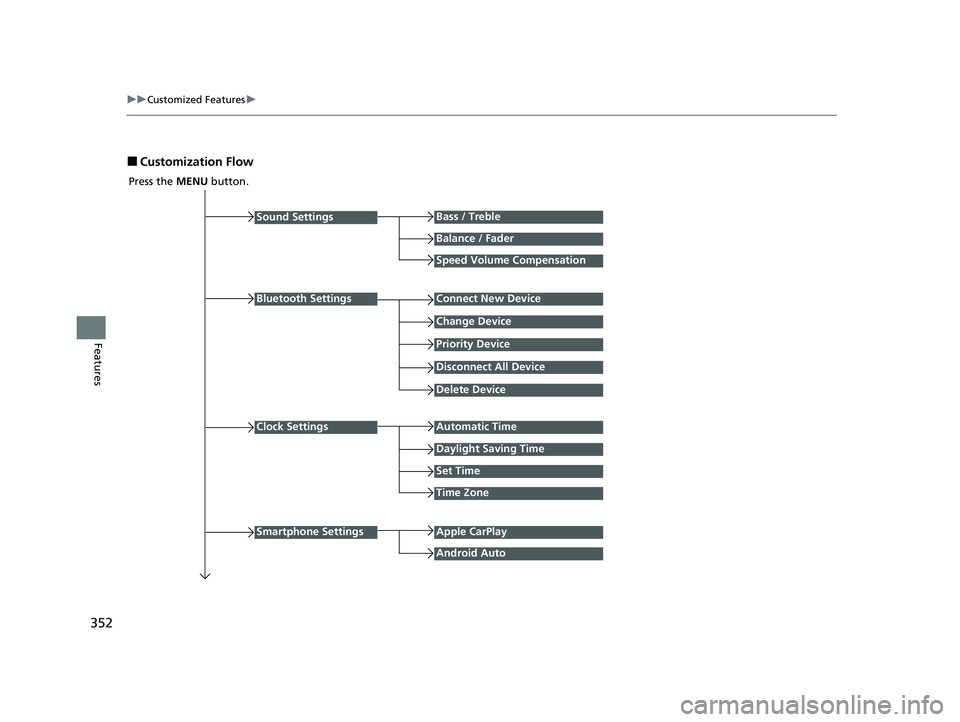
■Customization Flow
Press the MENU button.
Sound Settings
Bluetooth Settings
Bass / Treble
Balance / Fader
Speed Volume Compensation
Connect New Device
Change Device
Priority Device
Clock Settings
Smartphone Settings
Disconnect All Device
Delete Device
Automatic Time
Set Time
Time Zone
Apple CarPlay
Android Auto
Daylight Saving Time
23 ACURA INTEGRA-313S56000_03.book 352 ページ 2022年3月18日 金曜日 午前11時47分
Page 357 of 740
355
uuCustomized Features u
Continued
Features
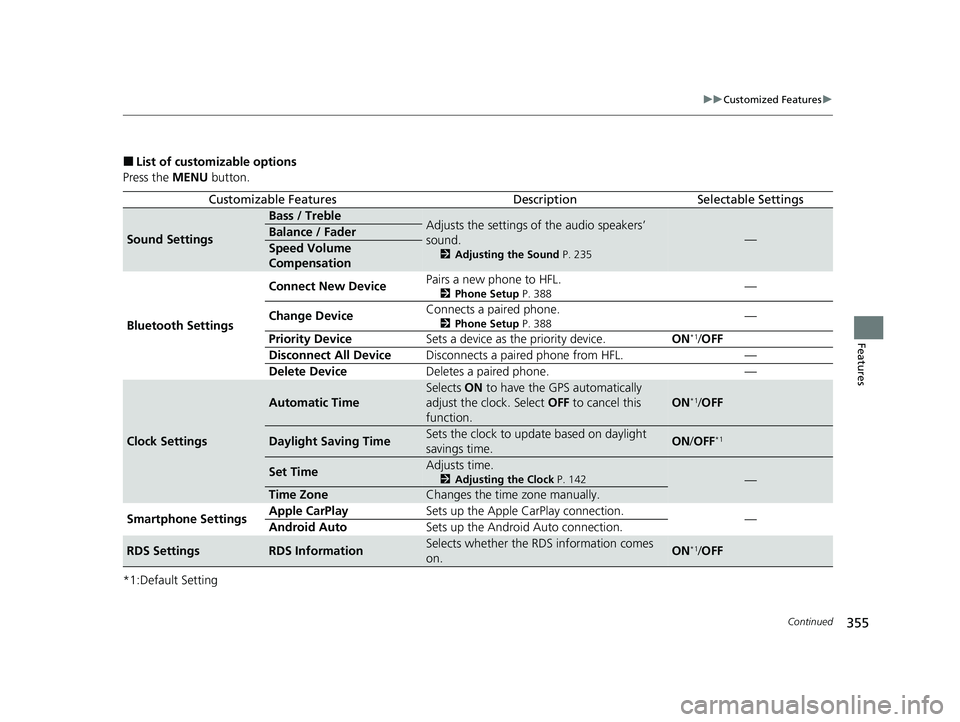
■List of customizable options
Press the MENU button.
*1:Default Setting
Customizable FeaturesDescriptionSelectable Settings
Sound Settings
Bass / TrebleAdjusts the settings of the audio speakers’
sound.
2 Adjusting the Sound P. 235
—Balance / Fader
Speed Volume
Compensation
Bluetooth Settings Connect New Device
Pairs a new phone to HFL.
2
Phone Setup P. 388—
Change Device Connects a paired phone.
2
Phone Setup P. 388—
Priority Device Sets a device as the priority device. ON
*1/OFF
Disconnect All Device Disconnects a paired phone from HFL. —
Delete Device Deletes a paired phone. —
Clock Settings
Automatic Time
Selects ON to have the GPS automatically
adjust the clock. Select OFF to cancel this
function.
ON*1/ OFF
Daylight Saving TimeSets the clock to update based on daylight
savings time.ON /OFF*1
Set TimeAdjusts time.
2 Adjusting the Clock P. 142—
Time ZoneChanges the time zone manually.
Smartphone Settings Apple CarPlay
Sets up the Apple CarPlay connection.
—
Android Auto Sets up the Android Auto connection.
RDS SettingsRDS InformationSelects whether the RDS information comes
on.ON*1/OFF
23 ACURA INTEGRA-313S56000_03.book 355 ページ 2022年3月18日 金曜日 午前11時47分
Page 366 of 740

364
uuCustomized Features u
Features
■System
*1:Default Setting
*2:Default Setting for U.S. models
*3:Default Setting for Canadian models Customizable Features Descri
ption Selectable Settings
Date & Time
Set
Date &
Time
Automatic
Date & TimeSelects ON to have the GPS automatically adjust the
clock. Select OFF to cancel this function.ON*1/OFF
Set DateAdjusts date.
2 Adjusting the Clock P. 142—
Set TimeAdjusts time.
2Adjusting the Clock P. 142—
Time
Zone(Select time
zone)Changes the time zone manually.—
Auto Daylight Saving
TimeSets the clock to update based on daylight savings time.ON*1/OFF
Date FormatSelect a date format.
MM/DD/YYYY*2/
DD/MM/YYYY*3/
YYYY/MM/DD
Time FormatSelect a time format.12H*1/ 24H
23 ACURA INTEGRA-313S56000_03.book 364 ページ 2022年3月18日 金曜日 午前11時47分
Page 375 of 740
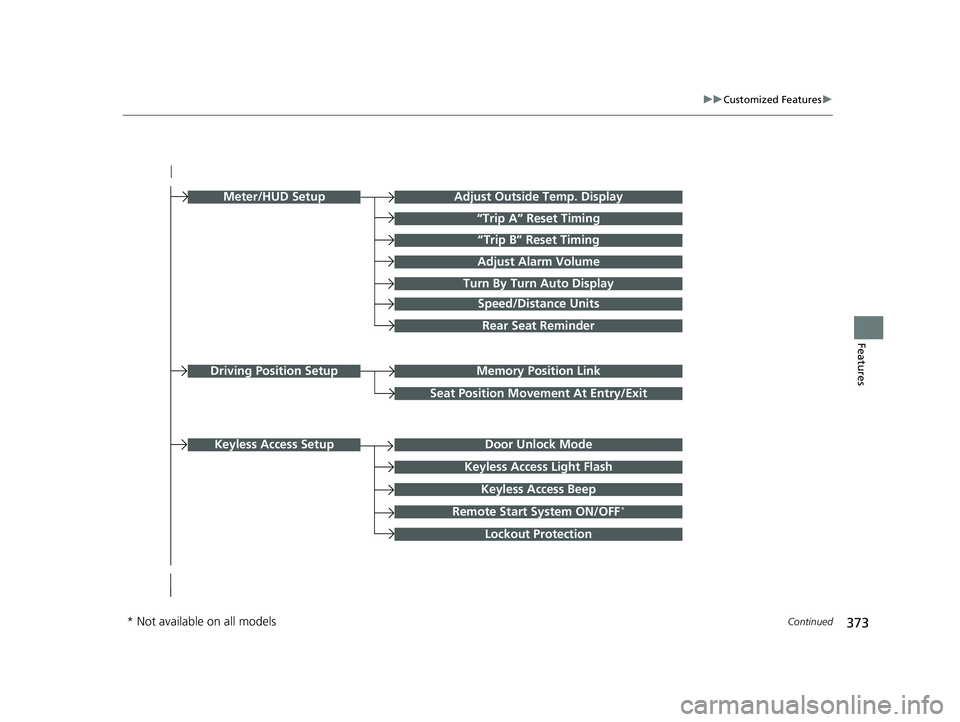
373
uuCustomized Features u
Continued
Features
Turn By Turn Auto Display
Speed/Distance Units
Keyless Access Light Flash
Rear Seat Reminder
Door Unlock Mode
Keyless Access Beep
Remote Start System ON/OFF*
Lockout Protection
Keyless Access Setup
Meter/HUD SetupAdjust Outside Temp. Display
“Trip A” Reset Timing
“Trip B” Reset Timing
Adjust Alarm Volume
Seat Position Movement At Entry/Exit
Memory Position LinkDriving Position Setup
* Not available on all models
23 ACURA INTEGRA-313S56000_03.book 373 ページ 2022年3月18日 金曜日 午前11時47分
Page 376 of 740

374
uuCustomized Features u
FeaturesAuto Door Unlock
Auto Door Lock
Walk Away Auto Lock
Lock Presetting
Keyless Lock Answer Back
Door/Window Setup
Lighting SetupAuto High Beam
Interior Light Dimming Time
Headlight Auto OFF Timer
Auto Light Sensitivity*
Auto Headlight On with Wiper On
Select Reset ItemsMaintenance Info.
Remote Window Control
Engine
Steering
Suspension
Idle Stop
Gauge
INDIVIDUAL Settings
* Not available on all models
23 ACURA INTEGRA-313S56000_03.book 374 ページ 2022年3月18日 金曜日 午前11時47分
Page 380 of 740

378
uuCustomized Features u
Features
■Driving Position Setup
*1:Default Setting
■Keyless Access Setup
*1:Default Setting
Customizable Features DescriptionSelectable Settings
Memory Position LinkTurns the driving position memory system on and off.ON*1/OFF
Seat Position Movement At
Entry/Exit Moves the seat rearward when you
get in/get out of the vehicle.
Changes the setting for this feature. ON
*1/
OFF
Customizable Features DescriptionSelectable Settings
Door Unlock ModeChanges which doors unlock when you grab the driver’s door
handle.Driver Door Only*1/All
Doors
Keyless Access Light Flash Causes some exterior lights to flash when you unlock/lock the
doors. ON
*1/
OFF
Keyless Access BeepCauses the beeper to sound when you unlock/lock the doors.ON*1/OFF
Remote Start System ON/
OFF
*Turns the remote engine start feature on and off. ON*1/OFF
Lockout ProtectionChanges the settings for the lo ckout protection function.ON*1/OFF
* Not available on all models
23 ACURA INTEGRA-313S56000_03.book 378 ページ 2022年3月18日 金曜日 午前11時47分