change wheel ACURA INTEGRA 2024 Owner's Guide
[x] Cancel search | Manufacturer: ACURA, Model Year: 2024, Model line: INTEGRA, Model: ACURA INTEGRA 2024Pages: 766, PDF Size: 28.39 MB
Page 536 of 766

uuAcuraWatchTMuAdaptive Cruise Control (ACC)*
534
Driving
■How to activate the system1Adaptive Cruise Control (ACC)*
You can read about handling information for the
camera equipped with this system.
2 Front Wide View Camera P. 590
ACC may not work properly under certai n conditions.
2 ACC Conditions and Limitations P. 540
When the engine speed slows down, try to downshift.
When the engine speed goes up, try to upshift.
You can maintain the set speed if you change gear
within five seconds.
When not using ACC: Turn off adaptive cruise by
pressing the button.
Do not use ACC under the following conditions:
•On roads with frequent lane change or continuous
stop and go traffic, ACC cannot keep an
appropriate distan ce between your vehicle and the
vehicle ahead of you.
•On roads with sharp turns.
•On roads with toll collection facilities or other
objects between lanes of traffic, or in parking
areas, or faci lities with driv e through access.
•On roads with bad weather (rain, fog, snow, etc.),
ACC may not detect the distance between your
vehicle and the vehicle ahead of you properly.
•On roads with slippery or icy surfaces. The wheels
may spin out and your vehi cle may lose the control
on the condition.
•On roads with steep uphill or steep downhill slopes.
•On roads with undulating slopes.
How to use
■Press the button on the
steering wheel.
(white) is on in the gauge
ACC is ready to use.
* Not available on all models
24 ACURA INTEGRA-313S56100.book 534 ページ 2023年2月13日 月曜日 午後2時41分
Page 541 of 766
Continued539
uuAcuraWatchTMuAdaptive Cruise Control (ACC)*
Driving
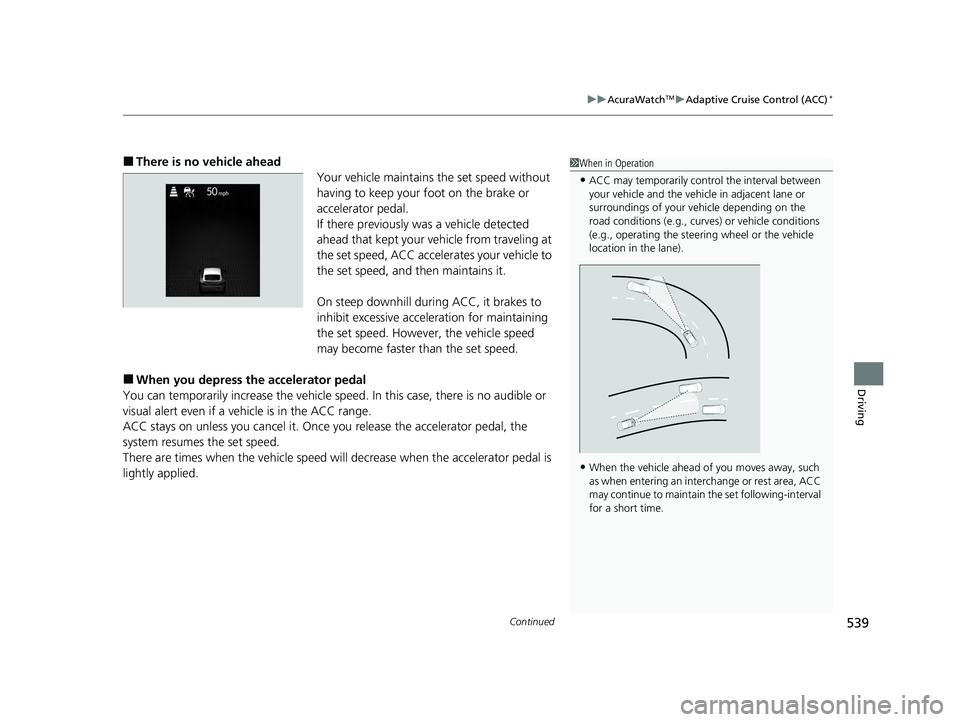
■There is no vehicle ahead
Your vehicle maintains the set speed without
having to keep your foot on the brake or
accelerator pedal.
If there previously was a vehicle detected
ahead that kept your vehicle from traveling at
the set speed, ACC accelerates your vehicle to
the set speed, and then maintains it.
On steep downhill during ACC, it brakes to
inhibit excessive acceleration for maintaining
the set speed. However, the vehicle speed
may become faster than the set speed.
■When you depress the accelerator pedal
You can temporarily increase the vehicle speed . In this case, there is no audible or
visual alert even if a vehicle is in the ACC range.
ACC stays on unless you cancel it. Once you release the accelerator pedal, the
system resumes the set speed.
There are times when the vehicle speed will decrease when the accelerator pedal is
lightly applied.
1 When in Operation
•ACC may temporarily contro l the interval between
your vehicle and the vehicl e in adjacent lane or
surroundings of your vehicle depending on the
road conditions (e.g., curv es) or vehicle conditions
(e.g., operating the steeri ng wheel or the vehicle
location in the lane).
•When the vehicle ahead of you moves away, such
as when entering an interchange or rest area, ACC
may continue to maintain the set following-interval
for a short time.
24 ACURA INTEGRA-313S56100.book 539 ページ 2023年2月13日 月曜日 午後2時41分
Page 555 of 766

553
uuAcuraWatchTMuLane Keeping Assist System (LKAS)
Continued
Driving
Lane Keeping Assist System (LKAS)
Provides steering input to help keep the vehicle in the middle of a detected lane and
provides tactile and visual al erts if the vehicle is detected drifting out of its lane.1Lane Keeping Assist System (LKAS)
Important Safety Reminders
The LKAS is for your convenience only. It is not an
autonomous driving system and always requires
driver attention and control. The system does not
work if you take your hands off the steering wheel or
fail to steer the vehicle.
The LKAS is convenient when it is used on
expressways or freeways.
Do not place objects on the instrument panel.
Objects may reflect on th e windshield and prevent
correct detection of the traffic lanes.
The LKAS only alerts you when lane drift is detected
without a turn signal in use. The LKAS may not detect
all lane markings or lane departures; accuracy will
vary based on weather, speed, and lane marker
condition.
It is always your responsibility to safely operate the
vehicle and avoid collisions.
The LKAS may not work properly or may work
improperly under the certain conditions: 2 LKAS Conditions and Limitations P. 561
You can read about handling information for the
camera equipped with this system. 2 Front Wide View Camera P. 590
When you operate the turn signals to chan ge lanes, the system is suspended, and
resumes after the signals are off.
If you make a lane change without operating the turn signals, the LKAS alerts
activate, and torque is applied to the steering.
■Front Wide
View Camera
Monitors the
lane lines■Tactile and visual alerts
Rapid vibrations on the steering wheel
and a warning display alert you that
the vehicle is drifting out of a detected
lane.
■Steering input assist
The system applies torque to the steering to keep the vehicle between the left
and right lane lines. The applied torque becomes stronger as the vehicle gets
closer to either of the lane lines.
24 ACURA INTEGRA-313S56100.book 553 ページ 2023年2月13日 月曜日 午後2時41分
Page 567 of 766

565
uuAcuraWatchTMuTraffic Jam Assist*
Continued
Driving
Traffic Jam Assist*
The Traffic Jam Assist system uses a front wide view camera mounted to the upper
portion of the windshield to detect and monitor left and right white (or yellow)
traffic lane lines. Based on inputs from the front wide view camera, the system can
apply steering torque to keep your vehicl e in the center of the detected lane.
■How Traffic Jam Assist works
When you are in heavy traffic and Lane Keep ing Assist System (LKAS) is active, the
Traffic Jam Assist system, upon detecting th e traffic lane lines, will apply steering
torque to help keep your vehicle in the center of the lane.
When the driver takes full control of the steering, the steering assist function is
temporarily canceled.
The torque applied to the steering may not be noticeable when the driver has full
control of the steering, or when the surface of the road is rough or uneven.
1 Traffic Jam Assist*
Important Safety Reminders
Traffic Jam Assist is for your convenience only. It is
not an autonomous driving system and always
requires driver at tention and control. The system
does not work if you take y our hands off the steering
wheel or fail to steer the vehicle.
Traffic Jam Assist is conven ient when it is used on
expressways or freeways.
You can read about handling information for the
front wide view camera e quipped with this system.
2 Front Wide View Camera P. 590
The Traffic Jam Assist only alerts you when lane drift
is detected without a turn signal in use. The Traffic
Jam Assist may not detect all lane markings or lane
departures; accuracy will vary based on weather,
speed, and lane marker condition.
It is always your responsibility to safely operate the
vehicle and avoid collisions.
Traffic Jam Assist may not work properly under
certain conditions: 2 Traffic Jam Assist Conditions and
Limitations P. 570
Front Wide View Camera
When you use the turn signal to indica te a lane change, Traffic Jam Assist is
temporarily deactivated. It is reactivated once the vehicle is traveling in the
center of the lane and the system has detected the traffic lane lines.
Detects left and right white
(or yellow) traffic lane lines
* Not available on all models
24 ACURA INTEGRA-313S56100.book 565 ページ 2023年2月13日 月曜日 午後2時41分
Page 569 of 766

Continued567
uuAcuraWatchTMuTraffic Jam Assist*
Driving
Traffic Jam Assist is activated when all of the following conditions exist:
• LKAS is activated.
• The lane in which you are driving has detectable lane markers on both sides, and
your vehicle is in the center of the lane.
• The vehicle is traveling between about 0 and 45mph (0 and 72km/h).
• You are driving on a straight or slightly curved road.
• The driver is grippi ng the steering wheel.
• The shift position is in
(D or (S.
Do not use Traffic Jam Assist in any of the following situations:
• You are traveling on a ro ad with sharp curves.
u The system may not allow your vehicle to respond in a manner best suited for
the road conditions.
• You are entering a toll booth, inte rchange, service area, or parking area.
• You are driving in adverse weat her (rain, fog, snow, etc.).
• The surface of the road is slippery; for example, it is icy or covered with snow.
u The tires may slip, causing you to lose control of the vehicle.
■Traffic Jam Assist Activation1Traffic Jam Assist Activation
Refer to the following pa ge for proper handling of
the Lane Keeping Assist System (LKAS):
2 Lane Keeping Assist System (LKAS) P. 553
Refer to the following page for steering buttons and
displays: 2 Operation Switches for the Adaptive
Cruise Control (ACC) with Low Speed
Follow
*/Adaptive Cruise Control (ACC)*/
Lane Keeping Assist System (LKAS)/Traffic
Jam Assist
* P. 487
* Not available on all models
24 ACURA INTEGRA-313S56100.book 567 ページ 2023年2月13日 月曜日 午後2時41分
Page 570 of 766
uuAcuraWatchTMuTraffic Jam Assist*
568
Driving
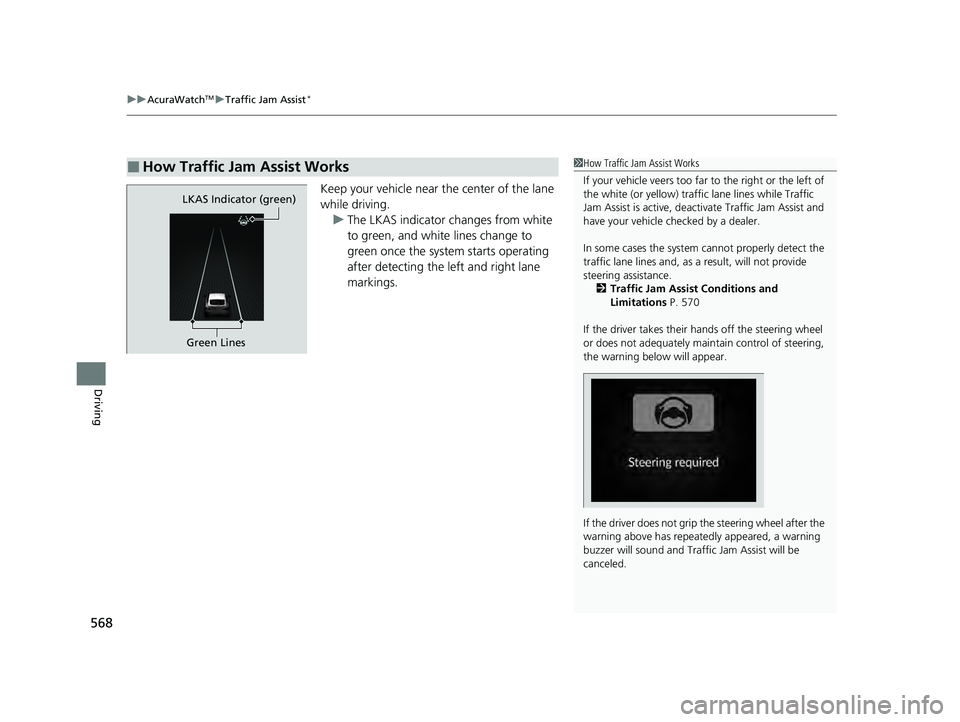
Keep your vehicle near the center of the lane
while driving.
u The LKAS indicator changes from white
to green, and white lines change to
green once the system starts operating
after detecting the left and right lane
markings.
■How Traffic Jam Assist Works1How Traffic Jam Assist Works
If your vehicle veers too far to the right or the left of
the white (or yellow) traffic lane lines while Traffic
Jam Assist is active, deactivate Traffic Jam Assist and
have your vehicle ch ecked by a dealer.
In some cases the system cannot properly detect the
traffic lane lines and, as a result, will not provide
steering assistance.
2 Traffic Jam Assist Conditions and
Limitations P. 570
If the driver takes their hands off the steering wheel
or does not adequately main tain control of steering,
the warning below will appear.
If the driver does not grip the steering wheel after the
warning above has repeatedly appeared, a warning
buzzer will sound and Traffi c Jam Assist will be
canceled.
Green Lines
LKAS Indicator (green)
24 ACURA INTEGRA-313S56100.book 568 ページ 2023年2月13日 月曜日 午後2時41分
Page 571 of 766
Continued569
uuAcuraWatchTMuTraffic Jam Assist*
Driving
Press the LKAS button to ca ncel Traffic Jam Assist.
■Traffic Jam Assist may be au tomatically suspended when:
The system is automatically temporarily canceled under the follo wing circumstances.
• The system fails to detect lane lines.
• The steering wheel is turned sharply.
• You fail to steer the vehicle.
• You are driving through a sharp curve.
• The brake pedal is depressed.
Once these conditions no longer exist, Traffic Jam Assist automatically resumes.
■Traffic Jam Assist may be automatically canceled when:
The traffic lane lines will disappear from the screen, the beeper may sound, and
Traffic Jam Assist will be canceled under the following circumstances:
• The temperature of the front wide view camera is too high.
• The front wide view camera behind the rearview mirror, or the area around the
camera, including the windshield, is dirty.
■Canceling Traffic Jam Assist
1 Traffic Jam Assist may be au tomatically suspended when:
You are traveling over 45 mph (72 km/h).
u When the speed of the vehicle reaches 45 mph (72
km/h), Traffic Jam Assist is deactivated. Once the
speed of the vehicle drops to under 40 mph (64
km/h), Traffic Jam Assist is reactivated.
You can change the setting for the Traffic Jam Assist.
Traffic Jam Assist suspe nded beep on and off when
you select the Lane Keeping Assist Suspend Beep
on the audio/information screen.
2 Customized Features P. 367
24 ACURA INTEGRA-313S56100.book 569 ページ 2023年2月13日 月曜日 午後2時41分
Page 577 of 766
Continued575
uuAcuraWatchTMuRoad Departure Mitigation System
Driving
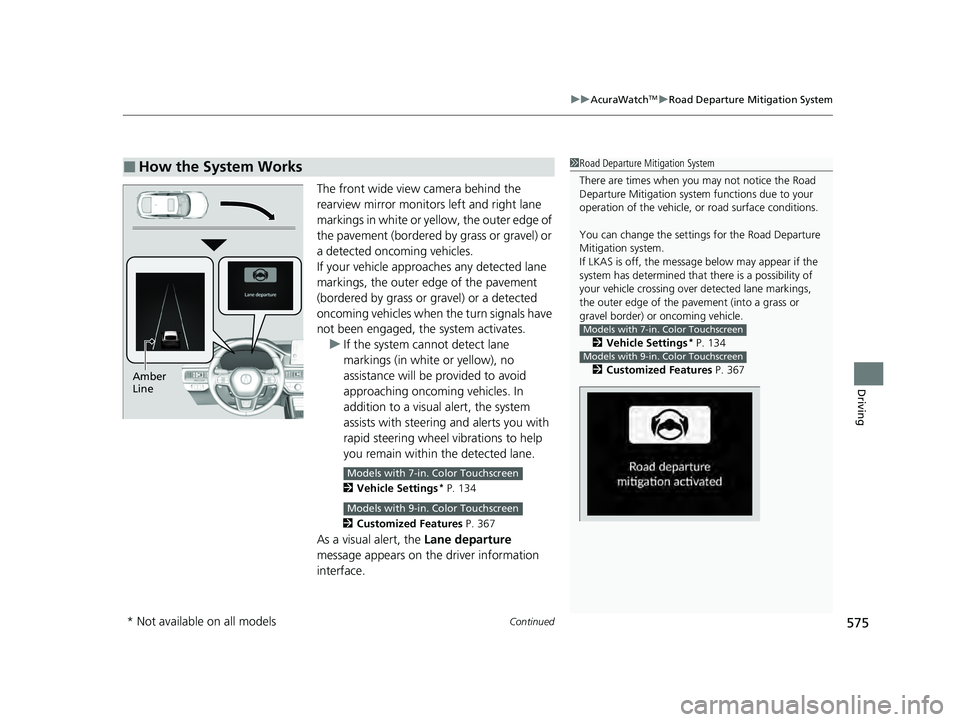
The front wide view camera behind the
rearview mirror monitors left and right lane
markings in white or yellow, the outer edge of
the pavement (bordered by grass or gravel) or
a detected oncoming vehicles.
If your vehicle approach es any detected lane
markings, the outer edge of the pavement
(bordered by grass or gravel) or a detected
oncoming vehicles when the turn signals have
not been engaged, the system activates.
u If the system cannot detect lane
markings (in white or yellow), no
assistance will be provided to avoid
approaching oncoming vehicles. In
addition to a visual alert, the system
assists with steering and alerts you with
rapid steering wheel vibrations to help
you remain within the detected lane.
2 Vehicle Settings* P. 134
2 Customized Features P. 367
As a visual alert, the Lane departure
message appears on the driver information
interface.
■How the System Works1 Road Departure Mitigation System
There are times when you may not notice the Road
Departure Mitigation system functions due to your
operation of the vehicle, or road surface conditions.
You can change the settin gs for the Road Departure
Mitigation system.
If LKAS is off, the message below may appear if the
system has determined that there is a possibility of
your vehicle crossing over detected lane markings,
the outer edge of the pavement (into a grass or
gravel border) or oncoming vehicle.
2 Vehicle Settings
* P. 134
2 Customized Features P. 367
Models with 7-in. Color Touchscreen
Models with 9-in. Color Touchscreen
Amber
Line
Models with 7-in. Color Touchscreen
Models with 9-in. Color Touchscreen
* Not available on all models
24 ACURA INTEGRA-313S56100.book 575 ページ 2023年2月13日 月曜日 午後2時41分
Page 588 of 766

uuAcuraWatchTMuTraffic Sign Recognition System
586
Driving
The Traffic Sign Recognition system may incorrectly recognize, be slow to identify,
or fail to recognize the traffi c sign in the following cases.
■Environmental conditions
• Driving into low sunlight (e.g., at dawn or dusk).
• Strong light is reflected onto the roadway.
• Driving at night, in dark areas such as long tunnels.
• Driving in bad weather (rain, fog, snow, etc.).
• Sudden changes between light and dark, such as the entrance or exit of a tunnel
or the shadows of trees, buildings, etc.
• Water is sprayed by or snow blown from a vehicle ahead.
■Roadway conditions
• Your vehicle is strongly shaken on uneven road surfaces.
■Vehicle conditions
• When lighting is weak due to dirt covering the headlight lenses, or there is poor
visibility in a dark place due to th e headlights being improperly adjusted.
• The front of the camera is covered by dirt, fog, rain, mud, wet snow, seals,
accessories, stickers, or film on the windshield.
• There is residue on the windshie ld from the windshield wipers.
• An abnormal tire or wheel condition (incor rect sizes, varied sizes or construction,
improperly inflated, compact spare tire
*, etc.).
• The vehicle is tilted due to heavy lo ad in the cargo area or rear seats.
• The suspension ha s been modified.
• Tire chains
* are installed.
• Driving at night or in a dark place (e .g., a tunnel) with the headlights off.
■Traffic Sign Recognition System Conditions and Limitations1Traffic Sign Recognition System Conditions and Limitations
When the traffic sign recognition system
malfunctions, appears on the gauge and the
head-up display
*. If this message does not disappear,
have your vehicle ch ecked by a dealer.
Gauge
Head-up display*
* Not available on all models
24 ACURA INTEGRA-313S56100.book 586 ページ 2023年2月13日 月曜日 午後2時41分
Page 619 of 766
617Continued
Driving
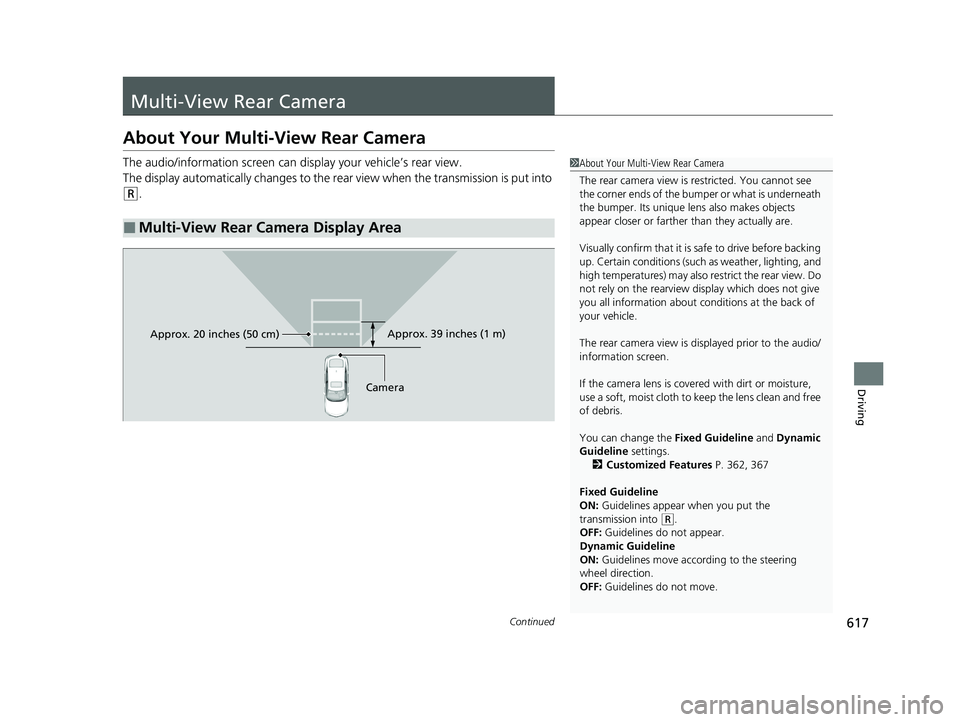
Multi-View Rear Camera
About Your Multi-View Rear Camera
The audio/information screen can display your vehicle’s rear view.
The display automatically changes to the rear view when the transmission is put into
(R.
■Multi-View Rear Camera Display Area
1About Your Multi-View Rear Camera
The rear camera view is restricted. You cannot see
the corner ends of the bumper or what is underneath
the bumper. Its unique le ns also makes objects
appear closer or farther than they actually are.
Visually confirm that it is safe to drive before backing
up. Certain conditions (such as weather, lighting, and
high temperatures) may also restrict the rear view. Do
not rely on the rearview display which does not give
you all information about conditions at the back of
your vehicle.
The rear camera view is di splayed prior to the audio/
information screen.
If the camera lens is cove red with dirt or moisture,
use a soft, moist cloth to keep the lens clean and free
of debris.
You can change the Fixed Guideline and Dynamic
Guideline settings. 2 Customized Features P. 362, 367
Fixed Guideline
ON: Guidelines appear when you put the
transmission into
( R.
OFF: Guidelines do not appear.
Dynamic Guideline
ON: Guidelines move according to the steering
wheel direction.
OFF: Guidelines do not move.
Approx. 39 inches (1 m)
Camera
Approx. 20 inches (50 cm)
24 ACURA INTEGRA-313S56100.book 617 ページ 2023年2月13日 月曜日 午後2時41分