head Acura MDX 2007 Navigation Manual
[x] Cancel search | Manufacturer: ACURA, Model Year: 2007, Model line: MDX, Model: Acura MDX 2007Pages: 166, PDF Size: 4.21 MB
Page 21 of 166
20Navigation System
Getting Started
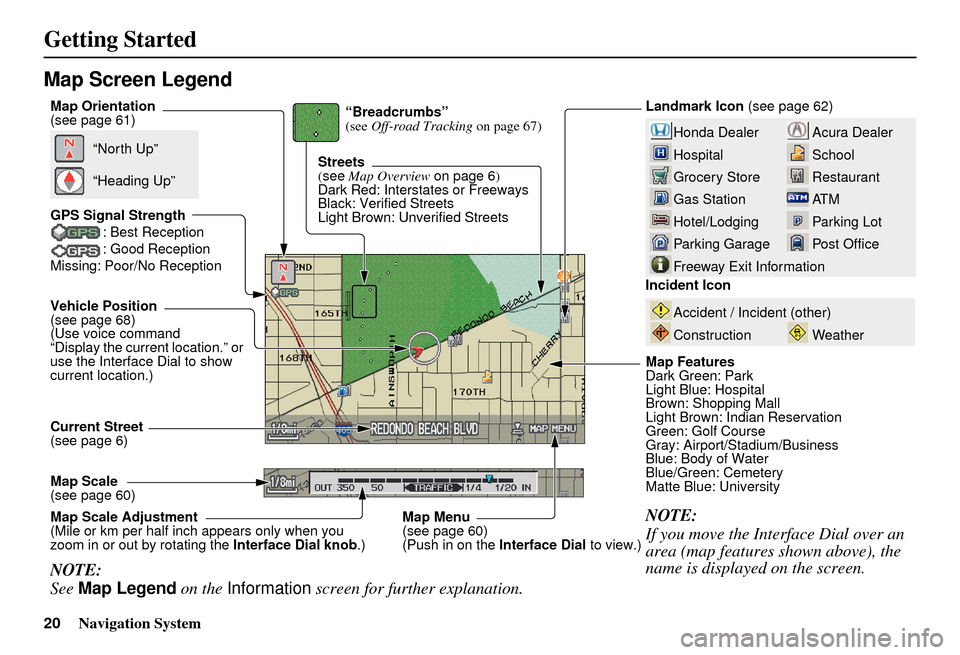
Map Screen Legend
Acura Dealer
School
Restaurant
AT M
Parking Lot
Post OfficeHonda Dealer
Hospital
Grocery Store
Gas Station
Hotel/Lodging
Parking Garage
Freeway Exit Information
Vehicle Position
(see page 68)
(Use voice command
“Display the current location.” or
use the Interface Dial to show
current location.)Landmark Icon
(see page 62)
Map Scale
(see page 60) Map Features
Dark Green: Park
Light Blue: Hospital
Brown: Shopping Mall
Light Brown: Indian Reservation
Green: Golf Course
Gray: Airport/Stadium/Business
Blue: Body of Water
Blue/Green: Cemetery
Matte Blue: University
NOTE:
If you move the Interface Dial over an
area (map features shown above), the
name is displayed on the screen.
Incident Icon
Weather
Accident / Incident (other)
Construction
Streets
(see
Map Overview on page 6)
Dark Red: Interstates or Freeways
Black: Verified Streets
Light Brown: Unverified Streets
Current Street
(see page 6)
NOTE:
See Map Legend on the Information screen for further explanation.
“Breadcrumbs”
(see Off-road Tracking on page 67)
GPS Signal Strength : Best Reception
: Good Reception
Missing: Poor/No Reception
“North Up”
“Heading Up”
Map Orientation
(see page 61)
Map Menu
(see page 60)
(Push in on the Interface Dial to view.)
Map Scale Adjustment
(Mile or km per half inch appears only when you
zoom in or out by rotating the
Interface Dial knob.)
Page 56 of 166
Navigation System55
Driving to Your Destination
Guidance Screen
The guidance screen offers an
alternative way to view your route
information. Many of the icons and
screen features are similar to those on
the map screen. While driving to your
destination, press the MAP/GUIDE
button to switch between the map and
guidance screens. The guidance
screen shows you:
Milestone to Destination - the position
of the small circular icon shows your
trip progress. As you get closer to your
destination, the indicator will approach
“DEST.”
Vehicle Heading - the black portion of
the compass symbol indicates north.
NOTE:
The map and voice guidance in unverified areas differ from those in
verified areas.
Current maneuvers and those within 1000 feet will show on the
Countdown bar, indicating the
distance until the next maneuver.
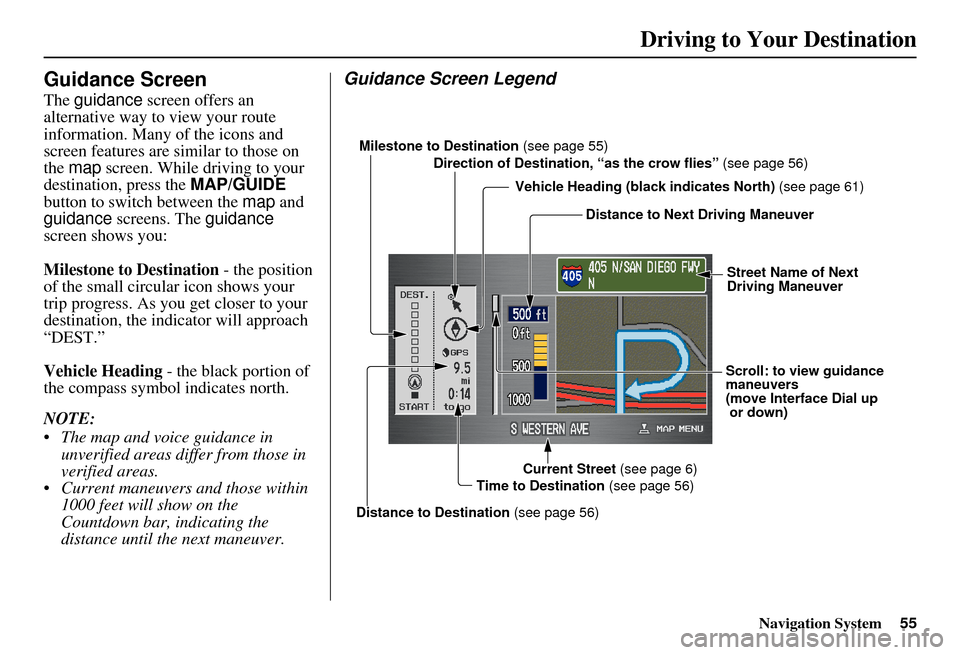
Guidance Screen Legend
Milestone to Destination (see page 55)
Direction of Destination, “as the crow flies” (see page 56)
Vehicle Heading (b lack indicates North) (see page 61)
Distance to Next Driving Maneuver
Street Name of Next
Driving Maneuver
Scroll: to view guidance
maneuvers
(move Interface Dial up
or down)
Current Street (see page 6)
Time to Destination (see page 56)
Distance to Destination (see page 56)
Page 57 of 166
56Navigation System
Distance and Time to
Destination
When you select a destination, the
distance to the destination is the actual
road distance of the calculated route,
and “not as the crow flies.” When
viewing a list of destinations (points of
interest), such as restaurants, the
distance is “as the crow flies” (see Sort
by Distance to Travel on page 37).
The displayed time to destination may
differ from the actual travel time
because the time is calculated based on
the posted road speed data and your
current speed. If part of your route
includes unverified roads, the “distance”
and “time to go” fo r that portion is
estimated using 25 mph as an average
speed.
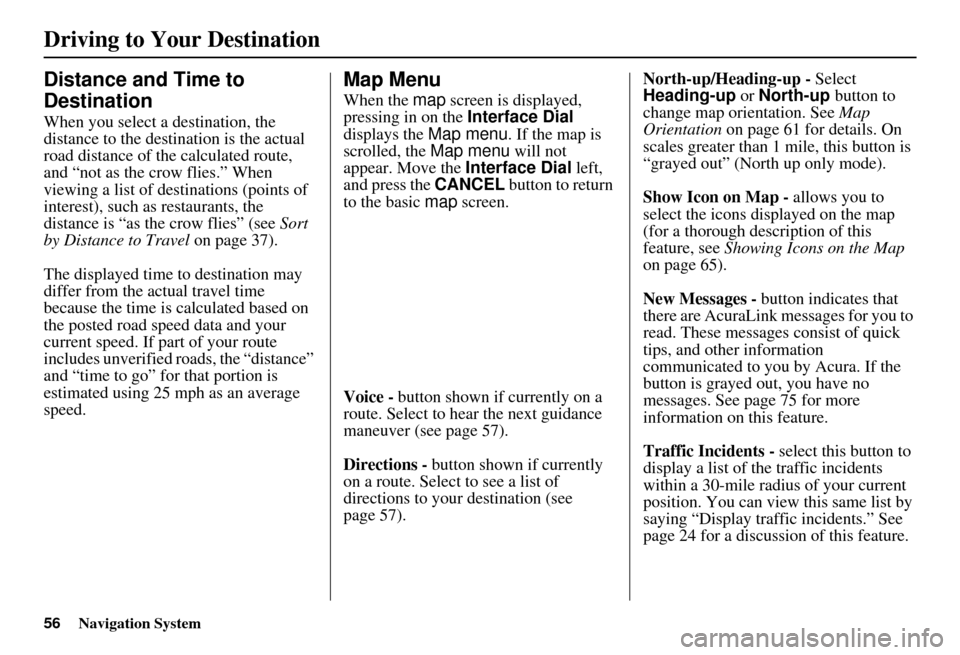
Map Menu
When the map screen is displayed,
pressing in on the Interface Dial
displays the Map menu. If the map is
scrolled, the Map menu will not
appear. Move the Interface Dial left,
and press the CANCEL button to return
to the basic map screen.
Voice - button shown if currently on a
route. Select to hear the next guidance
maneuver (see page 57).
Directions - button shown if currently
on a route. Select to see a list of
directions to your destination (see
page 57). North-up/Heading-up -
Select
Heading-up or North-up button to
change map orientation. See Map
Orientation on page 61 for details. On
scales greater than 1 mile, this button is
“grayed out” (North up only mode).
Show Icon on Map - allows you to
select the icons displayed on the map
(for a thorough description of this
feature, see Showing Icons on the Map
on page 65).
New Messages - button indicates that
there are AcuraLink messages for you to
read. These messages consist of quick
tips, and other information
communicated to you by Acura. If the
button is grayed out, you have no
messages. See page 75 for more
information on this feature.
Traffic Incidents - select this button to
display a list of the traffic incidents
within a 30-mile radius of your current
position. You can view this same list by
saying “Display traffic incidents.” See
page 24 for a discussion of this feature.
Driving to Your Destination
Page 61 of 166
60Navigation System
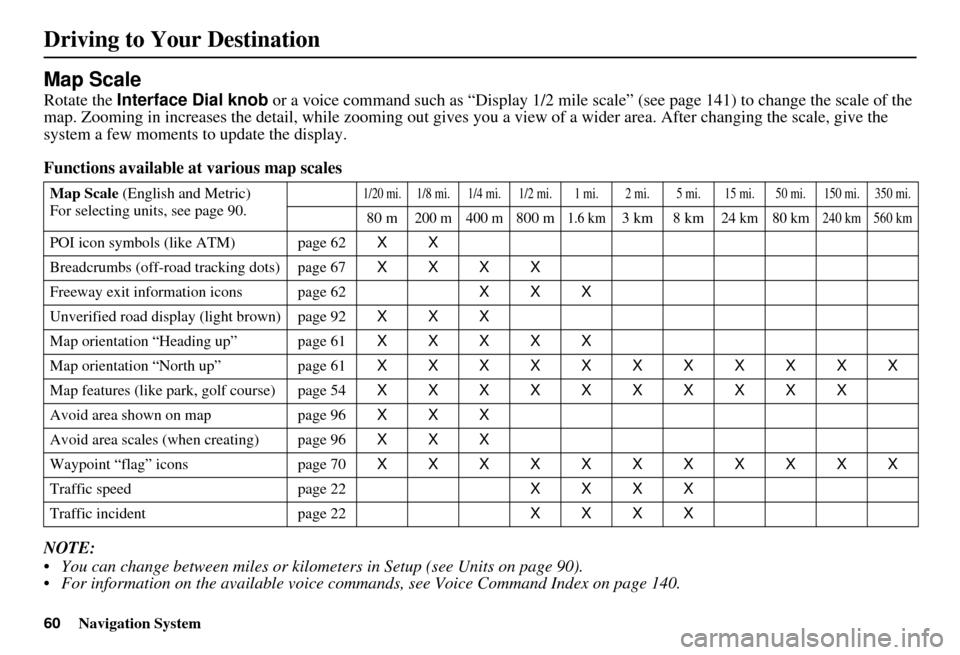
Map Scale
Rotate the Interface Dial knob or a voice command such as “Display 1/2 mile scale” (see page 141) to change the scale of the
map. Zooming in increases the detail, whil e zooming out gives you a view of a wider area. After changing the scale, give the
system a few moments to update the display.
Functions available at various map scales
NOTE:
You can change between miles or kilometers in Setup (see Units on page 90).
For information on the available voice commands, see Voice Command Index on page 140.
Map Scale (English and Metric)
For selecting uni ts, see page 90.1/20 mi.1/8 mi. 1/4 mi. 1/2 mi. 1 mi. 2 mi. 5 mi. 15 mi. 50 mi. 150 mi. 350 mi.
80 m200 m 400 m800 m1.6 km3km 8km24 km 80 km240 km 560 km
POI icon symbols (like ATM) page 62 XX
Breadcrumbs (off-road tracking dots) page 67 XXXX
Freeway exit info rmation icons page 62 XXX
Unverified road displa y (light brown) page 92 XXX
Map orientation “Heading up” page 61 XXXXX
Map orientation “North up” page 61 XXXXXXXXXXX
Map features (like pa rk, golf course) page 54 XXXXXXXXXX
Avoid area shown on map page 96 XXX
Avoid area scales (when creating) page 96 XXX
Waypoint “flag” icons page 70 XXXXXXXXXXX
Traffic speed page 22 XXXX
Traffic incident page 22 XXXX
Driving to Your Destination
Page 62 of 166

Navigation System61
Driving to Your Destination
Map Orientation
The map can be orientated two ways:
North-up: North pointing up as you
would normally view a paper map.
Heading-up: The map constantly rotates so the road you are driving on
always points up (as you see the road
through your front windowshield).
NOTE:
The red arrow in both heading symbols
always shows the direction north. Push in on the
Interface Dial on the
map or guidance screen and select
North-up or Heading-up to switch
between the available orientation, or say
“Display heading up” or “Display north
up.”
In the larger map scales (above 1 mile or
1.6 kilometer), the map is always
oriented with north facing upward. You
cannot change the orientation.
To view other areas on the map, move
the Interface Dial left, right, up, or
down. The map will shift in that
direction. To return the map to your
current location, press either the MAP/
GUIDE , the CANCEL , or the NAVI
BACK button on the steering wheel. The display automati
cally changes to
the map screen when you reach your
destination. Press the MENU button to
return to the Enter destination by
screen.
NOTE:
For information on the available voice commands, see Voice
Command Index on page 140.
If you are on a route and the Interface Dial is moved, the “Time
to Destination” and “Distance to
Destination” indications are
replaced with an indicator showing
distance from the current vehicle
location.
“North Up”
“Heading Up”
Page 74 of 166
Navigation System73
Driving to Your Destination
Changing Your Destination
There are other methods by which you
can change or add a waypoint to your
route. These are:
Find Nearest (Voice command)
From the map screen, say one of the
“Find Nearest...” voice commands to
locate the nearest gas station, ATM,
restaurant or other point of interest. See
the “Find Nearest” voice commands
listing on page 142.
Go Home (Voice command)
From the map screen, say, “Go home.”
If you have entered a “Go home”
address, then the system will display a
confirmation screen.
Using Interface Dial to Change
Destination
While following a calculated route, you
can select a new destination with the
map screen and the Interface Dial .
With the map screen displayed, use the
Interface Dial to move the position
icon. It will change to cross hairs. Use
the Interface Dial to position the cross
hair on your desired new destination,
street, or icon, then push in on the
Interface Dial . The address within the
cross hairs will be displayed. If this is
not your desired new destination,
reposition the cross hairs with the
Interface Dial , then push in on the
Interface Dial again to see the new
address. When you push in on the
Interface
Dial on a new destination, you will see a
pop-up menu as well as the address
display. Say or select either Set as
Dest. , or Set as Waypoint on the
pop-up menu. The syst em will return to
the map screen and recalculate the route
to your new destination or waypoint.
NOTE:
When you scroll the map screen while
on route to a destination, some voice
controls will not function. These
include:
Display “Heading up”
Display “North up”
Page 103 of 166
102Navigation System
System Set-up
Correct Vehicle Position
The system relies on satellites for
positioning information. Buildings,
tunnels, and other objects can block or
reflect these signals, requiring the
system to use “dead reckoning” to
determine your location and direction.
This can sometimes lead to small errors
in positioning, such as showing you on
an adjacent street.
NOTE:
Using this function to adjust vehicle
position is not recommended. When the
system acquires a GPS signal, it will
automatically place the vehicle in the
correct location.
If you choose to do this, follow these
steps:
1. Stop the vehicle.2. Select
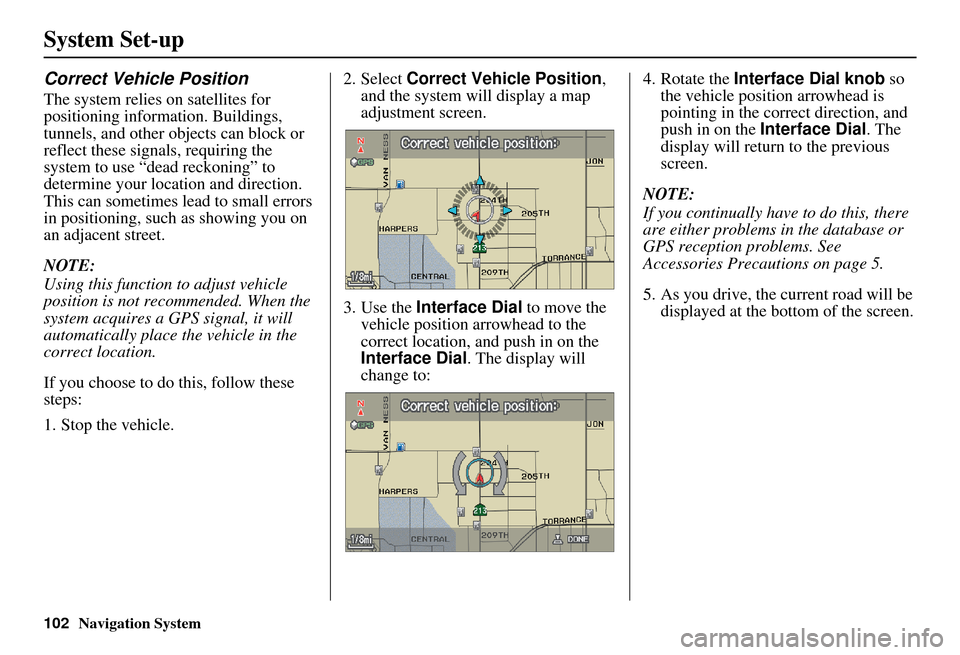
Correct Vehicle Position ,
and the system will display a map
adjustment screen.
3. Use the Interface Dial to move the
vehicle position arrowhead to the
correct location, and push in on the
Interface Dial . The display will
change to: 4. Rotate the
Interface Dial knob so
the vehicle position arrowhead is
pointing in the correct direction, and
push in on the Interface Dial . The
display will return to the previous
screen.
NOTE:
If you continually have to do this, there
are either problems in the database or
GPS reception problems. See
Accessories Precautions on page 5.
5. As you drive, the current road will be displayed at the bottom of the screen.
Page 106 of 166
105Navigation System
System Set-up
I
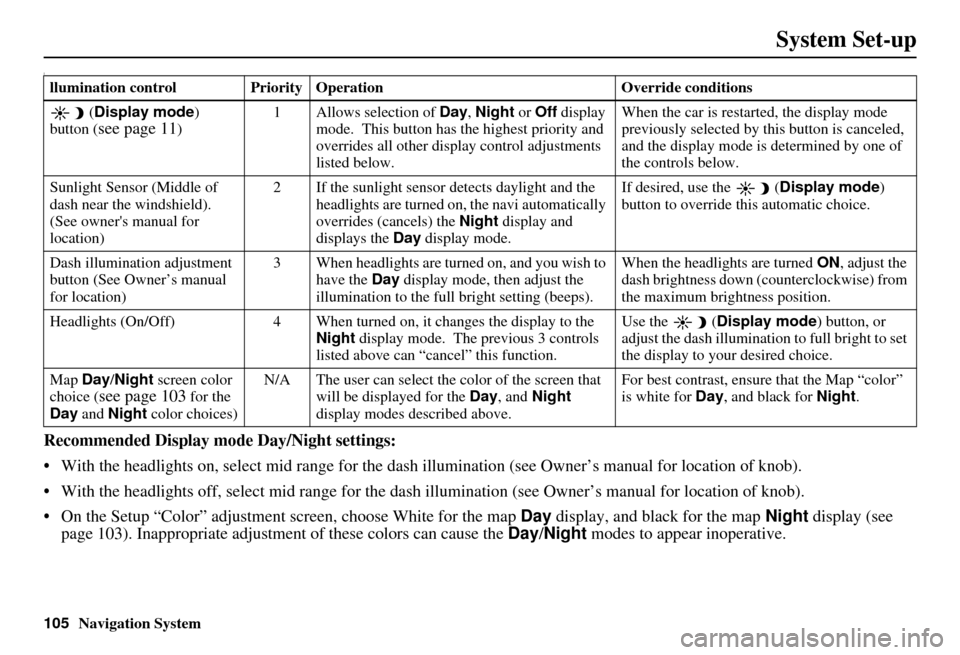
Recommended Display mode Day/Night settings:
With the headlights on, select mid range for the dash illumination (see Own er’s manual for location of knob).
With the headlights off, select mid range for the dash illumination (see Owner’s manual for location of knob).
On the Setup “Color” adjustment screen, choose White for the map Day display, and black for the map Night display (see
page 103). Inappropriate adjustment of these colors can cause the Day/Night modes to appear inoperative.
llumination control Priority Operation Override conditions
( Display mode )
button (
see page 11) 1 Allows selection of
Day, Night or Off display
mode. This button has the highest priority and
overrides all other displa y control adjustments
listed below. When the car is restarted, the display mode
previously selected by th
is button is canceled,
and the display mode is determined by one of
the controls below.
Sunlight Sensor (Middle of
dash near the windshield).
(See owner's manual for
location) 2 If the sunlight sensor
detects daylight and the
headlights are turned on, the navi automatically
overrides (cancels) the Night display and
displays the Day display mode. If desired, use the
(
Display mode )
button to override this automatic choice.
Dash illumination adjustment
button (See Owner’s manual
for location) 3 When headlights are turned on, and you wish to
have the Day display mode, then adjust the
illumination to the full bright setting (beeps). When the headlights are turned
ON, adjust the
dash brightness down (counterclockwise) from
the maximum brightness position.
Headlights (On/Off) 4 When turned on, it changes the display to the Night display mode. The previous 3 controls
listed above can “cancel” this function. Use the
(
Display mode ) button, or
adjust the dash illuminati on to full bright to set
the display to your desired choice.
Map Day/Night screen color
choice (
see page 103 for the
Day and Night color choices) N/A The user can select the color of the screen that
will be displayed for the Day, and Night
display modes described above. For best contrast
, ensure that the Map “color”
is white for Day, and black for Night.
Page 112 of 166
Navigation System111
System Limitations
Although your navigation system is one
of the most highly sophisticated pieces
of equipment you will find in a modern
automobile, you may find during its use,
that it has certain limitations.
The system uses signals from the Global
Positioning System (GPS) to aid in
determining its current location. The
GPS is operated by the U.S.
Department of Defense. For security
reasons, there are certain inaccuracies
built into the GPS that the navigation
system must constantly compensate for.
This can cause occasional positioning
errors of up to several hundred feet.
For example, in urban areas where
streets are close together, this could
cause the system to show that you are
traveling on a street that parallels the
street you are actually on. The system
will, under most circumstances, correct
itself while you drive. Also, depending on your current view of
the sky and the position of the satellites,
the elevation may be shown incorrectly.
You may also notice some delay of the
vehicle position icon at intersections;
this is normal.
GPS Reception Issues
The signals received from the GPS
satellites are extremely weak (less than
a millionth of the strength of a local FM
station), and require an unobstructed
view of sky. The signal can easily be
interrupted or interfered with by the
following:
After-market metallic window tint
above or to the sides of the GPS
antenna (located under the dash)
Cell phones, PDAs, or other electronic devices docked in a cradle
or laying loose on the dash
Radar detectors mounted on the dash
Remote starters, or “hidden” vehicle location systems mounted near the
navigation unit Other after-market audio electronic
devices mounted near the navigation
unit
Trees, tall buildings, freeway overpasses, tunnels or overhead
electrical power wires
Although the system will direct you to
your desired destination, it may not
always generate what you consider to be
the most direct rout e. Try changing the
method of routing. See Changing the
Routing Method on page 51. You may
also have Unverified Area Routing set
to “OFF.” See Unverified Area Routing
on page 92.
Additionally, the mapping database
contains verified and unverified maps.
See Map Overview on page 6.
A Disclaimer screen will warn you if
your route includes unverified streets.
Unverified streets may be missing from
the map, in the wrong location, or have
an incorrect name or address range.
Exercise addition al caution when
driving in these unverified areas.
Page 121 of 166
120Navigation System
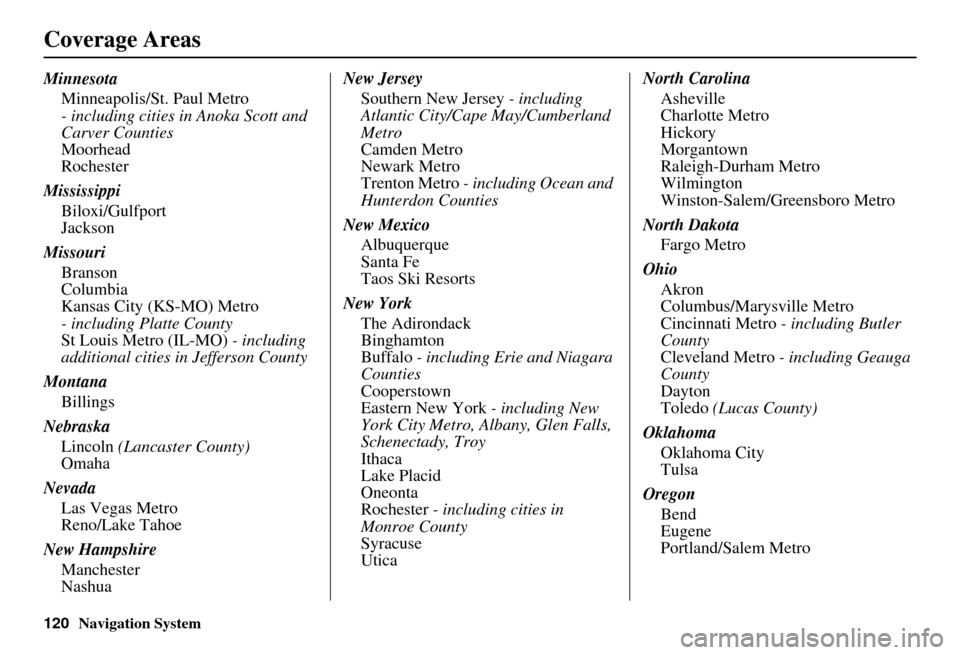
Coverage Areas
MinnesotaMinneapolis/St. Paul Metro
- including cities in Anoka Scott and
Carver Counties
Moorhead
Rochester
Mississippi Biloxi/Gulfport
Jackson
Missouri Branson
Columbia
Kansas City (KS-MO) Metro
- including Platte County
St Louis Metro (IL-MO) - including
additional cities in Jefferson County
Montana Billings
Nebraska Lincoln (Lancaster County)
Omaha
Nevada Las Vegas Metro
Reno/Lake Tahoe
New Hampshire Manchester
Nashua New Jersey
Southern New Jersey - including
Atlantic City/Cape May/Cumberland
Metro
Camden Metro
Newark Metro
Trenton Metro - including Ocean and
Hunterdon Counties
New Mexico Albuquerque
Santa Fe
Taos Ski Resorts
New York The Adirondack
Binghamton
Buffalo - including Erie and Niagara
Counties
Cooperstown
Eastern New York - including New
York City Metro, Albany, Glen Falls,
Schenectady, Troy
Ithaca
Lake Placid
Oneonta
Rochester - including cities in
Monroe County
Syracuse
Utica North Carolina
Asheville
Charlotte Metro
Hickory
Morgantown
Raleigh-Durham Metro
Wilmington
Winston-Salem/Greensboro Metro
North Dakota Fargo Metro
Ohio Akron
Columbus/Marysville Metro
Cincinnati Metro - including Butler
County
Cleveland Metro - including Geauga
County
Dayton
Toledo (Lucas County)
Oklahoma Oklahoma City
Tulsa
Oregon Bend
Eugene
Portland/Salem Metro