radio Acura MDX 2009 User Guide
[x] Cancel search | Manufacturer: ACURA, Model Year: 2009, Model line: MDX, Model: Acura MDX 2009Pages: 489, PDF Size: 11.91 MB
Page 195 of 489
To Play a Disc
To load or play discs, the ignition
switch must be in the ACCESSORY
(I) or ON (II) position.
You operate the disc changer with
the same controls used for the radio.
To select the disc changer, press the
DISC button. You will see‘‘DISC ’’in
the display. The disc and track
numbers, and the elapsed time are
shown in the display. You can also
select the displayed information with
the DISP button (see page193).The
system will continuously play a disc
until you change modes.Do not use discs with adhesive labels.
The label can curl up and cause the
disc to jam in the unit. This audio system can also play
CD-Rs and CD-RWs compressed in
MP3 or WMA formats. When playing
a disc in MP3, you will see
‘‘MP3 ’’in
the display. In WMA format, ‘‘WMA’’
will appear in the display. The disc,
folder and track numbers are
displayed. You can select up to 255
folders or tracks.
Video CDs and DVD discs do not
work in this unit.
The specifications of the compatible
MP3 files are:
Sampling frequency: 32/44.1/48 kHz
(MPEG1)
16/22.05/24 kHz (MPEG2)
Bitrate: 32/40/48/56/64/80/96/
112/128/160/192/224/256/320 kbps
Compatible with variable bitrate and
multi-session.
Maximum layers
(including ROOT): 8 layers The specifications of the compatible
WMA files are:
Sampling frequency:
22.05/32/44.1/48 kHz
Bitrate:
48/64/80/96/128/160/192 kbps
Compatible with variable bitrate and
multi-session.
Maximum layers
(including ROOT): 8 layers
CONTINUED
Playing Discs (Models without navigation system)
191
Feat ures
08/06/06 16:58:07 09 ACURA MDX MMC North America Owner's M 50 31STX620 enu
2009 MDX
Page 201 of 489

D-SCAN-This feature, when
activated, samples the first track in
each disc in order (the first file in the
main folder on each disc in MP3 or
WMA mode). To activate the disc
scan feature, press and release the
SCAN button repeatedly until
D-SCAN shows in the display. The
system will then play the first track/
file in the first main folder in the first
disc for about 10 seconds. If you do
nothing, the system will then play the
following first tracks/files for 10
seconds each. When it plays a track/
file that you want to continue
listening to, press and hold the
SCAN button again. When the first track in the last disc,
or the first file in the last main folder
in the last disc begins to play, the
disc scan mode will be canceled.
Pressing either seek button or
selecting a different folder with the
TUNE knob also turns off the scan
feature.
Each time you press and release the
SCAN button, the mode changes
from scan, disc scan, then to normal
playing.
In MP3 or WMA modeEach time you press and release the
SCAN button, the mode changes
from file scan, folder scan, disc scan,
then to normal playing.To Stop Playing a Disc
Press the eject button (
)to
remove the disc. If you eject the disc,
but do not remove it from the slot,
the system will automatically reload
the disc after 10 seconds. To begin
playing, press the DISC button.
You can also eject the disc when the
ignition switch is off.
To play the radio when a disc is
playing, press the AM or FM button.
Press the DISC button again to
switch back to the disc changer.CONTINUED
Playing Discs (Models without navigation system)
197
Feat ures
08/06/06 16:58:07 09 ACURA MDX MMC North America Owner's M 50 31STX620 enu
2009 MDX
Page 204 of 489
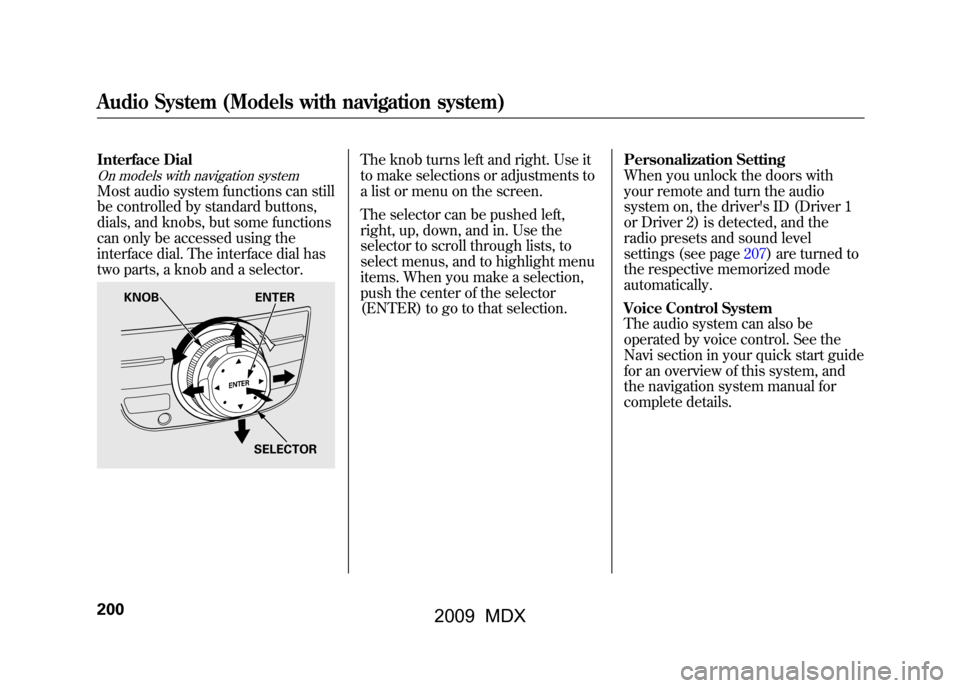
Interface DialOn models with navigation systemMost audio system functions can still
be controlled by standard buttons,
dials, and knobs, but some functions
can only be accessed using the
interface dial. The interface dial has
two parts, a knob and a selector.
The knob turns left and right. Use it
to make selections or adjustments to
a list or menu on the screen.
The selector can be pushed left,
right, up, down, and in. Use the
selector to scroll through lists, to
select menus, and to highlight menu
items. When you make a selection,
push the center of the selector
(ENTER) to go to that selection.Personalization Setting
When you unlock the doors with
your remote and turn the audio
system on, the driver's ID (Driver 1
or Driver 2) is detected, and the
radio presets and sound level
settings (see page207)are turned to
the respective memorized mode
automatically.
Voice Control System
The audio system can also be
operated by voice control. See the
Navi section in your quick start guide
for an overview of this system, and
the navigation system manual for
complete details.
KNOB
ENTER
SELECTOR
Audio System (Models with navigation system)20008/06/06 16:58:07 09 ACURA MDX MMC North America Owner's M 50 31STX620 enu
2009 MDX
Page 205 of 489
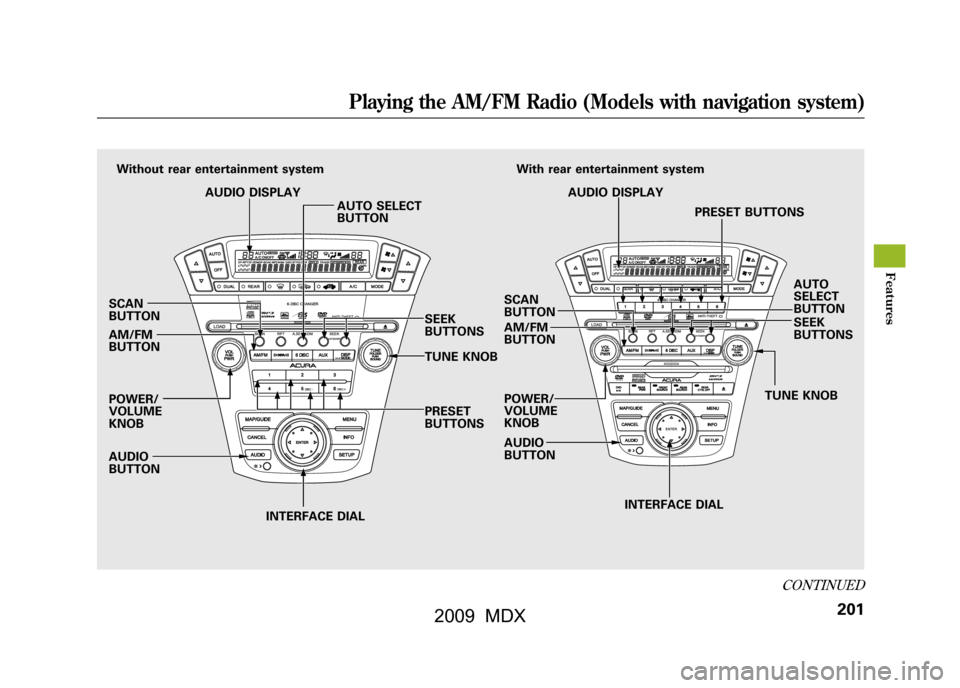
SCAN
BUTTON
AM/FM
BUTTON
POWER/
VOLUME
KNOB
AUDIO
BUTTONINTERFACE DIAL INTERFACE DIAL
PRESET
BUTTONS
Without rear entertainment system
AUDIO DISPLAY AUTO SELECT
BUTTON
SEEK
BUTTONS
TUNE KNOBSCAN
BUTTON
AM/FM
BUTTON
POWER/
VOLUME
KNOB
AUDIO
BUTTON TUNE KNOBSEEK
BUTTONS AUTO
SELECT
BUTTON
AUDIO DISPLAY
PRESET BUTTONS
With rear entertainment system
CONTINUED
Playing the AM/FM Radio (Models with navigation system)
201
Feat ures
08/06/06 16:58:07 09 ACURA MDX MMC North America Owner's M 50 31STX620 enu
2009 MDX
Page 206 of 489
To Play the AM/FM Radio
The ignition switch must be in the
ACCESSORY (I) or the ON (II)
position. Press the AUDIO button to
view the audio control display. Turn
the system on by pressing the
power/volume knob or the AM/FM
button. Adjust the volume by turning
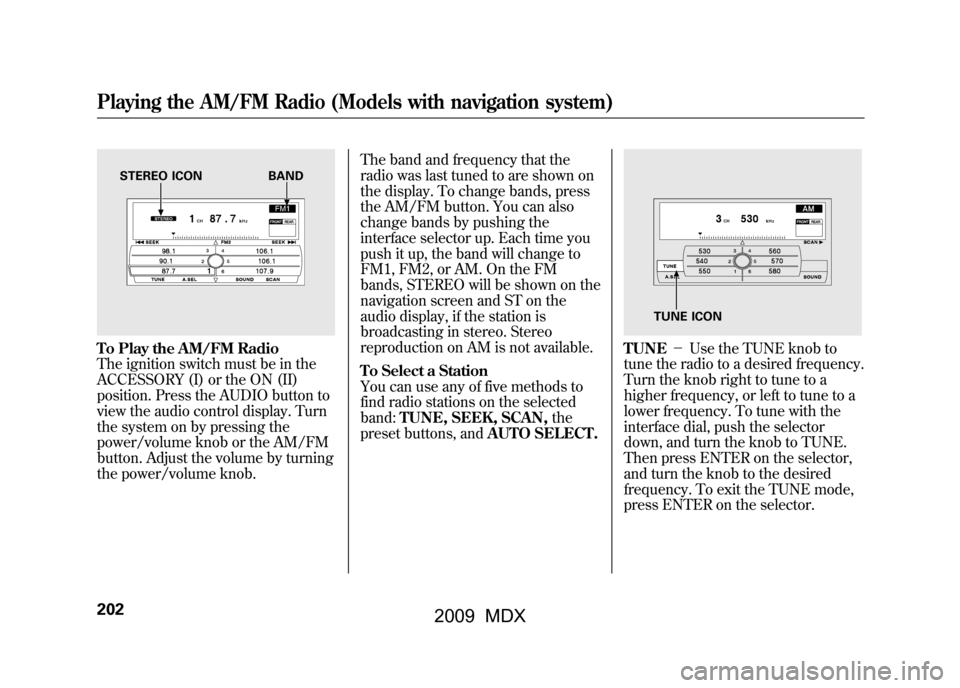
the power/volume knob.The band and frequency that the
radio was last tuned to are shown on
the display. To change bands, press
the AM/FM button. You can also
change bands by pushing the
interface selector up. Each time you
push it up, the band will change to
FM1, FM2, or AM. On the FM
bands, STEREO will be shown on the
navigation screen and ST on the
audio display, if the station is
broadcasting in stereo. Stereo
reproduction on AM is not available.
To Select a Station
You can use any of five methods to
find radio stations on the selected
band:
TUNE, SEEK, SCAN, the
preset buttons, and AUTO SELECT.
TUNE-Use the TUNE knob to
tune the radio to a desired frequency.
Turn the knob right to tune to a
higher frequency, or left to tune to a
lower frequency. To tune with the
interface dial, push the selector
down, and turn the knob to TUNE.
Then press ENTER on the selector,
and turn the knob to the desired
frequency. To exit the TUNE mode,
press ENTER on the selector.
STEREO ICON BAND
TUNE ICON
Playing the AM/FM Radio (Models with navigation system)20208/06/06 16:58:07 09 ACURA MDX MMC North America Owner's M 50 31STX620 enu
2009 MDX
Page 207 of 489

SEEK-The SEEK function
searches up and down from the
current frequency to find a station
with a strong signal. To activate it,
press the -or+ SEEK button, then
release it. You can also activate
SEEK by pushing the interface
selector to the right or left.
SCAN -The SCAN function
samples all stations with strong
signals on the selected band. To
activate it, press the SCAN button,
then release it. To scan with the interface dial, push
the selector down, and then push it
to the right. You will see SCAN
flashing on the screen.
The system will scan for a station
with a strong signal. When it finds
one, it will stop and play that station
for about 10 seconds. If you do
nothing, the system will then scan for
the next strong station and play it for
10 seconds. When it plays a station
that you want to listen to, press the
scan button again, or push the
interface selector to the right again.
SCAN ICON
CONTINUED
Playing the AM/FM Radio (Models with navigation system)
203
Feat ures
08/06/06 16:58:07 09 ACURA MDX MMC North America Owner's M 50 31STX620 enu
2009 MDX
Page 208 of 489
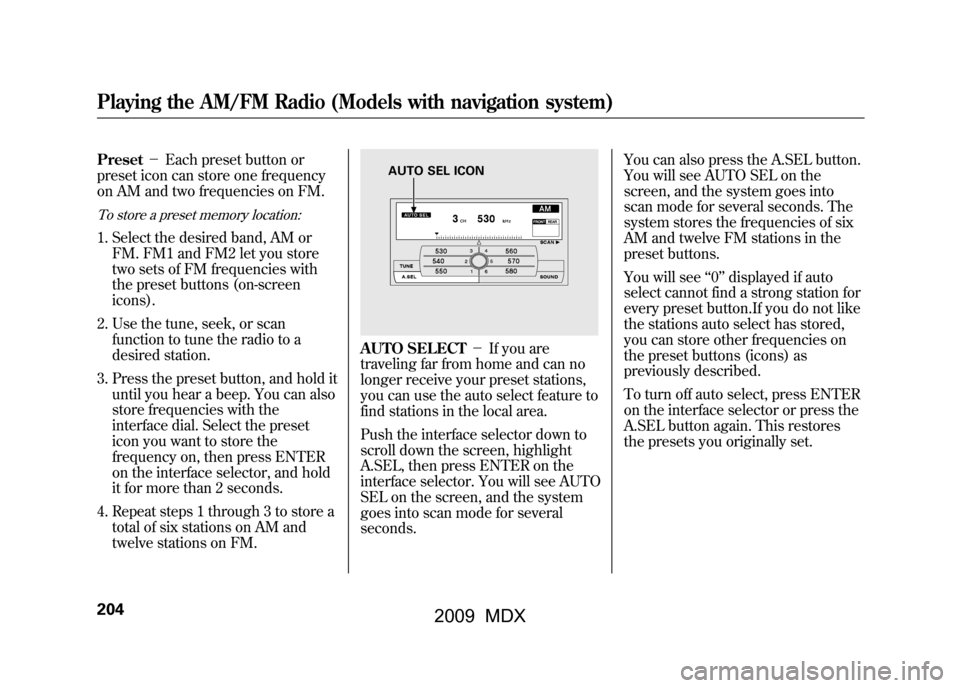
Preset-Each preset button or
preset icon can store one frequency
on AM and two frequencies on FM.To store a preset memory location:1. Select the desired band, AM or FM. FM1 and FM2 let you store
two sets of FM frequencies with
the preset buttons (on-screen
icons).
2. Use the tune, seek, or scan function to tune the radio to a
desired station.
3. Press the preset button, and hold it until you hear a beep. You can also
store frequencies with the
interface dial. Select the preset
icon you want to store the
frequency on, then press ENTER
on the interface selector, and hold
it for more than 2 seconds.
4. Repeat steps 1 through 3 to store a total of six stations on AM and
twelve stations on FM.
AUTO SELECT -If you are
traveling far from home and can no
longer receive your preset stations,
you can use the auto select feature to
find stations in the local area.
Push the interface selector down to
scroll down the screen, highlight
A.SEL, then press ENTER on the
interface selector. You will see AUTO
SEL on the screen, and the system
goes into scan mode for several
seconds. You can also press the A.SEL button.
You will see AUTO SEL on the
screen, and the system goes into
scan mode for several seconds. The
system stores the frequencies of six
AM and twelve FM stations in the
preset buttons.
You will see
‘‘0’’ displayed if auto
select cannot find a strong station for
every preset button.If you do not like
the stations auto select has stored,
you can store other frequencies on
the preset buttons (icons) as
previously described.
To turn off auto select, press ENTER
on the interface selector or press the
A.SEL button again. This restores
the presets you originally set.
AUTO SEL ICON
Playing the AM/FM Radio (Models with navigation system)20408/06/06 16:58:07 09 ACURA MDX MMC North America Owner's M 50 31STX620 enu
2009 MDX
Page 209 of 489
Radio Frequencies
The radio can receive the complete
AM and FM bands.
Those bands cover these
frequencies:
AM band: 530 to 1,710 kHz
FM band: 87.7 to 107.9 MHz
Radio stations on the AM band are
assigned frequencies at least 10 kHz
apart (530, 540, 550). Stations on the
FM band are assigned frequencies at
least 0.2 MHz apart (87.9, 88.1, 88.3).
Stations must use these exact
frequencies. It is fairly common for
stations to round-off the frequency in
their advertising, so your radio could
display a frequency of 100.9 even
though the announcer may identify
the station as‘‘FM101. ’’ Radio Reception
How well the radio receives stations
is dependent on many factors, such
as the distance from the station's
transmitter, nearby large objects, and
atmospheric conditions.
A radio station's signal gets weaker
as you get farther away from its
transmitter. If you are listening to an
AM station, you will notice the sound
volume becoming weaker, and the
station drifting in and out. If you are
listening to an FM station, you will
see the stereo indicator flickering off
and on as the signal weakens.
Eventually, the stereo indicator will
go off and the sound will fade
completely as you get out of range of
the station's signal.
Driving very near the transmitter of a
station that is broadcasting on a
frequency close to the frequency of
the station you are listening to can
also affect your radio's reception. You
may temporarily hear both stations,
or hear only the station you are close
to.
CONTINUED
AM/FM Radio Reception
205
Feat ures
08/06/06 16:58:07 09 ACURA MDX MMC North America Owner's M 50 31STX620 enu
2009 MDX
Page 210 of 489
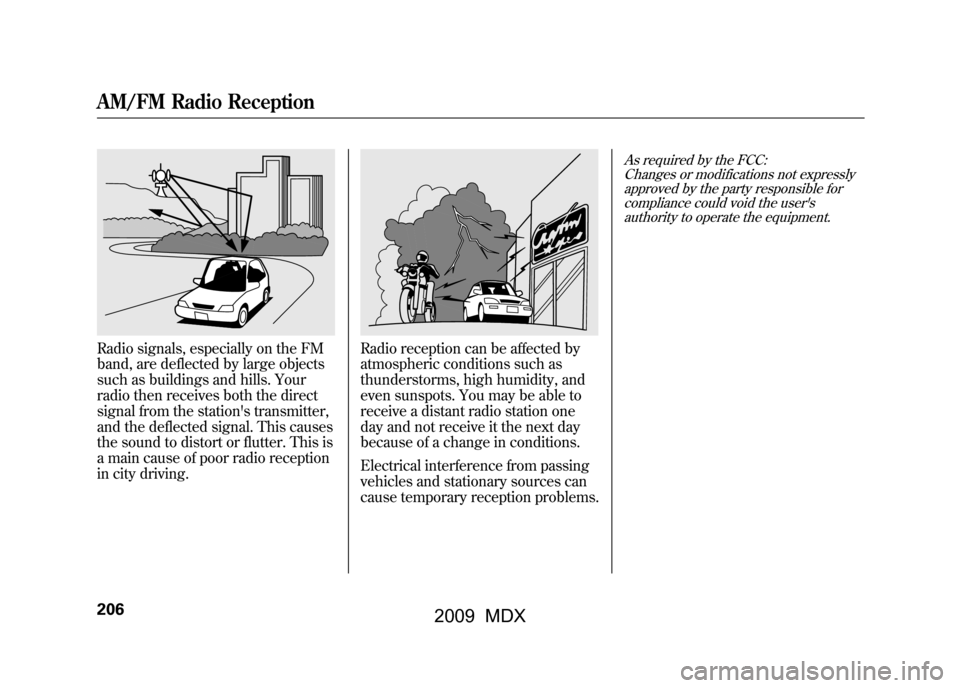
Radio signals, especially on the FM
band, are deflected by large objects
such as buildings and hills. Your
radio then receives both the direct
signal from the station's transmitter,
and the deflected signal. This causes
the sound to distort or flutter. This is
a main cause of poor radio reception
in city driving.
Radio reception can be affected by
atmospheric conditions such as
thunderstorms, high humidity, and
even sunspots. You may be able to
receive a distant radio station one
day and not receive it the next day
because of a change in conditions.
Electrical interference from passing
vehicles and stationary sources can
cause temporary reception problems.
As required by the FCC:Changes or modifications not expresslyapproved by the party responsible for
compliance could void the user'sauthority to operate the equipment.
AM/FM Radio Reception20608/06/06 16:58:07 09 ACURA MDX MMC North America Owner's M 50 31STX620 enu
2009 MDX
Page 211 of 489

Adjusting the Sound
BASS, TREBLE, BALANCE, and
FADER are each adjustable. You can
also adjust the strength of the sound
coming from the center and
subwoofer speakers. In addition, you
can set the Dolby PL (ProLogic) II
and Speed-sensitive volume
compensation (SVC).
These adjustments can be made by
the SOUND button or the interface
dial.
To adjust them, press the AUDIO
button, push the interface selector
down, and turn the interface knob to
SOUND. Then press ENTER on the
selector.
Select the mode you want to adjust
by turning the interface dial.
You can also adjust the sound by
pushing the SOUND button
repeatedly. Each mode is shown in
the audio display as it changes. Turn
the TUNE knob to adjust the setting
to your liking.
SOUND ICON
CONTINUED
Playing the AM/FM Radio (Models with navigation system)
207
Feat ures
08/06/06 16:58:07 09 ACURA MDX MMC North America Owner's M 50 31STX620 enu
2009 MDX