reset Acura MDX 2012 Service Manual
[x] Cancel search | Manufacturer: ACURA, Model Year: 2012, Model line: MDX, Model: Acura MDX 2012Pages: 621, PDF Size: 11.15 MB
Page 168 of 621
AUTO REVERSE-If either front
window senses any obstacle while it
is closing automatically, it will
reverse direction and then stop. To
close the window, remove the
obstacle, then use the window switch
again.
Auto reverse stops sensing when the
window is almost closed. You should
always check that all passengers and
objects are away from the window
before closing it.If your vehicle's battery is
disconnected or goes dead, or the
driver's window fuse is removed, the
AUTO function may be disabled. If
the AUTO function is disabled, the
power window system will need to be
reset after reconnecting the battery
or installing the fuse.
1. Start the engine. Push down and
hold the driver's window switch
until the window is fully open.
2. Pull and hold the driver's window
switch to close the window
completely, then hold the switch
for about 2 seconds.
If the power windows do not operate
properly after resetting, have your
vehicle checked by your dealer.Opening the Windows and
Moonroof with the Remote
Transmitter
You can open all of the windows and
the moonroof from outside with the
remote transmitter.
1. Press the UNLOCK button once to
unlock the driver's door.
2. Press the UNLOCK button a
second time, and hold it. All the
doors unlock, and all four windows
and moonroof start to open. To
stop the windows and moonroof,
release the button.
3. To open the windows and
moonroof further, press the button
again (within 10 seconds of step 1)
and hold it. If the windows and the
moonroof stop before the desired
position, repeat steps 1 and 2.
You cannot close the windows or the
moonroof with the remote
transmitter.
CONTINUED
Power Windows
161
Instruments and Controls
Page 199 of 621
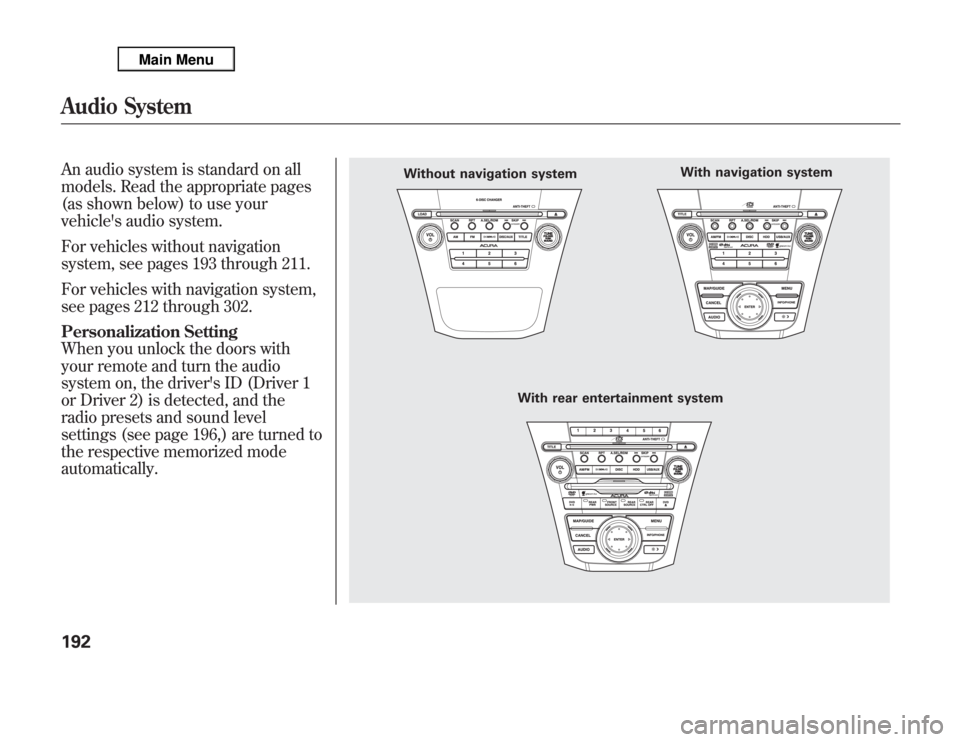
An audio system is standard on all
models. Read the appropriate pages
(as shown below) to use your
vehicle's audio system.
For vehicles without navigation
system, see pages 193 through 211.
For vehicles with navigation system,
see pages 212 through 302.
Personalization Setting
When you unlock the doors with
your remote and turn the audio
system on, the driver's ID (Driver 1
or Driver 2) is detected, and the
radio presets and sound level
settings (see page 196,) are turned to
the respective memorized mode
automatically.
Without navigation system
With rear entertainment systemWith navigation system
Audio System192
Page 200 of 621
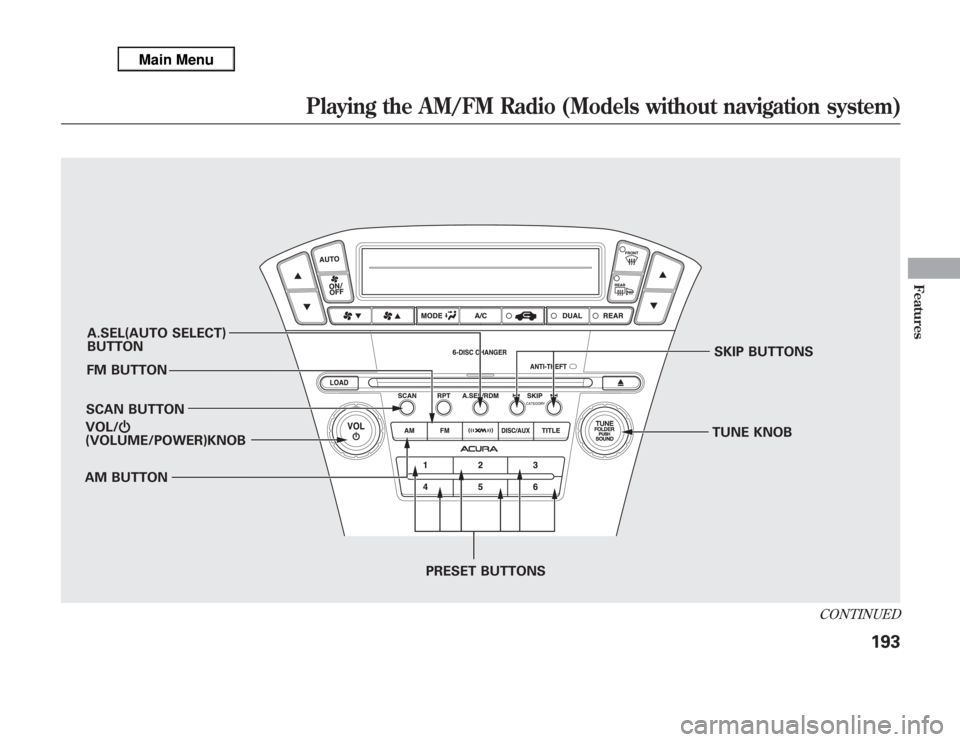
A.SEL(AUTO SELECT)
BUTTON
FM BUTTON
SCAN BUTTON
AM BUTTONSKIP BUTTONS
TUNE KNOB
PRESET BUTTONS VOL/Ⴛ
(VOLUME/POWER)KNOB
CONTINUED
Playing the AM/FM Radio (Models without navigation system)
193
Features
Page 201 of 621
To Play the Radio
The ignition switch must be in the
ACCESSORY (I) or ON (II) position.
Turn the system on by pushing the
VOL/
knob or the AM or FM
button. Adjust the volume by turning
the VOL/
knob.
The band and frequency that the
radio was last tuned to are displayed.
To change bands, press the AM or
FM button. On the FM band, ST will
be displayed if the station is
broadcasting in stereo. Stereo
reproduction in AM is not available.To Select a Station
You can use any of five methods to
find radio stations on the selected
band: tune, skip(seek), scan, the
preset buttons, and auto select.
TUNE-Use the TUNE knob to
tune the radio to a desired frequency.
Turn the knob right to tune to a
higher frequency, or left to tune to a
lower frequency.
SKIP(SEEK)-The skip(seek)
function searches up and down from
the current frequency to find a
station with a strong signal. To
activate it, press and hold the
or
side of the button, then release it.SCAN-The scan function samples
all stations with strong signals on the
selected band. To activate it, press
the SCAN button, then release it.
You will see SCAN in the display.
When the system finds a strong
signal, it will stop and play that
station for about 10 seconds.
If you do nothing, the system will
scan for the next strong station and
play it for 10 seconds. When it plays
a station that you want to listen to,
press the SCAN button again.
Playing the AM/FM Radio (Models without navigation system)194
Page 202 of 621
Preset-Each preset button can
store one frequency on AM and two
frequencies on FM.
1. Select the desired band, AM or
FM. FM1 and FM2 let you store
two frequencies with each preset
button.
2. Use the tune, skip(seek), or scan
function to tune the radio to a
desired station.
3. Pick a preset button, then press
and hold it until you hear a beep.
4. Repeat steps 1 through 3 to store a
total of six stations on AM and
twelve stations on FM.AUTO SELECT-If you are
traveling and can no longer receive
your preset stations, you can use the
auto select feature to find stations in
the local area.
Press the A.SEL button.‘‘A.SEL’’
flashes in the display, and the system
goes into scan mode for several
seconds. It stores the frequencies of
six AM and twelve FM stations in the
preset buttons.
You will see a‘‘0’’displayed after
pressing a preset button if auto select
cannot find a strong station for that
preset button.
If you do not like the stations auto
select has stored, you can store other
frequencies on the preset buttons as
previously described.
To turn off auto select,
press the A.SEL
(auto select) button. This restores
the presets you originally set.
The presets may be lost if your
vehicle's battery goes dead, is
disconnected, or the radio fuse is
removed.
For information on AM/FM radio
frequencies and reception, see page
303.
CONTINUED
Playing the AM/FM Radio (Models without navigation system)
195
Features
Page 204 of 621
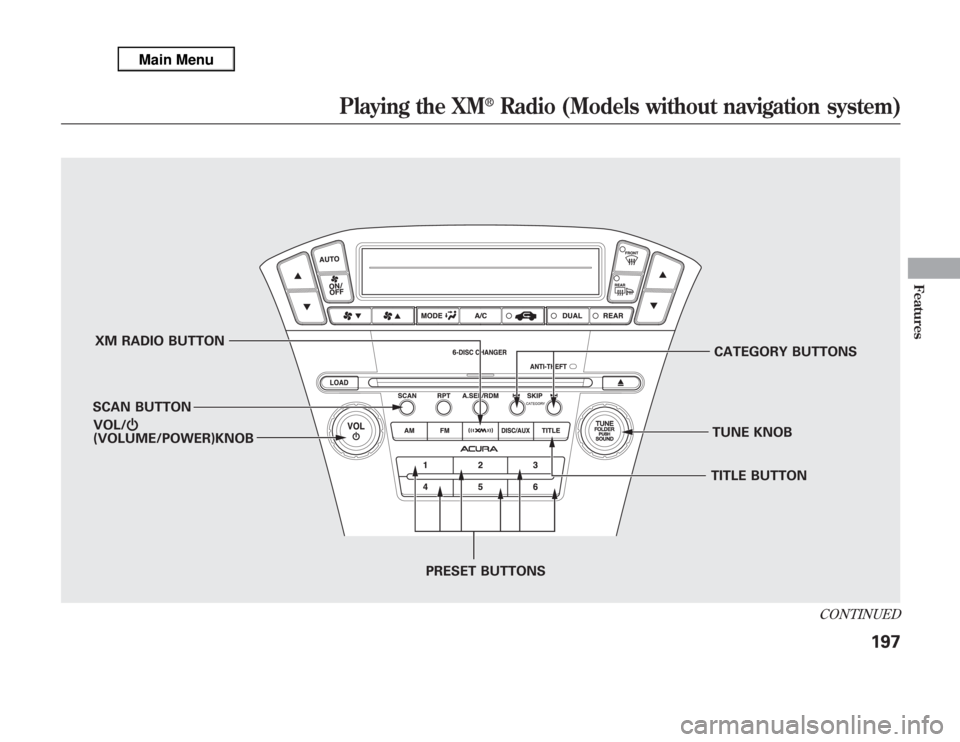
XM RADIO BUTTON
SCAN BUTTONCATEGORY BUTTONS
TUNE KNOB
PRESET BUTTONS VOL/Ⴛ
(VOLUME/POWER)KNOB
TITLE BUTTON
CONTINUED
Playing the XM
®
Radio (Models without navigation system)
197
Features
Page 206 of 621
SCAN-The SCAN function gives
you a sampling of all channels while
in the channel mode. In the category
mode, only the stations within that
category are scanned. To activate
scan, press the SCAN button. The
system plays each channel in
numerical order for about 10
seconds, then selects the next
channel. When you hear a channel
you want to continue listening to,
press the button again.
Preset-You can store up to 12
preset channels using the six preset
buttons. Each button stores one
channel from the XM1 band and one
channel from the XM2 band.
To store a channel:
1. Press the
button. Either
XM1 or XM2 will show in the
display.2. Use the TUNE knob, the
CATEGORY buttons, or the SCAN
buttons to tune to a desired
channel.
In category mode, only channels
within that category can be selected.
In channel mode, all channels can be
selected.
3. Pick the preset button you want for
that channel. Press and hold the
button until you hear a beep.
4. Repeat steps 2 and 3 to store the
first six channels.
5. Press the
button again. The
other XM band will show. Store
the next six channels using steps 2
and 3.
Once a channel is stored, simply
press and release the proper preset
button to tune to it.The presets may be lost if your
vehicle's battery goes dead, is
disconnected, or the radio fuse is
removed.
XM Radio Display Messages
‘‘LOADING’’-XM is loading the
audio or program information.
‘‘OFF AIR’’-The channel
currently selected is no longer
broadcasting.
‘‘UPDATING’’-The encryption
code is being updated. Wait until the
encryption code is fully updated.
Channels 0 and 1 should still work
normally.
CONTINUED
Playing the XM
®
Radio (Models without navigation system)
199
Features
Page 210 of 621
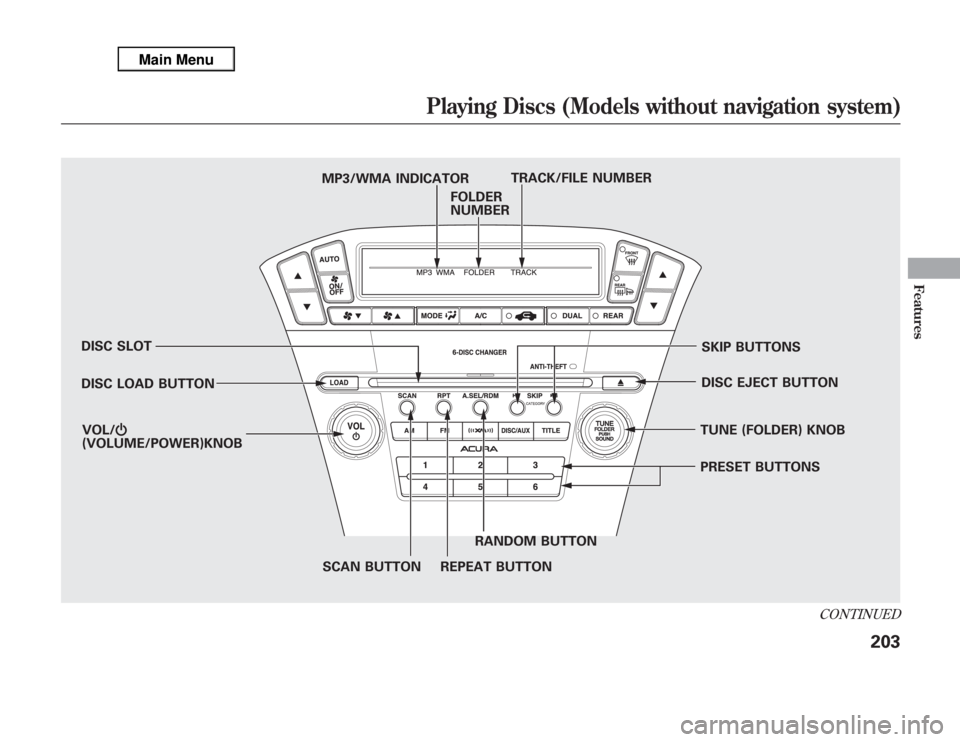
DISC SLOT
DISC LOAD BUTTON
SCAN BUTTON REPEAT BUTTONRANDOM BUTTONPRESET BUTTONS TUNE (FOLDER) KNOBDISC EJECT BUTTONSKIP BUTTONS MP3/WMA INDICATORTRACK/FILE NUMBER
FOLDER
NUMBER
VOL/Ⴛ
(VOLUME/POWER)KNOB
CONTINUED
Playing Discs (Models without navigation system)
203
Features
Page 212 of 621
Loading DiscsYour vehicle's in-dash disc changer
holds up to six discs.
1. To load all disc, press the LOAD
button until you hear a beep and
see‘‘LOAD’’in the display. To load
only one disc, press and release
the LOAD button.
2. The disc number for an empty
position begins blinking.
3. Insert the disc into the disc slot
when the green disc load indicator
comes on. Insert it only about
halfway; the drive will pull it in the
rest of the way. You will see
‘‘BUSY’’in the display while the
disc load indicator turns red and
blinks as the disc is loaded.You cannot load and play 3-inch
(8-cm) discs in this unit.
4. When the disc load indicator turns
green and‘‘LOAD’’appears in the
display again, insert the next disc
in the slot. Do not try to insert a
disc until‘‘LOAD’’appears. You
could damage the audio unit.
5. Repeat this until all six positions
are loaded. If you are not loading
all six positions, the system begins
playing the last disc loaded.
You can also load a disc into an
empty position while a disc is playing
by pressing the appropriate preset
button. The system stops playing the
current disc and starts the loading
sequence. It then plays the disc just
loaded.
Text Data Display FunctionEach time you press the TITLE
button, the display shows you the
text data on a disc, if the disc was
recorded with text data.
You can see the album, artist, and
track name in the display. If a disc is
recorded in MP3 or WMA, you can
see the folder and file name, and the
album, artist, and track tag.
With the folder name, you will see
the FOLDER indicator in the display.
The TRACK indicator is shown with
the file or track name.
When you press and release the
TITLE button while a disc without
text data is playing, you will see‘‘NO
INFOMATION’’on the display.
The display shows up to about 16
characters of selected text data (the
folder name, file name, etc.).
CONTINUED
Playing Discs (Models without navigation system)
205
Features
Page 213 of 621
If the text data has more than 16
characters, you will see the first 15
characters and the>indicator in the
display. Press and hold the TITLE
button until the next 16 characters
are shown. You can see up to about
31 characters of the text data.
If you press and hold the TITLE
button again, the display shows the
first 16 characters again.
If any letter is not available, it is
replaced with‘‘.’’(dot) in the
display.
When the disc has no text data, you
will see‘‘NO INFORMATION’’on
the display.
You will also see some text data
under these conditions:●
When a new folder, file, or track is
selected.
●
When you change the audio mode
to play a disc with text data or in
MP3 or WMA.
●
When you insert a disc, and the
system begins to play.
When playing a CD-DA with text
data, the album and track name are
shown in the display. With a disc in
MP3 or WMA, the display shows the
folder and file name.
When you turn on the audio system
next time, the system keeps your
selection with the TITLE button.
To Change or Select Tracks/FilesUse the SKIP buttons while a disc is
playing to select passages and
change tracks (files in MP3 or WMA
mode).
In MP3 or WMA mode, use the
TUNE knob to select folders in the
disc and use either SKIP button to
change files.
To select a different disc, use the
appropriate preset buttons (1
through 6). If you select an empty
position, the system will go into the
loading sequence (see page 205).
SKIP-Each time you press and
release the
SKIP button, the
player skips forward to the beginning
of the next track (file in MP3 or
WMA mode). Press and release the
SKIP button to skip backward to
the beginning of the current track.
Press it again to skip to the
beginning of the previous track.
Playing Discs (Models without navigation system)206