ignition Acura MDX 2012 Repair Manual
[x] Cancel search | Manufacturer: ACURA, Model Year: 2012, Model line: MDX, Model: Acura MDX 2012Pages: 621, PDF Size: 11.15 MB
Page 286 of 621
To Play an iPod
ᤎ
This audio system can select and
play the audio files on the iPod
ᤎ
with
the same controls used for the in-
dash disc player. To play an iPod,
connect it to the USB adapter cable
in the console compartment by using
your dock connector, then press the
USB/AUX button. The ignition
switch must be in the ACCESSORY
(I) or the ON (II) position. The iPod
will also be charged with the ignition
switch in these settings.The audio system reads and plays
sound files to be playable on the
iPod. The system cannot operate an
iPod as a mass storage device. The
system will only play songs stored on
the iPod with iTunes.
iPod and iTunes are registered
trademarks owned by Apple Inc.
Voice Control SystemYou can select the AUX mode by
using the navigation system voice
control buttons, but cannot operate
the play mode functions.
The voice command music search
feature, Song By Voice™, is also
available. Refer to the navigation
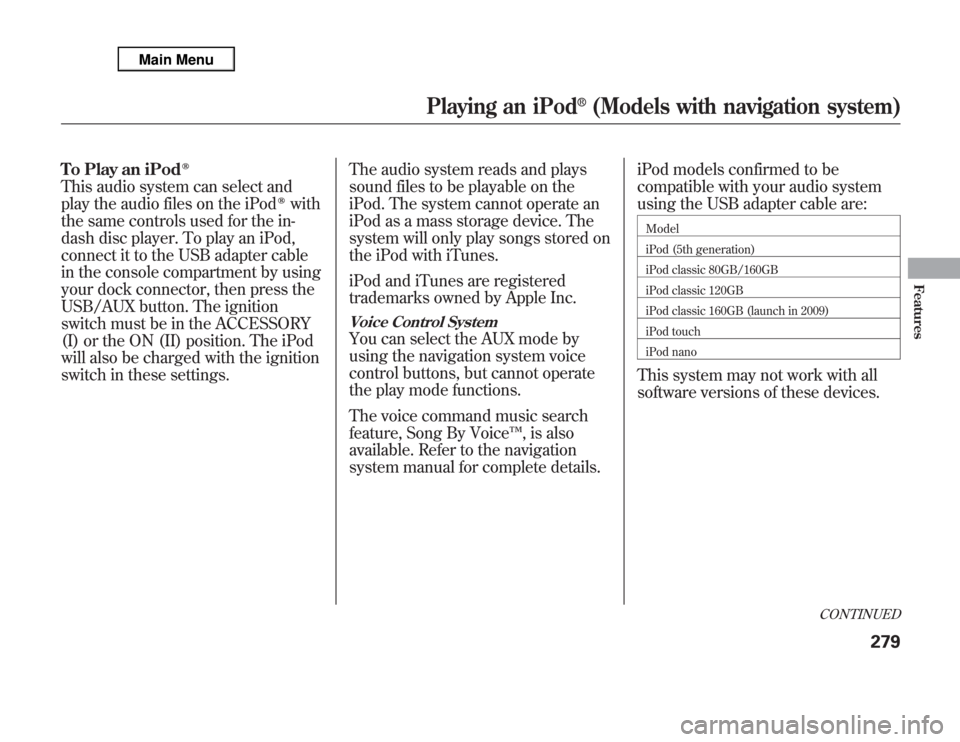
system manual for complete details.iPod models confirmed to be
compatible with your audio system
using the USB adapter cable are:
Model
iPod (5th generation)
iPod classic 80GB/160GB
iPod classic 120GB
iPod classic 160GB (launch in 2009)
iPod touch
iPod nanoThis system may not work with all
software versions of these devices.
CONTINUED
Playing an iPod
®
(Models with navigation system)
279
Features
Page 295 of 621
To Play a USB Flash Memory
Device
This audio system can select and
play the audio files on a USB flash
memory device with the same
controls used for the disc player. To
play a USB flash memory device,
connect it to the USB adapter cable
in the console compartment, then
press the USB/AUX button until you
see‘‘USB’’in the display. The
ignition switch must be in
ACCESSORY (I) or ON (II) position.The audio system reads and plays
the audio files on the USB flash
memory device in MP3, WMA or
ACC
ᤳ
formats.
ᤳ: Only AAC format files recorded
with iTunes are playable on this
audio unit.
The recommended USB flash
memory devices are 256 MB or
higher, and formatted with the FAT
file system. Some digital audio
players may be compatible as well.
Some USB flash memory devices
(such as devices with security
lockout features, etc.) will not work
in this audio unit.
NOTE:
●
Do not use a device such as a card
reader or hard drive as it or your
files may be damaged.
●
Do not connect your USB flash
memory device using a hub.
●
Do not use an extension cable to
the USB adapter cable equipped
with your vehicle.
●
Do not keep a USB flash memory
device in the vehicle. Direct
sunlight and high heat will damage
it.
●
We recommend backing up your
data before playing a USB flash
memory device.
●
Some devices cannot be powered
or charged via the USB adapter, if
this is the case use the accessory
adapter to supply power to your
device.
●
Depending on the type and
number of files, it may take some
time before they begin to play.
Playing a USB Flash Memory Device (Models with navigation system)288
Page 306 of 621
Your vehicle is equipped with aBluetooth
®audio system, which
allows you to listen to streaming
audio from your
Bluetooth
®audio
compatible phone. This function is
only available on
Bluetooth
®Audio
Compatible phones that are paired
and linked to the vehicle's
Bluetooth
®HandsFreeLink
®(HFL)
system (see page 390).
Not all Bluetooth-enabled phones
with streaming audio capabilities are
compatible with the system. You can
find an approved phone by visiting
www.acura.com/handsfreelink
,orby
calling the HandsFreeLink
®
consumer support at 1-888-528-7876.
In Canada, visit
www.acura.ca
, or call
1-888-9-ACURA-9.
NOTE:In some states, provinces,
and territories it may be illegal to
perform some data device functions
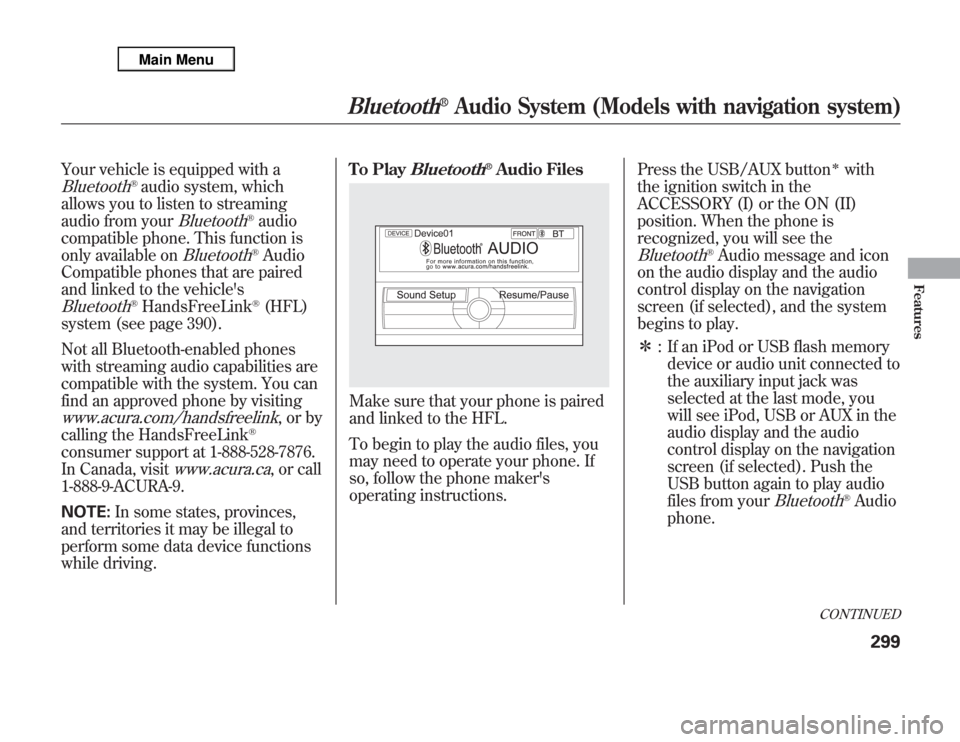
while driving.To Play
Bluetooth
®Audio Files
Make sure that your phone is paired
and linked to the HFL.
To begin to play the audio files, you
may need to operate your phone. If
so, follow the phone maker's
operating instructions.Press the USB/AUX button
ᤳ
with
the ignition switch in the
ACCESSORY (I) or the ON (II)
position. When the phone is
recognized, you will see the
Bluetooth
®Audio message and icon
on the audio display and the audio
control display on the navigation
screen (if selected), and the system
begins to play.
ᤳ: If an iPod or USB flash memory
device or audio unit connected to
the auxiliary input jack was
selected at the last mode, you
will see iPod, USB or AUX in the
audio display and the audio
control display on the navigation
screen (if selected). Push the
USB button again to play audio
files from your
Bluetooth
®Audio
phone.
CONTINUED
Bluetooth
®
Audio System (Models with navigation system)
299
Features
Page 317 of 621
U.S. Technology Package with
Entertainment, Advance Package with
Entertainment, Canadian Technology,
and Elite PackagesYour vehicle is equipped with a rear
entertainment system that includes a
DVD player for the enjoyment of the
rear passengers.
With this system, the rear
passengers can enjoy a different
entertainment source (radio, disc,
HDD, USB, iPod
®, DVD player, or
XM Radio) than the front seat
occupants. The audio is broadcast
through the supplied wireless
headphones.
The ignition switch must be in the
ACCESSORY (I) or the ON (II)
position to operate the rear
entertainment system.
This vehicle's overhead mounted video
display, if so equipped, includes
mercury-containing components. Upon
removal, please reuse, recycle, or
dispose of as hazardous waste.To Turn On the System
Press the REAR PWR button. The
overhead screen will open to the
position it was last set. The indicator
on the REAR PWR button will come
on, as well as the indicator on the
FRONT SOURCE button. The rear
seat passengers can then operate the
rear system from the control panel in
the ceiling. The rear control panel
can also be detached and used as a
remote control, by pushing the
RELEASE button, and pulling the
remote toward you.
Rear Entertainment System310
Page 348 of 621
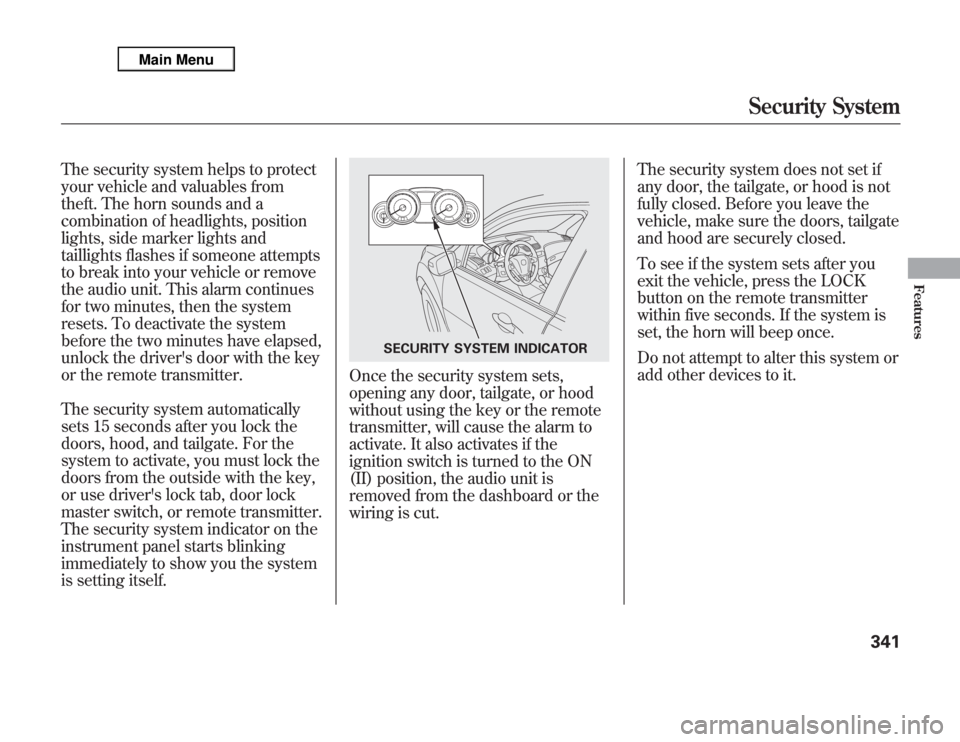
The security system helps to protect
your vehicle and valuables from
theft. The horn sounds and a
combination of headlights, position
lights, side marker lights and
taillights flashes if someone attempts
to break into your vehicle or remove
the audio unit. This alarm continues
for two minutes, then the system
resets. To deactivate the system
before the two minutes have elapsed,
unlock the driver's door with the key
or the remote transmitter.
The security system automatically
sets 15 seconds after you lock the
doors, hood, and tailgate. For the
system to activate, you must lock the
doors from the outside with the key,
or use driver's lock tab, door lock
master switch, or remote transmitter.
The security system indicator on the
instrument panel starts blinking
immediately to show you the system
is setting itself.
Once the security system sets,
opening any door, tailgate, or hood
without using the key or the remote
transmitter, will cause the alarm to
activate. It also activates if the
ignition switch is turned to the ON
(II) position, the audio unit is
removed from the dashboard or the
wiring is cut.The security system does not set if
any door, the tailgate, or hood is not
fully closed. Before you leave the
vehicle, make sure the doors, tailgate
and hood are securely closed.
To see if the system sets after you
exit the vehicle, press the LOCK
button on the remote transmitter
within five seconds. If the system is
set, the horn will beep once.
Do not attempt to alter this system or
add other devices to it.
SECURITY SYSTEM INDICATOR
Security System
341
Features
Page 366 of 621

●
Driving on a mountainous road, or
driving off road for extended
periods.
●
Abrupt steering wheel movement.
●
When the ABS or VSA is activated.
●
When the VSA indicator comes on.
If ACC is canceled by any these
conditions, wait until the condition
improves, then press the RES/
ACCEL button to restore ACC. When
you do this, the vehicle will resume
its set cruising speed.
If you turn the ignition switch to the
ACCESSORY (I) or LOCK (0)
position after ACC was automatically
canceled, the set speed is erased,
and you must enter it again (see page
353).ACC Indicator
The ACC amber indicator normally
comes on for a few seconds when
you turn the ignition switch to the
ON (II) position. If it comes on at any
other time, there is a problem in the
ACC system. If this happens, take
the vehicle to your dealer to have it
checked.
The ACC system cannot be used
while this amber indicator is on.
ACC INDICATOR
CONTINUED
Adaptive Cruise Control (ACC)
359
Features
Page 376 of 621

How to Use HFLThe ignition switch must be in the ACCESSORY (I) or ON (II) position.
‘‘Phone Setup’’
‘‘Call’’or‘‘Dial’’ Press HFL
Talk button‘‘Pair’’
‘‘Edit’’
‘‘Delete’’
‘‘List’’
‘‘Status’’
‘‘Next Phone’’
‘‘Set Pairing
Code’’
‘‘123-555-####’’
‘‘Jim Smith’’Enter desired phone number (See page 374)
Once a phonebook entry is stored, you can say a name here.
(See page 374)Set the pairing code to a‘‘Fixed’’or‘‘Random’’number
(See page 374) Search for another previously paired phone to link to
(See page 374)Hear which paired phone is currently linked to the system
(See page 373)Hear a list of all phones paired to the system (See page 373) Delete a paired phone from the system (See page 373) E
Editthenameofapairedphone(Seepage372)Pair a phone to the system (See page 372)
Press and release the HFL Talk button each time you give a command.
CONTINUED
Bluetooth
®
HandsFreeLink
®
(Models without navigation system)
369
Features
Page 381 of 621
To change from the currently linked
phone to another paired phone:Press and release the HFL Talk
button before a command.
1. Say‘‘Phone setup.’’
2. Say‘‘Next phone’’after the
prompts.
3. HFL disconnects the linked phone
and searches for another paired
phone.
4. Once another phone is found, it is
linked to the system. HFL will
inform you which phone is now
linked.
If no other phones are found or
paired, HFL will inform you that the
original phone is linked again.
To change the pairing code setting:Press and release the HFL Talk
button before a command.
1. Say‘‘Phone setup.’’
2. Say‘‘Set pairing code’’after the
prompts.
3. If you want HFL to create a
random code each time you pair a
phone, say‘‘Random.’’If you want
to choose your own 4-digit code to
be used each time, say‘‘Fixed’’
and follow the HFL prompts.Making a Call
You can make calls using a name in
the HFL phonebook or any phone
number. You can also redial the last
number called.
HFL uses a Class 2 Bluetooth, which
means the maximum range between
your phone and vehicle is 30 feet (10
meters).
During a call, HFL allows you to talk
up to 30 minutes after you remove
the key from the ignition switch.
However, this may weaken the
vehicle's battery.
Bluetooth
®
HandsFreeLink
®
(Models without navigation system)
374
Page 387 of 621
To select either a ring tone or a
prompt as the incoming call
notification
ᤳ:
Press and release the HFL Talk
button before a command.
1. Say‘‘System setup.’’
2. Say‘‘Call notification’’after the
prompts.
3. Follow the HFL prompts and say
‘‘Ring tone’’or‘‘Prompt.’’You can
also say‘‘Off’’for no audible
incoming call notification.
ᤳ: The default setting is a ring tone.
To activate or deactivate the auto
transfer function:If you get into the vehicle while you
are on the phone, the call can be
automatically transferred to HFL
with the ignition switch in the
ACCESSORY (I) or ON (II) position.
Press and release the HFL Talk
button before a command.
1. Say‘‘System setup.’’
2. Say‘‘Auto transfer’’after the
prompts.
3. HFL will let you know if auto
transfer is on or off, depending on
the previous setting. Follow the
HFL prompts to change the
setting.
To clear the system:This operation clears the passcodes,
paired phones, and all names in the
HFL phonebook data.
Press and release the HFL Talk
button before a command.
1. Say‘‘System setup.’’
2. Say‘‘Clear’’after the prompts.
3. Follow the HFL prompts to
continue to complete the clearing
procedure.
You can also clear the system when
you have forgotten the passcode and
cannot access HFL. When HFL asks
you for the passcode, say‘‘System
clear.’’Paired phones, all names in
the HFL phonebook data will be lost.
Bluetooth
®
HandsFreeLink
®
(Models without navigation system)
380
Page 393 of 621

How to Use HFL
The ignition switch must be in the ACCESSORY (I) or ON (II) position.
‘‘Cellular
Phone’’
‘‘Phone
Setup’’
‘‘Delete’’ ‘‘Delete Phone’’
Delete a previously paired phone. (See page 391) Set a‘‘Fixed’’or‘‘Random’’pass-key
code for phone pairing. (See page 391)
Create a user name for a paired phone. (See page 392)
‘‘Name’’ ‘‘Setup
Bluetooth
Phone’’
Delete a user name and settings for
a paired phone. (See page 393) Pair your phone to the system. (See page 390)
‘‘Pair Phone’’
Create a PIN number for a paired phone. (See page 393) ‘‘Search
for Next
Phone’’
‘‘Edit User/PIN’’
‘‘PIN’’ ‘‘Pass-Key’’
Voice commands can be used for all above options. Voice commands for the HFL system can only be used
from the Cellular Phone screen. To quickly access the Cellular Phone screen, press the Pick-Up button on
the steering wheel. Press and release the Talk button each time you give a command.
ᤙ
Switch from a currently linked phone to another paired phone. (See page 392)Bluetooth
®
HandsFreeLink
®
(Models with navigation system)
386