audio Acura MDX 2015 Navigation Manual
[x] Cancel search | Manufacturer: ACURA, Model Year: 2015, Model line: MDX, Model: Acura MDX 2015Pages: 341, PDF Size: 9.42 MB
Page 278 of 341
277
Front Control Panel OperationRear System Setup
Rear Entertainment System
Rear System Setup
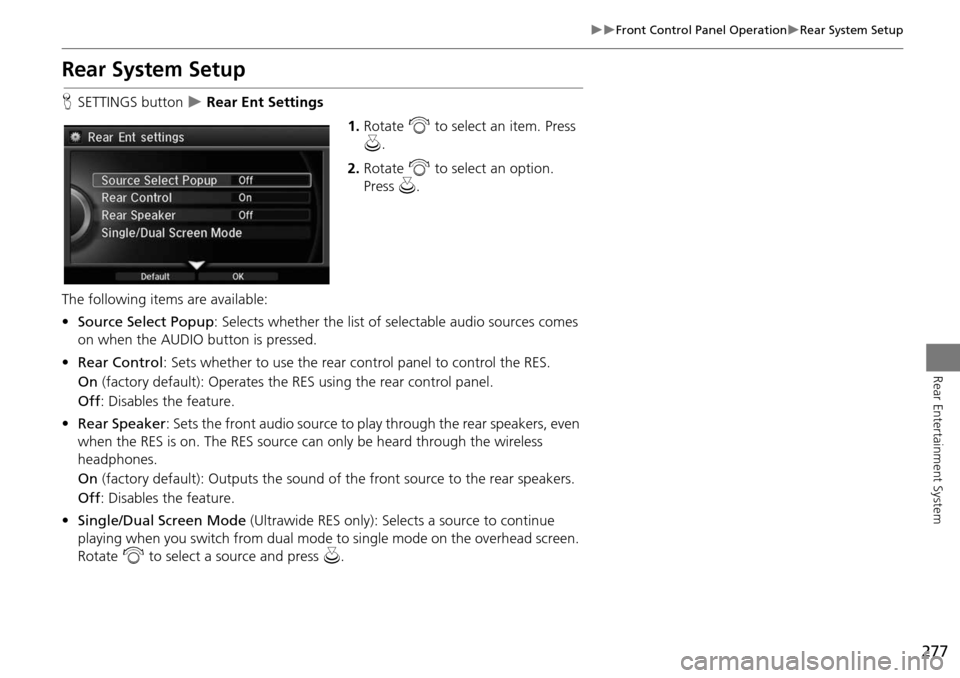
HSETTINGS button Rear Ent Settings
1.Rotate i to select an item. Press
u .
2. Rotate i to select an option.
Press u.
The following items are available:
• Source Select Popup : Selects whether the list of selectable audio sources comes
on when the AUDIO button is pressed.
• Rear Control: Sets whether to use the rear control panel to control the RES.
On (factory default): Operates the RES using the rear control panel.
Off : Disables the feature.
• Rear Speaker : Sets the front audio source to pl ay through the rear speakers, even
when the RES is on. The RES source can only be heard through the wireless
headphones.
On (factory default): Output s the sound of the front source to the rear speakers.
Off : Disables the feature.
• Single/Dual Screen Mode (Ultrawide RES only): Selects a source to continue
playing when you switch from dual mode to single mode on the overhead screen.
Rotate i to select a source and press u.
Page 279 of 341
278
Front Control Panel OperationSetting the DVD Menu
Rear Entertainment System
Setting the DVD Menu
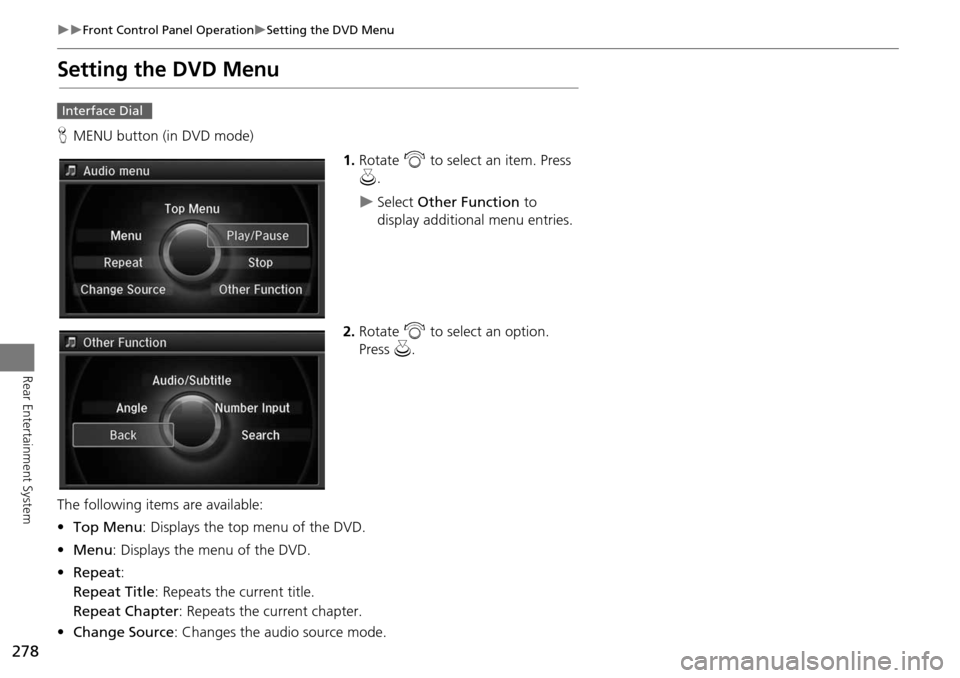
HMENU button (in DVD mode)
1.Rotate i to select an item. Press
u .
Select Other Function to
display additional menu entries.
2. Rotate i to select an option.
Press u.
The following item s are available:
• Top Menu : Displays the top menu of the DVD.
• Menu : Displays the menu of the DVD.
• Repeat :
Repeat Title : Repeats the current title.
Repeat Chapter : Repeats the current chapter.
• Change Source : Changes the audio source mode.
Interface Dial
Page 280 of 341
279
Front Control Panel OperationSetting the DVD Menu
Rear Entertainment System
•Play/Pause: Pauses or resume the playback.
• Stop : Stops the playback.
• Audio/Subtitle : Selects the language of the DVD audio and the DVD subtitle.
• Angle : Selects the angle of a scene shot with multiple cameras.
• Back : Hides the DVD menu.
• Number Input : Enters a number of a title or chapter to skip.
• Search : Skips to a title or chapter by Interface Dial.
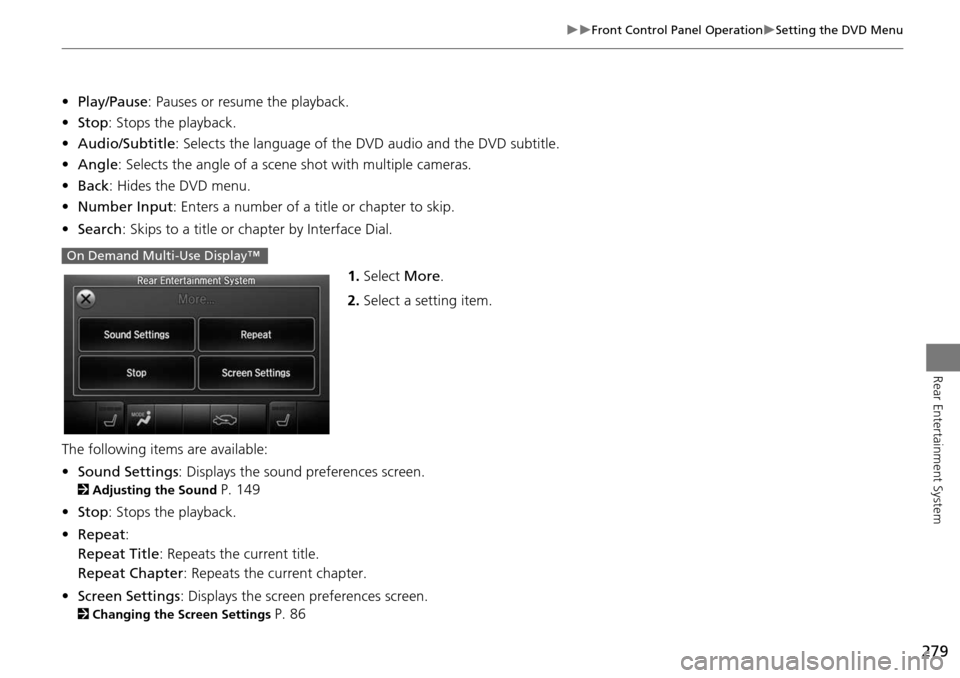
1.Select More.
2. Select a setting item.
The following items are available:
• Sound Settings : Displays the sound preferences screen.
2Adjusting the Sound P. 149
• Stop : Stops the playback.
• Repeat :
Repeat Title : Repeats the current title.
Repeat Chapter : Repeats the current chapter.
• Screen Settings : Displays the screen preferences screen.
2Changing the Screen Settings P. 86
On Demand Multi-Use Display™
Page 281 of 341
280
Rear Entertainment System
Wireless Headphones
Using the Wireless Headphones
Audio for the Rear Entertainment System is sent to the wireless headphones that
come with the system.
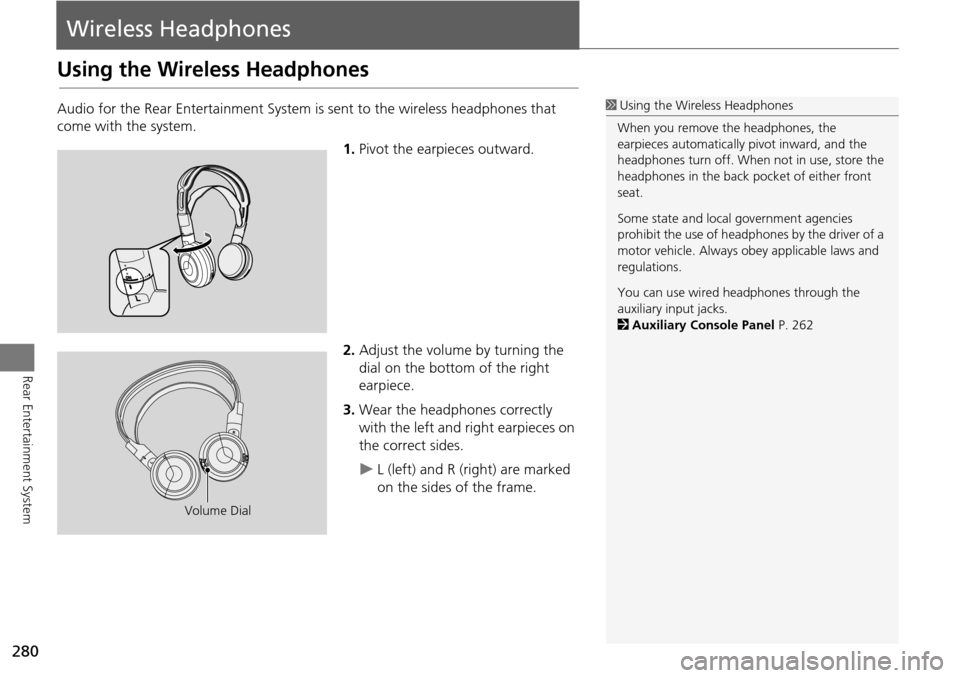
1.Pivot the earpieces outward.
2. Adjust the volume by turning the
dial on the bottom of the right
earpiece.
3. Wear the headphones correctly
with the left and right earpieces on
the correct sides.
L (left) and R (right) are marked
on the sides of the frame.
1Using the Wireless Headphones
When you remove the headphones, the
earpieces automatically pivot inward, and the
headphones turn off. When not in use, store the
headphones in the back pocket of either front
seat.
Some state and local government agencies
prohibit the use of headphones by the driver of a
motor vehicle. Always obey applicable laws and
regulations.
You can use wired headphones through the
auxiliary input jacks.
2 Auxiliary Console Panel P. 262
Volume Dial
Page 292 of 341
291
Troubleshooting
Troubleshooting................................... 292
Map, Voice, Entering Destinations ........ 292
Traffic .................................................. 294
Guidance, Routing ............................... 295
Update, Coverage, Map Errors ............. 297
Display, Accessories.............................. 297
Miscellaneous Questions ...................... 297
Error Messages ...................................... 298
Navigation System ................................ 298
CD Player ............................................. 299
Hard Disc Drive (HDD) Audio ................ 300
iPod®/USB Flash Drive .......................... 301
Pandora® ............................................ 302
Aha
TM Radio ......................................... 303
Page 300 of 341

299
Error MessagesCD Player
Troubleshooting
CD Player
If a disc error occurs, you may see the following error messages.
Error MessageCauseSolution
Unplayable FileTrack/file format not supported• Current track/file will be skipped. The next supported track/file
plays automatically.
Bad Disc
Please Check Owner’s Manual
Push Eject
Mechanical error
• Press the (eject) button and remo ve the disc, and check that the
error message is cleared.
• Check that the disc is not damaged or deformed, and insert the disc again.
2 Protecting CDs P. 168
• If the error message reappears, press the button, and pull out
the disc.
• Insert a different disc.
If the new disc plays, there is a problem with the first disc.
• If the error message repeats, or the disc cannot be removed, contact a dealer.
Do not try to force the disc out of the player.Mecha Error
Bad Disc
Please Check Owner’s Manual
Servo error
Check DiscDisc error• Check that the disc is not damaged or deformed.
2Protecting CDs P. 168
Heat ErrorHigh temperature• Turn the audio system off and allow the player to cool down until
the error message is cleared.
Page 301 of 341
300
Error MessagesHard Disc Drive (HDD) Audio
Troubleshooting
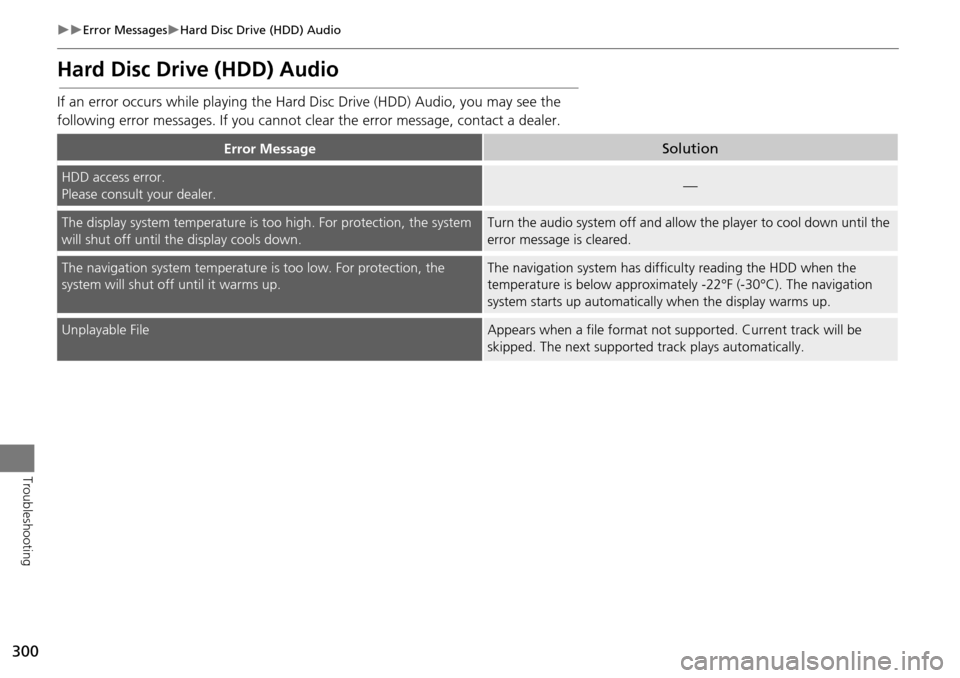
Hard Disc Drive (HDD) Audio
If an error occurs while playing the Hard Disc Drive (HDD) Audio, you may see the
following error messages. If you cannot cl ear the error message, contact a dealer.
Error MessageSolution
HDD access error.
Please consult your dealer.—
The display system temperature is too high. For protection, the system
will shut off until the display cools down.Turn the audio system off and allow the player to cool down until the
error message is cleared.
The navigation system temperature is too low. For protection, the
system will shut o ff until it warms up.The navigation system has difficulty reading the HDD when the
temperature is below approximatel y -22°F (-30°C). The navigation
system starts up automaticall y when the display warms up.
Unplayable FileAppears when a file format not supported. Current track will be
skipped. The next supported track plays automatically.
Page 302 of 341
301
Error MessagesiPod®/USB Flash Drive
Troubleshooting
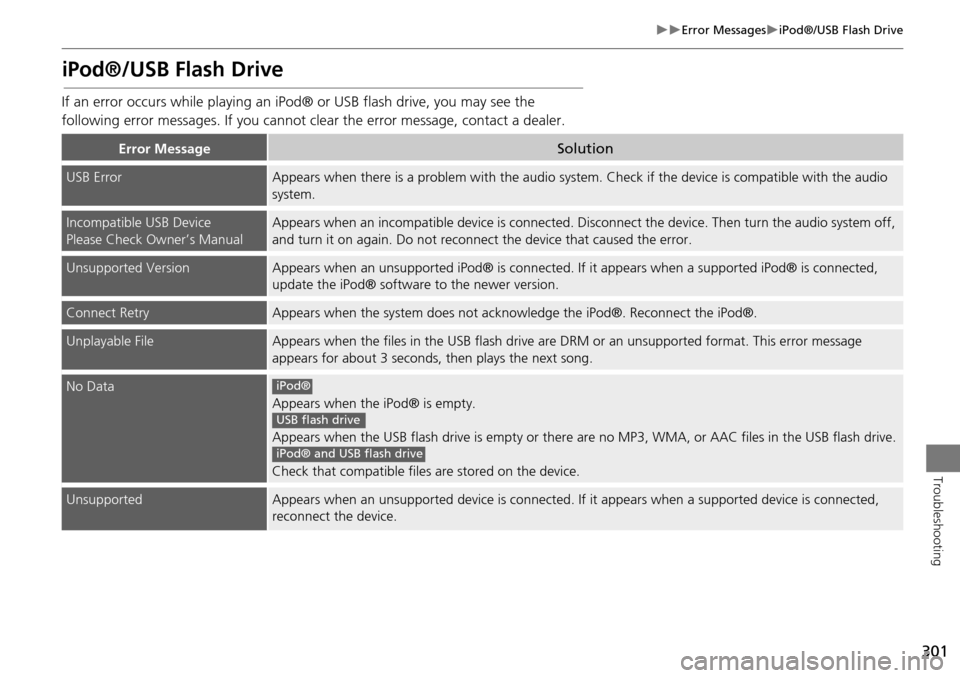
iPod®/USB Flash Drive
If an error occurs while playing an iPod® or USB flash drive, you may see the
following error messages. If you cannot cl ear the error message, contact a dealer.
Error MessageSolution
USB ErrorAppears when there is a problem with the audio system. Check if the device is compatible with the audio
system.
Incompatible USB Device
Please Check Owner’s ManualAppears when an incompatible device is connected. Di sconnect the device. Then turn the audio system off,
and turn it on again. Do not reconnec t the device that caused the error.
Unsupported VersionAppears when an unsupported iPod® is connected. If it appears when a supported iPod® is connected,
update the iPod® software to the newer version.
Connect RetryAppears when the system does not acknowledge the iPod®. Reconnect the iPod®.
Unplayable FileAppears when the files in the USB flash drive are DRM or an unsupported format. This error message
appears for about 3 seconds, then plays the next song.
No Data
Appears when the iPod® is empty.
Appears when the USB flash drive is empty or there ar e no MP3, WMA, or AAC files in the USB flash drive.
Check that compatible files are stored on the device.
UnsupportedAppears when an unsupported device is connected. If it appears when a supported device is connected,
reconnect the device.
iPod®
USB flash drive
iPod® and USB flash drive
Page 303 of 341
302
Error MessagesPandora®
Troubleshooting
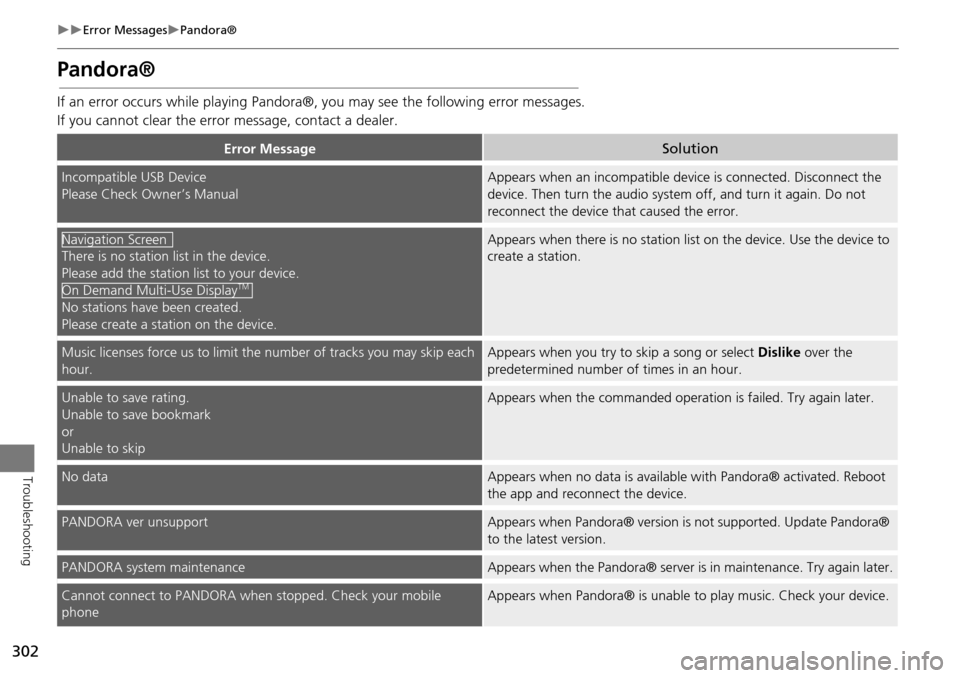
Pandora®
If an error occurs while playing Pandora®, you may see the following error messages.
If you cannot clear the error message, contact a dealer.
Error MessageSolution
Incompatible USB Device
Please Check Owner’s ManualAppears when an incompatible device is connected. Disconnect the
device. Then turn the audio system off, and turn it again. Do not
reconnect the device th at caused the error.
There is no station list in the device.
Please add the station list to your device.
No stations have been created.
Please create a station on the device.
Appears when there is no station list on the device. Use the device to
create a station.
Music licenses force us to limit the number of tracks you may skip each
hour.Appears when you try to skip a song or select Dislike over the
predetermined number of times in an hour.
Unable to save rating.
Unable to save bookmark
or
Unable to skipAppears when the commanded operation is failed. Try again later.
No dataAppears when no data is available with Pandora® activated. Reboot
the app and reconnect the device.
PANDORA ver unsupportAppears when Pandora® version is not supported. Update Pandora®
to the latest version.
PANDORA system maintenanceAppears when the Pandora® server is in maintenance. Try again later.
Cannot connect to PANDORA when stopped. Check your mobile
phoneAppears when Pandora® is unable to play music. Check your device.
Navigation Screen
On Demand Multi-Use DisplayTM
Page 304 of 341
303
Error MessagesAhaTM Radio
Troubleshooting
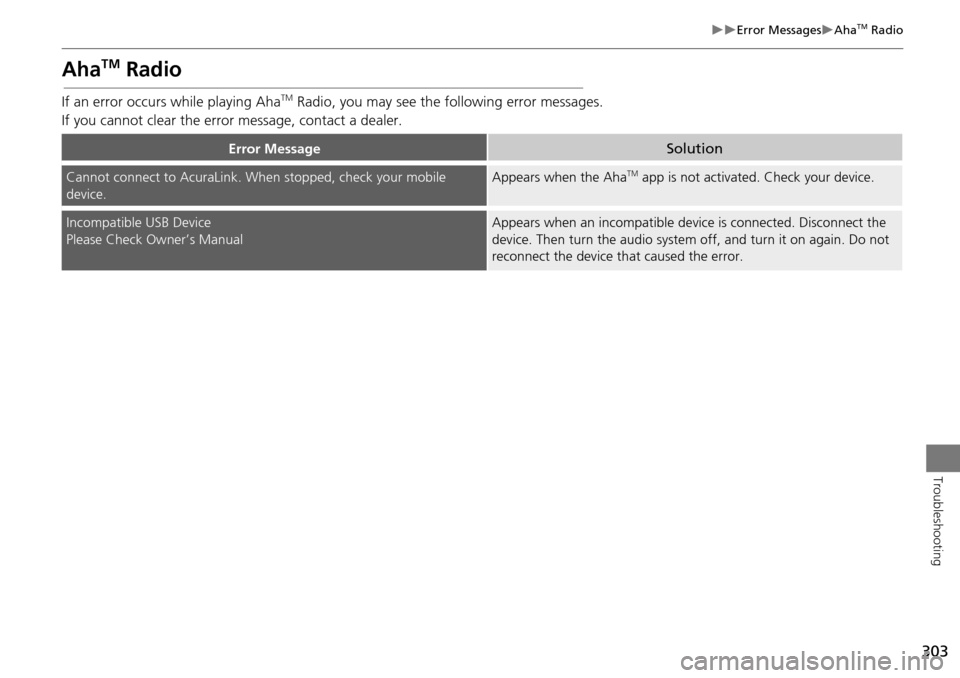
AhaTM Radio
If an error occurs while playing AhaTM Radio, you may see the following error messages.
If you cannot clear the erro r message, contact a dealer.
Error MessageSolution
Cannot connect to AcuraLink. When stopped, check your mobile
device.Appears when the AhaTM app is not activated. Check your device.
Incompatible USB Device
Please Check Owner’s ManualAppears when an incompatible device is connected. Disconnect the
device. Then turn the audio system off, and turn it on again. Do not
reconnect the device that caused the error.