lock Acura MDX 2015 User Guide
[x] Cancel search | Manufacturer: ACURA, Model Year: 2015, Model line: MDX, Model: Acura MDX 2015Pages: 79, PDF Size: 16.44 MB
Page 22 of 79
36 || 37
veHICLe CoNTroLS
veHICLe CoNTroLS
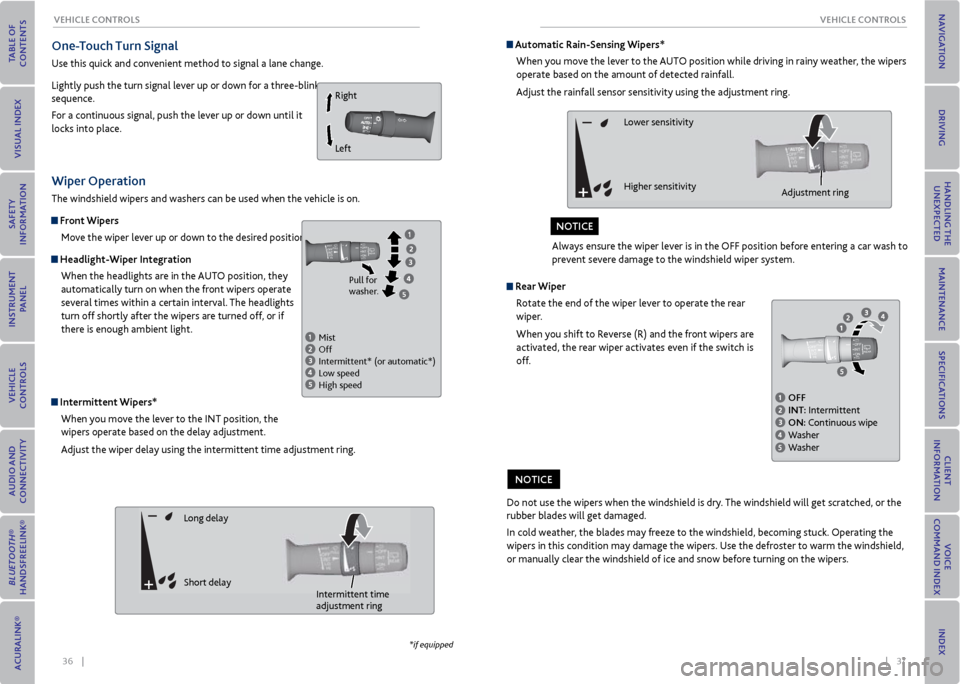
one-Touch Turn Signal
Use this quick and convenient method to signal a lane change.
Lightly push the turn signal lever up or down for a three-blink
sequence.
For a continuous signal, push the lever up or down until it
locks into place.
Wiper operation
The windshield wipers and washers can be used when the vehicle is on.
Front Wipers
Move the wiper lever up or down to the desired position.
Headlight-Wiper IntegrationWhen the headlights are in the AUTO position, they
automatically turn on when the front wipers operate
several times within a certain interval. The headlights
turn off shortly after the wipers are turned off, or if
there is enough ambient light.
Intermittent Wipers*When you move the lever to the INT position, the
wipers operate based on the delay adjustment.
Adjust the wiper delay using the intermittent time adjustment ring.
Right
Left
*if equipped
Automatic rain-Sensing Wipers*
When you move the lever to the AUTO position while driving in rainy weather, the wipers
operate based on the amount of detected rainfall.
Adjust the rainfall sensor sensitivity using the adjustment ring.
r ear Wiper
Rotate the end of the wiper lever to operate the rear
wiper.
When you shift to Reverse (R) and the front wipers are
activated, the rear wiper activates even if the switch is
off.
Mist
Off
Intermittent* (or automatic*)
Low speed
High speed Pull for
washer.
Long delay
Short delay
Lower sensitivity
Higher sensitivity
Intermittent time
adjustment ring
Adjustment ring
Do not use the wipers when the windshield is dry. The windshield will get scratched, or the
rubber blades will get damaged.
In cold weather, the blades may freeze to the windshield, becoming stuck. Operating the
wipers in this condition may damage the wipers. Use the defroster to warm the windshield,
or manually clear the windshield of ice and snow before turning on the wipers.
No TICe
oFF
INT: Intermittent
oN: Continuous wipe
Washer
Washer
Always ensure the wiper lever is in the OFF position before entering a car wash to
prevent severe damage to the windshield wiper system.
NoTICe
Page 23 of 79
38 || 39
veHICLe CoNTroLS
veHICLe CoNTroLS
Adjusting the Seats
Make seat adjustments before driving to ensure the best comfort and safety.
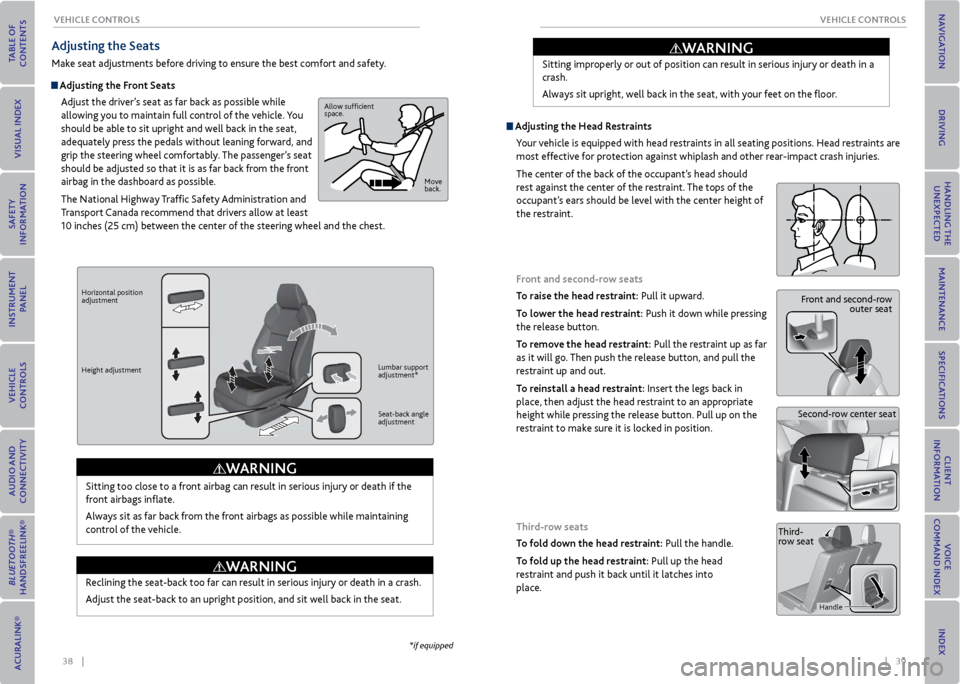
Adjusting the Front Seats
Adjust the driver’s seat as far back as possible while
allowing you to maintain full control of the vehicle. You
should be able to sit upright and well back in the seat,
adequately press the pedals without leaning forward, and
grip the steering wheel comfortably. The passenger’s seat
should be adjusted so that it is as far back from the front
airbag in the dashboard as possible.
The National Highway Traffic Safety Administration and
Transport Canada recommend that drivers allow at least
10 inches (25 cm) between the center of the steering wheel and the chest.
Sitting too close to a front airbag can result in serious injury or death if the
front airbags inflate.
Always sit as far back from the front airbags as possible while maintaining
control of the vehicle.
Allow sufficient
space.
Move
back.
Horizontal position
adjustment
Height adjustment Lumbar support
adjustment*
Seat-back angle
adjustment
WArNING
*if equipped
Reclining the seat-back too far can result in serious injury or death in a crash.
Adjust the seat-back to an upright position, and sit well back in the seat.
Sitting improperly or out of position can result in serious injury or death in a
crash.
Always sit upright, well back in the seat, with your feet on the floor.
Adjusting the
Head restraints
Your vehicle is equipped with head restraints in all seating positions. Head restraints are
most effective for protection against whiplash and other rear-impact crash injuries.
The center of the back of the occupant’s head should
rest against the center of the restraint. The tops of the
occupant’s ears should be level with the center height of
the restraint.
Front and second-row seats
To raise the head restraint: Pull it upward.
To lower the head restraint: Push it down while pressing
the release button.
To remove the head restraint: Pull the restraint up as far
as it will go. Then push the release button, and pull the
restraint up and out.
To reinstall a head restraint: Insert the legs back in
place, then adjust the head restraint to an appropriate
height while pressing the release button. Pull up on the
restraint to make sure it is locked in position.
Front and second-row outer seat
Second-row center seat
WArNING
WArNING
Third-row seats
To fold down the head restraint: Pull the handle.
To fold up the head restraint: Pull up the head
restraint and push it back until it latches into
place.Third-
row seat
Handle
Page 24 of 79
40 || 41
veHICLe CoNTroLS
veHICLe CoNTroLS
For a head restraint system to work properly:
• Do not hang any items on the head restraints or from the restraint legs.
• Do not place any object between an occupant and the seat-back.
• Install each restraint in its proper location.
Improperly positioning head restraints reduces their effectiveness and
increases the likelihood of serious injury in a crash.
Make sure head restraints are in place and positioned properly before driving.
Failure to reinstall, or correctly reinstall, the head restraints can result in
severe injury during a crash.
Always replace the head restraints before driving.
WArNING
WArNING
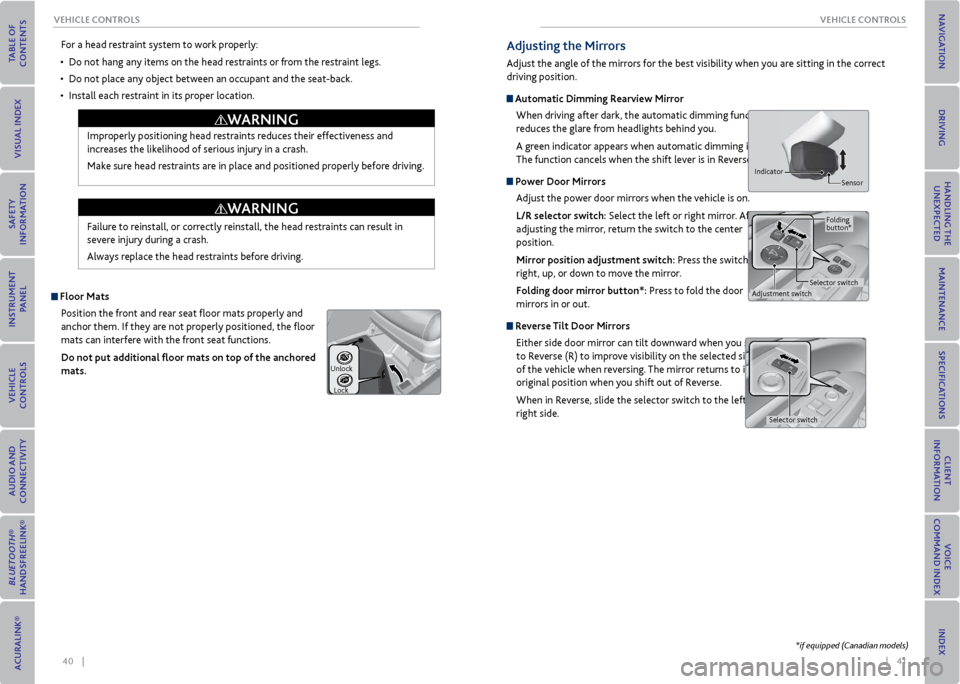
Floor matsPosition the front and rear seat floor mats properly and
anchor them. If they are not properly positioned, the floor
mats can interfere with the front seat functions.
Do not put additional floor mats on top of the anchored
mats.
Unlock
Lock
Adjusting the mirrors
Adjust the angle of the mirrors for the best visibility when you are sitting in the correct
driving position.
Automatic Dimming r earview mirror
When driving after dark, the automatic dimming function
reduces the glare from headlights behind you.
A green indicator appears when automatic dimming is on.
The function cancels when the shift lever is in Reverse (R).
Power Door mirrors Adjust the power door mirrors when the vehicle is on.
L/r selector switch: Select the left or right mirror. After
adjusting the mirror, return the switch to the center
position.
mirror position adjustment switch: Press the switch left,
right, up, or down to move the mirror.
Folding door mirror button*: Press to fold the door
mirrors in or out.
r everse Tilt Door mirrors
Either side door mirror can tilt downward when you shift
to Reverse (R) to improve visibility on the selected side
of the vehicle when reversing. The mirror returns to its
original position when you shift out of Reverse.
When in Reverse, slide the selector switch to the left or
right side.
Indicator Sensor
Adjustment switchSelector switchFolding
button*
Selector switch
*if equipped (Canadian models)
Page 25 of 79
42 || 43
veHICLe CoNTroLS
veHICLe CoNTroLS
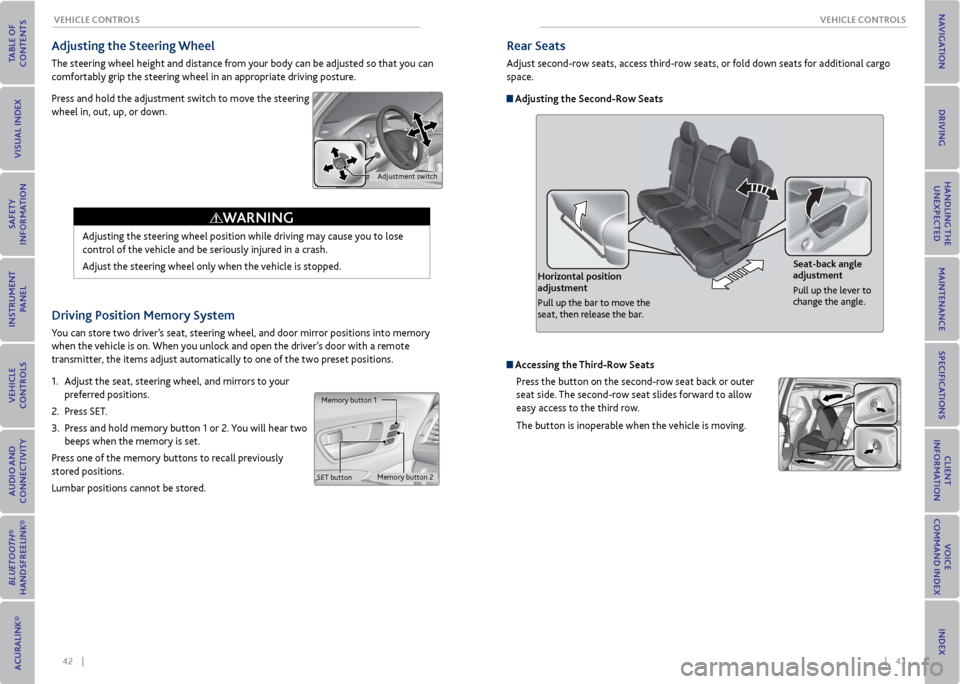
Driving Position memory System
You can store two driver’s seat, steering wheel, and door mirror positions into memory
when the vehicle is on. When you unlock and open the driver’s door with a remote
transmitter, the items adjust automatically to one of the two preset positions.
1. Adjust the seat, steering wheel, and mirrors to your
preferred positions.
2. Press SET.
3. Press and hold memory button 1 or 2. You will hear two
beeps when the memory is set.
Press one of the memory buttons to recall previously
stored positions.
Lumbar positions cannot be stored.
Memory button 1
Memory button 2
SET button
Adjusting the Steering Wheel
The steering wheel height and distance from your body can be adjusted so that you can
comfortably grip the steering wheel in an appropriate driving posture.
Press and hold the adjustment switch to move the steering
wheel in, out, up, or down.
Adjusting the steering wheel position while driving may cause you to lose
control of the vehicle and be seriously injured in a crash.
Adjust the steering wheel only when the vehicle is stopped.
WArNING
Adjustment switch
rear Seats
Adjust second-row seats, access third-row seats, or fold down seats for additional cargo
space.
Adjusting the Second-row Seats
Horizontal position
adjustment
Pull up the bar to move the
seat, then release the bar. Seat-back angle
adjustment
Pull up the lever to
change the angle.
Accessing the
Third-row Seats
Press the button on the second-row seat back or outer
seat side. The second-row seat slides forward to allow
easy access to the third row.
The button is inoperable when the vehicle is moving.
Page 27 of 79
46 || 47
veHICLe CoNTroLS
veHICLe CoNTroLS
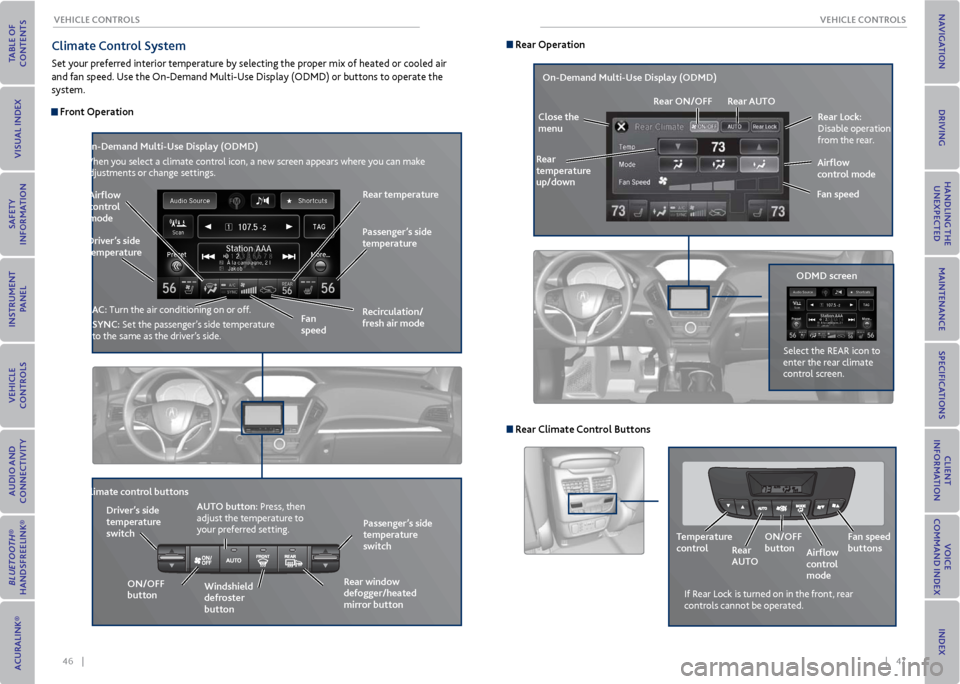
Climate Control System
Set your preferred interior temperature by selecting the proper mix of heated or cooled air
and fan speed. Use the On-Demand Multi-Use Display (ODMD) or buttons to operate the
system.
Front operation
r ecirculation/
fresh air mode
Driver’s side
temperature
on-Demand multi-Use Display (oDmD)
When you select a climate control icon, a new screen appears where you can make
adjustments or change settings.
Airflow
control
mode
AC: Turn the air conditioning on or off.
SyNC: Set the passenger’s side temperature
to the same as the driver’s side. Fan
speedr
ear temperature
Passenger’s side
temperature
Windshield
defroster
button
Driver’s side
temperature
switch
Climate control buttons
oN/oFF
button AUT
o button: Press, then
adjust the temperature to
your preferred setting.
rear window
defogger/heated
mirror button Passenger’s side
temperature
switch
r ear operation
rear Lock:
Disable operation
from the rear.
r ear
temperature
up/down
on-Demand multi-Use Display (oDmD)
Close the
menu r
ear oN/oFF rear AUT o
Fan speedAirflow
control mode
If Rear Lock is turned on in the front, rear
controls cannot be operated.
oDmD screen
Select the REAR icon to
enter the rear climate
control screen.
r
ear Climate Control Buttons
Temperature
control
rear
AUT ooN/oFF
button
Airflow
control
modeFan speed
buttons
Page 29 of 79
50 || 51
AUDIo AND CoNNeCTIvITy
veHICLe CoNTroLS
*if equipped
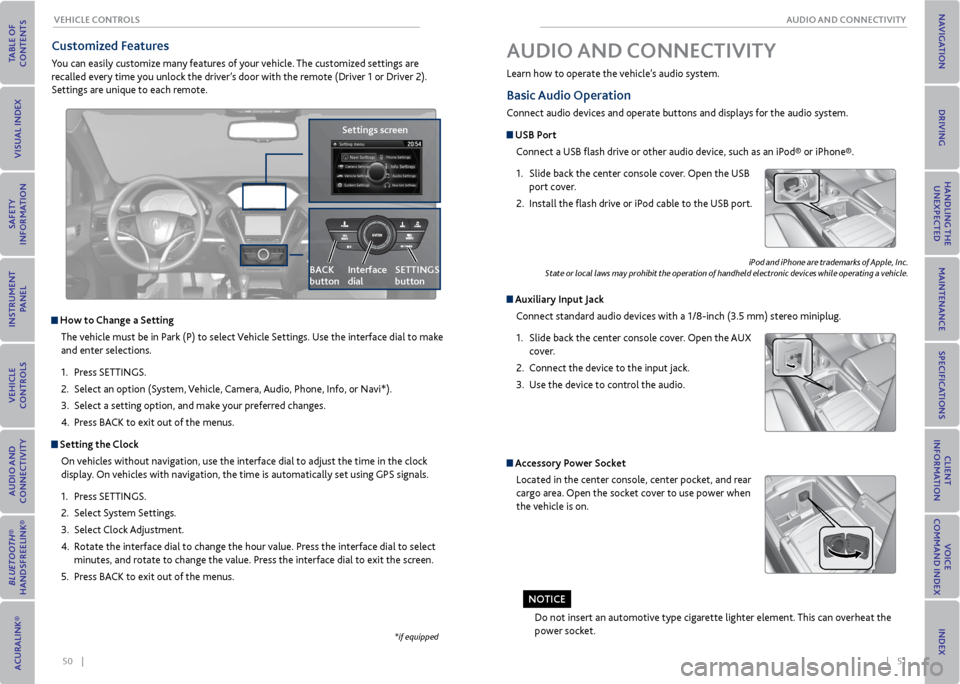
Customized Features
You can easily customize many features of your vehicle. The customized settings are
recalled every time you unlock the driver’s door with the remote (Driver 1 or Driver 2).
Settings are unique to each remote.
How to Change a Setting
The vehicle must be in Park (P) to select Vehicle Settings. Use the interface dial to make
and enter selections.
1. Press SETTINGS.
2. Select an option (System, Vehicle, Camera, Audio, Phone, Info, or Navi*).
3. Select a setting option, and make your preferred changes.
4. Press BACK to exit out of the menus.
Setting the Clock
On vehicles without navigation, use the interface dial to adjust the time in the clock
display. On vehicles with navigation, the time is automatically set using GPS signals.
1. Press SETTINGS.
2. Select System Settings.
3. Select Clock Adjustment.
4. Rotate the interface dial to change the hour value. Press the interface dial to select
minutes, and rotate to change the value. Press the interface dial to exit the screen.
5. Press BACK to exit out of the menus.
Settings screen
BACK
button
Interface
dial SeTTINGS
button
Basic
Audio operation
Connect audio devices and operate buttons and displays for the audio system.
USB Port
Connect a USB flash drive or other audio device, such as an iPod® or iPhone®.
1. Slide back the center console cover. Open the USB
port cover.
2. Install the flash drive or iPod cable to the USB port.
Auxiliary Input Jack
Connect standard audio devices with a 1/8-inch (3.5 mm) stereo miniplug.
1. Slide back the center console cover. Open the AUX
cover.
2. Connect the device to the input jack.
3. Use the device to control the audio.
iPod and iPhone are trademarks of Apple, Inc.
State or local laws may prohibit the operation of handheld electronic devices while operating a vehicle.
AUDIo AND CoNNeCTIvITy
Learn how to operate the vehicle’s audio system.
Accessory Power Socket
Located in the center console, center pocket, and rear
cargo area. Open the socket cover to use power when
the vehicle is on.
Do not insert an automotive type cigarette lighter element. This can overheat the
power socket.
No TICe
Page 35 of 79
62 || 63
AUDIo AND CoNNeCTIvITy
AUDIo AND CoNNeCTIvITy
REAR
REAR
AUDIO
FRONT
AUDIO
NAVFFFFAAAAAAAAAREARAUDIOFAAFRONTAUDIOAA
REAR
NAVNAVFRONT
AU
DIOREAR
AU DIO
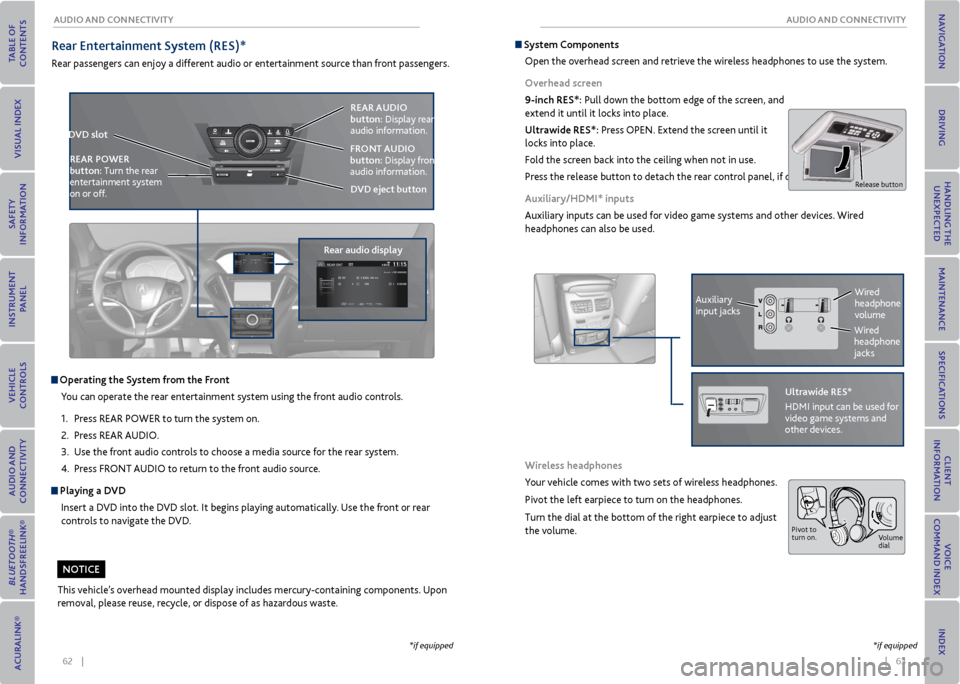
operating the System from the Front
You can operate the rear entertainment system using the front audio controls.
1. Press REAR POWER to turn the system on.
2. Press REAR AUDIO.
3. Use the front audio controls to choose a media source for the rear system.
4. Press FRONT AUDIO to return to the front audio source.
Playing a Dv D
Insert a DVD into the DVD slot. It begins playing automatically. Use the front or rear
controls to navigate the DVD.
r ear entertainment System (reS)*
Rear passengers can enjoy a different audio or entertainment source than front passengers.
D vD slot
rear audio display reAr AUDIo
button: Display rear
audio information.
D vD eject button
FroNT AUDIo
button: Display front
audio information.
reAr Po
Wer
button: Turn the rear
entertainment system
on or off.
This vehicle’s overhead mounted display includes mercury-containing components. Upon
removal, please reuse, recycle, or dispose of as hazardous waste.
*if equipped *if equipped
NoTICe
System Components
Open the overhead screen and retrieve the wireless headphones to use the system.
overhead screen
9-inch reS*: Pull down the bottom edge of the screen, and
extend it until it locks into place.
Ultrawide reS*: Press OPEN. Extend the screen until it
locks into place.
Fold the screen back into the ceiling when not in use.
Press the release button to detach the rear control panel, if desired.
Auxiliary/HDmI* inputs
Auxiliary inputs can be used for video game systems and other devices. Wired
headphones can also be used.
Wireless headphones
Your vehicle comes with two sets of wireless headphones.
Pivot the left earpiece to turn on the headphones.
Turn the dial at the bottom of the right earpiece to adjust
the volume.
Auxiliary
input jacks
Release button
Ultrawide reS*
HDMI input can be used for
video game systems and
other devices.
Wired
headphone
volume
Wired
headphone
jacks
Pivot to
turn on. Volume
dial
Page 41 of 79
74 || 75
Subscription Features
In addition to standard service, receive benefits such as collision notification, emergency
assistance, online security, enhanced navigation seraches, and important messages
about your vehicle. Requires enrollment and privacy agreement. To subscribe or get more
information, visit owners.acura.com (U.S.) or myacura.ca (Canada) or contact a dealer.
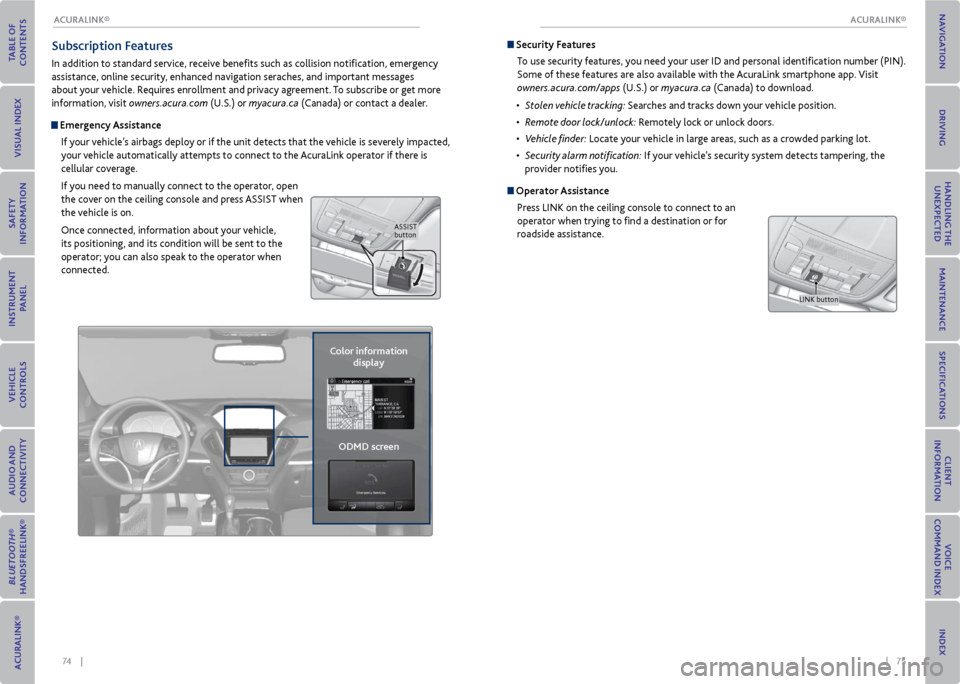
emergency Assistance
If your vehicle’s airbags deploy or if the unit detects that the vehicle is severely impacted,
your vehicle automatically attempts to connect to the AcuraLink operator if there is
cellular coverage.
If you need to manually connect to the operator, open
the cover on the ceiling console and press ASSIST when
the vehicle is on.
Once connected, information about your vehicle,
its positioning, and its condition will be sent to the
operator; you can also speak to the operator when
connected.
Color information display
oDmD screen
ASSIST
button
Security Features
To use security features, you need your user ID and personal identification number (PIN).
Some of these features are also available with the AcuraLink smartphone app. Visit
owners.acura.com/apps (U.S.) or myacura.ca (Canada) to download.
• Stolen vehicle tracking: Searches and tracks down your vehicle position.
• Remote door lock/unlock: Remotely lock or unlock doors.
• Vehicle finder: Locate your vehicle in large areas, such as a crowded parking lot.
• Security alarm notification: If your vehicle’s security system detects tampering, the
provider notifies you.
operator Assistance
Press LINK on the ceiling console to connect to an
operator when trying to find a destination or for
roadside assistance.
LINK button
ACURALINK®
ACURALINK®
Page 45 of 79
82 || 83
DrIvING
NA vIGATIoN
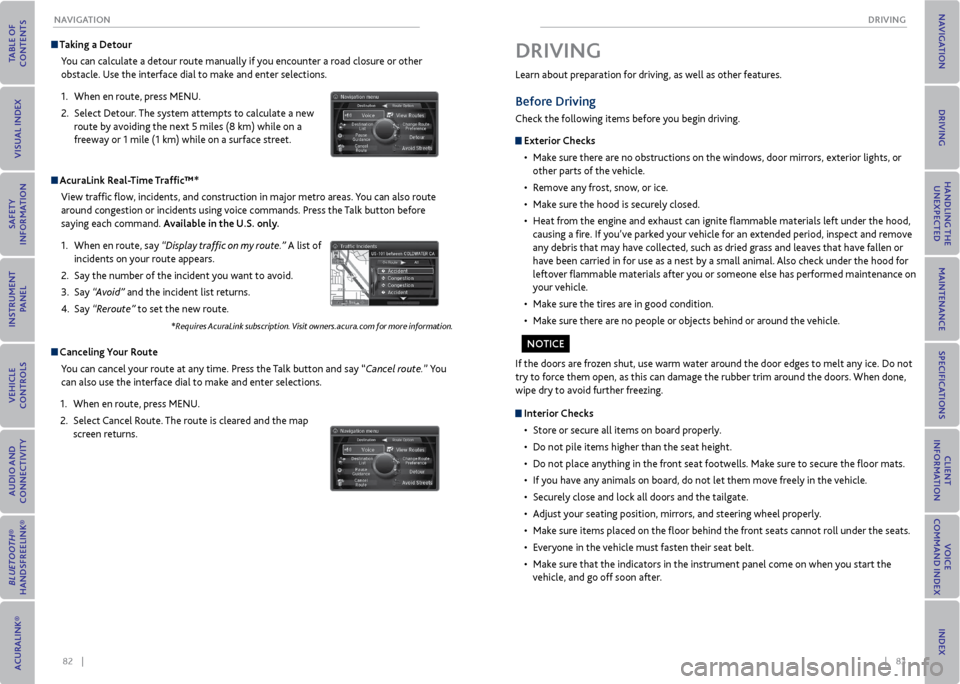
Taking a Detour
You can calculate a detour route manually if you encounter a road closure or other
obstacle. Use the interface dial to make and enter selections.
1. When en route, press MENU.
2. Select Detour. The system attempts to calculate a new
route by avoiding the next 5 miles (8 km) while on a
freeway or 1 mile (1 km) while on a surface street.
AcuraLink r eal-Time Traffic™*
View traffic flow, incidents, and construction in major metro areas. You can also route
around congestion or incidents using voice commands. Press the Talk button before
saying each command. Available in the U.S. only.
1. When en route, say “Display traffic on my route.” A list of
incidents on your route appears.
2. Say the number of the incident you want to avoid.
3. Say “Avoid” and the incident list returns.
4. Say “Reroute” to set the new route.
*Requires AcuraLink subscription. Visit owners.acura.com for more information.
Canceling y our route
You can cancel your route at any time. Press the Talk button and say “Cancel route.” You
can also use the interface dial to make and enter selections.
1. When en route, press MENU.
2. Select Cancel Route. The route is cleared and the map
screen returns.
Learn about preparation for driving, as well as other features.
Before Driving
Check the following items before you begin driving.
exterior Checks
• Make sure there are no obstructions on the windows, door mirrors, exterior lights, or
other parts of the vehicle.
• Remove any frost, snow, or ice.
• Make sure the hood is securely closed.
• Heat from the engine and exhaust can ignite flammable materials left under the hood,
causing a fire. If you’ve parked your vehicle for an extended period, inspect and remove
any debris that may have collected, such as dried grass and leaves that have fallen or
have been carried in for use as a nest by a small animal. Also check under the hood for
leftover flammable materials after you or someone else has performed maintenance on
your vehicle.
• Make sure the tires are in good condition.
• Make sure there are no people or objects behind or around the vehicle.
DrIvING
If the doors are frozen shut, use warm water around the door edges to melt any ice. Do not
try to force them open, as this can damage the rubber trim around the doors. When done,
wipe dry to avoid further freezing.
Interior Checks
• Store or secure all items on board properly.
• Do not pile items higher than the seat height.
• Do not place anything in the front seat footwells. Make sure to secure the floor mats.
• If you have any animals on board, do not let them move freely in the vehicle.
• Securely close and lock all doors and the tailgate.
• Adjust your seating position, mirrors, and steering wheel properly.
• Make sure items placed on the floor behind the front seats cannot roll under the seats.
• Everyone in the vehicle must fasten their seat belt.
• Make sure that the indicators in the instrument panel come on when you start the
vehicle, and go off soon after.
No TICe
Page 49 of 79
90 || 91
DrIvING
DrIvING
Pre-Tow Checklist
When preparing to tow, and before driving away, be sure to check the following:
• Avoid towing a trailer during your vehicle’s first 600 miles (1,000 km).
• The vehicle and trailer have been properly serviced and are in good condition. Lights
and brakes work properly, and the tires are properly inflated.
• All weights and loads are within limits. Never exceed the gross weight ratings.
• When towing more than 3,500 lbs (1,590 kg), use of gasoline with an octane rating of
91 or higher is recommended.
• Check if all loads are within limits at a public scale (see page 89). If a public scale is
not available, add the estimated weight of your cargo load to the weight of the trailer
(as quoted by the manufacturer) and the tongue load.
• The hitch, safety chains, and any other attachments are secure.
• All items in or on the trailer are properly secured and cannot shift while you drive.
Exceeding any load limit or improperly loading your vehicle and trailer can
cause a crash in which you can be seriously hurt or killed.
Check the loading of your vehicle and trailer carefully before starting to
drive.
WArNING
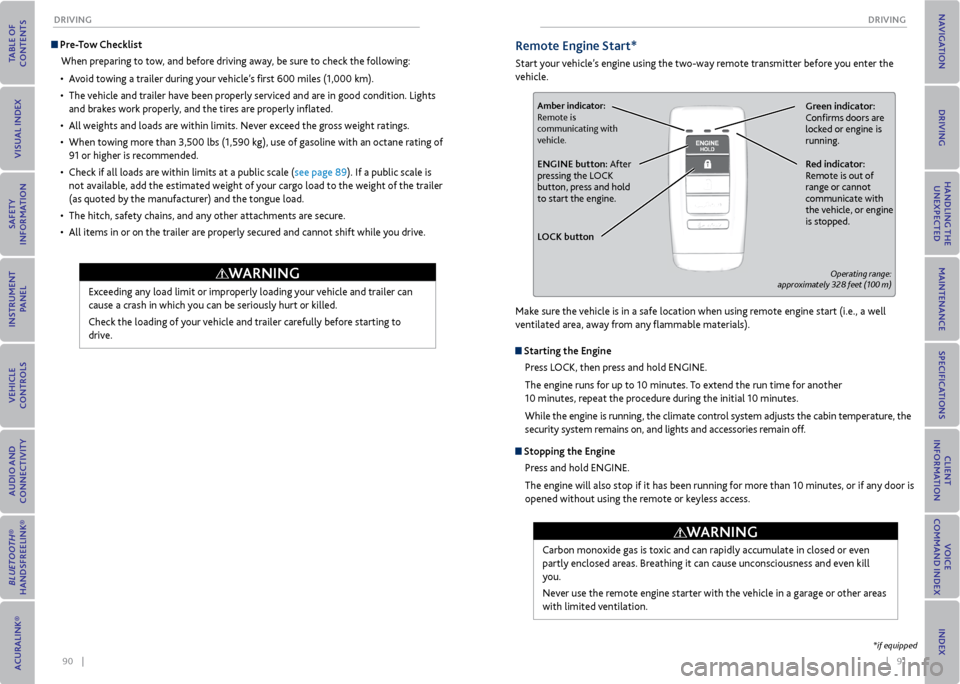
remote engine Start*
Start your vehicle’s engine using the two-way remote transmitter before you enter the
vehicle.
Green indicator:
Confirms doors are
locked or engine is
running.Amber indicator:
Remote is
communicating with
vehicle.
red indicator:
Remote is out of
range or cannot
communicate with
the vehicle, or engine
is stopped.eNGINe button: After
pressing the LOCK
button, press and hold
to start the engine.
L oCK button
Operating range:
approximately 328 feet (100 m)
Make sure the vehicle is in a safe location when using remote engine start (i.e., a well
ventilated area, away from any flammable materials).
Starting the engine
Press LOCK, then press and hold ENGINE.
The engine runs for up to 10 minutes. To extend the run time for another
10 minutes, repeat the procedure during the initial 10 minutes.
While the engine is running, the climate control system adjusts the cabin temperature, the
security system remains on, and lights and accessories remain off.
Stopping the engine
Press and hold ENGINE.
The engine will also stop if it has been running for more than 10 minutes, or if any door is
opened without using the remote or keyless access.
Carbon monoxide gas is toxic and can rapidly accumulate in closed or even
partly enclosed areas. Breathing it can cause unconsciousness and even kill
you.
Never use the remote engine starter with the vehicle in a garage or other areas
with limited ventilation.
WArNING
*if equipped