Ecom Acura MDX 2017 Owner's Guide
[x] Cancel search | Manufacturer: ACURA, Model Year: 2017, Model line: MDX, Model: Acura MDX 2017Pages: 581, PDF Size: 32.65 MB
Page 187 of 581
186
Controls
Adjusting the Seats
Front Seats
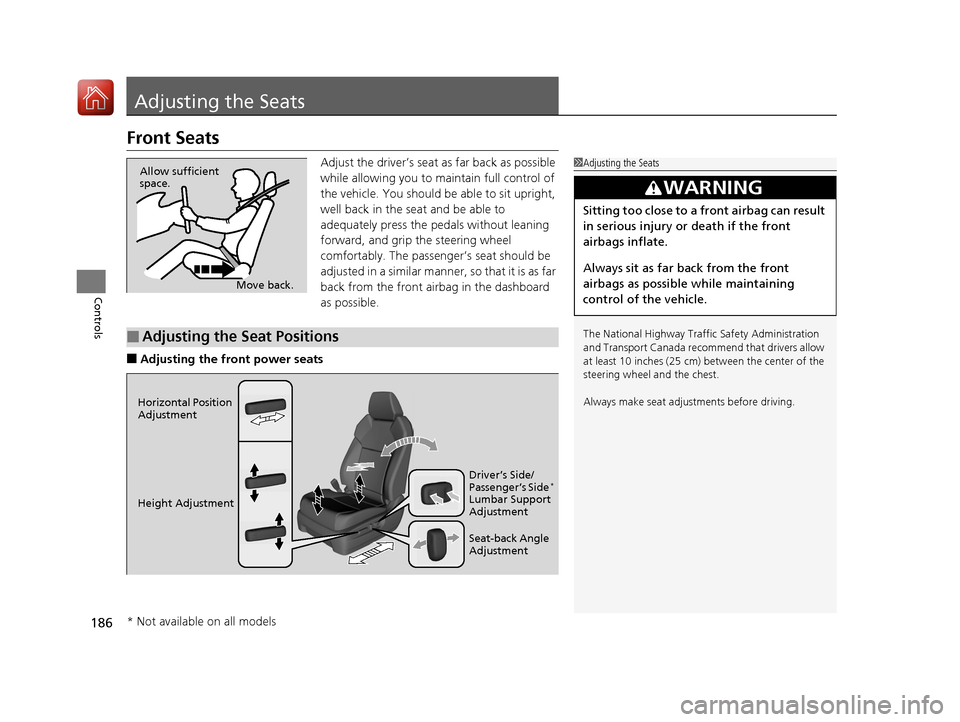
Adjust the driver’s seat as far back as possible
while allowing you to maintain full control of
the vehicle. You should be able to sit upright,
well back in the seat and be able to
adequately press the pedals without leaning
forward, and grip the steering wheel
comfortably. The passenger’s seat should be
adjusted in a similar manner, so that it is as far
back from the front airbag in the dashboard
as possible.
■Adjusting the front power seats
1Adjusting the Seats
The National Highway Traffic Safety Administration
and Transport Cana da recommend that drivers allow
at least 10 inches (25 cm) between the center of the
steering wheel and the chest.
Always make seat adjustments before driving.
3WARNING
Sitting too close to a front airbag can result
in serious injury or death if the front
airbags inflate.
Always sit as far back from the front
airbags as possible while maintaining
control of the vehicle.
Move back.
Allow sufficient
space.
■Adjusting the Seat Positions
Horizontal Position
Adjustment
Height Adjustment
Seat-back Angle
Adjustment Driver’s Side/
Passenger’s Side
*
Lumbar Support
Adjustment
* Not available on all models
17 ACURA MDX-31TZ56300.book 186 ページ 2016年5月13日 金曜日 午後7時46分
Page 188 of 581
187
uuAdjusting the Seats uFront Seats
Controls
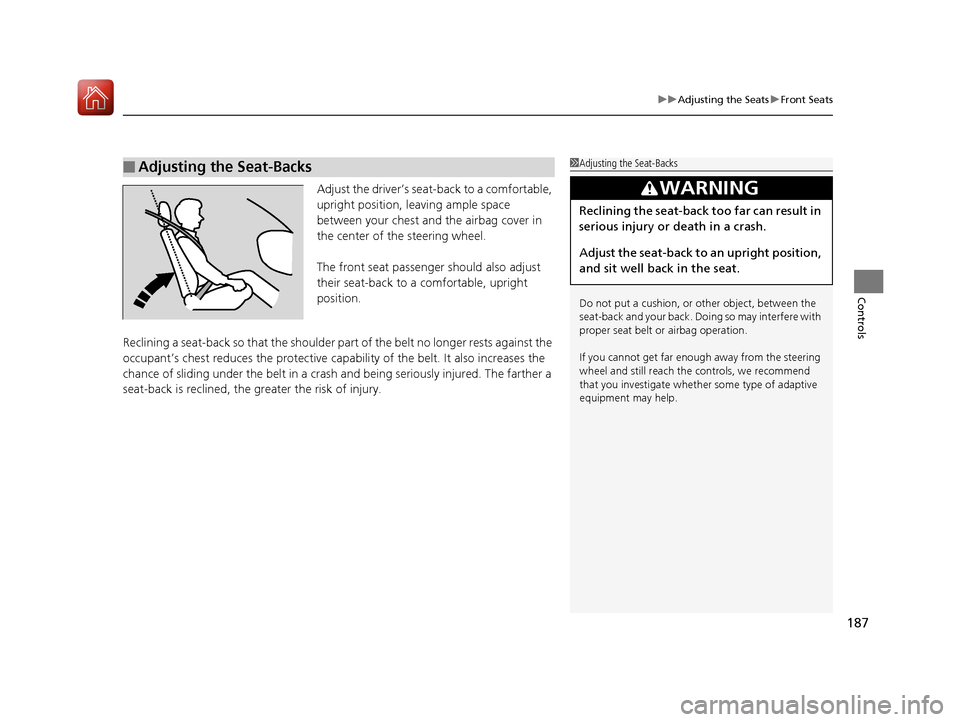
Adjust the driver’s seat -back to a comfortable,
upright position, leaving ample space
between your chest and the airbag cover in
the center of the steering wheel.
The front seat passenger should also adjust
their seat-back to a comfortable, upright
position.
Reclining a seat-back so that the shoulder part of the belt no longer rests against the
occupant’s chest reduces the protective capa bility of the belt. It also increases the
chance of sliding under the belt in a crash and being seriously injured. The farther a
seat-back is reclined, the gr eater the risk of injury.
■Adjusting the Seat-Backs1Adjusting the Seat-Backs
Do not put a cushion, or other object, between the
seat-back and your back. Do ing so may interfere with
proper seat belt or airbag operation.
If you cannot get far e nough away from the steering
wheel and still reach th e controls, we recommend
that you investigate whether some type of adaptive
equipment may help.
3WARNING
Reclining the seat-back too far can result in
serious injury or death in a crash.
Adjust the seat-back to an upright position,
and sit well back in the seat.
17 ACURA MDX-31TZ56300.book 187 ページ 2016年5月13日 金曜日 午後7時46分
Page 218 of 581
Continued217
uuClimate Control System uUsing Automatic Climate Control
Controls
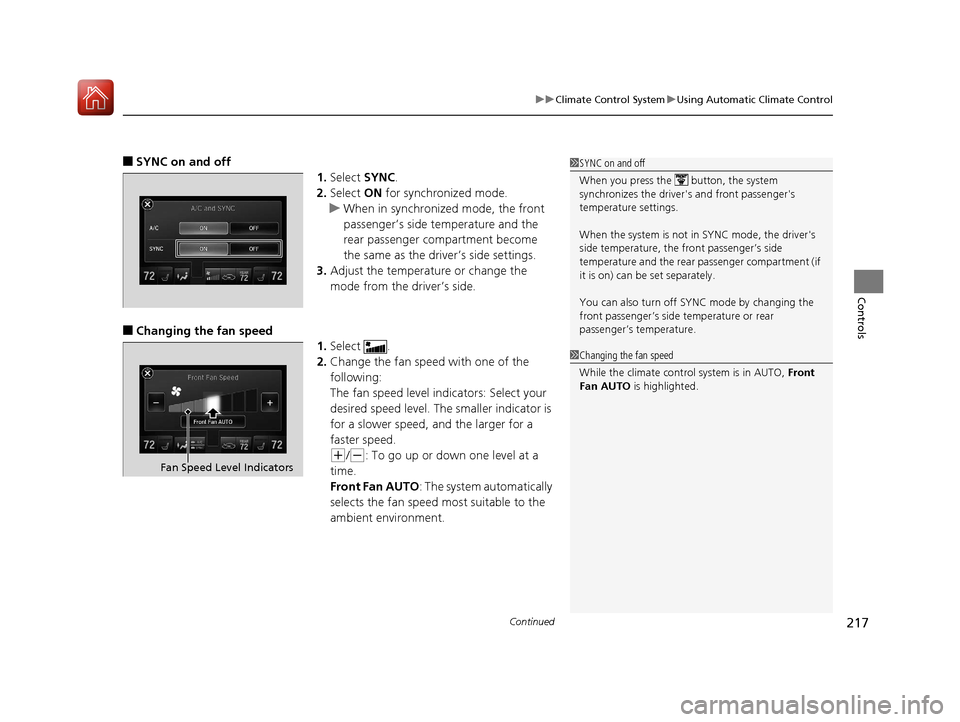
■SYNC on and off
1.Select SYNC.
2. Select ON for synchronized mode.
u When in synchronized mode, the front
passenger’s side temperature and the
rear passenger compartment become
the same as the driv er’s side settings.
3. Adjust the temperature or change the
mode from the driver’s side.
■Changing the fan speed
1.Select .
2. Change the fan speed with one of the
following:
The fan speed level indicators: Select your
desired speed level. The smaller indicator is
for a slower speed, and the larger for a
faster speed.
(+/(-: To go up or down one level at a
time.
Front Fan AUTO : The system automatically
selects the fan speed most suitable to the
ambient environment.
1 SYNC on and off
When you press the button, the system
synchronizes the driver's and front passenger's
temperature settings.
When the system is not in SYNC mode, the driver's
side temperature, the front passenger’s side
temperature and the rear passenger compartment (if
it is on) can be set separately.
You can also turn off SYNC mode by changing the
front passenger’s side temperature or rear
passenger’s temperature.
1 Changing the fan speed
While the climate control system is in AUTO, Front
Fan AUTO is highlighted.
Fan Speed Level Indicators
17 ACURA MDX-31TZ56300.book 217 ページ 2016年5月13日 金曜日 午後7時46分
Page 228 of 581
227
Features
This chapter describes how to operate technology features.
Audio SystemAbout Your Audio System ................ 228
USB Ports ......................................... 229
Auxiliary Input Jack .......................... 230
Audio System Theft Protection ......... 230
Audio Remote Controls .................... 231
Audio System Basic Operation ........ 232
On Demand Multi-Use Display
TM....... 233
Audio/Information Screen ................ 239
Adjusting the Sound ........................ 243
Display Setup ................................... 244
Playing AM/FM Radio ....................... 245
Playing SiriusXM ® Radio ................... 249 Playing a CD .................................... 260
Playing an iPod ................................ 263
Playing Internet Radio ...................... 267
Playing a USB Flash Drive ................. 270
Playing
Bluetooth ® Audio................. 273
Siri Eyes Free .................................... 275
Audio Error Messages CD Player ......................................... 276
iPod/USB Flash Drive ........................ 277
Pandora ®......................................... 278
Aha
TM Radio ..................................... 280 General Information on the Audio
SystemSiriusXM ® Radio Service ................... 281
Recommended CDs ......................... 282
Compatible iPod, iPhone, and USB Flash Drives ................................................. 284
Customized Features ........................ 285
Defaulting All the Settings ............... 306
HomeLink ® Universal Transceiver ... 307
Bluetooth ® HandsFreeLink®
Using HFL ........................................ 310
HFL Menus ...................................... 312
Compass
*.......................................... 344
* Not available on all models
17 ACURA MDX-31TZ56300.book 227 ページ 2016年5月13日 金曜日 午後7時46分
Page 230 of 581
229
uuAudio System uUSB Ports
Features
USB Ports
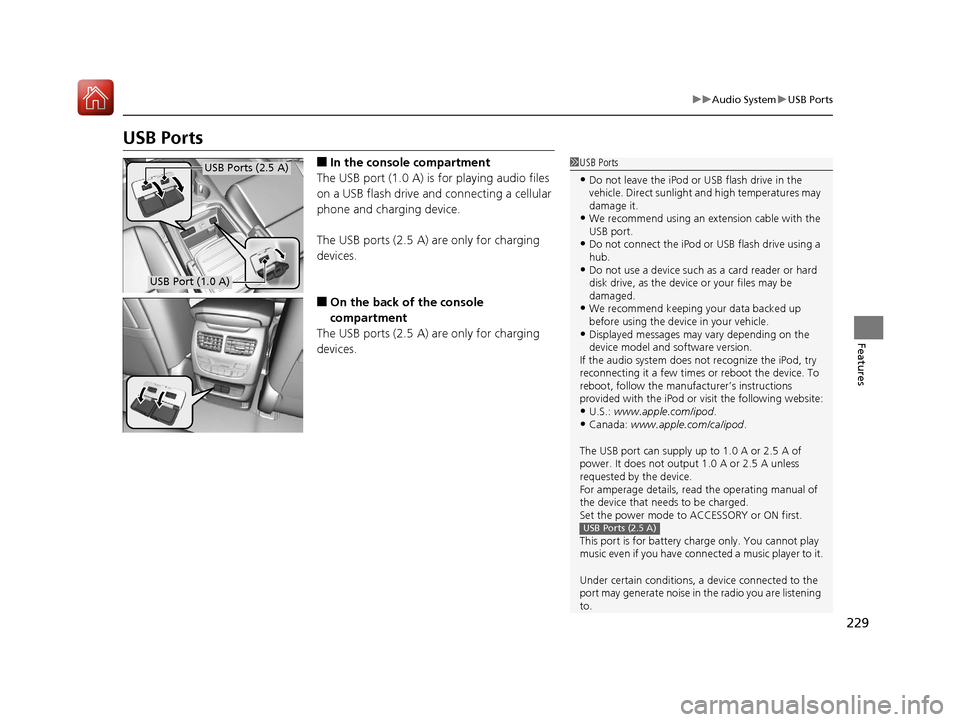
■In the consol e compartment
The USB port (1.0 A) is for playing audio files
on a USB flash drive and connecting a cellular
phone and charging device.
The USB ports (2.5 A) are only for charging
devices.
■On the back of the console
compartment
The USB ports (2.5 A) are only for charging
devices.
1 USB Ports
•Do not leave the iPod or USB flash drive in the
vehicle. Direct sunlight and high temperatures may
damage it.
•We recommend using an extension cable with the
USB port.
•Do not connect the iPod or USB flash drive using a
hub.
•Do not use a device such as a card reader or hard
disk drive, as the device or your files may be
damaged.
•We recommend keeping y our data backed up
before using the device in your vehicle.
•Displayed messages may vary depending on the
device model and software version.
If the audio system does not recognize the iPod, try
reconnecting it a few times or reboot the device. To
reboot, follow the manufac turer’s instructions
provided with the iPod or visit the following website:
•U.S.: www.apple.com/ipod .•Canada: www.apple.com/ca/ipod.
The USB port can supply up to 1.0 A or 2.5 A of
power. It does not output 1.0 A or 2.5 A unless
requested by the device.
For amperage details, read the operating manual of
the device that ne eds to be charged.
Set the power mode to ACCESSORY or ON first.
This port is for battery charge only. You cannot play
music even if you have conne cted a music player to it.
Under certain condi tions, a device connected to the
port may generate noise in the radio you are listening
to.
USB Ports (2.5 A)
USB Ports (2.5 A)
USB Port (1.0 A)
17 ACURA MDX-31TZ56300.book 229 ページ 2016年5月13日 金曜日 午後7時46分
Page 272 of 581

Continued271
uuAudio System Basic Operation uPlaying a USB Flash Drive
Features
1. Press the MENU button.
2. Rotate to select Music Search, then
press .
3. Rotate , move or , then press to
select a file from the Music Search list.
You can also select a file by the following
procedure.
1. Rotate or press to display the song
list.
2. Rotate , move or , then press to
select a file from the list.
■How to Select a File from the Music Search List1Playing a USB Flash Drive
Use the recommended USB flash drives.
2 General Information on the Audio System
P. 281
Files in WMA/ACC format protected by digital rights
management (DRM) cannot be played.
The audio system displays Unplayable File, and then
skips to the next file.
If there is a problem, you may see an error message
on the audio/information screen.
2 iPod/USB Flash Drive P. 277
Folder Selection
File Selection
17 ACURA MDX-31TZ56300.book 271 ページ 2016年5月13日 金曜日 午後7時46分
Page 276 of 581

275
uuAudio System Basic Operation uSiri Eyes Free
Features
Siri Eyes Free
You can talk to Siri using the Talk bu tton on the steering wheel when your
compatible iPhone is paired to Bluetooth ® HandsFreeLink®.
2Phone Setup P. 317
■Using Siri Eyes Free
iPhone only
1Siri Eyes Free
Siri is a trademark of Apple Inc.
Check Apple Inc. website for features available for
Siri.
We recommend against using Si ri other than in Siri
Eyes Free while operating a vehicle.
1 Using Siri Eyes Free
Some commands work only on specific phone
features or apps.
Appears when Siri is
activated in Siri Eyes Free
While in Siri Eyes Free:
The display remains the same. No
feedback or commands appear.
(Talk) button:
Press and hold until the
display changes as shown.
(Hang-up/back) button:
Press to deactivate Siri.
17 ACURA MDX-31TZ56300.book 275 ページ 2016年5月13日 金曜日 午後7時46分
Page 283 of 581

282
uuGeneral Information on the Audio System uRecommended CDs
Features
Recommended CDs
• Use only high-quality CD-R or CD-RW discs labeled for audio use.
• Use only CD-R or CD-RW discs on which the recordings are closed.
• Play only standard round-shaped CDs.
• Some software files may not allow for audio play or text data display.
• Some versions of MP3, WMA or AAC formats may be unsupported.1Recommended CDs
A Dual-disc cannot play on th is audio unit. If recorded
under certain conditions, a CD-R or CD-RW may not
play either.
■CDs with MP3, WMA or AAC files
The CD packages or jackets should have one of these marks.
17 ACURA MDX-31TZ56300.book 282 ページ 2016年5月13日 金曜日 午後7時46分
Page 284 of 581
283
uuGeneral Information on the Audio System uRecommended CDs
Features
■Protecting CDs
Follow these precautions when handling or storing CDs:
• Store a CD in its case when it is not being played.
• When wiping a CD, use a soft clean cloth from the center to the outside edge.
• Handle a CD by its edge. Never touch either surface.
• Never insert foreign obje cts into the CD player.
• Keep CDs out of direct sunlight and extreme heat.
• Do not place stabilizer rings or labels on the CD.
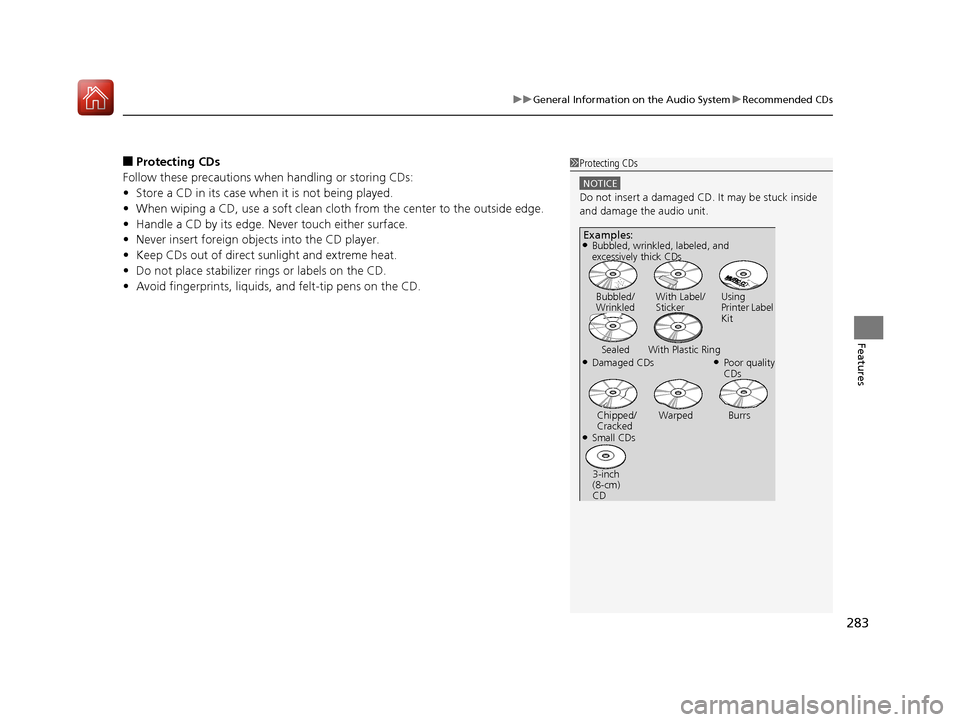
• Avoid fingerprints, liquids, and felt-tip pens on the CD.1Protecting CDs
NOTICE
Do not insert a damaged CD. It may be stuck inside
and damage the audio unit.
Examples:
●Damaged CDs Bubbled/
Wrinkled
With Label/
Sticker Using
Printer Label
Kit
Sealed With Plastic Ring●Poor quality
CDs
Chipped/
Cracked Warped Burrs
●Small CDs
3-inch
(8-cm)
CD
●Bubbled, wrinkled, labeled, and
excessively thick CDs
17 ACURA MDX-31TZ56300.book 283 ページ 2016年5月13日 金曜日 午後7時46分
Page 285 of 581
284
uuGeneral Information on the Audio System uCompatible iPod, iPhone, and USB Flash Drives
Features
Compatible iPod, iPhone, and USB Flash Drives
• A USB flash drive of 256 MB or higher is recommended.
• Some digital audio players may not be compatible.
• Some USB flash drives (e.g., a device with security lockout) may not work.
• Some software files may not allow for audio play or text data display.
• Some versions of MP3, WMA, or AAC formats may be unsupported.
■iPod and iPhone Model Compatibility
Model
iPod (5th generation)
iPod classic 80GB/160GB (launch in 2007)
iPod classic 120GB (launch in 2008)
iPod classic 160GB (launch in 2009)
iPod nano (1st to 7th generation) released between 2005 and 2012
iPod touch (1st to 6th generation) released between 2007 and 2015
iPhone 3G/iPhone 3GS/iPhone 4/iPhone 4s /iPhone 5/iPhone 5c/iPhone 5s/iPhone 6/
iPhone 6 Plus/iPhone 6s/iPhone 6s Plus
■USB Flash Drives
1 iPod and iPhone Model Compatibility
This system may not work with all software versions
of these devices.
1USB Flash Drives
Files on the USB flash drive are played in their stored
order. This order may be different from the order
displayed on your PC or device.
17 ACURA MDX-31TZ56300.book 284 ページ 2016年5月13日 金曜日 午後7時46分