reset Acura MDX 2017 Owner's Guide
[x] Cancel search | Manufacturer: ACURA, Model Year: 2017, Model line: MDX, Model: Acura MDX 2017Pages: 581, PDF Size: 32.65 MB
Page 241 of 581
240
uuAudio System Basic Operation uAudio/Information Screen
Features
■Audio
Shows the current audio information.
■Phone
Shows the HFL information.
2 Bluetooth ® HandsFreeLink® P. 310
■Info
Shows the Trip Computer or Clock/Wallpaper and other information. Rotate
to select an item, then press .
■Trip computer (Current Drive)
Shows the range, and instant and average fu el economy of the current trip, as well
as the average fuel economy from your last trip.
■Trip computer (History of Trip A)
Shows the range, average fuel economy an d distances traveled for the current trip,
as well as the average fuel economy and distances traveled during the last three
driving cycles.
Each time you reset the trip meter A, the information on the display updates. The
history of the previous th ree driving cycles is kept.
■Deleting the history manually
1. Move on the History of Trip A screen to select Delete History, then press .
2. A confirmation message appears on the screen. Rotate to select Yes, then
press .
■Clock/Wallpaper
Shows a clock screen or an image you import.
17 ACURA MDX-31TZ56300.book 240 ページ 2016年5月13日 金曜日 午後7時46分
Page 246 of 581

245
uuAudio System Basic Operation uPlaying AM/FM Radio
Continued
Features
Playing AM/FM Radio
Audio/Information Screen
Tune Up/Down Icons
Select or to tune the radio
frequency.
MENU Button
Press to display the menu items.
(Power) Button
Press to turn the audio system on
and off.
Source
Select to change a band or change
an audio source.
More
Select to display the menu items.
BACK Button
Press to go back to the previous display.
VOL (Volume) Knob (Pushed out)
Turn to adjust the volume.
Interface Dial/ENTER Button
Press and turn to select preset radio
stations.
Move up, down, right and left to
select secondary menu.
Sound Icon
Select to display the
Sound menu.
On Demand Multi-Use DisplayTM
Tune
Select to switch to tune mode.
Preset Icons
Select to store a station.
To listen to a stored channel,
select 1-6 (AM) or 1-12 (FM).
Skip/Seek Icons
Select or to search up and
down the selected band for a station
with a strong signal.
Scan
Select to sample each of the strongest
stations on the selected band for 10
seconds.
17 ACURA MDX-31TZ56300.book 245 ページ 2016年5月13日 金曜日 午後7時46分
Page 247 of 581
uuAudio System Basic Operation uPlaying AM/FM Radio
246
Features
To store a station:
1. Tune to the desired station.
2. Move or to select Presets tab.
3. Rotate to select the preset number you want to store the station.
4. Press and hold for a few seconds.
You can also store that statio n by the following procedure.
1. Tune to the selected station.
2. Press the MENU button.
3. Rotate to select Save Preset, then press .
4. Rotate to select the preset number you want to store that station, then press
.
1. Tune to the selected station.
2. Change the display to the preset screen.
3. Select and hold the preset number you want to store that station.
You can also store that statio n by the following procedure.
1. Tune to the selected station.
2. Select More.
3. Select Save Preset .
4. Select the preset number you wa nt to store that station.
■Preset Memory1Playing AM/FM Radio
The ST indicator appears on the display indicating
stereo FM broadcasts.
Stereo reproduction in AM is not available.
Switching the Audio Mode
Press the SOURCE button on the steering wheel.
2 Audio Remote Controls P. 231
You can also switch the mode by pressing the MENU
button and selecting Change Source on the Audio
menu screen.
You can store 6 AM stations and 12 FM stations into
the preset memory.
Interface Dial
On Demand Multi-Use DisplayTM
17 ACURA MDX-31TZ56300.book 246 ページ 2016年5月13日 金曜日 午後7時46分
Page 250 of 581

249
uuAudio System Basic Operation uPlaying SiriusXM ® Radio
Continued
Features
Playing SiriusXM® Radio
Audio/Information Screen
On Demand Multi-Use Display
TM
Category Up/Down Icons
Select or to display and select
an SiriusXM® Radio category.
MENU Button
Press to display the menu items.
(Power) Button
Press to turn the audio system on
and off.
Source
Select to change an audio source.
Presets
Select to store a channel.
To listen to a stored
channel, select 1-12.
Channel Up/Down Icons
Select or to the previous or
next channel.
Select and hold to rapidly skip 10
channels at a time.
More
Select to display the menu items.
BACK Button
Press to go back to the previous display.
VOL (Volume) Knob (Pushed out)
Turn to adjust the volume.
Interface Dial/ENTER Button
Press and turn to select preset radio
stations.
Move up, down, right and left to
select secondary menu.
Scan
Select to scan each channel.
Sound Icon
Select to display the
Sound menu.
Channel Art
Playback
Icon
Channel Up/Down
Icons
Playback Icon
Select to display the
Playback
screen.
17 ACURA MDX-31TZ56300.book 249 ページ 2016年5月13日 金曜日 午後7時46分
Page 251 of 581
uuAudio System Basic Operation uPlaying SiriusXM ® Radio
250
Features
1. Select the SiriusXM® mode.
2 Audio Remote Controls P. 231
2 On Demand Multi-Use DisplayTM P. 233
2.Rotate to select a channel from a list, then press .
2. Select a channel using the , icons on the tune mode screen or the preset
numbers ( 1-12 ) on the preset mode screen.
To change the tune mode:
1. Select the SiriusXM® mode.
2. Select More.
3. Select Tune Mode .
4. Select Channel Mode or Category Mode .
■To Play the SiriusXM® Radio1Playing SiriusXM ® Radio
In the channel mode, all available channels are
selectable. In the categor y mode, you can select a
channel within a ca tegory (Jazz, Rock, Classical, etc.).
There may be instances when SiriusXM ® Radio does
not broadcast all the data fi elds (artist name, title).
This does not indicate a problem with your audio
system.
SiriusXM ® Radio channels load in ascending order,
which can take about a minute. Once they have
loaded you will be able to scroll up or down to make
your selections.
Tune Start:
When you change a channel, a song being played on
that channel restarts from the beginning with this
function. This can be turned on or off from the Play
Song from Beginning setting. 2 Customized Features P. 285
Interface Dial
On Demand Multi-Use DisplayTM
On Demand Multi-Use DisplayTM
17 ACURA MDX-31TZ56300.book 250 ページ 2016年5月13日 金曜日 午後7時46分
Page 252 of 581

Continued251
uuAudio System Basic Operation uPlaying SiriusXM ® Radio
Features
To store a channel:
1. Tune to the selected channel.
2. Move or to select Presets tab.
3. Rotate to select the preset number you want to store the channel.
4. Press and hold for a few seconds.
You can also store a channel by the following procedure.
1. Tune to the selected channel.
2. Press the MENU button.
3. Rotate to select Save Preset, then press .
4. Rotate to select the preset number you want to store that channel, then press
.
1. Tune to the selected channel.
2. Change the display to the preset screen.
3. Select and hold the preset number you want to store that channel.
You can also store a channel by the following procedure.
1. Tune to the selected channel.
2. Select More.
3. Select Save Preset .
4. Select the preset number you want to store that channel.
■Preset Memory1Playing SiriusXM ® Radio
You can store 12 SiriusXM ® channels into the preset
memory.
Interface Dial
On Demand Multi-Use DisplayTM
17 ACURA MDX-31TZ56300.book 251 ページ 2016年5月13日 金曜日 午後7時46分
Page 253 of 581

252
uuAudio System Basic Operation uPlaying SiriusXM ® Radio
Features
■Multi-channel preset (for music channels only)
You can store up to four of your preferred music channels per preset and listen to
them randomly.
1.Tune a station.
2. Select More.
3. Select Save Preset.
4. Select Edit TuneMix .
5. Select a preset number where you want to
add a music channel.
6. Select Add.
u Select OK or to return the previous
screen.
To delete a multi-channel preset:
1. Select More.
2. Select Save Preset .
3. Select Edit TuneMix.
4. Select a multi-channel preset number.
5. Select Delete.
6. Select channel icon.
u Select OK or to return the previous screen.
On Demand Multi-Use DisplayTM
X
X
17 ACURA MDX-31TZ56300.book 252 ページ 2016年5月13日 金曜日 午後7時46分
Page 255 of 581
uuAudio System Basic Operation uPlaying SiriusXM ® Radio
254
Features
The system constantly records up to the la st 60 minutes of your currently tuned
channel and all the preset channel broadcas t, starting from the moment you turn the
power mode to ON. You can rewind and replay the last 60 minutes of each broadcast.
1. Press the MENU button.
2. Rotate to select Playback, then press .
Select Playback.
2Playing SiriusXM ® Radio P. 249
The following items are available:
Play/Pause: Pauses or plays a storing broadcast.
Go to Live: Returns to real-time broadcast.
Skip Down: Skips to the previously stored channel.
Skip Up: Skips to the next channel.
15sec Back: Select to skip back 15 seconds in the current selection. Select and hold
to fast-rewind the current selection.
15sec Skip: Select to skip forward 15 seconds in the current selection. Select and
hold to fast-forward the current selection.
OK: Returns to previous channel.
■Returning to real-time broadcast
Rotate to select Go to Live, press while listening to the playback channel.
Select Go to Live while listening to the playback channel.
■Replay Function1Replay Function
The system starts storing broadcast in memory when
the power mode is turned ON. You can go back to
the program from that point.
You can no longer repl ay any program once the
power mode is turned OFF as it erases memory.
You can check how long the program has been
stored in memory from th e audio/information screen.
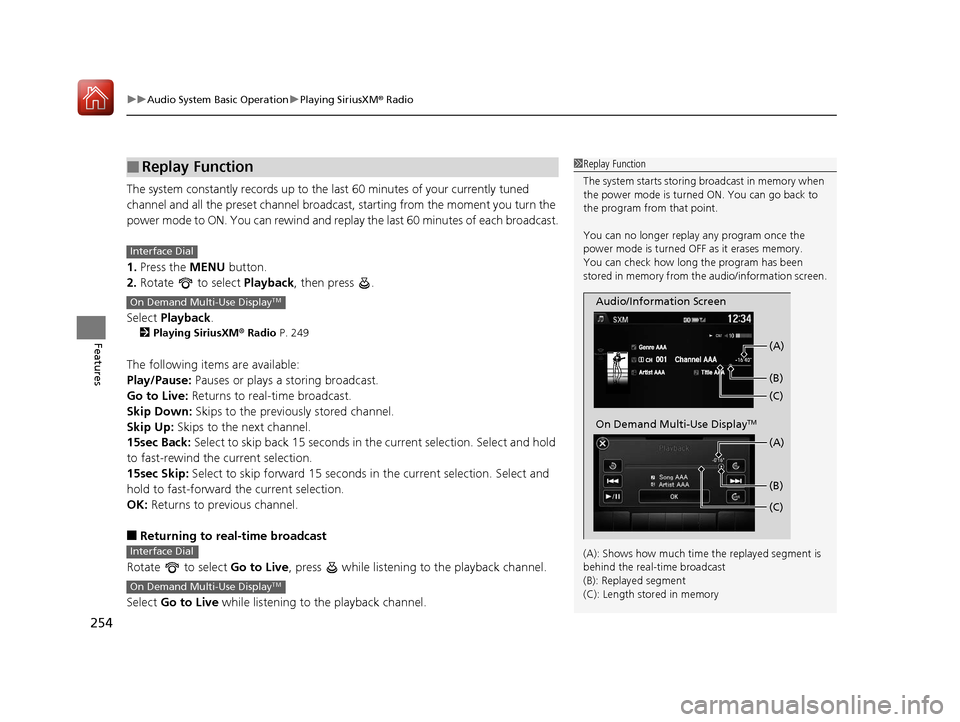
(A): Shows how much time the replayed segment is
behind the real-time broadcast
(B): Replayed segment
(C): Length stored in memory
Audio/Information Screen (C) (B) (A)
On Demand Multi-Use DisplayTM
(C) (B) (A)
Interface Dial
On Demand Multi-Use DisplayTM
Interface Dial
On Demand Multi-Use DisplayTM
17 ACURA MDX-31TZ56300.book 254 ページ 2016年5月13日 金曜日 午後7時46分
Page 260 of 581
259
uuAudio System Basic Operation uPlaying SiriusXM ® Radio
Features
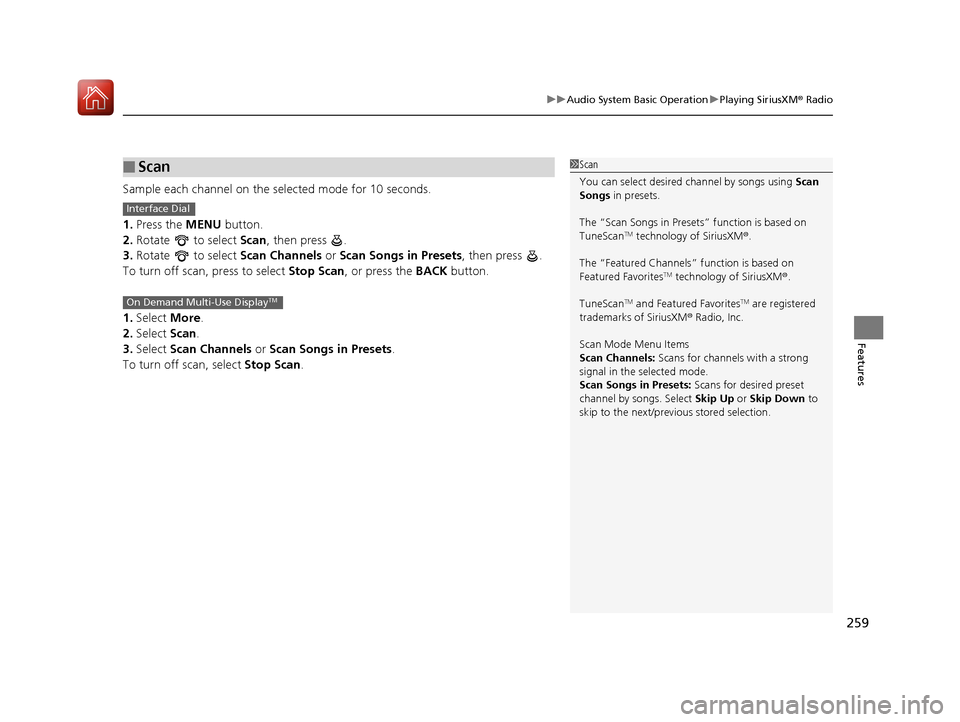
Sample each channel on the selected mode for 10 seconds.
1. Press the MENU button.
2. Rotate to select Scan, then press .
3. Rotate to select Scan Channels or Scan Songs in Presets , then press .
To turn off scan, press to select Stop Scan, or press the BACK button.
1. Select More.
2. Select Scan.
3. Select Scan Channels or Scan Songs in Presets .
To turn off scan, select Stop Scan.
■Scan1Scan
You can select desired channel by songs using Scan
Songs in presets.
The “Scan Songs in Preset s” function is based on
TuneScan
TM technology of SiriusXM ®.
The “Featured Channels ” function is based on
Featured Favorites
TM technology of SiriusXM ®.
TuneScan
TM and Featured FavoritesTM are registered
trademarks of SiriusXM ® Radio, Inc.
Scan Mode Menu Items
Scan Channels: Scans for channels with a strong
signal in the selected mode.
Scan Songs in Presets: Scans for desired preset
channel by songs. Select Skip Up or Skip Down to
skip to the next/previ ous stored selection.
Interface Dial
On Demand Multi-Use DisplayTM
17 ACURA MDX-31TZ56300.book 259 ページ 2016年5月13日 金曜日 午後7時46分
Page 287 of 581
286
uuCustomized Features u
Features
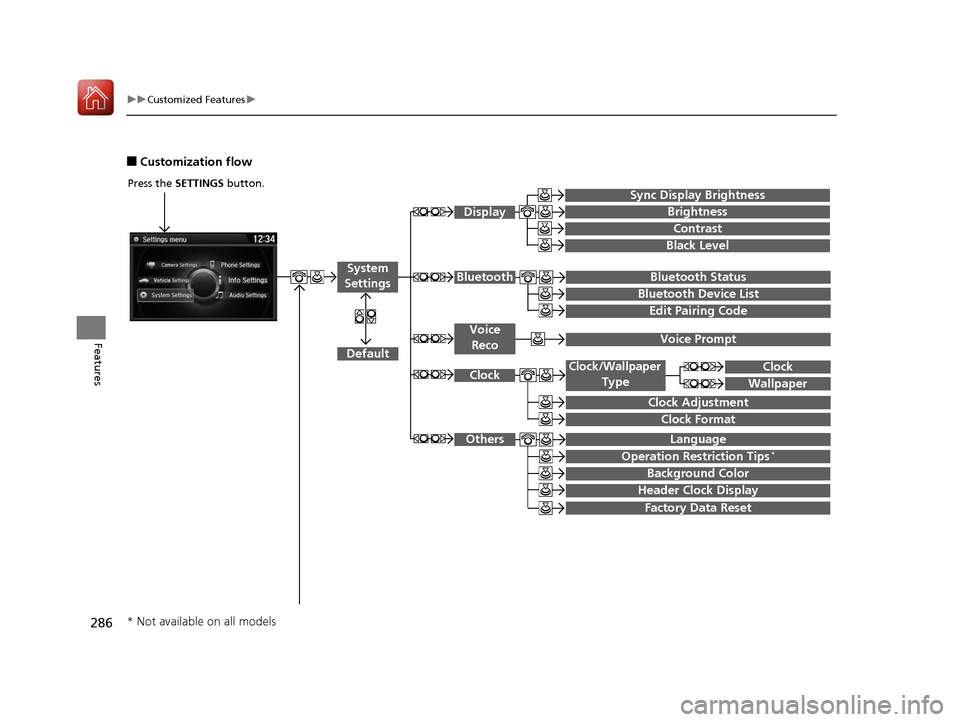
■Customization flow
Press the SETTINGS button.
Brightness
Contrast
Black Level
Bluetooth Status
Bluetooth Device List
Edit Pairing Code
Default
Display
System
SettingsBluetooth
Sync Display Brightness
Factory Data Reset
Background Color
Header Clock Display
Clock
Clock Adjustment
Clock Format
Clock
LanguageOthers
Wallpaper
Clock/Wallpaper
Type
Operation Restriction Tips*
Voice RecoVoice Prompt
* Not available on all models
17 ACURA MDX-31TZ56300.book 286 ページ 2016年5月13日 金曜日 午後7時46分