acc Acura MDX 2019 Owner's Manual
[x] Cancel search | Manufacturer: ACURA, Model Year: 2019, Model line: MDX, Model: Acura MDX 2019Pages: 701, PDF Size: 38.75 MB
Page 399 of 701

398
uuBluetooth ® HandsFreeLink ®u HFL Menus
Features
HFL Menus
The power mode must be in ACCESSORY or ON to use HFL.
■Bluetooth/Phone Settings screen
1.Press the SETTINGS button.
2. Rotate to select Bluetooth/Phone
Settings , then press .
1HFL Menus
To use HFL, you must first pair your Bluetooth-
compatible cell phone to th e system while the vehicle
is parked.
Some functions are limited while driving. A message
appears on the screen when the vehicle is moving
and the operation is canceled.
Bluetooth
Replace This Device
Turns the Bluetooth ® on and off.Bluetooth
Edit PIN Create a security PIN for a paired phone.
Replace a previously paired phone with a
new phone.
Delete This DeviceDelete a previously paired phone.
Connect to AudioConnect a phone to use the Bluetooth®
audio and smartphone function.
Connect to PhoneConnect a phone to use the HFL.
Disconnect Disconnect a paired phone from the
system.
Connect Both Connect the device to use the all
functions of Bluetooth® connection.
Cancel/Reset all customized items in the
Bluetooth/Phone Settings group as default.
Default
(Existing
entry list)
Bluetooth
Device List Edit Device Name*Edit the user name of a paired phone.
* Not available on all models
19 ACURA MDX-31TZ56510.book 398 ページ 2018年12月11日 火曜日 午後4時47分
Page 401 of 701

400
uuBluetooth ® HandsFreeLink ®u HFL Menus
Features
Select a mail or text message account.Text/Email*1
*1: Appears only when a phone is connected to HFL.
Select Account
Enable Text/EmailTurn the text/e-mail message function on and off.
New Text/Email AlertSelect whether a pop-up alert comes on the screen when HFL receives a new
text/e-mail message.
Message Auto Reading*Selects whether the system automatically reads out messages, and, if selected,
whether only when driving.
* Not available on all models
19 ACURA MDX-31TZ56510.book 400 ページ 2018年12月11日 火曜日 午後4時47分
Page 403 of 701

402
uuBluetooth ® HandsFreeLink ®u HFL Menus
Features
Text/Email*1, *2
Message is
read aloud.Read Message Aloud /Stop
Reading
MessagesSystem reads received message aloud, or stop message
from being read.
Reply
Call
Reply to a received message using one of six fixed
phrases.
Make a call to the sender.
Select Account
Select a message
and press .
Select a mail or text message account.
Redial*1Redial the last number dialed in the phone’s history.
*1: Appears only when a ph one is connected to HFL.
*2: This function is not available if your phone is not supported.
See the previous message.Previous
NextSee the next message.
View Full MessageDisplays the entire message.
Bluetooth/
Phone SettingsDisplay the Bluetooth/Phone Settings screen.
Dial*1Enter a phone number to dial.
19 ACURA MDX-31TZ56510.book 402 ページ 2018年12月11日 火曜日 午後4時47分
Page 432 of 701
Continued431
uuBluetooth ® HandsFreeLink ®u HFL Menus
Features
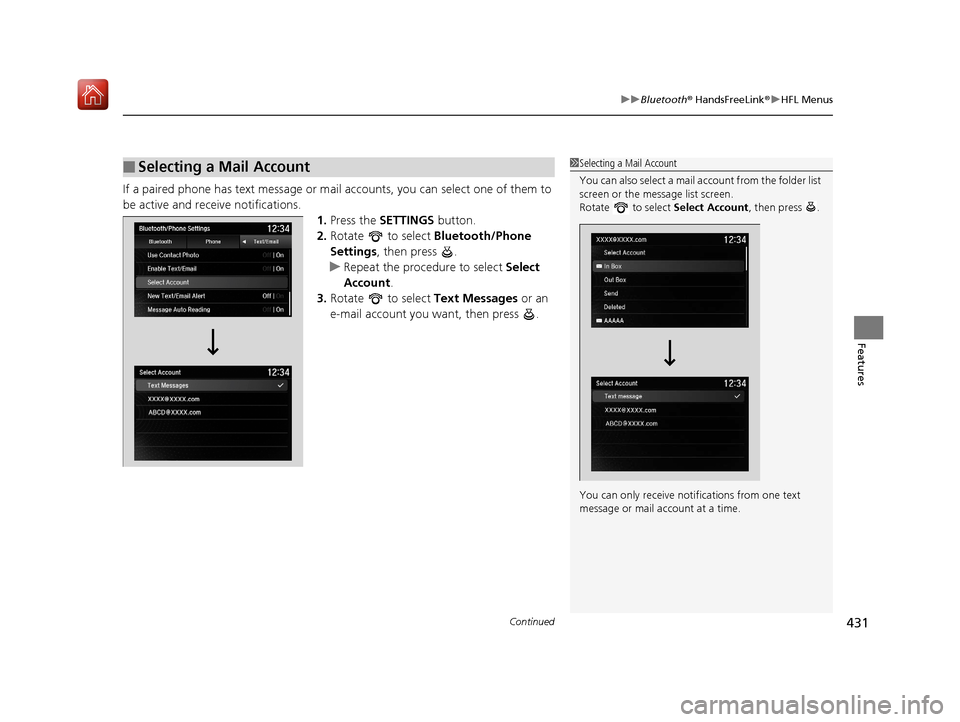
If a paired phone has text message or mail accounts, you can select one of them to
be active and receive notifications. 1.Press the SETTINGS button.
2. Rotate to select Bluetooth/Phone
Settings , then press .
u Repeat the procedure to select Select
Account .
3. Rotate to select Text Messages or an
e-mail account you want, then press .
■Selecting a Mail Account1 Selecting a Mail Account
You can also select a mail account from the folder list
screen or the message list screen.
Rotate to select Select Account, then press .
You can only receive notif ications from one text
message or mail a ccount at a time.
19 ACURA MDX-31TZ56510.book 431 ページ 2018年12月11日 火曜日 午後4時47分
Page 433 of 701
uuBluetooth ® HandsFreeLink ®u HFL Menus
432
Features
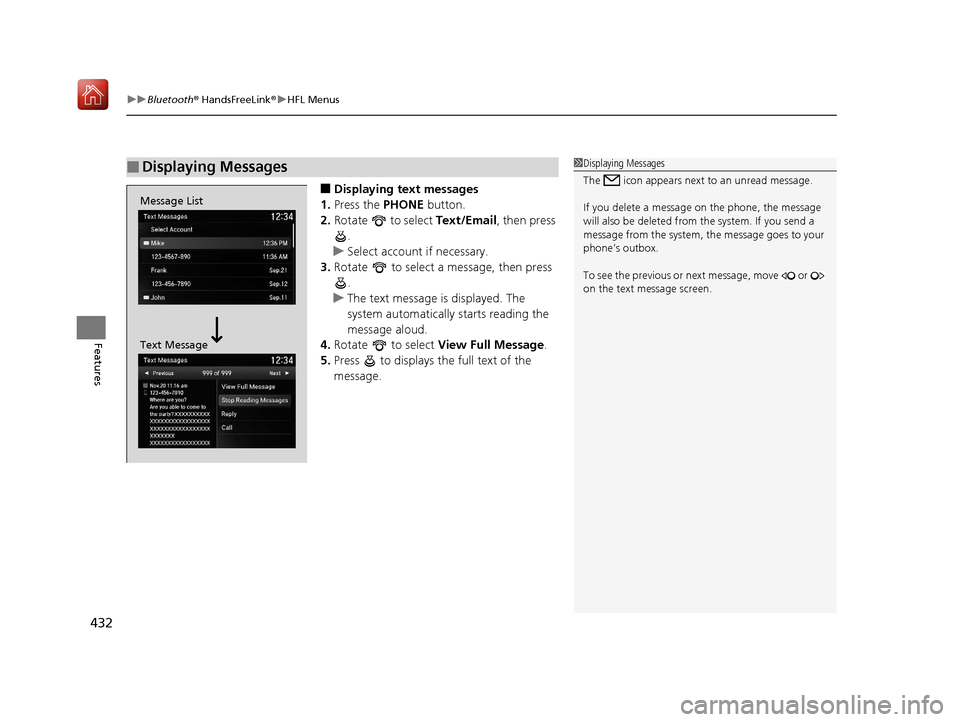
■Displaying text messages
1. Press the PHONE button.
2. Rotate to select Text/Email, then press
.
u Select account if necessary.
3. Rotate to select a message, then press
.
u The text message is displayed. The
system automatically starts reading the
message aloud.
4. Rotate to select View Full Message .
5. Press to displays the full text of the
message.
■Displaying Messages1Displaying Messages
The icon appears next to an unread message.
If you delete a message on the phone, the message
will also be dele ted from the system. If you send a
message from the system, the message goes to your
phone’s outbox.
To see the previous or ne xt message, move or
on the text message screen.
Message List
Text Message
19 ACURA MDX-31TZ56510.book 432 ページ 2018年12月11日 火曜日 午後4時47分
Page 439 of 701
uuAcuraLink ®*u
438
Features
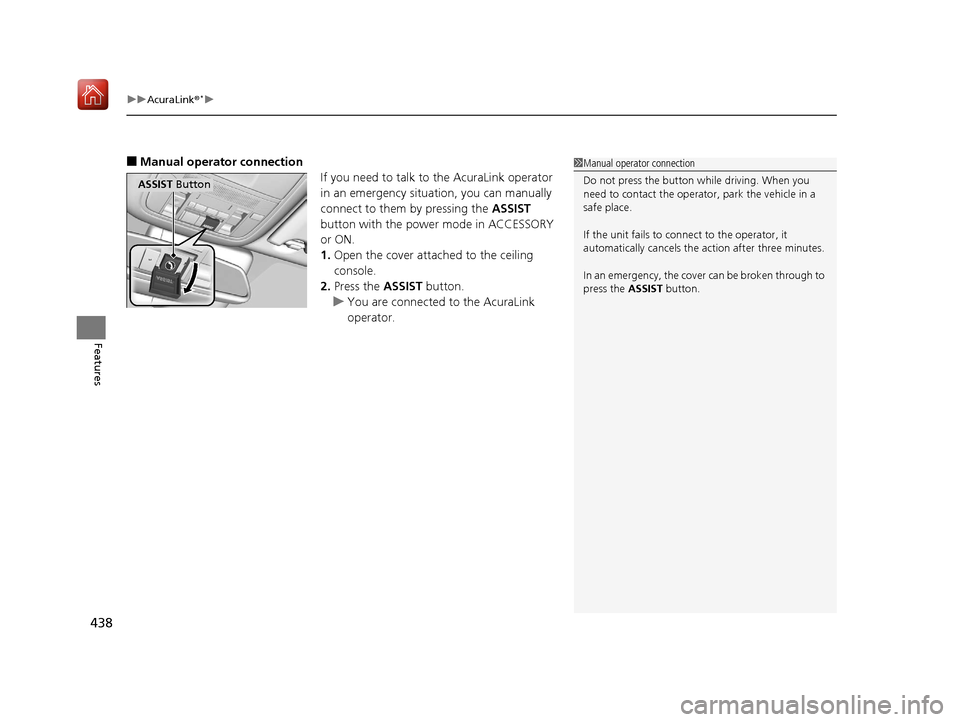
■Manual operator connection
If you need to talk to the AcuraLink operator
in an emergency situation, you can manually
connect to them by pressing the ASSIST
button with the power mode in ACCESSORY
or ON.
1. Open the cover attached to the ceiling
console.
2. Press the ASSIST button.
u You are connected to the AcuraLink
operator.1Manual operator connection
Do not press the button while driving. When you
need to contact the operato r, park the vehicle in a
safe place.
If the unit fails to connect to the operator, it
automatically cancels the action after three minutes.
In an emergency, the cover can be broken through to
press the ASSIST button.
ASSIST Button
19 ACURA MDX-31TZ56510.book 438 ページ 2018年12月11日 火曜日 午後4時47分
Page 440 of 701

Continued439
uuAcuraLink ®*u
Features
Your subscribed telematics service prov ider can track your vehicle’s location,
remotely lock or unlock doors, and help you find your vehicle.
To use these features, you n eed your user ID and personal identification number
(PIN).
■Stolen vehicle tracking
This feature searches and tracks down your vehicle position even if it is on the move.
If you believe that your vehicle has been stolen, contact the police as well as the
provider.
■Remote door lock/unlock
The provider can remotely lock or unlock doors upon your request.
■Vehicle finder
This feature is convenient to use when trying to locate your vehicle in large areas,
such as a crowded parking lot. If you cannot locate your vehicle after using the
remote transmitter’s answerback function, you can contact the provider which can
then flash your vehicle’s exterior lights and sound the horn.
■Security ala rm notification
If the security system in your vehicle detects an abnormal condition, such as
someone tampering with the lock on your vehicle, the provider notifies you by your
preferred method.
■Security Features1 Security Features
The contact information of your provider, your user
ID and PIN will be given when you subscribe to
AcuraLink. If you forget any of the above, contact a
dealer, or visit owners.acura.com (U.S.) or
www.acura.ca/owners/acuralink (Canada).
You can also activate the remote door lock/unlock
and vehicle finder features from the Internet or using
your smartphone app. As k a dealer, or visit
owners.acura.com (U.S.) or www.acura.ca/owners/
acuralink (Canada) for details.
1Vehicle finder
The lights will stop flas hing and horn will stop
sounding under the foll owing conditions:
•When 30 seconds have elapsed.
•You unlock the doors using the remote transmitter.•You unlock the doors using the keyless access
system.
•You unlock the doors using the built-in key.•The power mode is set to ACCESSORY or ON.
19 ACURA MDX-31TZ56510.book 439 ページ 2018年12月11日 火曜日 午後4時47分
Page 442 of 701
Continued441
uuAcuraLink ®*u
Features
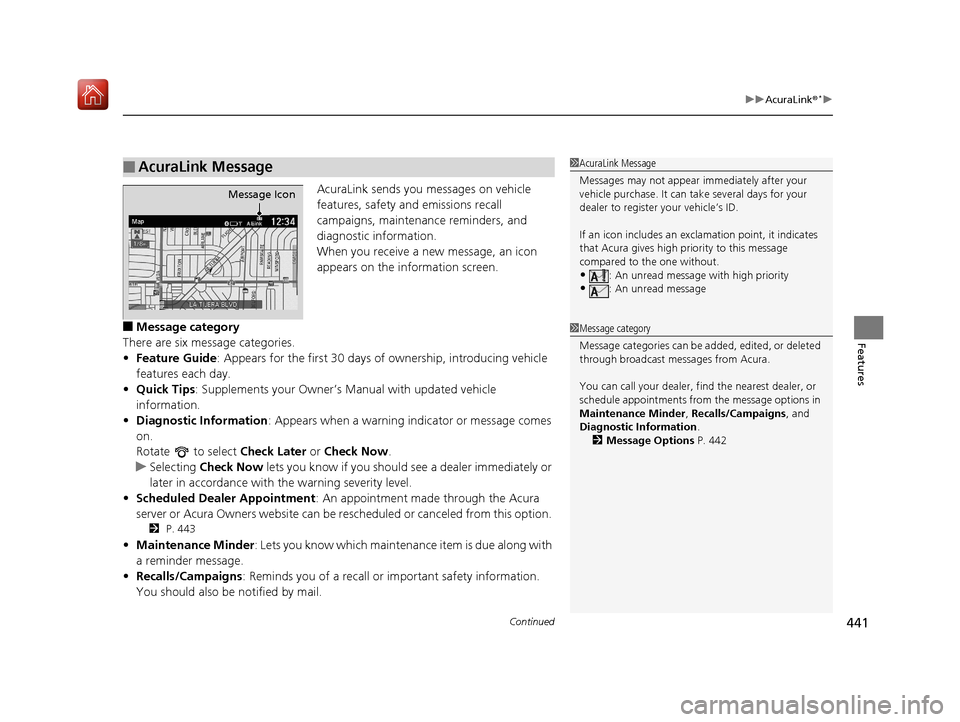
AcuraLink sends you messages on vehicle
features, safety and emissions recall
campaigns, maintenance reminders, and
diagnostic information.
When you receive a new message, an icon
appears on the information screen.
■Message category
There are six message categories.
• Feature Guide : Appears for the first 30 days of ownership, introducing vehicle
features each day.
• Quick Tips : Supplements your Owner’s Manual with updated vehicle
information.
• Diagnostic Information : Appears when a warning in dicator or message comes
on.
Rotate to select Check Later or Check Now .
u Selecting Check Now lets you know if you should see a dealer immediately or
later in accordance with the warning severity level.
• Scheduled Dealer Appointment : An appointment made through the Acura
server or Acura Owners website can be re scheduled or canceled from this option.
2 P. 443
•Maintenance Minder : Lets you know which maintenance item is due along with
a reminder message.
• Recalls/Campaigns : Reminds you of a recall or important safety information.
You should also be notified by mail.
■AcuraLink Message1 AcuraLink Message
Messages may not appear immediately after your
vehicle purchase. It can ta ke several days for your
dealer to register your vehicle’s ID.
If an icon includes an excl amation point, it indicates
that Acura gives high priority to this message
compared to the one without.
•: An unread message with high priority
•: An unread message
Message Icon
1 Message category
Message categories can be added, edited, or deleted
through broadcast me ssages from Acura.
You can call your dealer, find the nearest dealer, or
schedule appointments from the message options in
Maintenance Minder , Recalls/Campaigns, and
Diagnostic Information .
2 Message Options P. 442
19 ACURA MDX-31TZ56510.book 441 ページ 2018年12月11日 火曜日 午後4時47分
Page 444 of 701
Continued443
uuAcuraLink ®*u
Features
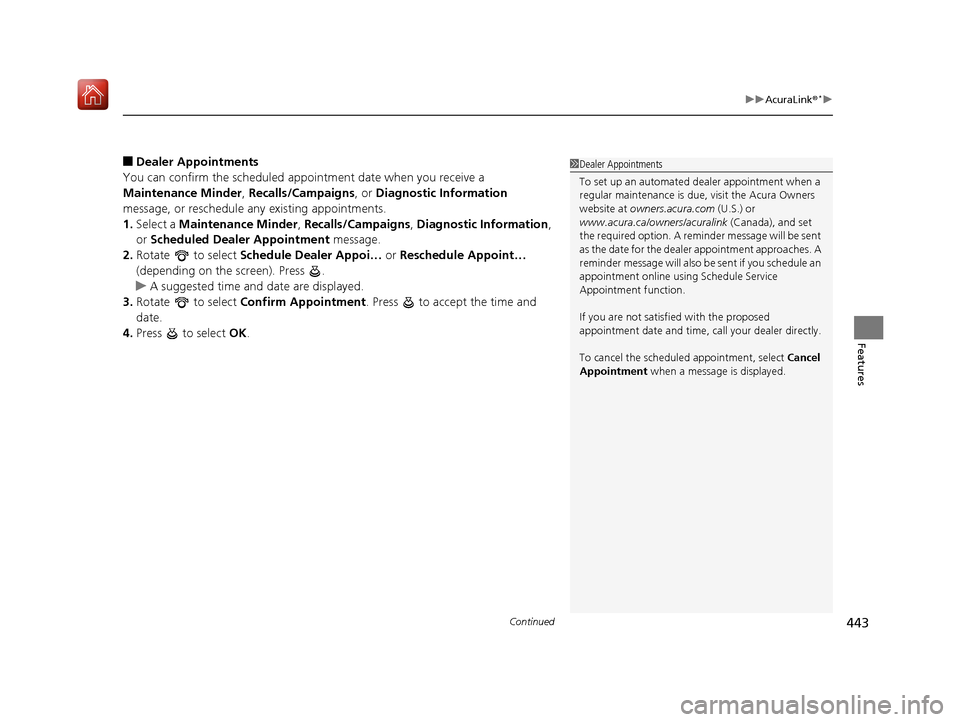
■Dealer Appointments
You can confirm the scheduled appointment date when you receive a
Maintenance Minder , Recalls/Campaigns , or Diagnostic Information
message, or reschedule an y existing appointments.
1. Select a Maintenance Minder , Recalls/Campaigns, Diagnostic Information ,
or Scheduled Dealer Appointment message.
2. Rotate to select Schedule Dealer Appoi… or Reschedule Appoint…
(depending on the screen). Press .
u A suggested time and date are displayed.
3. Rotate to select Confirm Appointment . Press to accept the time and
date.
4. Press to select OK.1Dealer Appointments
To set up an automated de aler appointment when a
regular maintenance is due , visit the Acura Owners
website at owners.acura.com (U.S.) or
www.acura.ca/owners/acuralink (Canada), and set
the required option. A remi nder message will be sent
as the date for the dealer appointment approaches. A
reminder message will also be sent if you schedule an
appointment online using Schedule Service
Appointment function.
If you are not satisfied with the proposed
appointment date and time, ca ll your dealer directly.
To cancel the scheduled appointment, select Cancel
Appointment when a message is displayed.
19 ACURA MDX-31TZ56510.book 443 ページ 2018年12月11日 火曜日 午後4時47分
Page 446 of 701

445
Features
Compass*
When you set the power mode to ON, the compass self-calibrates, and the compass
display appears.
Compass Calibration
If the compass indicates the wrong direction, or the CAL indicator blinks, you need
to manually calibrate the system.
1. Set the power mode to ON.
2. On the top screen of any source, press and hold for five seconds.
u The display switches to the Compass Settings screen.
3. Rotate to select Calibration, then press .
4. When the display changes to Calibration Start, press .
5. Drive the vehicle slowly in two circles.
u The compass starts to show a di rection after the calibration. The CAL indicator
goes off.
1 Compass*
Compass operation can be affected under the
following conditions:
•Driving near power lines or stations•Crossing a bridge
•Passing a large vehicle, or driving near a large
object that can cause a magnetic disturbance
•When accessories such as antennas and roof racks
are mounted by magnets
1 Compass Calibration
Calibrate the compass in an open area.
While setting the compass, press the BACK button to
cancel the setting mode a nd return to the previous
screen.
Models with navigation self -calibrate using GPS. The
compass in the MID and the direction arrow on the
map screen (when Heading-Up view selected) may
not be in sync when firs t starting the vehicle, but
should correct themselves as you drive.
If the compass in the MID continues to indicate an
incorrect direction, please see your Acura dealer.
Models with navigation system
* Not available on all models
19 ACURA MDX-31TZ56510.book 445 ページ 2018年12月11日 火曜日 午後4時47分