Air Acura MDX 2020 Workshop Manual
[x] Cancel search | Manufacturer: ACURA, Model Year: 2020, Model line: MDX, Model: Acura MDX 2020Pages: 701, PDF Size: 38.91 MB
Page 226 of 701
225
uuClimate Control System uUsing Automatic Climate Control
Controls
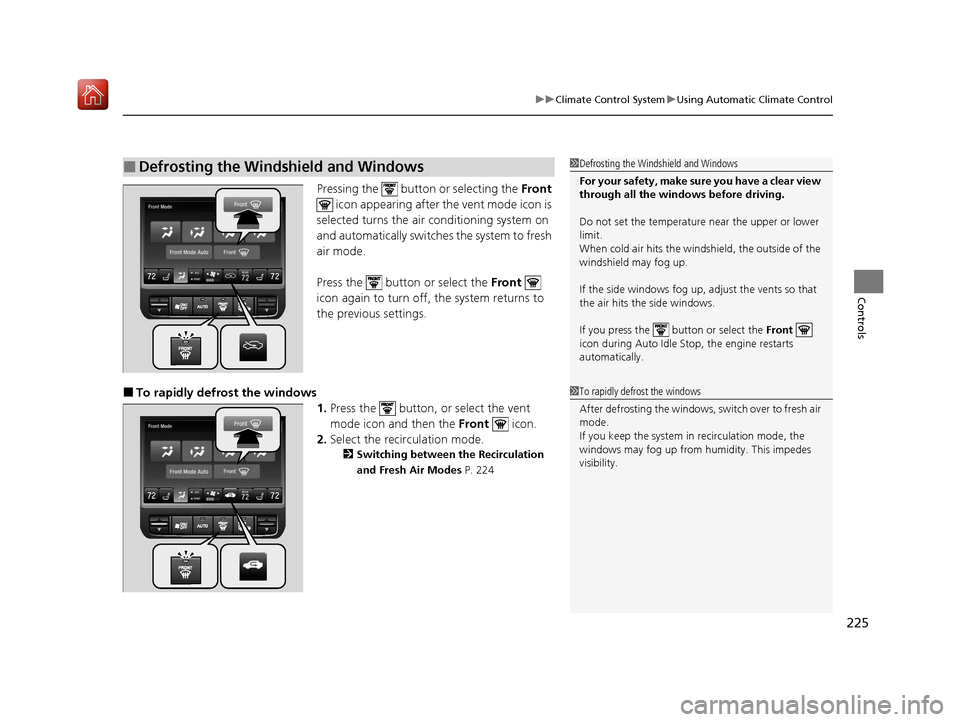
Pressing the button or selecting the Front
icon appearing after the vent mode icon is
selected turns the air conditioning system on
and automatically switches the system to fresh
air mode.
Press the button or select the Front
icon again to turn off, the system returns to
the previous settings.
■To rapidly defrost the windows 1.Press the button, or select the vent
mode icon and then the Front icon.
2. Select the recirculation mode.
2 Switching between the Recirculation
and Fresh Air Modes P. 224
■Defrosting the Windshield and Windows1Defrosting the Windshield and Windows
For your safety, make sure you have a clear view
through all the windows before driving.
Do not set the temperatur e near the upper or lower
limit.
When cold air hits the windshield, the outside of the
windshield may fog up.
If the side windows fog up, adjust the vents so that
the air hits the side windows.
If you press the button or select the Front
icon during Auto Idle Stop, the engine restarts
automatically.
1 To rapidly defrost the windows
After defrosting the windows, switch over to fresh air
mode.
If you keep the system in recirculation mode, the
windows may fog up from humidity. This impedes
visibility.
20 ACURA MDX-31TZ56600.book 225 ページ 2019年4月24日 水曜日 午後5時44分
Page 252 of 701
251
uuAudio System Basic Operation uVoice Control Operation
Continued
Features
Voice Control Operation
Your vehicle has a voice control syst em that allows hands-free operation.
The voice control system uses the (Tal k) and (hang-up/back) buttons on the
steering wheel and a microphone near the map lights in the ceiling.
To achieve optimum voice recognition when using the voice control system:
• Make sure the correct screen is displa yed for the voice command that you are
using.
The system recognizes only certain commands.
Available voice command P. 252
• Close the windows and moonroof.
• Adjust the dashboard and side vents so air does not blow onto the microphone in
the ceiling.
• Speak clearly in a natural speaking vo ice without pausing between words.
• Reduce any background noise if possibl e. The system may misinterpret your
command if more than one person is speaking at the same time.
■Voice Recognition
Models with navigation system
1Voice Control Operation
When you press the button, a helpful prompt asks
what you would like to do. Press and release the
button again to bypass th is prompt and give a
command.
1 Voice Recognition
The voice control system can only be used from the
driver’s seat because the microphone unit removes
noises from the front passenger’s side.
20 ACURA MDX-31TZ56600.book 251 ページ 2019年4月24日 水曜日 午後5時44分
Page 292 of 701
291
uuAudio System Basic Operation uPlaying Pandora ®*1
Continued
Features
Playing Pandora ®*1
Your audio system allows you to listen to music from the Pandora ® app on a
compatible smartphone.
This function is available when the phone is paired an d connected to the vehicle’s
Bluetooth ® HandsFreeLink ® (HFL) system, or with an iPhone, you can connect using
your USB cable to the USB port (2.5A).
2 Phone Setup P. 401
2 USB Ports P. 233
*1:Available only on U.S. models.
1Playing Pandora ®*1
Pandora®, the Pandora logo, and the Pandora trade
dress are trademarks or registered trademarks of
Pandora Media, Inc., used with permission. Pandora
is currently available exclusively in the United States.
To find out if your phone is compatible with this
feature, visit www.handsfreelink.com/Acura , or call
1-888-528-7876.
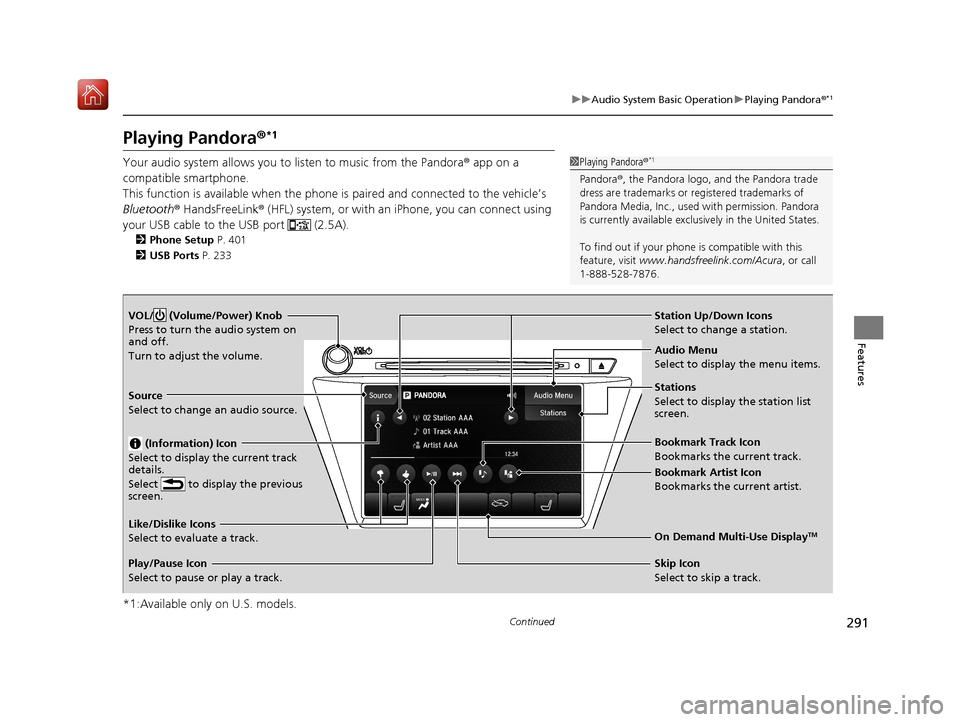
VOL/ (Volume/Power) Knob
Press to turn the audio system on
and off.
Turn to adjust the volume.
Audio Menu
Select to display the menu items.
Source
Select to change an audio source.
(Information) Icon
Select to display the current track
details.
Select to display the previous
screen.
Stations
Select to display the station list
screen.
On Demand Multi-Use DisplayTMLike/Dislike Icons
Select to evaluate a track.
Skip Icon
Select to skip a track.
Play/Pause Icon
Select to pause or play a track.Station Up/Down Icons
Select to change a station.
Bookmark Track Icon
Bookmarks the current track.
Bookmark Artist Icon
Bookmarks the current artist.
20 ACURA MDX-31TZ56600.book 291 ページ 2019年4月24日 水曜日 午後5時44分
Page 297 of 701
296
uuAudio System Basic Operation uPlaying Bluetooth ® Audio
Features
Playing Bluetooth ® Audio
Your audio system allows you to listen to music from your Bluetooth-compatible
phone.
This function is available when the phone is paired and connected to the vehicle’s
Bluetooth ® HandsFreeLink ® (HFL) system.
2 Phone Setup P. 401
1Playing Bluetooth ® Audio
Not all Bluetooth-enabled phones with streaming
audio capabilities are compatible with the system.
For a list of compatible phones:
•U.S.: Visit www.handsfreelink.com/Acura, or call 1-
888-528-7876.
•Canada: For more info rmation on smartphone
compatibility, call 1-855-490-7351.
In some states, it may be il legal to perform some data
device functions while driving.
If more than one phone is paired to the HFL system,
there will be a delay before the system begins to play.
Some functions may not be available on some
devices.
If a phone is currently conne cted via Apple CarPlay or
Android Auto, Bluetooth® Audio from that phone is
unavailable. However, a se cond previously paired
phone can stream Bluetooth® Audio by selecting
Connect to Audio from the Edit Bluetooth
Device .
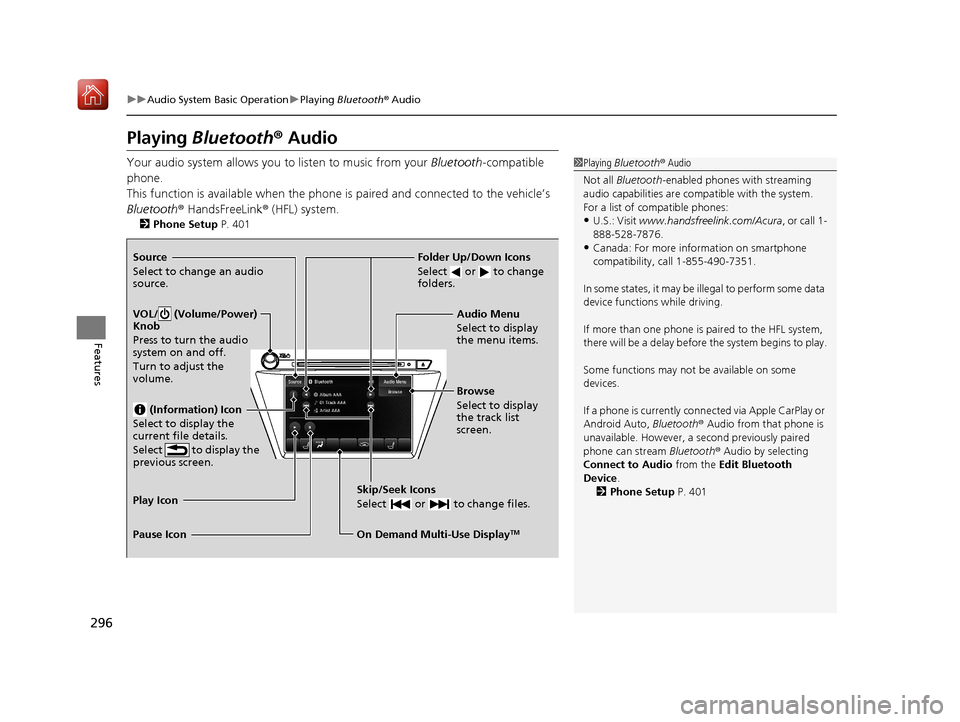
2 Phone Setup P. 401Source
Select to change an audio
source.
VOL/ (Volume/Power)
Knob
Press to turn the audio
system on and off.
Turn to adjust the
volume.
(Information) Icon
Select to display the
current file details.
Select to display the
previous screen.
Skip/Seek Icons
Select or to change files.
On Demand Multi-Use DisplayTM
Play Icon
Pause Icon Browse
Select to display
the track list
screen. Audio Menu
Select to display
the menu items.
Folder Up/Down Icons
Select or to change
folders.
20 ACURA MDX-31TZ56600.book 296 ページ 2019年4月24日 水曜日 午後5時44分
Page 298 of 701
297
uuAudio System Basic Operation uPlaying Bluetooth ® Audio
Features
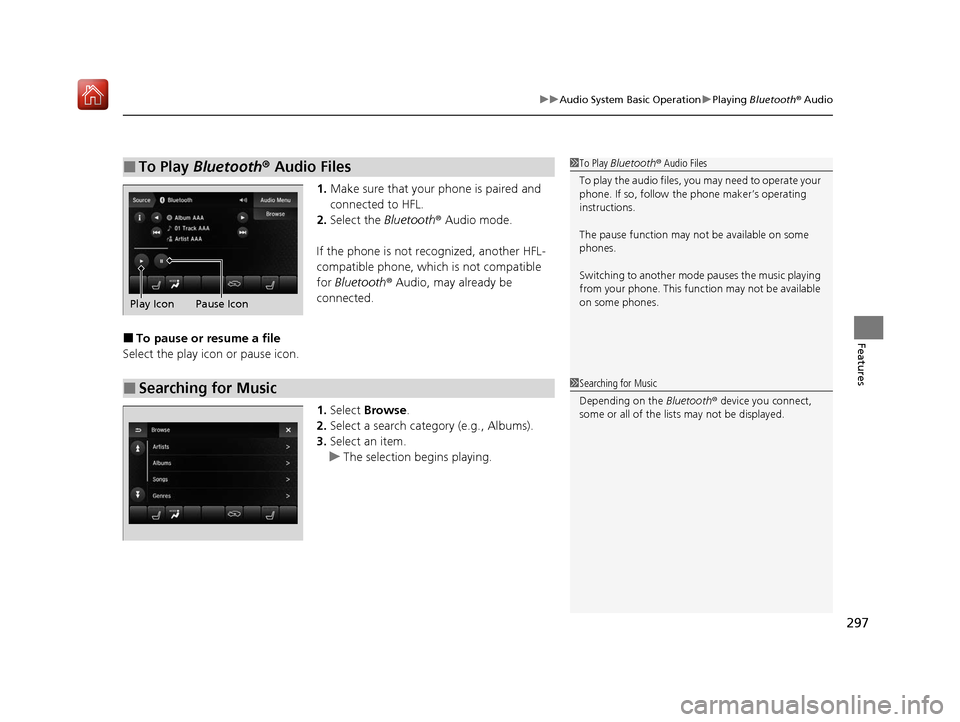
1. Make sure that your phone is paired and
connected to HFL.
2. Select the Bluetooth® Audio mode.
If the phone is not recognized, another HFL-
compatible phone, which is not compatible
for Bluetooth ® Audio, may already be
connected.
■To pause or resume a file
Select the play icon or pause icon.
1.Select Browse .
2. Select a search catego ry (e.g., Albums).
3. Select an item.
u The selection begins playing.
■To Play Bluetooth® Audio Files1To Play Bluetooth ® Audio Files
To play the audio files, y ou may need to operate your
phone. If so, follow the phone maker’s operating
instructions.
The pause function may no t be available on some
phones.
Switching to another mode pauses the music playing
from your phone. This functi on may not be available
on some phones.
Play Icon Pause Icon
■Searching for Music1 Searching for Music
Depending on the Bluetooth® device you connect,
some or all of the list s may not be displayed.
20 ACURA MDX-31TZ56600.book 297 ページ 2019年4月24日 水曜日 午後5時44分
Page 299 of 701
298
uuAudio System Basic Operation uSiri Eyes Free
Features
Siri Eyes Free
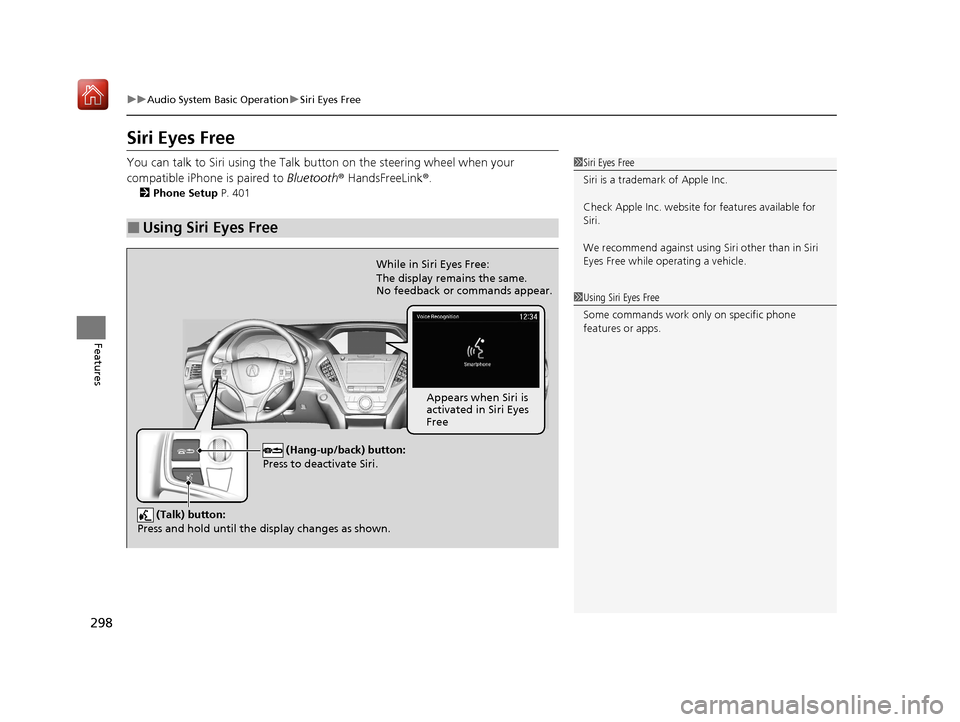
You can talk to Siri using the Talk bu tton on the steering wheel when your
compatible iPhone is paired to Bluetooth ® HandsFreeLink®.
2Phone Setup P. 401
■Using Siri Eyes Free
1Siri Eyes Free
Siri is a trademark of Apple Inc.
Check Apple Inc. website for features available for
Siri.
We recommend against using Si ri other than in Siri
Eyes Free while operating a vehicle.
1 Using Siri Eyes Free
Some commands work only on specific phone
features or apps.
(Hang-up/back) button:
Press to deactivate Siri.
(Talk) button:
Press and hold until the display changes as shown.
While in Siri Eyes Free:
The display remains the same.
No feedback or commands appear.
Appears when Siri is
activated in Siri Eyes
Free
20 ACURA MDX-31TZ56600.book 298 ページ 2019年4月24日 水曜日 午後5時44分
Page 300 of 701
299
uuAudio System Basic Operation uApple CarPlay
Continued
Features
Apple CarPlay
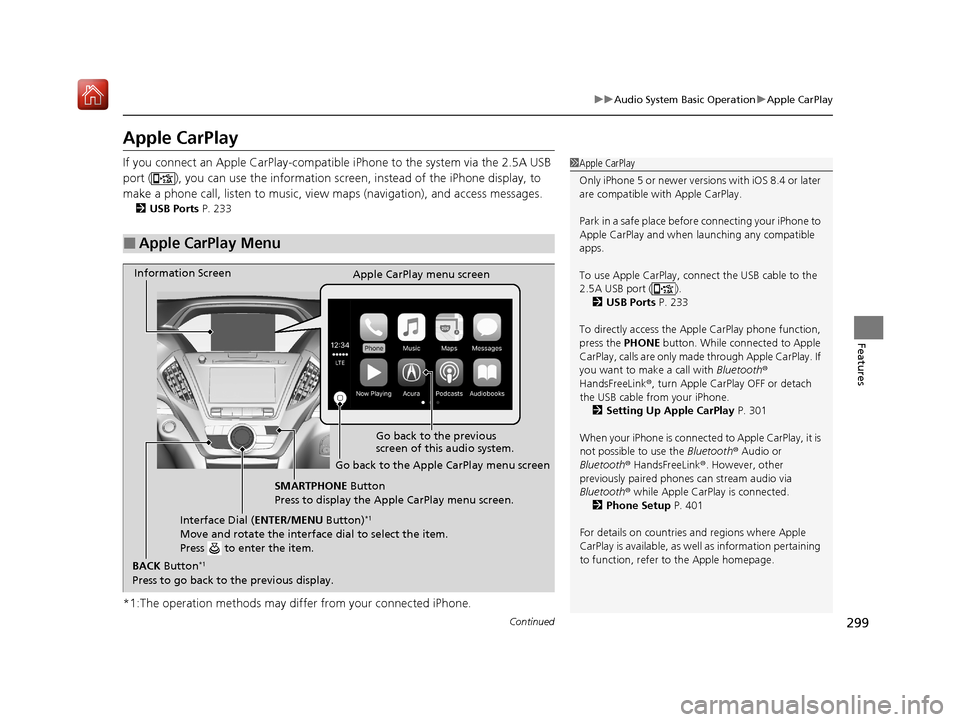
If you connect an Apple CarPlay-compatible iPhone to the system via the 2.5A USB
port ( ), you can use the information screen, instead of the iPhone display, to
make a phone call, listen to music, view maps (navigation), and access messages.
2USB Ports P. 233
*1:The operation methods may differ from your connected iPhone.
■Apple CarPlay Menu
1Apple CarPlay
Only iPhone 5 or newer versi ons with iOS 8.4 or later
are compatible with Apple CarPlay.
Park in a safe place before connecting your iPhone to
Apple CarPlay and when launching any compatible
apps.
To use Apple CarPlay, connect the USB cable to the
2.5A USB port ( ). 2 USB Ports P. 233
To directly access the Appl e CarPlay phone function,
press the PHONE button. While connected to Apple
CarPlay, calls are only made through Apple CarPlay. If
you want to make a call with Bluetooth®
HandsFreeLink ®, turn Apple CarPlay OFF or detach
the USB cable from your iPhone.
2 Setting Up Apple CarPlay P. 301
When your iPhone is connected to Apple CarPlay, it is
not possible to use the Bluetooth® Audio or
Bluetooth ® HandsFreeLink ®. However, other
previously paired phones can stream audio via
Bluetooth ® while Apple CarPlay is connected.
2 Phone Setup P. 401
For details on c ountries and regions where Apple
CarPlay is available, as well as information pertaining
to function, refer to the Apple homepage.
Go back to the previous
screen of this audio system.
Information Screen
Apple CarPlay menu screen
Go back to the Apple CarPlay menu screen
SMARTPHONE Button
Press to display the Apple CarPlay menu screen.
Interface Dial ( ENTER/MENU Button)
*1
Move and rotate the interface dial to select the item.
Press to enter the item.
BACK Button*1
Press to go back to the previous display.
20 ACURA MDX-31TZ56600.book 299 ページ 2019年4月24日 水曜日 午後5時44分
Page 304 of 701
303
uuAudio System Basic Operation uAndroid Auto
Continued
Features
Android Auto
When you connect an Android phone to the audio system via the 2.5A USB port
( ), Android Auto is automatically initiated. When connected via Android Auto,
you can use the information screen to acce ss the Phone, Google Maps (Navigation),
Google Play Music, and Google Now functions. When you first use Android Auto, a
tutorial will appear on the screen.
We recommend that you comple te this tutorial while safely parked before using
Android Auto.
2 USB Ports P. 233
2 Auto Pairing Connection P. 306
1Android Auto
To use Android Auto, you need to download the
Android Auto app from Google Play to your
smartphone.
Only Android 5.0 (Lollipop) or later versions are
compatible with Android Auto.
Bluetooth A2DP cannot be used with Android Auto
phone.
Park in a safe place befo re connecting your Android
phone to Android Auto and when launching any
compatible apps.
To use Android Auto, connect the USB cable to the
2.5A USB port ( ).
2 USB Ports P. 233
When your Android phone is connected to Android
Auto, it is not possible to use the Bluetooth® Audio.
However, other previously paired phones can stream
audio via Bluetooth ® while Android Auto is
connected. 2 Phone Setup P. 401
20 ACURA MDX-31TZ56600.book 303 ページ 2019年4月24日 水曜日 午後5時44分
Page 307 of 701
uuAudio System Basic Operation uAndroid Auto
306
Features
When you connect an Android phone to the unit via the 2.5A USB port ( ),
Android Auto is automatically initiated.
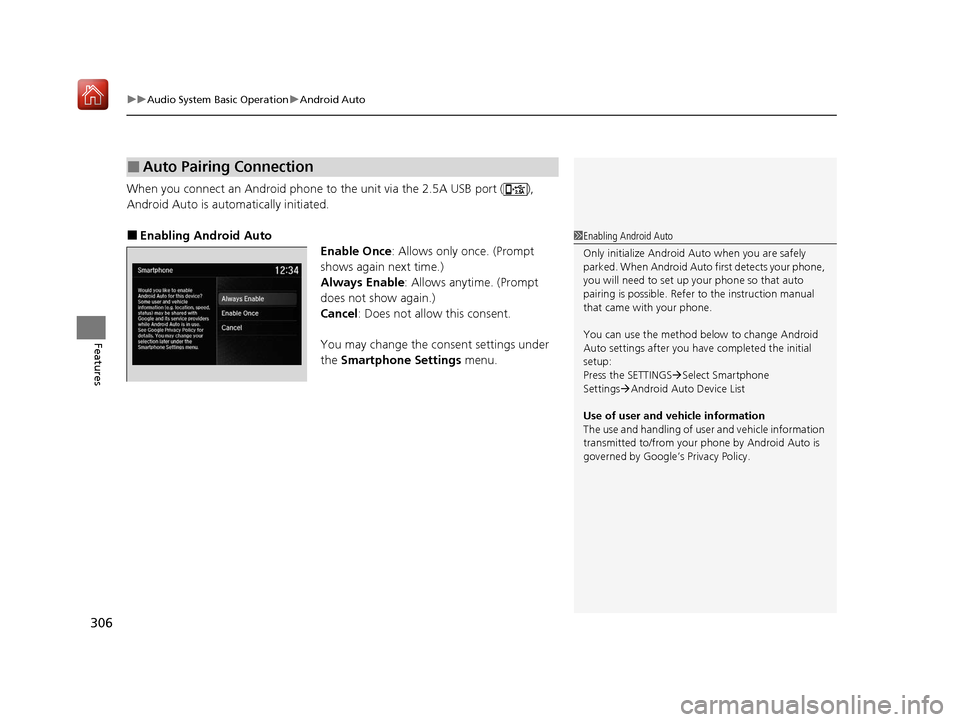
■Enabling Android Auto
Enable Once: Allows only once. (Prompt
shows again next time.)
Always Enable : Allows anytime. (Prompt
does not show again.)
Cancel : Does not allow this consent.
You may change the consent settings under
the Smartphone Settings menu.
■Auto Pairing Connection
1Enabling Android Auto
Only initialize Android Au to when you are safely
parked. When Android Auto first detects your phone,
you will need to set up your phone so that auto
pairing is possibl e. Refer to the instruction manual
that came with your phone.
You can use the method below to change Android
Auto settings after you have completed the initial
setup:
Press the SETTINGS Select Smartphone
Settings Android Auto Device List
Use of user and vehicle information
The use and handling of user and vehicle information
transmitted to/from your phone by Android Auto is
governed by Google’s Privacy Policy.
20 ACURA MDX-31TZ56600.book 306 ページ 2019年4月24日 水曜日 午後5時44分
Page 322 of 701

321
uuGeneral Information on the Audio System uHonda App License Agreement
Continued
Features
(b) Restrictions on Use. The licenses granted under this AGREEMENT do not perm it you to use the SOFTWARE or SERVICES on a device
other than your VEHICLE. As a condition of using the SOFT WARE and SERVICES, you agree that you may not and will not:
6. Intellectual Property Rights. All title and intellectual property rights in and to the SOFTWARE and SERVICES, the accompanying
DOCUMENTATION, and all copies of the SOFTWARE or SERVICES are owned by HONDA, PROVIDERS, or their suppliers or licensors. This
AGREEMENT does not grant you any rights in connection with any trademarks or serv ice marks of HONDA, PROVIDERS, or their licensors,
affiliates, or suppliers. (1) copy, download, distribute, mo
dify, publish, sell, rent, lease, lend, license, sublicense, reuse, or create derivative work s of the
SOFTWARE or SERVICES or any of the content or other material within the SOFTWARE or SERVICES, including without limitation,
HONDA or PROVIDER names, logos, or any other trademarks of HONDA or PROVIDERS or used in association with the SOFTWARE or
any SERVICES, except as required to use the SOFTWARE or SERVICES in accordance with this AGREEMENT, any applicable PROVIDER
TERMS, and the DOCUMENTATION;
(2) access or use the SOFTWARE or SERVICES in any manner intended to damage or impair the operation of the SOFTWARE or SERVICES
or interfere with anyone else’s use an d enjoyment of the SOFTWARE or SERVICES;
(3) access or attempt to access any system or server on which the SOFTWARE or SERVICES is hosted or modify or alter the SOFTWARE
or SERVICES in any way;
(4) use the SOFTWARE or SERVICES for any unlawful purpose, or in violation of any third party rights;
(5) use the SOFTWARE or SERVICES in violation of any applicable traffic regulations, rules or laws, including but not limited t o any driver
distraction laws, rules or regulations;
(6) violate the terms of this AGREEMENT, any HONDA TERMS, any PROVIDER TERMS or other applicable third-party terms, conditions,
and privacy policies; or
(7) reverse engineer, decomp ile, disassemble, attempt to derive the source code of, nor permit others to reverse engineer, deco mpile,
or disassemble, or attempt to derive the source code of the SOFT WARE or SERVICES, except and only to the extent that such activity is
expressly permitted (a) by applicable law no twithstanding this limitation or (b) the terms of applicable free or opensource sof tware
licenses.
20 ACURA MDX-31TZ56600.book 321 ページ 2019年4月24日 水曜日 午後5時44分