Air Acura MDX 2020 Manual PDF
[x] Cancel search | Manufacturer: ACURA, Model Year: 2020, Model line: MDX, Model: Acura MDX 2020Pages: 701, PDF Size: 38.91 MB
Page 402 of 701
Continued401
uuBluetooth ® HandsFreeLink ®u HFL Menus
Features
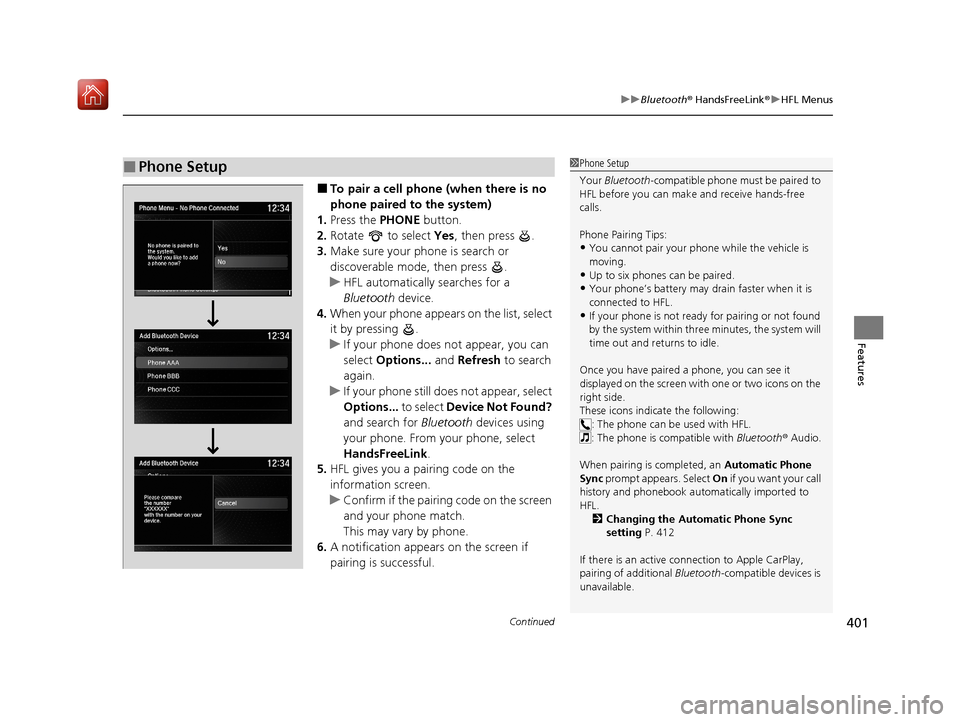
■To pair a cell phone (when there is no
phone paired to the system)
1. Press the PHONE button.
2. Rotate to select Yes, then press .
3. Make sure your phone is search or
discoverable mode, then press .
u HFL automatically searches for a
Bluetooth device.
4. When your phone appears on the list, select
it by pressing .
u If your phone does not appear, you can
select Options... and Refresh to search
again.
u If your phone still does not appear, select
Options... to select Device Not Found?
and search for Bluetooth devices using
your phone. From your phone, select
HandsFreeLink .
5. HFL gives you a pairing code on the
information screen.
u Confirm if the pairing code on the screen
and your phone match.
This may vary by phone.
6. A notification appears on the screen if
pairing is successful.
■Phone Setup1Phone Setup
Your Bluetooth -compatible phone must be paired to
HFL before you can make and receive hands-free
calls.
Phone Pairing Tips:
•You cannot pair your phone while the vehicle is
moving.
•Up to six phones can be paired.
•Your phone’s battery may dr ain faster when it is
connected to HFL.
•If your phone is not ready for pairing or not found
by the system within three minutes, the system will
time out and returns to idle.
Once you have paired a phone, you can see it
displayed on the screen with one or two icons on the
right side.
These icons indicate the following: : The phone can be used with HFL.
: The phone is compatible with Bluetooth ® Audio.
When pairing is completed, an Automatic Phone
Sync prompt appears. Select On if you want your call
history and phonebook au tomatically imported to
HFL. 2 Changing the Automatic Phone Sync
setting P. 412
If there is an active c onnection to Apple CarPlay,
pairing of additional Bluetooth-compatible devices is
unavailable.
20 ACURA MDX-31TZ56600.book 401 ページ 2019年4月24日 水曜日 午後5時44分
Page 403 of 701

402
uuBluetooth ® HandsFreeLink ®u HFL Menus
Features
■To pair a cell phone (when a phone has
already been paired to the system)
1. Press the SETTINGS button.
2. Rotate to select Bluetooth/Phone
Settings , then press .
u Repeat the procedure to select
Bluetooth Device List, then Add
Bluetooth Device .
3. Make sure your phone is in search or
discoverable mode, then press .
u HFL automatically searches for a
Bluetooth device.
4. When your phone appears on the list, select
it by pressing .
u If your phone does not appear, you can
select Options... and Refresh to search
again.
u If your phone still does not appear, select
Options... to select Device Not Found?
and search for Bluetooth devices using
your phone. From your phone, select
HandsFreeLink .
5. HFL gives you a pairing code on the
information screen.
u Confirm if the pairing code on the screen
and your phone match.
This may vary by phone.
6. A notification appears on the screen if
pairing is successful.
20 ACURA MDX-31TZ56600.book 402 ページ 2019年4月24日 水曜日 午後5時44分
Page 404 of 701

Continued403
uuBluetooth ® HandsFreeLink ®u HFL Menus
Features
■To change the currently paired phone
1. Press the SETTINGS button.
2. Rotate to select Bluetooth/Phone
Settings , then press .
u Repeat the procedure to select
Bluetooth Device List .
3. Select a phone to connect.
u HFL disconnects the connected phone
and starts searching for another paired
phone.
4. Select Connect to Phone , Connect to
Audio , or Connect Both , then press .
■To change the pairing code setting
1. Press the SETTINGS button.
2. Rotate to select Bluetooth/Phone
Settings , then press .
u Repeat the procedure to select Edit
Pairing Code .
3. Rotate to select Fixed or Random ,
then press .1 To change the pairing code setting
The pairing code may be fo ur or six digits depending
on your phone.
The default pairing code is 0000 until you change the
setting.
To create your own, select Fixed, and delete the
current code, then enter a new one.
For a randomly generated pair ing code each time you
pair a phone, select Random.
20 ACURA MDX-31TZ56600.book 403 ページ 2019年4月24日 水曜日 午後5時44分
Page 405 of 701

uuBluetooth ® HandsFreeLink ®u HFL Menus
404
Features
■To replace an already-paired phone
with a new phone
1. Press the SETTINGS button.
2. Rotate to select Bluetooth/Phone
Settings , then press .
u Repeat the procedure to select
Bluetooth Device List.
3. Rotate to select a paired phone you
want to replace, then press .
4. Rotate to select Replace This Device,
then press .
5. HFL enters the pairing process and searches
a new phone.
u Follow the prompts to pair a new phone.
6. A notification appears on the screen if
pairing is successful.1To replace an already-pair ed phone with a new phone
The replaced phone will keep the same speed dial
entries, and security PIN information from the
previously paired phone.
20 ACURA MDX-31TZ56600.book 404 ページ 2019年4月24日 水曜日 午後5時44分
Page 406 of 701
405
uuBluetooth ® HandsFreeLink ®u HFL Menus
Continued
Features
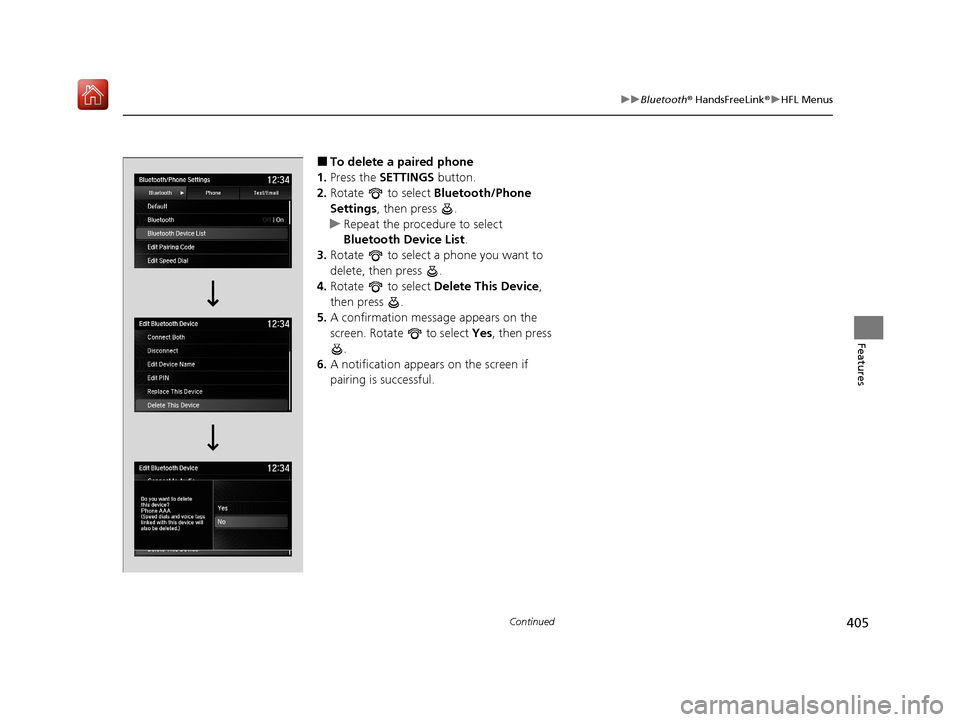
■To delete a paired phone
1. Press the SETTINGS button.
2. Rotate to select Bluetooth/Phone
Settings , then press .
u Repeat the procedure to select
Bluetooth Device List .
3. Rotate to select a phone you want to
delete, then press .
4. Rotate to select Delete This Device ,
then press .
5. A confirmation message appears on the
screen. Rotate to select Yes, then press
.
6. A notification appears on the screen if
pairing is successful.
20 ACURA MDX-31TZ56600.book 405 ページ 2019年4月24日 水曜日 午後5時44分
Page 407 of 701
uuBluetooth ® HandsFreeLink ®u HFL Menus
406
Features
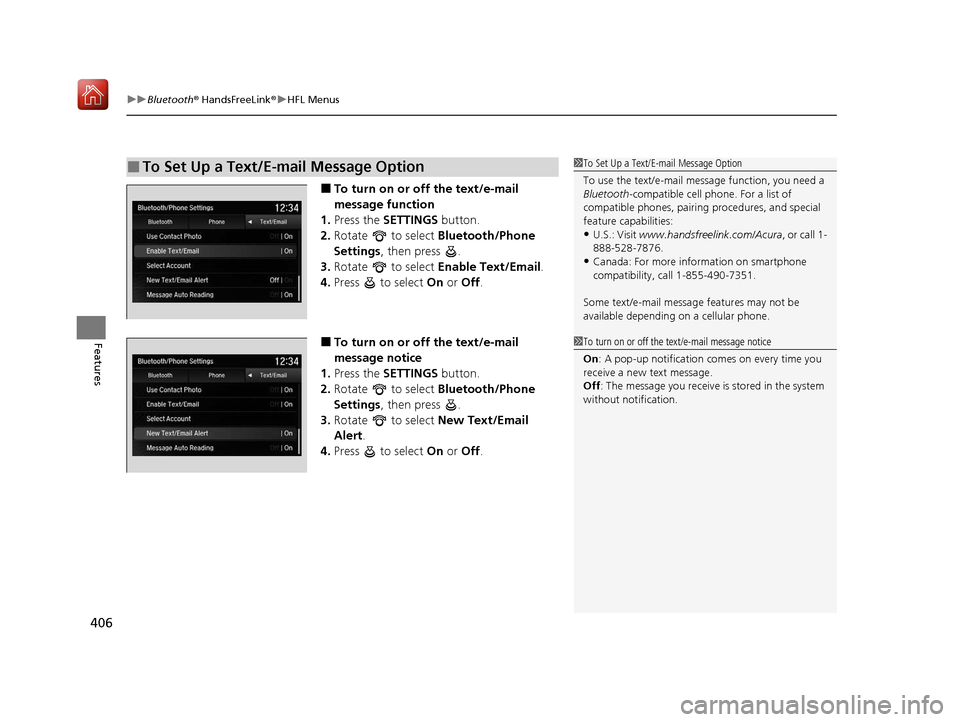
■To turn on or off the text/e-mail
message function
1. Press the SETTINGS button.
2. Rotate to select Bluetooth/Phone
Settings , then press .
3. Rotate to select Enable Text/Email.
4. Press to select On or Off .
■To turn on or off the text/e-mail
message notice
1. Press the SETTINGS button.
2. Rotate to select Bluetooth/Phone
Settings , then press .
3. Rotate to select New Text/Email
Alert.
4. Press to select On or Off .
■To Set Up a Text/E-mail Message Option1To Set Up a Text/E-mail Message Option
To use the text/e-mail message function, you need a
Bluetooth -compatible cell pho ne. For a list of
compatible phones, pairing procedures, and special
feature capabilities:
•U.S.: Visit www.handsfreelink.com/Acura, or call 1-
888-528-7876.
•Canada: For more info rmation on smartphone
compatibility, call 1-855-490-7351.
Some text/e-mail message features may not be
available depending on a cellular phone.
1To turn on or off the text/e-mail message notice
On : A pop-up notification co mes on every time you
receive a new text message.
Off : The message you receive is stored in the system
without not ification.
20 ACURA MDX-31TZ56600.book 406 ページ 2019年4月24日 水曜日 午後5時44分
Page 410 of 701
409
uuBluetooth ® HandsFreeLink ®u HFL Menus
Continued
Features
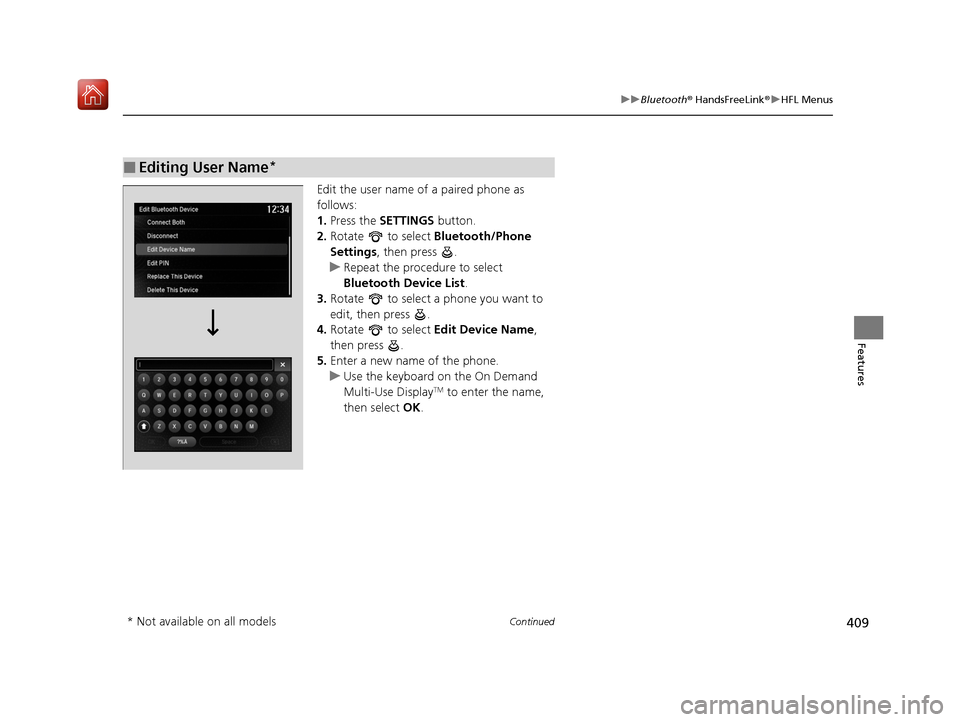
Edit the user name of a paired phone as
follows:
1. Press the SETTINGS button.
2. Rotate to select Bluetooth/Phone
Settings , then press .
u Repeat the procedure to select
Bluetooth Device List .
3. Rotate to select a phone you want to
edit, then press .
4. Rotate to select Edit Device Name,
then press .
5. Enter a new name of the phone.
u Use the keyboard on the On Demand
Multi-Use Display
TM to enter the name,
then select OK.
■Editing User Name*
* Not available on all models
20 ACURA MDX-31TZ56600.book 409 ページ 2019年4月24日 水曜日 午後5時44分
Page 413 of 701
uuBluetooth ® HandsFreeLink ®u HFL Menus
412
Features
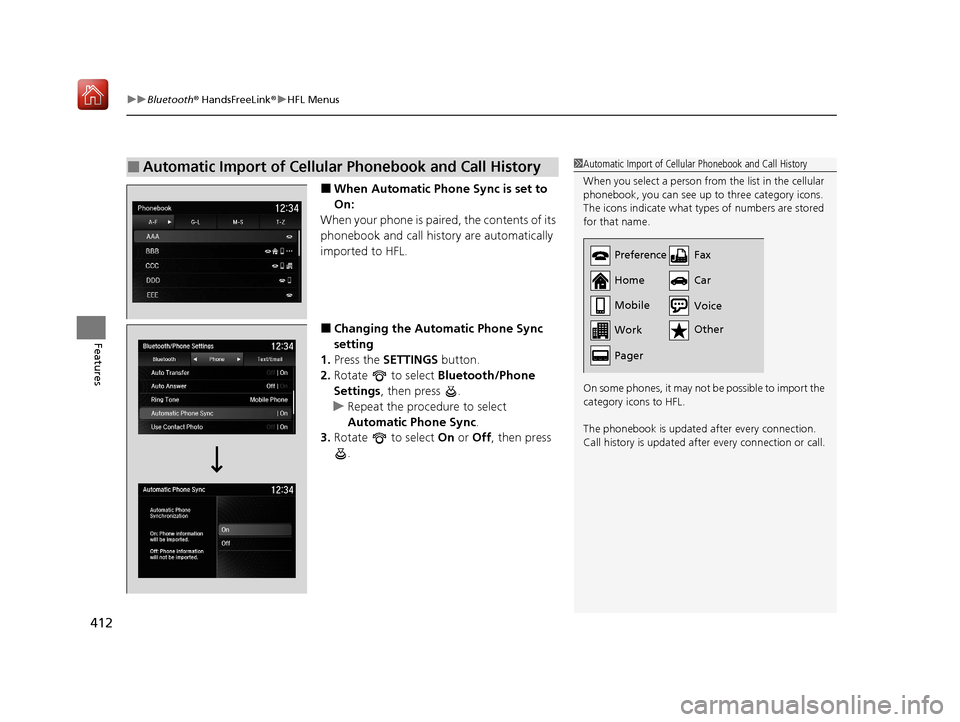
■When Automatic Phon e Sync is set to
On:
When your phone is paired, the contents of its
phonebook and call hist ory are automatically
imported to HFL.
■Changing the Automatic Phone Sync
setting
1. Press the SETTINGS button.
2. Rotate to select Bluetooth/Phone
Settings , then press .
u Repeat the procedure to select
Automatic Phone Sync .
3. Rotate to select On or Off , then press
.
■Automatic Import of Cellular Phonebook and Call History1 Automatic Import of Cellular Phonebook and Call History
When you select a person from the list in the cellular
phonebook, you can see up to three category icons.
The icons indicate what types of numbers are stored
for that name.
On some phones, it may no t be possible to import the
category icons to HFL.
The phonebook is updated after every connection.
Call history is updated after every connection or call.
Preference
Home
Mobile
Work
PagerFax
Car
Other Voice
20 ACURA MDX-31TZ56600.book 412 ページ 2019年4月24日 水曜日 午後5時44分
Page 426 of 701

Continued425
uuBluetooth ® HandsFreeLink ®u HFL Menus
Features
■To make a call using a speed dial entry
1. Press the PHONE button.
2. Rotate to select Speed Dial, then press
.
3. Rotate to select a number, then press
.
u Dialing starts automatically.
1. Press the button.
2. Move the left selector wheel left to select
Speed Dial .
3. Roll the left selector wheel to select a
number.
4. Push the left selector wheel or the
button.
u Dialing starts automatically.1To make a call using a speed dial entry
Rotate to select More Speed Dials to view
another paired phone’s spee d dial list. You can make
a call from that list using the currently connected
phone.
When a voice tag is stored, press the button to
call the number using the voice tag.
2 Speed Dial P. 413
Any voice-tagged speed di al entry, phonebook name
or number can be dialed by voice from any screen.
Press the button and follow the prompts.
The speed dial displays the 20 speed dial entries.
Steering switches
On MIDSteering switches
20 ACURA MDX-31TZ56600.book 425 ページ 2019年4月24日 水曜日 午後5時44分
Page 429 of 701

uuBluetooth ® HandsFreeLink ®u HFL Menus
428
Features
HFL can display newly received text and e-ma il messages as well as 20 of the most
recently received messages on a linked ce ll phone. Each received message can be
read aloud and replied to using a fixed common phrase. 1.A pop-up appears and notifies you of a new
text or e-mail message.
2. Rotate to select Read to listen to the
message, then press .
u The text or e-mail message is displayed.
The system automatically starts reading
out the message.
3. To discontinue the message read-out, press
.
■Receiving a Text/E-mail Message1Receiving a Text/E-mail Message
The system does not display any received messages
while you are driving. You can only hear them read
aloud.
With some phones, you may be able to display up to
20 most recent text and e-mail messages.
State or local laws may limi t your use of the HFL text/
e-mail message feature. Only use the text/e-mail
message feature when conditions allow you to do so
safely.
When you receive a text or e-mail message for the
first time since the phone is paired to HFL, you are
asked to turn the New Text/Email Alert setting to
On .
2 To turn on or off the text/e-mail message
notice P. 406
20 ACURA MDX-31TZ56600.book 428 ページ 2019年4月24日 水曜日 午後5時44分