car play Acura MDX 2020 Owner's Manual
[x] Cancel search | Manufacturer: ACURA, Model Year: 2020, Model line: MDX, Model: Acura MDX 2020Pages: 701, PDF Size: 38.91 MB
Page 3 of 701
Contents
This owner’s manual should be considered a permanent part of the
vehicle and should remain with the vehicle when it is sold.
This owner’s manual covers all models of your vehicle. You may find
descriptions of equipment and features that are not on your
particular model.
Images throughout this owner’s manu al (including the front cover)
represent features and equipment that are available on some, but
not all, models. Your particular mo del may not have some of these
features.
This owner’s manual is for vehicles sold in the United States and
Canada.
The information and specifications in cluded in this publication were
in effect at the time of approval for printing. Honda Motor Co., Ltd.
reserves the right, however, to discontinue or change specifications
or design at any time without notice and without incurring any
obligation.2 Safe Driving P. 27
For Safe Driving P. 28 Seat Belts P. 33 Airbags P. 41
2Instrument Panel P. 77
Indicators P. 78 Gauges and Multi-Information Display (MID) P. 119
2Controls P. 137
Clock P. 138 Locking and Unlocking the Doors P. 139
Opening and Closing the Windows P. 165 Moonroof P. 167
Adjusting the Seats P. 191
2 Features P. 231
Audio System P. 232 Audio System Basic Operation P. 239
Rear Entertainment System (RES)* P. 335 Customized Features P. 358
Compass* P. 443
2 Driving P. 445
Before Driving P. 446 Towing a Trailer P. 452
Parking Your Vehicle P. 546Multi-View Rear Camera* P. 557
Fuel Economy and CO
2 Emissions P. 572
2 Maintenance P. 573
Before Performing Maintenance P. 574 Maintenance MinderTM P. 577
Checking and Maintaining Wiper Blades P. 598
Remote Control and Wireless Headphone Care
* P. 615
2 Handling the Unexpected P. 625
Tools P. 626 If a Tire Goes Flat P. 627
Indicator, Coming On/Blinking P. 656 Fuses P. 662
When You Cannot Open the Tailgate P. 672Refueling P. 673
2Information P. 675
Specifications P. 676 Identification Numbers P. 678
Emissions Testing P. 681 Warranty Coverages P. 683
20 ACURA MDX-31TZ56600.book 2 ページ 2019年4月24日 水曜日 午後5時44分
Page 18 of 701
17
Quick Reference Guide
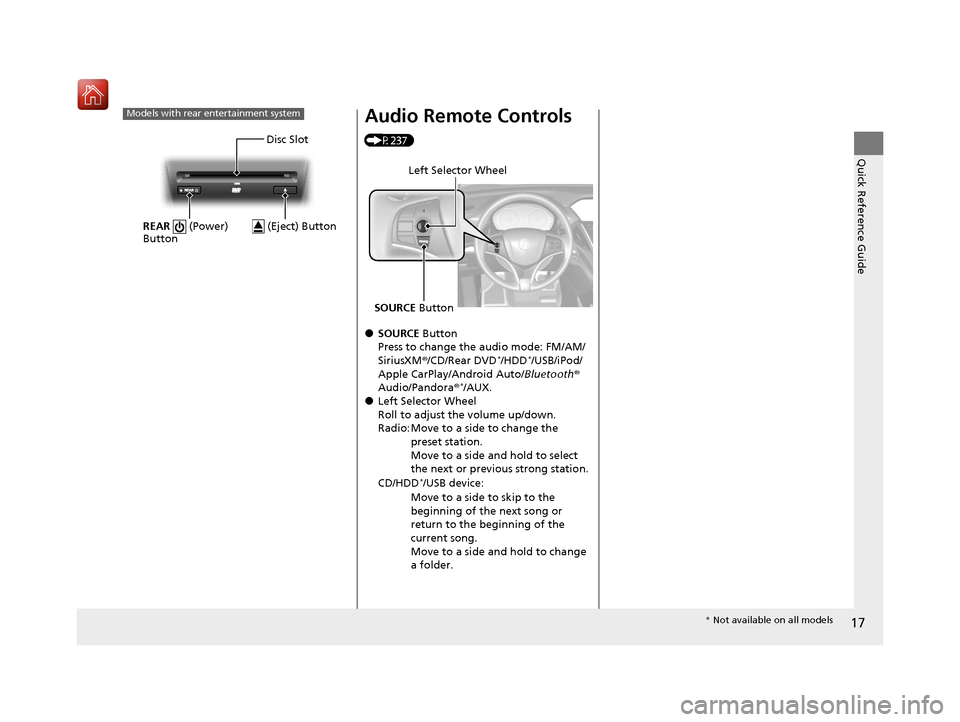
Models with rear entertainment system
Disc Slot
REAR (Power)
Button
(Eject) Button
Audio Remote Controls
(P237)
●SOURCE Button
Press to change the audio mode: FM/AM/
SiriusXM ®/CD/Rear DVD
*/HDD*/USB/iPod/
Apple CarPlay/Android Auto/ Bluetooth®
Audio/Pandora ®
*/AUX.●Left Selector Wheel
Roll to adjust the volume up/down.
Radio: Move to a side to change the
preset station.
Move to a side and hold to select
the next or previous strong station.
CD/HDD
*/USB device:
Move to a side to skip to the
beginning of the next song or
return to the beginning of the
current song.
Move to a side and hold to change
a folder.
Left Selector Wheel
SOURCE Button
* Not available on all models
20 ACURA MDX-31TZ56600.book 17 ページ 2019年4月24日 水曜日 午後5時44分
Page 107 of 701
106
uuIndicators uMulti-Information Display (MID) Warning and Information Messages
Instrument Panel
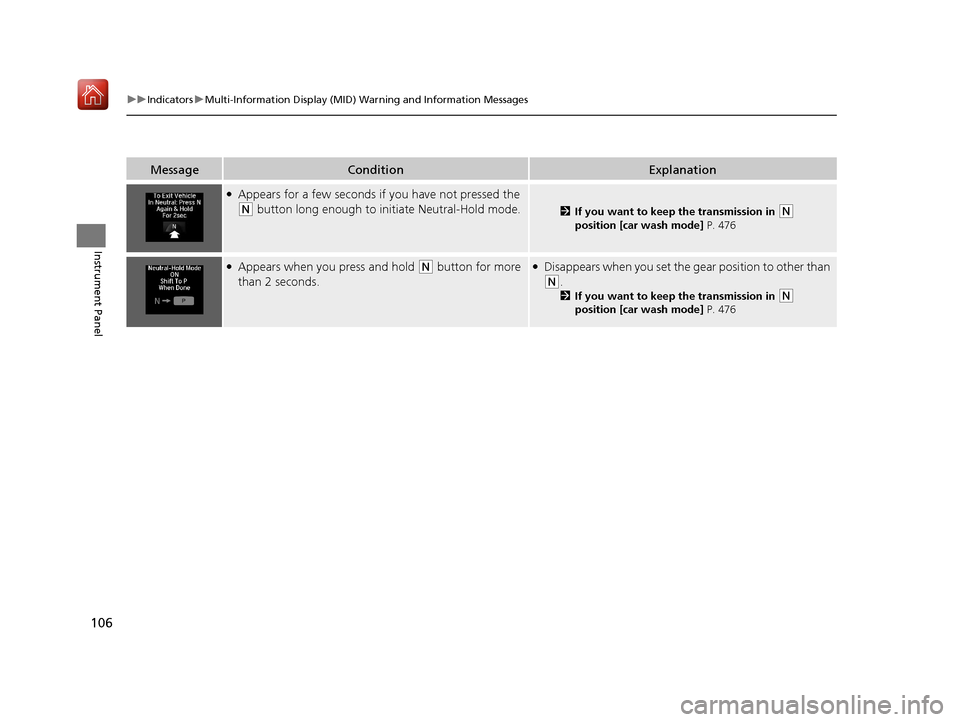
MessageConditionExplanation
●Appears for a few seconds if you have not pressed the
(N button long enough to initiate Neutral-Hold mode.2 If you want to keep the transmission in (N
position [car wash mode] P. 476
●Appears when you press and hold (N button for more
than 2 seconds.●Disappears when you set the gear position to other than
(N.
2 If you want to keep the transmission in (N
position [car wash mode] P. 476
20 ACURA MDX-31TZ56600.book 106 ページ 2019年4月24日 水曜日 午後5時44分
Page 132 of 701
131
uuGauges and Multi-Info rmation Display (MID)uMID
Continued
Instrument Panel
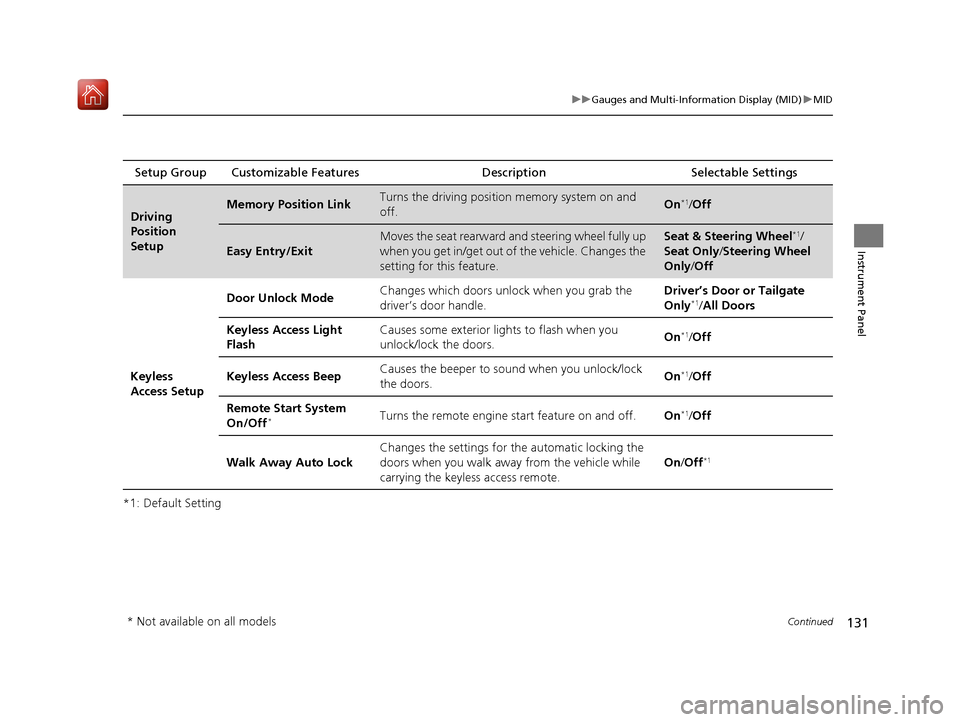
*1: Default SettingSetup Group Customizable Features
Description Selectable Settings
Driving
Position
SetupMemory Position LinkTurns the driving position memory system on and
off.On*1/ Off
Easy Entry/Exit
Moves the seat rearward and steering wheel fully up
when you get in/get out of the vehicle. Changes the
setting for this feature.Seat & Steering Wheel*1/
Seat Only/ Steering Wheel
Only /Off
Keyless
Access Setup Door Unlock Mode
Changes which doors unlock when you grab the
driver’s door handle. Driver’s Door or Tailgate
Only
*1/
All Doors
Keyless Access Light
Flash Causes some exterior li
ghts to flash when you
unlock/lock the doors. On
*1/
Off
Keyless Access Beep Causes the beeper to sound when you unlock/lock
the doors.
On
*1/
Off
Remote Start System
On/Off
*Turns the remote engine start feature on and off. On*1/Off
Walk Away Auto Lock Changes the settings for th
e automatic locking the
doors when you walk away from the vehicle while
carrying the keyless access remote. On
/Off
*1
* Not available on all models
20 ACURA MDX-31TZ56600.book 131 ページ 2019年4月24日 水曜日 午後5時44分
Page 144 of 701

Continued143
uuLocking and Unlocking the Doors uLocking/Unlocking the Doors from the Outside
Controls
■Locking the doors and tailgate
Press the door lock button on the front or
rear
* doors, or on the tailgate.
u Some exterior lights flash; the beeper
sounds; all the doors and tailgate lock;
and the security system sets.
1Using the Keyless Access System
•Do not leave the keyless access remote in the
vehicle when you get out . Carry it with you.
•Even if you are not carrying the keyless access
remote, you can lock/unl ock the doors and tailgate
while someone else with th e remote is within range.
•The door may be unlocked if the door handle is
covered with water in heavy rain or in a car wash if
the keyless access remote is within range.
•If you grip a door handle wearing gloves, the door
sensor may be slow to respond or may not respond
by unlocking the doors.
•After locking the door, yo u have up to two seconds
during which you can pull the door handle to
confirm whether the door is locked. If you need to
unlock the door immediately after locking it, wait
at least two seconds befo re gripping the handle,
otherwise the door will not unlock.
•The door might not open if you pull it immediately
after gripping the door handle. Grip the handle
again and confirm that th e door is unlocked before
pulling the handle.
•Even within the 32 inches (80 cm) radius, you may
not be able to lock/unl ock the doors with the
keyless access remote if it is above or below the
outside handle.
•The keyless access remote may not operate if it is
too close to the door and door glass.
The light flash, beep and door unlock mode settings
can be customized using th e information screen or
multi-information display (MID). 2 Customized Features P. 126, 358
Door Lock Button
Lock Button
* Not available on all models
20 ACURA MDX-31TZ56600.book 143 ページ 2019年4月24日 水曜日 午後5時44分
Page 232 of 701
231
Features
This chapter describes how to operate technology features.
Audio SystemAbout Your Audio System ................ 232
USB Ports ......................................... 233
Auxiliary Input Jack .......................... 236
Audio System Theft Protection ......... 236
Audio Remote Controls .................... 237
Audio System Basic Operation ........ 239
On Demand Multi-Use Display
TM....... 240
Information Screen .......................... 244
Adjusting the Sound ........................ 249
Display Setup ................................... 250
Voice Control Operation .................. 251 Playing AM/FM Radio ....................... 254
Playing SiriusXM
® Radio ................... 257
Playing a CD .................................... 268
Playing Hard Disk Drive (HDD) Audio ... 271
Playing an iPod ................................ 284
Song By Voice
TM (SBV) ...................... 287
Playing Pandora ®*1........................... 291
Playing a USB Flash Drive ................. 293
Playing Bluetooth ® Audio................. 296
Siri Eyes Free .................................... 298
Apple CarPlay .................................. 299
Android Auto................................... 303 Audio Error Messages
...................... 308
General Information on the Audio System ............................................. 316
Rear Entertainment System (RES)
*.. 335
Customized Features ........................ 358
HomeLink ® Universal Transceiver ... 390
Bluetooth ® HandsFreeLink®
Using HFL ........................................ 393
HFL Menus ...................................... 396
AcuraLink®
*....................................... 435
Compass*.......................................... 443
*1: Available only on U.S. models.
* Not available on all models
20 ACURA MDX-31TZ56600.book 231 ページ 2019年4月24日 水曜日 午後5時44分
Page 234 of 701
233
uuAudio System uUSB Ports
Continued
Features
USB Ports
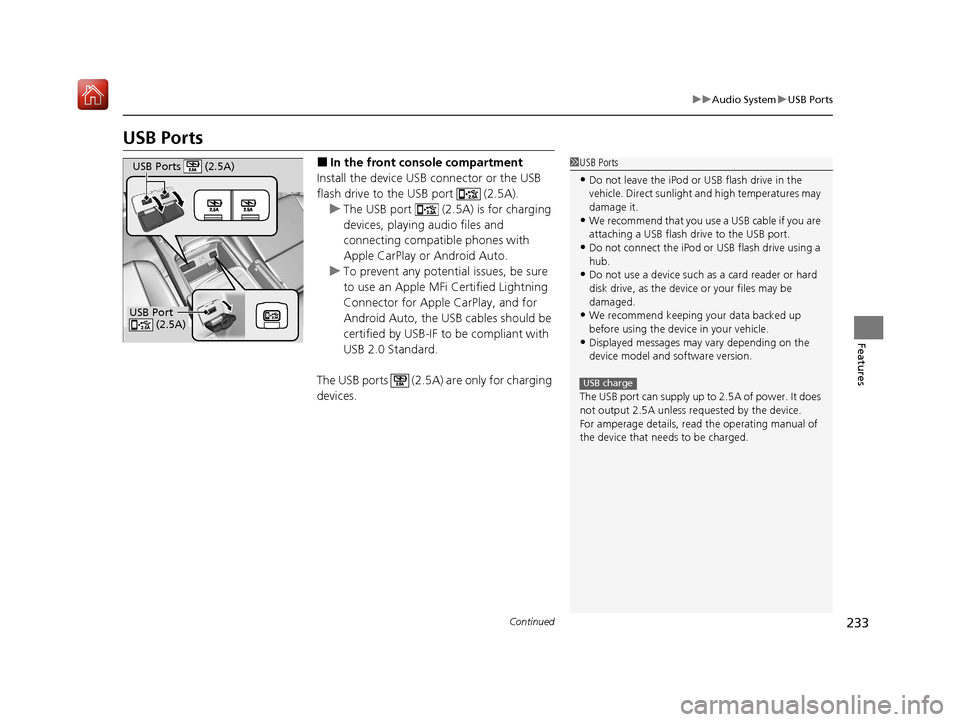
■In the front console compartment
Install the device USB connector or the USB
flash drive to the USB port (2.5A). u The USB port (2.5A) is for charging
devices, playing audio files and
connecting compatib le phones with
Apple CarPlay or Android Auto.
u To prevent any potenti al issues, be sure
to use an Apple MFi Certified Lightning
Connector for Apple CarPlay, and for
Android Auto, the USB cables should be
certified by USB-IF to be compliant with
USB 2.0 Standard.
The USB ports (2.5A) are only for charging
devices.1 USB Ports
•Do not leave the iPod or USB flash drive in the
vehicle. Direct sunlight and high temperatures may
damage it.
•We recommend that you us e a USB cable if you are
attaching a USB flash drive to the USB port.
•Do not connect the iPod or USB flash drive using a
hub.
•Do not use a device such as a card reader or hard
disk drive, as the device or your files may be
damaged.
•We recommend keeping y our data backed up
before using the device in your vehicle.
•Displayed messages may vary depending on the
device model and software version.
The USB port can supply up to 2.5A of power. It does
not output 2.5A unless requested by the device.
For amperage details, read the operating manual of
the device that ne eds to be charged.
USB charge
USB Port
(2.5A)
USB Ports (2.5A)
20 ACURA MDX-31TZ56600.book 233 ページ 2019年4月24日 水曜日 午後5時44分
Page 238 of 701
237
uuAudio System uAudio Remote Controls
Continued
Features
Audio Remote Controls
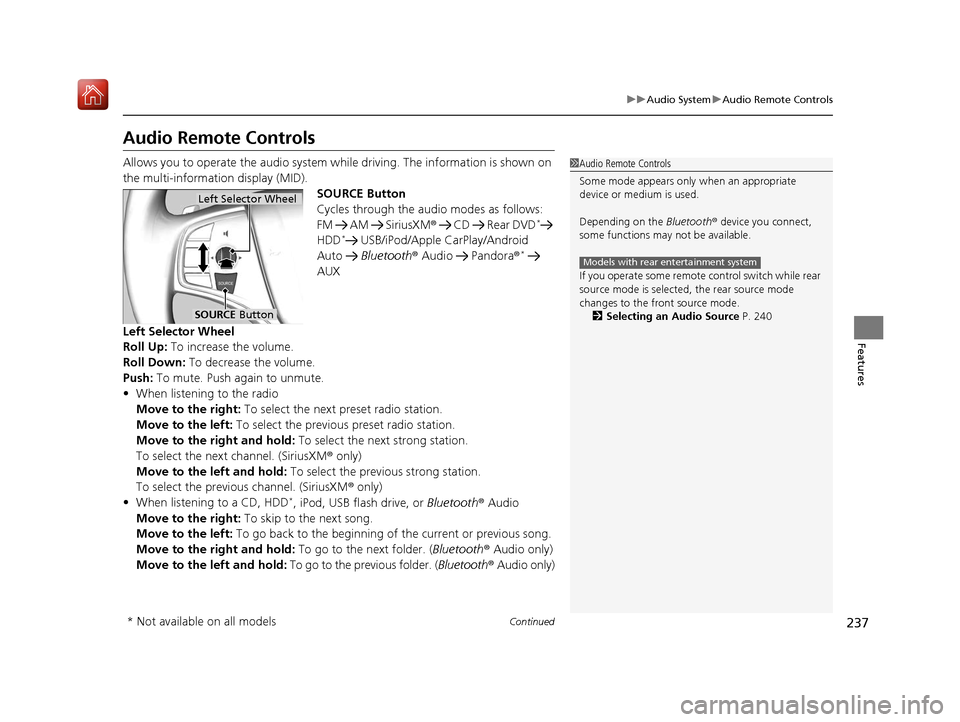
Allows you to operate the audio system wh ile driving. The information is shown on
the multi-information display (MID). SOURCE Button
Cycles through the audio modes as follows:
FM AM SiriusXM® CD Rear DVD
*
HDD* USB/iPod/Apple CarPlay/Android
Auto Bluetooth ® Audio Pandora ®*
AUX
Left Selector Wheel
Roll Up: To increase the volume.
Roll Down: To decrease the volume.
Push: To mute. Push again to unmute.
• When listening to the radio
Move to the right: To select the next preset radio station.
Move to the left: To select the previous preset radio station.
Move to the right and hold: To select the next strong station.
To select the next channel. (SiriusXM ® only)
Move to the left and hold: To select the previous strong station.
To select the previous channel. (SiriusXM ® only)
• When listening to a CD, HDD
*, iPod, USB flash drive, or Bluetooth ® Audio
Move to the right: To skip to the next song.
Move to the left: To go back to the beginning of the current or previous song.
Move to the right and hold: To go to the next folder. (Bluetooth® Audio only)
Move to the left and hold: To go to the previous folder. ( Bluetooth® Audio only)
1Audio Remote Controls
Some mode appears only when an appropriate
device or medium is used.
Depending on the Bluetooth® device you connect,
some functions may not be available.
If you operate some remote control switch while rear
source mode is selected, the rear source mode
changes to the front source mode. 2 Selecting an Audio Source P. 240
Models with rear entertainment system
Left Selector Wheel
SOURCE Button
* Not available on all models
20 ACURA MDX-31TZ56600.book 237 ページ 2019年4月24日 水曜日 午後5時44分
Page 245 of 701
244
uuAudio System Basic Operation uInformation Screen
Features
Information Screen
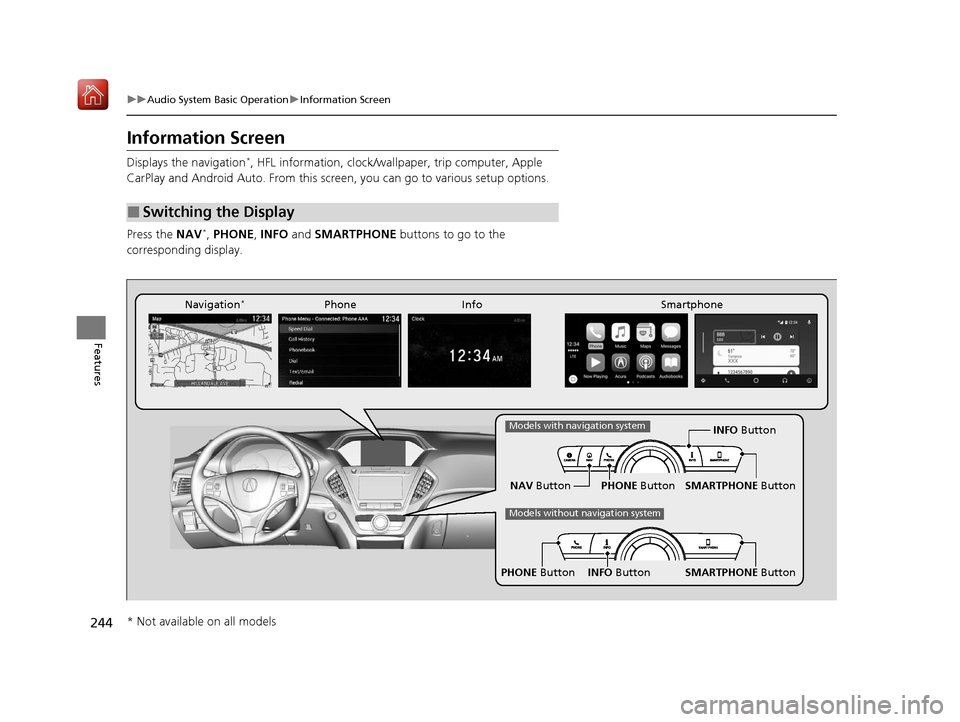
Displays the navigation*, HFL information, clock/wa llpaper, trip computer, Apple
CarPlay and Android Auto. From this screen, you can go to various setup options.
Press the NAV
*, PHONE , INFO and SMARTPHONE buttons to go to the
corresponding display.
■Switching the Display
SMARTPHONE Button
PHONE Button INFO Button
Phone Info Smartphone
SMARTPHONE Button
PHONE Button
NAV Button INFO Button
Models with navigation system
Models without navigation system
Navigation*
* Not available on all models
20 ACURA MDX-31TZ56600.book 244 ページ 2019年4月24日 水曜日 午後5時44分
Page 247 of 701
246
uuAudio System Basic Operation uInformation Screen
Features
Deleting the history manually
1. Press on the History of Trip A screen to select Delete History.
2. A confirmation message appears on the screen. Rotate to select Yes, then
press .
Clock :
Shows a clock screen and an image you import.
Traffic Incidents
*:
Shows a traffic incidents list.
2 Refer to the Navigation System Manual
Voice Recognition Guide*:
Shows a voice recognition guide screen.
■Smartphone
Displays the Apple CarPlay or Android Auto.
2 Apple CarPlay P. 299
2 Android Auto P. 303
* Not available on all models
20 ACURA MDX-31TZ56600.book 246 ページ 2019年4月24日 水曜日 午後5時44分