phone ACURA MDX 2022 User Guide
[x] Cancel search | Manufacturer: ACURA, Model Year: 2022, Model line: MDX, Model: ACURA MDX 2022Pages: 712, PDF Size: 22.65 MB
Page 249 of 712
248
uuAudio System Basic Operation uAudio/Information Screen
Features
Audio/Information Screen
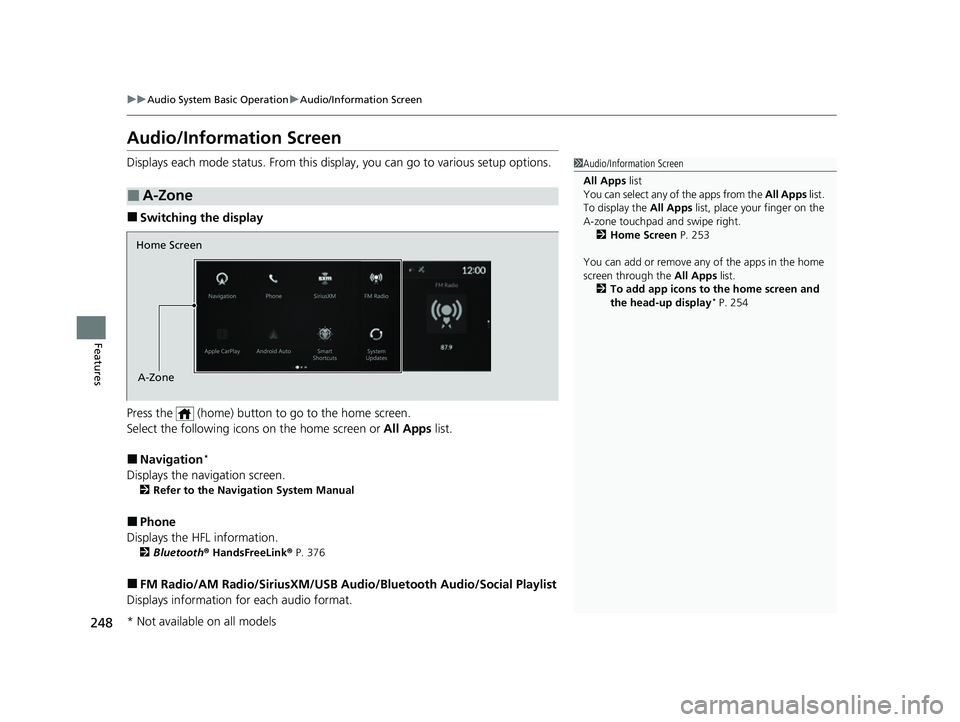
Displays each mode status. From this display, you can go to various setup options.
■Switching the display
Press the (home) button to go to the home screen.
Select the following icon s on the home screen or All Apps list.
■Navigation*
Displays the navigation screen.
2Refer to the Navigation System Manual
■Phone
Displays the HFL information.
2 Bluetooth ® HandsFreeLink ® P. 376
■FM Radio/AM Radio/SiriusXM/USB Au dio/Bluetooth Audio/Social Playlist
Displays information fo r each audio format.
■A-Zone
1Audio/Information Screen
All Apps list
You can select any of the apps from the All Apps list.
To display the All Apps list, place your finger on the
A-zone touchpad and swipe right. 2 Home Screen P. 253
You can add or remove any of the apps in the home
screen through the All Apps list.
2 To add app icons to the home screen and
the head-up display
* P. 254
Home Screen
A-Zone
* Not available on all models
22 ACURA MDX-31TYA6000_02.book 248 ページ 2020年11月5日 木曜日 午前11時39分
Page 260 of 712
Continued259
uuAudio System Basic Operation uAudio/Information Screen
Features
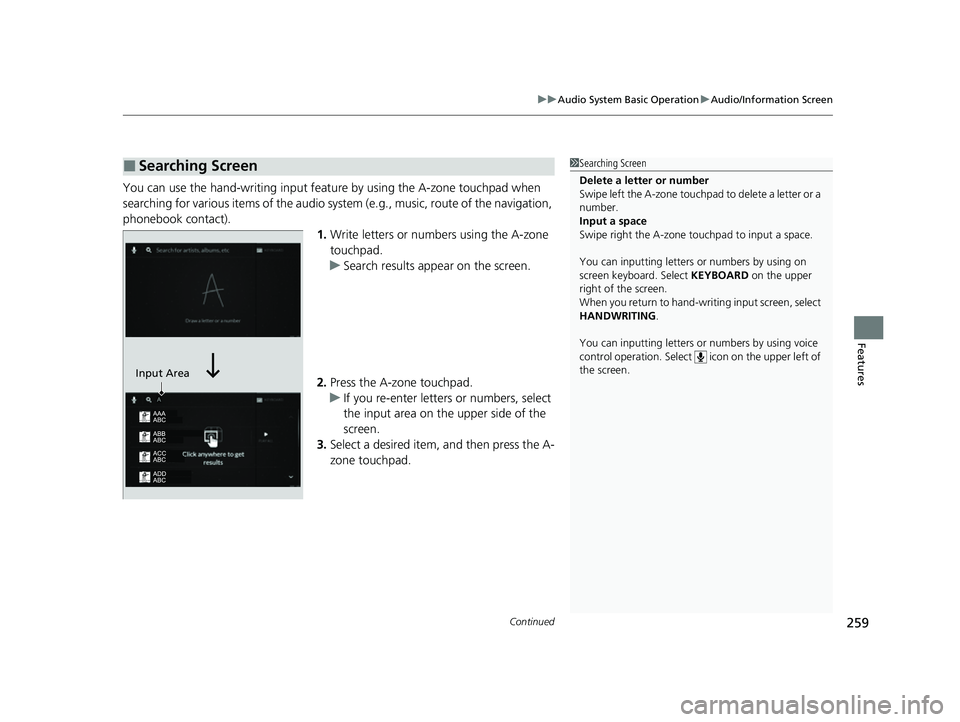
You can use the hand-writing input feature by using the A-zone touchpad when
searching for various items of the audio system (e.g., music, route of the navigation,
phonebook contact).
1.Write letters or numbers using the A-zone
touchpad.
u Search results appear on the screen.
2. Press the A-zone touchpad.
u If you re-enter letters or numbers, select
the input area on the upper side of the
screen.
3. Select a desired item, and then press the A-
zone touchpad.
■Searching Screen1Searching Screen
Delete a letter or number
Swipe left the A-zone touchpa d to delete a letter or a
number.
Input a space
Swipe right the A-zone touchpad to input a space.
You can inputting letters or numbers by using on
screen keyboard. Select KEYBOARD on the upper
right of the screen.
When you return to hand-wr iting input screen, select
HANDWRITING.
You can inputting letters or numbers by using voice
control operation. Select icon on th e upper left of
the screen.
Input Area
22 ACURA MDX-31TYA6000_02.book 259 ページ 2020年11月5日 木曜日 午前11時39分
Page 261 of 712
260
uuAudio System Basic Operation uAudio/Information Screen
Features
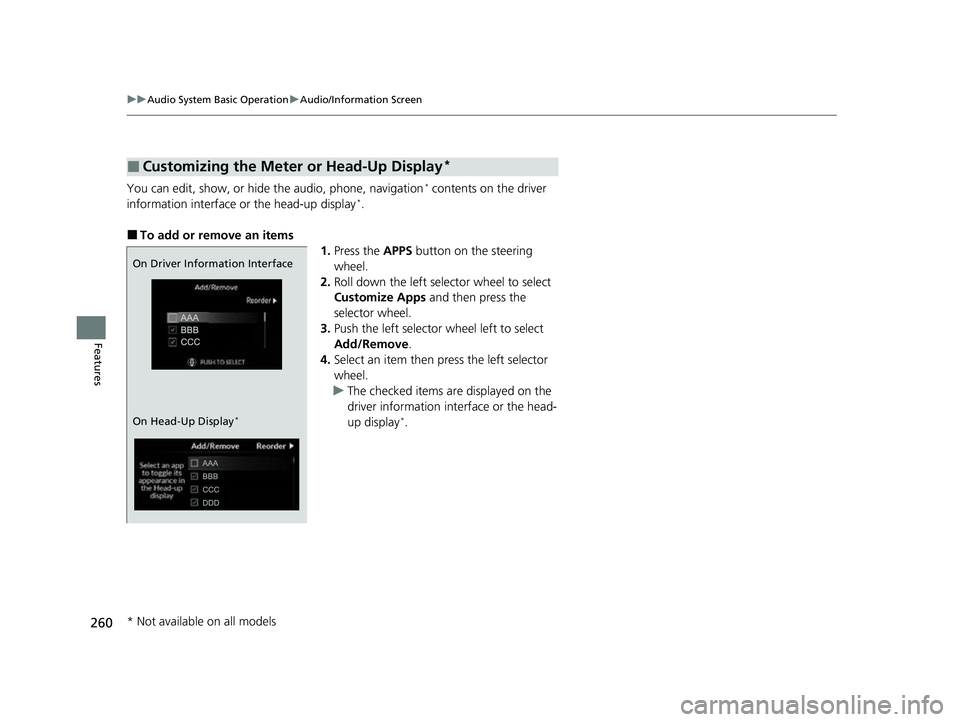
You can edit, show, or hide the audio, phone, navigation* contents on the driver
information interface or the head-up display*.
■To add or remove an items 1.Press the APPS button on the steering
wheel.
2. Roll down the left selector wheel to select
Customize Apps and then press the
selector wheel.
3. Push the left selector wheel left to select
Add/Remove .
4. Select an item then press the left selector
wheel.
u The checked items are displayed on the
driver information in terface or the head-
up display
*.
■Customizing the Meter or Head-Up Display*
On Driver Information Interface
On Head-Up Display
*
* Not available on all models
22 ACURA MDX-31TYA6000_02.book 260 ページ 2020年11月5日 木曜日 午前11時39分
Page 263 of 712
262
uuAudio System Basic Operation uSmart Shortcuts
Features
Smart Shortcuts
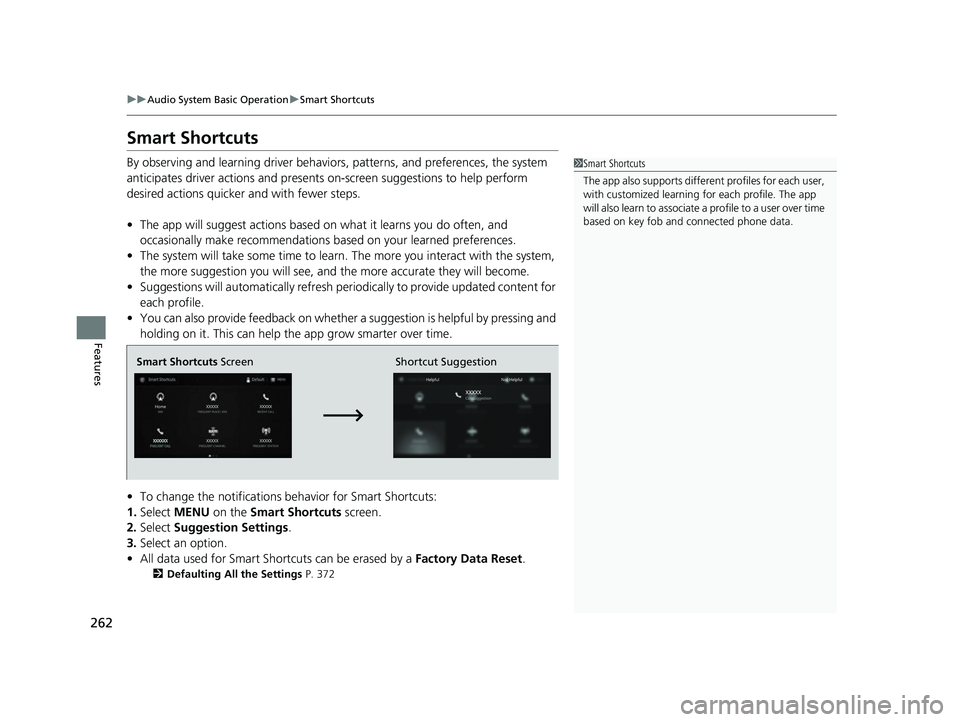
By observing and learning driver behaviors, patterns, and preferences, the system
anticipates driver actions and presents on-screen suggestions to help perform
desired actions quicker and with fewer steps.
• The app will suggest actions based on what it learns you do often, and
occasionally make recommendations ba sed on your learned preferences.
• The system will take some time to learn. The more you interact with the system,
the more suggestion you will see, and the more accurate they will become.
• Suggestions will automatically refresh peri odically to provide updated content for
each profile.
• You can also provide feedback on whether a suggestion is helpful by pressing and
holding on it. This can help the app grow smarter over time.
• To change the notifications behavior for Smart Shortcuts:
1. Select MENU on the Smart Shortcuts screen.
2. Select Suggestion Settings .
3. Select an option.
• All data used for Smart Shortcuts can be erased by a Factory Data Reset.
2Defaulting All the Settings P. 372
1Smart Shortcuts
The app also supports different profiles for each user,
with customized learning for each profile. The app
will also learn to associate a profile to a user over time
based on key fob and connected phone data.
Smart Shortcuts Screen Shortcut Suggestion
22 ACURA MDX-31TYA6000_02.book 262 ページ 2020年11月5日 木曜日 午前11時39分
Page 264 of 712
Continued263
uuAudio System Basic Operation uSmart Shortcuts
Features
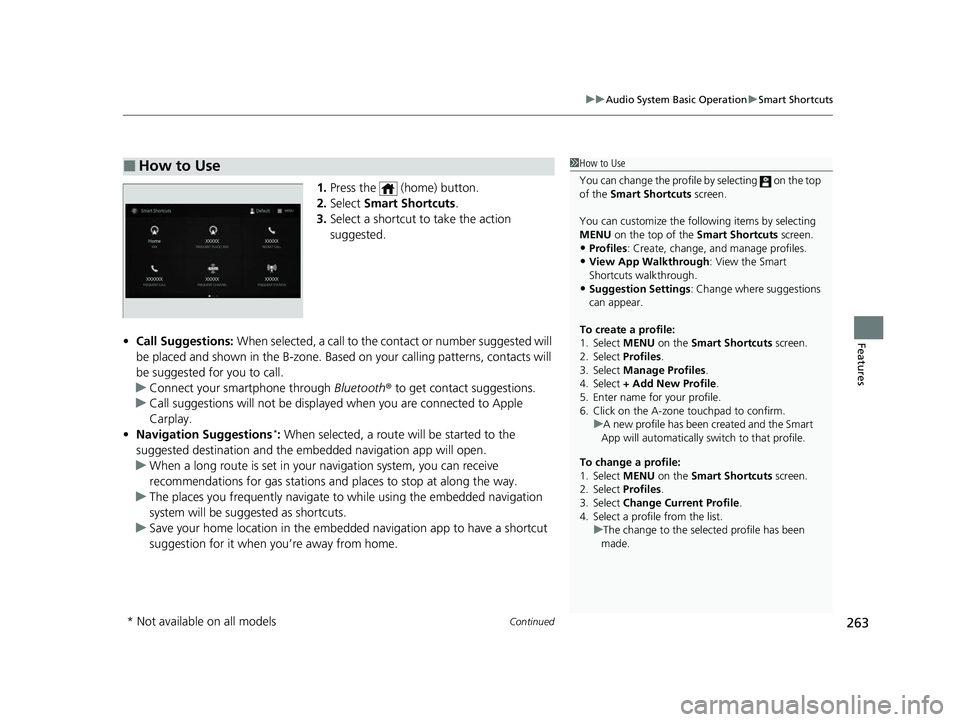
1. Press the (home) button.
2. Select Smart Shortcuts .
3. Select a shortcut to take the action
suggested.
• Call Suggestions: When selected, a call to the cont act or number suggested will
be placed and shown in the B-zone. Base d on your calling patterns, contacts will
be suggested for you to call.
u Connect your smartphone through Bluetooth® to get contact suggestions.
u Call suggestions will not be displayed when you are connected to Apple
Carplay.
• Navigation Suggestions
*: When selected, a route will be started to the
suggested destination and the embedded navigation app will open.
u When a long route is set in your navigation system, you can receive
recommendations for gas stations an d places to stop at along the way.
u The places you frequently navigate to while using the embedded navigation
system will be suggested as shortcuts.
u Save your home location in the embedded navigation app to have a shortcut
suggestion for it when you’re away from home.
■How to Use1How to Use
You can change the profile by selecting on the top
of the Smart Shortcuts screen.
You can customize the foll owing items by selecting
MENU on the top of the Smart Shortcuts screen.
•Profiles : Create, change, a nd manage profiles.•View App Walkthrough : View the Smart
Shortcuts walkthrough.
•Suggestion Settings : Change where suggestions
can appear.
To create a profile:
1. Select MENU on the Smart Shortcuts screen.
2. Select Profiles .
3. Select Manage Profiles .
4. Select + Add New Profile .
5. Enter name for your profile.
6. Click on the A-zone touchpad to confirm.
To change a profile:
1. Select MENU on the Smart Shortcuts screen.
2. Select Profiles .
3. Select Change Current Profile .
4. Select a profile from the list. u
A new profile has been created and the Smart
App will automatically sw itch to that profile.
u The change to the selected profile has been
made.
* Not available on all models
22 ACURA MDX-31TYA6000_02.book 263 ページ 2020年11月5日 木曜日 午前11時39分
Page 274 of 712
273
uuAudio System Basic Operation uAlexa Built-In
Features
Alexa Built-In
You can talk to Amazon Alexa through the audio system. With Alexa, you can:
• Stream audio
• Navigate to plac es (If available)
• Call Alexa contacts
• And more with supported Alexa skills
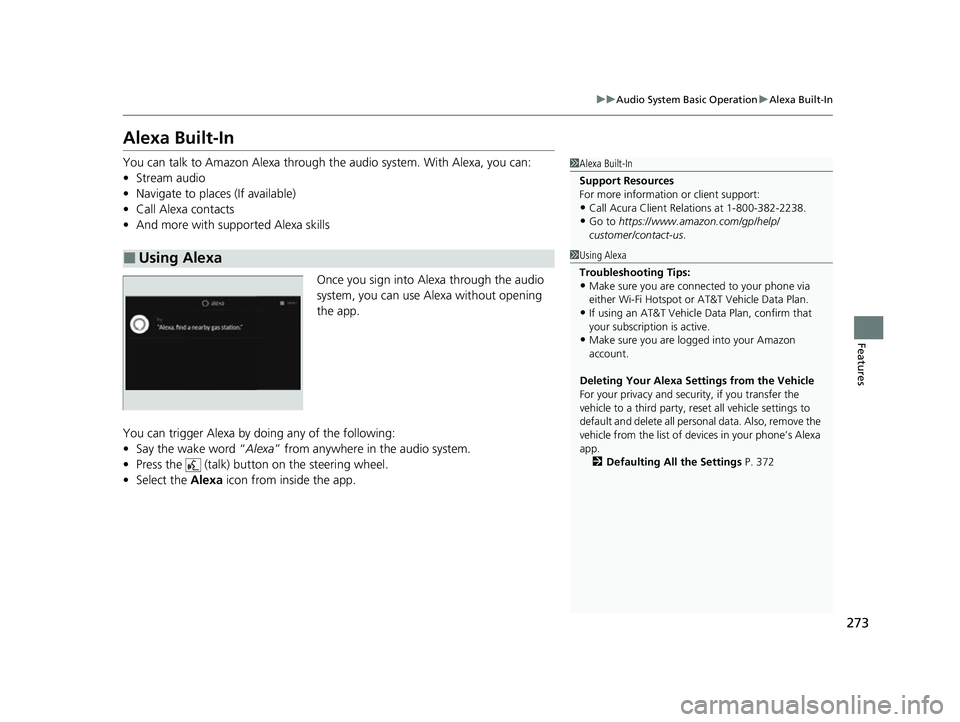
Once you sign into Alexa through the audio
system, you can use Alexa without opening
the app.
You can trigger Alexa by doing any of the following:
• Say the wake word “ Alexa” from anywhere in the audio system.
• Press the (talk) button on the steering wheel.
• Select the Alexa icon from inside the app.
■Using Alexa
1Alexa Built-In
Support Resources
For more information or client support:
•Call Acura Client Re lations at 1-800-382-2238.
•Go to https://www.amazon.com/gp/help/
customer/contact-us .
1Using Alexa
Troubleshooting Tips:
•Make sure you are connected to your phone via
either Wi-Fi Hotspot or AT&T Vehicle Data Plan.
•If using an AT&T Vehicle Data Plan, confirm that
your subscription is active.
•Make sure you are logged into your Amazon
account.
Deleting Your Alexa Settings from the Vehicle
For your privacy and securi ty, if you transfer the
vehicle to a third party, re set all vehicle settings to
default and delete all personal data. Also, remove the
vehicle from the list of de vices in your phone’s Alexa
app. 2 Defaulting All the Settings P. 372
22 ACURA MDX-31TYA6000_02.book 273 ページ 2020年11月5日 木曜日 午前11時39分
Page 275 of 712
274
uuAudio System Basic Operation uVoice Control Operation
Features
Voice Control Operation
Your vehicle has a voice control system that allows hands-free operation.
The voice control system uses the (tal k) and (back) buttons on the steering
wheel and a microphone near the map lights on the ceiling.
To achieve optimum voice recognition when using the voice control system:
• The system recognize a natural language and accept your free form voice
command.
An example of voice commands:
2 Voice Recognition Screen P. 275
•Close the windows and panoramic roof.
• Adjust the dashboard and side vents so air does not blow onto the microphone
on the ceiling.
• Speak clearly in a clear, natural speakin g voice without pausing between words.
• Reduce any background noise if possible. The system may misinterpret your
command if more than one person is speaking at the same time.
■Voice Recognition
1Voice Control Operation
When you press the button, the system beeps and
the display changes to the voice recognition screen.
Press the (home) button, (back) button on
the True Touchpad Interface or APPS button on the
steering wheel to cancel a voice recognition function.
22 ACURA MDX-31TYA6000_02.book 274 ページ 2020年11月5日 木曜日 午前11時39分
Page 276 of 712
275
uuAudio System Basic Operation uVoice Control Operation
Continued
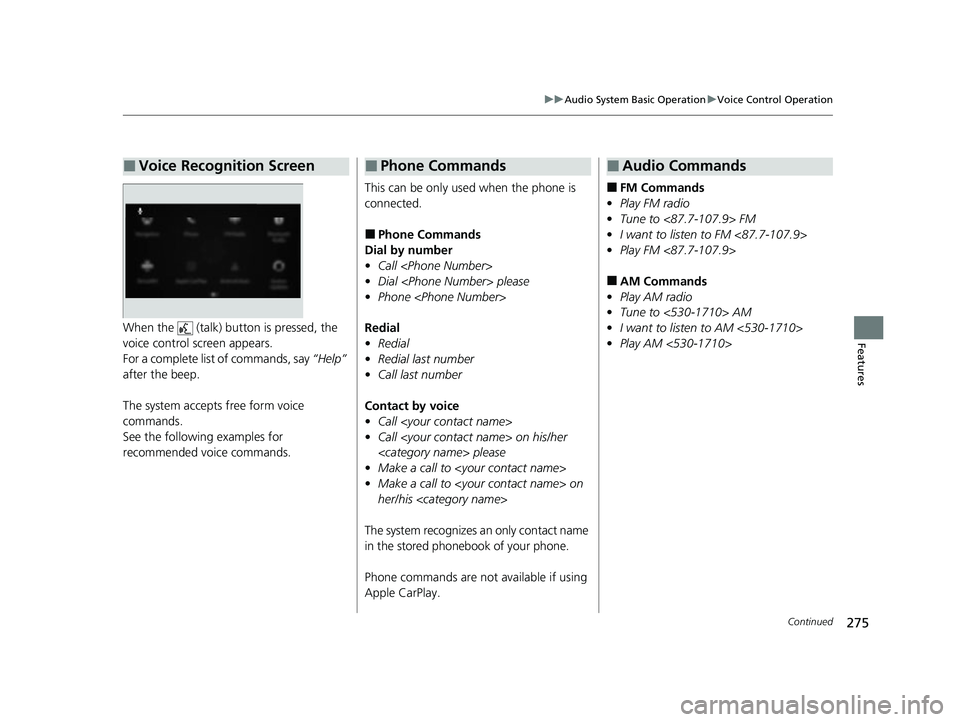
FeaturesWhen the (talk) button is pressed, the
voice control screen appears.
For a complete list of commands, say “Help”
after the beep.
The system accepts free form voice
commands.
See the following examples for
recommended voice commands.
■Voice Recognition Screen
This can be only used when the phone is
connected.
■Phone Commands
Dial by number
• Call
• Dial
• Phone
Redial
• Redial
• Redial last number
• Call last number
Contact by voice
• Call
• Call
• Make a call to
• Make a call to
her/his
The system recognizes an only contact name
in the stored phonebook of your phone.
Phone commands are not available if using
Apple CarPlay.
■Phone Commands
■FM Commands
• Play FM radio
• Tune to <87.7-107.9> FM
• I want to listen to FM <87.7-107.9>
• Play FM <87.7-107.9>
■AM Commands
• Play AM radio
• Tune to <530-1710> AM
• I want to listen to AM <530-1710>
• Play AM <530-1710>
■Audio Commands
22 ACURA MDX-31TYA6000_02.book 275 ページ 2020年11月5日 木曜日 午前11時39分
Page 296 of 712
Continued295
uuAudio System Basic Operation uPlaying an iPod
Features
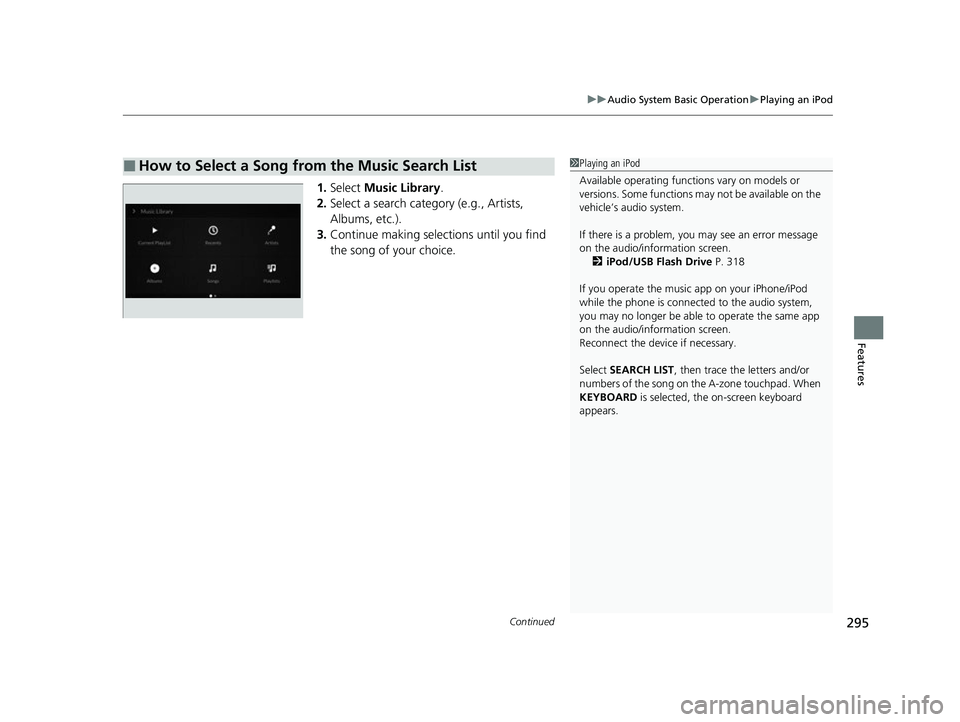
1. Select Music Library .
2. Select a search catego ry (e.g., Artists,
Albums, etc.).
3. Continue making selections until you find
the song of your choice.
■How to Select a Song from the Music Search List1Playing an iPod
Available operating functi ons vary on models or
versions. Some functions ma y not be available on the
vehicle’s audio system.
If there is a problem, you may see an error message
on the audio/information screen. 2 iPod/USB Flash Drive P. 318
If you operate the musi c app on your iPhone/iPod
while the phone is connected to the audio system,
you may no longer be able to operate the same app
on the audio/information screen.
Reconnect the devi ce if necessary.
Select SEARCH LIST, then trace the letters and/or
numbers of the song on the A-zone touchpad. When
KEYBOARD is selected, the on-screen keyboard
appears.
22 ACURA MDX-31TYA6000_02.book 295 ページ 2020年11月5日 木曜日 午前11時39分
Page 301 of 712
300
uuAudio System Basic Operation uPlaying Bluetooth ® Audio
Features
Playing Bluetooth ® Audio
Your audio system allows you to listen to music from your Bluetooth-compatible
phone.
This function is available when the phone is paired and connected to the vehicle’s
Bluetooth ® HandsFreeLink ® (HFL) system.
2 Phone Setup P. 382
1Playing Bluetooth ® Audio
Not all Bluetooth-enabled phones with streaming
audio capabilities are compatible with the system. For
a list of compatible phones:
•U.S.: Visit www.handsfreelink.com/Acura or call 1-
888-528-7876.
•Canada: For more info rmation on smartphone
compatibility, call 1-855-490-7351.
It may be illegal to pe rform some data device
functions while driving.
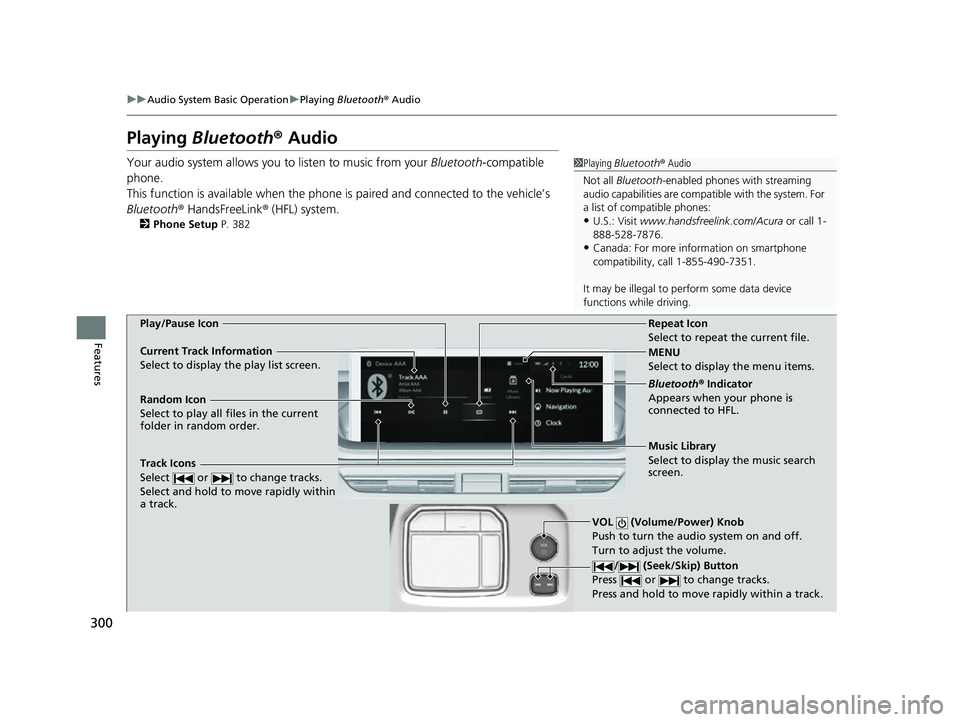
MENU
Select to display the menu items.
Bluetooth ® Indicator
Appears when your phone is
connected to HFL.
Track Icons
Select or to change tracks.
Select and hold to move rapidly within
a track.
VOL (Volume/Power) Knob
Push to turn the a udio system on and off.
Turn to adjust the volume.
/ (Seek/Skip) Button
Press or to change tracks.
Press and hold to move rapidly within a track.
Repeat Icon
Select to repeat the current file.
Random Icon
Select to play all files in the current
folder in random order.
Play/Pause Icon
Current Track Information
Select to display the play list screen.
Music Library
Select to display the music search
screen.
22 ACURA MDX-31TYA6000_02.book 300 ページ 2020年11月5日 木曜日 午前11時39分