ECO mode ACURA NSX 2022 Workshop Manual
[x] Cancel search | Manufacturer: ACURA, Model Year: 2022, Model line: NSX, Model: ACURA NSX 2022Pages: 492, PDF Size: 16.2 MB
Page 198 of 492
uuAudio System Basic Operation uPlaying SiriusXM ® Radio*
196
Features
The system can record up to the last 60 minutes of your currently tuned channel’s
broadcast, as well as the last 30 minutes of your preset channel’s broadcast, starting
from the moment you turn the vehicle on. If you tuned to a preset channel, the
system records up to 60 minutes of a broadcast instead of up to 30 minutes. You
can rewind and replay the last 30 or 60 minutes of a broadcast.
1. Select .
2. Select Playback Position.
3. Move the time marker to the position you want to replay.
To play or pause on playback mode:
1. Select .
2. Select Play/Pause .
■Returning to real-time broadcast
1. Select .
2. Select Play Live Broadcast .
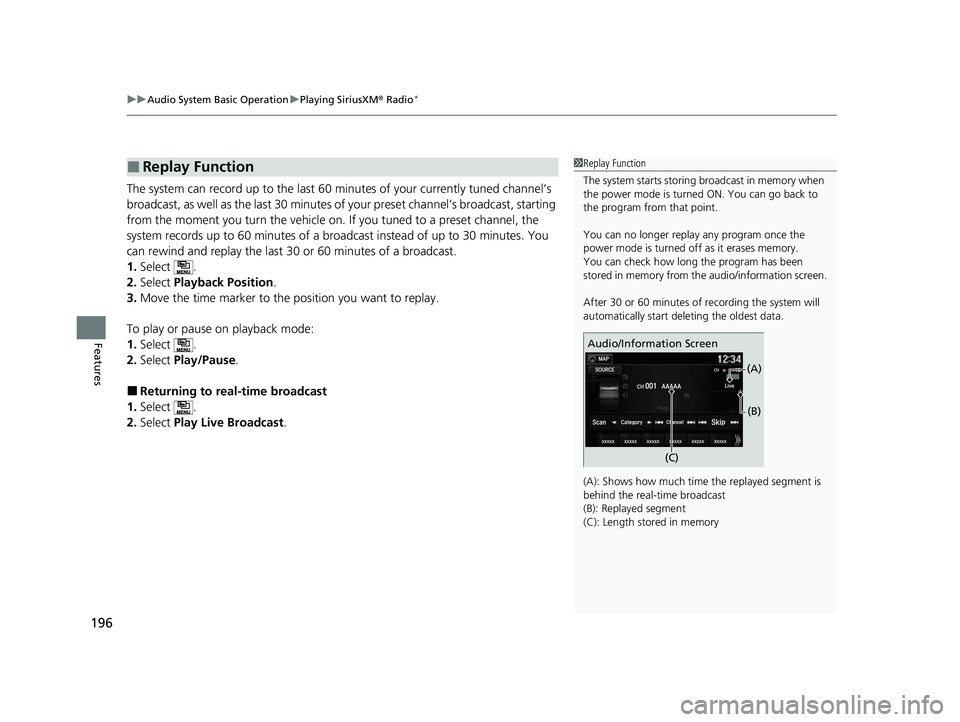
■Replay Function1Replay Function
The system starts storing broadcast in memory when
the power mode is turned ON. You can go back to
the program from that point.
You can no longer repl ay any program once the
power mode is turned off as it erases memory.
You can check how long the program has been
stored in memory from th e audio/information screen.
After 30 or 60 minutes of recording the system will
automatically start deleting the oldest data.
(A): Shows how much time the replayed segment is
behind the real-time broadcast
(B): Replayed segment
(C): Length stored in memory
Audio/Information Screen
(C) (B)
(A)
22 ACURA NSX PMC-31T6N6500.book 196 ページ 2021年9月28日 火曜日 午後4時7分
Page 200 of 492
uuAudio System Basic Operation uPlaying SiriusXM ® Radio*
198
Features
■To set up an alert beep
1. Select .
2. Select Settings .
3. Select Audio .
4. Select the SXM tab.
5. Select SportsFlash Setup( Interrupt Beep).
6. Select On.
■Traffic and Weather Information
You can receive traffic and weather information.
1. Select .
2. Select Settings .
3. Select Audio .
4. Select the SXM tab.
5. Select Traffic & Weather Setup .
6. Select the region.
u When you do not want to rece ive the information, select Unset.
Sample each channel on the selected mode for 10 seconds.
1. Select Scan.
2. Select Scan Channels .
u You can select the desired channel by songs using Scan Songs in Presets .
To turn off scan, select Cancel.
■Scan
1To set up an alert beep
You can also set up a alert beep by the following
procedure.
1. Select Audio.
2. Select .
3. Select Setting .
4. Select SportsFlash Setup(Interrupt Beep) .
1Traffic and Weather Information
The traffic and weather information function in
SiriusXM ® mode only.
You can also set up th e traffic and weather
information by the following procedure.
1. Select Audio.
2. Select .
3. Select Setting .
4. Select Traffic & Weather Setup .
1Scan
The “Scan Songs in Preset” function is based on
TuneScan
TM technology of SiriusXM ®.
The “Featured Channels ” function is based on
Featured Favorites
TM technology of SiriusXM ®.
TuneScan
TM and Featured FavoritesTM are registered
trademarks of SiriusXM ® Radio, Inc.
22 ACURA NSX PMC-31T6N6500.book 198 ページ 2021年9月28日 火曜日 午後4時7分
Page 202 of 492
uuAudio System Basic Operation uPlaying an iPod
200
Features
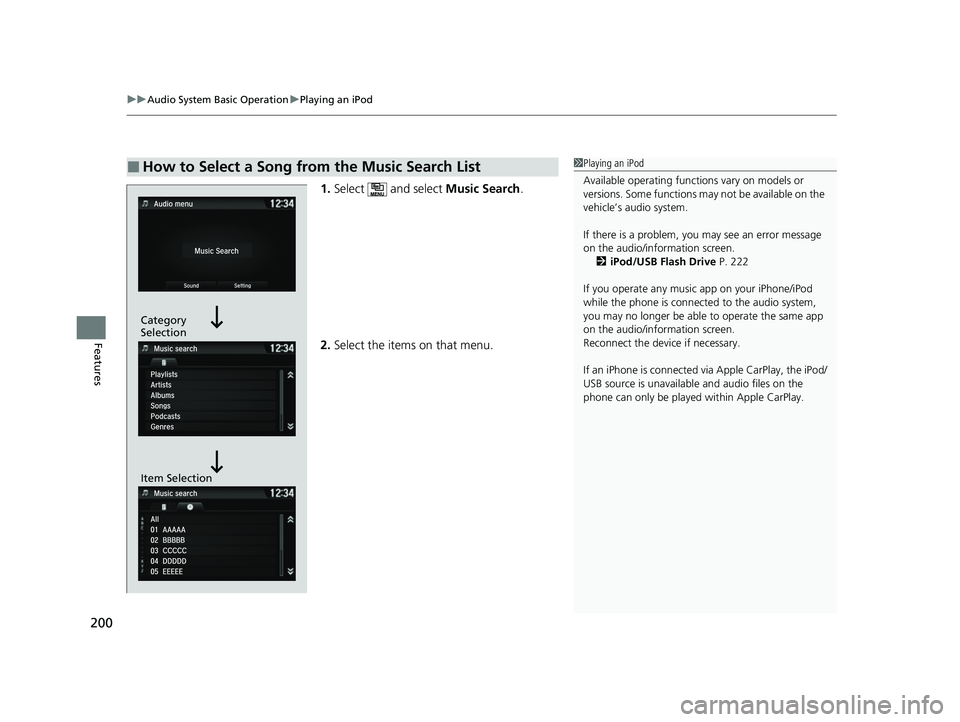
1. Select and select Music Search.
2. Select the items on that menu.
■How to Select a Song from the Music Search List1Playing an iPod
Available operating functi ons vary on models or
versions. Some functions ma y not be available on the
vehicle’s audio system.
If there is a problem, you may see an error message
on the audio/information screen. 2 iPod/USB Flash Drive P. 222
If you operate any musi c app on your iPhone/iPod
while the phone is connected to the audio system,
you may no longer be able to operate the same app
on the audio/information screen.
Reconnect the devi ce if necessary.
If an iPhone is connected via Apple CarP lay, the iPod/
USB source is unavailable and audio files on the
phone can only be played within Apple CarPlay.
Category
Selection
Item Selection
22 ACURA NSX PMC-31T6N6500.book 200 ページ 2021年9月28日 火曜日 午後4時7分
Page 205 of 492
Continued203
uuAudio System Basic Operation uSong By VoiceTM (SBV)
Features
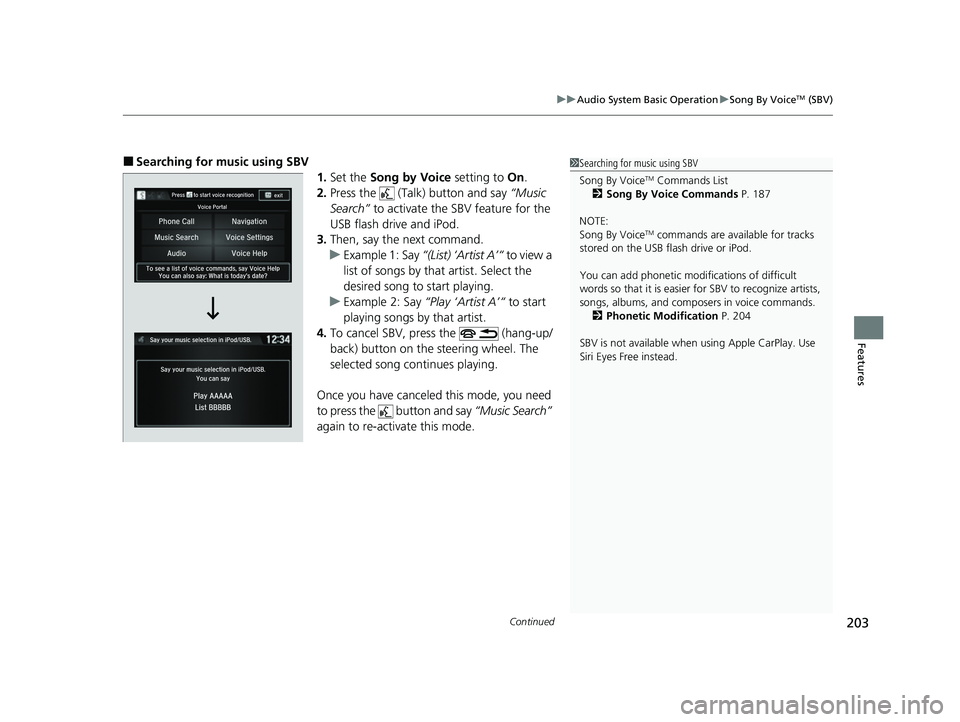
■Searching for music using SBV
1.Set the Song by Voice setting to On.
2. Press the (Talk) button and say “Music
Search” to activate the SBV feature for the
USB flash drive and iPod.
3. Then, say the next command.
u Example 1: Say “(List) ‘Artist A’“ to view a
list of songs by that artist. Select the
desired song to start playing.
u Example 2: Say “Play ‘Artist A’“ to start
playing songs by that artist.
4. To cancel SBV, press the (hang-up/
back) button on the steering wheel. The
selected song continues playing.
Once you have canceled this mode, you need
to press the button and say “Music Search”
again to re-activate this mode.1 Searching for music using SBV
Song By Voice
TM Commands List
2 Song By Voice Commands P. 187
NOTE:
Song By Voice
TM commands are available for tracks
stored on the USB flash drive or iPod.
You can add phonetic modi fications of difficult
words so that it is easier for SBV to recognize artists,
songs, albums, and composers in voice commands. 2 Phonetic Modification P. 204
SBV is not available when using Apple CarPlay. Use
Siri Eyes Free instead.
22 ACURA NSX PMC-31T6N6500.book 203 ページ 2021年9月28日 火曜日 午後4時7分
Page 210 of 492
208
uuAudio System Basic Operation uPlaying a USB Flash Drive
Features
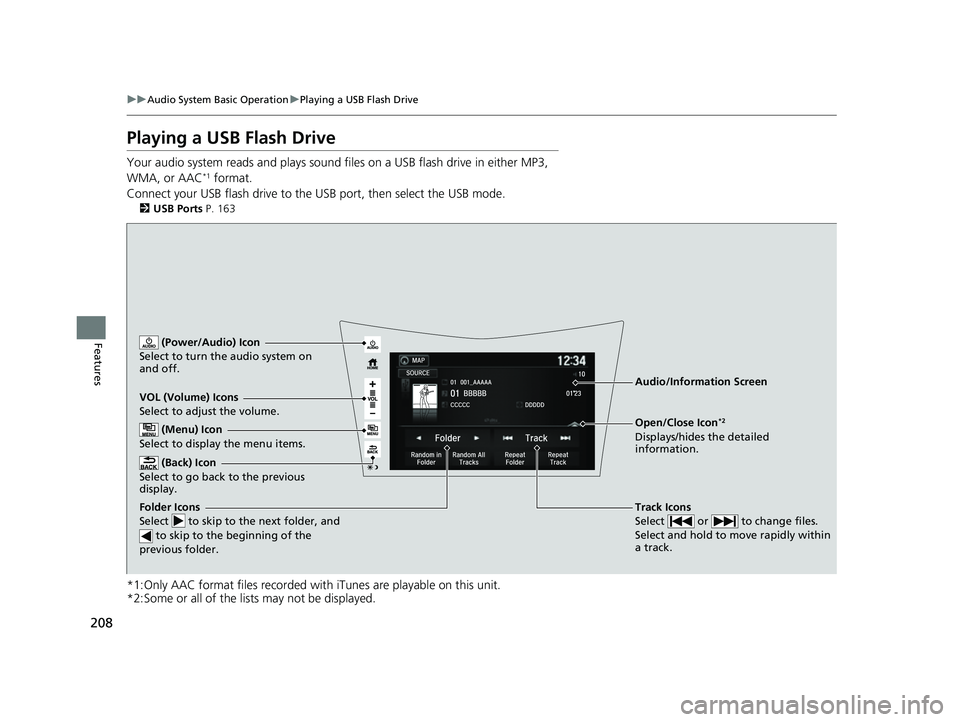
Playing a USB Flash Drive
Your audio system reads and plays sound files on a USB flash drive in either MP3,
WMA, or AAC*1 format.
Connect your USB flash drive to the USB port, then select the USB mode.
2USB Ports P. 163
*1:Only AAC format files recorded with iTunes are playable on this unit.
*2:Some or all of the lists may not be displayed.
VOL (Volume) Icons
Select to adjust the volume.
(Back) Icon
Select to go back to the previous
display.
Track Icons
Select or to change files.
Select and hold to move rapidly within
a track.
(Power/Audio) Icon
Select to turn the audio system on
and off.
Open/Close Icon*2
Displays/hides the detailed
information.
(Menu) Icon
Select to display the menu items.
Folder Icons
Select to skip to the next folder, and
to skip to the beginning of the
previous folder.
Audio/Information Screen
22 ACURA NSX PMC-31T6N6500.book 208 ページ 2021年9月28日 火曜日 午後4時7分
Page 212 of 492
uuAudio System Basic Operation uPlaying a USB Flash Drive
210
Features
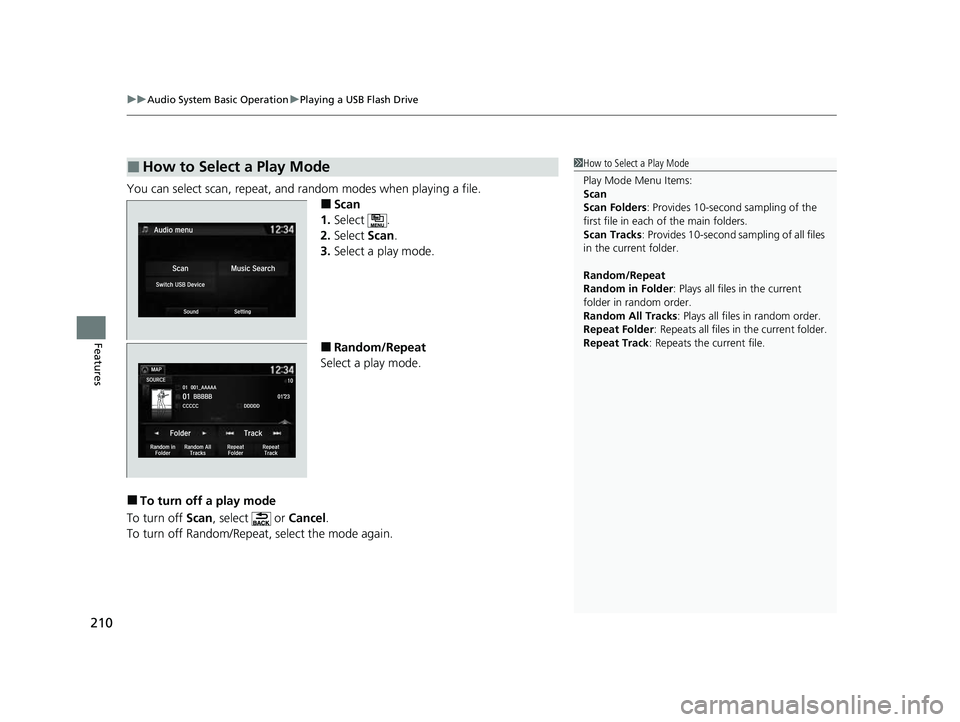
You can select scan, repeat, and random modes when playing a file.
■Scan
1. Select .
2. Select Scan.
3. Select a play mode.
■Random/Repeat
Select a play mode.
■To turn off a play mode
To turn off Scan, select or Cancel.
To turn off Random/Repeat, select the mode again.
■How to Select a Play Mode1 How to Select a Play Mode
Play Mode Menu Items:
Scan
Scan Folders : Provides 10-second sampling of the
first file in each of the main folders.
Scan Tracks: Provides 10-second sa mpling of all files
in the current folder.
Random/Repeat
Random in Folder : Plays all files in the current
folder in random order.
Random All Tracks : Plays all files in random order.
Repeat Folder : Repeats all files in the current folder.
Repeat Track: Repeats the current file.
22 ACURA NSX PMC-31T6N6500.book 210 ページ 2021年9月28日 火曜日 午後4時7分
Page 214 of 492
uuAudio System Basic Operation uPlaying Bluetooth ® Audio
212
Features
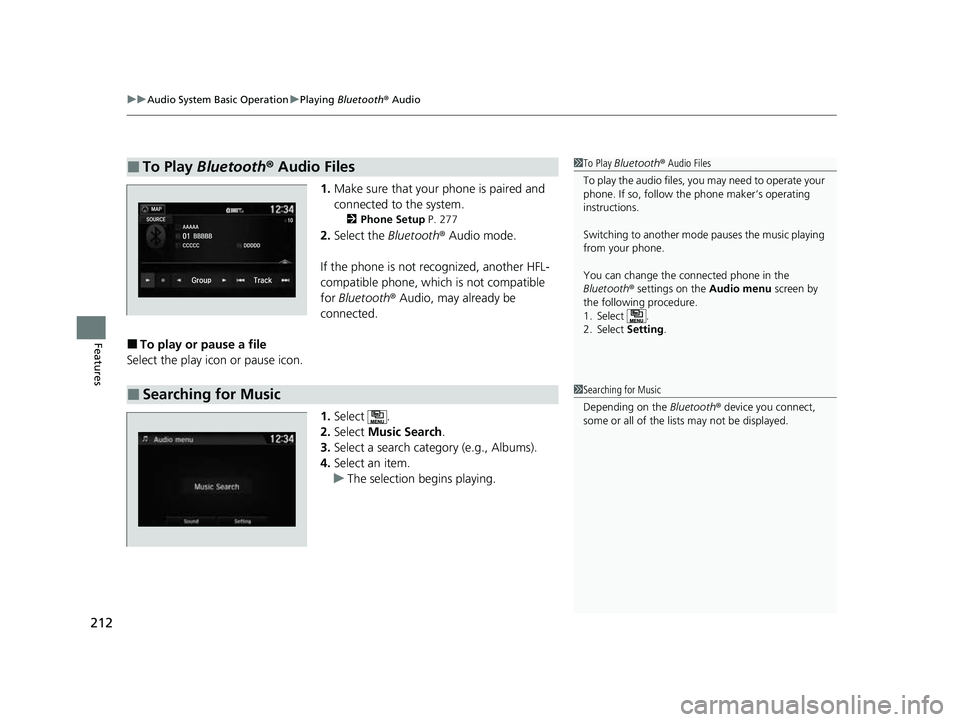
1. Make sure that your phone is paired and
connected to the system.
2 Phone Setup P. 277
2.Select the Bluetooth® Audio mode.
If the phone is not recognized, another HFL-
compatible phone, which is not compatible
for Bluetooth ® Audio, may already be
connected.
■To play or pause a file
Select the play icon or pause icon.
1.Select .
2. Select Music Search.
3. Select a search category (e.g., Albums).
4. Select an item.
u The selection begins playing.
■To Play Bluetooth ® Audio Files1 To Play Bluetooth ® Audio Files
To play the audio files, y ou may need to operate your
phone. If so, follow the phone maker’s operating
instructions.
Switching to another mode pauses the music playing
from your phone.
You can change the connected phone in the
Bluetooth ® settings on the Audio menu screen by
the following procedure.
1. Select .
2. Select Setting .
■Searching for Music1Searching for Music
Depending on the Bluetooth® device you connect,
some or all of the list s may not be displayed.
22 ACURA NSX PMC-31T6N6500.book 212 ページ 2021年9月28日 火曜日 午後4時7分
Page 216 of 492

214
uuAudio System Basic Operation uSiri ® Eyes Free
Features
Siri ® Eyes Free
You can talk to Siri using the (Talk) button on the steering wheel when your
iPhone is paired to the Bluetooth® HandsFreeLink ® (HFL) system.
2Phone Setup P. 277
■Using Siri Eyes Free
1Siri ® Eyes Free
Siri is a trademark of Apple Inc.
Check Apple Inc. website for features available for
Siri.
We recommend against using Si ri other than in Siri
Eyes Free mode whil e operating a vehicle.
1Using Siri Eyes Free
Some commands work only on specific phone
features or apps.
(Talk) Button
Press and hold until the display changes as shown.
(Hang-up/back) Button
Press to deactivate Siri Eyes Free.
While in Siri Eyes Free:
The display remains the same.
No feedback or commands
appear. Appears
when Siri is
activated in
Siri Eyes Free
22 ACURA NSX PMC-31T6N6500.book 214 ページ 2021年9月28日 火曜日 午後4時7分
Page 225 of 492

223
uuAudio Error Messages uPandora ®*1
Features
Pandora ®*1
If an error occurs while playing Pandora ®, you may see the following error messages.
If you cannot clear the error message, contact an authorized Acura NSX dealer.
*1:Available only on U.S. models.
Error MessageSolution
To begin listening, select a st ation from the Stations list.Appears when there is no station list on the device. Use the device
to create a station.
Unable to rate track. Please try again.
Skip limit reached.Appears when you try to skip a song or select Like/Dislike over
the predetermined number of times in an hour.
Unable to play Pandora. Please try again later.
Unable to retrieve a track explanation. Please try again later.
Unable to create bookmark. Please try again later.
Appears when the commanded oper ation fails. Try again later.
No DataAppears when no data is available with Pandora ® activated.
Reboot the app and reconnect the device.
Pandora App version is not supportedAppears when Pandora® version is not supported. Update
Pandora ® to the latest version.
Unable to complete the operation. Please try again later.Appears when the Pandora ® server is in maintenance. Try again
later.
Unable to connect Pandora. When stopped, check your
mobile phoneAppears when Pandora® is unable to play music. Check your
device.
Unable to connect Pandora. When stopped, check your
mobile phoneAppears when Pandora ® app is not installed on your device. Install
Pandora ® app to your device.
22 ACURA NSX PMC-31T6N6500.book 223 ページ 2021年9月28日 火曜日 午後4時7分
Page 228 of 492

226
uuGeneral Information on the Audio System uCompatible iPod, iPhone, and USB Flash Drives
Features
Compatible iPod, iPhone, and USB Flash Drives
• A USB flash drive of 256 MB or higher is recommended.
• Some digital audio players may not be compatible.
• Some USB flash drives (e.g., a device with security lockout) may not work.
• Some software files may not allow for audio play or text data display.
• Some versions of MP3, WMA, or AAC formats may be unsupported.
■iPod and iPhone Model Compatibility
Model
Made for iPod (5th generation)
Made for iPod classic 80GB/160GB (launch in 2007)
Made for iPod classic 120GB (launch in 2008)
Made for iPod classic 160GB (launch in 2009)
Made for iPod nano (1st to 7th generation) released between 2005 and 2012
Made for iPod touch (1st to 5th generation) released between 2007 and 2012
Made for iPhone 3G/iPhone 3GS/iPhone 4/iPhone 4S/iPhone 5/iPhone 5c/iPhone
5s/iPhone 6/iPhone 6s/iPhone 6 Plus/iPhone 6s Plus
■USB Flash Drives
1 iPod and iPhone Model Compatibility
This system may not work with all software versions
of these devices.
1USB Flash Drives
Files on the USB flash drive are played in their stored
order. This order may be different from the order
displayed on your PC or device.
22 ACURA NSX PMC-31T6N6500.book 226 ページ 2021年9月28日 火曜日 午後4時7分