blue tooth control ACURA RDX 2010 Owners Manual
[x] Cancel search | Manufacturer: ACURA, Model Year: 2010, Model line: RDX, Model: ACURA RDX 2010Pages: 514, PDF Size: 30.21 MB
Page 8 of 514
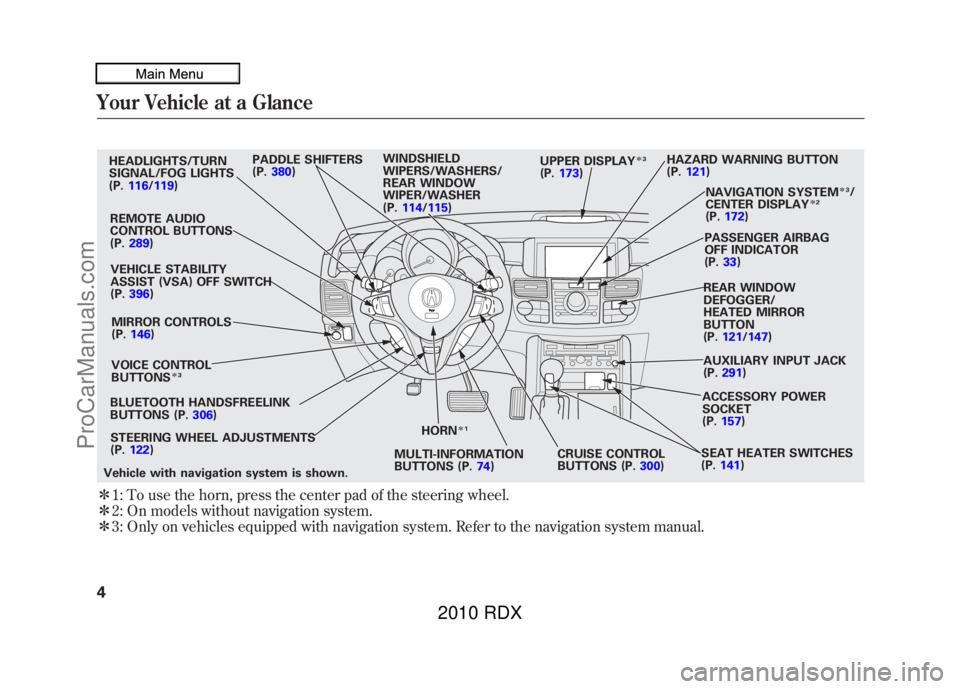
ꭧ1: To use the horn, press the center pad of the steering wheel.
ꭧ 2: On models without navigation system.
ꭧ 3: Only on vehicles equipped with navigation system. Refer to the navigation system manual.HEADLIGHTS/TURN
SIGNAL/FOG LIGHTS
(P. 116/119)
REMOTE AUDIO
CONTROL BUTTONS
(P. 289)
VEHICLE STABILITY
ASSIST (VSA) OFF SWITCH
(P. 396)
MIRROR CONTROLS
(P. 146)
VOICE CONTROL
BUTTONS
ꭧ 3
BLUETOOTH HANDSFREELINK
BUTTONS (P. 306)
STEERING WHEEL ADJUSTMENTS
(P. 122) HORN
ꭧ
1
MULTI-INFORMATION
BUTTONS (P. 74)CRUISE CONTROL
BUTTONS (P.
300)SEAT HEATER SWITCHES
(P.
141)
ACCESSORY POWER
SOCKET
(P.
157)
AUXILIARY INPUT JACK
(P.
291)
REAR WINDOW
DEFOGGER/
HEATED MIRROR
BUTTON
(P.
121/147)
PASSENGER AIRBAG
OFF INDICATOR
(P.
33)
NAVIGATION SYSTEM
ꭧ
3/
CENTER DISPLAY
ꭧ 2
(P. 172)
HAZARD WARNING BUTTON
(P.
121)
PADDLE SHIFTERS
(P.
380) WINDSHIELD
WIPERS/WASHERS/
REAR WINDOW
WIPER/WASHER
(P.
114/115) UPPER DISPLAY
ꭧ
3
(P. 173)
Vehicle with navigation system is shown.
Your Vehicle at a Glance409/07/07 15:02:04 10 ACURA RDX MMC North America Owner's M 50 31STK630 enu
ProCarManuals.com
2010 RDX
Page 117 of 514

ꭧ1: To use the horn, press the center pad of the steering wheel.
ꭧ 2: On models without navigation system.
ꭧ 3: Only on vehicles equipped with navigation system. Refer to the navigation system manual.BLUETOOTH HANDSFREELINK
BUTTONS (P. 306) HORN
ꭧ
1
STEERING WHEEL
ADJUSTMENTS (P. 122)MULTI-INFORMATION
BUTTONS (P.
74)CRUISE CONTROL
BUTTONS (P.
300)SEAT HEATER SWITCHES
(P.
141)
HEADLIGHTS/TURN
SIGNAL/FOG LIGHTS
(P.
116/119)
REMOTE AUDIO CONTROL
BUTTONS (P. 289)
VEHICLE STABILITY
ASSIST (VSA) OFF
SWITCH
(P. 396)
MIRROR CONTROLS
(P. 146)
VOICE CONTROL
BUTTONS
ꭧ 3
HAZARD WARNING BUTTON
(P. 121)
PADDLE SHIFTERS
(P.
380) WINDSHIELD
WIPERS/WASHERS/
REAR WINDOW
WIPER/WASHER
(P.
114/115) NAVIGATION SYSTEM
ꭧ
3/
CENTER DISPLAY
ꭧ 2
(P. 172)
PASSENGER AIRBAG
OFF INDICATOR (P. 33)
REAR WINDOW
DEFOGGER/
HEATED MIRROR
BUTTON
(P. 121/147)
AUXILIARY INPUT JACK
(P. 291)
ACCESSORY POWER
SOCKET
(P. 157)
UPPER DISPLAY
ꭧ
3
(P. 173)
Vehicle with navigation system is shown.
Controls Near the Steering Wheel
113
Instruments and Controls
09/07/07 15:02:04 10 ACURA RDX MMC North America Owner's M 50 31STK630 enu
ProCarManuals.com
2010 RDX
Page 167 of 514

The climate control system in your vehicle
provides a comfortable driving
environment in all weather conditions.
The standard audio system has many
features. This section describes those
features and how to use them.
Your vehicle has an anti-theft audio system
that requires a code number to enable it.
The security system helps to discourage
vandalism and theft of your vehicle.On models with navigation systemThe climate control system and the audiosystem have a voice control feature. Referto the navigation system manual for more
information.Climate Control System
....................
164
Dual Temperature Control
.............
169
Climate Control Sensors
................
171
Audio System
..................................
172
Playing the FM/AM Radio (Models without navigation system)
........
174
To Play the Radio
.........................
174
Adjusting the Sound
.....................
177
Playing the XM
®Radio (Models
without navigation system)
............
179
Playing Discs (Models without navigation system)
.......................
185 Disc Changer Error Messages
(Models without navigationsystem)
..................................
195
Playing an iPod (Models without navigation system)
.......................
197
iPod Error Messages (Models without navigation system)
.......................
203
Playing a USB Flash Memory Device (Models without navigationsystem)
..................................
204
USB Flash Memory Device Error Messages (Models without
navigation system)
...................
211
Bluetooth
®Audio System (Models
without navigation system)
............
212
Audio System (Models with navigation system)
..................................
216
Interface Dial
..............................
216
Playing the FM/AM Radio (Models
with navigation system)
.............
217
Adjusting the Sound
.....................
224
Playing the XM
®Radio (Models with
navigation system)
.......................
228
Playing Discs (Models with navigation system)
......................................
239
Disc Changer Error Messages
(Models with navigationsystem)
..................................
255 Protecting Your Discs
.......................
257
Playing an iPod (Models with navigation system)
.......................
260
iPod Error Messages (Models with navigation system)
.......................
269
Playing a USB Flash Memory Device (Models with navigation
system)
..................................
270
USB Flash Memory Device Error Messages (Models with navigation
system)
..................................
279
Bluetooth
®Audio System (Models with
navigation system)
.......................
280
FM/AM Radio Reception
..................
287
Remote Audio Controls
.....................
289
Auxiliary Input Jack
..........................
291
Radio Theft Protection
......................
292
Setting the Clock
.............................
293
Security System
...............................
294
Compass
........................................
295
Compass Operation
....................
295
Cruise Control
.................................
300
HomeLink
®Universal Transceiver
......
303
Bluetooth
®HandsFreeLink
®..............
306
AcuraLink
®(U.S. models only)
...........
332
Rearview Mirror with Rearview
Camera Display
...........................
348
Features
163
Features
09/07/07 15:02:04 10 ACURA RDX MMC North America Owner's M 50 31STK630 enu
ProCarManuals.com
2010 RDX
Page 219 of 514

To turn off the Bluetooth
®Audio
mode
Select any other audio mode by
pressing a button: FM, AM,
or
CD/AUX (if a disc is loaded), on the
audio control panel or press the
mode button on the steering wheel
repeatedly to select another audio
mode. If iPod or USB flash memory
device is connected to the USB
adapter cable or audio unit is
connected to AUX jack, pressing the
CD/AUX button also changes a
mode.
Switching to another mode pauses
the music playing from your phone.
As required by the FCC:
This device complies with Part 15 of theFCC rules. Operation is subject to the
following two conditions: (1) This devicemay not cause harmful interference, and(2) this device must accept any
interference received, includinginterference that may cause undesiredoperation.
Changes or modifications not expresslyapproved by the party responsible for
compliance could void the user'sauthority to operate the equipment.
This device complies with IndustryCanada Standard RSS-210.
Operation is subject to the following twoconditions: (1) this device may not causeinterference, and (2) this device must
accept any interference that may causeundesired operation of the device.
Bluetooth
®Audio System (Models without navigation system)
215
Features
09/07/07 15:02:04 10 ACURA RDX MMC North America Owner's M 50 31STK630 enu
ProCarManuals.com
2010 RDX
Page 282 of 514

FOLDER SCAN-This function
samples the first file in each folder in
the order they are stored. To activate
the folder scan feature, push the
selector to the right repeatedly. You
will see FOLDER SCAN on the
screen. You will also see SCAN on
the upper display and the folder
number blinking. You will get a 10
second sampling of the first file in
each folder. Push the selector
repeatedly to get out of the scan
mode. The system plays the last file
sampled.
You can also select the folder scan
feature with the SCAN button on the
control panel. Press and release the
SCAN button repeatedly.
Press and hold the SCAN button to
get out of the folder scan mode and
play the last file sampled. To Stop Playing a USB Flash
Memory Device
To play the radio, press the AM/FM
or
button. Press the DISC/
AUX button to switch to the disc
mode (if a disc is loaded). Press the
DISC/AUX button to switch the
audio mode between the USB mode
and
Bluetooth
®Audio.
If you reconnect the same USB flash
memory device, the system will
begin playing where it left off.
USB Flash Memory Device Error
Messages
For information, see page 279.
Disconnecting a USB Flash Memory
DeviceYou can disconnect the USB flash
memory device at any time even if
the USB mode is selected on the
audio system. Always follow the USB
flash memory device's instructions
when you remove it.
When you disconnect the USB flash
memory device while it is playing,
the upper display and the audio
control display (if selected) show NO
DATA.
Playing a USB Flash Memory Device (Models with navigation system)27809/07/07 15:02:04 10 ACURA RDX MMC North America Owner's M 50 31STK630 enu
ProCarManuals.com
2010 RDX
Page 286 of 514

Your vehicle is equipped with aBluetooth
®Audio system, which
allows you to listen to streaming
audio from your
Bluetooth
®Audio
compatible phone. This function is
only available on
Bluetooth
®Audio
Compatible phones that are paired
and linked to the vehicle's
Bluetooth
®HandsFreeLink
®(HFL)
system (see page 313).
Not all Bluetooth-enabled phones
with streaming audio capabilities are
compatible with the system. You can
find an approved phone by visiting
www.acura.com/handsfreelink,
or by
calling the HandsFreeLink
®
consumer support at 1-888-528-7876.
In Canada, visit
www.acura.ca,
or call
1-888-9-ACURA-9. NOTE:
In some states, it may be
illegal to perform some data device
functions while driving. To Play
Bluetooth
®Audio Files
Make sure that your phone is paired
and linked to the HFL.
Press the DISC/AUX button
ꭧwith
the ignition switch in the
ACCESSORY (I) or ON (II) position.
When the phone is recognized, you
will see the
Bluetooth
®Audio
message and indicator on the upper
display and the audio control display
(if selected), and the system begins
to play.
Bluetooth
®Audio System (Models with navigation system)
28209/07/07 15:02:04 10 ACURA RDX MMC North America Owner's M 50 31STK630 enu
ProCarManuals.com
2010 RDX
Page 287 of 514

Once a device is linked, the name of
the device will appear on the screen.
Pressing the DISP/MODE button
switches the audio control display
between the
Bluetooth
®Audio and
the device name.
If more than one phone is paired to
the HFL system, there will be a delay
before the system begins to play.
To play the audio files, you may need
to operate your phone. If so, follow
the phone maker's operating
instructions.
ꭧ : If an iPod, USB flash memory
device or audio unit connected
to the auxiliary input jack was
selected at the last mode, you
will see iPod, USB or AUX in
the upper display and the audio
control display (if selected).
Push the DISC/AUX button
again to play audio files from
your
Bluetooth
®Audio phone. In the following conditions, the
display shows
‘‘NO CONNECT ’’
message.
●The phone is not linked to HFL.●The phone is not turned on.●The phone is not in the vehicle.●Another HFL compatible phone,
which is not compatible forBluetooth
®Audio, is already
connected. If your
Bluetooth
®Audio compatible
phone does not operate as described,
make sure it is an Acura approved
phone. To find out if your phone is
approved, go to
www.acura.com/
handsfreelink
(in Canada,
www.acura.
ca
), or call the HandsFreeLink
®
consumer support at (888) 528-7876.Voice Control SystemYou can select the AUX mode by
using the navigation system voice
control buttons, but cannot operate
the play mode functions.
CONTINUED
Bluetooth
®Audio System (Models with navigation system)
283
Features
09/07/07 15:02:04 10 ACURA RDX MMC North America Owner's M 50 31STK630 enu
ProCarManuals.com
2010 RDX
Page 288 of 514

To skip a filePress the
side of the SKIP bar to
skip forward to the next file, and
press theside to skip backward
to the beginning of the current file.
Push theside again to skip to the
previous file.
You can also operate the skip
function with the interface dial on the
audio control display of the
navigation screen. Push the AUDIO
button. Each time you push the
selector on the interface dial to the
right, the system skips forward to the
beginning of the next file. Push it to
the left to skip backward to the
beginning of the current file. Push
the selector to the left again to skip
to the previous file.
To pause or resume a fileThe resume/pause mode can stop
playing a file temporarily. Push down
the selector on the interface dial to
display the audio menu. Turn the knob on the interface dial to
switch the setting between the
resume/pause mode and the sound
mode. Select RESUME/PAUSE,
then press ENTER to set your
selection. Each time you press
ENTER, the system switches
between the resume mode and pause
mode.
NOTE:
The pause function may not
be available on some phone devices.
Bluetooth
®Audio System (Models with navigation system)
28409/07/07 15:02:04 10 ACURA RDX MMC North America Owner's M 50 31STK630 enu
ProCarManuals.com
2010 RDX
Page 289 of 514

To change sound settingsPress the AUDIO button, then push
down the selector to display the
audio menu. Turn the knob to switch
the setting between the resume/
pause mode and the sound mode.
Select SOUND, then press ENTER
to set your selection.
Turn the knob to select a sound
mode, then press ENTER to set your
selection. Turn the knob to your
liking (see page224for more sound
setting information).
To switch to HFL modeIf you receive a call when theBluetooth
®Audio is playing, press
the HFL Talk button on the steering
wheel. The audio control display and
the upper display switch to the HFL
mode (see page 309).
After ending the call, press the HFL
Back button to go back to the
Bluetooth
®Audio mode.
If you receive a call while the system
is in the pause mode, the mode will
be canceled and
Bluetooth
®Audio
will continue to play.
To turn off the Bluetooth
®Audio
mode
Select any other audio mode by
pressing a button; AM/FM, XM or
DISC/AUX (if a disc is loaded), on
the audio control panel or press the
mode button on the steering wheel
repeatedly to select another audio
mode. If an iPod or USB flash
memory device is connected to the
USB adapter cable or audio unit is
connected to AUX jack, pressing the
DISC/AUX button also changes a
mode.
Switching to another mode pauses
the music playing from your phone.
CONTINUED
Bluetooth
®Audio System (Models with navigation system)
285
Features
09/07/07 15:02:04 10 ACURA RDX MMC North America Owner's M 50 31STK630 enu
ProCarManuals.com
2010 RDX
Page 310 of 514

Bluetooth
®HandsFreeLink
®(HFL)
allows you to place and receive
phone calls using voice commands,
without handling your cell phone.
To use HFL, you need a Bluetooth-
compatible cell phone. For a list of
compatible phones, pairing
procedures, and special feature
capabilities:
In the U.S., visit
www.acura.com/
handsfreelink,or call (888) 528-7876.
In Canada, visitwww.acura.ca,
or call
(888) 9-ACURA-9. Using HFL
HFL buttonsHFL Talk button
ꭚPress and
release to give a command or answer
a call.
HFL Back button ꭚPress and
release to end a call, go back to the
previous command, or cancel the
command.
Below the HFL buttons is another set
of voice control buttons for the
navigation, climate control, and audio
systems. To use the voice control
system, refer to the navigation
system manual.
On models without navigation system HFL TALK
BUTTON
HFL BACK
BUTTON
On models with navigation system HFL BACK
BUTTON
HFL TALK
BUTTON
VOICE CONTROL
BUTTONS
Bluetooth
®HandsFreeLink
®
30609/07/07 15:02:04 10 ACURA RDX MMC North America Owner's M 50 31STK630 enu
ProCarManuals.com
2010 RDX