display Acura RDX 2011 Navigation Manual
[x] Cancel search | Manufacturer: ACURA, Model Year: 2011, Model line: RDX, Model: Acura RDX 2011Pages: 176, PDF Size: 4.42 MB
Page 115 of 176
114Navigation System
System Setup
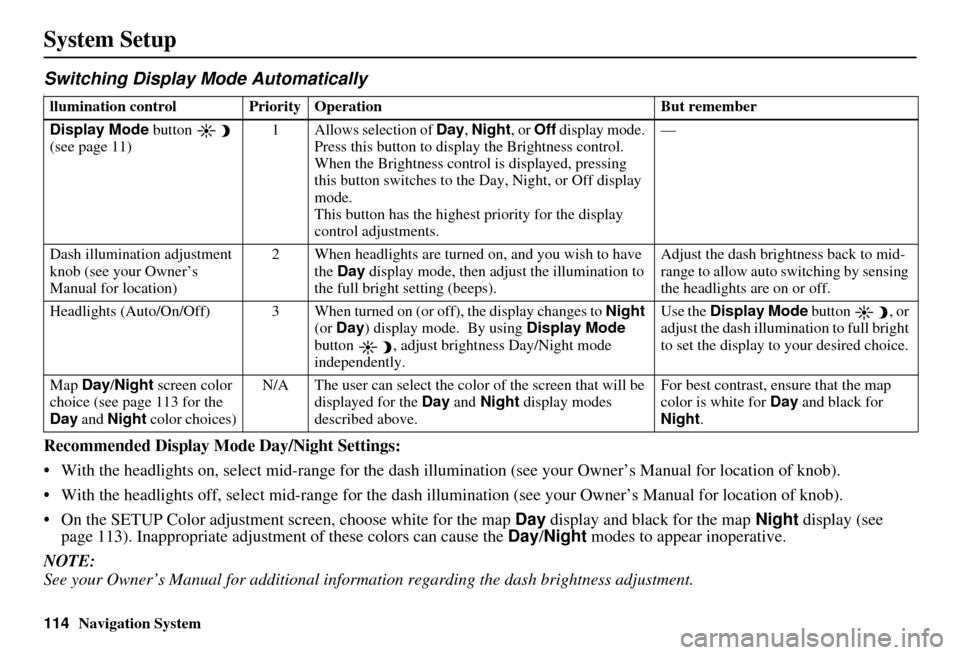
Switching Display Mode AutomaticallyI
Recommended Display Mode Day/Night Settings:
• With the headlights on, select mid-ra nge for the dash illumination (see your Owner’s Manual for location of knob).
• With the headlights off, select mid-range for the dash illumination (see your Owner’s Manual for location of knob).
• On the SETUP Color adjustment screen, choose white for the map Day display and black for the map Night display (see
page 113). Inappropriate adjustment of these colors can cause the Day/Night modes to appear inoperative.
NOTE:
See your Owner’s Manual for additional informa tion regarding the dash brightness adjustment.
llumination control Priority Operation But remember
Display Mode button
(see page 11) 1 Allows selection of
Day, Night , or Off display mode.
Press this button to displa y the Brightness control.
When the Brightness control is displayed, pressing
this button switches to the Day, Night, or Off display
mode.
This button has the highest priority for the display
control adjustments. —
Dash illumination adjustment
knob (see your Owner’s
Manual for location) 2 When headlights are turned on, and you wish to have
the Day display mode, then adjust the illumination to
the full bright setting (beeps). Adjust the dash brightness back to mid-
range to allow auto switching by sensing
the headlights are on or off.
Headlights (Auto/On/Off) 3 When turned on (or off), the display changes to Night
(or Day ) display mode. By using Display Mode
button , adjust bright ness Day/Night mode
independently. Use the
Display Mode button , or
adjust the dash illumination to full bright
to set the display to your desired choice.
Map Day/Night screen color
choice (see page 113 for the
Day and Night color choices) N/A The user can select the color of the screen that will be
displayed for the Day and Night display modes
described above. For best cont
rast, ensure that the map
color is white for Day and black for
Night .
Page 116 of 176
Navigation System115
System Setup
AcuraLink/Messages
For complete details on setting up your
AcuraLink messaging, refer to the
AcuraLink section in your Owner’s
Manual. Or, you can go to the Owner
Link section on the Ownership
Experience page at www.acura.com.
NOTE:
AcuraLink relies on a satellite signal. It
will not work correctly in Hawaii and
Alaska.
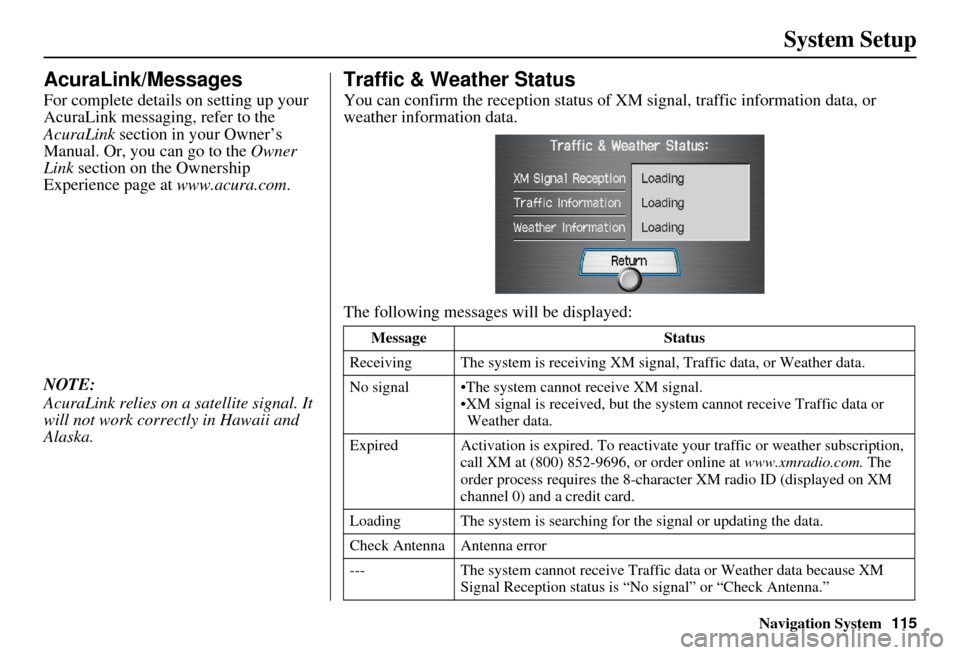
Traffic & Weather Status
You can confirm the reception status of XM signal, traffic information data, or
weather information data.
The following messages will be displayed:
Message Status
Receiving The system is receiving XM signal, Traffic data, or Weather data.
No signal •The system cannot receive XM signal. •XM signal is recei ved, but the system cannot receive Traffic data or
Weather data.
Expired Activation is expire d. To reactivate your traffic or weather subscription,
call XM at (800) 852-9696, or order online at www.xmradio.com. The
order process requires the 8-characte r XM radio ID (displayed on XM
channel 0) and a credit card.
Loading The system is searching for the signal or updating the data.
Check Antenna Antenna error
--- The system cannot receive Traffic data or Weather data because XM
Signal Reception stat us is “No signal” or “Check Antenna.”
Page 117 of 176
116Navigation System
System Setup
System Information
From the SETUP screen ( Other), say
or select System Information and the
following screen appears:
Displays the information on the
navigation system software. This
information is for de aler use only. For
ordering updates, use the version
number stamped on the label (as Ver.
X.XX) of the navigation DVD. See
Obtaining a Navigation Update DVD on
page 125.
When finished, say or select Return to
return to the previous screen.
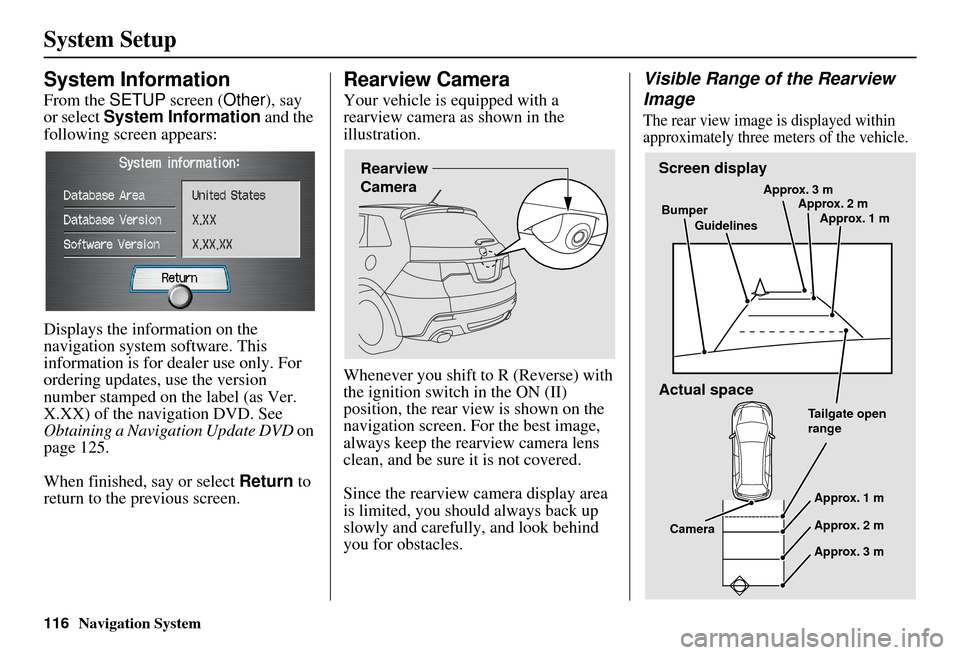
Rearview Camera
Your vehicle is equipped with a
rearview camera as shown in the
illustration.
Whenever you shift to R (Reverse) with
the ignition switch in the ON (II)
position, the rear view is shown on the
navigation screen. For the best image,
always keep the rearview camera lens
clean, and be sure it is not covered.
Since the rearview camera display area
is limited, you should always back up
slowly and carefully, and look behind
you for obstacles.
Visible Range of the Rearview
Image
The rear view image is displayed within
approximately three meters of the vehicle.
Rearview
CameraScreen display
Actual space
Bumper
Guidelines Approx. 3 m
Approx. 2 m
Approx. 1 m
Tailgate open
range Approx. 1 m
Approx. 2 m
Approx. 3 m
Camera
Page 118 of 176
Navigation System117
System Setup
NOTE:
The rearview camera has a special
lens that makes distances appear
closer than they actually are.
The rearview camera display has a limited range, and the size and
position of objects around the area
may appear different from reality.
Make sure to check the surrounding
area carefully.
Tip:
To make guidelines disappear, press
and hold the CANCEL button for three
seconds.Rearview Camera Brightness
Adjustment
When in reverse, the navigation “hard”
buttons are locked out, except the
rotating portion of the Interface Dial
(knob ). Rotate the knob clockwise to
make the camera image brighter, and
counterclockwise to darken the image.
This brightness adjustment is
independent of the screen brightness
adjustment in SETUP.
NOTE:
The camera brightness cannot be adjusted by voice control.
Slight delays can occur when switching to the ca mera image, or
switching back to the map/menu
screen. This is normal.
Page 119 of 176
118Navigation System
System Initialization
System Initialization
If for any reason you lose power to the
navigation system (e.g., the battery was
disconnected), the navigation system
will require initialization. Once
completed, your system will be ready to
use.
This initialization requires the
following:
• Entry of the 4-digit anti-theft security code.
• GPS initialization (may not be needed depending on the le ngth of time the
system was without power).
• Map matching to align the GPS coordinates to a place on the map
(displays current street at the bottom
of the map).
Entering the Security Code
If the battery goes dead or is
disconnected for any reason, you will
have to enter a secur ity code for both the
audio system and the navigation system
before you can use it again.
When you purchased the vehicle, you
should have received two cards
containing the audio and navigation
system’s security codes and serial
numbers. Keep these cards in a safe
place in case you need the codes. If you
lose the cards, you must obtain the
security codes from your dealer. Enter the four-digit s
ecurity code. If you
have entered it corr ectly, the display
changes to the Disclaimer screen. If
you make a mistake, the system will
display “INCORRECT PIN.” Re-enter
your 4-digit security code. You have 10
chances to enter the correct code. If all
10 are incorrect, tu rn the ignition to
OFF, then back to ON (II) to have 10
more chances to enter the correct code.
Follow the instructions in your Owner’s
Manual to enter the 5-digit audio code.
The navigation voice will not operate if
the audio code is not entered.
NOTE:
The anti-theft security code is unrelated
to your optional navigation system PIN
(for Personal Address Book or Home
Address).
Page 120 of 176
Navigation System119
System Initialization
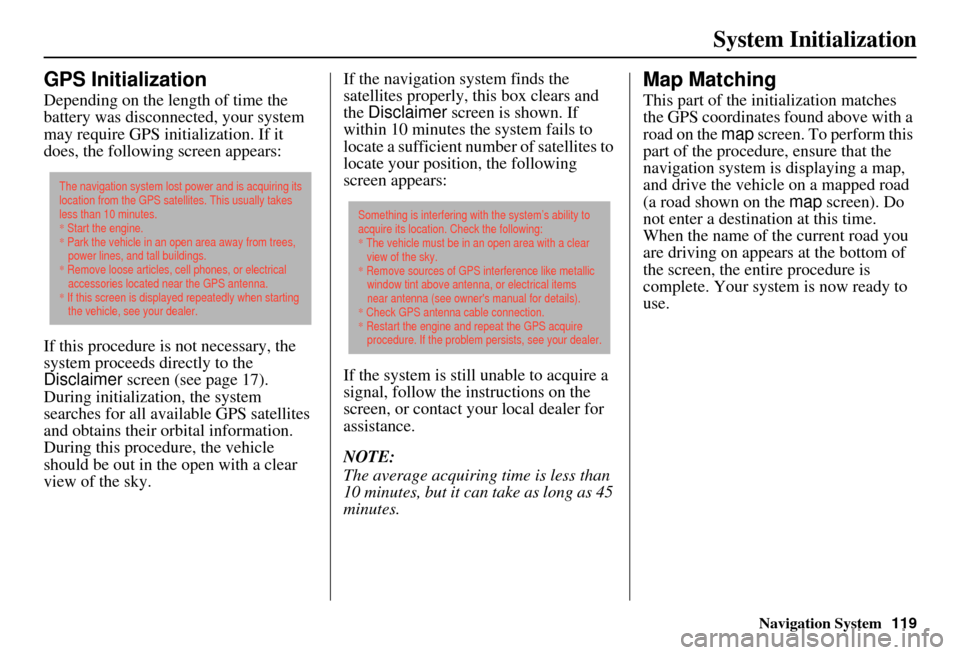
GPS Initialization
Depending on the length of time the
battery was disconnected, your system
may require GPS initialization. If it
does, the following screen appears:
If this procedure is not necessary, the
system proceeds directly to the
Disclaimer screen (see page 17).
During initialization, the system
searches for all available GPS satellites
and obtains their orbital information.
During this procedure, the vehicle
should be out in th e open with a clear
view of the sky. If the navigation system finds the
satellites properly, this box clears and
the
Disclaimer screen is shown. If
within 10 minutes the system fails to
locate a sufficient number of satellites to
locate your position, the following
screen appears:
If the system is still unable to acquire a
signal, follow the instructions on the
screen, or contact you r local dealer for
assistance.
NOTE:
The average acquiring time is less than
10 minutes, but it can take as long as 45
minutes.
Map Matching
This part of the initialization matches
the GPS coordinates found above with a
road on the map screen. To perform this
part of the procedure, ensure that the
navigation system is displaying a map,
and drive the vehicle on a mapped road
(a road shown on the map screen). Do
not enter a destina tion at this time.
When the name of the current road you
are driving on appears at the bottom of
the screen, the entire procedure is
complete. Your system is now ready to
use.
The navigation system lost power and is acquiring its
location from the GPS satellites. This usually takes
less than 10 minutes.
* Start the engine.
* Park the vehicle in an open area away from trees,
power lines, and tall buildings.
* Remove loose articles, cell phones, or electrical
accessories located near the GPS antenna.
* If this screen is displayed repeatedly when starting
the vehicle, see your dealer.
Something is interfering with the system’s ability to
acquire its location. Check the following:
* The vehicle must be in an open area with a clear
view of the sky.
* Remove sources of GPS interference like metallic
window tint above antenna, or electrical items
near antenna (see owner's manual for details).
* Check GPS antenna cable connection.
* Restart the engine and repeat the GPS acquire
procedure. If the problem persists, see your dealer.
Page 122 of 176
Navigation System121
System Limitations
The destination icon shows the
approximate location of the destination.
This occurs because a city block can
have as many as 100 possible addresses
(for example, the 1400 block is followed
by the 1500 block). Since most cities
use only a portion of the 100 possible
addresses (for example, in the 1400
block, the addresses may only go up to
1425 before the 1500 block starts), the
address 1425 will be shown a quarter of
the way down the block by the system
instead of at the end of the block where
the destination is actually located.
You may find that the system
occasionally reboots. This is indicated
by the display returning to the globe
screen. A reboot can be caused by a
number of things, such as extreme
temperatures or shock from bumpy
roads. It does not necessarily indicate a
problem that requires service. If this
happens frequently, please see your
dealer.
Page 126 of 176
Navigation System125
Client Assistance
Visiting Your Dealer
We strive to make this manual as
complete as possible and to answer all
questions regarding operation of the
system. Occasionally, you may run into
a specific issue that you cannot find in
the book. You may save yourself a trip
to the dealer by fi rst consulting the
following resources:
• The Troubleshooting section (see page 154).
• The Frequently Asked Questions (FAQs) section (see page 146).
• The FAQs found on the online DVD order site (see “Obtaining a
Navigation Update DVD”).
• For detailed questions regarding HFL, audio, or other systems that
interact with the navigation system,
see your Owner’s Manual, or the
Advanced Technology Guide.
• For traffic-related issues, see the “Real-Time Traffic Display” section
(on page 22) and FAQs (on
page 146). • Call Acura Client Services (see
“Acura Automobile Client Services”
on page 124).
• For database or PO I issues, follow the
guidelines in the “Reporting Errors”
section (see page 124).
If your question is still unanswered and
you wish to visit the dealer, please be
prepared to demonstrate the issue to the
service consultant. That way, the service
consultant can document the issue for
the factory to allo w more efficient
troubleshooting.
Some issues may at first seem random,
but you may notice a pattern. For
example, they only occur when you
enter a specific address, or when driving
on a certain road, or just when it’s cold.
This information is very useful to the
service consultant. Be patient, the
service consultant may be unfamiliar
with your specific issue.
Obtaining a Navigation
Update DVD
Acura is continually expanding the
scope of the navigation system.
Upgraded software may be made
available to navigation system owners
periodically, usually in the fall of each
year.
To purchase an updated DVD or a
replacement DVD, call the Acura
Navigation Disc Fulfillment Center at
(888) 549-3798. You can also order
online by going to the Acura Store link
at www.acuranavi.com.
NOTE:
DVDs are not available at your dealer. However, the dealer may
order a DVD for you as a courtesy.
There is no program for free DVD
updates.
The DVD order line staff cannot answer technical questions regarding
navigation operation, coverage, or
POIs.
Page 127 of 176

126Navigation System
Client Assistance
Changing the DVD
NOTE:
The system’s database is stored on a
removable DVD. The system will not
work without the DVD. Ensure the door
remains closed at all times.
1. Locate the control unit. Open the cover located below the transmission
shift lever on the passenger’s side.
2. Remove the DVD wh ile the ignition
switch is in the ACCESSORY (I)
position or in the ON (II) position. 3. Push the OPEN
button. An error
message will be displayed on the
screen. This is normal.
4. Push the Eject button. The DVD will
automatically come out. 5. Pull the DVD straight out. Hold the
DVD by the edges. Fingerprints,
scratches, or other contamination on
the playing surface can make the
DVD unreadable.
To install the DVD, make sure the white
label is facing up. Slide the DVD into
the slot. The DVD is automatically
pulled into the control unit. Make sure
you close the door.
Page 144 of 176
Navigation System143
Operation in Alaska and
Hawaii
Certain functions that rely on a satellite
signal will not work in Alaska and
Hawaii. These functions include but are
not limited to AcuraLink, NavTraffic,
Weather, automatic clock updates, and
time zone adjustments.
Alaska
If the vehicle was purchased in the
lower 48 states and driven to Alaska, the
system cannot display maps. The
message “Vehicle is out of the
database...” will be displayed.
Hawaii
This section describes the differences in
navigation system operation for vehicles
delivered in Hawaii.
XM Radio
Navigation vehicles delivered to Hawaii
are equipped with XM hardware, but
XM broadcasting is not available;
therefore sections of the manual that
mention XM audio, traffic displays,
weaher information, and AcuraLink
features do not apply. Vehicles
originally delivered to the U.S.
mainland and shipped to Hawaii also
have XM, but will not function because
the XM satellites (aimed toward the
U.S. mainland) are too far away to
obtain reception.
Map Coverage
All roads displayed on the Hawaii map
screens are detailed coverage roads.
Text related to “unverified” roads or
areas are not applicable. The following
topics do not apply in Hawaii:
• Unverified road descriptions (see page 6 and 101).
• Cautions and pop-up windows related to unverified roads (see page 71). • Setup entries that relate to turning on
or off unverified routing (see
page 102).
• When zooming in and out, there is no 350-mile scale for Hawaii.
Other Map Issues
• See the coverage section for a list of islands with coverage (see page 128).
• The map scale “traffic” indicator, shown beneath the map scale bar,
may show at vehicle start but
disappear later. This is normal.
• Freeway Exit information does not exist in Hawaii, so the “Freeway Exit
Info” icon is not shown on the icon
bar.
Coverage Areas