CD changer Acura RDX 2011 Owner's Guide
[x] Cancel search | Manufacturer: ACURA, Model Year: 2011, Model line: RDX, Model: Acura RDX 2011Pages: 517, PDF Size: 27.89 MB
Page 262 of 517
General Information●When using CD-R/CD-RW discs,
use only high quality CDs labeled
for audio use.●When recording a CD-R/CD-RW,
the recording must be closed for it
to be used by the system.●Play only standard round CDs.
Odd-shaped CDs may jam in the
drive or cause other problems.●Handle your CDs properly to
prevent damage and skipping.
Protecting CDsWhen a CD is not being played, store
it in its case to protect it from dust
and other contamination. To prevent
warpage, keep CDs out of direct
sunlight and extreme heat.
To clean a CD, use a clean soft cloth.
Wipe across the CD from the center
to the outside edge.
A new CD may be rough on the inner
and outer edges. The small plastic
pieces causing this roughness can
flake off and fall on the recording
surface of the CD, causing skipping
or other problems. Remove these
pieces by rubbing the inner and
outer edges with the side of a pencil
or pen.
Never try to insert foreign objects in
the disc changer.
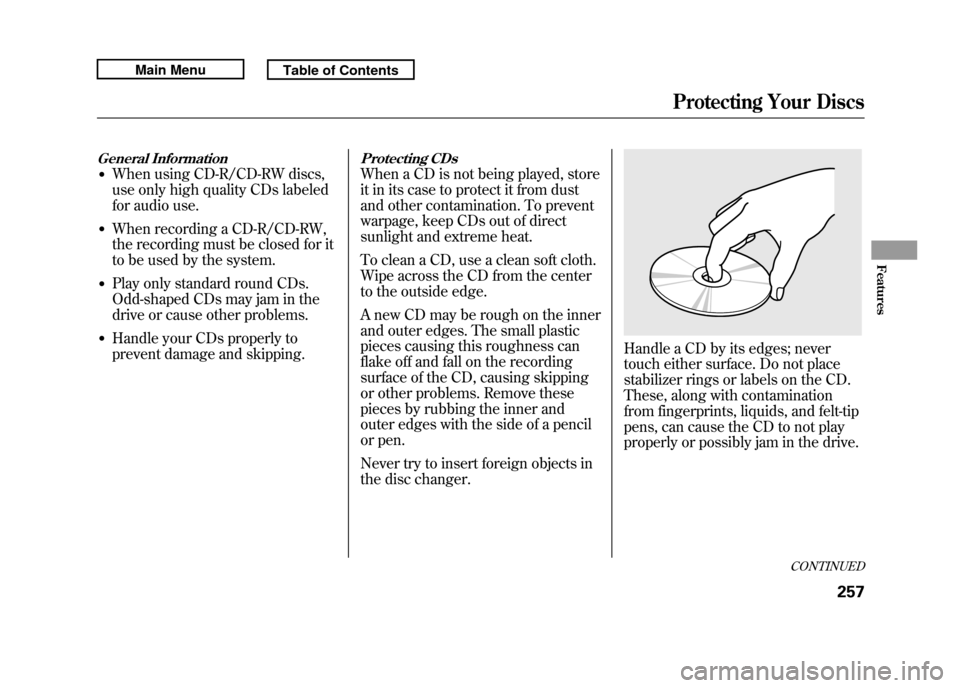
Handle a CD by its edges; never
touch either surface. Do not place
stabilizer rings or labels on the CD.
These, along with contamination
from fingerprints, liquids, and felt-tip
pens, can cause the CD to not play
properly or possibly jam in the drive.
CONTINUED
Protecting Your Discs
257
Features
10/06/08 17:42:32 11 ACURA RDX MMC North America Owner's M 50 31STK640 enu
Page 263 of 517
Additional Information on
Recommended Discs
The in-dash disc player/changer has
a sophisticated and delicate
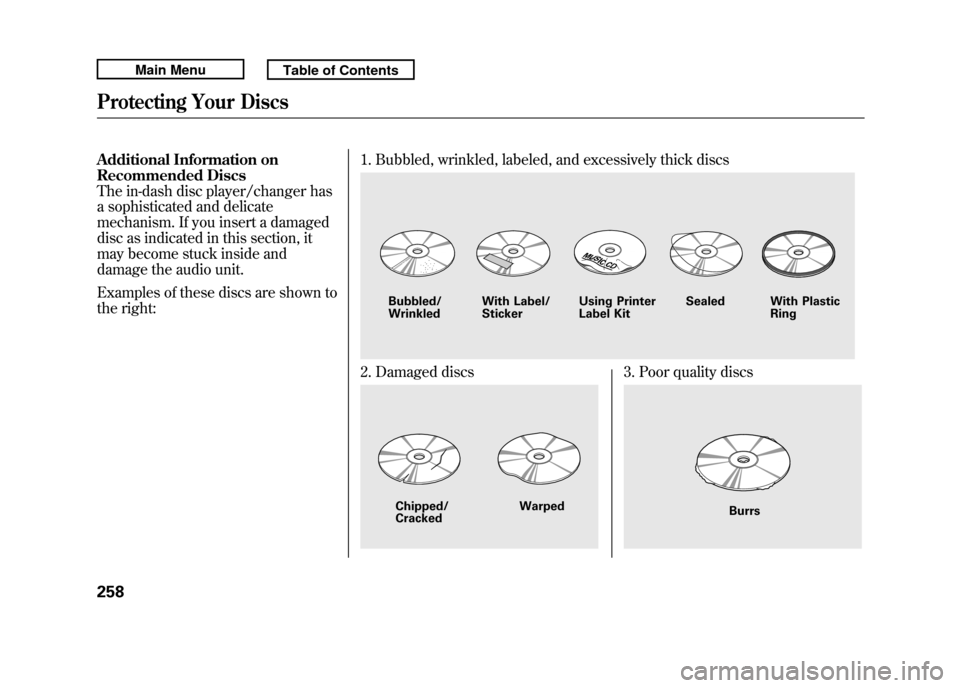
mechanism. If you insert a damaged
disc as indicated in this section, it
may become stuck inside and
damage the audio unit.
Examples of these discs are shown to
the right:1. Bubbled, wrinkled, labeled, and excessively thick discs
2. Damaged discs
3. Poor quality discs
Bubbled/
Wrinkled
With Label/
Sticker Using Printer
Label Kit Sealed With Plastic
RingChipped/
Cracked Warped
Burrs
Protecting Your Discs25810/06/08 17:42:32 11 ACURA RDX MMC North America Owner's M 50 31STK640 enu
Page 267 of 517

To Play an iPod
®
This audio system can operate the
audio files on the iPod
®with the
same controls used for the in-dash
disc changer. To play an iPod,
connect it to the USB adapter cable
in the console compartment by using
your dock connector, then press the
DISC/AUX button. The ignition
switch must be in the ACCESSORY
(I) or ON (II) position. The iPod will
also be recharged with the ignition
switch in these positions.
The system will only play songs
stored on the iPod with iTunes.
iPod and iTunes are registered
trademarks owned by Apple Inc.
Voice Control SystemYou can select the AUX mode by
using the navigation system voice
control buttons, but cannot operate
the play mode functions. iPods compatible with your audio
system using the USB adapter cable
are:
Model Software
iPod classic Ver. 1.0 or more
iPod with
video
(iPod 5th
generation) Ver. 1.2 or more
iPod nano Ver. 1.2 or more
iPod nano 2nd
generation Ver. 1.1.2 or more
iPod nano 3rd
generation Ver. 1.0 or more
iPod nano 4th
generation Ver. 1.0.2 or more
iPod touch Ver. 1.1.1 or more
iPod touch
2nd generation Ver. 2.1.1 or more
iPhone Ver. 2.1.0 or more
iPhone 3G Ver. 2.1.0 or more Use only compatible iPods with the
latest software. iPods that are not
compatible will not work in this audio
unit.
NOTE:
●Do not connect your iPod using a
hub.●Do not keep the iPod in the
vehicle. Direct sunlight and high
heat will damage it.●Do not use an extension cable
between the USB adapter cable
equipped with your vehicle and
your dock connector.●We recommend backing up your
data before playing it.●Some devices cannot be powered
or charged via the USB adapter, if
this is the case use the accessory
adapter to supply power to your
device.
Playing an iPod
®(Models with navigation system)
26210/06/08 17:42:32 11 ACURA RDX MMC North America Owner's M 50 31STK640 enu
Page 277 of 517

To Play a USB Flash Memory
Device
This audio system can operate the
audio files on a USB flash memory
device with the same controls used
for the in-dash disc changer. To play
a USB flash memory device, connect
it to the USB adapter cable in the
console compartment, then press the
DISC/AUX button. The ignition
switch must be in the ACCESSORY
(I) or ON (II) position.The audio system reads and plays
the audio files on the USB flash
memory device in MP3, WMA or
AAC
ꭧformats. Depending on the
format, the audio control display
shows MP3, WMA or AAC when a
USB flash memory device is playing.
The USB flash memory device limit
is up to 700 folders or up to 65535
files.
ꭧ : Only AAC format files recorded
with iTunes are playable on this
audio unit. The recommended USB flash
memory devices are 256 MB or
higher, and formatted with the FAT
file system. Some digital audio
players may be compatible as well.
Some USB flash memory devices
(such as devices with security lock-
out features, etc.) will not work in
this audio unit.
Even if recorded in MP3, WMA or
AAC format, unsupported files
cannot be played. If the system finds
it, the audio unit displays
UNPLAYABLE, and then skips to the
next file.
Playing a USB Flash Memory Device (Models with navigation system)27210/06/08 17:42:32 11 ACURA RDX MMC North America Owner's M 50 31STK640 enu
Page 296 of 517
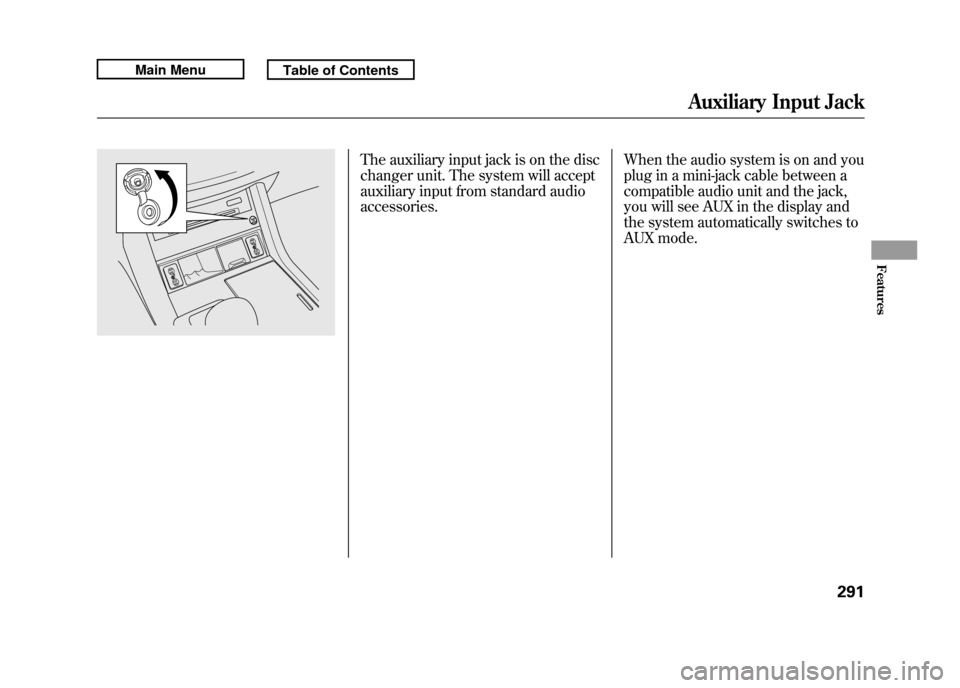
The auxiliary input jack is on the disc
changer unit. The system will accept
auxiliary input from standard audio
accessories.When the audio system is on and you
plug in a mini-jack cable between a
compatible audio unit and the jack,
you will see AUX in the display and
the system automatically switches to
AUX mode.
Auxiliary Input Jack
291
Features
10/06/08 17:42:32 11 ACURA RDX MMC North America Owner's M 50 31STK640 enu
Page 506 of 517

Customized Settings
....................
82
D
DANGER, Explanation of
.............
iii
Dashboard
...............................
3, 62
Daytime Running Lights
............
119
Dead Battery
..............................
461
Defects, Reporting Safety
...........
496
Defogger, Rear Window
.............
121
Defrosting the Windows
............
167
Dimensions
................................
480
Dimming the Headlights
............
116
Dipstick
Automatic Transmission
.........
427
Engine Oil
...............................
356
Directional Signals
...............
69, 116
Disc Brake Wear Indicators.......
387
Disc Care
...................................
257
Disc Changer
......................
185, 239
Disc Changer Error Messages
........................
195, 255
Disc Player
..........................
185, 239
Disposal of Used Oil
...................
423 Doors
Childproof Door Locks
............
127
Locking and Unlocking
...........
126
Power Door Locks
..................
126
DOT Tire Quality Grading (U.S. Vehicles)
................................
482
Driver and Passenger Safety
..........
5
Driving
.......................................
371
Economy
.................................
358
Driving Guidelines
.....................
372
Driving Position Memory System
...................................
148
Driving with the Paddle Shifters
...................................
380
Dust and Pollen Filter
................
439
E
Economy, Fuel
...........................
358
Emergencies on the Road
..........
453
Battery, Jump Starting
.............
461
Brake System Indicator
...
467, 468
Changing a Flat Tire
...............
455
Charging System Indicator
........................
65, 465 Checking the Fuses
................
470
Driving with a Flat Tire
...........
454
Hazard Warning Flashers
.......
121
Jump Starting
..........................
461
Low Oil Pressure Indicator
........................
65, 465
Malfunction Indicator Lamp
.............................
65, 466
Overheated Engine
.................
463
Towing
....................................
475
Emergency Brake
......................
150
Emergency Flashers
..................
121
Emergency Towing
....................
475
Emissions Controls
....................
487
Emissions Testing
......................
490
CONTINUED
Index
III
INDEX
10/06/08 17:42:32 11 ACURA RDX MMC North America Owner's M 50 31STK640 enu