AUX Acura RDX 2011 Owner's Manual
[x] Cancel search | Manufacturer: ACURA, Model Year: 2011, Model line: RDX, Model: Acura RDX 2011Pages: 517, PDF Size: 27.89 MB
Page 9 of 517
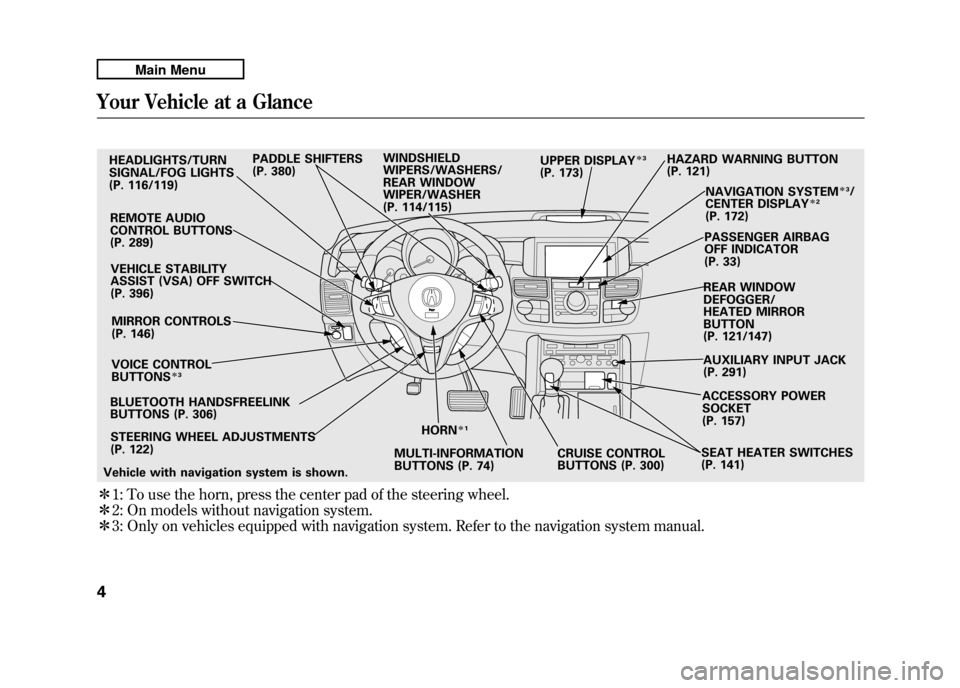
ꭧ1: To use the horn, press the center pad of the steering wheel.
ꭧ 2: On models without navigation system.
ꭧ 3: Only on vehicles equipped with navigation system. Refer to the navigation system manual.HEADLIGHTS/TURN
SIGNAL/FOG LIGHTS
(P. 116/119)
REMOTE AUDIO
CONTROL BUTTONS
(P. 289)VEHICLE STABILITY
ASSIST (VSA) OFF SWITCH
(P. 396)
MIRROR CONTROLS
(P. 146)
VOICE CONTROL
BUTTONS
ꭧ 3
BLUETOOTH HANDSFREELINK
BUTTONS (P. 306)
STEERING WHEEL ADJUSTMENTS
(P. 122) HORN
ꭧ
1
MULTI-INFORMATION
BUTTONS (P. 74) CRUISE CONTROL
BUTTONS (P. 300)SEAT HEATER SWITCHES
(P. 141)ACCESSORY POWER
SOCKET
(P. 157)
AUXILIARY INPUT JACK
(P. 291) REAR WINDOW
DEFOGGER/
HEATED MIRROR
BUTTON
(P. 121/147)PASSENGER AIRBAG
OFF INDICATOR
(P. 33)
NAVIGATION SYSTEM
ꭧ
3/
CENTER DISPLAY
ꭧ 2
(P. 172)
HAZARD WARNING BUTTON
(P. 121)
PADDLE SHIFTERS
(P. 380) WINDSHIELD
WIPERS/WASHERS/
REAR WINDOW
WIPER/WASHER
(P. 114/115) UPPER DISPLAY
ꭧ
3
(P. 173)
Vehicle with navigation system is shown.
Your Vehicle at a Glance410/06/08 17:42:32 11 ACURA RDX MMC North America Owner's M 50 31STK640 enu
Page 118 of 517
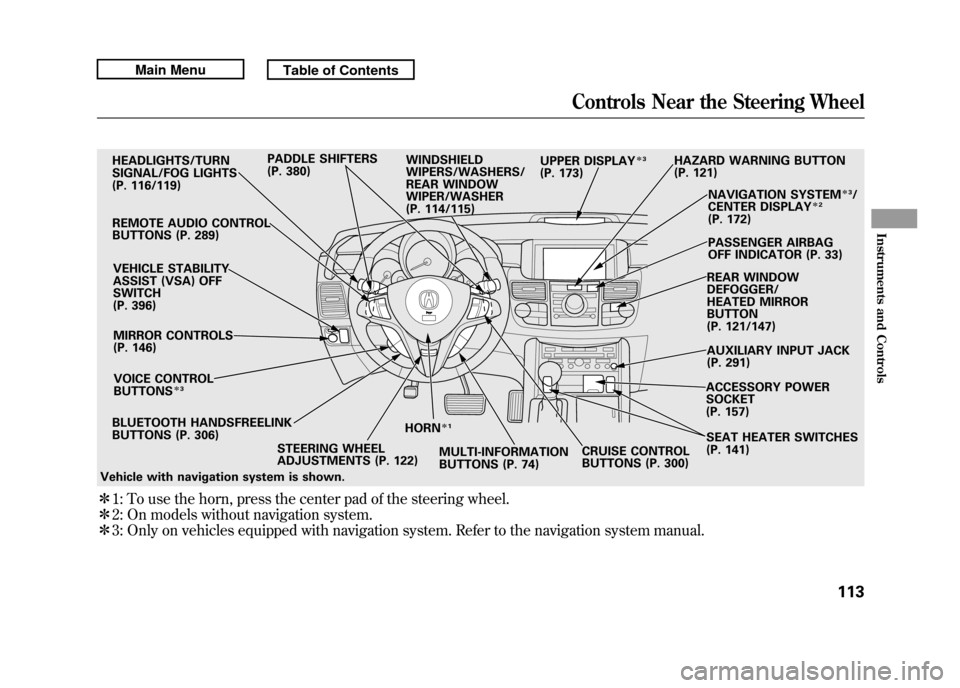
ꭧ1: To use the horn, press the center pad of the steering wheel.
ꭧ 2: On models without navigation system.
ꭧ 3: Only on vehicles equipped with navigation system. Refer to the navigation system manual.BLUETOOTH HANDSFREELINK
BUTTONS (P. 306) HORN
ꭧ
1
STEERING WHEEL
ADJUSTMENTS (P. 122) MULTI-INFORMATION
BUTTONS (P. 74)CRUISE CONTROL
BUTTONS (P. 300)SEAT HEATER SWITCHES
(P. 141)
HEADLIGHTS/TURN
SIGNAL/FOG LIGHTS
(P. 116/119)
REMOTE AUDIO CONTROL
BUTTONS (P. 289) VEHICLE STABILITY
ASSIST (VSA) OFF
SWITCH
(P. 396)MIRROR CONTROLS
(P. 146)
VOICE CONTROL
BUTTONS
ꭧ 3
HAZARD WARNING BUTTON
(P. 121)
PADDLE SHIFTERS
(P. 380)
WINDSHIELD
WIPERS/WASHERS/
REAR WINDOW
WIPER/WASHER
(P. 114/115) NAVIGATION SYSTEM
ꭧ
3/
CENTER DISPLAY
ꭧ 2
(P. 172)
PASSENGER AIRBAG
OFF INDICATOR (P. 33)
REAR WINDOW
DEFOGGER/
HEATED MIRROR
BUTTON
(P. 121/147)
AUXILIARY INPUT JACK
(P. 291)
ACCESSORY POWER
SOCKET
(P. 157)
UPPER DISPLAY
ꭧ
3
(P. 173)
Vehicle with navigation system is shown.
Controls Near the Steering Wheel
113
Instruments and Controls
10/06/08 17:42:32 11 ACURA RDX MMC North America Owner's M 50 31STK640 enu
Page 159 of 517
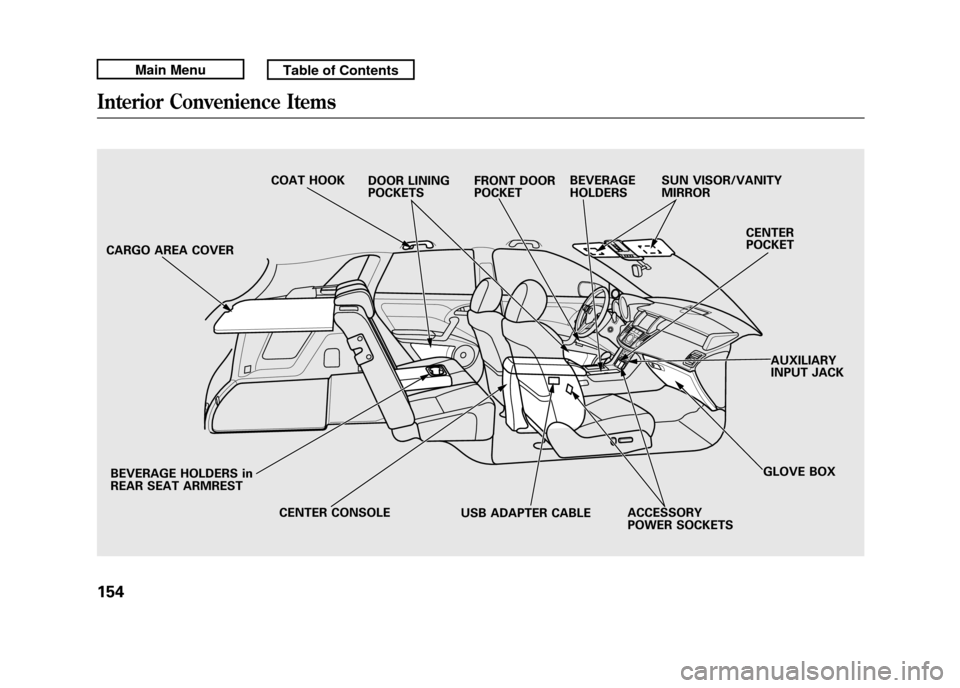
CARGO AREA COVERBEVERAGE HOLDERS in
REAR SEAT ARMREST CENTER CONSOLE ACCESSORY POWER SOCKETSGLOVE BOX
CENTER
POCKET
SUN VISOR/VANITY
MIRROR
BEVERAGE
HOLDERS
FRONT DOOR
POCKET
DOOR LINING
POCKETS
COAT HOOK
AUXILIARY
INPUT JACK
USB ADAPTER CABLEInterior Convenience Items15410/06/08 17:42:32 11 ACURA RDX MMC North America Owner's M 50 31STK640 enu
Page 168 of 517

The climate control system in your vehicle
provides a comfortable driving
environment in all weather conditions.
The standard audio system has many
features. This section describes those
features and how to use them.
Your vehicle has an anti-theft audio system
that requires a code number to enable it.
The security system helps to discourage
vandalism and theft of your vehicle.On models with navigation systemThe climate control system and the audiosystem have a voice control feature. Referto the navigation system manual for more
information.Climate Control System
....................
164
Dual Temperature Control
.............
169
Climate Control Sensors
................
171
Audio System
..................................
172
Playing the FM/AM Radio (Models without navigation system)
........
174
To Play the Radio
.........................
174
Adjusting the Sound
.....................
177
Playing the XM
®Radio (Models
without navigation system)
............
179
Playing Discs (Models without navigation system)
.......................
185 Disc Changer Error Messages
(Models without navigationsystem)
..................................
195
Playing an iPod
®(Models without
navigation system)
.......................
197
iPod
®Error Messages (Models
without navigation system)
............
203
Playing a USB Flash Memory Device (Models without navigationsystem)
..................................
204
USB Flash Memory Device Error Messages (Models without
navigation system)
...................
211
Bluetooth
®Audio System (Models
without navigation system)
............
212
Audio System (Models with navigation system)
..................................
216
Interface Dial
..............................
216
Playing the FM/AM Radio (Models
with navigation system)
.............
217
Adjusting the Sound
.....................
224
Playing the XM
®Radio (Models with
navigation system)
.......................
228
Playing Discs (Models with navigation system)
......................................
239
Disc Changer Error Messages
(Models with navigationsystem)
..................................
255 Protecting Your Discs
.......................
257
Playing an iPod
®(Models with
navigation system)
.......................
260
iPod
®Error Messages (Models with
navigation system)
.......................
269
Playing a USB Flash Memory Device (Models with navigation
system)
..................................
270
USB Flash Memory Device Error Messages (Models with navigation
system)
..................................
279
Bluetooth
®Audio System (Models with
navigation system)
.......................
280
FM/AM Radio Reception
..................
287
Remote Audio Controls
.....................
289
Auxiliary Input Jack
..........................
291
Radio Theft Protection
......................
292
Setting the Clock
.............................
293
Security System
...............................
294
Compass
........................................
295
Compass Operation
....................
295
Cruise Control
.................................
300
HomeLink
®Universal Transceiver
......
303
Bluetooth
®HandsFreeLink
®..............
306
AcuraLink
®(U.S. models only)
...........
332
Rearview Mirror with Rearview
Camera Display
...........................
348
Features
163
Features
10/06/08 17:42:32 11 ACURA RDX MMC North America Owner's M 50 31STK640 enu
Page 191 of 517
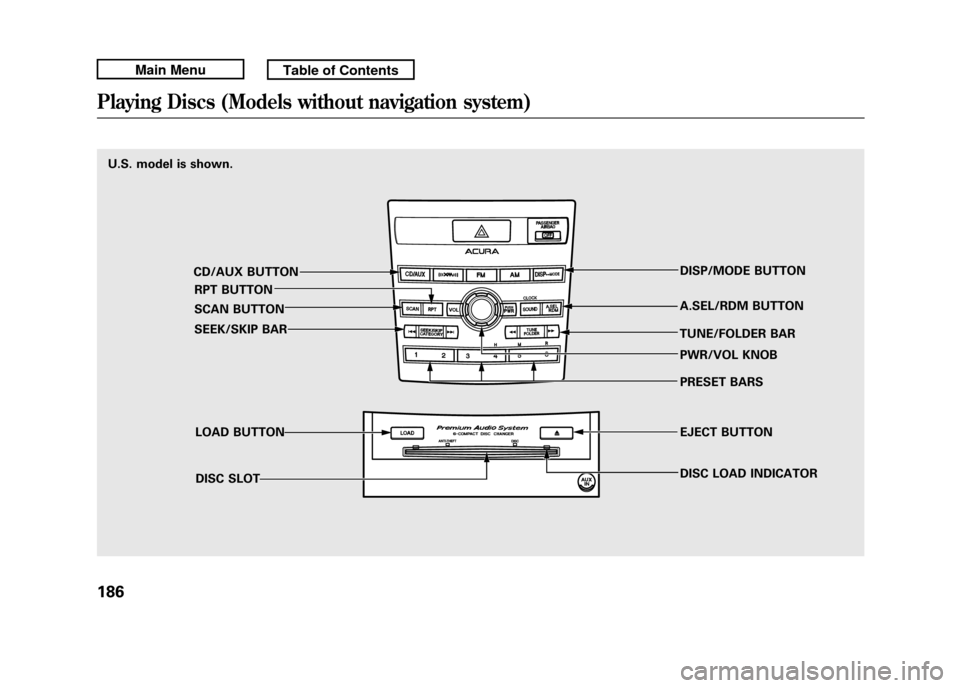
U.S. model is shown.CD/AUX BUTTONRPT BUTTON
SCAN BUTTON
SEEK/SKIP BAR
LOAD BUTTONDISC SLOT DISP/MODE BUTTON
A.SEL/RDM BUTTON
TUNE/FOLDER BAR PWR/VOL KNOB
PRESET BARS
EJECT BUTTON
DISC LOAD INDICATORPlaying Discs (Models without navigation system)18610/06/08 17:42:32 11 ACURA RDX MMC North America Owner's M 50 31STK640 enu
Page 194 of 517

3. You will see‘‘DISC READ ’’on the
center display, then the system
begins to play the CD.
You can load a CD into an empty
position while a CD is playing. Select
the empty position (the disc indicator
is not shown on the center display)
by pressing the appropriate side of
the preset bars. The current CD
stops playing and starts the loading
sequence. The CD just loaded will
play.
You can load a disc(s) in any mode
(AM, FM, XM, or AUX) if you do not
select an empty position.
If you press the LOAD button while a
disc is playing, the system will stop
playing that disc and start the loading
sequence. It will then play the disc
just loaded. To Play a CD
Select the CD changer by pressing
the CD/AUX button. You will see
‘‘
CD ’’on the center display. The
system will begin playing the last
selected CD in the CD changer. You
will see the disc and track numbers
displayed.
When the system reaches the end of
the disc, the system will advance to
the next disc and begin to play. To
select a different disc, press an
appropriate side of the preset bar
(1 - 6). If you select an empty
position in the CD changer, the
system will try to load the CD in the
empty slot. Playing an MP3/WMA Disc
The CD changer can play CD-Rs and
CD-RWs compressed in MP3 and
WMA format. When playing a disc in
MP3 or WMA, you will see
‘‘MP3 ’’or
‘‘ WMA’’ on the center display. A disc
can support more than 99 folders,
and each folder can hold up to 255
playable files.
When there are more than 99 folders
on a disc, the center display only
shows two digits.
CONTINUED
Playing Discs (Models without navigation system)
189
Features
10/06/08 17:42:32 11 ACURA RDX MMC North America Owner's M 50 31STK640 enu
Page 199 of 517

To Pause a Disc
To pause a disc, press the
corresponding number of the current
disc on the appropriate side of the
preset bars. To play the disc again,
press the preset bar again.
To Stop Playing a Disc
If you turn the system off while a CD
is playing, either with the PWR/VOL
knob or by turning off the ignition
switch, the disc will stay in the drive.
When you turn the system back on,
the CD will begin playing where it
left off.
To take the system out of CD mode,
press the AM or FM, CD/AUX, or
button. To return to CD mode,
press the CD/AUX button. The
system will continue at the same
point that it left off. Removing CDs from the Changer
To remove the disc that is currently
playing, press and release the eject
(
) button. You will see
‘‘EJECT ’’
on the center display. When you
remove the disc from the slot, the
system begins the load sequence so
you can load another disc in that
position. If you do not load another
CD within 10 seconds, the system
selects the previous mode (AM,
FM1, FM2, or XM).
If you do not remove the CD from
the slot, the system will reload the
CD after 10 seconds and put the CD
changer in pause mode. To begin
playing the CD, press the CD/AUX
button.
To remove a different CD from the
changer, select it with the
appropriate side of the preset bar.
When that CD begins playing, press
the eject button. Press and hold the eject button until
you hear a beep to remove all the
discs from the changer.
You can also eject discs when the
ignition switch is off by pressing the
eject button. The disc that was last
selected is ejected first. You can eject
the rest of the discs one at a time.
Protecting Discs
For information on how to handle
and protect compact discs, see page
257.
Disc Changer Error Messages
For information, see page 195.
Adjusting the Sound
For information, see page 177.
Playing Discs (Models without navigation system)19410/06/08 17:42:32 11 ACURA RDX MMC North America Owner's M 50 31STK640 enu
Page 202 of 517
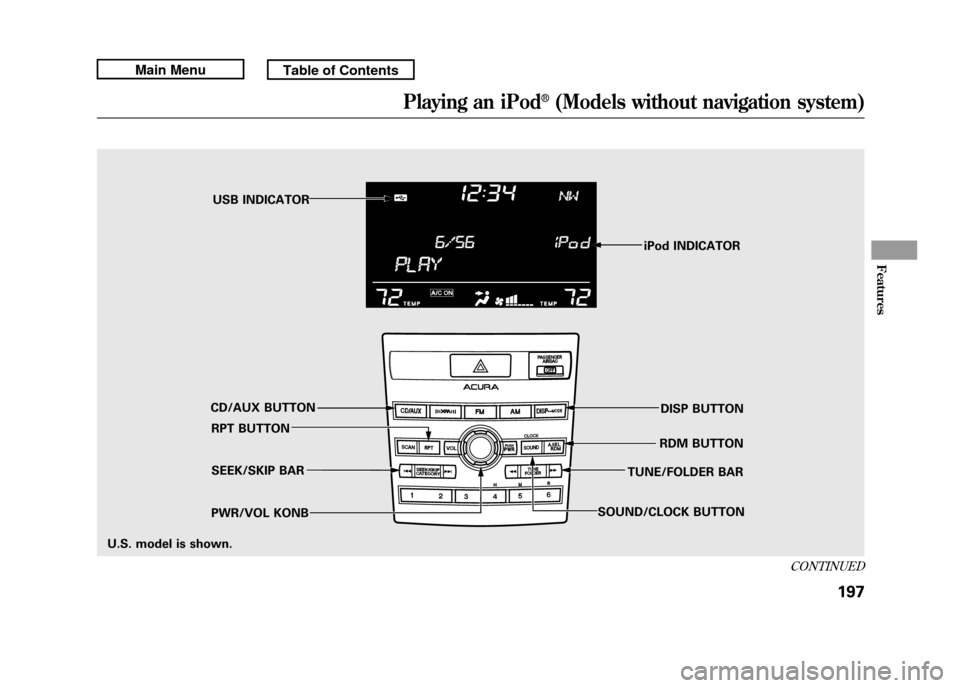
iPod INDICATOR
RPT BUTTON SEEK/SKIP BAR
PWR/VOL KONB RDM BUTTON
CD/AUX BUTTON USB INDICATOR
DISP BUTTON
SOUND/CLOCK BUTTON TUNE/FOLDER BAR
U.S. model is shown.
CONTINUED
Playing an iPod
®(Models without navigation system)
197
Features
10/06/08 17:42:32 11 ACURA RDX MMC North America Owner's M 50 31STK640 enu
Page 203 of 517

To Play an iPod
®
This audio system can operate the
audio files on the iPod
®with the
same controls used for the disc
player. To play an iPod, connect it to
the USB adapter cable in the console
compartment by using your dock
connector, then press the CD/AUX
button. The ignition switch must be
in the ACCESSORY (I) or ON (II)
position. The iPod will also be
charged with the ignition switch in
these positions.
The audio system reads and plays
sound files to be playable on the
iPod. The system cannot operate an
iPod as a mass storage device. The
system will only play songs stored on
the iPod with iTunes.
iPod and iTunes are registered
trademarks owned by Apple Inc. iPods compatible with your audio
system using the USB adapter cable
are:
Model Software
iPod classic Ver. 1.0 or more
iPod with
video
(iPod 5th
generation) Ver. 1.2 or more
iPod nano Ver. 1.2 or more
iPod nano 2nd
generation Ver. 1.1.2 or more
iPod nano 3rd
generation Ver. 1.0 or more
iPod nano 4th
generation Ver. 1.0.2 or more
iPod touch Ver. 1.1.1 or more
iPod touch
2nd generation Ver. 2.1.1 or more
iPhone Ver. 2.1.0 or more
iPhone 3G Ver. 2.1.0 or more Use only compatible iPods with the
latest software. iPods that are not
compatible will not work in this audio
unit.
NOTE:
●Do not connect your iPod using a
hub.●Do not keep the iPod in the
vehicle. Direct sunlight and high
heat will damage it.●Do not use an extension cable
between the USB adapter cable
equipped with your vehicle and
your dock connector.●We recommend backing up your
data before playing it.●Some devices cannot be powered
or charged via the USB adapter, if
this is the case use the accessory
adapter to supply power to your
device.
Playing an iPod
®(Models without navigation system)
19810/06/08 17:42:32 11 ACURA RDX MMC North America Owner's M 50 31STK640 enu
Page 207 of 517

To Stop Playing Your iPod
To play the radio, press the AM/FM,
or
button. Press the CD/AUX
button to switch between disc (if a
disc is loaded),
Bluetooth
®Audio,
and the iPod.
Disconnecting an iPodYou can disconnect the iPod at any
time when you see the ‘‘OK to
disconnect ’’message
ꭧin the iPod
display. Always make sure you see
the ‘‘OK to disconnect ’’message in
the iPod display before you
disconnect it. Make sure to follow
the iPod's instructions on how to
disconnect the dock connector from
the USB adapter cable.
ꭧ : The displayed message may
vary on models or versions. On
some models, there is no
message to disconnect. If you reconnect the same iPod, the
system may begin playing where it
left off, depending on what mode the
iPod is in when it is reconnected.
iPod Error Messages
For information, see page 203.
Playing an iPod
®(Models without navigation system)
20210/06/08 17:42:32 11 ACURA RDX MMC North America Owner's M 50 31STK640 enu