change time Acura RDX 2013 User Guide
[x] Cancel search | Manufacturer: ACURA, Model Year: 2013, Model line: RDX, Model: Acura RDX 2013Pages: 364, PDF Size: 12.54 MB
Page 97 of 364
96Controls
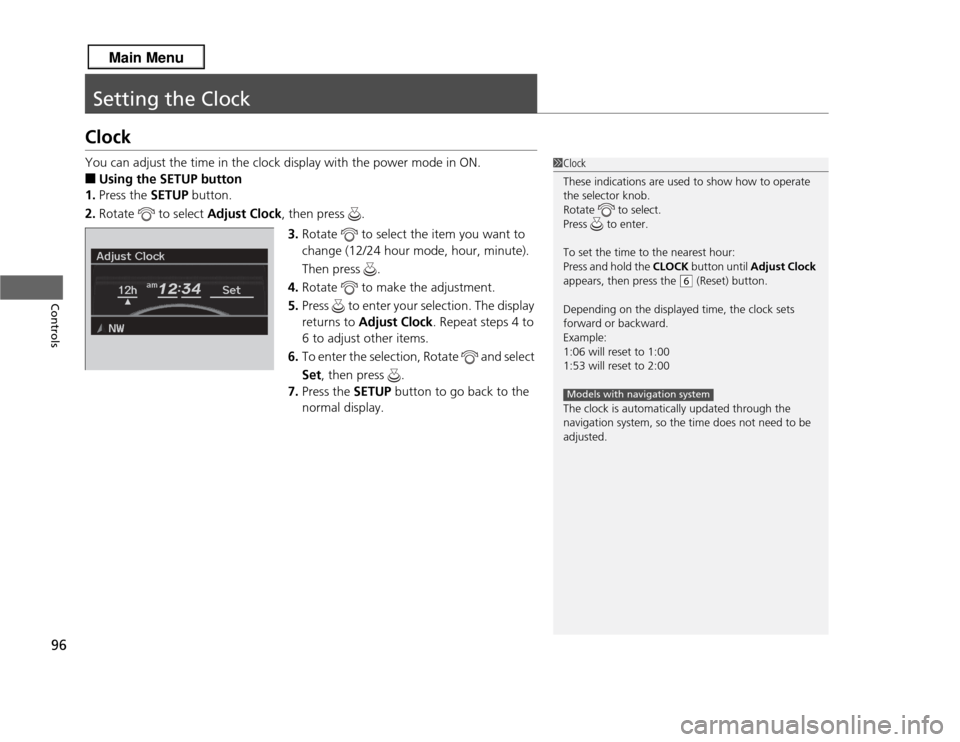
Setting the ClockClockYou can adjust the time in the clock display with the power mode in ON.■
Using the SETUP button
1. Press the SETUP button.
2. Rotate to select Adjust Clock, then press .
3. Rotate to select the item you want to
change (12/24 hour mode, hour, minute).
Then press .
4. Rotate to make the adjustment.
5. Press to enter your selection. The display
returns to Adjust Clock. Repeat steps 4 to
6 to adjust other items.
6. To enter the selection, Rotate and select
Set , then press .
7. Press the SETUP button to go back to the
normal display.
1 Clock
These indications are used to show how to operate
the selector knob.
Rotate to select.
Press to enter.
To set the time to the nearest hour:
Press and hold the CLOCK button until Adjust Clock
appears, then press the
( 6
(Reset) button.
Depending on the displayed time, the clock sets
forward or backward.
Example:
1:06 will reset to 1:00
1:53 will reset to 2:00
The clock is automatically updated through the
navigation system, so the time does not need to be
adjusted.
Models with navigation system
Page 100 of 364
99
uuLocking and Unlocking the Doors uLocking/Unlocking the Doors from the Outside
Continued
Controls
Locking/Unlocking the Doors from the Outside
■
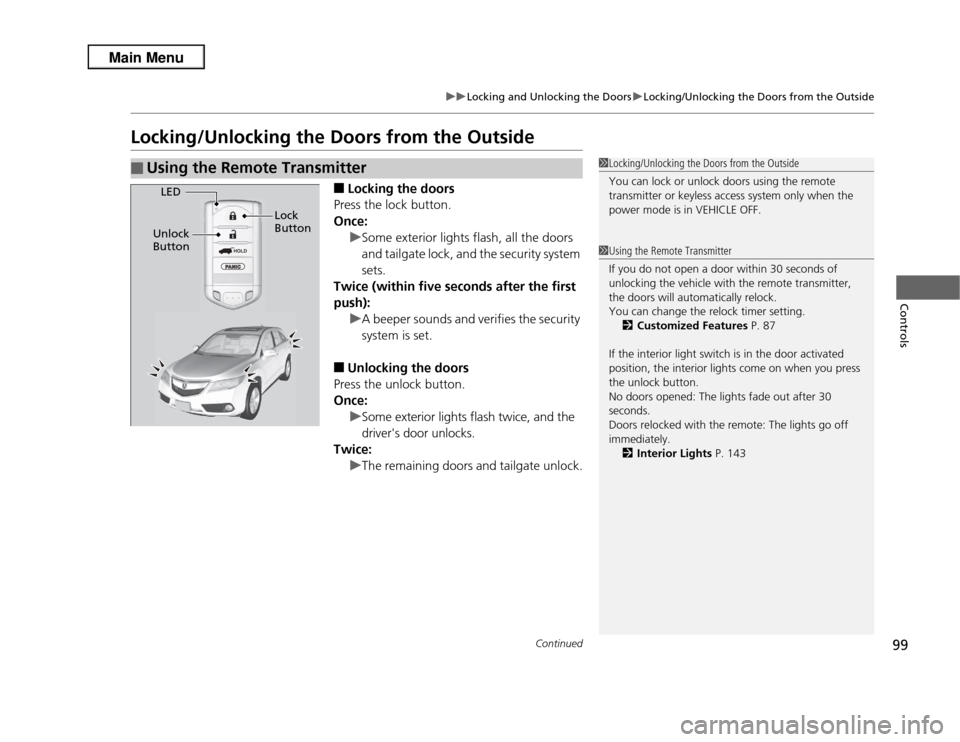
Locking the doors
Press the lock button.
Once:
uSome exterior lights flash, all the doors
and tailgate lock, and the security system
sets.
Twice (within five seconds after the first
push): uA beeper sounds and verifies the security
system is set.
■
Unlocking the doors
Press the unlock button.
Once: uSome exterior lights flash twice, and the
driver's door unlocks.
Twice:
uThe remaining doors and tailgate unlock.
■
Using the Remote Transmitter
1Locking/Unlocking the Doors from the Outside
You can lock or unlock doors using the remote
transmitter or keyless access system only when the
power mode is in VEHICLE OFF.1Using the Remote Transmitter
If you do not open a door within 30 seconds of
unlocking the vehicle with the remote transmitter,
the doors will automatically relock.
You can change the relock timer setting.
2 Customized Features P. 87
If the interior light switch is in the door activated
position, the interior lights come on when you press
the unlock button.
No doors opened: The lights fade out after 30
seconds.
Doors relocked with the remote: The lights go off
immediately. 2 Interior Lights P. 143
HOLD
LED
Unlock
Button Lock
Button
Page 115 of 364
uuSecurity System uSecurity System Alarm
114Controls
■
Setting the security system alarm
The security system alarm automatically sets when the following conditions have
been met:
• The power mode is in VEHICLE OFF (LOCK).
• The hood is closed.
• All doors and the tailgate are locked from outside with the key, remote
transmitter, or keyless access system.
■
When the security system alarm sets
The security system alarm indicator in the instrument panel blinks. When the
blinking interval changes after about 15 seconds, the security system alarm is set.
■
To cancel the security system alarm
The security system alarm is canceled when the vehicle is unlocked using the key,
remote transmitter, or keyless access system. The security system alarm indicator
goes off at the same time.
■
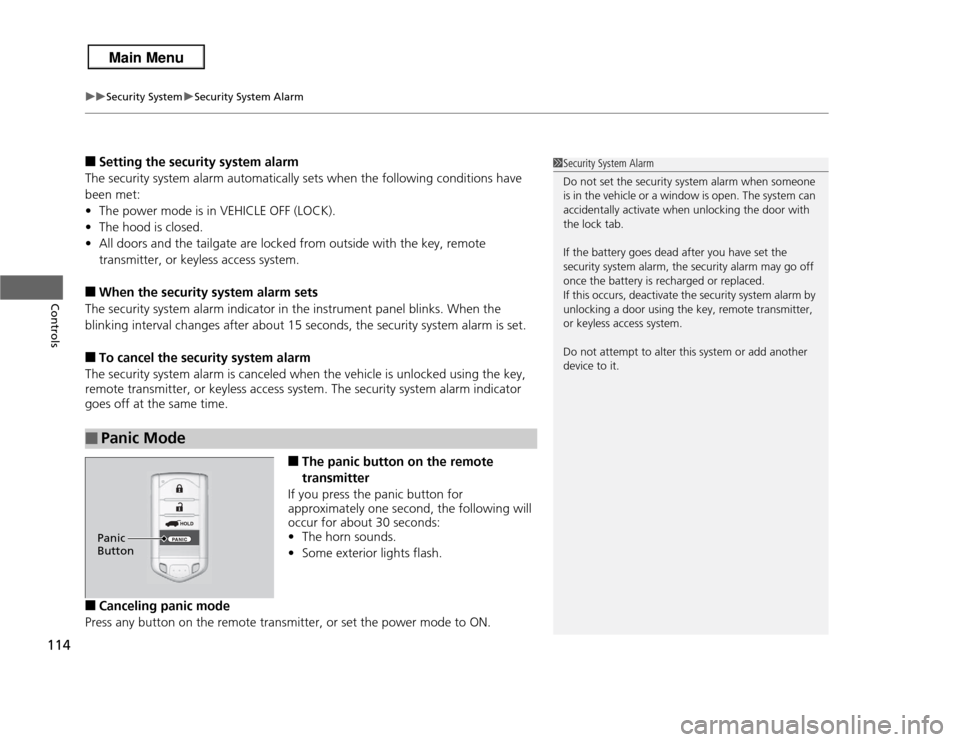
The panic button on the remote
transmitter
If you press the panic button for
approximately one second, the following will
occur for about 30 seconds:
• The horn sounds.
• Some exterior lights flash.
■
Canceling panic mode
Press any button on the remote transmitter, or set the power mode to ON.
■
Panic Mode
1 Security System Alarm
Do not set the security system alarm when someone
is in the vehicle or a window is open. The system can
accidentally activate when unlocking the door with
the lock tab.
If the battery goes dead after you have set the
security system alarm, the security alarm may go off
once the battery is recharged or replaced.
If this occurs, deactivate the security system alarm by
unlocking a door using the key, remote transmitter,
or keyless access system.
Do not attempt to alter this system or add another
device to it.
Panic
Button
Page 123 of 364
122
uuOperating the Switches Around the Steering Wheel uTurn Signals
Controls
Turn Signals
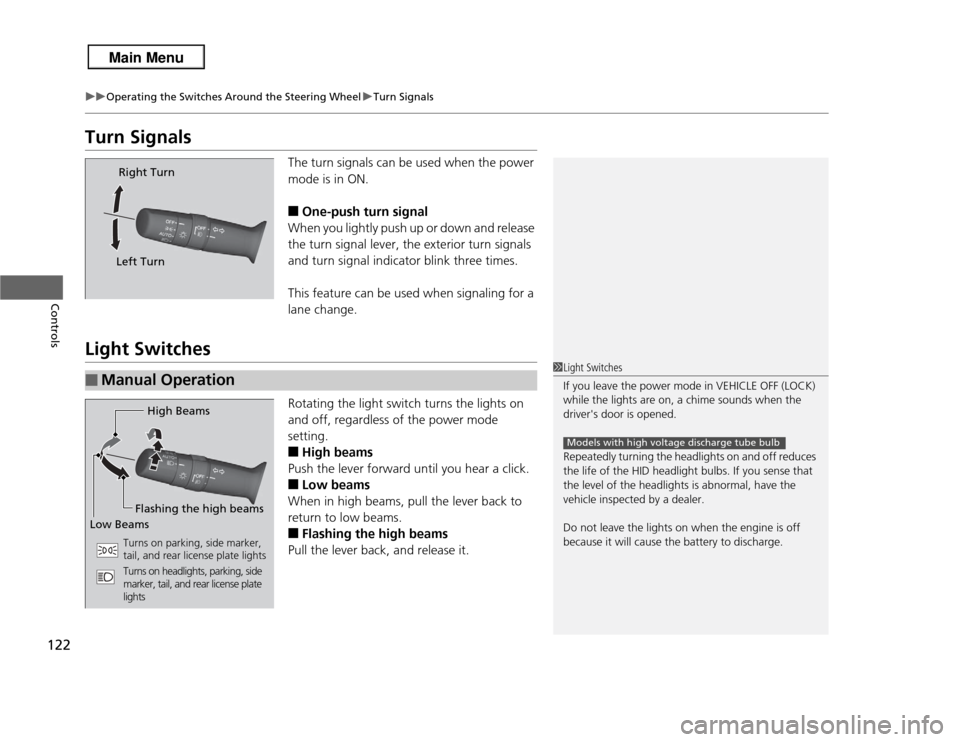
The turn signals can be used when the power
mode is in ON.■
One-push turn signal
When you lightly push up or down and release
the turn signal lever, the exterior turn signals
and turn signal indicator blink three times.
This feature can be used when signaling for a
lane change.
Light Switches
Rotating the light switch turns the lights on
and off, regardless of the power mode
setting.■
High beams
Push the lever forward until you hear a click.
■
Low beams
When in high beams, pull the lever back to
return to low beams.
■
Flashing the high beams
Pull the lever back, and release it.
Right Turn
Left Turn
■
Manual Operation
1 Light Switches
If you leave the power mode in VEHICLE OFF (LOCK)
while the lights are on, a chime sounds when the
driver's door is opened.
Repeatedly turning the headlights on and off reduces
the life of the HID headlight bulbs. If you sense that
the level of the headlights is abnormal, have the
vehicle inspected by a dealer.
Do not leave the lights on when the engine is off
because it will cause the battery to discharge.
Models with high voltage discharge tube bulb
High Beams
Flashing the high beams
Low Beams
Turns on parking, side marker,
tail, and rear license plate lights
Turns on headlights, parking, side
marker, tail, and rear license plate
lights
Page 125 of 364

uuOperating the Switches Around the Steering Wheel uLight Switches
124Controls
The headlights automatically come on when the wipers are used several times within
certain number of intervals while the headlight switch is in
#Y
.The headlights
automatically go off a few minutes after the wipers are stopped.
The headlights, all other exterior lights, and the instrument panel lights turn off
within 15 seconds after you set the power mode to VEHICLE OFF (LOCK), take the
remote with you, and close the driver's door.
uYou can change the headlight auto off timer setting.
2 Customized Features P. 87
If you set the power mode to VEHICLE OFF (LOCK) with the headlight switch on, but
do not open the door, the lights turn off after 10 minutes (three minutes, if the
switch is in the
#Y
position).
The lights turn on again when you unlock or open the driver's door. If you unlock
the door, but do not open it within 15 seconds, the lights go off. If you open the
driver's door, you will hear a lights on reminder chime.
■
Headlight Integration with Wiper
■
Automatic Lighting Off Feature
1 Headlight Integration with Wiper
*
This feature activates while the headlights are in #Y
. The instrument panel brightness does not
change when the headlights come on.
If the ambient light is dark, the automatic lighting
control overrides this feature, and the headlights
come on whether or not the wipers cycle several
times.
* Not available on all models
Page 127 of 364
126
uuOperating the Switches Around the Steering Wheel uWipers and Washers
Controls
Wipers and Washers
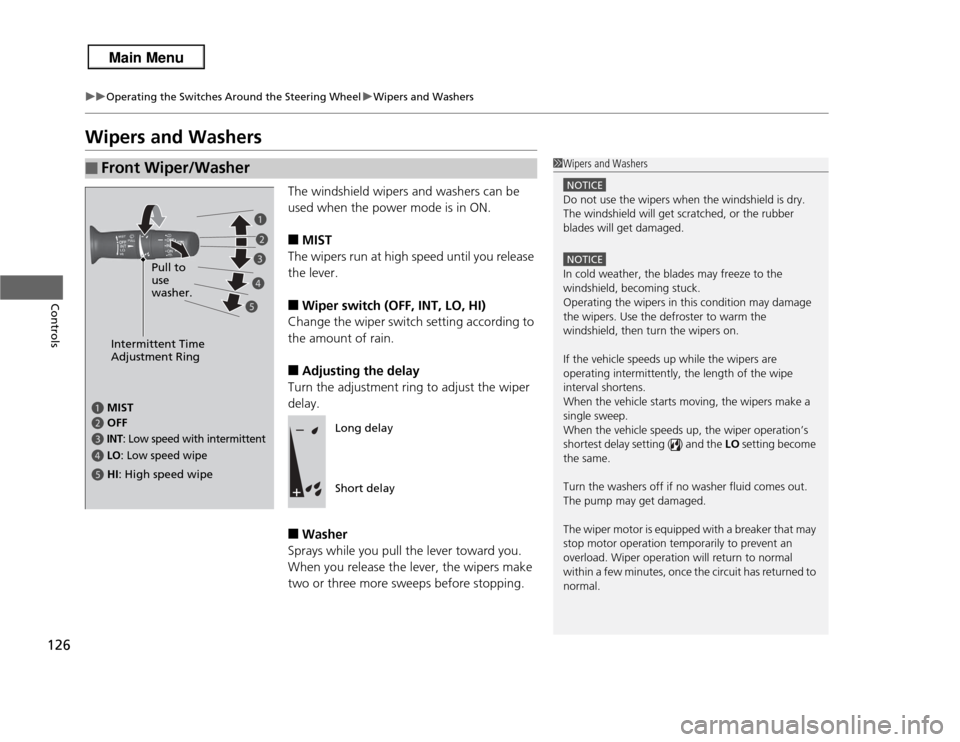
The windshield wipers and washers can be
used when the power mode is in ON.■
MIST
The wipers run at high speed until you release
the lever.
■
Wiper switch (OFF, INT, LO, HI)
Change the wiper switch setting according to
the amount of rain.
■
Adjusting the delay
Turn the adjustment ring to adjust the wiper
delay.
■
Washer
Sprays while you pull the lever toward you.
When you release the lever, the wipers make
two or three more sweeps before stopping.
■
Front Wiper/Washer
1 Wipers and Washers
NOTICEDo not use the wipers when the windshield is dry.
The windshield will get scratched, or the rubber
blades will get damaged.NOTICEIn cold weather, the blades may freeze to the
windshield, becoming stuck.
Operating the wipers in this condition may damage
the wipers. Use the defroster to warm the
windshield, then turn the wipers on.
If the vehicle speeds up while the wipers are
operating intermittently, the length of the wipe
interval shortens.
When the vehicle starts moving, the wipers make a
single sweep.
When the vehicle speeds up, the wiper operation’s
shortest delay setting ( ) and the LO setting become
the same.
Turn the washers off if no washer fluid comes out.
The pump may get damaged.
The wiper motor is equipped with a breaker that may
stop motor operation temporarily to prevent an
overload. Wiper operation will return to normal
within a few minutes, once the circuit has returned to
normal.
Intermittent Time
Adjustment Ring
a
MIST
c
INT
: Low speed with intermittent
b
OFF
d
LO
: Low speed wipe
e
HI : High speed wipe Pull to
use
washer.
a
b
c
d
e
Long delay
Short delay
Page 144 of 364
143
Continued
Controls
Interior Lights/Interior Convenience ItemsInterior Lights
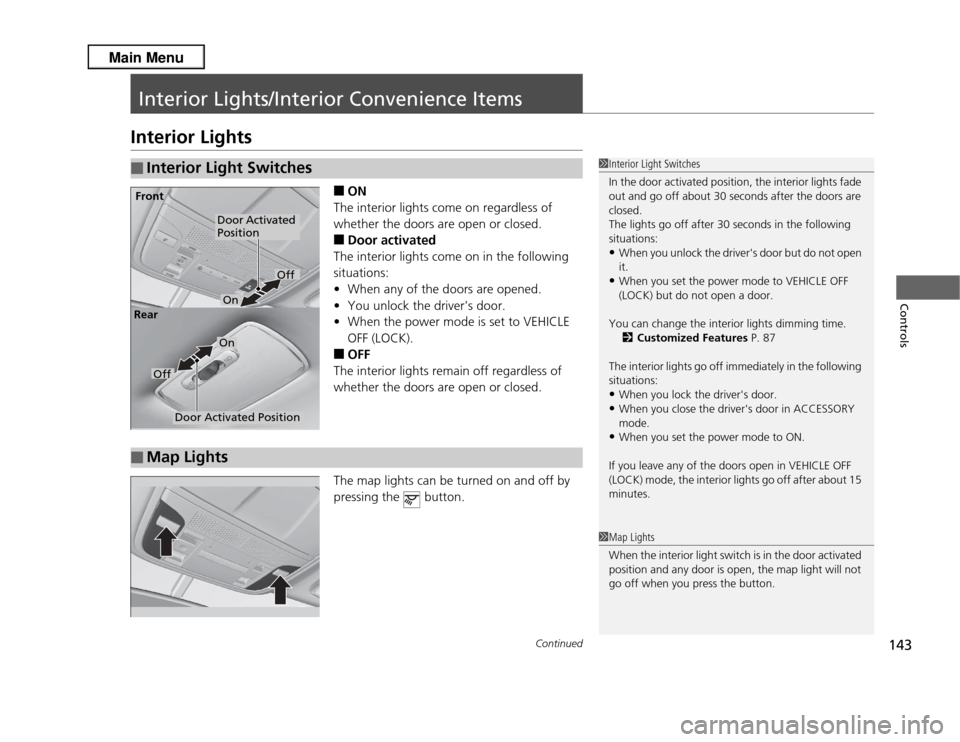
■
ON
The interior lights come on regardless of
whether the doors are open or closed.
■
Door activated
The interior lights come on in the following
situations:
• When any of the doors are opened.
• You unlock the driver's door.
• When the power mode is set to VEHICLE
OFF (LOCK).
■
OFF
The interior lights remain off regardless of
whether the doors are open or closed.
The map lights can be turned on and off by
pressing the button.
■
Interior Light Switches
1 Interior Light Switches
In the door activated position, the interior lights fade
out and go off about 30 seconds after the doors are
closed.
The lights go off after 30 seconds in the following
situations:•When you unlock the driver's door but do not open
it.•When you set the power mode to VEHICLE OFF
(LOCK) but do not open a door.
You can change the interior lights dimming time. 2 Customized Features P. 87
The interior lights go off immediately in the following
situations:•When you lock the driver's door.•When you close the driver's door in ACCESSORY
mode.•When you set the power mode to ON.
If you leave any of the doors open in VEHICLE OFF
(LOCK) mode, the interior lights go off after about 15
minutes.
Door Activated
Position
Off
Front
Door Activated Position
On
Off
Rear
On
■
Map Lights
1
Map Lights
When the interior light switch is in the door activated
position and any door is open, the map light will not
go off when you press the button.
Page 162 of 364
161Features
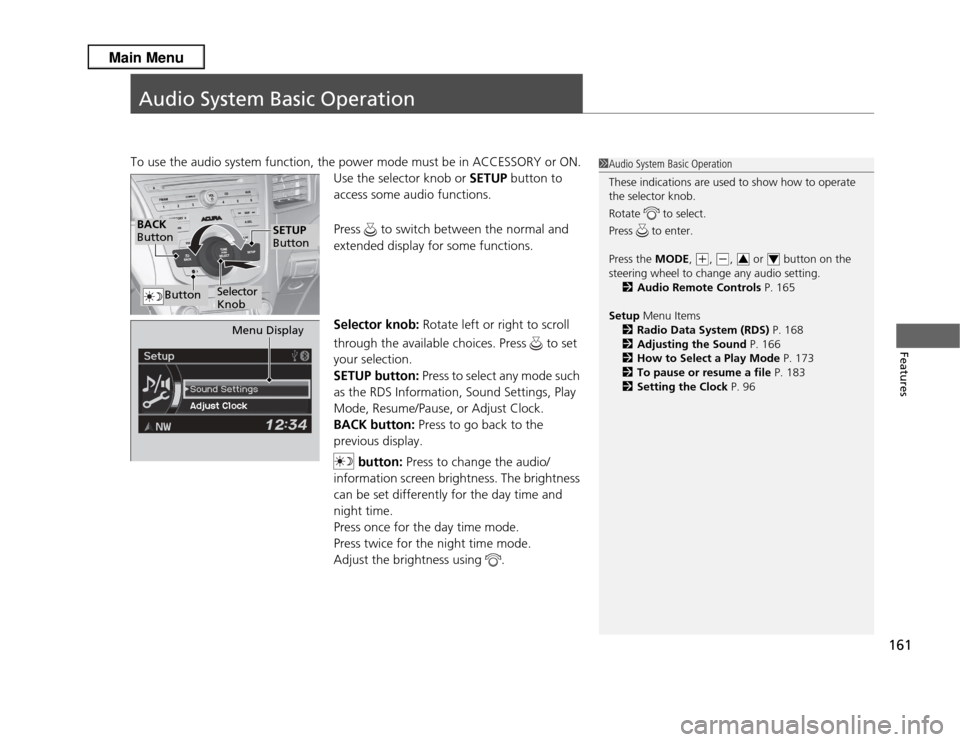
Audio System Basic OperationTo use the audio system function, the power mode must be in ACCESSORY or ON.Use the selector knob or SETUP button to
access some audio functions.
Press to switch between the normal and
extended display for some functions.
Selector knob: Rotate left or right to scroll
through the available choices. Press to set
your selection.
SETUP button: Press to select any mode such
as the RDS Information, Sound Settings, Play
Mode, Resume/Pause, or Adjust Clock.
BACK button: Press to go back to the
previous display.
button: Press to change the audio/
information screen brightness. The brightness
can be set differently for the day time and
night time.
Press once for the day time mode.
Press twice for the night time mode.
Adjust the brightness using .
1 Audio System Basic Operation
These indications are used to show how to operate
the selector knob.
Rotate to select.
Press to enter.
Press the MODE,
(+
, (-
, or button on the
steering wheel to change any audio setting. 2 Audio Remote Controls P. 165
Setup Menu Items
2 Radio Data System (RDS) P. 168
2 Adjusting the Sound P. 166
2 How to Select a Play Mode P. 173
2 To pause or resume a file P. 183
2 Setting the Clock P. 963
4
BACK
Button
Selector
Knob
SETUP
Button
Button
Menu Display
Page 185 of 364
184
uuAudio System Basic Operation uWallpaper Setup
Features
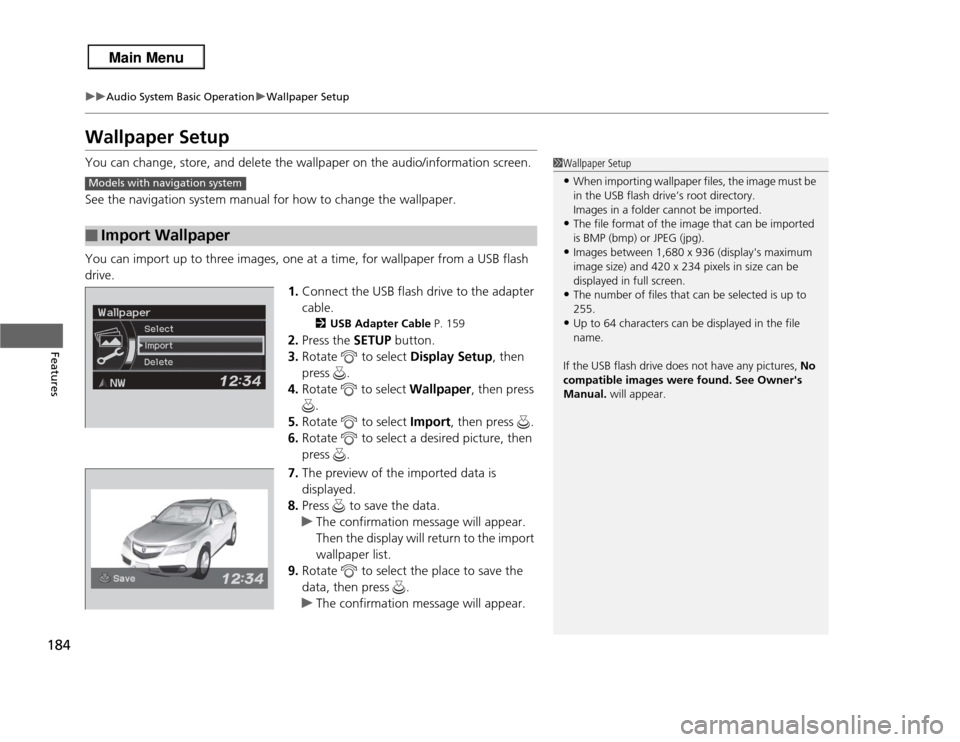
Wallpaper SetupYou can change, store, and delete the wallpaper on the audio/information screen.
See the navigation system manual for how to change the wallpaper.
You can import up to three images, one at a time, for wallpaper from a USB flash
drive.
1.Connect the USB flash drive to the adapter
cable.
2 USB Adapter Cable P. 159
2.Press the SETUP button.
3. Rotate to select Display Setup, then
press .
4. Rotate to select Wallpaper, then press
.
5. Rotate to select Import, then press .
6. Rotate to select a desired picture, then
press .
7. The preview of the imported data is
displayed.
8. Press to save the data.
u The confirmation message will appear.
Then the display will return to the import
wallpaper list.
9. Rotate to select the place to save the
data, then press .
u The confirmation message will appear.
■
Import Wallpaper
1Wallpaper Setup•When importing wallpaper files, the image must be
in the USB flash drive’s root directory.
Images in a folder cannot be imported.•The file format of the image that can be imported
is BMP (bmp) or JPEG (jpg).•Images between 1,680 x 936 (display's maximum
image size) and 420 x 234 pixels in size can be
displayed in full screen.•The number of files that can be selected is up to
255.•Up to 64 characters can be displayed in the file
name.
If the USB flash drive does not have any pictures, No
compatible images were found. See Owner's
Manual. will appear.
Models with navigation system
Page 207 of 364
uuBluetooth® HandsFreeLink ®u HFL Menus
206Features
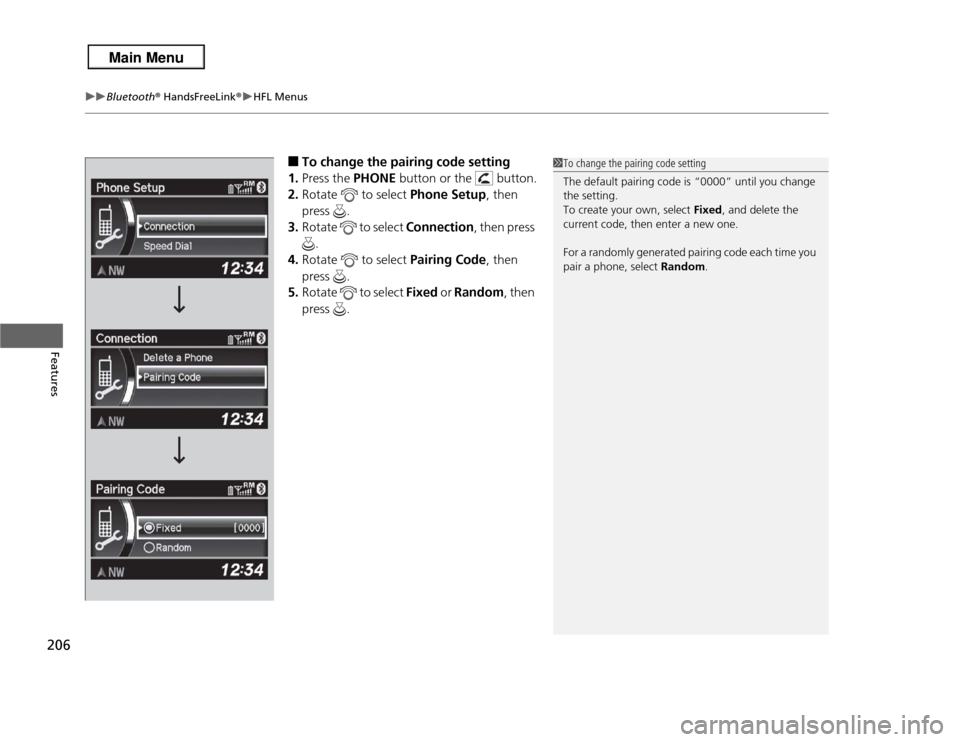
■
To change the pairing code setting
1. Press the PHONE button or the button.
2. Rotate to select Phone Setup, then
press .
3. Rotate to select Connection, then press
.
4. Rotate to select Pairing Code, then
press .
5. Rotate to select Fixed or Random , then
press .
1 To change the pairing code setting
The default pairing code is “0000” until you change
the setting.
To create your own, select Fixed, and delete the
current code, then enter a new one.
For a randomly generated pairing code each time you
pair a phone, select Random.