HDD Acura RDX 2016 Navigation Manual
[x] Cancel search | Manufacturer: ACURA, Model Year: 2016, Model line: RDX, Model: Acura RDX 2016Pages: 363, PDF Size: 17.77 MB
Page 220 of 363
219
uuPlaying Hard Disc Drive (HDD) Audio uAudio Menu
Continued
Audio
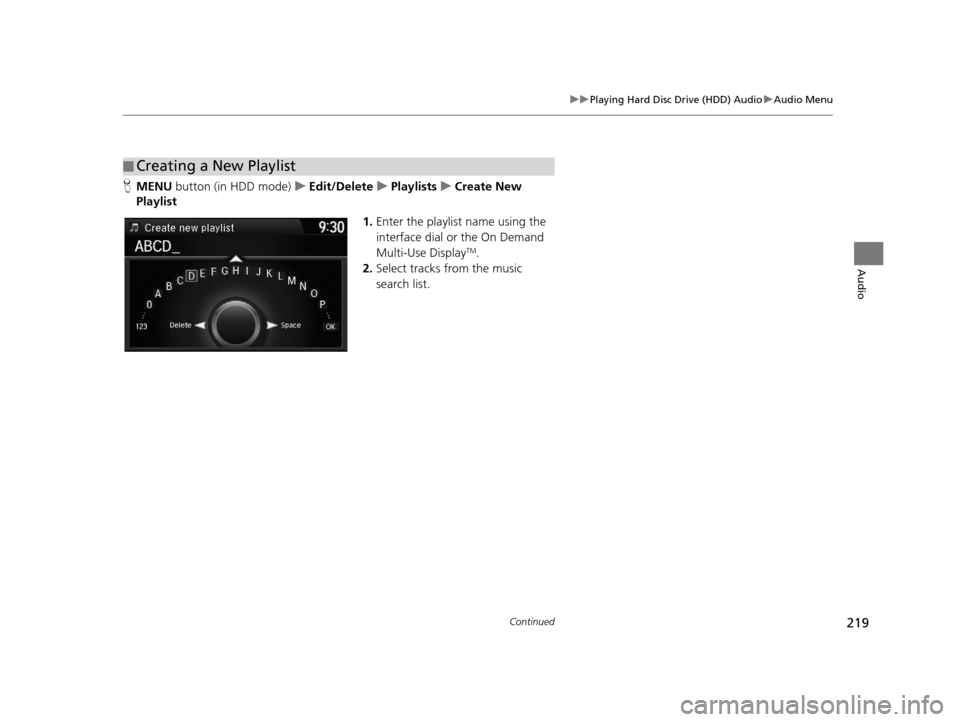
H MENU button (in HDD mode) uEdit/Delete uPlaylists uCreate New
Playlist
1.Enter the playlist name using the
interface dial or the On Demand
Multi-Use Display
TM.
2. Select tracks from the music
search list.
■Creating a New Playlist
16 ACURA RDX NAVI-31TX48300.book 219 ページ 2015年3月6日 金曜日 午後1時26分
Page 221 of 363
220
uuPlaying Hard Disc Drive (HDD) Audio uAudio Menu
Audio
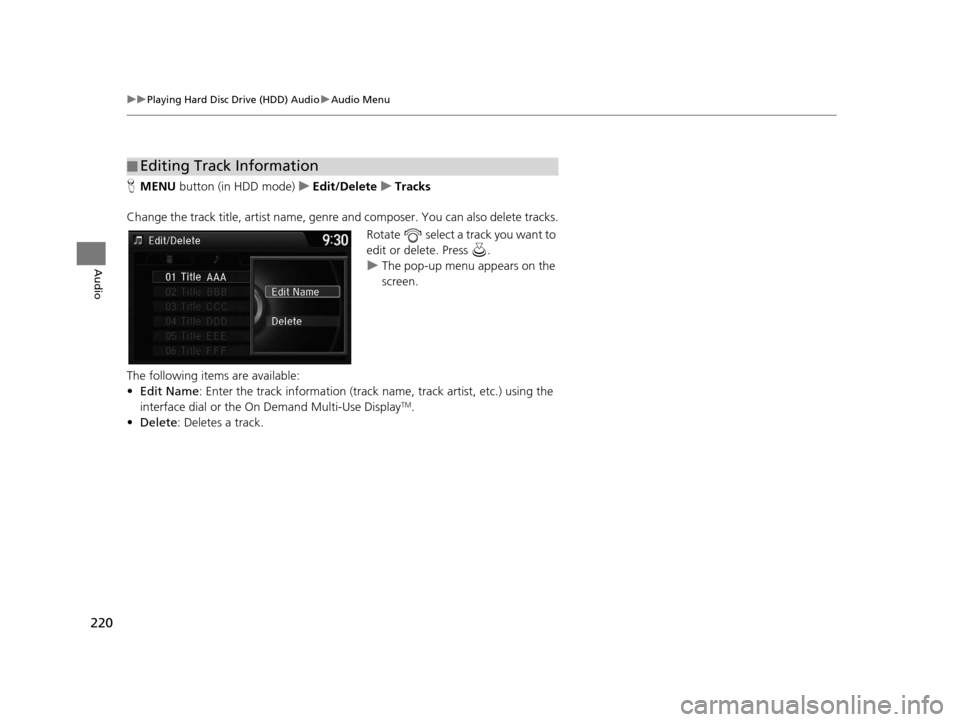
H MENU button (in HDD mode) uEdit/Delete uTracks
Change the track title, artist name, genr e and composer. You can also delete tracks.
Rotate select a track you want to
edit or delete. Press .
uThe pop-up menu appears on the
screen.
The following items are available:
• Edit Name: Enter the track information (track name, track artist, etc.) using the
interface dial or the On Demand Multi-Use Display
TM.
• Delete: Deletes a track.
■Editing Track Information
16 ACURA RDX NAVI-31TX48300.book 220 ページ 2015年3月6日 金曜日 午後1時26分
Page 222 of 363
221
uuPlaying Hard Disc Drive (HDD) Audio uAudio Menu
Continued
Audio
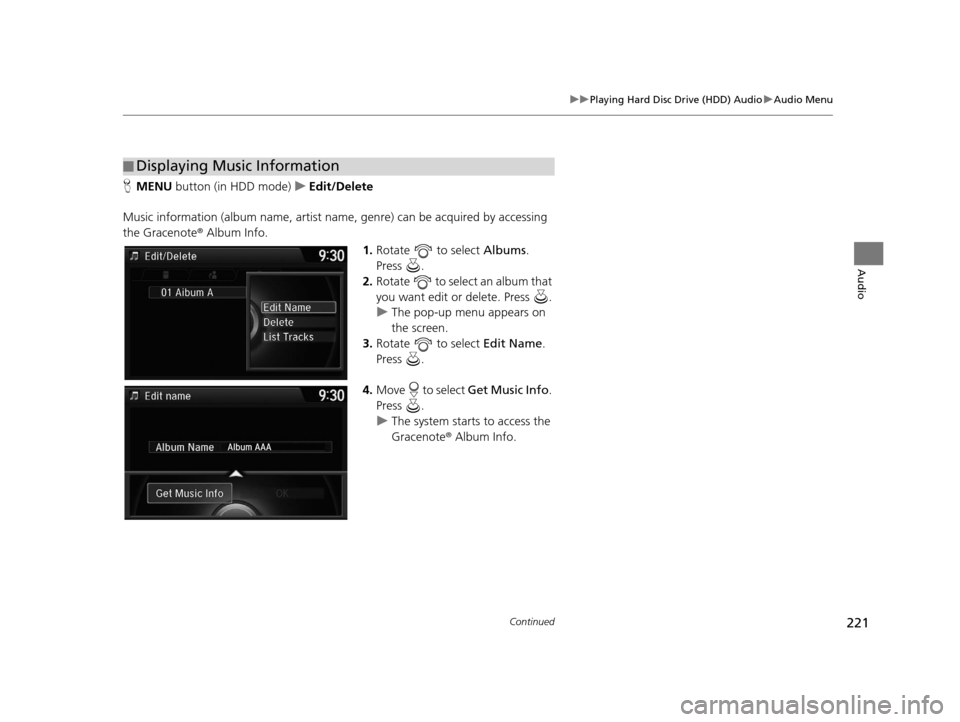
H MENU button (in HDD mode) uEdit/Delete
Music information (album name, artist name, genre) can be acquired by accessing
the Gracenote ® Album Info.
1.Rotate to select Albums.
Press .
2. Rotate to select an album that
you want edit or delete. Press .
u The pop-up menu appears on
the screen.
3. Rotate to select Edit Name.
Press .
4. Move to select Get Music Info.
Press .
u The system starts to access the
Gracenote® Album Info.
■Displaying Music Information
16 ACURA RDX NAVI-31TX48300.book 221 ページ 2015年3月6日 金曜日 午後1時26分
Page 223 of 363
uuPlaying Hard Disc Drive (HDD) Audio uAudio Menu
222
Audio
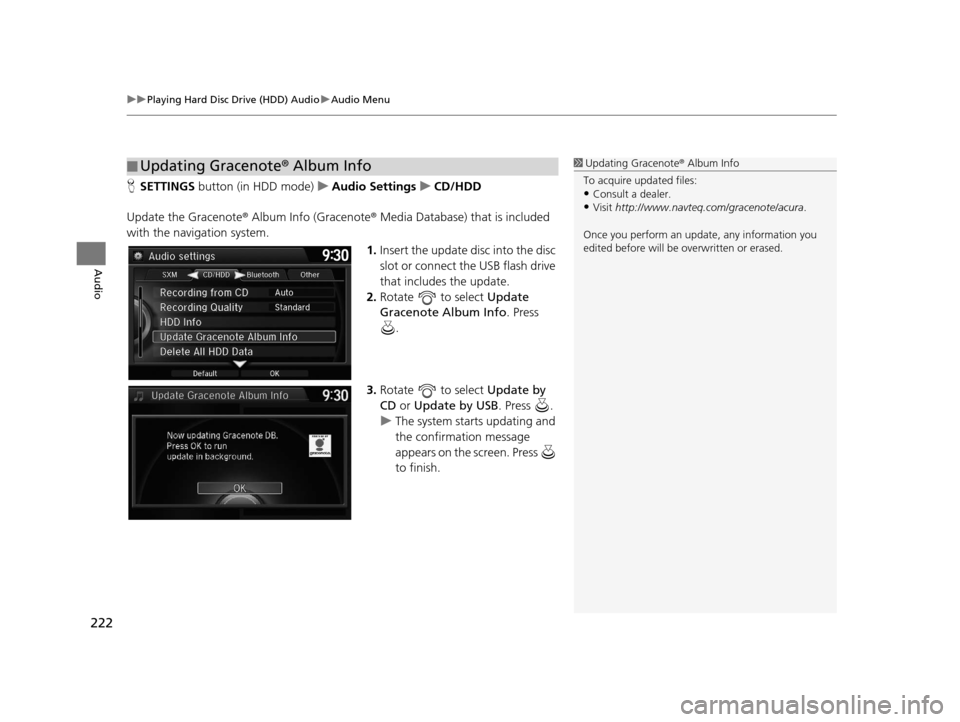
H SETTINGS button (in HDD mode) uAudio Settings uCD/HDD
Update the Gracenote® Album Info (Gracenote ® Media Database) that is included
with the navigation system.
1.Insert the update di sc into the disc
slot or connect the USB flash drive
that includes the update.
2. Rotate to select Update
Gracenote Album Info. Press
.
3. Rotate to select Update by
CD or Update by USB . Press .
u The system starts updating and
the confirmation message
appears on the screen. Press
to finish.
■Updating Gracenote
® Album Info1 Updating Gracenote® Album Info
To acquire updated files:
•Consult a dealer.
•Visit http://www.navteq.com/gracenote/acura .
Once you perform an update, any information you
edited before will be overwritten or erased.
16 ACURA RDX NAVI-31TX48300.book 222 ページ 2015年3月6日 金曜日 午後1時26分
Page 224 of 363
223
uuPlaying Hard Disc Drive (HDD) Audio uAudio Menu
Audio
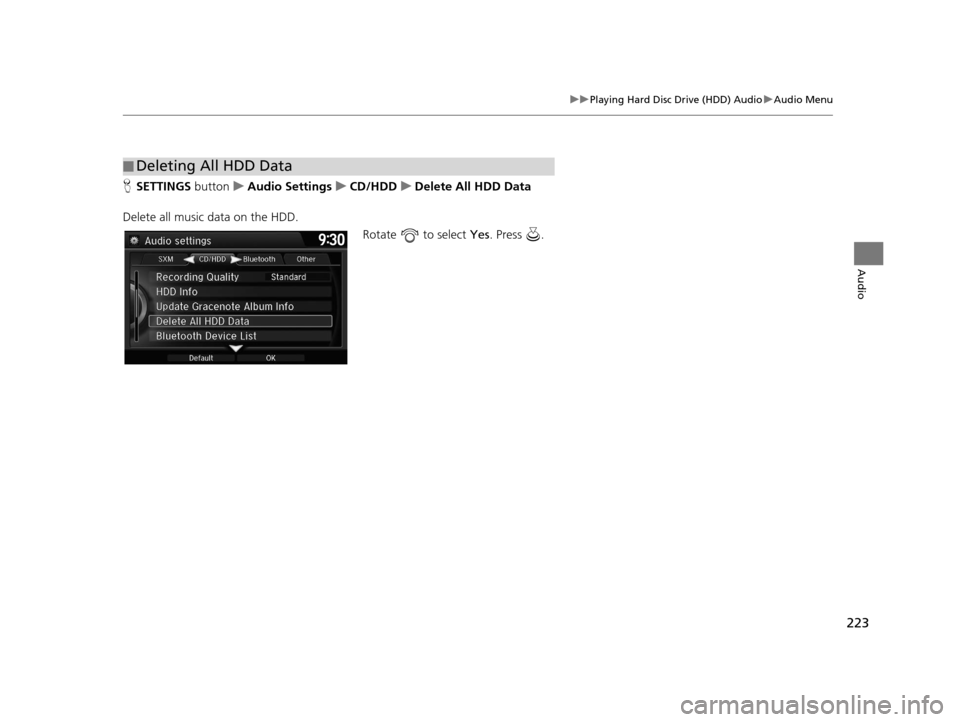
H SETTINGS button uAudio Settings uCD/HDD uDelete All HDD Data
Delete all music data on the HDD. Rotate to select Yes. Press .
■Deleting All HDD Data
16 ACURA RDX NAVI-31TX48300.book 223 ページ 2015年3月6日 金曜日 午後1時26分
Page 232 of 363
231
uuPlaying an iPod uSong By VoiceTM (SBV)
Continued
Audio
Song By VoiceTM (SBV)
Use SBV to search for and play music from your HDD or iPod using voice commands.
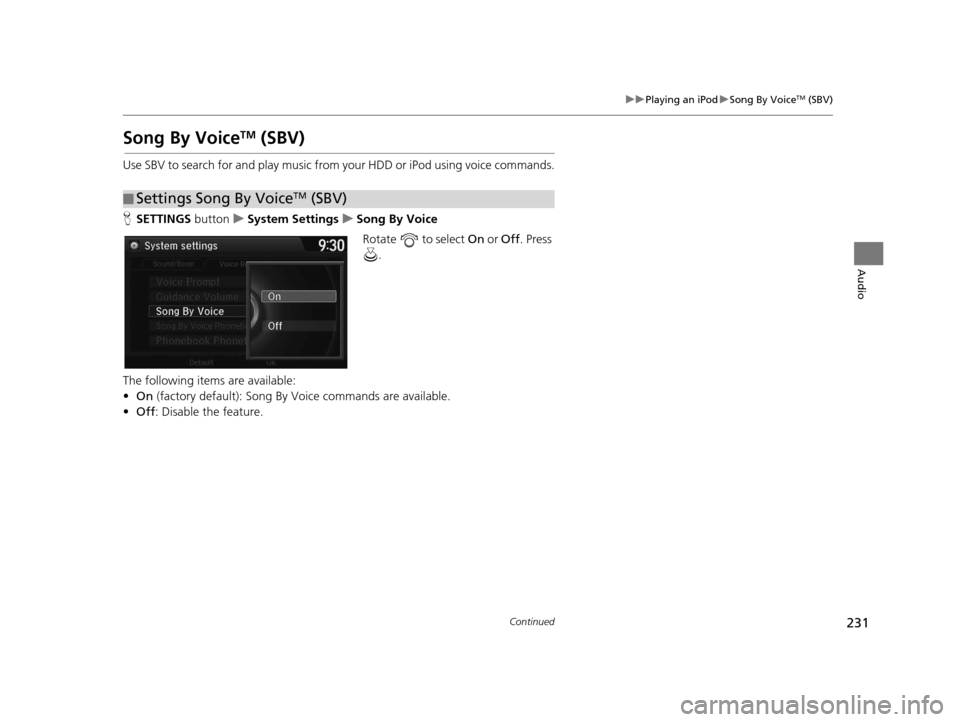
H SETTINGS button uSystem Settings uSong By Voice
Rotate to select On or Off. Press
.
The following items are available:
• On (factory default): Song By Voice commands are available.
• Off : Disable the feature.
■Settings Song By VoiceTM (SBV)
16 ACURA RDX NAVI-31TX48300.book 231 ページ 2015年3月6日 金曜日 午後1時26分
Page 233 of 363
uuPlaying an iPod uSong By VoiceTM (SBV)
232
Audio
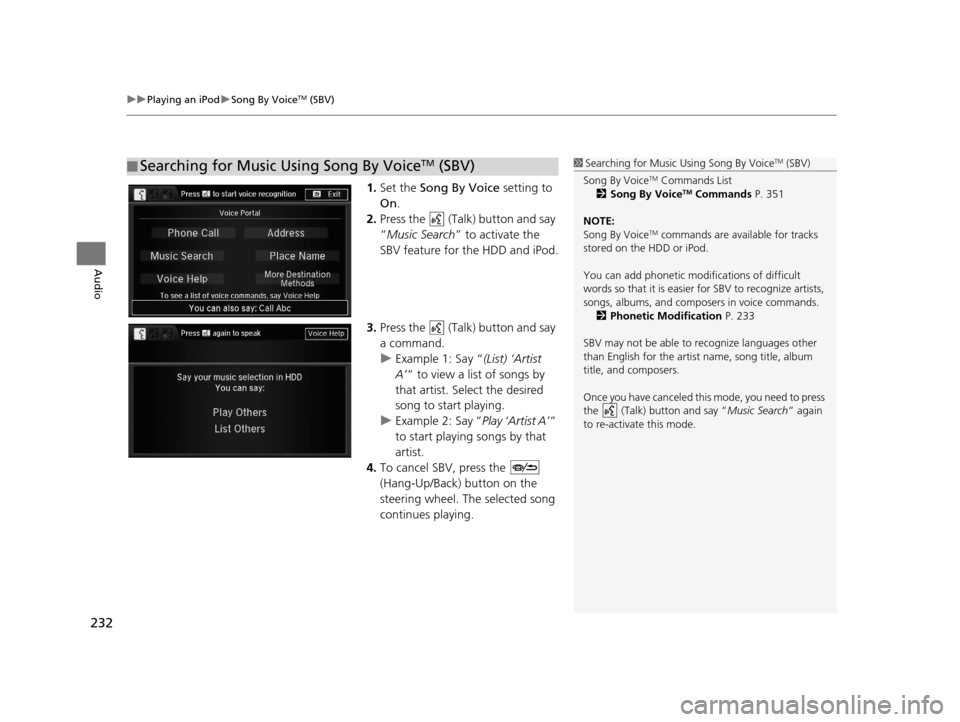
1. Set the Song By Voice setting to
On .
2. Press the (Talk) button and say
“Music Search ” to activate the
SBV feature for the HDD and iPod.
3. Press the (Talk) button and say
a command.
u Example 1: Say “ (List) ‘Artist
A’ “ to view a list of songs by
that artist. Select the desired
song to start playing.
u Example 2: Say “ Play ‘Artist A’“
to start playing songs by that
artist.
4. To cancel SBV, press the
(Hang-Up/Back) button on the
steering wheel. The selected song
continues playing.
■ Searching for Music Using Song By VoiceTM (SBV)1
Searching for Music Using Song By VoiceTM (SBV)
Song By Voice
TM Commands List
2 Song By VoiceTM Commands P. 351
NOTE:
Song By Voice
TM commands are available for tracks
stored on the HDD or iPod.
You can add phonetic modi fications of difficult
words so that it is easier for SBV to recognize artists,
songs, albums, and composers in voice commands. 2 Phonetic Modification P. 233
SBV may not be able to recognize languages other
than English for the artist name, song title, album
title, and composers.
Once you have canceled this mode, you need to press
the (Talk) button and say “ Music Search” again
to re-activate this mode.
16 ACURA RDX NAVI-31TX48300.book 232 ページ 2015年3月6日 金曜日 午後1時26分
Page 234 of 363
Continued233
uuPlaying an iPod uSong By VoiceTM (SBV)
Audio
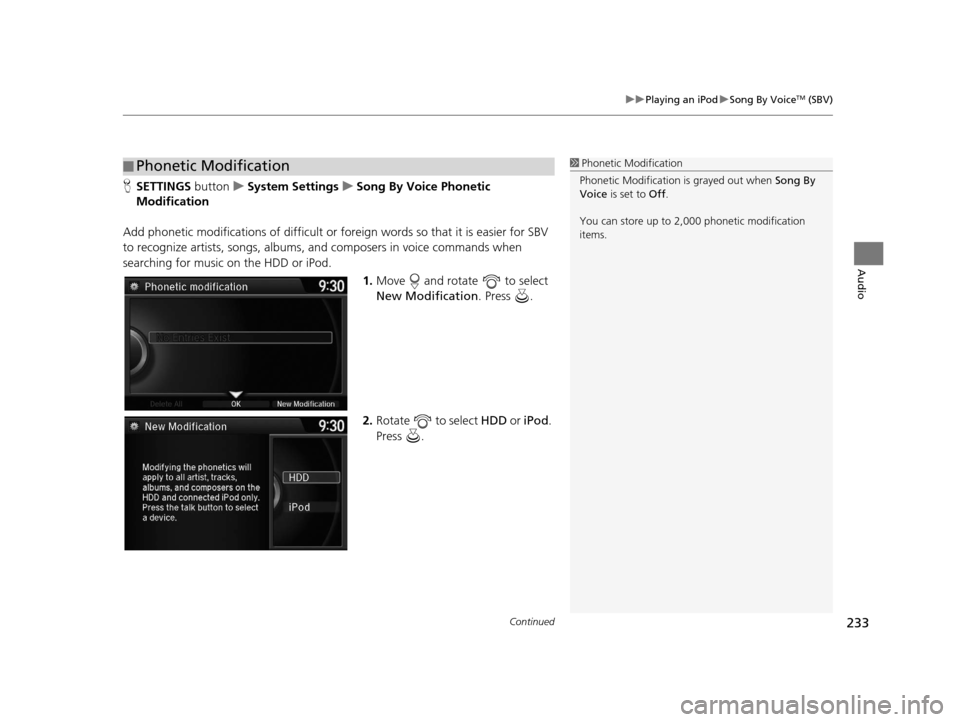
H SETTINGS button uSystem Settings uSong By Voice Phonetic
Modification
Add phonetic modifications of difficult or fo reign words so that it is easier for SBV
to recognize artists, songs, albums, and composers in voice commands when
searching for music on the HDD or iPod.
1.Move and rotate to select
New Modification . Press .
2. Rotate to select HDD or iPod.
Press .
■ Phonetic Modification1
Phonetic Modification
Phonetic Modification is grayed out when Song By
Voice is set to Off.
You can store up to 2, 000 phonetic modification
items.
16 ACURA RDX NAVI-31TX48300.book 233 ページ 2015年3月6日 金曜日 午後1時26分
Page 242 of 363
241
Audio
Playing a USB Flash Drive
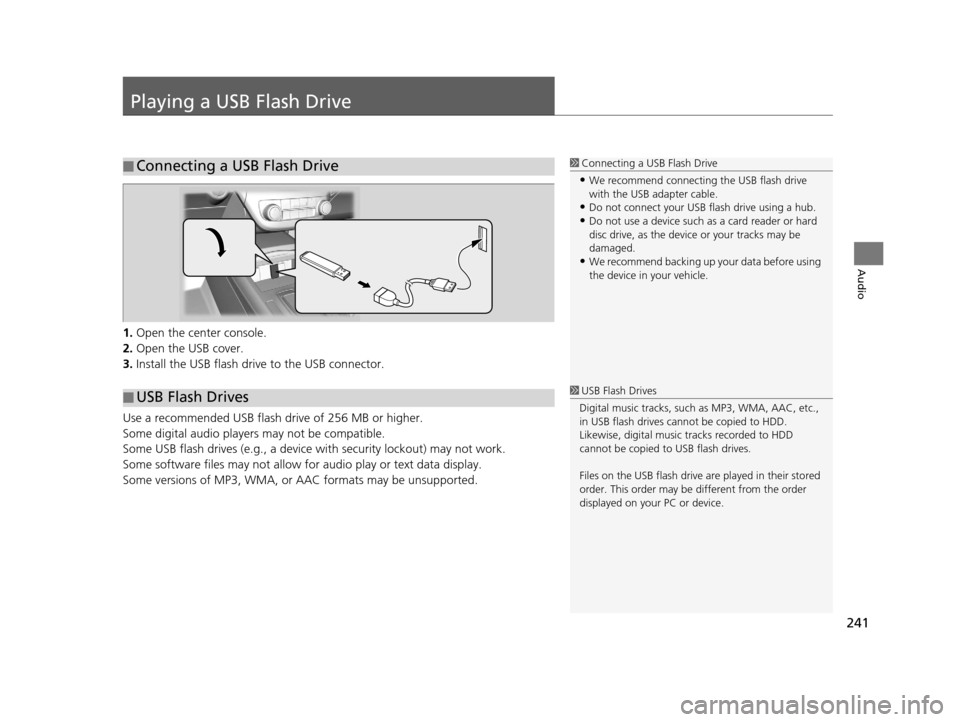
1.Open the center console.
2. Open the USB cover.
3. Install the USB flash drive to the USB connector.
Use a recommended USB flash drive of 256 MB or higher.
Some digital audio players may not be compatible.
Some USB flash drives (e.g., a device with security lockout) may not work.
Some software files may not allow for audio play or text data display.
Some versions of MP3, WMA, or AAC formats may be unsupported.
■ Connecting a USB Flash Drive1
Connecting a USB Flash Drive
•We recommend connecting the USB flash drive
with the USB adapter cable.
•Do not connect your US B flash drive using a hub.
•Do not use a device such as a card reader or hard
disc drive, as the device or your tracks may be
damaged.
•We recommend backing up yo ur data before using
the device in your vehicle.
■ USB Flash Drives1
USB Flash Drives
Digital music tracks, such as MP3, WMA, AAC, etc.,
in USB flash drives cannot be copied to HDD.
Likewise, digital music tracks recorded to HDD
cannot be copied to USB flash drives.
Files on the USB flash drive are played in their stored
order. This order may be different from the order
displayed on your PC or device.
16 ACURA RDX NAVI-31TX48300.book 241 ページ 2015年3月6日 金曜日 午後1時26分
Page 318 of 363
317
Troubleshooting
Troubleshooting....................................318
Map, Voice, Entering Destinations .........318
Traffic ...................................................320
Guidance, Routing ................................321
Update, Coverage, Map Errors ..............323
Display, Accessories ..............................323
Multi-View Rear Camera .......................323
Miscellaneous Questions .......................324
Error Messages ......................................325
Navigation System ................................325
CD Player ..............................................326
Hard Disc Drive (HDD) Audio .................327
iPod/USB Flash Drive .............................328
Pandora ®..............................................329 AhaTM Radio ......................................... 332
16 ACURA RDX NAVI-31TX48300.book 317 ページ 2015年3月6日 金曜日 午後1時26分