ad blue Acura RDX 2017 Navigation Manual
[x] Cancel search | Manufacturer: ACURA, Model Year: 2017, Model line: RDX, Model: Acura RDX 2017Pages: 357, PDF Size: 12.4 MB
Page 95 of 357
94
uuCustomized Features u
System Setup
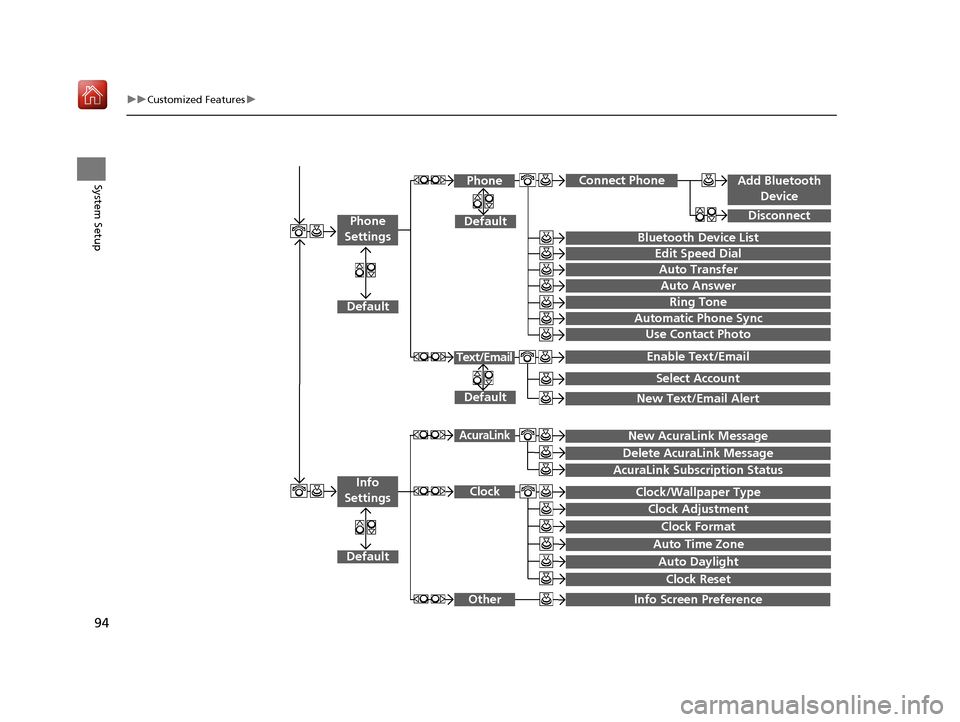
Info Screen Preference
Clock/Wallpaper Type
Clock Adjustment
Clock
Default
Other
Info
Settings
Clock Format
New AcuraLink MessageAcuraLink
Auto Time Zone
Auto Daylight
Default
Enable Text/Email
Select Account
Text/Email
New Text/Email Alert
Add Bluetooth Device
Disconnect
Default
PhoneConnect Phone
Edit Speed Dial
Auto Transfer
Auto Answer
Ring Tone
Use Contact Photo
Default
Phone
Settings
Automatic Phone Sync
Bluetooth Device List
Delete AcuraLink Message
AcuraLink Subscription Status
Clock Reset
16 ACURA RDX NAVI-31TX48300.book 94 ページ 2015年8月5日 水曜日 午後4時12分
Page 96 of 357
95
uuCustomized Features u
Continued
System Setup
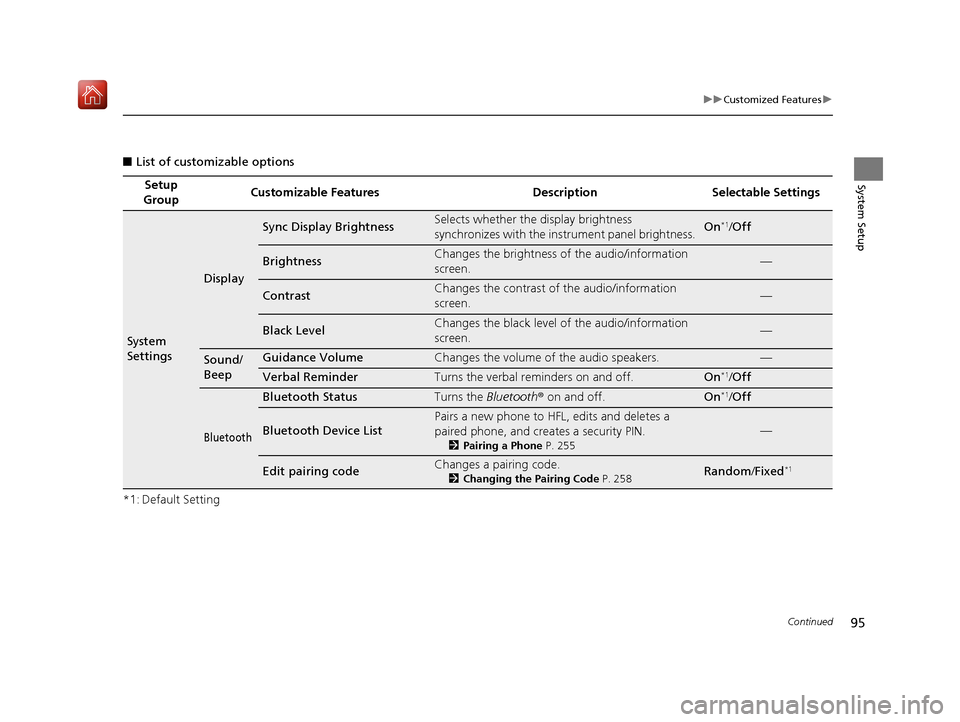
■List of customizable options
*1: Default Setting Setup
Group Customizable Features Description Selectable Settings
System
Settings
Display
Sync Display BrightnessSelects whether the display brightness
synchronizes with the instrument panel brightness.On*1/
Off
BrightnessChanges the brightness of the audio/information
screen.—
ContrastChanges the contrast of the audio/information
screen.—
Black LevelChanges the black level of the audio/information
screen.—
Sound/
BeepGuidance VolumeChanges the volume of the audio speakers.—
Verbal ReminderTurns the verbal reminders on and off.On*1/Off
Bluetooth
Bluetooth StatusTurns the Bluetooth ® on and off.On*1/Off
Bluetooth Device List
Pairs a new phone to HFL, edits and deletes a
paired phone, and creates a security PIN.
2 Pairing a Phone P. 255
—
Edit pairing codeChanges a pairing code.
2Changing the Pairing Code P. 258Random /Fixed*1
16 ACURA RDX NAVI-31TX48300.book 95 ページ 2015年8月5日 水曜日 午後4時12分
Page 99 of 357
98
uuCustomized Features u
System Setup
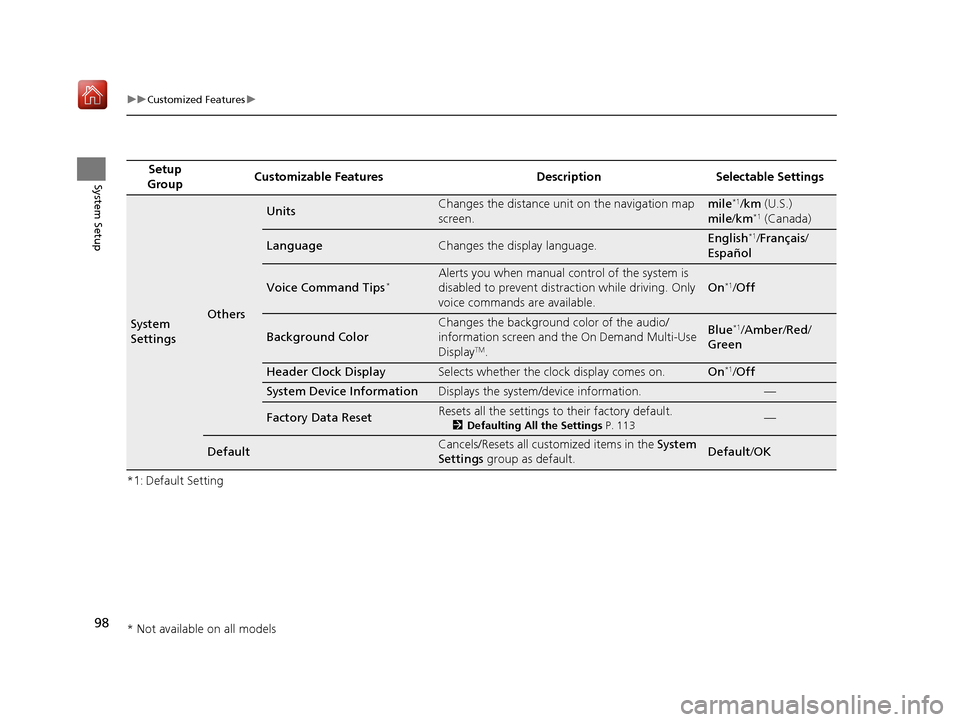
*1: Default SettingSetup
Group Customizable Features Description Selectable Settings
System
SettingsOthers
UnitsChanges the distance unit on the navigation map
screen.mile*1/
km (U.S.)
mile /km*1 (Canada)
LanguageChanges the display language.English*1/Français /
Español
Voice Command Tips*Alerts you when manual control of the system is
disabled to prevent distraction while driving. Only
voice commands are available.
On*1/ Off
Background Color
Changes the background color of the audio/
information screen and the On Demand Multi-Use
Display
TM.
Blue*1/Amber /Red /
Green
Header Clock DisplaySelects whether the clock display comes on.On*1/ Off
System Device InformationDisplays the system /device information.—
Factory Data ResetResets all the settings to their factory default.
2Defaulting All the Settings P. 113—
DefaultCancels/Resets all customized items in the System
Settings group as default.Default/ OK
* Not available on all models
16 ACURA RDX NAVI-31TX48300.book 98 ページ 2015年8月5日 水曜日 午後4時12分
Page 107 of 357

106
uuCustomized Features u
System Setup
*1: Default SettingSetup
Group Customizable Features Description Selectable Settings
Navi
SettingsMap
Show Icon on MapSelects the icons to display on the map.—
Color (Day)Selects the color of the map for the Day mode.White
/Beige*1/Blue /
Black
Color (Night)Selects the color of the map for the Night mode.White /Beige /Blue*1/
Black
ViewSelects the map orientation.North-up*1/ Heading-
up /3D Map
3D Angle AdjustmentAdjusts the viewing angle for the 3D map.—
Straight Line GuideSets whether to display a s traight guideline to the
destination or waypoint.On*1/ Off
Current LocationDisplays and saves your current location.—
Map LegendDisplays an overview of the map features.—
Display TrackingSets whether to display th e tracking dots on the
map.On /Off*1
Delete TrackingDeletes the tracking dots on the map.—
Correct Vehicle PositionAdjusts the position of the vehicle on the map.—
System Device InformationViews database, software, device, and
vehicleidentification information.—
Map Data UpdateChecks the map data update status when
updating the map database.—
16 ACURA RDX NAVI-31TX48300.book 106 ページ 2015年8月5日 水曜日 午後4時12分
Page 110 of 357
109
uuCustomized Features u
Continued
System Setup
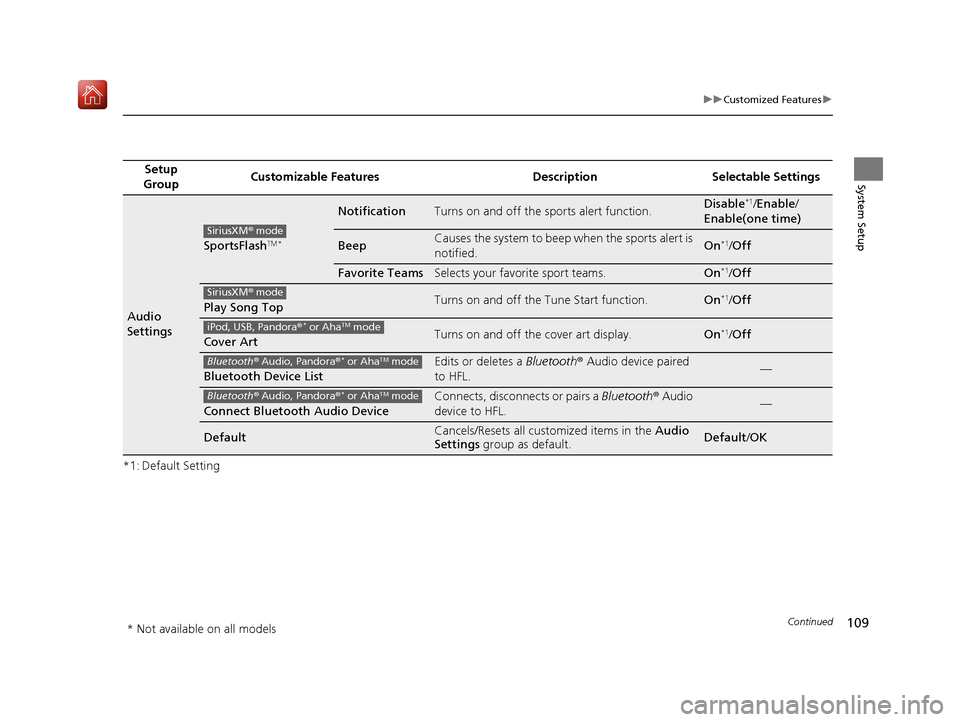
*1: Default SettingSetup
Group Customizable Features Description Selectable Settings
Audio
Settings
SportsFlashTM *
NotificationTurns on and off the sports alert function.Disable*1/
Enable /
Enable(one time)
BeepCauses the system to beep when the sports alert is
notified.On*1/ Off
Favorite TeamsSelects your favorite sport teams.On*1/Off
Play Song TopTurns on and off the Tune Start function.On*1/Off
Cover ArtTurns on and off the cover art display.On*1/Off
Bluetooth Device List
Edits or deletes a Bluetooth® Audio device paired
to HFL.—
Connect Bluetooth Audio Device
Connects, disconnects or pairs a Bluetooth® Audio
device to HFL.—
DefaultCancels/Resets all customized items in the Audio
Settings group as default.Default/OK
SiriusXM ® mode
SiriusXM ® mode
iPod, USB, Pandora ®* or AhaTM mode
Bluetooth® Audio, Pandora ®* or AhaTM mode
Bluetooth® Audio, Pandora ®* or AhaTM mode
* Not available on all models
16 ACURA RDX NAVI-31TX48300.book 109 ページ 2015年8月5日 水曜日 午後4時12分
Page 111 of 357
110
uuCustomized Features u
System Setup
*1: Default SettingSetup
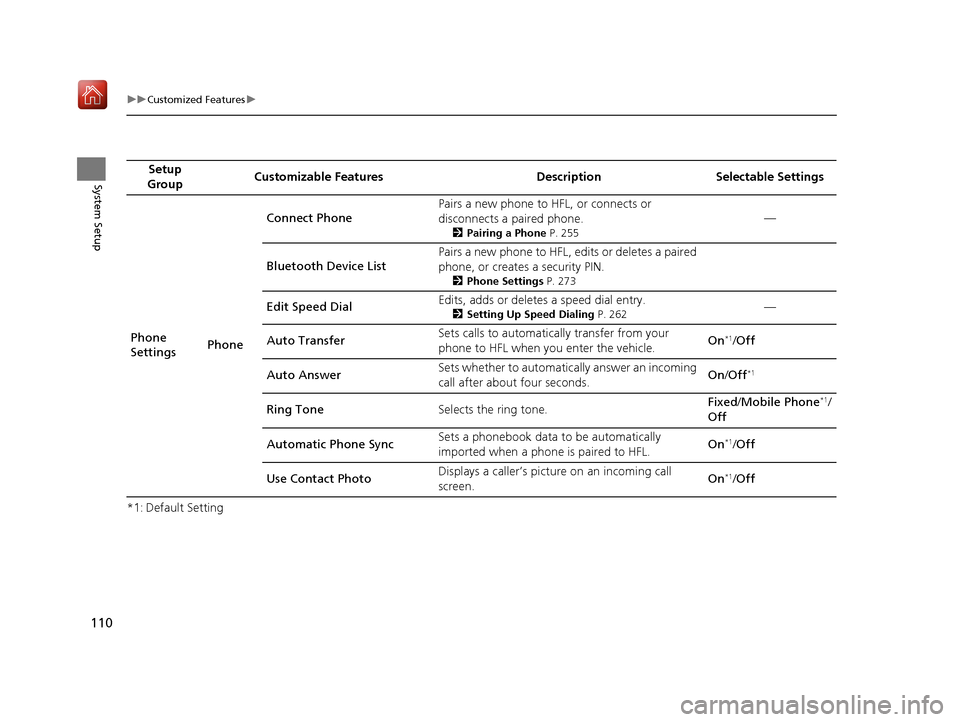
Group Customizable Features Description Selectable Settings
Phone
Settings PhoneConnect Phone
Pairs a new phone to HFL, or connects or
disconnects a paired phone.
2
Pairing a Phone P. 255
—
Bluetooth Device List Pairs a new phone to HFL, edits or deletes a paired
phone, or creates a security PIN.
2
Phone Settings P. 273
Edit Speed Dial Edits, adds or deletes a speed dial entry.2
Setting Up Speed Dialing P. 262—
Auto Transfer Sets calls to automatically transfer from your
phone to HFL when you enter the vehicle. On
*1/
Off
Auto Answer Sets whether to automatically answer an incoming
call after about four seconds. On
/Off
*1
Ring Tone Selects the ring tone. Fixed
/Mobile Phone*1/
Off
Automatic Phone Sync Sets a phonebook data to be automatically
imported when a phon
e is paired to HFL. On
*1/
Off
Use Contact Photo Displays a caller’s pict
ure on an incoming call
screen. On
*1/
Off
16 ACURA RDX NAVI-31TX48300.book 110 ページ 2015年8月5日 水曜日 午後4時12分
Page 142 of 357
141Continued
Navigation
Calculating the Route
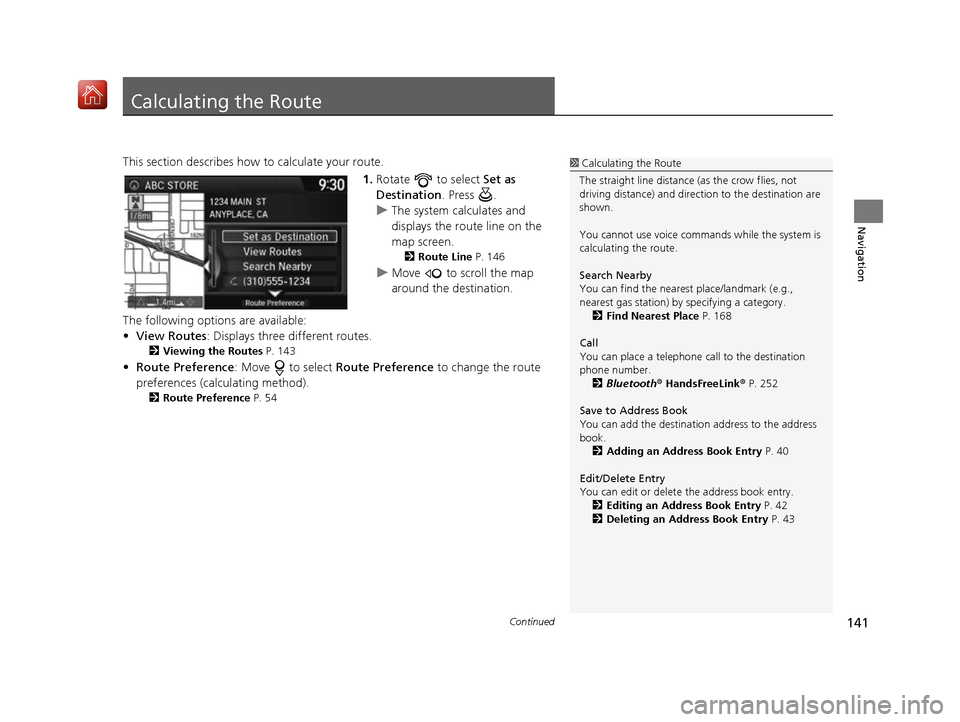
This section describes how to calculate your route.1.Rotate to select Set as
Destination . Press .
u The system calculates and
displays the route line on the
map screen.
2 Route Line P. 146
uMove to scroll the map
around the destination.
The following options are available:
• View Routes : Displays three different routes.
2Viewing the Routes P. 143
•Route Preference : Move to select Route Preference to change the route
preferences (calculating method).
2 Route Preference P. 54
1Calculating the Route
The straight line distance (as the crow flies, not
driving distance) and direction to the destination are
shown.
You cannot use voice commands while the system is
calculating the route.
Search Nearby
You can find the nearest place/landmark (e.g.,
nearest gas station) by specifying a category. 2 Find Nearest Place P. 168
Call
You can place a telephone call to the destination
phone number. 2 Bluetooth® HandsFreeLink ® P. 252
Save to Address Book
You can add the destinati on address to the address
book. 2 Adding an Address Book Entry P. 40
Edit/Delete Entry
You can edit or delete the address book entry.
2 Editing an Address Book Entry P. 42
2 Deleting an Address Book Entry P. 43
16 ACURA RDX NAVI-31TX48300.book 141 ページ 2015年8月5日 水曜日 午後4時12分
Page 147 of 357
uuDriving to Your Destination uViewing the Route
146
Navigation
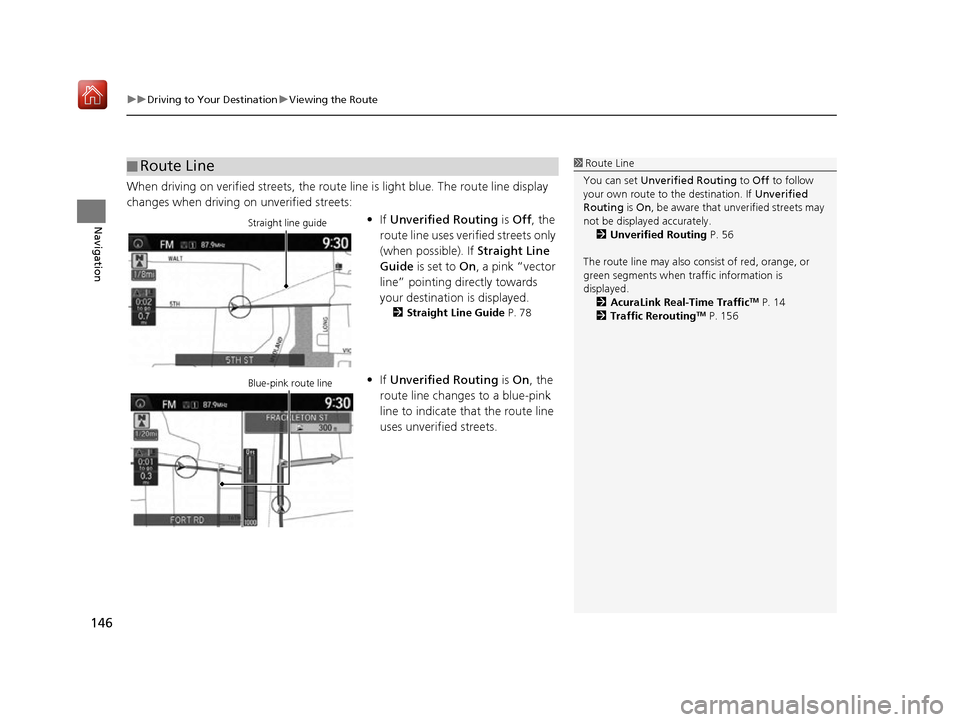
When driving on verified streets, the route line is light blue. The route line display
changes when driving on unverified streets:
•If Unverified Routing is Off, the
route line uses verified streets only
(when possible). If Straight Line
Guide is set to On, a pink “vector
line” pointing directly towards
your destination is displayed.
2 Straight Line Guide P. 78
•If Unverified Routing is On , the
route line changes to a blue-pink
line to indicate that the route line
uses unverified streets.
■ Route Line1
Route Line
You can set Unverified Routing to Off to follow
your own route to the destination. If Unverified
Routing is On, be aware that unv erified streets may
not be displayed accurately. 2 Unverified Routing P. 56
The route line may also c onsist of red, orange, or
green segments when traffic information is
displayed.
2 AcuraLink Real-Time Traffic
TM P. 14
2 Traffic ReroutingTM P. 156
Straight line guide
Blue-pink route line
16 ACURA RDX NAVI-31TX48300.book 146 ページ 2015年8月5日 水曜日 午後4時12分
Page 172 of 357
171
Navigation
Resuming Your Trip
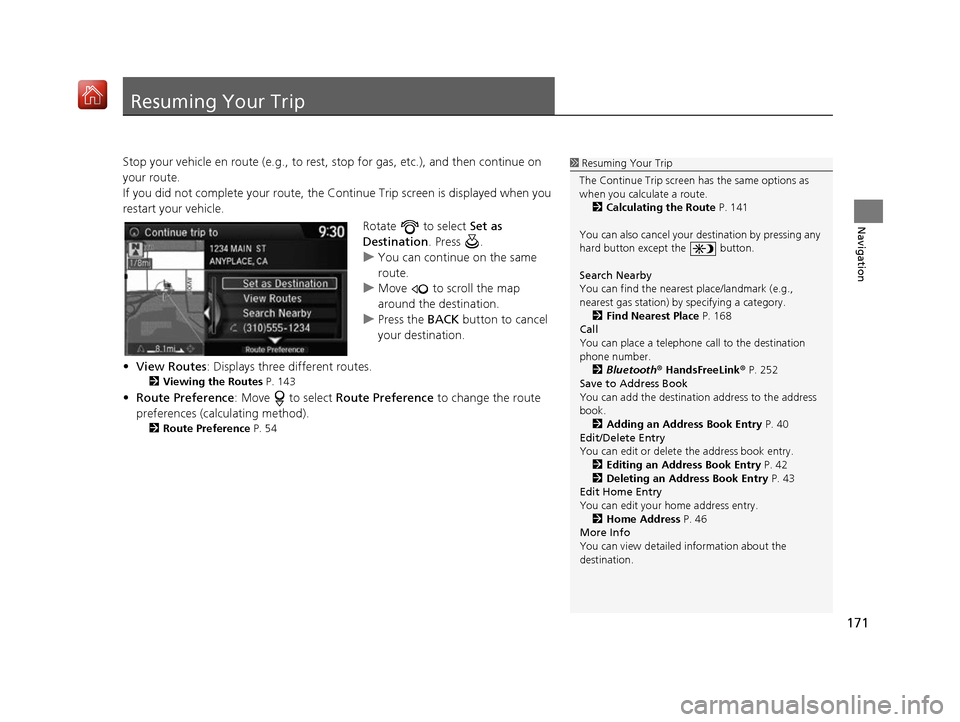
Stop your vehicle en route (e.g., to rest, stop for gas, etc.), and then continue on
your route.
If you did not complete your route, the Co ntinue Trip screen is displayed when you
restart your vehicle.
Rotate to select Set as
Destination . Press .
u You can continue on the same
route.
u Move to scroll the map
around the destination.
u Press the BACK button to cancel
your destination.
• View Routes : Displays three different routes.
2Viewing the Routes P. 143
•Route Preference : Move to select Route Preference to change the route
preferences (calculating method).
2 Route Preference P. 54
1Resuming Your Trip
The Continue Trip screen has the same options as
when you calculate a route. 2 Calculating the Route P. 141
You can also cancel your de stination by pressing any
hard button except the button.
Search Nearby
You can find the nearest place/landmark (e.g.,
nearest gas station) by specifying a category. 2 Find Nearest Place P. 168
Call
You can place a telephone call to the destination
phone number.
2 Bluetooth® HandsFreeLink ® P. 252
Save to Address Book
You can add the destinati on address to the address
book. 2 Adding an Address Book Entry P. 40
Edit/Delete Entry
You can edit or delete the address book entry.
2 Editing an Address Book Entry P. 42
2 Deleting an Address Book Entry P. 43
Edit Home Entry
You can edit your home address entry.
2 Home Address P. 46
More Info
You can view detailed information about the
destination.
16 ACURA RDX NAVI-31TX48300.book 171 ページ 2015年8月5日 水曜日 午後4時12分
Page 174 of 357
173
Audio
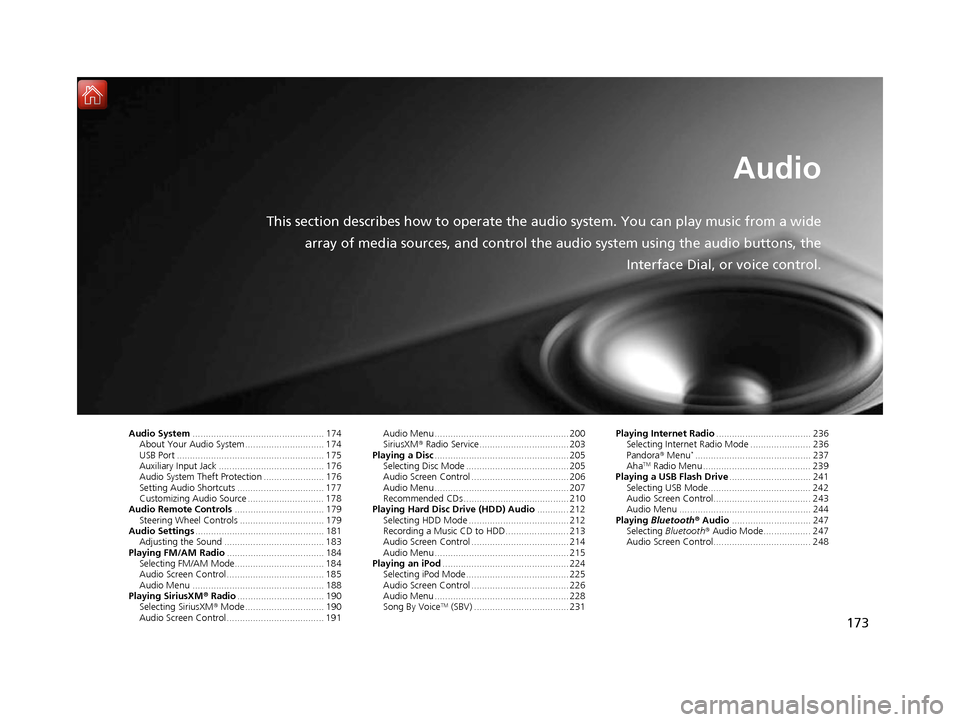
This section describes how to operate the audio system. You can play music from a widearray of media sources, and control the audio system using the audio buttons, the
Interface Dial, or voice control.
Audio System.................................................. 174
About Your Audio System .............................. 174
USB Port ........................................................ 175
Auxiliary Input Jack ......... .......................... ..... 176
Audio System Theft Protection ....................... 176
Setting Audio Shortcuts ................................. 177
Customizing Audio Source ............................. 178
Audio Remote Controls .................................. 179
Steering Wheel Controls ................................ 179
Audio Settings ................................................. 181
Adjusting the Sound ...................................... 183
Playing FM/AM Radio ..................................... 184
Selecting FM/AM Mode.................................. 184
Audio Screen Control ..................................... 185
Audio Menu .................................................. 188
Playing SiriusXM ® Radio ................................. 190
Selecting SiriusXM ® Mode .............................. 190
Audio Screen Control ..................................... 191 Audio Menu ................................................... 200
SiriusXM®
Radio Service.................................. 203
Playing a Disc ................................................... 205
Selecting Disc Mode ....................................... 205
Audio Screen Control ..................................... 206
Audio Menu ................................................... 207
Recommended CDs ........................................ 210
Playing Hard Disc Drive (HDD) Audio ............ 212
Selecting HDD Mode ...................................... 212
Recording a Music CD to HDD........................ 213
Audio Screen Control ..................................... 214
Audio Menu ................................................... 215
Playing an iPod ................................................ 224
Selecting iPod Mode....................................... 225
Audio Screen Control ..................................... 226
Audio Menu ................................................... 228
Song By Voice
TM (SBV) .................................... 231 Playing Internet Radio
.................................... 236
Selecting Internet Radio Mode ....................... 236
Pandora ® Menu
*............................................ 237
AhaTM Radio Menu ......................................... 239
Playing a USB Flash Drive ............................... 241
Selecting USB Mode....................................... 242
Audio Screen Control..................................... 243
Audio Menu .................................................. 244
Playing Bluetooth ® Audio .............................. 247
Selecting Bluetooth ® Audio Mode.................. 247
Audio Screen Control..................................... 248
16 ACURA RDX NAVI-31TX48300.book 173 ページ 2015年8月5日 水曜日 午後4時12分