trans Acura RDX 2018 Owner's Guide
[x] Cancel search | Manufacturer: ACURA, Model Year: 2018, Model line: RDX, Model: Acura RDX 2018Pages: 453, PDF Size: 20.13 MB
Page 142 of 453
141
uuSecurity System uSecurity System Alarm
Controls
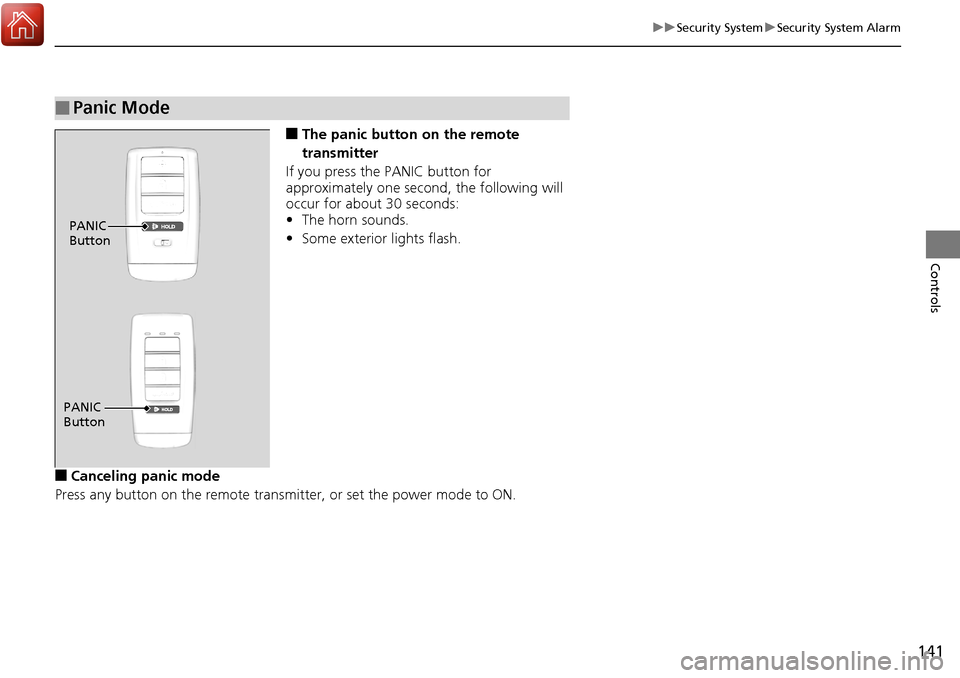
■The panic button on the remote
transmitter
If you press the PANIC button for
approximately one second, the following will
occur for about 30 seconds:
• The horn sounds.
• Some exterior lights flash.
■Canceling panic mode
Press any button on the remote transmi tter, or set the power mode to ON.
■Panic Mode
PANIC
Button
PANIC
Button
Page 156 of 453
155
uuOperating the Switches Around the Steering Wheel uWipers and Washers
Controls
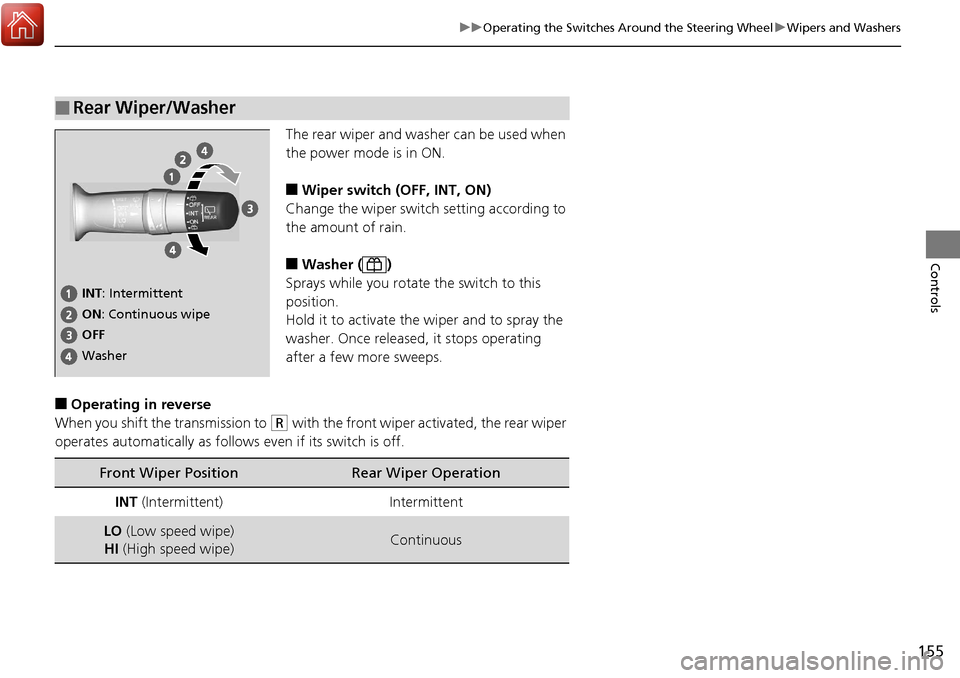
The rear wiper and washer can be used when
the power mode is in ON.
■Wiper switch (OFF, INT, ON)
Change the wiper switch setting according to
the amount of rain.
■Washer ( )
Sprays while you rotate the switch to this
position.
Hold it to activate th e wiper and to spray the
washer. Once released, it stops operating
after a few more sweeps.
■Operating in reverse
When you shift the transmission to
(R with the front wiper activated, the rear wiper
operates automatically as follows even if its switch is off.
■Rear Wiper/Washer
INT: Intermittent
OFF ON : Continuous wipe
Washer
Front Wiper PositionRear Wiper Operation
INT (Intermittent)Intermittent
LO (Low speed wipe)
HI (High speed wipe)Continuous
Page 159 of 453
158
uuOperating the Switches Around the Steering Wheel uDriving Position Memory System
Controls
Driving Position Memory System
You can store two driver’s seat and door mirror positions with the driving position
memory system.
When you unlock and open the driver’s door with a remote transmitter, the seat and
door mirrors adjust automatically to one of the two preset positions.
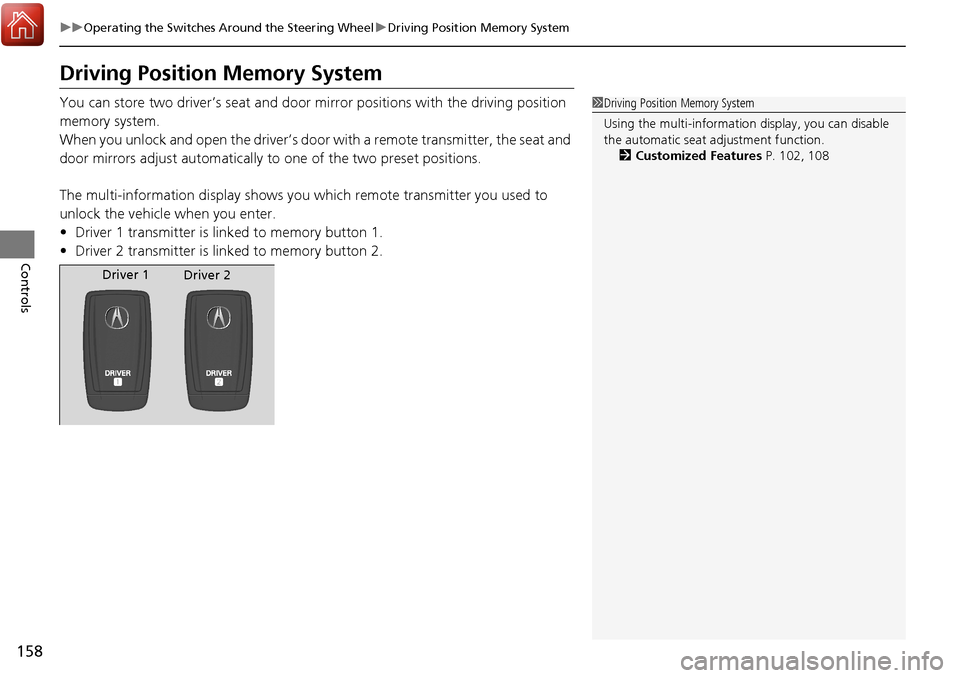
The multi-information display shows you which remote transmitter you used to
unlock the vehicle when you enter.
• Driver 1 transmitter is linked to memory button 1.
• Driver 2 transmitter is linked to memory button 2.1Driving Position Memory System
Using the multi-information display, you can disable
the automatic seat adjustment function. 2 Customized Features P. 102, 108
Driver 1
Driver 2
Page 165 of 453
164
Controls
Adjusting the Seats
Adjusting the Seat Positions
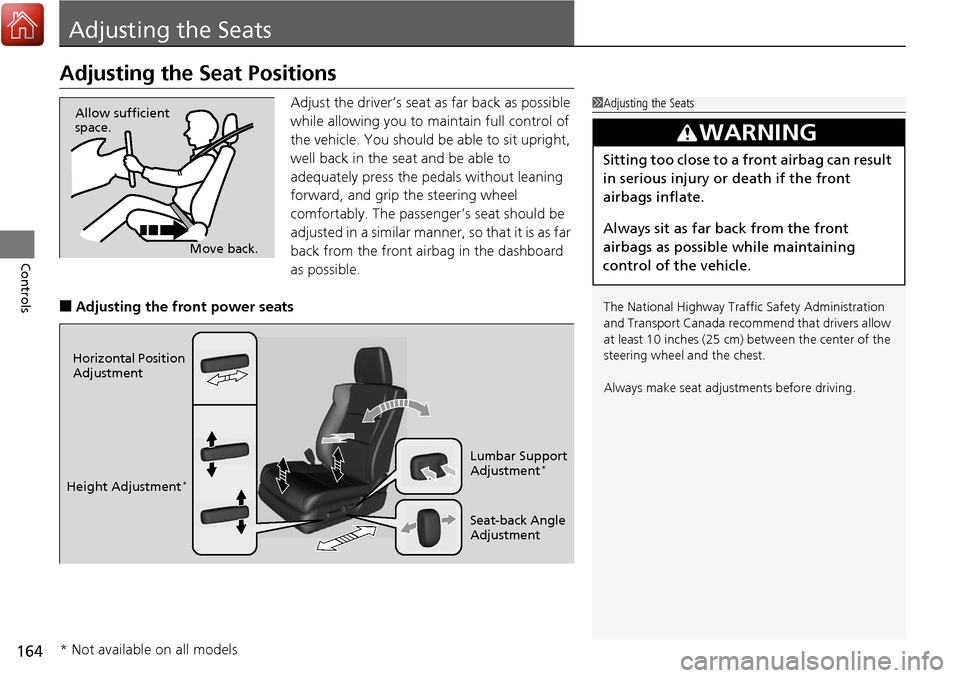
Adjust the driver’s seat as far back as possible
while allowing you to maintain full control of
the vehicle. You should be able to sit upright,
well back in the seat and be able to
adequately press the pedals without leaning
forward, and grip the steering wheel
comfortably. The passenger’s seat should be
adjusted in a similar manner, so that it is as far
back from the front airbag in the dashboard
as possible.
■Adjusting the front power seats
1Adjusting the Seats
The National Highway Traffic Safety Administration
and Transport Cana da recommend that drivers allow
at least 10 inches (25 cm) between the center of the
steering wheel and the chest.
Always make seat adjustments before driving.
3WARNING
Sitting too close to a front airbag can result
in serious injury or death if the front
airbags inflate.
Always sit as far back from the front
airbags as possible while maintaining
control of the vehicle.
Move back.
Allow sufficient
space.
Horizontal Position
Adjustment
Height Adjustment
*
Seat-back Angle
Adjustment Lumbar Support
Adjustment
*
* Not available on all models
Page 188 of 453
187
Features
This chapter describes how to operate technology features.
Audio System*
About Your Audio System ................ 188
USB Port .......................................... 189
Auxiliary Input Jack .......................... 189
Audio System Theft Protection ......... 190
Audio Remote Controls .................... 191
Audio System Basic Operation
*....... 192
Audio/Information Screen ................ 193
Wallpaper Setup .............................. 196
Display Setup ................................... 198
Adjusting the Sound ........................ 199
Playing the AM/FM Radio ................. 200
Playing the SiriusXM ® Radio ............. 202 Playing a CD .................................... 204
Playing an iPod ................................ 207
Playing Pandora
®............................. 210
Playing a USB Flash Drive ................. 212
Playing Bluetooth ® Audio................. 215
Audio Error Messages
*..................... 217
General Information on the Audio System
*............................................ 220
HomeLink ® Universal Transceiver
Training HomeLink ........................... 224
Bluetooth® HandsFreeLink®
Using HFL ........................................ 226
HFL Menus....................................... 228 Compass
*.......................................... 255
* Not available on all models
Page 225 of 453
224
Features
HomeLink® Universal Transceiver
The HomeLink ® Universal Transceiver can be pr ogrammed to operate up to three
remote controlled devices around your home, such as garage doors, lighting, or
home security systems.
Refer to the safety information that came wi th your garage door opener to test that
the safety features are functioning properly. If you do not have the safety
information, contact the manufacturer.
Before programming HomeLink, make sure that people and objects are out of the
way of the garage or gate to prevent potential injury or damage.
When programming a garage door opener, park just outside the garage door’s
path.
Training HomeLink
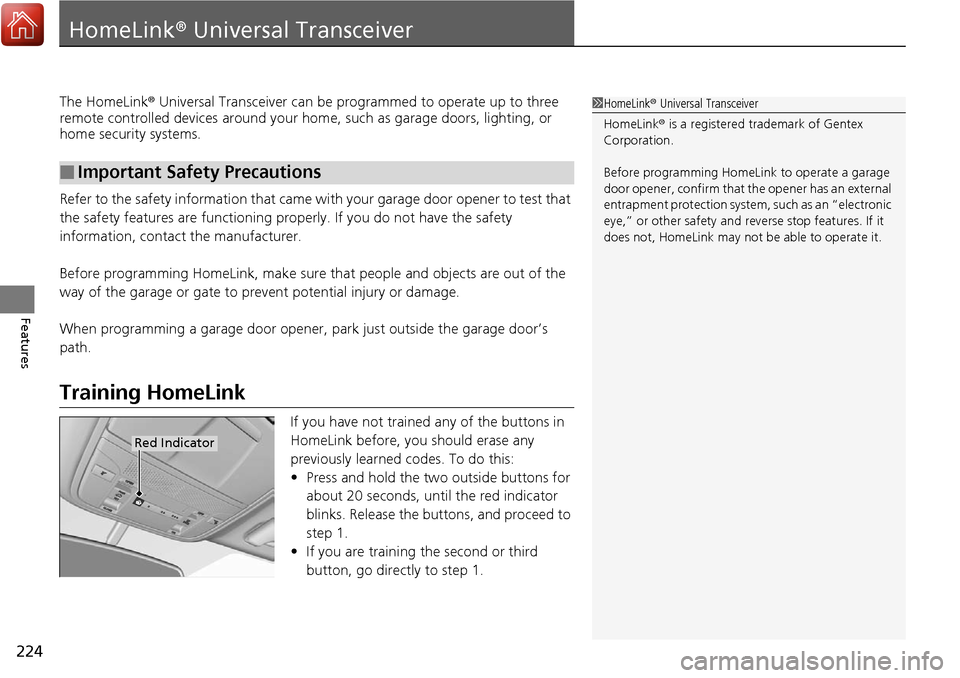
If you have not trained any of the buttons in
HomeLink before, you should erase any
previously learned codes. To do this:
• Press and hold the two outside buttons for
about 20 seconds, until the red indicator
blinks. Release the bu ttons, and proceed to
step 1.
• If you are training the second or third
button, go directly to step 1.
■Important Safety Precautions
1HomeLink ® Universal Transceiver
HomeLink® is a registered tra demark of Gentex
Corporation.
Before programming HomeLi nk to operate a garage
door opener, confirm that the opener has an external
entrapment protection system, such as an “electronic
eye,” or other safety and reverse stop features. If it
does not, HomeLink may not be able to operate it.
Red Indicator
Page 226 of 453
225
uuHomeLink ® Universal Transceiver uTraining HomeLink
Features
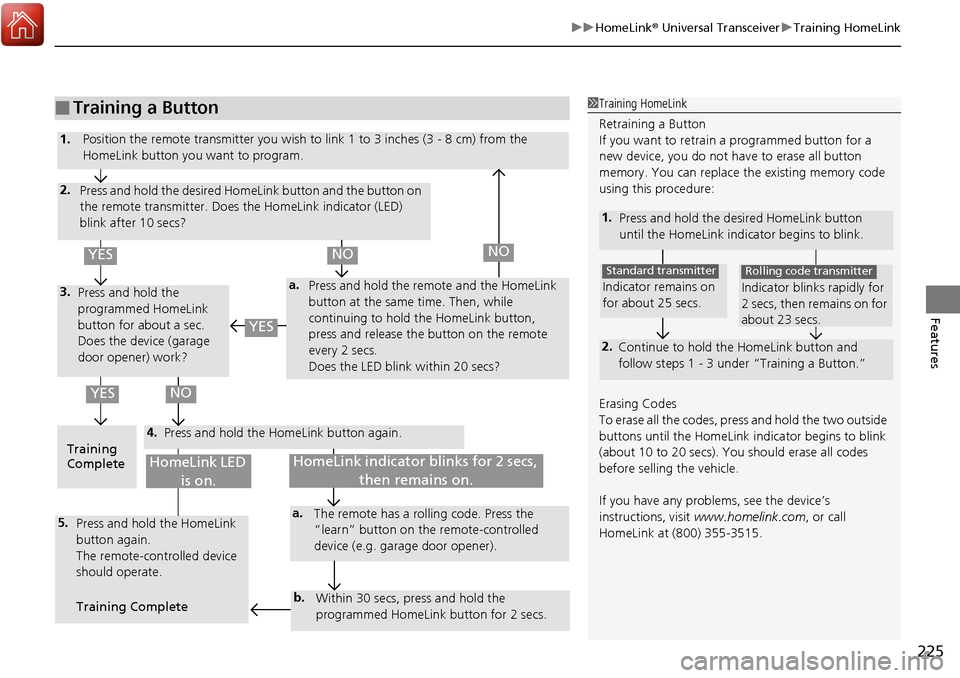
■Training a Button1Training HomeLink
Retraining a Button
If you want to retrain a programmed button for a
new device, you do not ha ve to erase all button
memory. You can replace the existing memory code
using this procedure:
1. Press and hold the desired HomeLink button
until the HomeLink indi cator begins to blink.
2.
Continue to hold the HomeLink button and
follow steps 1 - 3 unde r “Training a Button.”
Indicator remains on
for about 25 secs.
Standard transmitter
Indicator blinks rapidly for
2 secs, then remains on for
about 23 secs.
Rolling code transmitter
Erasing Codes
To erase all the codes, press and hold the two outside
buttons until the HomeLink i ndicator begins to blink
(about 10 to 20 secs). You should erase all codes
before selling the vehicle.
If you have any problems, see the device’s
instructions, visit www.homelink.com , or call
HomeLink at (800) 355-3515.
4.
a.3.
2.
5.a.
b.
1. Position the remote transmitter you wish to link 1 to 3 inches (3 - 8 cm) from the
HomeLink button you want to program.
Press and hold the desired HomeLink button and the button on
the remote transmitter. Does the HomeLink indicator (LED)
blink after 10 secs?
Press and hold the
programmed HomeLink
button for about a sec.
Does the device (garage
door opener) work? Press and hold the remote and the HomeLink
button at the same time. Then, while
continuing to hold the HomeLink button,
press and release the button on the remote
every 2 secs.
Does the LED blink within 20 secs?
Training
Complete Press and hold the HomeLink button again.
Press and hold the HomeLink
button again.
The remote-controlled device
should operate.
Training Complete The remote has a ro
lling code. Press the
“learn” button on the remote-controlled
device (e.g. garage door opener).
Within 30 secs, press and hold the
programmed HomeLink button for 2 secs.
HomeLink indicator blinks for 2 secs, then remains on.HomeLink LED is on.
YESNO
YES
YESNONO
Page 233 of 453
232
uuBluetooth ® HandsFreeLink ®u HFL Menus
Features
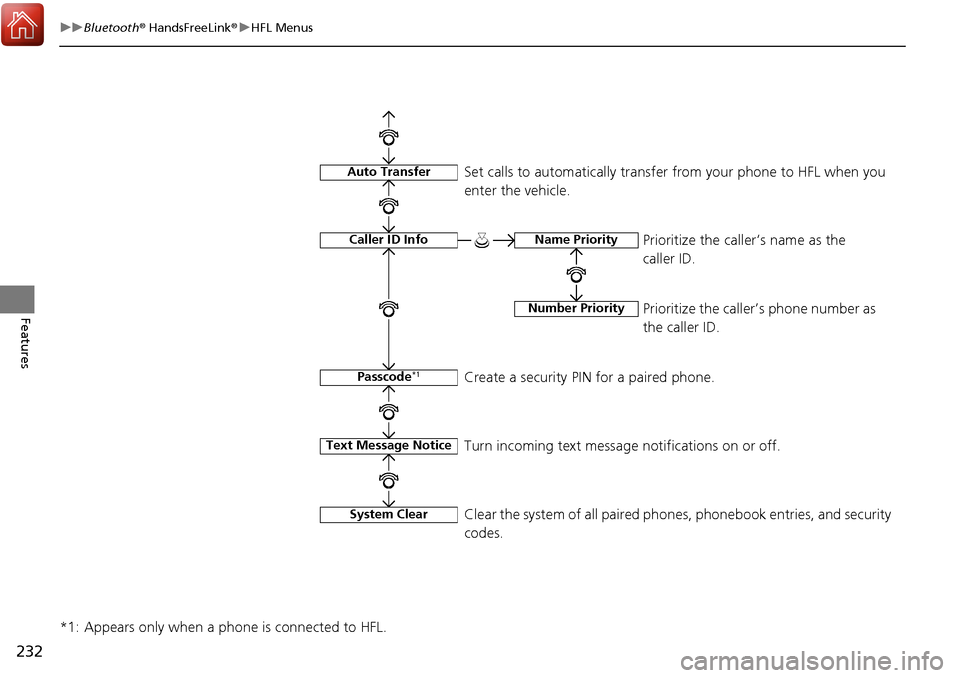
*1: Appears only when a phone is connected to HFL.
Passcode*1
Auto Transfer
Caller ID InfoName Priority
Number Priority
Text Message Notice
System Clear
Set calls to automatically transfer from your phone to HFL when you
enter the vehicle.
Prioritize the caller’s name as the
caller ID.
Prioritize the caller’s phone number as
the caller ID.
Create a security PIN for a paired phone.
Turn incoming text message notifications on or off.
Clear the system of all paired phone s, phonebook entries, and security
codes.
Page 241 of 453
uuBluetooth ® HandsFreeLink ®u HFL Menus
240
Features
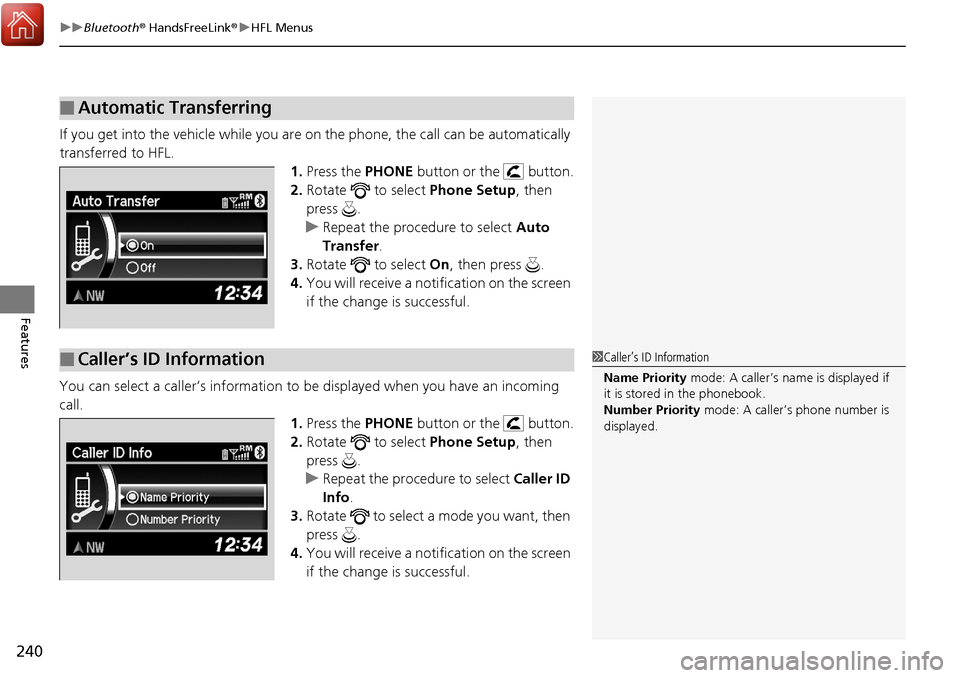
If you get into the vehicle while you are on the phone, the call can be automatically
transferred to HFL. 1.Press the PHONE button or the button.
2. Rotate to select Phone Setup, then
press .
u Repeat the procedure to select Auto
Transfer .
3. Rotate to select On, then press .
4. You will receive a notifi cation on the screen
if the change is successful.
You can select a caller’s information to be displayed when you have an incoming
call. 1.Press the PHONE button or the button.
2. Rotate to select Phone Setup, then
press .
u Repeat the procedure to select Caller ID
Info .
3. Rotate to select a mode you want, then
press .
4. You will receive a notifi cation on the screen
if the change is successful.
■Automatic Transferring
■Caller’s ID Information1 Caller’s ID Information
Name Priority mode: A caller’s name is displayed if
it is stored in the phonebook.
Number Priority mode: A caller’s phone number is
displayed.
Page 250 of 453
Continued249
uuBluetooth ® HandsFreeLink ®u HFL Menus
Features
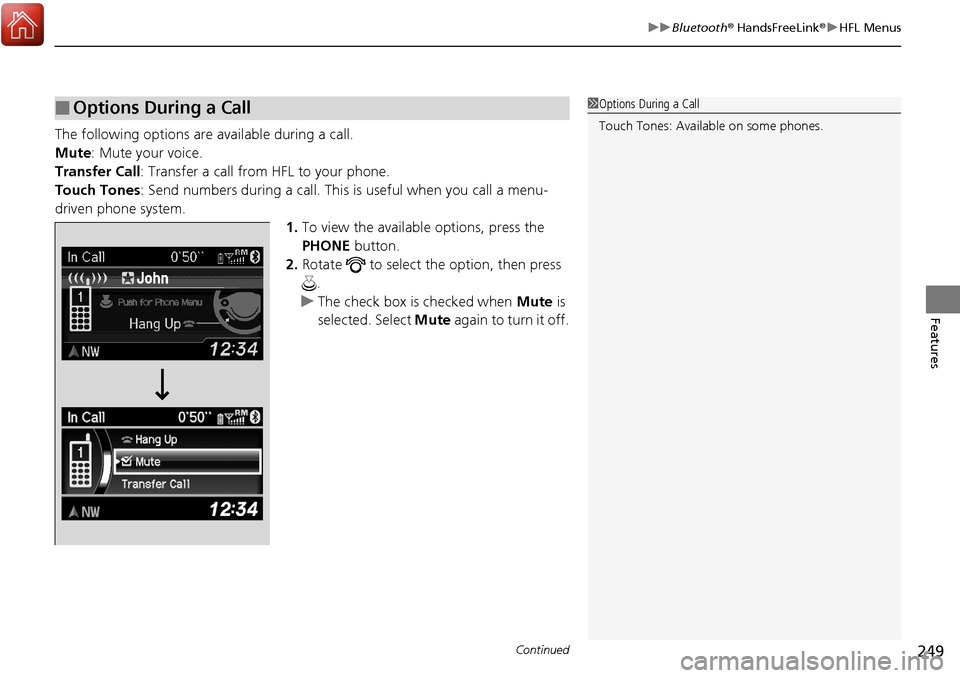
The following options are available during a call.
Mute: Mute your voice.
Transfer Call : Transfer a call from HFL to your phone.
Touch Tones : Send numbers during a call. This is useful when you call a menu-
driven phone system.
1.To view the availabl e options, press the
PHONE button.
2. Rotate to select the option, then press
.
u The check box is checked when Mute is
selected. Select Mute again to turn it off.
■Options During a Call1Options During a Call
Touch Tones: Available on some phones.