settings Acura RDX 2019 User Guide
[x] Cancel search | Manufacturer: ACURA, Model Year: 2019, Model line: RDX, Model: Acura RDX 2019Pages: 649, PDF Size: 33 MB
Page 257 of 649
uuAudio System Basic Operation uAudio/Information Screen
256
Features
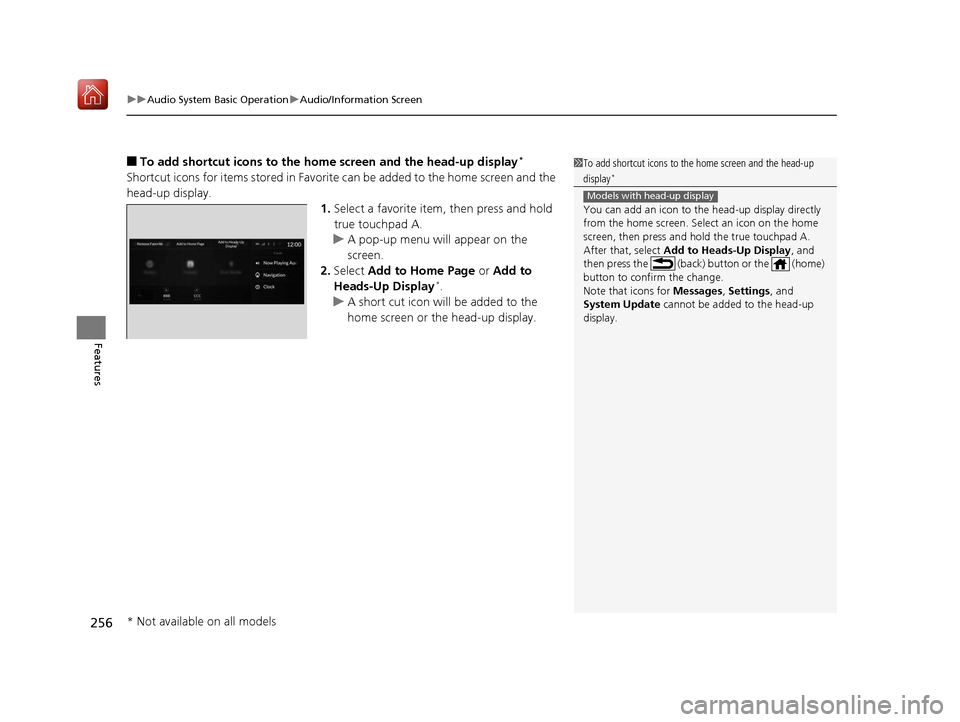
■To add shortcut icons to the home screen and the head-up display*
Shortcut icons for items stored in Favorite can be added to the home screen and the
head-up display.
1.Select a favorite item, then press and hold
true touchpad A.
u A pop-up menu will appear on the
screen.
2. Select Add to Home Page or Add to
Heads-Up Display
*.
u A short cut icon will be added to the
home screen or the head-up display.
1To add shortcut icons to the home screen and the head-up
display*
You can add an icon to the head-up display directly
from the home screen. Select an icon on the home
screen, then press and hold the true touchpad A.
After that, select Add to Heads-Up Display , and
then press the (back) button or the (home)
button to confirm the change.
Note that icons for Messages, Settings, and
System Update cannot be added to the head-up
display.
Models with head-up display
* Not available on all models
19 ACURA RDX-31TJB6000.book 256 ページ 2018年4月26日 木曜日 午後4時51分
Page 267 of 649
266
uuAudio System Basic Operation uSystem Updates
Features
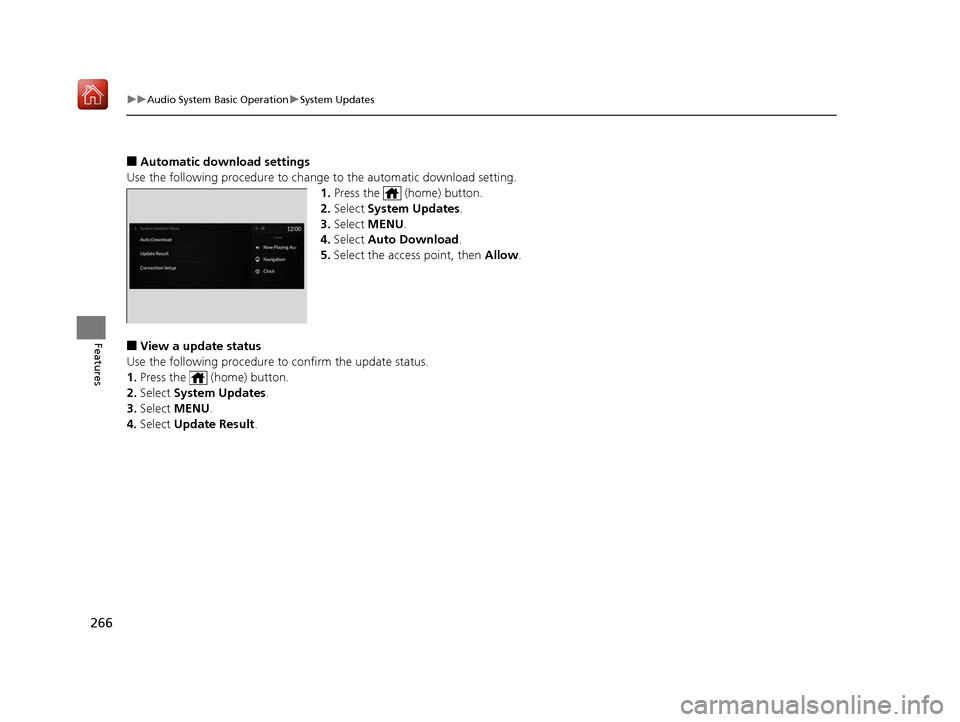
■Automatic download settings
Use the following procedure to change to the automatic download setting.
1. Press the (home) button.
2. Select System Updates .
3. Select MENU .
4. Select Auto Download .
5. Select the access point, then Allow .
■View a update status
Use the following procedure to confirm the update status.
1. Press the (home) button.
2. Select System Updates .
3. Select MENU .
4. Select Update Result .
19 ACURA RDX-31TJB6000.book 266 ページ 2018年4月26日 木曜日 午後4時51分
Page 270 of 649
269
uuAudio System Basic Operation uAdjusting the Sound
Features
Adjusting the Sound
1. Press the (home) button.
2. Select an audio source icon.
3. Select SOUND.
4. Select the setting you want.
3. Select MENU .
4. Select Sound Settings.
5. Select the setting you want.
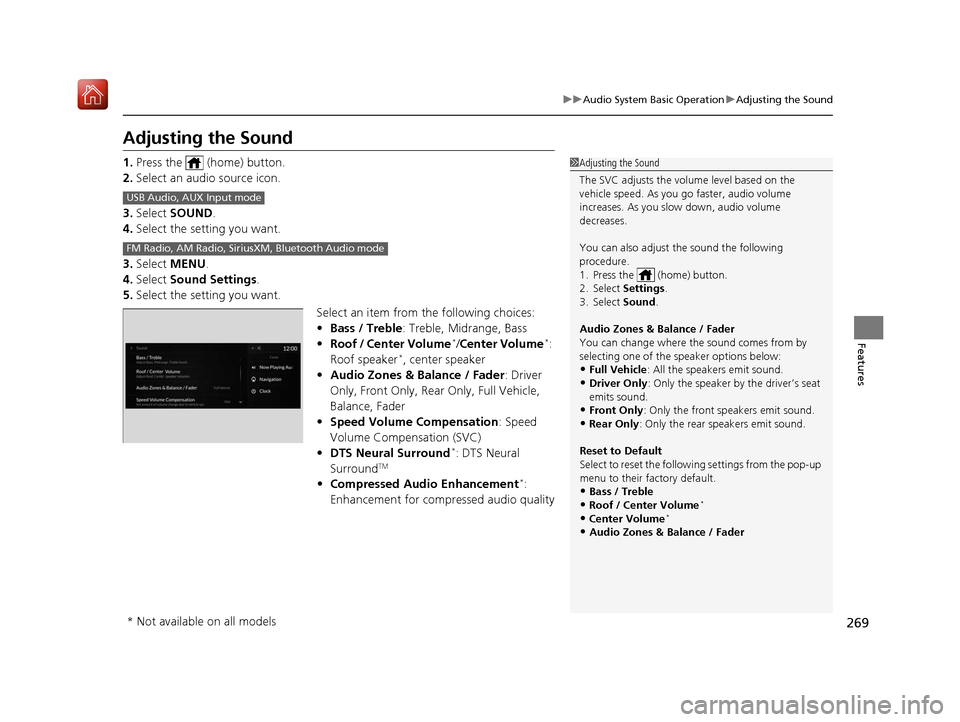
Select an item from the following choices:
•Bass / Treble : Treble, Midrange, Bass
• Roof / Center Volume
*/Center Volume*:
Roof speaker*, center speaker
• Audio Zones & Balance / Fader : Driver
Only, Front Only, Rear Only, Full Vehicle,
Balance, Fader
• Speed Volume Compensation : Speed
Volume Compensation (SVC)
• DTS Neural Surround
*: DTS Neural
SurroundTM
• Compressed Audio Enhancement*:
Enhancement for compressed audio quality
1 Adjusting the Sound
The SVC adjusts the volume level based on the
vehicle speed. As you go faster, audio volume
increases. As you slow down, audio volume
decreases.
You can also adjust the sound the following
procedure.
1. Press the (home) button.
2. Select Settings .
3. Select Sound.
Audio Zones & Balance / Fader
You can change where the sound comes from by
selecting one of the speaker options below:
•Full Vehicle: All the speakers emit sound. •Driver Only: Only the speaker by the driver’s seat
emits sound.
•Front Only : Only the front speakers emit sound.•Rear Only: Only the rear speakers emit sound.
Reset to Default
Select to reset the follow ing settings from the pop-up
menu to their factory default.
•Bass / Treble•Roof / Center Volume*
•Center Volume*
•Audio Zones & Balance / Fader
USB Audio, AUX Input mode
FM Radio, AM Radio, Siri usXM, Bluetooth Audio mode
* Not available on all models
19 ACURA RDX-31TJB6000.book 269 ページ 2018年4月26日 木曜日 午後4時51分
Page 271 of 649
270
uuAudio System Basic Operation uDisplay Setup
Features
Display Setup
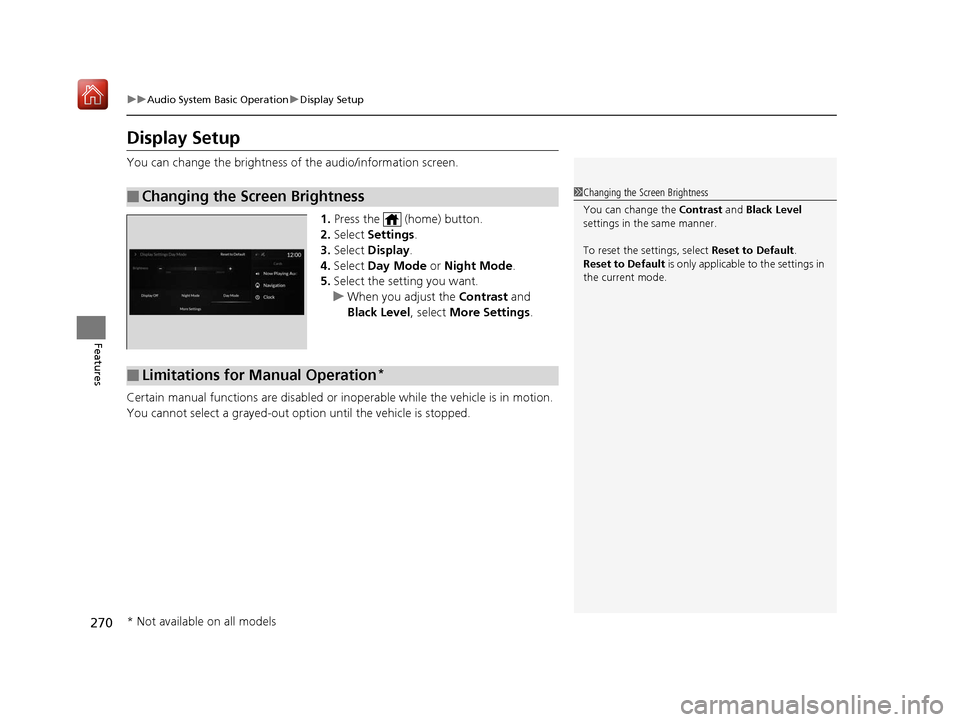
You can change the brightness of the audio/information screen.
1.Press the (home) button.
2. Select Settings .
3. Select Display .
4. Select Day Mode or Night Mode .
5. Select the setting you want.
u When you adjust the Contrast and
Black Level , select More Settings .
Certain manual functions are disabled or inoperable while the vehicle is in motion.
You cannot select a grayed-out option until the vehicle is stopped.
■Changing the Screen Brightness1 Changing the Screen Brightness
You can change the Contrast and Black Level
settings in the same manner.
To reset the settings, select Reset to Default.
Reset to Default is only applicable to the settings in
the current mode.
■Limitations for Manual Operation*
* Not available on all models
19 ACURA RDX-31TJB6000.book 270 ページ 2018年4月26日 木曜日 午後4時51分
Page 278 of 649
277
uuAudio System Basic Operation uPlaying AM/FM Radio
Features
Displays the subchannel list when an HD RadioTM station is selected while listening to
an FM station.
1. Select icon.
2. Select the channel number.
Change the AM/FM settings.
1. Select MENU .
2. Select HD Radio Setting .
3. Select Automatic or Analog Only .
■HD Subchannel
■AM/FM Settings
19 ACURA RDX-31TJB6000.book 277 ページ 2018年4月26日 木曜日 午後4時51分
Page 280 of 649

Continued279
uuAudio System Basic Operation uPlaying SiriusXM ® Radio
Features
1. Select MENU .
2. Select SiriusXM Settings.
3. Select Tune Mode .
4. Select All Channels or Within Category .
■To Change the Tune Mode1Playing SiriusXM ® Radio
In the channel mode, all available channels are
selectable. In the categor y mode, you can select a
channel within a ca tegory (Jazz, Rock, Classical, etc.).
There may be instances when SiriusXM ® Radio does
not broadcast all the data fi elds (artist name, title).
This does not indicate a problem with your audio
system.
SiriusXM ® Radio stations load in ascending order,
which can take about a minute. Once they have
loaded you will be able to scroll up or down to make
your selections.
Switching the Audio Mode
Press the APPS button on the steering wheel, then
select an item or select the audio source icon on the
home screen. 2 Audio Remote Controls P. 243
Tune Start:
When you change to a favo rite channel, a song being
played on that channel restarts from the beginning
with this function. This can be turned on or off by the
following procedure.
1. Select MENU.
2. Select SiriusXM Settings .
3. Select Tune Start .
4. Select On or Off.
To change a category, select Category icons, or
select Channels and then select category item.
19 ACURA RDX-31TJB6000.book 279 ページ 2018年4月26日 木曜日 午後4時51分
Page 285 of 649
uuAudio System Basic Operation uPlaying SiriusXM ® Radio
284
Features
While listening to other channel, you can re ceive sports alerts such as scores from
your favorite teams.
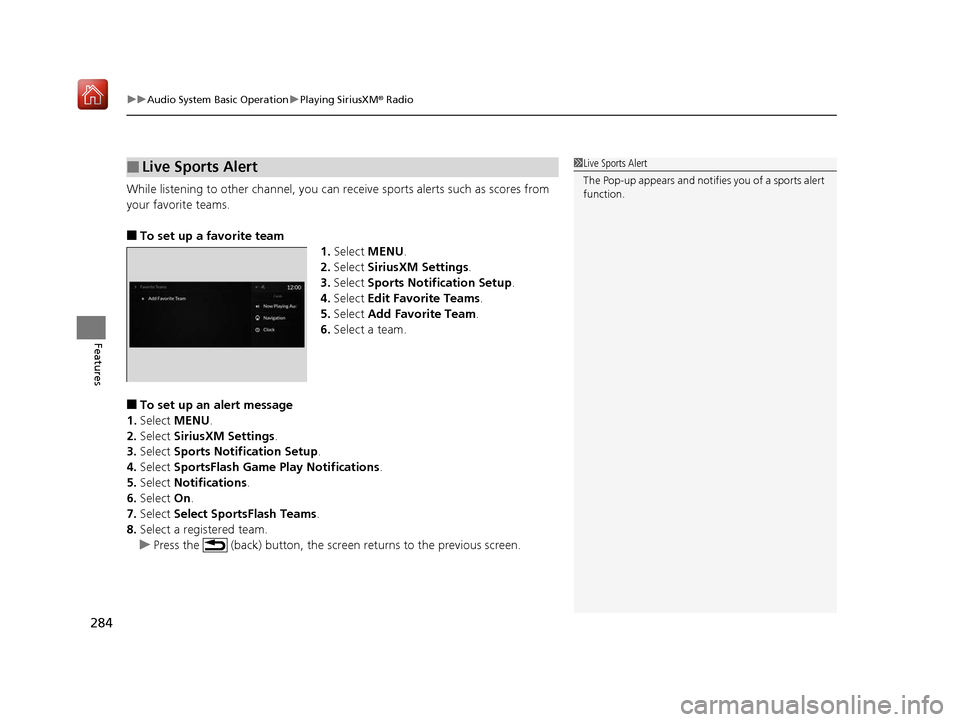
■To set up a favorite team 1.Select MENU .
2. Select SiriusXM Settings .
3. Select Sports Notifi cation Setup.
4. Select Edit Favorite Teams .
5. Select Add Favorite Team .
6. Select a team.
■To set up an alert message
1. Select MENU .
2. Select SiriusXM Settings .
3. Select Sports Notifi cation Setup.
4. Select SportsFlash Game Play Notifications .
5. Select Notifications.
6. Select On.
7. Select Select SportsFlash Teams.
8. Select a registered team.
u Press the (back) button, the screen returns to the previous screen.
■Live Sports Alert1Live Sports Alert
The Pop-up appears and notifie s you of a sports alert
function.
19 ACURA RDX-31TJB6000.book 284 ページ 2018年4月26日 木曜日 午後4時51分
Page 286 of 649
Continued285
uuAudio System Basic Operation uPlaying SiriusXM ® Radio
Features
You can receive a sports channel notificati on when registered sports team start
playing.
■To set up a game start notification
1. Select MENU .
2. Select SiriusXM Settings.
3. Select Sports Notification Setup .
4. Select Game Notifications .
5. Select On.
■Receiving a game start notification
1. A pop-up appears on the secondary inform ation area and notifies you of a game
start notification.
2. Select the system status area then press the true touchpad B.
u The status items appear on the primary information area.
3. Select a SiriusXM ® notification item using true touchpad A to see the details.
■Game Start Notification1Game Start Notification
Before receiving a game start notification, register a
favorite sports team.
2 To set up a favorite team P. 284
19 ACURA RDX-31TJB6000.book 285 ページ 2018年4月26日 木曜日 午後4時51分
Page 287 of 649
uuAudio System Basic Operation uPlaying SiriusXM ® Radio
286
Features
You can receive traffic and weather information.
1. Select MENU .
2. Select SiriusXM Settings .
3. Select Traffic & Weather Setup .
4. Select Selected City .
5. Select the region.
■Receiving a traffic and weather information
1. A pop-up will appear in the secondary information area to notify you that new
traffic and weather information is available.
2. Select the system status area, then press true touchpad B.
u The status area will appear in the primary information area.
3. To see the details, select an item using true touchpad A.
u The traffic and weather information will appear in the secondary information
area.
u Select Keep Listening to continue receiving traffic and weather information.
u Select Return to (function name) to stop viewing traffic and weather
information.
■Traffic and Weather Information1 Traffic and Weather Information
When traffic and weather information is received, a
notification is displayed in the secondary information
area.
2 Secondary Information Area P. 252
19 ACURA RDX-31TJB6000.book 286 ページ 2018年4月26日 木曜日 午後4時51分
Page 288 of 649
Continued287
uuAudio System Basic Operation uPlaying SiriusXM ® Radio
Features
You can view a channel schedule or receiv e a alert when your favorite program is
about to start.
■To view a channel schedule
1. Select MENU .
2. Select Channel Schedule .
■To set up an alert message
1. Select MENU .
2. Select Channel Schedule .
3. Select a program.
4. Select Set Program Alert .
5. Select One Time or Every Time .
■Channel Schedule1Channel Schedule
Select , then trace the le tters and/or numbers of
the channel on the true touchpad A. When
KEYBOARD is selected, the on-screen keyboard
appears.
1 To set up an alert message
The Pop-up appears and not ifies you of an alert
function.
Selecting One Time disables the alert feature next
time you turn the power mode to ON.
If you want to delete the alert, select Remove Alert.
To enable an alert message, change settings for the
alert function. 2 To enable the alert function P. 288
19 ACURA RDX-31TJB6000.book 287 ページ 2018年4月26日 木曜日 午後4時51分