Park Acura RDX 2020 Owner's Guide
[x] Cancel search | Manufacturer: ACURA, Model Year: 2020, Model line: RDX, Model: Acura RDX 2020Pages: 657, PDF Size: 33.2 MB
Page 300 of 657
299
uuAudio System Basic Operation uWi-Fi Connection
Continued
Features
Wi-Fi Connection
You can connect the audio system to the Internet using Wi-Fi on the audio/
information screen. If your phone has wireless hotspot capabilities, the system can
be tethered to the phone. Use the following steps to setup.
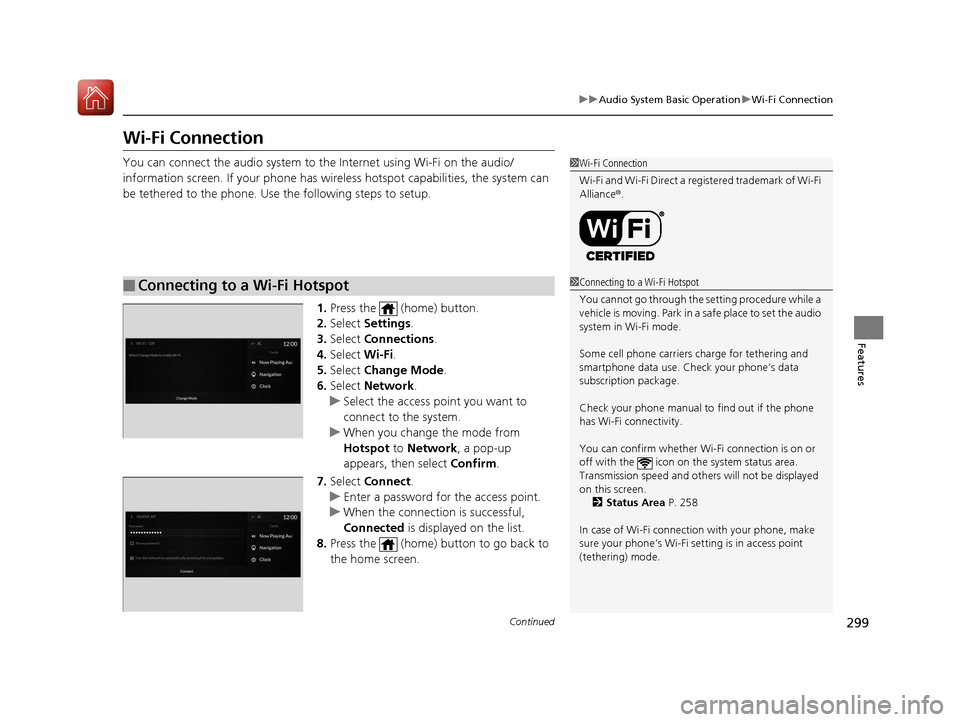
1.Press the (home) button.
2. Select Settings .
3. Select Connections .
4. Select Wi-Fi.
5. Select Change Mode .
6. Select Network .
u Select the access point you want to
connect to the system.
u When you change the mode from
Hotspot to Network, a pop-up
appears, then select Confirm.
7. Select Connect .
u Enter a password for the access point.
u When the connection is successful,
Connected is displayed on the list.
8. Press the (home) button to go back to
the home screen.
■Connecting to a Wi-Fi Hotspot
1Wi-Fi Connection
Wi-Fi and Wi-Fi Direct a registered trademark of Wi-Fi
Alliance® .
1Connecting to a Wi-Fi Hotspot
You cannot go through the setting procedure while a
vehicle is moving. Park in a safe place to set the audio
system in Wi-Fi mode.
Some cell phone carriers charge for tethering and
smartphone data use. Check your phone’s data
subscription package.
Check your phone manual to find out if the phone
has Wi-Fi connectivity.
You can confirm whether Wi -Fi connection is on or
off with the icon on the system status area.
Transmission speed and others will not be displayed
on this screen. 2 Status Area P. 258
In case of Wi-Fi connect ion with your phone, make
sure your phone’s Wi-Fi se tting is in access point
(tethering) mode.
20 ACURA RDX-31TJB6111.book 299 ページ 2020年2月11日 火曜日 午後2時6分
Page 303 of 657
302
uuAudio System Basic Operation uApple CarPlay
Features
Apple CarPlay
If you connect an Apple CarPlay-compatible iPhone to the system via the USB port
in the console compartment, you can use the audio/information screen, instead of
the iPhone display, to make a phone call, listen to music, view maps (navigation),
and access messages.
2 USB Ports P. 239
■Phone
Access the contact list, make phone calls, or listen to voice mail.
■Messages
Check and reply to text messages, or have messages read to you.
■Music
Play music stored on your iPhone.
■Apple CarPlay Menu
1 Apple CarPlay
Only iPhone 5 or newer versi ons with iOS 8.4 or later
are compatible with Apple CarPlay.
Park in a safe place before connecting your iPhone to
Apple CarPlay and when launching any compatible
apps.
To use Apple CarPlay, connect the USB cable to the
USB port located in the console compartment.
The USB ports located on the front panel and the
back of the console compartment
* are used only for
charging. 2 USB Ports P. 239
While connected to Apple CarPlay, calls are only
made through Apple CarPlay. If you want to make a
call with Bluetooth ® HandsFreeLink ®, turn Apple
CarPlay OFF or detach th e USB cable from your
iPhone.
2 Setting Up Apple CarPlay P. 304
When your iPhone is connected to Apple CarPlay, it is
not possible to use the Bluetooth® Audio or
Bluetooth ® HandsFreeLink ®. However, other
previously paired phones can stream audio via
Bluetooth ® while Apple CarPlay is connected.
2 Phone Setup P. 367
For details on c ountries and regions where Apple
CarPlay is available, as well as information pertaining
to function, refer to the Apple homepage.
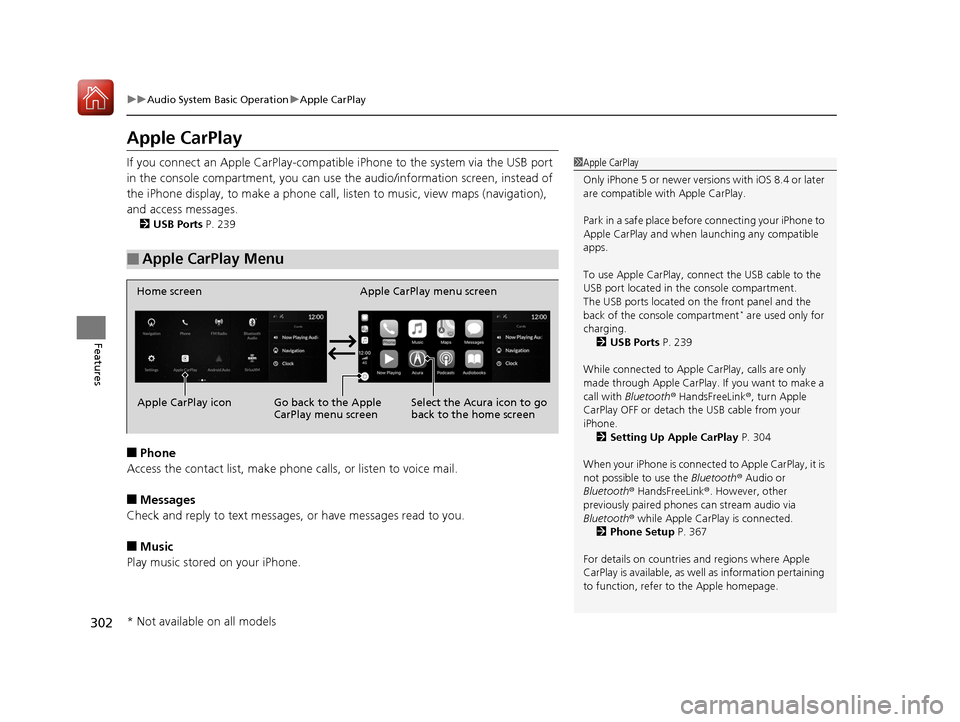
Home screen
Apple CarPlay icon Apple CarPlay menu screen
Go back to the Apple
CarPlay menu screen
Select the Acura icon to go
back to the home screen
* Not available on all models
20 ACURA RDX-31TJB6111.book 302 ページ 2020年2月11日 火曜日 午後2時6分
Page 307 of 657
306
uuAudio System Basic Operation uAndroid Auto
Features
Android Auto
When you connect an Android phone to the audio system via the USB port in the
console compartment, Android Auto is auto matically initiated. When connected via
Android Auto, you can use the audio/information screen to access the Phone,
Google Maps (Navigation), Google Play Music, and Google Now functions. When
you first use Android Auto, a tuto rial will appear on the screen.
We recommend that you complete this tuto rial while safely parked before using
Android Auto.
2 USB Ports P. 239
2 Auto Pairing Connection P. 308
1Android Auto
To use Android Auto, you need to download the
Android Auto app from Google Play to your
smartphone.
Only Android 5.0 (Lollipop) or later versions are
compatible with Android Auto.
Bluetooth A2DP cannot be used with Android Auto
phone.
Park in a safe place befo re connecting your Android
phone to Android Auto and when launching any
compatible apps.
To use Android Auto, connect the USB cable to the
USB port located in the console compartment. The
USB ports located on the front panel and the back of
the console compartment
* are used only for
charging.
2 USB Ports P. 239
When your Android phone is connected to Android
Auto, it is not possible to use the Bluetooth® Audio.
However, other previously paired phones can stream
audio via Bluetooth ® while Android Auto is
connected. 2 Phone Setup P. 367
* Not available on all models
20 ACURA RDX-31TJB6111.book 306 ページ 2020年2月11日 火曜日 午後2時6分
Page 309 of 657
uuAudio System Basic Operation uAndroid Auto
308
Features
c Google Now (Home screen)
Display useful information organized by Andr oid Auto into simple cards that appear
just when they’re needed.
d Music and audio
Play Google Play Music and music apps that are compatible with Android Auto.
To switch between music apps, press this icon.
e Go back to the Home Screen.
f Voice
Operate Android Auto with your voice.
When you connect an Android phone to the unit via the USB port in the console
compartment, Android Auto is automatically initiated.
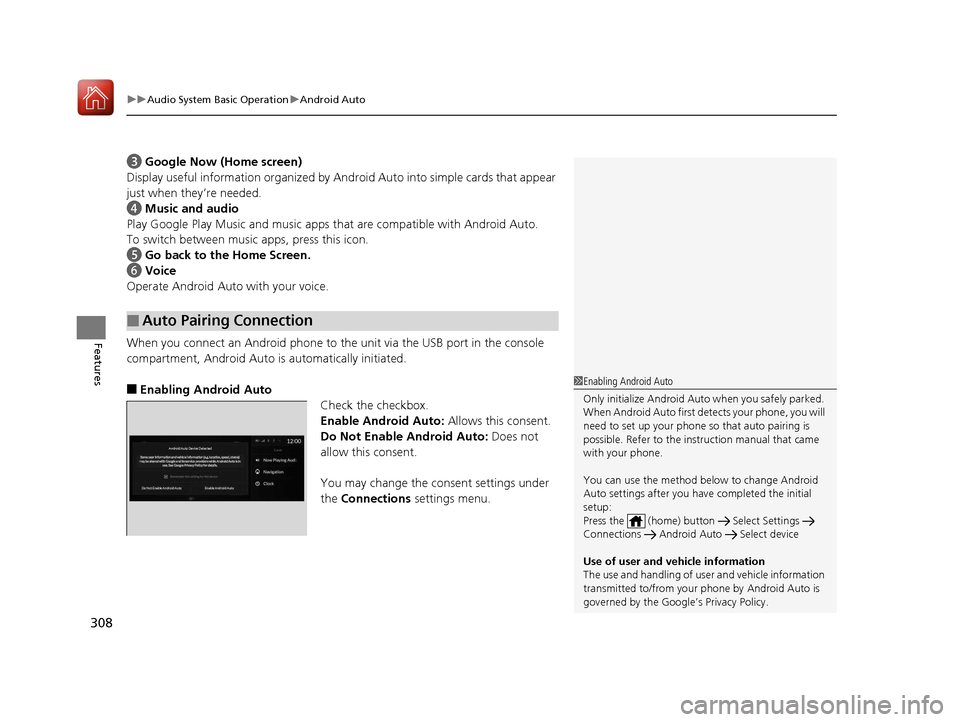
■Enabling Android Auto
Check the checkbox.
Enable Android Auto: Allows this consent.
Do Not Enable Android Auto: Does not
allow this consent.
You may change the consent settings under
the Connections settings menu.
■Auto Pairing Connection
1Enabling Android Auto
Only initialize Android Auto when you safely parked.
When Android Auto first detects your phone, you will
need to set up your phone so that auto pairing is
possible. Refer to the inst ruction manual that came
with your phone.
You can use the method below to change Android
Auto settings after you ha ve completed the initial
setup:
Press the (home) butt on Select Settings
Connections Android Auto Select device
Use of user and vehicle information
The use and handling of user and vehicle information
transmitted to/from your phone by Android Auto is
governed by the Google’s Privacy Policy.
Android Auto Device Detected
Do Not Enable Android Auto Enable Android Auto
20 ACURA RDX-31TJB6111.book 308 ページ 2020年2月11日 火曜日 午後2時6分
Page 359 of 657
358
Features
HomeLink® Universal Transceiver
The HomeLink ® Universal Transceiver can be pr ogrammed to operate up to three
remote controlled devices around your home , such as garage doors, lighting, or
home security systems.
Refer to the safety information that came wi th your garage door opener to test that
the safety features are functioning properly. If you do not have the safety
information, contac t the manufacturer.
Before programming HomeLink, make sure th at people and objects are out of the
way of the garage or gate to prevent potential injury or damage.
When programming a garage door opener, park just outside the garage door’s path.
■Important Safety Precautions
1HomeLink ® Universal Transceiver
Before programming HomeLi nk to operate a garage
door opener, confirm that the opener has an external
entrapment protection system, such as an “electronic
eye,” or other safety and reverse stop features. If it
does not, HomeLink may not be able to operate it.
20 ACURA RDX-31TJB6111.book 358 ページ 2020年2月11日 火曜日 午後2時6分
Page 366 of 657

365
uuBluetooth ® HandsFreeLink ®u HFL Menus
Continued
Features
HFL Menus
The power mode must be in ACCESSO RY or ON to use the system.
■Phone screen
1.Press the (home) button.
2. Select Phone .
1HFL Menus
To use HFL, you must first pair your Bluetooth-
compatible cell phone to th e system while the vehicle
is parked.
Some functions are limited while driving.
Display the last outgoing, incoming and missed calls.RecentsAll
Dialed
Received
Display the last outgoing calls.
Display the last incoming calls.
MissedDisplay the last missed calls.
Enter NumberEnter a phone number to dial.
ContactsDisplay the phonebook of the paired phone.
Add Favorite
(Favorite Contact List)
MENU
From Recents
From Contacts
Using Enter Number
Dial the selected number in the favorite contact list.
Display the Phone Menu screen.Select a phone number from the call history to store as a
favorite contact number.
Select a phone number from the phonebook to store as a
favorite contact number.
Enter a phone number to store as a favorite contact number.
20 ACURA RDX-31TJB6111.book 365 ページ 2020年2月11日 火曜日 午後2時6分
Page 396 of 657
Continued395
uuAcuraLink ®u
Features
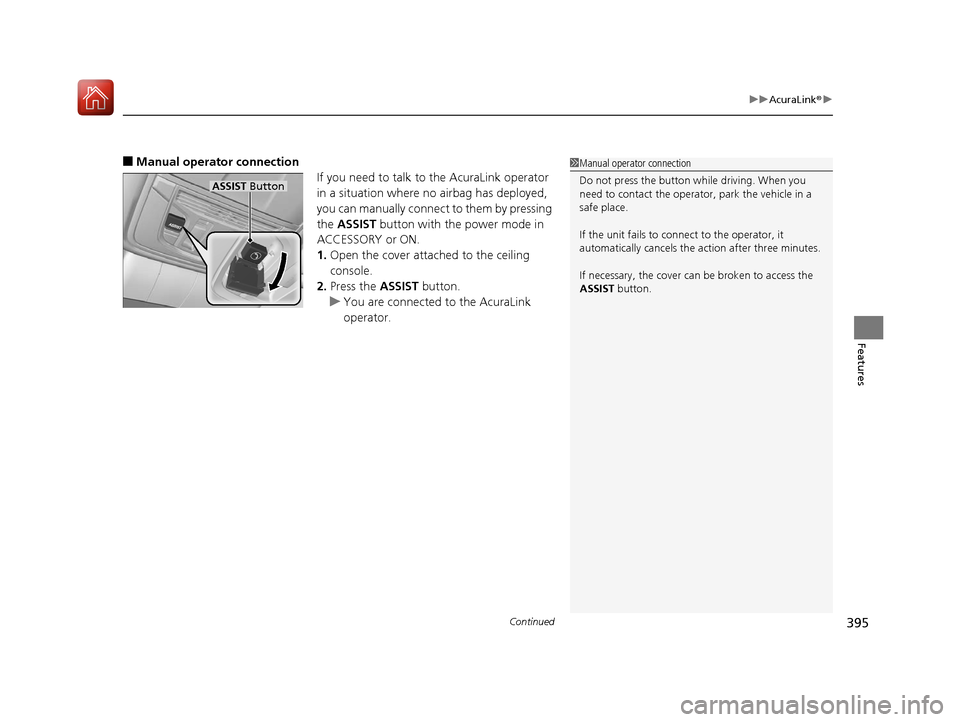
■Manual operator connection
If you need to talk to the AcuraLink operator
in a situation where no airbag has deployed,
you can manually connect to them by pressing
the ASSIST button with the power mode in
ACCESSORY or ON.
1. Open the cover attached to the ceiling
console.
2. Press the ASSIST button.
u You are connected to the AcuraLink
operator.1Manual operator connection
Do not press the button while driving. When you
need to contact the operato r, park the vehicle in a
safe place.
If the unit fails to connect to the operator, it
automatically cancels the action after three minutes.
If necessary, the cover can be broken to access the
ASSIST button.
ASSIST Button
20 ACURA RDX-31TJB6111.book 395 ページ 2020年2月11日 火曜日 午後2時6分
Page 398 of 657
Continued397
uuAcuraLink ®u
Features
Your subscribed telematics service provid er can check your vehicle’s condition. For
maximum functionality download AcuraLink app in your smartphone and connect it
with the vehicle.
■Automatic Collisio n Notifications
A live agent will reach out and check on you and request that help be sent in the
event of a crash.
■Send Destination
Search for destinations on your phone and instantly beam turn-by-turn directions to
your navigation system
*. Requires In-vehicle Navigation System*.
■Stolen Vehicle Locator
Get door and lock status as well as mileage, fuel, oil life, and tire pressure readings
on your phone.
■Remote Start & Stop
Arrive at your vehicle with the engine warmed up and the interior set to a
comfortable temperature.
■Remote Lock & Unlock
Lock and unlock your vehicle with your smartphone.
■Find My Car
Find your parked vehicle and flash/sound your horns remotely using your
smartphone.
■Connection Features1 Connection Features
The contact information of your provider, your user
ID and PIN will be given when you subscribe to
AcuraLink. If you forget any of the above, contact a
Acura dealer, or go to owners.acura.com (U.S.) or
www.acura.ca/owners/acuralink (Canada).
You can also activate the remote door lock/unlock
and vehicle finder features from the Internet or using
your smartphone app. As k a dealer, or visit
owners.acura.com (U.S.) or www.acura.ca/owners/
acuralink (Canada) for details.
1Find My Car
The lights will stop flas hing and horn will stop
sounding under the following:
•When conditions 30 seconds have elapsed.
•You unlock the doors using the remote transmitter.
•You unlock the doors using the keyless access
system.
•You unlock the doors us ing the built-in key.
•The power mode is set to ACCESSORY or ON.
* Not available on all models
20 ACURA RDX-31TJB6111.book 397 ページ 2020年2月11日 火曜日 午後2時6分
Page 400 of 657
399
Driving
This chapter discusses driving and refueling.
Before Driving................................... 400
Towing a Trailer ................................ 405
Off-Highway Driving Guidelines ..... 411
When Driving Starting the Engine .......................... 413
Precautions While Driving................. 418
Automatic Transmission ................... 419
Shifting ............................................ 420
Integrated Dynamics System............. 428
Auto Idle Stop .................................. 430
Vehicle Stability AssistTM (VSA®), aka Electronic
Stability Control (ESC), System ................. 436
Agile Handling Assist ....................... 438
Super Handling-All Wheel DriveTM (SH-AWD®)*.. 439
Tire Pressure Monitoring System (TPMS) with Tire Fill Assist .......................... 440
Tire Pressure Monitoring System (TPMS) - Required Federal Explanation ......... 442
Blind spot information System
*........ 444
AcuraWatchTM................................... 447
Collision Mitigati on Braking SystemTM
(CMBSTM) ....................................... 450
Adaptive Cruise Control (ACC) with Low Speed Follow ................................. 460 Lane Keeping Assist System (LKAS) .. 477
Road Departure Mi
tigation (RDM)
System ........................................ 485
Front Sensor Camera ....................... 489
Radar Sensor ................................... 491
Braking .............................................. 492
Parking Your Vehicle ........................ 501
Multi-View Rear Camera .................. 511
Surround View Camera System
*..... 513
Refueling ........................................... 521
Fuel Economy and CO
2 Emissions .... 524
Turbo Engine Vehicle ....................... 525
* Not available on all models
20 ACURA RDX-31TJB6111.book 399 ページ 2020年2月11日 火曜日 午後2時6分
Page 401 of 657
400
Driving
Before Driving
Driving Preparation
Check the following items before you start driving.
• Make sure there are no obstructions on the windows, door mirrors, exterior
lights, or other parts of the vehicle.
u Remove any frost, snow, or ice.
u Remove any snow on the roof, as this can slip down and obstruct your field of
vision while driving. If frozen solid , remove ice once it has softened.
u When removing ice from around the wheels, be sure not to damage the wheel
or wheel components.
• Make sure the hood is securely closed.
u If the hood opens while driving, your front view will be blocked.
• Make sure the tires are in good condition.
u Check air pressures, and check for damage and excessive wear.
2Checking and Maintaining Tires P. 560
•Make sure there are no people or ob jects behind or around the vehicle.
u There are blind spots from the inside.
■Exterior Checks1Exterior Checks
NOTICE
When doors are frozen s hut, use warm water around
the door edges to melt any ice. Do not try to force
them open, as this can damage the rubber trim
around the doors. When done, wipe dry to avoid
further freezing.
Do not pour warm water into the key cylinder.
You will be unable to insert the key if the water
freezes in the hole.
Heat from the engine and exhaust can ignite
flammable material s left under the hood, causing a
fire. If you’ve parked y our vehicle for an extended
period, inspect and remove any debris that may have
collected, such as dried grass and leaves that have
fallen or have been carried in for use as a nest by a
small animal. Also check under the hood for leftover
flammable materials after you or someone else has
performed maintenance on your vehicle.
20 ACURA RDX-31TJB6111.book 400 ページ 2020年2月11日 火曜日 午後2時6分