audio ACURA RDX 2022 Owners Manual
[x] Cancel search | Manufacturer: ACURA, Model Year: 2022, Model line: RDX, Model: ACURA RDX 2022Pages: 709, PDF Size: 25.22 MB
Page 564 of 709

uuParking Your Vehicle uCross Traffic Monitor
562
Driving
An arrow icon appears on the side a vehicl e is approaching on the audio/information
screen.
■When the System Detects a Vehicle1 When the System Detects a Vehicle
If the on the lower right changes to in amber
when the gear position is in
( R, mud, snow or ice,
etc. may have accumulated in the vicinity of the
sensor. The system is temp orarily canceled. Check the
bumper corners for any obs tructions, and thoroughly
clean the area if necessary.
If the comes on when the gear position is in
( R,
there may be a problem with the Cross Traffic
Monitor system. Do not use the system and have your
vehicle checked by a dealer.
If the display remains the same with the transmission
in
( R, there may be a problem with the rear camera
system and the Cross Traffic Monitor system.
Do not use the system and have your vehicle checked
by a dealer.
Wide View Normal View
Arrow IconTop Down View
Models with multi-view rear camera system
Models with surround view camera system
Arrow Icon
Rear Wide View Rear Ground View
22 ACURA RDX-31TJB6300.book 562 ページ 2021年8月2日 月曜日 午前11時0分
Page 565 of 709

563
uuParking Your Vehicle uCross Traffic Monitor
Driving
You can switch the system on and off using
the audio/information screen.
2 Customized Features P. 359
The system can also be turned on and off on
the audio/information sc reen by pressing the
Cross Traffic Monitor icon.
■Cross Traffic Monitor On and Off
Cross Traffic Monitor Icon
Models with multi-view rear camera
system
Models with surround view camera
system
Cross Traffic Monitor Icon
22 ACURA RDX-31TJB6300.book 563 ページ 2021年8月2日 月曜日 午前11時0分
Page 566 of 709

564
Driving
Multi-View Rear Camera*
About Your Multi-View Rear Camera
The audio/information screen can display your vehicle’s rear view. The display
automatically changes to the rear view when the transmission is put into
(R.
■Multi-View Rear Camera Display Area
1About Your Multi-View Rear Camera
The rear camera view is restricted. You cannot see
the corner ends of the bumper or what is underneath
the bumper. Its unique le ns also makes objects
appear closer or farther than they actually are.
Visually confirm that it is safe to drive before backing
up. Certain conditions (such as weather, lighting, and
high temperatures) may also restrict the rear view. Do
not rely on the rearview display which does not give
you all information about conditions at the back of
your vehicle.
If the rear camera lens is covered with dirt or
moisture, activate the rearview camera washer
* or
use a soft, moist cloth to keep the lens clean and free
of debris. 2 Rear Wiper/Washer P. 206
Guidelines appear when you put the transmission
into
( R.
You can change the Guidelines setting.
2 Customized Features P. 359
Off: Guidelines do not appear.
Fixed: Fixed Guidelines appear.
Dynamic: Guidelines that move according to the
steering wheel direction appear.
Both: Fixed guidelines and dynamic guidelines
appear.
Guidelines
Bumper
Camera
Approx. 20 inches
(50 cm)
Tailgate Open Range Approx. 39 inches
(1 m)
Wide View Mode
Normal View Mode
Top Down View Mode
Approx. 20 inches (50 cm)
Tailgate Open Range Approx. 39 inches (1 m)
* Not available on all models
22 ACURA RDX-31TJB6300.book 564 ページ 2021年8月2日 月曜日 午前11時0分
Page 568 of 709

566
Driving
Surround View Camera System*
Is a four camera system that views areas commonly known as “blind spots” from
different angles, then displays the images on the audio/information screen. This
system can be used to:
• Check for obstacles when you are moving in
(R.
2 Using the Surround View Camera System P. 570
•Check the right and left sides of the vehi cle while crossing at intersections with
poor visibility (obstructed view, etc.).
2 Checking from the front wide view at intersections P. 572
•Check for obstacles in front of the ve hicle when parking or maneuvering in
confined areas.
2 Checking the sides of your vehicle P. 572
1Surround View Camera System*
3WARNING
Failure to visually assess the area around
the vehicle (directly or by use of the
mirrors) may result in a crash causing
serious injury or death.
The areas shown in the surround view
camera system display are limited. The
display may not show all pedestrians or
other objects around your vehicle.
Do not solely rely only on the surround
view camera system display to assess
whether it is safe to move your vehicle.
3WARNING
Failure to pay proper attention to your
surroundings while driving may result in a
crash causing serious injury or death.
To help mitigate the ch ances of a collision,
only look at the surround view camera
system display when it is safe to do so.
* Not available on all models
22 ACURA RDX-31TJB6300.book 566 ページ 2021年8月2日 月曜日 午前11時0分
Page 570 of 709

568
uuSurround View Camera System*uDisplaying an Image From the Surround View Cameras
Driving
■Camera Locations and Images
Ground View
An overhead view created by the
combination of images captured
by four cameras.
Front
Ground View
Side View
+
Ground View Front
Wide View
Sideview Camera
(Passenger side)Sideview Camera
(Driver side)
The unique surround view camera lenses make distances appear
differently than they actually are - objects seen on the audio/
information screen may appear closer or further away, and may be
distorted. This becomes more apparent the further away an object is
from your vehicle. Rear
Ground
View
Rear
Wide
View
Press the CAMERA
button.
Rearview Camera
Front-view Camera
Side View
Audio/
Information
Screen
Click the ground
view icon.
Ground View Icon
22 ACURA RDX-31TJB6300.book 568 ページ 2021年8月2日 月曜日 午前11時0分
Page 571 of 709
Continued569
uuSurround View Camera System*uDisplaying an Image From the Surround View Cameras
Driving
Following can be displayed when the system is on.
Guidelines : Help you to get a sense of a distance between your vehicle and the rear
surroundings. The distance may appear differently than the actual distance.
Projection lines : Indicate vehicle direction while th e steering wheel is in the current
position.
■Reference Lines and Guides1 Reference Lines and Guides
The positions/distances i ndicated by the guidelines
and camera views on the display may differ from the
actual positions/distances due to the changes in the
vehicle height, road conditions, and other factors.
The guidelines should be us ed as a reference only.
The guidelines can be turn ed on and off using the
audio/information screen.
2 Customized Features P. 359
If you turn the guidelines off, they remain off until
you turn them back on.
22 ACURA RDX-31TJB6300.book 569 ページ 2021年8月2日 月曜日 午前11時0分
Page 572 of 709
uuSurround View Camera System*uDisplaying an Image From the Surround View Cameras
570
Driving
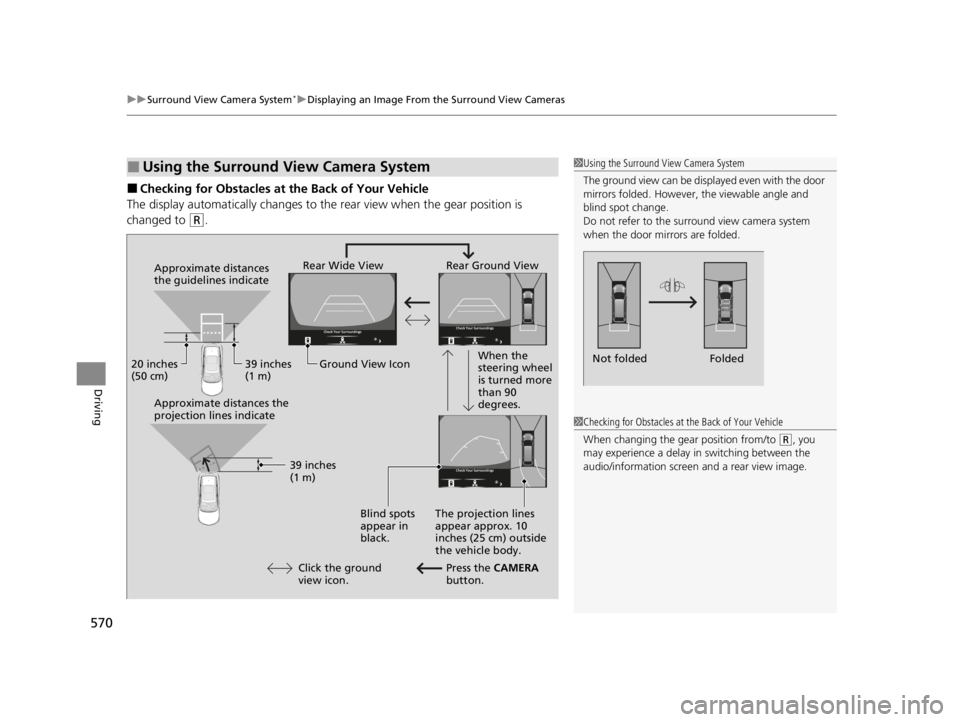
■Checking for Obstacles at the Back of Your Vehicle
The display automatically changes to the rear view when the gear position is
changed to
(R.
■Using the Surround View Camera System1 Using the Surround View Camera System
The ground view can be displayed even with the door
mirrors folded. However, the viewable angle and
blind spot change.
Do not refer to the surround view camera system
when the door mirrors are folded.
Folded
Not folded
Rear Wide View Rear Ground View
When the
steering wheel
is turned more
than 90
degrees.
The projection lines
appear approx. 10
inches (25 cm) outside
the vehicle body.
Blind spots
appear in
black.
Press the CAMERA
button.
Approximate distances
the guidelines indicate
Approximate distances the
projection lines indicate
39 inches
(1 m)
20 inches
(50 cm)
39 inches
(1 m)
Ground View Icon
Click the ground
view icon.
1 Checking for Obstacles at the Back of Your Vehicle
When changing the gear position from/to
(R, you
may experience a delay in switching between the
audio/information screen and a rear view image.
22 ACURA RDX-31TJB6300.book 570 ページ 2021年8月2日 月曜日 午前11時0分
Page 573 of 709
Continued571
uuSurround View Camera System*uDisplaying an Image From the Surround View Cameras
Driving
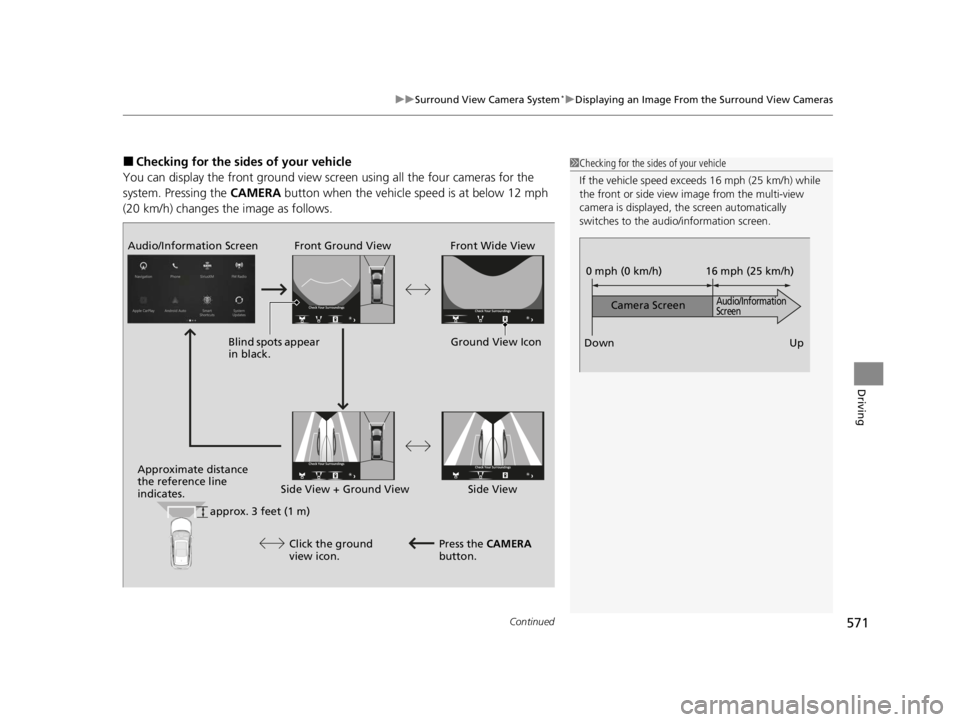
■Checking for the sides of your vehicle
You can display the front ground view screen using all the four cameras for the
system. Pressing the CAMERA button when the vehicle speed is at below 12 mph
(20 km/h) changes th e image as follows.1Checking for the sides of your vehicle
If the vehicle speed exce eds 16 mph (25 km/h) while
the front or side view im age from the multi-view
camera is displayed, the screen automatically
switches to the audio/information screen.
0 mph (0 km/h)
Down Up
Camera Screen
Audio/Information
Screen
16 mph (25 km/h)
Front Ground View
Front Wide View
Audio/Information Screen
Approximate distance
the reference line
indicates. Press the CAMERA
button.
approx. 3 feet (1 m) Blind spots appear
in black.
Click the ground
view icon. Ground View Icon
Side View + Ground View Side View
22 ACURA RDX-31TJB6300.book 571 ページ 2021年8月2日 月曜日 午前11時0分
Page 575 of 709
573
uuSurround View Camera System*uDisplaying an Image From the Surround View Cameras
Driving
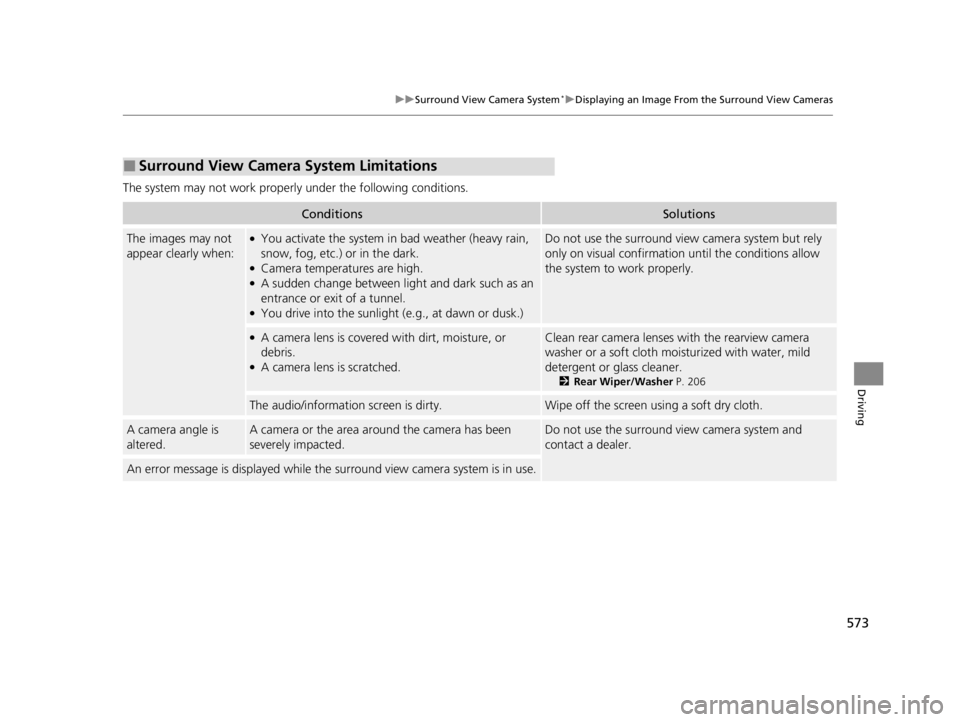
The system may not work properly under the following conditions.
■Surround View Camera System Limitations
ConditionsSolutions
The images may not
appear clearly when:●You activate the system in bad weather (heavy rain,
snow, fog, etc.) or in the dark.
●Camera temperatures are high.●A sudden change between light and dark such as an
entrance or exit of a tunnel.
●You drive into the sunlight (e.g., at dawn or dusk.)
Do not use the surround view camera system but rely
only on visual confirmation until the conditions allow
the system to work properly.
●A camera lens is covered with dirt, moisture, or
debris.
●A camera lens is scratched.
Clean rear camera lenses with the rearview camera
washer or a soft cloth moisturized with water, mild
detergent or glass cleaner.
2 Rear Wiper/Washer P. 206
The audio/information screen is dirty.Wipe off the screen using a soft dry cloth.
A camera angle is
altered.A camera or the area around the camera has been
severely impacted.Do not use the surround view camera system and
contact a dealer.
An error message is displayed while the surround view camera system is in use.
22 ACURA RDX-31TJB6300.book 573 ページ 2021年8月2日 月曜日 午前11時0分
Page 591 of 709

589
uuMaintenance MinderTMuTo Use Maintenance MinderTM
Maintenance
Reset the maintenance minder information display if you have performed the
maintenance service.
1. Set the power mode to ON.
2. Press the right selector wheel until the content is displayed.
3. Roll the right selector wheel until the Maintenance screen is displayed.
4. Press and hold the right selector wheel for about 10 seconds to enter the reset mode.
5. Roll the right selector wheel to select a ma intenance item to reset, or to select All
Due Items (You can also press the right selector wheel to the left to end the
process).
6. Press the right selector wheel to reset the selected item.
7. Repeat from step 4 for other items you wish to reset.
■Resetting the Display1Resetting the Display
NOTICE
Failure to reset the Maintenance MinderTM display
after a maintenance servic e results in the system
showing incorrect maintena nce intervals, which can
lead to serious mechanical problems.
The dealer will reset the Maintenance Minder
TM
display after completing th e required maintenance
service. If someone other than a dealer performs
maintenance service, reset the Maintenance
Minder
TM display yourself.
You can also reset the Maintenance Minder
TM display
using the audio/information screen. 2 Customized Features P. 359
Right Selector Wheel
22 ACURA RDX-31TJB6300.book 589 ページ 2021年8月2日 月曜日 午前11時0分