phone ACURA RDX 2022 Owner's Manual
[x] Cancel search | Manufacturer: ACURA, Model Year: 2022, Model line: RDX, Model: ACURA RDX 2022Pages: 709, PDF Size: 25.22 MB
Page 324 of 709
322
uuAudio System Basic Operation uApple CarPlay
Features
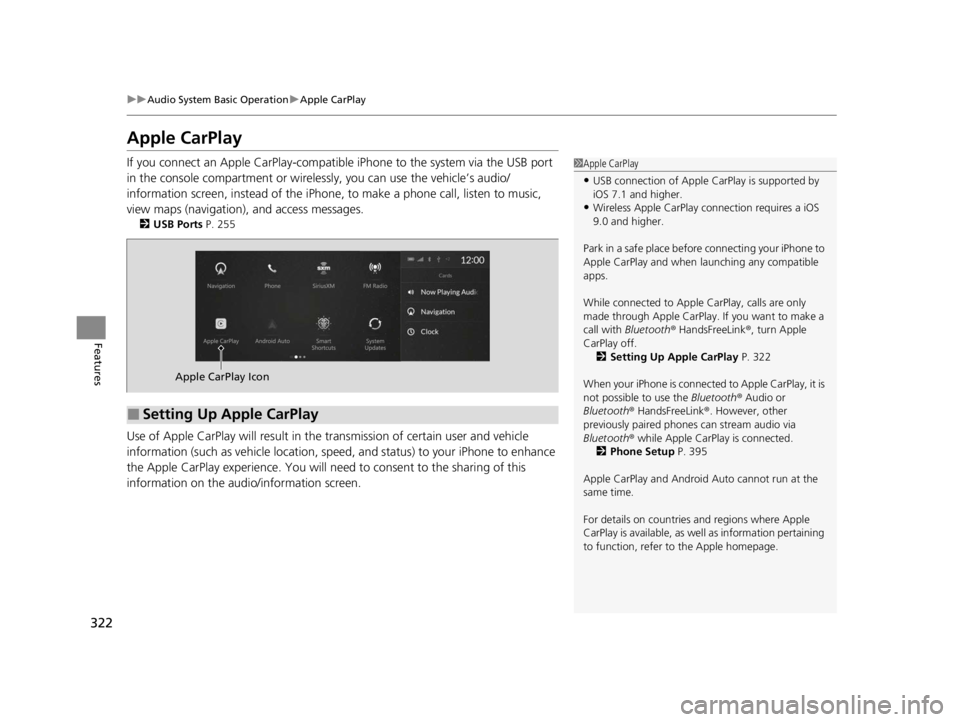
Apple CarPlay
If you connect an Apple CarPlay-compatible iPhone to the system via the USB port
in the console compartment or wirele ssly, you can use the vehicle’s audio/
information screen, instead of the iPhone, to make a phone call, listen to music,
view maps (navigation), and access messages.
2 USB Ports P. 255
Use of Apple CarPlay will result in the transmission of certain user and vehicle
information (such as vehicle location, speed, and status) to your iPhone to enhance
the Apple CarPlay experience. You will need to consent to the sharing of this
information on the audi o/information screen.
1Apple CarPlay
•USB connection of Apple Ca rPlay is supported by
iOS 7.1 and higher.
•Wireless Apple CarPlay connection requires a iOS
9.0 and higher.
Park in a safe place before connecting your iPhone to
Apple CarPlay and when launching any compatible
apps.
While connected to Apple CarPlay, calls are only
made through Apple CarPlay. If you want to make a
call with Bluetooth ® HandsFreeLink ®, turn Apple
CarPlay off. 2 Setting Up Apple CarPlay P. 322
When your iPhone is connected to Apple CarPlay, it is
not possible to use the Bluetooth® Audio or
Bluetooth ® HandsFreeLink ®. However, other
previously paired phones can stream audio via
Bluetooth ® while Apple CarPlay is connected.
2 Phone Setup P. 395
Apple CarPlay and Android Auto cannot run at the
same time.
For details on c ountries and regions where Apple
CarPlay is available, as well as information pertaining
to function, refer to the Apple homepage.
■Setting Up Apple CarPlay
Apple CarPlay Icon
22 ACURA RDX-31TJB6300.book 322 ページ 2021年8月2日 月曜日 午前11時0分
Page 325 of 709
Continued323
uuAudio System Basic Operation uApple CarPlay
Features
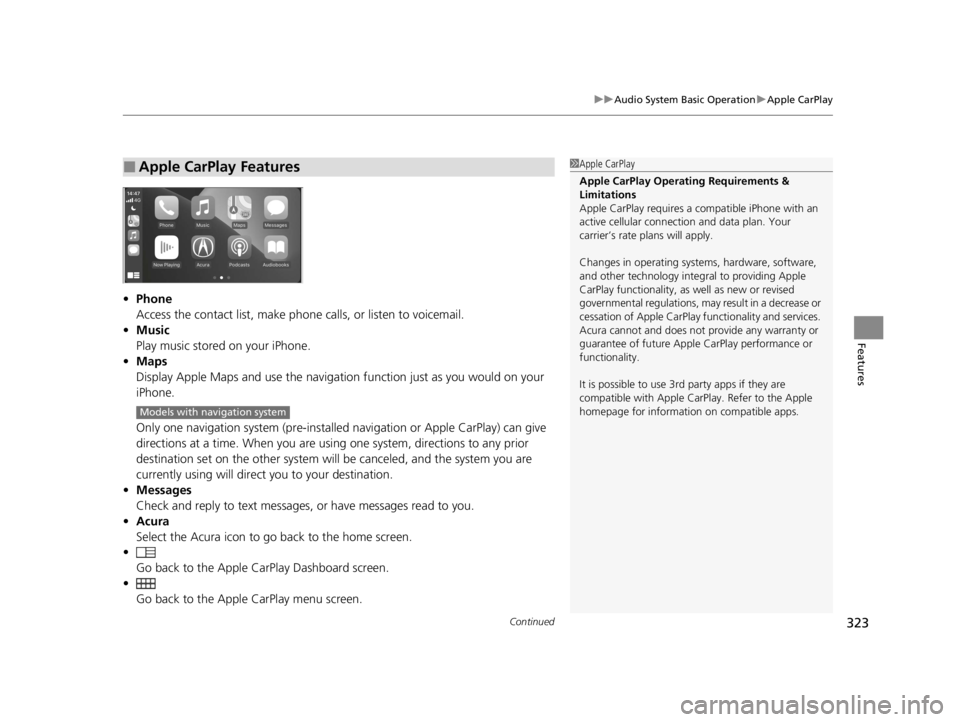
• Phone
Access the contact list, make phone calls, or listen to voicemail.
• Music
Play music stored on your iPhone.
• Maps
Display Apple Maps and use the navigation function just as you would on your
iPhone.
Only one navigation system (pre-installed navigation or Apple CarPlay) can give
directions at a time. When you are usin g one system, directions to any prior
destination set on the other system wi ll be canceled, and the system you are
currently using will direct you to your destination.
• Messages
Check and reply to text messages, or have messages read to you.
• Acura
Select the Acura icon to go back to the home screen.
•
Go back to the Apple Ca rPlay Dashboard screen.
• Go back to the Apple CarPlay menu screen.
■Apple CarPlay Features1Apple CarPlay
Apple CarPlay Operating Requirements &
Limitations
Apple CarPlay requi res a compatible iPhone with an
active cellular connecti on and data plan. Your
carrier’s rate plans will apply.
Changes in operating systems, hardware, software,
and other technology integral to providing Apple
CarPlay functionality, as well as new or revised
governmental regulations, may result in a decrease or
cessation of Apple CarPlay functionality and services.
Acura cannot and does not provide any warranty or
guarantee of future Appl e CarPlay performance or
functionality.
It is possible to use 3r d party apps if they are
compatible with Apple CarPlay. Refer to the Apple
homepage for information on compatible apps.
Models with navigation system
22 ACURA RDX-31TJB6300.book 323 ページ 2021年8月2日 月曜日 午前11時0分
Page 326 of 709
uuAudio System Basic Operation uApple CarPlay
324
Features
■Connecting Apple CarPlay using the USB cable to the USB port in the
console compartment
1. Ensure Siri is enabled on your iPhone.
2. Connect the iPhone to the USB port using the USB cable.
2 USB Ports P. 255
uThe confirmation screen will be displayed.
3. Select Enable Apple CarPlay .
u If prompted on your device, click Allow to allow Apple CarPlay while your
phone is locked.
You may change the cons ent settings under the Connections settings menu.
■Set up Apple CarPlay wirelessly by Bluetooth® pairing
1. Ensure Siri is enabled on your iPhone.
2. Pair and connect the iPhone to the vehicle’s Bluetooth® HandsFreeLink ®.
2Phone Setup P. 395
3.A screen with option to select Continue with Bluetooth or Change to CarPlay
is provided.
4. Select Change to CarPlay .
5. Your iPhone will request your permission to accept wireless Apple CarPlay. Accept
the request to complete setup.
■Enabling Apple CarPlay1 Enabling Apple CarPlay
You can use the method below to access Apple
CarPlay settings. Here you can connect to/
disconnect from devices, de lete a device or change
permissions to enable or disable a device:
Press the (home) button Select Settings
Connections Apple CarPlay Select device
Use of user and vehicle information
The use and handling of user and vehicle information
transmitted to/from your iP hone by Apple CarPlay is
governed by the Apple iOS terms and conditions and
Apple’s Privacy Policy.
22 ACURA RDX-31TJB6300.book 324 ページ 2021年8月2日 月曜日 午前11時0分
Page 327 of 709

325
uuAudio System Basic Operation uApple CarPlay
Continued
Features
■Set up Apple CarPlay wirele ssly on the home screen
1. Ensure Siri is enabled on your iPhone.
2. Select Apple CarPlay on the home screen, then select Connect Phone.
3. Select + Connect New Device .
4. Start Bluetooth ® pairing.
5. Select Enable Apple CarPlay on the disclaimer.
6. Your iPhone will request your permission to accept wireless Apple CarPlay. Accept
the request to complete setup.
22 ACURA RDX-31TJB6300.book 325 ページ 2021年8月2日 月曜日 午前11時0分
Page 329 of 709
327
uuAudio System Basic Operation uAndroid Auto
Continued
Features
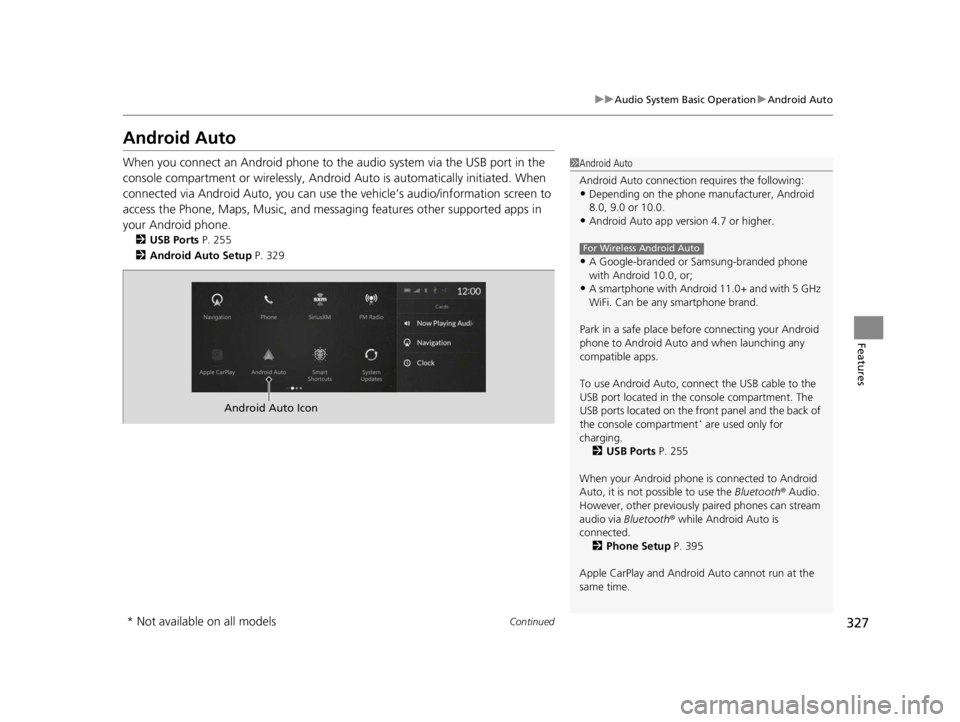
Android Auto
When you connect an Android phone to the audio system via the USB port in the
console compartment or wirelessly, Android Auto is automatically initiated. When
connected via Android Auto, you can use th e vehicle’s audio/information screen to
access the Phone, Maps, Music, and messaging features other supported apps in
your Android phone.
2 USB Ports P. 255
2 Android Auto Setup P. 329
1Android Auto
Android Auto connection requires the following:
•Depending on the phone ma nufacturer, Android
8.0, 9.0 or 10.0.
•Android Auto app version 4.7 or higher.
•A Google-branded or Samsung-branded phone
with Android 10.0, or;
•A smartphone with Androi d 11.0+ and with 5 GHz
WiFi. Can be any smartphone brand.
Park in a safe place befo re connecting your Android
phone to Android Auto and when launching any
compatible apps.
To use Android Auto, connect the USB cable to the
USB port located in the console compartment. The
USB ports located on the front panel and the back of
the console compartment
* are used only for
charging. 2 USB Ports P. 255
When your Android phone is connected to Android
Auto, it is not possible to use the Bluetooth® Audio.
However, other previously paired phones can stream
audio via Bluetooth ® while Android Auto is
connected.
2 Phone Setup P. 395
Apple CarPlay and Android Auto cannot run at the
same time.
For Wireless Android Auto
Android Auto Icon
* Not available on all models
22 ACURA RDX-31TJB6300.book 327 ページ 2021年8月2日 月曜日 午前11時0分
Page 330 of 709
uuAudio System Basic Operation uAndroid Auto
328
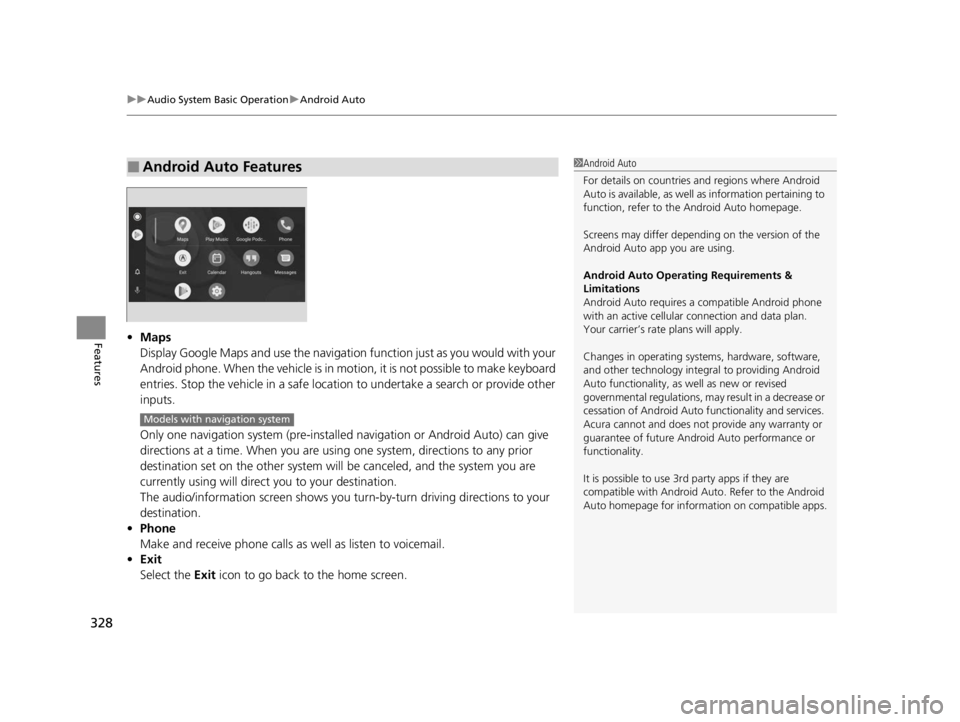
Features• Maps
Display Google Maps and use the navigation function just as you would with your
Android phone. When the vehicle is in motion, it is not possible to make keyboard
entries. Stop the vehicle in a safe location to undertake a search or provide other
inputs.
Only one navigation system (pre-installed navigation or Android Auto) can give
directions at a time. When you are usin g one system, directions to any prior
destination set on the other system will be canceled, and the system you are
currently using will direct you to your destination.
The audio/information screen shows you turn-by-turn driving directions to your
destination.
• Phone
Make and receive phone calls as well as listen to voicemail.
• Exit
Select the Exit icon to go back to the home screen.
■Android Auto Features1Android Auto
For details on c ountries and regions where Android
Auto is available, as well as information pertaining to
function, refer to the Android Auto homepage.
Screens may differ depending on the version of the
Android Auto app you are using.
Android Auto Operating Requirements &
Limitations
Android Auto requires a compatible Android phone
with an active cellular connection and data plan.
Your carrier’s rate plans will apply.
Changes in operating systems, hardware, software,
and other technology integral to providing Android
Auto functionality, as well as new or revised
governmental regulations, may result in a decrease or
cessation of Android Auto functionality and services.
Acura cannot and does not provide any warranty or
guarantee of future Android Auto performance or
functionality.
It is possible to use 3r d party apps if they are
compatible with Android Auto. Refer to the Android
Auto homepage for informat ion on compatible apps.
Models with navigation system
22 ACURA RDX-31TJB6300.book 328 ページ 2021年8月2日 月曜日 午前11時0分
Page 331 of 709
Continued329
uuAudio System Basic Operation uAndroid Auto
Features
•
Operate Android Auto with your voice.
•
You can check Android notifications.
• (Android Auto Home)
Display useful information organized by Android Auto into simple cards that
appear just when they’re needed.
When you connect an Android phone to the unit via the USB port in the console
compartment or wirelessly, Android Auto is automatically initiated.
Before setting up a connection, ensure that the Android Auto app is closed on the
phone.
■Connecting Android Auto using the USB cable to the USB port
To enable Android Auto after connecting an Android phone to the system, select
Enable Android Auto on the screen.
You may change the consent settings under the Connections settings menu.
■Set up Android Auto wi relessly by Bluetooth® pairing
1. Pair and connect the Android phone to the vehicle’s Bluetooth® HandsFreeLink ®.
2 Phone Setup P. 395
2.A privacy policy statemen t will appear. Select Change to Android Auto .
3. Your phone will display various screens that request your permissions needed for
Android Auto. Accept the requests to complete setup.
■Android Auto Setup1Android Auto Setup
Only initialize Android Auto when you safely parked.
When Android Auto first detects your phone, you will
need to set up your phone so that auto pairing is
possible. Refer to the inst ruction manual that came
with your phone.
You can use the method below to change Android
Auto settings after you have completed the initial
setup:
Press the (home) button Select Settings
Connections Android Auto Select device
Use of user and vehicle information
The use and handling of user and vehicle information
transmitted to/from your phone by Android Auto is
governed by the Google’s Privacy Policy.
22 ACURA RDX-31TJB6300.book 329 ページ 2021年8月2日 月曜日 午前11時0分
Page 332 of 709

330
uuAudio System Basic Operation uAndroid Auto
Features
■Set up Android Auto wirele ssly on the home screen
1. Select Android Auto on the home screen, then select Connect Phone.
2. Select + Connect New Device .
3. Start Bluetooth ® pairing.
4. A privacy policy statemen t will appear. Select Enable Android Auto .
5. Your phone will display various screens that request your permissions needed for
Android Auto. Accept the re quests to complete setup.
22 ACURA RDX-31TJB6300.book 330 ページ 2021年8月2日 月曜日 午前11時0分
Page 336 of 709
334
uuAudio Error Messages uApple CarPlay/Android Auto
Features
Apple CarPlay/Android Auto
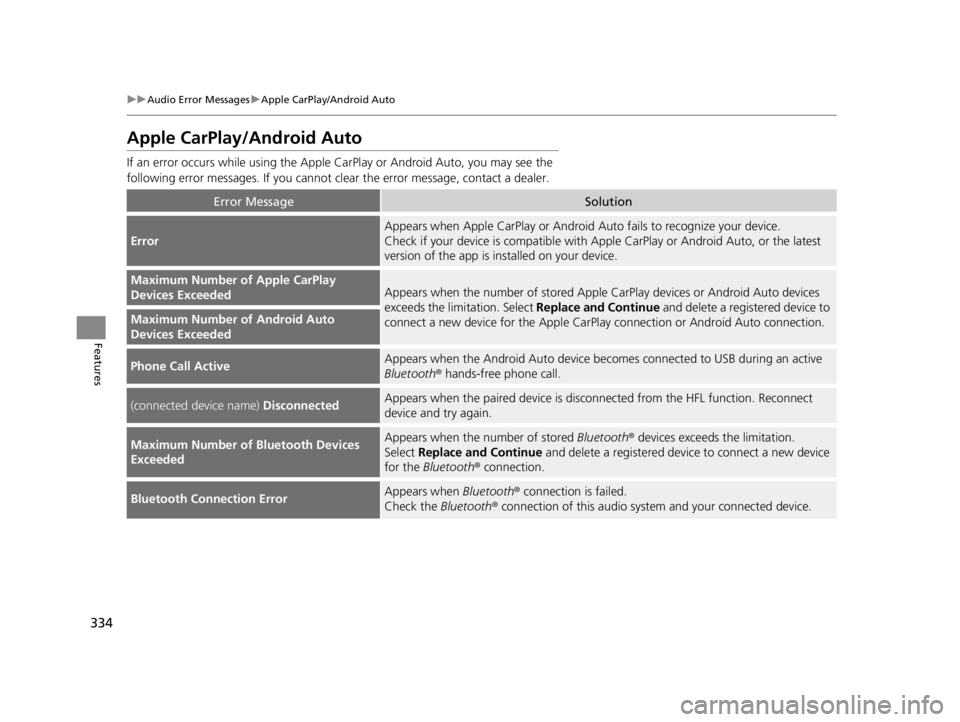
If an error occurs while using the Apple CarPlay or Android Auto, you may see the
following error messages. If you cannot clear the error message, contact a dealer.
Error MessageSolution
Error
Appears when Apple CarPlay or Android Auto fails to recognize your device.
Check if your device is compatible with Apple CarPlay or Android Auto, or the latest
version of the app is installed on your device.
Maximum Number of Apple CarPlay
Devices ExceededAppears when the number of stored Apple CarPlay devices or Android Auto devices
exceeds the limitation. Select Replace and Continue and delete a registered device to
connect a new device for the Apple CarPlay connection or Android Auto connection.
Maximum Number of Android Auto
Devices Exceeded
Phone Call ActiveAppears when the Android Auto device beco mes connected to USB during an active
Bluetooth ® hands-free phone call.
(connected device name) DisconnectedAppears when the paired device is disc onnected from the HFL function. Reconnect
device and try again.
Maximum Number of Bluetooth Devices
ExceededAppears when the number of stored Bluetooth® devices exceeds the limitation.
Select Replace and Continue and delete a registered devi ce to connect a new device
for the Bluetooth ® connection.
Bluetooth Connection ErrorAppears when Bluetooth® connection is failed.
Check the Bluetooth® connection of this audio system and your connected device.
22 ACURA RDX-31TJB6300.book 334 ページ 2021年8月2日 月曜日 午前11時0分
Page 337 of 709
335
uuAudio Error Messages uApple CarPlay/Android Auto
Features
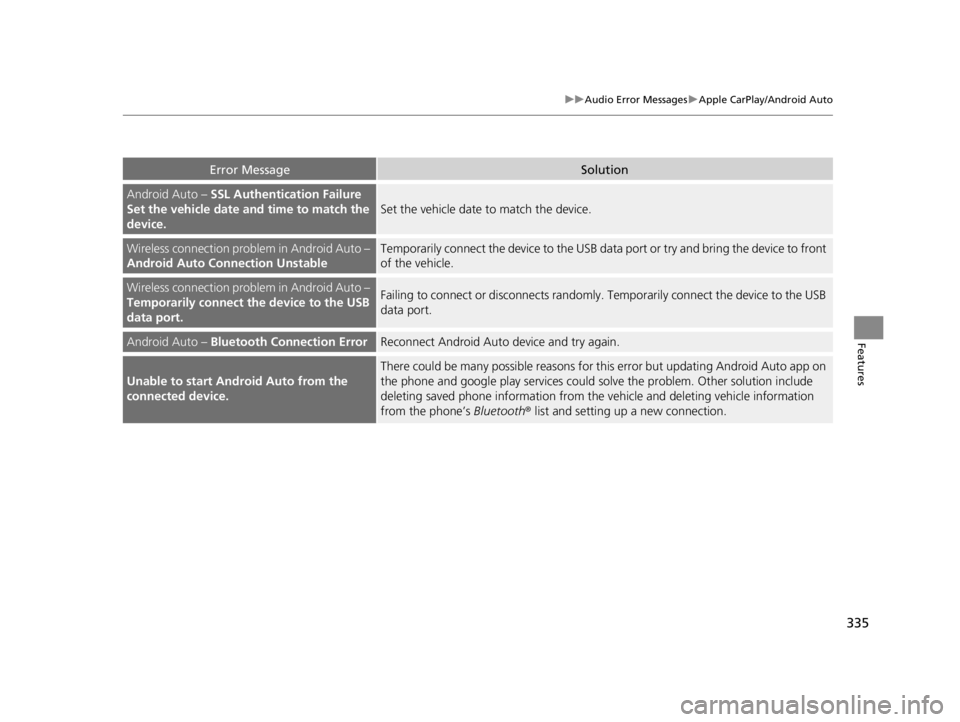
Error MessageSolution
Android Auto – SSL Authentication Failure
Set the vehicle date and time to match the
device.
Set the vehicle date to match the device.
Wireless connection problem in Android Auto –
Android Auto Connection UnstableTemporarily connect the device to the USB data port or try and bring the device to front
of the vehicle.
Wireless connection problem in Android Auto –
Temporarily connect the device to the USB
data port.Failing to connect or disconnects randomly. Temporarily connect the device to the USB
data port.
Android Auto – Bluetooth Connection ErrorReconnect Android Auto device and try again.
Unable to start Android Auto from the
connected device.
There could be many possible reasons for this error but updating Android Auto app on
the phone and google play services could solve the problem. Other solution include
deleting saved phone information from the vehicle and deleting vehicle information
from the phone’s Bluetooth® list and setting up a new connection.
22 ACURA RDX-31TJB6300.book 335 ページ 2021年8月2日 月曜日 午前11時0分