audio ACURA RDX 2022 Manual Online
[x] Cancel search | Manufacturer: ACURA, Model Year: 2022, Model line: RDX, Model: ACURA RDX 2022Pages: 709, PDF Size: 25.22 MB
Page 315 of 709
313
uuAudio System Basic Operation uPlaying a USB Flash Drive
Continued
Features
Playing a USB Flash Drive
Your audio system reads and plays audio file s on a USB flash drive in either format
of MP3, WMA, AAC*1, etc.
2 Playable audio file P. 338
Connect your USB flash drive to the USB port, then select the USB mode.
2USB Ports P. 255
*1:Only AAC format files recorded with iTunes are playable on this unit.
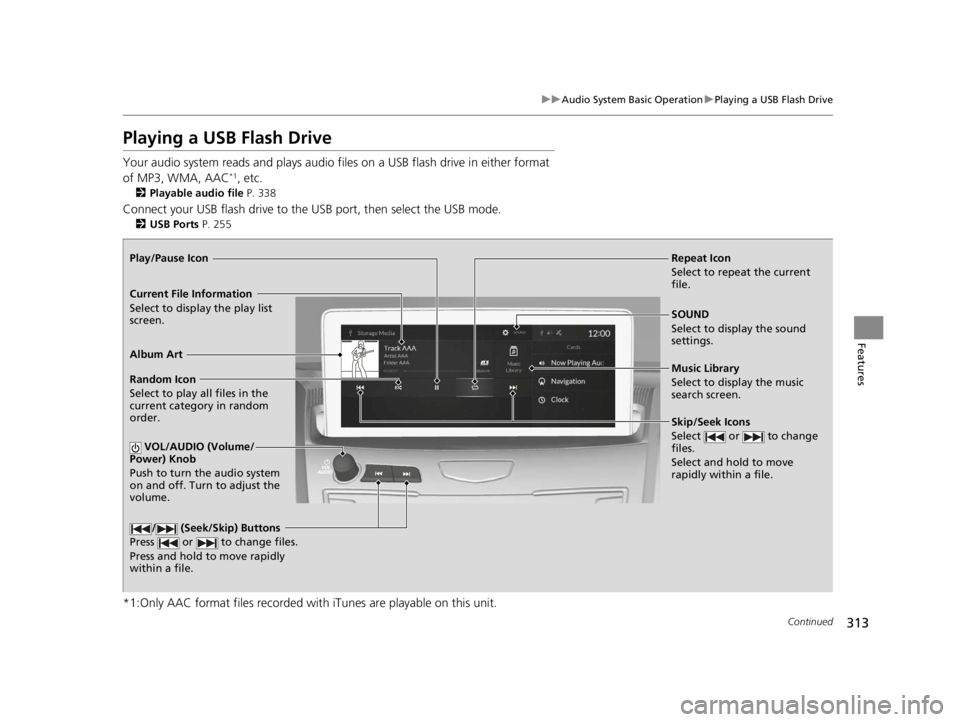
Repeat Icon
Select to repeat the current
file.
SOUND
Select to display the sound
settings.
Music Library
Select to display the music
search screen.
Skip/Seek Icons
Select or to change
files.
Select and hold to move
rapidly within a file.
Random Icon
Select to play all files in the
current category in random
order.
VOL/AUDIO (Volume/
Power) Knob
Push to turn the audio system
on and off. Turn to adjust the
volume.
/ (Seek/Skip) Buttons
Press or to change files.
Press and hold to move rapidly
within a file.
Play/Pause Icon
Album Art
Current File Information
Select to display the play list
screen.
22 ACURA RDX-31TJB6300.book 313 ページ 2021年8月2日 月曜日 午前11時0分
Page 316 of 709
uuAudio System Basic Operation uPlaying a USB Flash Drive
314
Features
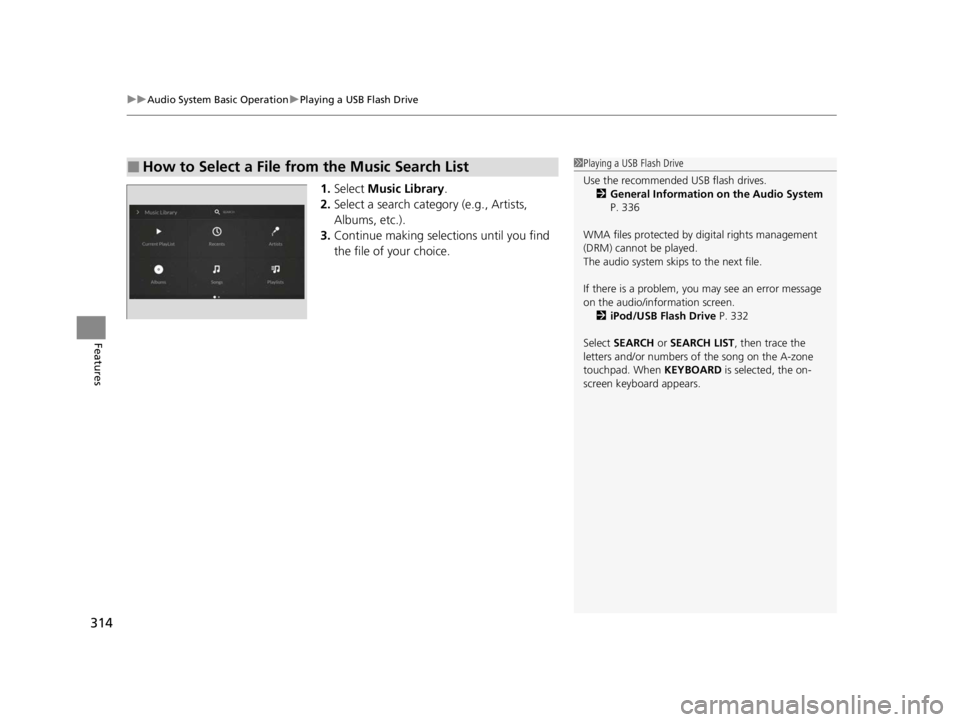
1. Select Music Library.
2. Select a search catego ry (e.g., Artists,
Albums, etc.).
3. Continue making selections until you find
the file of your choice.
■How to Select a File from the Music Search List1Playing a USB Flash Drive
Use the recommended USB flash drives.
2 General Information on the Audio System
P. 336
WMA files protected by di gital rights management
(DRM) cannot be played.
The audio system skips to the next file.
If there is a problem, you may see an error message
on the audio/information screen. 2 iPod/USB Flash Drive P. 332
Select SEARCH or SEARCH LIST , then trace the
letters and/or numbers of the song on the A-zone
touchpad. When KEYBOARD is selected, the on-
screen keyboard appears.
22 ACURA RDX-31TJB6300.book 314 ページ 2021年8月2日 月曜日 午前11時0分
Page 317 of 709
315
uuAudio System Basic Operation uPlaying a USB Flash Drive
Features
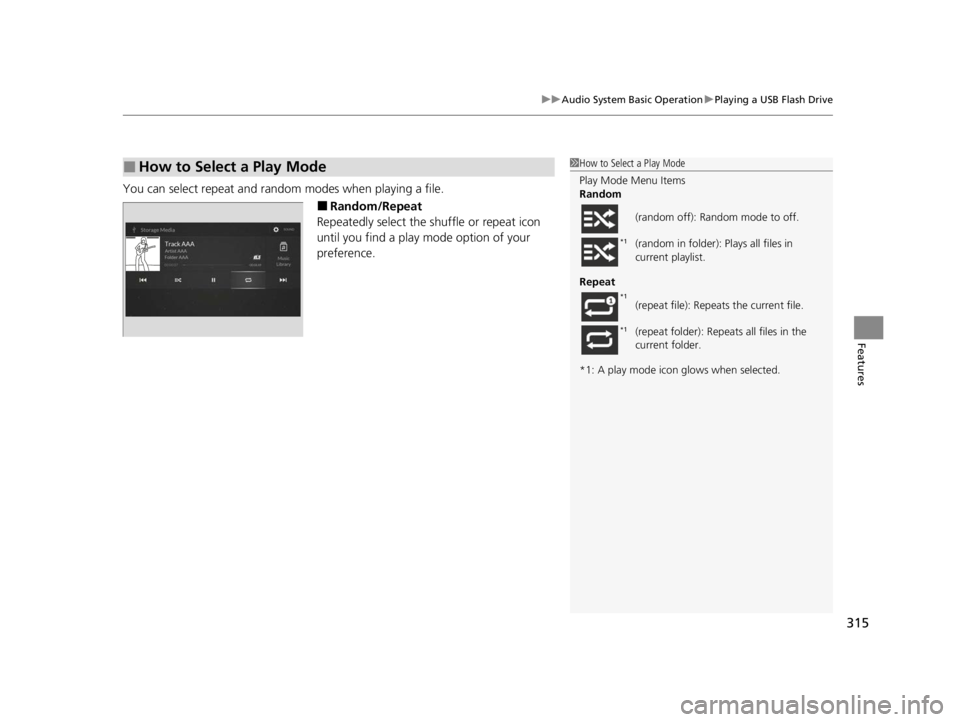
You can select repeat and random modes when playing a file.
■Random/Repeat
Repeatedly select the shuffle or repeat icon
until you find a play mode option of your
preference.
■How to Select a Play Mode1 How to Select a Play Mode
Play Mode Menu Items
Random
Repeat
*1: A play mode icon glows when selected. (random off): Random mode to off.
(random in folder):
Plays all files in
current playlist.
(repeat file): Repeats the current file.
(repeat folder): Repeats all files in the
current folder.
*1
*1
*1
22 ACURA RDX-31TJB6300.book 315 ページ 2021年8月2日 月曜日 午前11時0分
Page 318 of 709
316
uuAudio System Basic Operation uPlaying Bluetooth ® Audio
Features
Playing Bluetooth ® Audio
Your audio system allows you to listen to music from your Bluetooth-compatible
phone.
This function is available when the phone is paired and connected to the vehicle’s
Bluetooth ® HandsFreeLink ® (HFL) system.
2 Phone Setup P. 395
1Playing Bluetooth ® Audio
Not all Bluetooth-enabled phones with streaming
audio capabilities are compatible with the system. For
a list of compatible phones:
•U.S.: Visit www.handsfreelink.com/Acura or call 1-
888-528-7876.
•Canada: For more info rmation on smartphone
compatibility, call 1-855-490-7351.
It may be illegal to pe rform some data device
functions while driving.
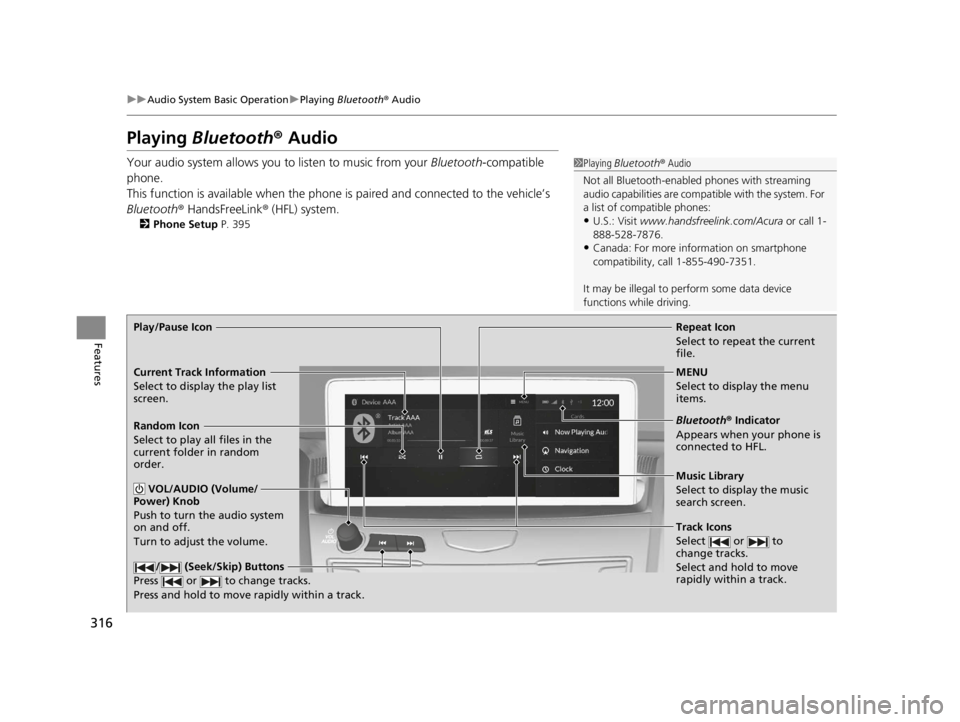
Repeat Icon
Select to repeat the current
file.
Music Library
Select to display the music
search screen.
Track Icons
Select or to
change tracks.
Select and hold to move
rapidly within a track.
Random Icon
Select to play all files in the
current folder in random
order.
VOL/AUDIO (Volume/
Power) Knob
Push to turn the audio system
on and off.
Turn to adjust the volume.
/ (Seek/Skip) Buttons
Press or to change tracks.
Press and hold to move rapidly within a track.
Play/Pause Icon
MENU
Select to display the menu
items.
Bluetooth® Indicator
Appears when your phone is
connected to HFL.
Current Track Information
Select to display the play list
screen.
22 ACURA RDX-31TJB6300.book 316 ページ 2021年8月2日 月曜日 午前11時0分
Page 319 of 709
Continued317
uuAudio System Basic Operation uPlaying Bluetooth ® Audio
Features
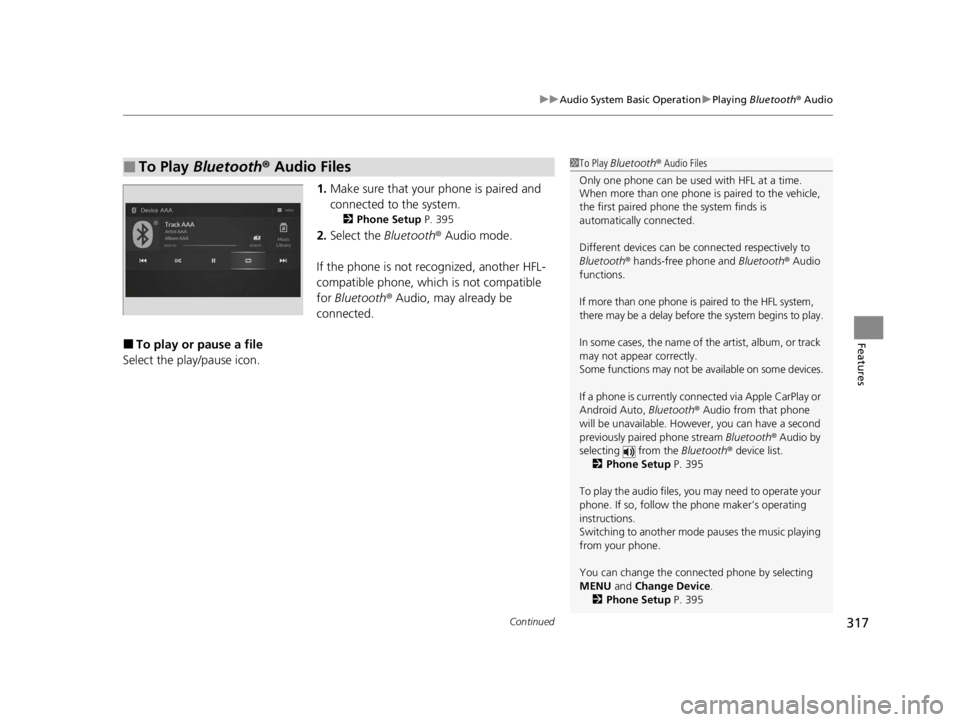
1. Make sure that your phone is paired and
connected to the system.
2 Phone Setup P. 395
2.Select the Bluetooth® Audio mode.
If the phone is not recognized, another HFL-
compatible phone, which is not compatible
for Bluetooth ® Audio, may already be
connected.
■To play or pause a file
Select the play/pause icon.
■To Play Bluetooth® Audio Files1To Play Bluetooth ® Audio Files
Only one phone can be used with HFL at a time.
When more than one phone is paired to the vehicle,
the first paired phone the system finds is
automatically connected.
Different devices can be co nnected respectively to
Bluetooth ® hands-free phone and Bluetooth® Audio
functions.
If more than one phone is paired to the HFL system,
there may be a delay before the system begins to play.
In some cases, the name of the artist, album, or track
may not appear correctly.
Some functions may not be available on some devices.
If a phone is currently conne cted via Apple CarPlay or
Android Auto, Bluetooth® Audio from that phone
will be unavailable. Howe ver, you can have a second
previously paired phone stream Bluetooth® Audio by
selecting from the Bluetooth® device list.
2 Phone Setup P. 395
To play the audio files, y ou may need to operate your
phone. If so, follow the phone maker’s operating
instructions.
Switching to another mode pauses the music playing
from your phone.
You can change the connected phone by selecting
MENU and Change Device.
2 Phone Setup P. 395
22 ACURA RDX-31TJB6300.book 317 ページ 2021年8月2日 月曜日 午前11時0分
Page 320 of 709
uuAudio System Basic Operation uPlaying Bluetooth ® Audio
318
Features
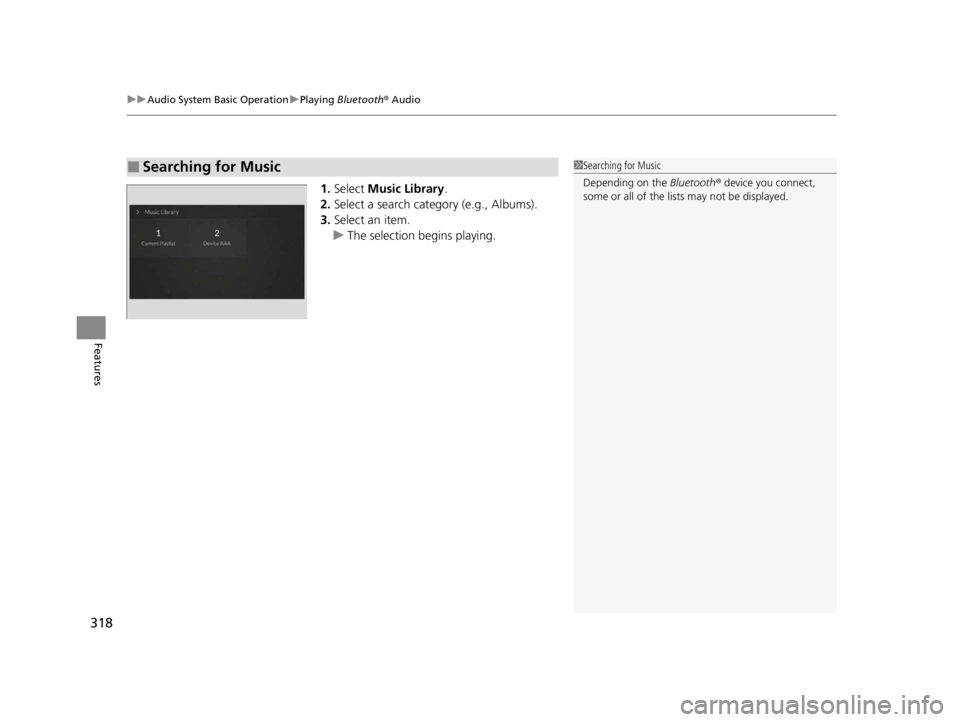
1. Select Music Library.
2. Select a search cate gory (e.g., Albums).
3. Select an item.
u The selection begins playing.
■Searching for Music1Searching for Music
Depending on the Bluetooth® device you connect,
some or all of the list s may not be displayed.
22 ACURA RDX-31TJB6300.book 318 ページ 2021年8月2日 月曜日 午前11時0分
Page 321 of 709
319
uuAudio System Basic Operation uWi-Fi Connection
Continued
Features
Wi-Fi Connection
This vehicle is equipped wi th Wi-Fi connectivity. You ca n connect to an external
Wi-Fi hotspot or communication device. In ad dition, the vehicle can be used by other
communication devices as a Wi-Fi hotspot via the telematics unit (TCU).
• Connect the vehicle to a Wi-Fi hotspot
• Use Wi-Fi inside the vehicle
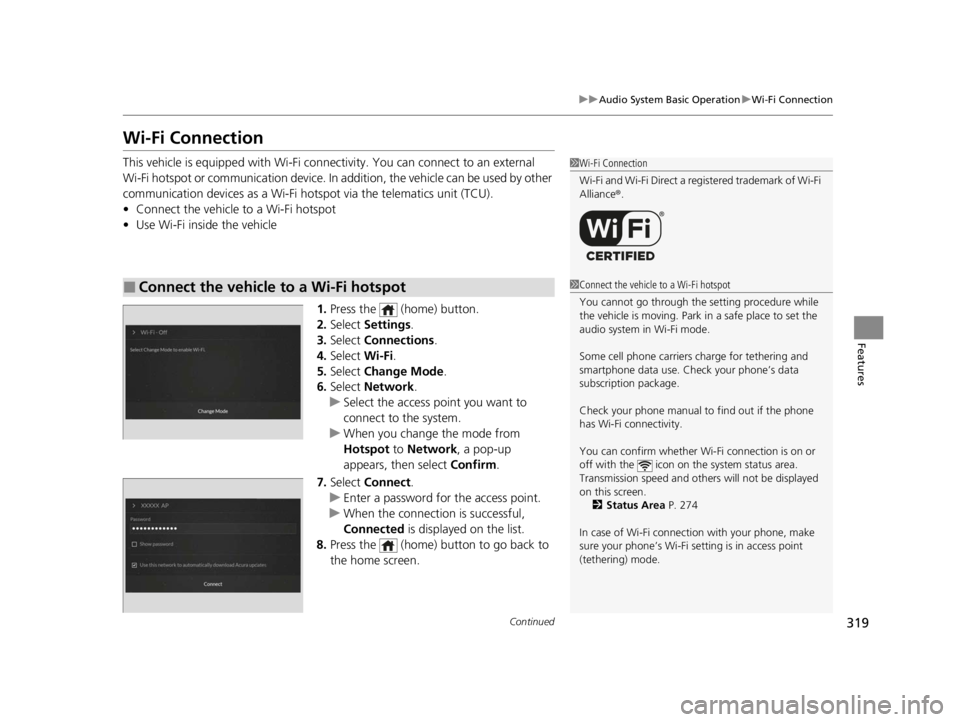
1.Press the (home) button.
2. Select Settings .
3. Select Connections.
4. Select Wi-Fi.
5. Select Change Mode .
6. Select Network .
u Select the access point you want to
connect to the system.
u When you change the mode from
Hotspot to Network, a pop-up
appears, then select Confirm.
7. Select Connect .
u Enter a password for the access point.
u When the connection is successful,
Connected is displayed on the list.
8. Press the (home) button to go back to
the home screen.
■Connect the vehicle to a Wi-Fi hotspot
1Wi-Fi Connection
Wi-Fi and Wi-Fi Direct a registered trademark of Wi-Fi
Alliance® .
1Connect the vehicle to a Wi-Fi hotspot
You cannot go through the setting procedure while
the vehicle is moving. Park in a safe place to set the
audio system in Wi-Fi mode.
Some cell phone carriers charge for tethering and
smartphone data use. Check your phone’s data
subscription package.
Check your phone manual to find out if the phone
has Wi-Fi connectivity.
You can confirm whether Wi -Fi connection is on or
off with the icon on the system status area.
Transmission speed and others will not be displayed
on this screen. 2 Status Area P. 274
In case of Wi-Fi connect ion with your phone, make
sure your phone’s Wi-Fi se tting is in access point
(tethering) mode.
22 ACURA RDX-31TJB6300.book 319 ページ 2021年8月2日 月曜日 午前11時0分
Page 322 of 709
320
uuAudio System Basic Operation uWi-Fi Connection
Features
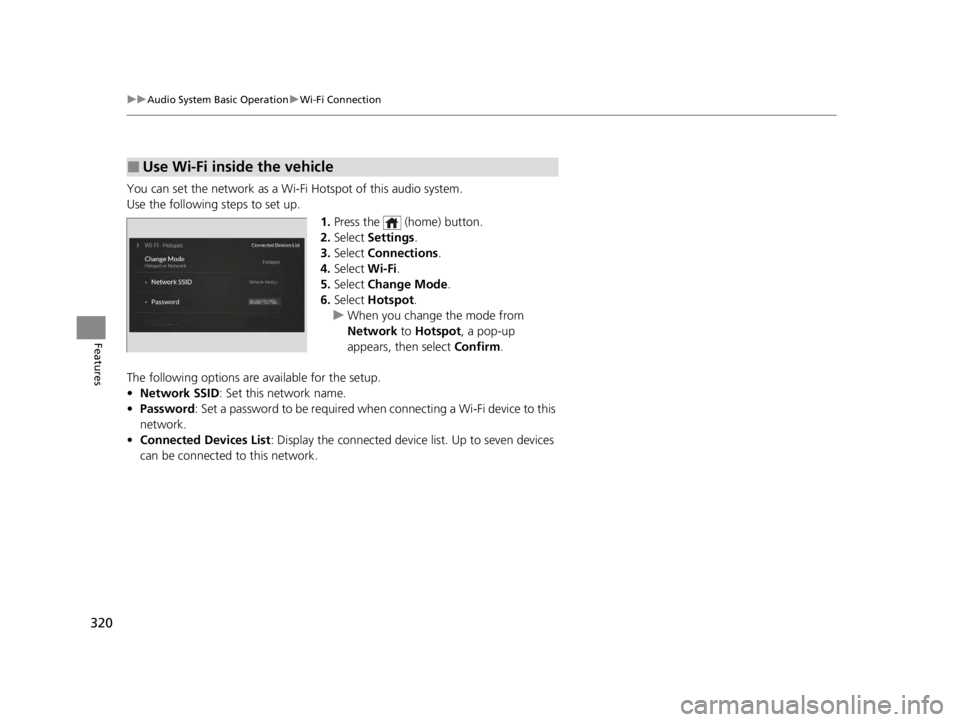
You can set the network as a Wi-F i Hotspot of this audio system.
Use the following steps to set up.
1.Press the (home) button.
2. Select Settings .
3. Select Connections .
4. Select Wi-Fi.
5. Select Change Mode .
6. Select Hotspot .
u When you change the mode from
Network to Hotspot, a pop-up
appears, then select Confirm.
The following options are available for the setup.
• Network SSID : Set this network name.
• Password : Set a password to be required when connecting a Wi-Fi device to this
network.
• Connected Devices List: Display the connected device list. Up to seven devices
can be connected to this network.
■Use Wi-Fi inside the vehicle
22 ACURA RDX-31TJB6300.book 320 ページ 2021年8月2日 月曜日 午前11時0分
Page 323 of 709
321
uuAudio System Basic Operation uAT&T Hotspot
Features
AT&T Hotspot
If you have subscribed to AT&T hotspot services, your vehicle will provide data to
connect your mobile devices to the Internet. You can use the AT&T Hotspot app to
turn on/off vehicle data and monitor da ta usage left on your subscription.
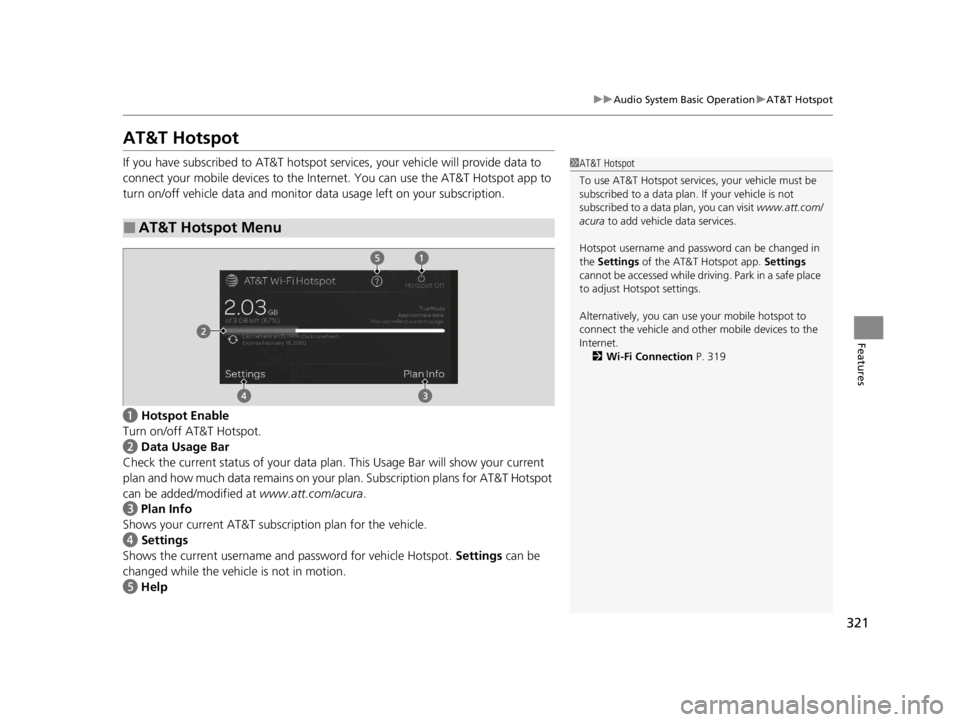
a Hotspot Enable
Turn on/off AT&T Hotspot.
b Data Usage Bar
Check the current status of your data pl an. This Usage Bar will show your current
plan and how much data remains on your plan. Subscription plans for AT&T Hotspot
can be added/modified at www.att.com/acura.
c Plan Info
Shows your current AT&T subscription plan for the vehicle.
d Settings
Shows the current username and password for vehicle Hotspot. Settings can be
changed while the vehicle is not in motion.
e Help
■AT&T Hotspot Menu
1AT&T Hotspot
To use AT&T Hotspot servic es, your vehicle must be
subscribed to a data plan. If your vehicle is not
subscribed to a data plan, you can visit www.att.com/
acura to add vehicle data services.
Hotspot username and pass word can be changed in
the Settings of the AT&T Hotspot app. Settings
cannot be accessed while driving. Park in a safe place
to adjust Hotspot settings.
Alternatively, you can use your mobile hotspot to
connect the vehicle and other mobile devices to the
Internet. 2 Wi-Fi Connection P. 319
22 ACURA RDX-31TJB6300.book 321 ページ 2021年8月2日 月曜日 午前11時0分
Page 324 of 709
322
uuAudio System Basic Operation uApple CarPlay
Features
Apple CarPlay
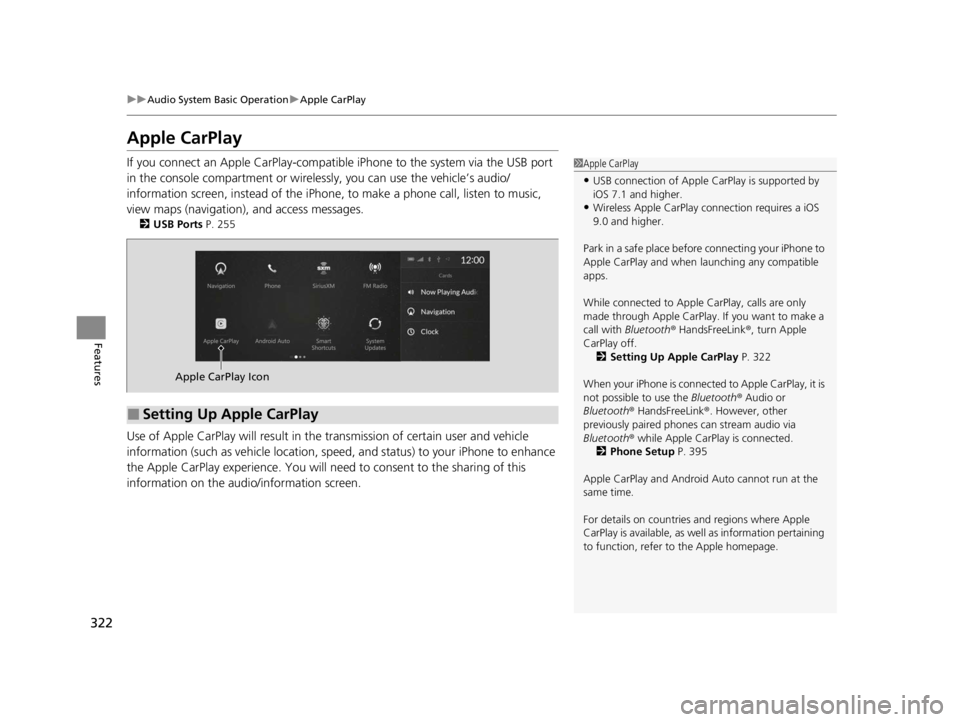
If you connect an Apple CarPlay-compatible iPhone to the system via the USB port
in the console compartment or wirele ssly, you can use the vehicle’s audio/
information screen, instead of the iPhone, to make a phone call, listen to music,
view maps (navigation), and access messages.
2 USB Ports P. 255
Use of Apple CarPlay will result in the transmission of certain user and vehicle
information (such as vehicle location, speed, and status) to your iPhone to enhance
the Apple CarPlay experience. You will need to consent to the sharing of this
information on the audi o/information screen.
1Apple CarPlay
•USB connection of Apple Ca rPlay is supported by
iOS 7.1 and higher.
•Wireless Apple CarPlay connection requires a iOS
9.0 and higher.
Park in a safe place before connecting your iPhone to
Apple CarPlay and when launching any compatible
apps.
While connected to Apple CarPlay, calls are only
made through Apple CarPlay. If you want to make a
call with Bluetooth ® HandsFreeLink ®, turn Apple
CarPlay off. 2 Setting Up Apple CarPlay P. 322
When your iPhone is connected to Apple CarPlay, it is
not possible to use the Bluetooth® Audio or
Bluetooth ® HandsFreeLink ®. However, other
previously paired phones can stream audio via
Bluetooth ® while Apple CarPlay is connected.
2 Phone Setup P. 395
Apple CarPlay and Android Auto cannot run at the
same time.
For details on c ountries and regions where Apple
CarPlay is available, as well as information pertaining
to function, refer to the Apple homepage.
■Setting Up Apple CarPlay
Apple CarPlay Icon
22 ACURA RDX-31TJB6300.book 322 ページ 2021年8月2日 月曜日 午前11時0分