radio ACURA RDX 2023 Owner's Manual
[x] Cancel search | Manufacturer: ACURA, Model Year: 2023, Model line: RDX, Model: ACURA RDX 2023Pages: 713, PDF Size: 21.99 MB
Page 298 of 713
296
uuAudio System Basic Operation uPlaying AM/FM Radio
Features
Displays the subchannel list when an HD RadioTM station is selected while listening to
an FM station.
1. Select icon.
2. Select the channel number.
Change the AM/FM settings.
1. Select MENU .
2. Select HD Radio Setting .
3. Select Automatic or Analog Only .
■HD Subchannel
■AM/FM Settings
23 ACURA RDX-31TJB6400.book 296 ページ 2022年8月4日 木曜日 午後1時51分
Page 299 of 713
297
uuAudio System Basic Operation uPlaying SiriusXM ® Radio
Continued
Features
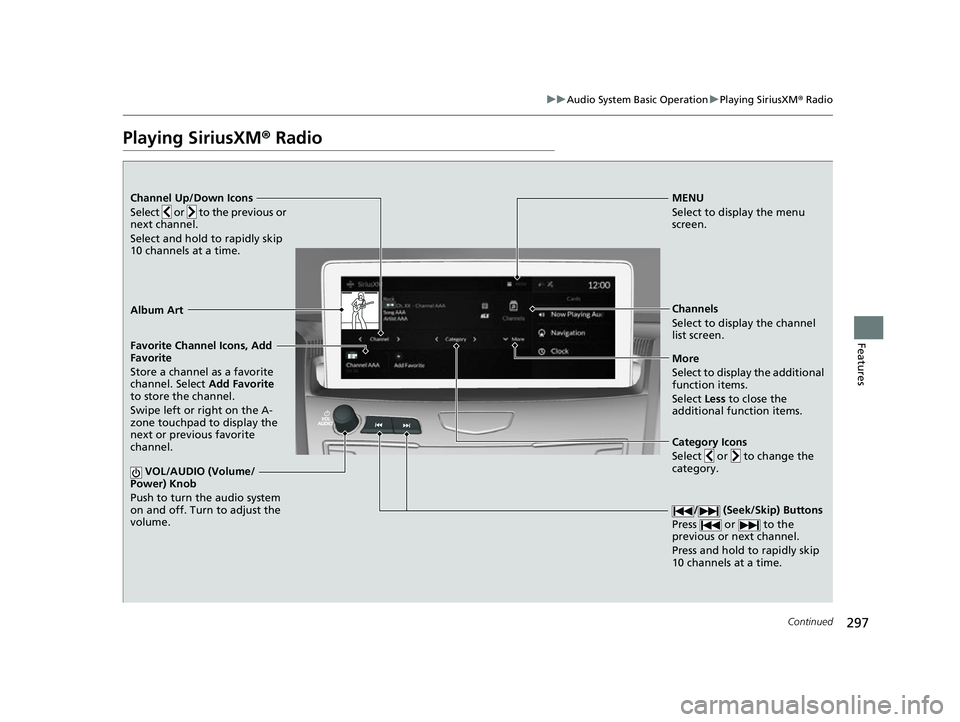
Playing SiriusXM® Radio
Channel Up/Down Icons
Select or to the previous or
next channel.
Select and hold to rapidly skip
10 channels at a time.MENU
Select to display the menu
screen.
Channels
Select to display the channel
list screen.
More
Select to display the additional
function items.
Select Less to close the
additional function items.
Favorite Channel Icons, Add
Favorite
Store a channel as a favorite
channel. Select
Add Favorite
to store the channel.
Swipe left or right on the A-
zone touchpad to display the
next or previous favorite
channel.
VOL/AUDIO (Volume/
Power) Knob
Push to turn the audio system
on and off. Turn to adjust the
volume.
/ (Seek/Skip) Buttons
Press or to the
previous or next channel.
Press and hold to rapidly skip
10 channels at a time.
Album Art
Category Icons
Select or to change the
category.
23 ACURA RDX-31TJB6400.book 297 ページ 2022年8月4日 木曜日 午後1時51分
Page 300 of 713

uuAudio System Basic Operation uPlaying SiriusXM ® Radio
298
Features
1. Select MENU .
2. Select SiriusXM Settings .
3. Select Tune Mode .
4. Select All Channels or Within Category .
■To Change the Tune Mode1Playing SiriusXM ® Radio
In the channel mode, all available channels are
selectable. In the categor y mode, you can select a
channel within a ca tegory (Jazz, Rock, Classical, etc.).
There may be instances when SiriusXM ® Radio does
not broadcast all the data fi elds (artist name, title).
This does not indicate a problem with your audio
system.
SiriusXM ® Radio stations load in ascending order,
which can take about a minute. Once they have
loaded you will be able to scroll up or down to make
your selections.
Switching the Audio Mode
Press the APPS button on the steering wheel, then
select an item or select the audio source icon on the
home screen. 2 Audio Remote Controls P. 258
Tune Start:
When you change to a favorite channel, a song being
played on that channel restarts from the beginning
with this function. This can be turned on or off by the
following procedure.
1. Select MENU.
2. Select SiriusXM Settings .
3. Select Tune Start .
4. Select On or Off .
To change a category, select Category icons, or
select Channels and then select category item.
23 ACURA RDX-31TJB6400.book 298 ページ 2022年8月4日 木曜日 午後1時51分
Page 301 of 713
Continued299
uuAudio System Basic Operation uPlaying SiriusXM ® Radio
Features
To add a favorite channel:
1. Tune to the selected channel.
2. Select Add Favorite , then select CURRENT CHANNEL .
u When you select From Channels, you can store a channel from the channel
list.
■Editing a favorite channel
Select and hold to edit a favorite channel.
The following items are available:
• Remove Favorite : Delete the favorite channel from the favorite channel list.
• Replace with Ch (number): Replace the stored favorite channel.
• Create TuneMix : Create a favorite multi-channel.
• Add to Home Page : Add a shortcut to the stored favorite channel to the home
screen.
• Add to Heads-Up Display
*: Add a shortcut to the stored favorite channel to the
head-up display menu.
■Favorite Channel1 Favorite Channel
You can store 12 SiriusXM ® channels in the favorite
channel list.
* Not available on all models
23 ACURA RDX-31TJB6400.book 299 ページ 2022年8月4日 木曜日 午後1時51分
Page 302 of 713
uuAudio System Basic Operation uPlaying SiriusXM ® Radio
300
Features
■Create a TuneMix (for music channels only)
A TuneMix is a group of channels saved in one preset. You can store up to 20 of
your preferred music chan nels per TuneMix channel.
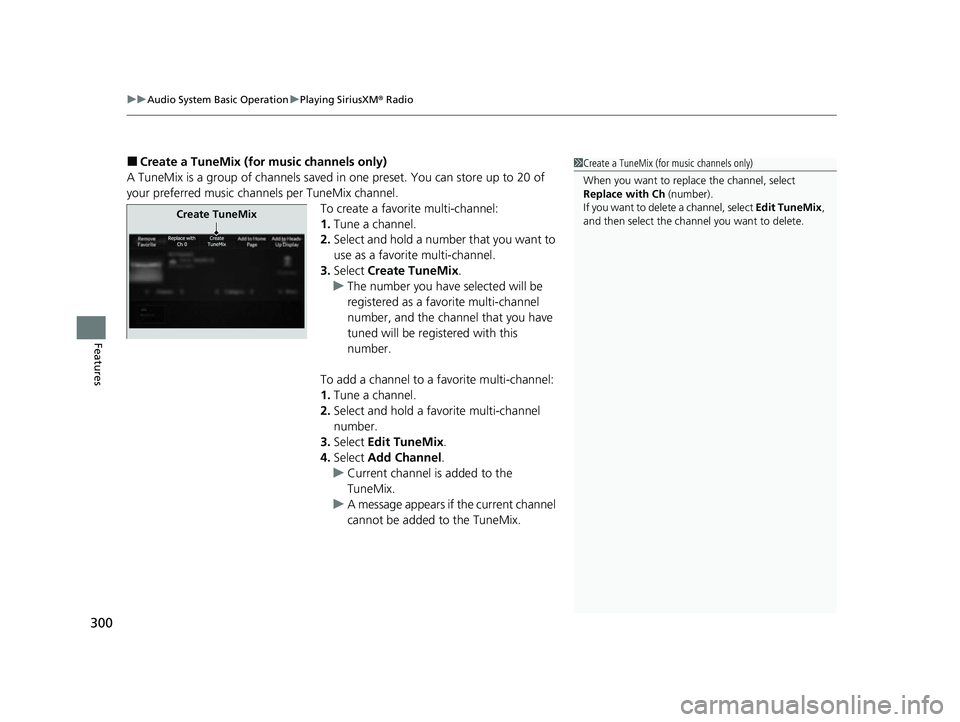
To create a favorite multi-channel:
1.Tune a channel.
2. Select and hold a number that you want to
use as a favorite multi-channel.
3. Select Create TuneMix .
u The number you have selected will be
registered as a favorite multi-channel
number, and the channel that you have
tuned will be registered with this
number.
To add a channel to a favorite multi-channel:
1. Tune a channel.
2. Select and hold a favo rite multi-channel
number.
3. Select Edit TuneMix .
4. Select Add Channel .
u Current channel is added to the
TuneMix.
u A message appears if the current channel
cannot be added to the TuneMix.1Create a TuneMix (for music channels only)
When you want to replac e the channel, select
Replace with Ch (number).
If you want to delete a channel, select Edit TuneMix,
and then select the channel you want to delete.
Create TuneMix
23 ACURA RDX-31TJB6400.book 300 ページ 2022年8月4日 木曜日 午後1時51分
Page 303 of 713
Continued301
uuAudio System Basic Operation uPlaying SiriusXM ® Radio
Features
Suggested channel listings received from SiriusXM ® can be displayed and selected.
1. Select Channels.
2. Select featured channel category.
3. Select featured channel.
■Listening to Featured Channels1Listening to Featured Channels
Up to eight featured channels by SiriusXM® can be
displayed.
Select SEARCH LIST, then trace the letters and/or
numbers of the channel on the A-zone touchpad.
When KEYBOARD is selected, the on-screen
keyboard appears.
23 ACURA RDX-31TJB6400.book 301 ページ 2022年8月4日 木曜日 午後1時51分
Page 304 of 713
uuAudio System Basic Operation uPlaying SiriusXM ® Radio
302
Features
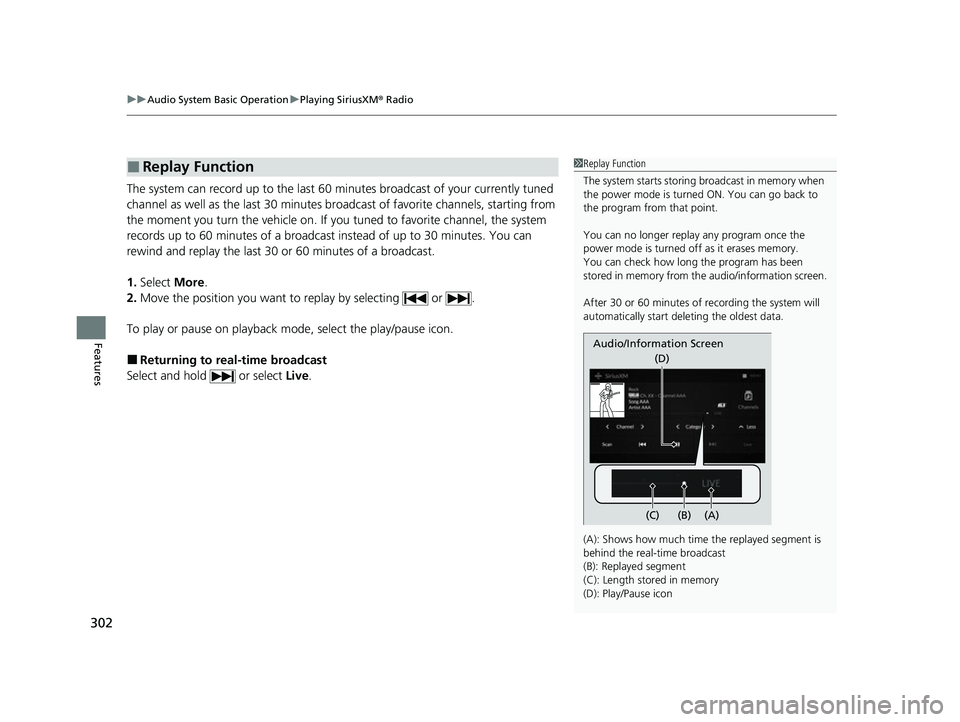
The system can record up to the last 60 minutes broadcast of your currently tuned
channel as well as the last 30 minutes br oadcast of favorite channels, starting from
the moment you turn the vehicle on. If yo u tuned to favorite channel, the system
records up to 60 minutes of a broadcast instead of up to 30 minutes. You can
rewind and replay the last 30 or 60 minutes of a broadcast.
1. Select More.
2. Move the position you want to replay by selecting or .
To play or pause on playback m ode, select the play/pause icon.
■Returning to real-time broadcast
Select and hold or select Live.
■Replay Function1Replay Function
The system starts storing broadcast in memory when
the power mode is turned ON. You can go back to
the program from that point.
You can no longer repl ay any program once the
power mode is turned off as it erases memory.
You can check how long the program has been
stored in memory from th e audio/information screen.
After 30 or 60 minutes of recording the system will
automatically start deleting the oldest data.
(A): Shows how much time the replayed segment is
behind the real-time broadcast
(B): Replayed segment
(C): Length stored in memory
(D): Play/Pause icon
Audio/Information Screen
(C) (B) (A)(D)
23 ACURA RDX-31TJB6400.book 302 ページ 2022年8月4日 木曜日 午後1時51分
Page 305 of 713
Continued303
uuAudio System Basic Operation uPlaying SiriusXM ® Radio
Features
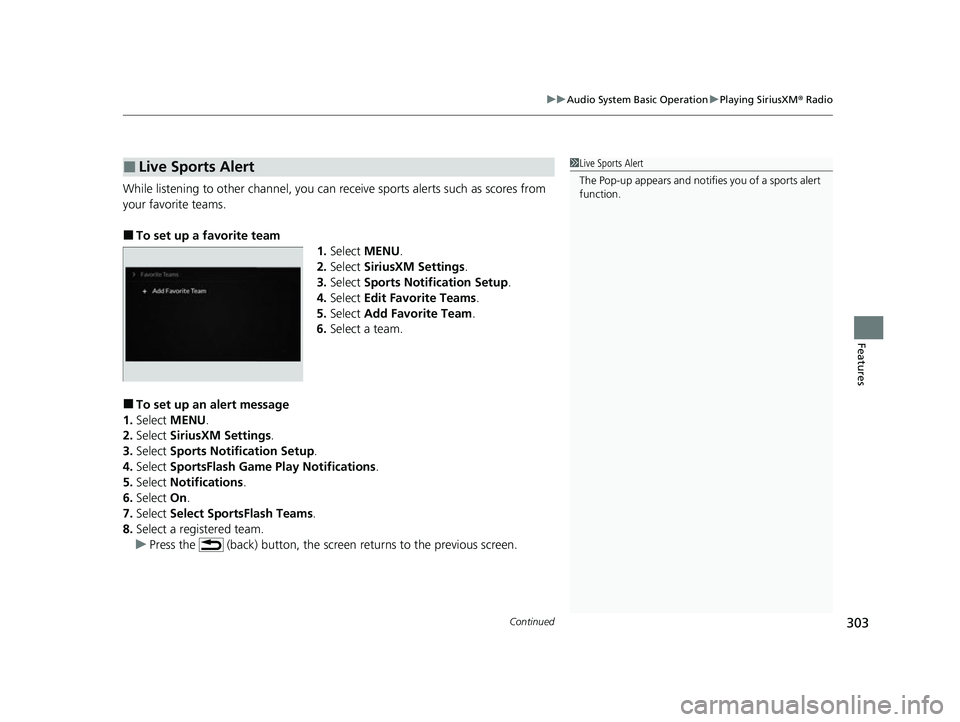
While listening to other channel, you can re ceive sports alerts such as scores from
your favorite teams.
■To set up a favorite team 1.Select MENU .
2. Select SiriusXM Settings .
3. Select Sports Notification Setup .
4. Select Edit Favorite Teams .
5. Select Add Favorite Team .
6. Select a team.
■To set up an alert message
1. Select MENU .
2. Select SiriusXM Settings .
3. Select Sports Notification Setup .
4. Select SportsFlash Game Pl ay Notifications.
5. Select Notifications .
6. Select On.
7. Select Select SportsFlash Teams .
8. Select a registered team.
u Press the (back) button, the screen returns to the previous screen.
■Live Sports Alert1Live Sports Alert
The Pop-up appears and notifies you of a sports alert
function.
23 ACURA RDX-31TJB6400.book 303 ページ 2022年8月4日 木曜日 午後1時51分
Page 306 of 713
uuAudio System Basic Operation uPlaying SiriusXM ® Radio
304
Features
You can receive a sports channel notificat ion when registered sports teams start
playing.
■To set up a game start notification
1. Select MENU .
2. Select SiriusXM Settings .
3. Select Sports Notifi cation Setup.
4. Select Game Notifications .
5. Select On.
■Receiving a game start notification
1. A pop-up appears on the B-zone and notifies you of a game starting.
2. Select the system status area th en press the B-zone touchpad.
u The status items appear on the A-zone.
3. Select a SiriusXM ® notification item using the A-zone touchpad to see the details.
■Game Start Notification1Game Start Notification
Before receiving a game start notification, register a
favorite sports team.
2 To set up a favorite team P. 303
23 ACURA RDX-31TJB6400.book 304 ページ 2022年8月4日 木曜日 午後1時51分
Page 307 of 713
Continued305
uuAudio System Basic Operation uPlaying SiriusXM ® Radio
Features
You can receive traffic and weather information.
1. Select MENU .
2. Select SiriusXM Settings .
3. Select Traffic & Weather Setup.
4. Select Selected City .
5. Select the region.
■Receiving a traffic and weather information
1. A pop-up will appear in the B-zone to notify you that new traffic and weather
information is available.
2. Select the system status area, then press the B-zone touchpad.
u The status area will ap pear in the A-zone.
3. To see the details, select an item using the A-zone touchpad.
u The traffic and weather information will appear in the B-zone.
u Select Keep Listening to continue receiving traffic and weather information.
u Select Return to Ch (channel number) to stop viewing traffic and weather
information.
■Traffic and Weather Information1 Traffic and Weather Information
When traffic and weather information is received, a
notification is displa yed in the B-zone.
2 B-Zone P. 267
23 ACURA RDX-31TJB6400.book 305 ページ 2022年8月4日 木曜日 午後1時51分