change wheel Acura RLX 2014 User Guide
[x] Cancel search | Manufacturer: ACURA, Model Year: 2014, Model line: RLX, Model: Acura RLX 2014Pages: 518, PDF Size: 15.83 MB
Page 139 of 518

uuOperating the Switches Around the Steering WheeluLight Switches
138Controls
Automatic lighting control can be used when
the power mode is in ON.
When the light switch is in AUTO, the
headlights and other exterior lights will switch
on and off automatically depending on the
ambient brightness.
You can change the auto light sensitivity
setting.2Customized Features P. 102, 264
■
Automatic Lighting Control
1Automatic Lighting Control
We recommend that you turn on the lights manually
when driving at night, in a dense fog, or in dark areas
such as long tunnels or parking facilities.
The light sensor is in the location shown below.
Do not cover this light sensor with anything;
otherwise, the automatic lighting system may not
work properly.
Light Sensor
Models with automatic intermittent wipersLight SensorModels without automatic intermittent wipers
Page 140 of 518

139
uuOperating the Switches Around the Steering WheeluLight Switches
Controls
The headlights automatically come on when the wipers are used several times within
a certain intervals with the headlight switch in AUTO.
The headlights automatically go off a few minutes later if the wipers are stopped.
The headlights, all other exterior lights, and the instrument panel lights turn off 15
seconds after you set the power mode to VEHICLE OFF (LOCK), take the remote with
you, and close the driver's door.
If you set the power mode to VEHICLE OFF (LOCK) with the headlight switch on, but
do not open the door, the lights turn off after 10 minutes (three minutes, if the
switch is in the AUTO position).
The lights turn on again when you unlock or open the driver’s door. If you unlock
the door, but do not open it within 15 seconds, the lights go off. If you open the
driver’s door, you will hear a lights on reminder chime.■
Headlight Integration with Wipers
*
■
Automatic Lighting Off Feature
1Automatic Lighting Control
Adjust the auto light sensitivity as follows:
2Customized Features P. 102, 264
Setting
The exterior lights come on
when the ambient light is at
MAXHIGHMIDLOWMIN
Bright
Dark
1Headlight Integration with Wipers
*
This feature activates during the headlights are off in
AUTO.
The instrument panel brightness does not change
when the headlights come on.
When the ambient light is at dark, the automatic
lighting control feature overrides, and the headlights
come on with or without the wipers sweeping more
than several times.1Automatic Lighting Off Feature
You can change the headlight auto off timer setting.
2Customized Features P. 102, 264
* Not available on all models
Page 142 of 518
141
uuOperating the Switches Around the Steering WheeluWipers and Washers
Continued
Controls
Wipers and Washers
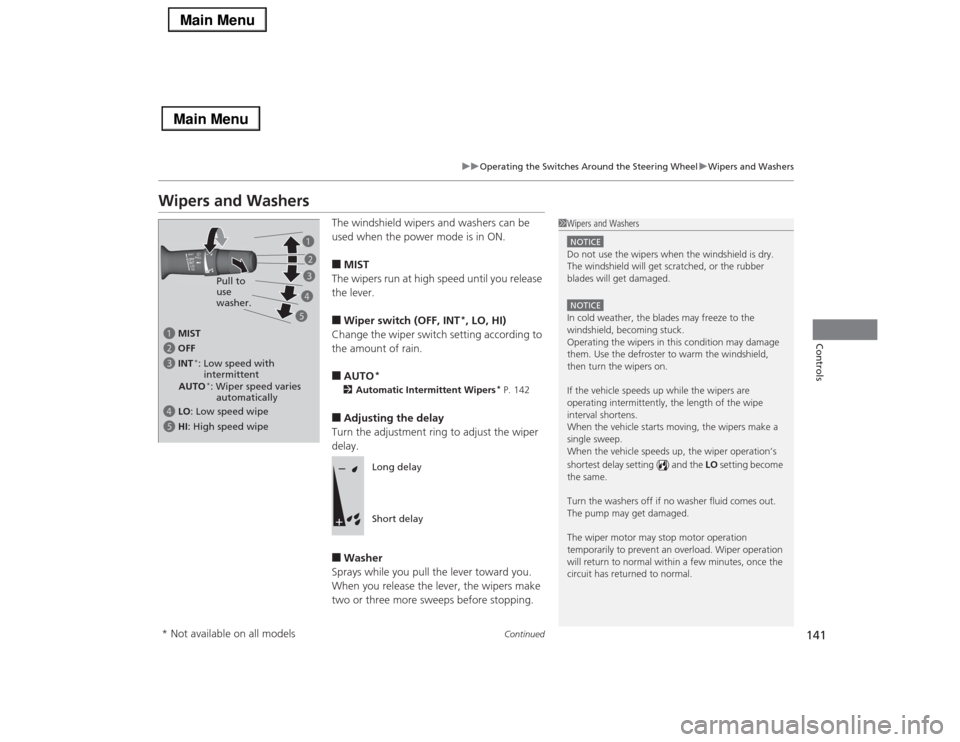
The windshield wipers and washers can be
used when the power mode is in ON.■MIST
The wipers run at high speed until you release
the lever.■Wiper switch (OFF, INT
*, LO, HI)
Change the wiper switch setting according to
the amount of rain.
■AUTO
*
2Automatic Intermittent Wipers
* P. 142
■Adjusting the delay
Turn the adjustment ring to adjust the wiper
delay.■Washer
Sprays while you pull the lever toward you.
When you release the lever, the wipers make
two or three more sweeps before stopping.
1Wipers and WashersNOTICEDo not use the wipers when the windshield is dry.
The windshield will get scratched, or the rubber
blades will get damaged.NOTICEIn cold weather, the blades may freeze to the
windshield, becoming stuck.
Operating the wipers in this condition may damage
them. Use the defroster to warm the windshield,
then turn the wipers on.
If the vehicle speeds up while the wipers are
operating intermittently, the length of the wipe
interval shortens.
When the vehicle starts moving, the wipers make a
single sweep.
When the vehicle speeds up, the wiper operation’s
shortest delay setting ( ) and the LO setting become
the same.
Turn the washers off if no washer fluid comes out.
The pump may get damaged.
The wiper motor may stop motor operation
temporarily to prevent an overload. Wiper operation
will return to normal within a few minutes, once the
circuit has returned to normal.
a MIST
c INT
*: Low speed with
intermittent b OFF
d LO: Low speed wipe
e HI: High speed wipePull to
use
washer.a
b
c
d
e
AUTO*: Wiper speed varies
automatically
Long delay
Short delay
* Not available on all models
Page 145 of 518
144
uuOperating the Switches Around the Steering WheeluBrightness Control
Controls
Brightness Control
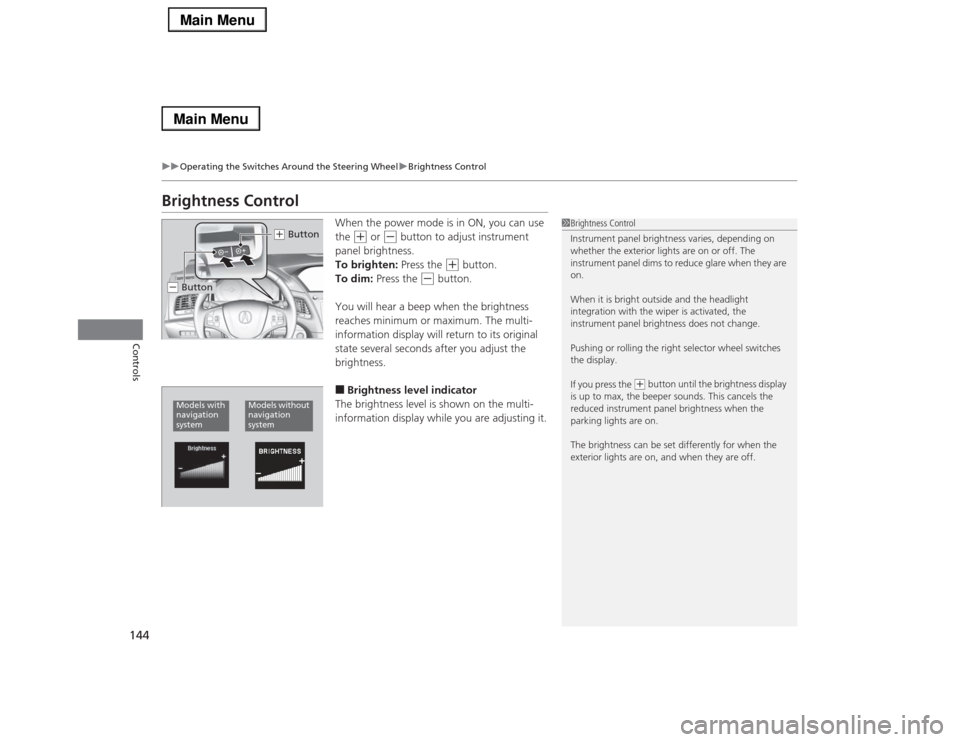
When the power mode is in ON, you can use
the
(+
or
(-
button to adjust instrument
panel brightness.
To brighten: Press the
(+
button.
To dim: Press the
(-
button.
You will hear a beep when the brightness
reaches minimum or maximum. The multi-
information display will return to its original
state several seconds after you adjust the
brightness.
■Brightness level indicator
The brightness level is shown on the multi-
information display while you are adjusting it.
1Brightness Control
Instrument panel brightness varies, depending on
whether the exterior lights are on or off. The
instrument panel dims to reduce glare when they are
on.
When it is bright outside and the headlight
integration with the wiper is activated, the
instrument panel brightness does not change.
Pushing or rolling the right selector wheel switches
the display.
If you press the
(+ button until the brightness display
is up to max, the beeper sounds. This cancels the
reduced instrument panel brightness when the
parking lights are on.
The brightness can be set differently for when the
exterior lights are on, and when they are off.
(+ Button
(- ButtonModels with
navigation
system
Models without
navigation
system
Page 219 of 518

uuAudio System Basic OperationuPlaying AM/FM Radio
218Features
To store a station:
1.Tune to the selected station.
2.Press the MENU button.
3.Rotate to select Save Preset, then press .
4.Rotate to select the preset number you want to store that station, then press
.
You can also store that station by the following procedure.
1.Tune to the selected station.
2.Rotate to select the preset number you want to store the station.
3.Press and hold for a few seconds.
1.Tune to the selected station.
2.Select More.
3.Select Save Preset.
4.Select the preset number you want to store that station.
You can also store that station by the following procedure.
1.Tune to the selected station.
2.Change the display to the preset screen.
3.Select and hold the preset number you want to store that station.■
Preset Memory
1Playing AM/FM Radio
You can control the AM/FM radio using voice
commands.
2Voice Control Operation P. 209
The ST indicator appears on the display indicating
stereo FM broadcasts.
Stereo reproduction in AM is not available.
Switching the Audio Mode
Press the SOURCE button on the steering wheel.
2Audio Remote Controls P. 192
You can also switch the mode by pressing the MENU
button and selecting Change Source on the Audio
menu screen.
You can store 6 AM stations and 12 FM stations into
the preset memory.
iTunes Tagging“iTunes” in “iTunes Tagging” is a trademark of Apple Inc.When an HD Radio
TM station is selected, the HD
indicator appears on the audio/information screen
and On Demand Multi-Use Display
TM.
If you want to have the information on the song
played from the HD Radio
TM station, select TAG in On
Demand Multi-Use DisplayTM or select Tag Song in
the menu with Interface dial.
If iPod®/iPhone® is connected, the tag is transferred to
the connected device immediately, otherwise the tag
will be transferred when the device will be connected
and select Tag Song in the menu with Interface dial.
Models with HD Radio
TM feature
Interface DialOn Demand Multi-Use Display
TM
Page 277 of 518

276
uuCustomized Featuresu
Features
*1:Default SettingSetup
GroupCustomizable Features Description Selectable Settings
Vehicle
SettingsDriving
Position
SetupMemory Position LinkTurns the driving position memory system on and
off.On
*1/Off
Auto Tilt & TelescopicMoves the steering wheel fully up when you get
in/get out of the vehicle.On*1/Off
Auto Seatbelt Tension
*
Turns the auto seatbelt tension setting for the
seat belt e-pretensioner on and off.On
*1/Off
Keyless
Access
SetupDoor Unlock ModeChanges which doors unlock when you grab the
driver’s door handle.Driver Door Only
*1/
All Doors
Keyless Access Light FlashCauses some exterior lights to flash when you
unlock/lock the doors.On
*1/Off
Keyless Access BeepCauses the beeper to sound when you unlock/
lock the doors.On*1/Off
Lighting
SetupInterior Light Dimming
TimeChanges the length of time the interior lights stay
on after you close the doors.60seconds/
30seconds
*1/
15seconds
Headlight Auto Off TimerChanges the length of time the exterior lights
stay on after you close the driver’s door.60seconds/
30seconds/
15seconds*1/
0seconds
Auto Light SensitivityChanges the timing for the headlights to come
on.Max/High/Mid
*1/
Low/Min
* Not available on all models
Page 288 of 518
287
Continued
Features
Bluetooth® HandsFreeLink®Bluetooth® HandsFreeLink® (HFL) allows you to place and receive phone calls using
your vehicle’s navigation
*/audio system, without handling your cell phone.
Using HFL
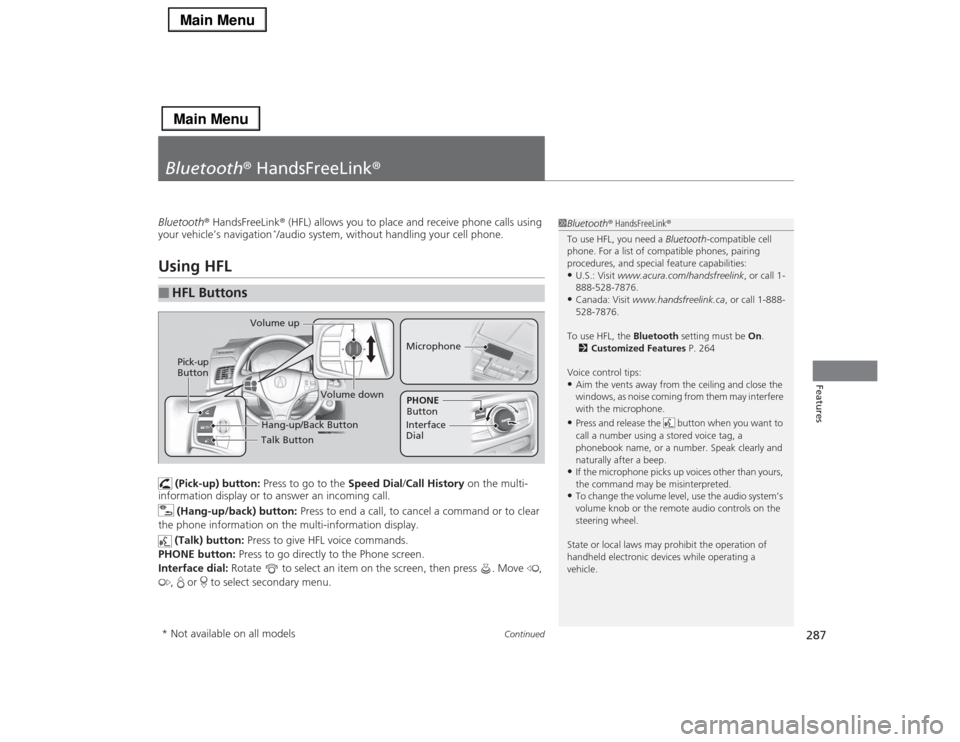
(Pick-up) button: Press to go to the Speed Dial/Call History on the multi-
information display or to answer an incoming call.
(Hang-up/back) button: Press to end a call, to cancel a command or to clear
the phone information on the multi-information display.
(Talk) button: Press to give HFL voice commands.
PHONE button: Press to go directly to the Phone screen.
Interface dial: Rotate to select an item on the screen, then press . Move ,
, or to select secondary menu.
■
HFL Buttons
1Bluetooth® HandsFreeLink®
To use HFL, you need a Bluetooth-compatible cell
phone. For a list of compatible phones, pairing
procedures, and special feature capabilities:•U.S.: Visit www.acura.com/handsfreelink, or call 1-
888-528-7876.•Canada: Visit www.handsfreelink.ca, or call 1-888-
528-7876.
To use HFL, the Bluetooth setting must be On.
2Customized Features P. 264
Voice control tips:•Aim the vents away from the ceiling and close the
windows, as noise coming from them may interfere
with the microphone.•Press and release the button when you want to
call a number using a stored voice tag, a
phonebook name, or a number. Speak clearly and
naturally after a beep.•If the microphone picks up voices other than yours,
the command may be misinterpreted.•To change the volume level, use the audio system’s
volume knob or the remote audio controls on the
steering wheel.
State or local laws may prohibit the operation of
handheld electronic devices while operating a
vehicle.
Talk Button Volume up
MicrophoneHang-up/Back Button
Pick-up
Button
Volume down
Interface
DialPHONE
Button
* Not available on all models
Page 350 of 518

349
uuWhen DrivinguShifting
Continued
Driving
Use the paddle shifters to change between 1st and 6th gears without removing your
hands from the steering wheel. The transmission will switch to the sequential shift
mode.■When the shift lever is in
(D
:
The vehicle will go into the sequential shift mode momentarily, and the gear position
indicator will come on.
Once you start traveling at a constant speed, the sequential shift mode will
automatically switch off, and the gear position indicator will go off.
Hold the
(+
paddle shifter for two seconds to return to normal drive.
■When the shift lever is in
(D
with SPORT mode:
The vehicle will go into the sequential shift mode, and the M (sequential shift)
indicator and gear position indicator will come on. At speeds of 6 mph (10 km/h) or
less, the vehicle automatically shifts down into 1st gear. If you do not operate the
paddle shifters while in 1st gear, the transmission automatically shifts up to 2nd
gear.
If the vehicle speed increases and the engine speed reaches near the tachometer’s
red zone, the transmission automatically shifts up to 6th.
You can cancel this mode by pressing SPORT button, or pulling the
(+
paddle
shifter for a few seconds. When the sequential shift mode is canceled, the sequential
shift mode indicator and shift indicator go off.
■
Sequential Shift Mode
Page 359 of 518
uuWhen DrivinguAdaptive Cruise Control (ACC) with Low Speed Follow (LSF)
*
358Driving
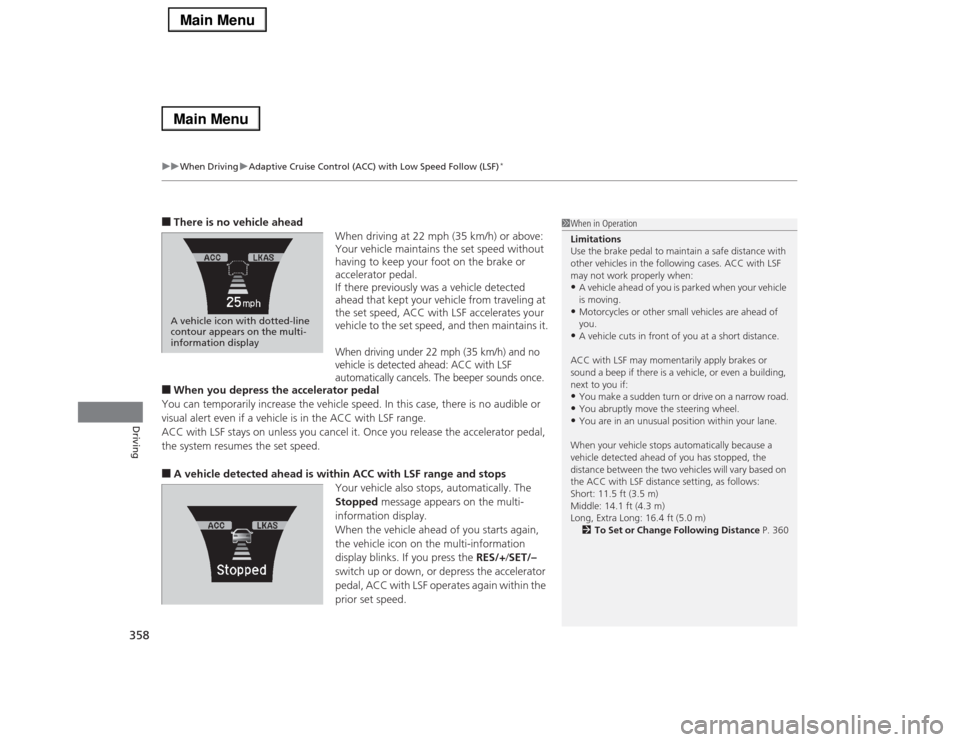
■There is no vehicle ahead
When driving at 22 mph (35 km/h) or above:
Your vehicle maintains the set speed without
having to keep your foot on the brake or
accelerator pedal.
If there previously was a vehicle detected
ahead that kept your vehicle from traveling at
the set speed, ACC with LSF accelerates your
vehicle to the set speed, and then maintains it.
When driving under 22 mph (35 km/h) and no
vehicle is detected ahead: ACC with LSF
automatically cancels. The beeper sounds once.
■When you depress the accelerator pedal
You can temporarily increase the vehicle speed. In this case, there is no audible or
visual alert even if a vehicle is in the ACC with LSF range.
ACC with LSF stays on unless you cancel it. Once you release the accelerator pedal,
the system resumes the set speed.■A vehicle detected ahead is within ACC with LSF range and stops
Your vehicle also stops, automatically. The
Stopped message appears on the multi-
information display.
When the vehicle ahead of you starts again,
the vehicle icon on the multi-information
display blinks. If you press the RES/+/SET/–
switch up or down, or depress the accelerator
pedal, ACC with LSF operates again within the
prior set speed.A vehicle icon with dotted-line
contour appears on the multi-
information display
1When in Operation
Limitations
Use the brake pedal to maintain a safe distance with
other vehicles in the following cases. ACC with LSF
may not work properly when:•A vehicle ahead of you is parked when your vehicle
is moving.•Motorcycles or other small vehicles are ahead of
you.•A vehicle cuts in front of you at a short distance.
ACC with LSF may momentarily apply brakes or
sound a beep if there is a vehicle, or even a building,
next to you if:•You make a sudden turn or drive on a narrow road.•You abruptly move the steering wheel.•You are in an unusual position within your lane.
When your vehicle stops automatically because a
vehicle detected ahead of you has stopped, the
distance between the two vehicles will vary based on
the ACC with LSF distance setting, as follows:
Short: 11.5 ft (3.5 m)
Middle: 14.1 ft (4.3 m)
Long, Extra Long: 16.4 ft (5.0 m)
2To Set or Change Following Distance P. 360
Page 370 of 518
369
uuWhen DrivinguLane Departure Warning (LDW)
Driving
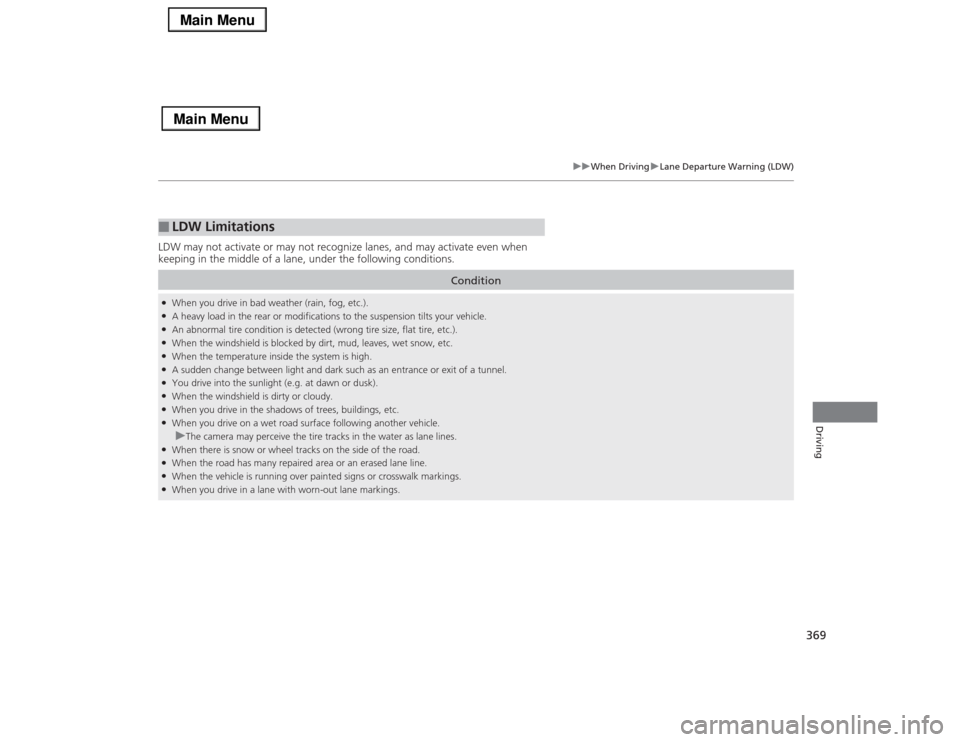
LDW may not activate or may not recognize lanes, and may activate even when
keeping in the middle of a lane, under the following conditions.■
LDW Limitations
Condition
●When you drive in bad weather (rain, fog, etc.).●A heavy load in the rear or modifications to the suspension tilts your vehicle.●An abnormal tire condition is detected (wrong tire size, flat tire, etc.).●When the windshield is blocked by dirt, mud, leaves, wet snow, etc.●When the temperature inside the system is high.●A sudden change between light and dark such as an entrance or exit of a tunnel.●You drive into the sunlight (e.g. at dawn or dusk).●When the windshield is dirty or cloudy.●When you drive in the shadows of trees, buildings, etc.●When you drive on a wet road surface following another vehicle.uThe camera may perceive the tire tracks in the water as lane lines.
●When there is snow or wheel tracks on the side of the road.●When the road has many repaired area or an erased lane line.●When the vehicle is running over painted signs or crosswalk markings.●When you drive in a lane with worn-out lane markings.