lock Acura RLX 2014 Repair Manual
[x] Cancel search | Manufacturer: ACURA, Model Year: 2014, Model line: RLX, Model: Acura RLX 2014Pages: 518, PDF Size: 15.83 MB
Page 164 of 518
Continued
163
uuInterior Lights/Interior Convenience ItemsuInterior Convenience Items
Controls
4.The previous code is displayed. Select OK.
uYou will receive a confirmation message
on the display. Select OK.
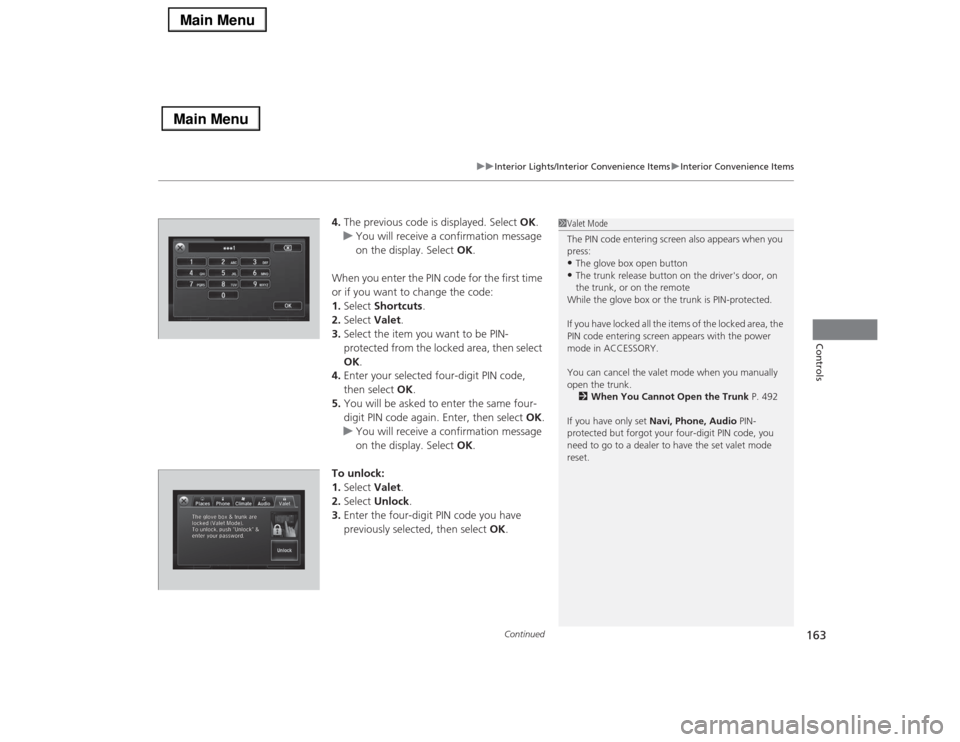
When you enter the PIN code for the first time
or if you want to change the code:
1.Select Shortcuts.
2.Select Valet.
3.Select the item you want to be PIN-
protected from the locked area, then select
OK.
4.Enter your selected four-digit PIN code,
then select OK.
5.You will be asked to enter the same four-
digit PIN code again. Enter, then select OK.
uYou will receive a confirmation message
on the display. Select OK.
To unlock:
1.Select Valet.
2.Select Unlock.
3.Enter the four-digit PIN code you have
previously selected, then select OK.
1Valet Mode
The PIN code entering screen also appears when you
press:•The glove box open button•The trunk release button on the driver's door, on
the trunk, or on the remote
While the glove box or the trunk is PIN-protected.
If you have locked all the items of the locked area, the
PIN code entering screen appears with the power
mode in ACCESSORY.
You can cancel the valet mode when you manually
open the trunk.
2When You Cannot Open the Trunk P. 492
If you have only set Navi, Phone, Audio PIN-
protected but forgot your four-digit PIN code, you
need to go to a dealer to have the set valet mode
reset.
Page 171 of 518

170
uuInterior Lights/Interior Convenience ItemsuInterior Convenience Items
Controls
Pull the rear seat armrest down and push the
button to open the cover.
You have access to the trunk from this
opening in the rear seat-back.
The cover latches when you push it back to
the original position.
You can lock and unlock this cover using the
built-in key.
■
Trunk Pass-through Cover
LockButton
Cover
Page 178 of 518
177
Continued
Controls
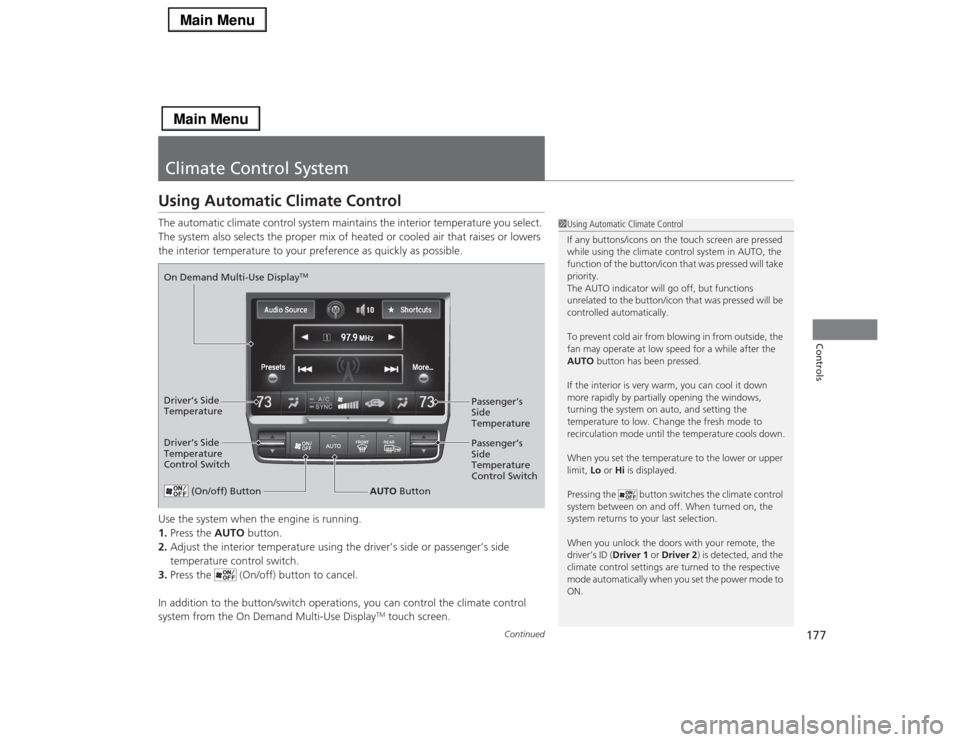
Climate Control SystemUsing Automatic Climate ControlThe automatic climate control system maintains the interior temperature you select.
The system also selects the proper mix of heated or cooled air that raises or lowers
the interior temperature to your preference as quickly as possible.
Use the system when the engine is running.
1.Press the AUTO button.
2.Adjust the interior temperature using the driver’s side or passenger’s side
temperature control switch.
3.Press the (On/off) button to cancel.
In addition to the button/switch operations, you can control the climate control
system from the On Demand Multi-Use Display
TM touch screen.
1Using Automatic Climate Control
If any buttons/icons on the touch screen are pressed
while using the climate control system in AUTO, the
function of the button/icon that was pressed will take
priority.
The AUTO indicator will go off, but functions
unrelated to the button/icon that was pressed will be
controlled automatically.
To prevent cold air from blowing in from outside, the
fan may operate at low speed for a while after the
AUTO button has been pressed.
If the interior is very warm, you can cool it down
more rapidly by partially opening the windows,
turning the system on auto, and setting the
temperature to low. Change the fresh mode to
recirculation mode until the temperature cools down.
When you set the temperature to the lower or upper
limit, Lo or Hi is displayed.
Pressing the button switches the climate control
system between on and off. When turned on, the
system returns to your last selection.
When you unlock the doors with your remote, the
driver’s ID (Driver 1 or Driver 2) is detected, and the
climate control settings are turned to the respective
mode automatically when you set the power mode to
ON.
(On/off) Button
AUTO Button On Demand Multi-Use Display
TM
Driver’s Side
Temperature
Control SwitchPassenger’s
Side
Temperature
Control Switch Passenger’s
Side
Temperature Driver’s Side
Temperature
Page 194 of 518
193Features
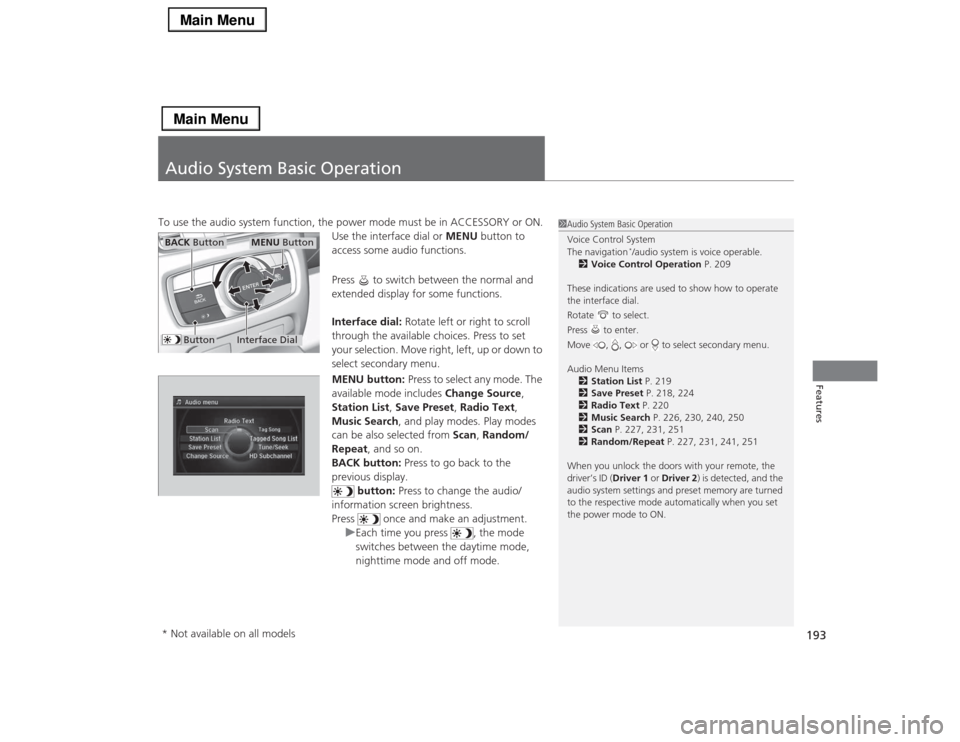
Audio System Basic OperationTo use the audio system function, the power mode must be in ACCESSORY or ON.
Use the interface dial or MENU button to
access some audio functions.
Press to switch between the normal and
extended display for some functions.
Interface dial: Rotate left or right to scroll
through the available choices. Press to set
your selection. Move right, left, up or down to
select secondary menu.
MENU button: Press to select any mode. The
available mode includes Change Source,
Station List, Save Preset, Radio Text,
Music Search, and play modes. Play modes
can be also selected from Scan, Random/
Repeat, and so on.
BACK button: Press to go back to the
previous display.
button: Press to change the audio/
information screen brightness.
Press once and make an adjustment.
uEach time you press , the mode
switches between the daytime mode,
nighttime mode and off mode.
1Audio System Basic Operation
Voice Control System
The navigation
*/audio system is voice operable.
2Voice Control Operation P. 209
These indications are used to show how to operate
the interface dial.
Rotate to select.
Press to enter.
Move , , or to select secondary menu.
Audio Menu Items
2Station List P. 219
2Save Preset P. 218, 224
2Radio Text P. 220
2Music Search P. 226, 230, 240, 250
2Scan P. 227, 231, 251
2Random/Repeat P. 227, 231, 241, 251
When you unlock the doors with your remote, the
driver’s ID (Driver 1 or Driver 2) is detected, and the
audio system settings and preset memory are turned
to the respective mode automatically when you set
the power mode to ON.
Interface Dial
MENU Button
BACK Button
Button
* Not available on all models
Page 205 of 518
204
uuAudio System Basic OperationuAudio/Information Screen
Features
■Audio
Shows the current audio information.■Navigation
*
Shows the navigation screen.
2 Refer to the Navigation System Manual
■Phone
Shows the HFL information.
2 Bluetooth® HandsFreeLink® P. 287
■Info
Shows the Trip Computer or Clock/Wallpaper and other information. Rotate
to select an item, then press .■Trip computer (Current Drive)
Shows the range, and instant and average fuel economy of the current trip, as well
as the average fuel economy from your last trip.■Trip computer (History of Trip A)
Shows the range, average fuel economy and distances traveled for the current trip, as well
as the average fuel economy and distances traveled during the last three driving cycles.
Each time you reset the trip meter A, the information on the display updates. The
history of the previous three driving cycles is kept.■Deleting the history manually
1.Move on the History of Trip A screen to select Delete History, then press .
2.You will receive a confirmation message on the screen. Rotate to select Yes,
then press .■Clock/Wallpaper
Shows a clock screen or an image you import.* Not available on all models
Page 206 of 518
Continued
205
uuAudio System Basic OperationuAudio/Information Screen
Features
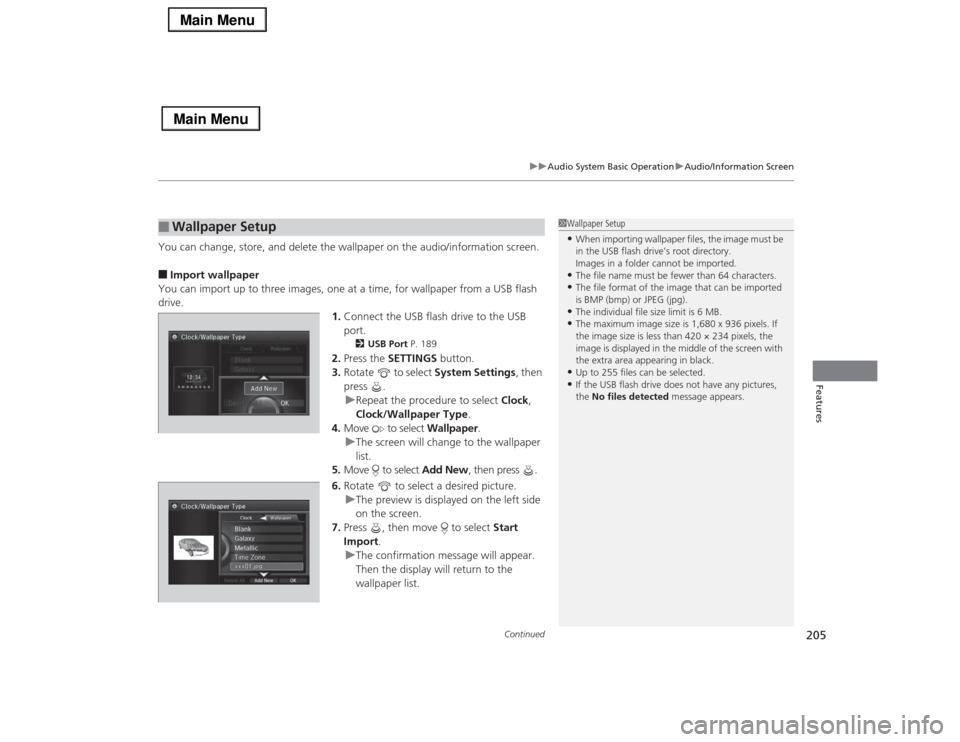
You can change, store, and delete the wallpaper on the audio/information screen.■Import wallpaper
You can import up to three images, one at a time, for wallpaper from a USB flash
drive.
1.Connect the USB flash drive to the USB
port.
2USB Port P. 189
2.Press the SETTINGS button.
3.Rotate to select System Settings, then
press .
uRepeat the procedure to select Clock,
Clock/Wallpaper Type.
4.Move to select Wallpaper.
uThe screen will change to the wallpaper
list.
5.Move to select Add New, then press .
6.Rotate to select a desired picture.
uThe preview is displayed on the left side
on the screen.
7.Press , then move to select Start
Import.
uThe confirmation message will appear.
Then the display will return to the
wallpaper list.
■
Wallpaper Setup
1Wallpaper Setup•When importing wallpaper files, the image must be
in the USB flash drive’s root directory.
Images in a folder cannot be imported.•The file name must be fewer than 64 characters.•The file format of the image that can be imported
is BMP (bmp) or JPEG (jpg).•The individual file size limit is 6 MB.•The maximum image size is 1,680 x 936 pixels. If
the image size is less than 420 × 234 pixels, the
image is displayed in the middle of the screen with
the extra area appearing in black.•Up to 255 files can be selected.•If the USB flash drive does not have any pictures,
the No files detected message appears.
Page 207 of 518
uuAudio System Basic OperationuAudio/Information Screen
206Features
■Select wallpaper
1.Press the SETTINGS button.
2.Rotate to select System Settings, then press .
uRepeat the procedure to select Clock/Wallpaper Type.
3.Move to select Wallpaper.
uThe screen changes to the wallpaper list.
4.Rotate to select a desired wallpaper.
uThe preview is displayed on the left side on the screen.
5.Press .
uThe pop-up menu appears on the screen.
6.Rotate to select Set, then press .
uThe display will return to the wallpaper list.■Delete wallpaper
1.Press the SETTINGS button.
2.Rotate to select System Settings, then press .
uRepeat the procedure to select Clock/Wallpaper Type.
3.Move to select Wallpaper.
uThe screen changes to the wallpaper list.
4.Rotate to select a wallpaper that you want to delete, then press .
uThe preview is displayed on the left side on the screen.
5.Press .
uThe pop-up menu appears on the screen.
6.Rotate to select Delete, then press .
uThe confirmation message will appear.
7.Rotate to select Yes, then press to delete completely.
uThe display will return to the wallpaper list.
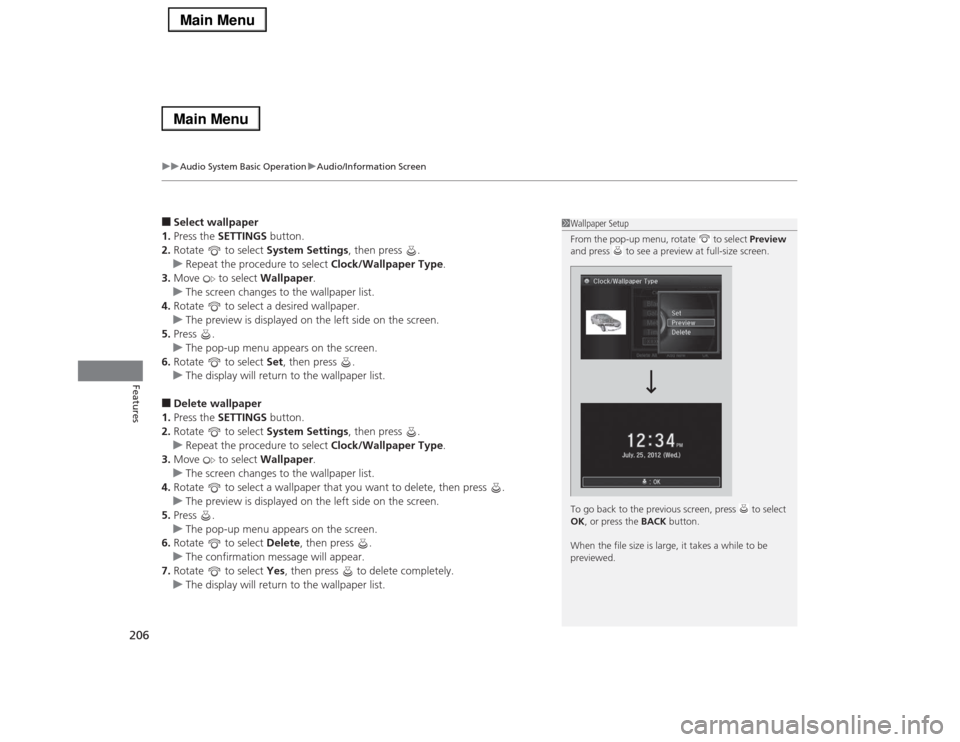
1Wallpaper Setup
From the pop-up menu, rotate to select Preview
and press to see a preview at full-size screen.
To go back to the previous screen, press to select
OK, or press the BACK button.
When the file size is large, it takes a while to be
previewed.
Page 211 of 518
210
uuAudio System Basic OperationuVoice Control Operation
Features
The system accepts these commands on the
Voice Portal screen.
•Call Your contact name
•Call Phone Number
•Find nearest POI category name
*
•Go home
*
•Route menu
*
•Cancel route
*
The system accepts these commands on any
screen.
•Call by number
•Call by name
Contacts that are imported from your
phone to the vehicle are all made available
by voice. Voice Tags can also be recorded
for each of your Speed Dial entries.■
Voice Portal Commands
■
Phone Commands
2Refer to the Navigation System ManualThe system accepts these commands on any
screen.
•Trip computer
•Traffic information
*
•Display clock
•Display wallpaper■
Navigation Commands
*
■
Info Commands
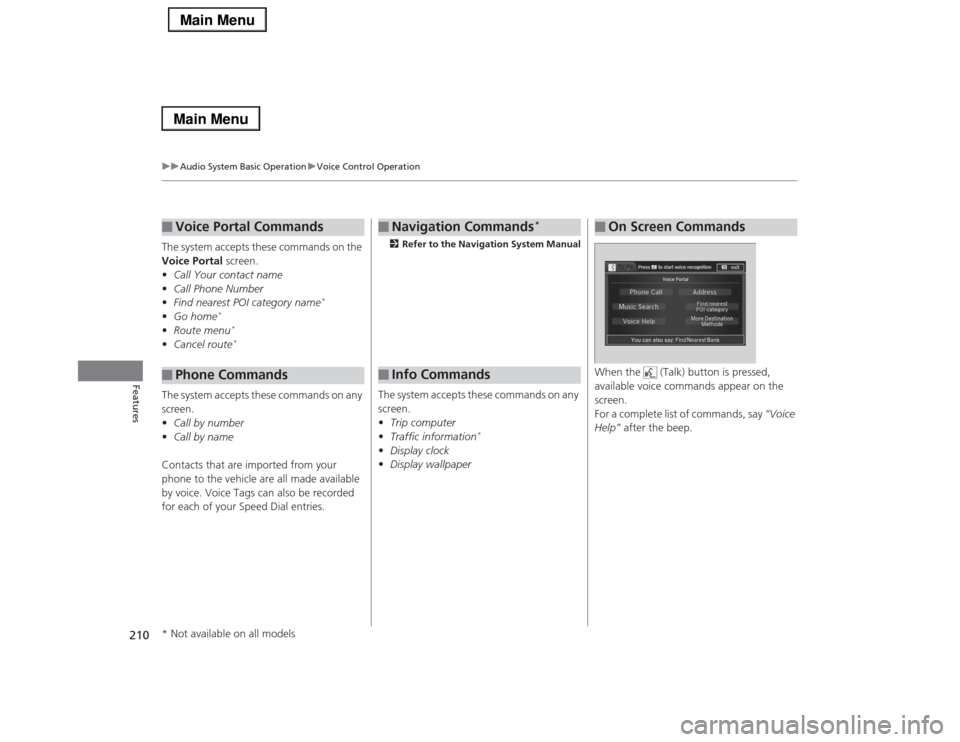
When the (Talk) button is pressed,
available voice commands appear on the
screen.
For a complete list of commands, say “Voice
Help” after the beep.■
On Screen Commands
* Not available on all models
Page 261 of 518
260Features
General Information on the Audio SystemXM® Radio Service1.You need your radio ID ready before registering for subscription. To see the ID in
the display: Turn the interface dial until 0 appears.
2.Have your radio ID and credit card number ready, and either call or visit the XM®
website to subscribe.
Switch to the XM® mode by pressing the SOURCE button repeatedly or operating
the On Demand Multi-Use Display
TM, and stay in this mode for about 30 minutes
until the service is activated. Make sure your vehicle is in an open area with good
reception.
Loading:
XM® is loading the audio or program information.
Ch off air:
The channel is not currently broadcasting.
Ch unauthorized:
XM® radio is receiving information update from the network.
No signal:
The signal is too weak in the current location.
Ch unavailable:
No such channel exists, the channel is not part of your subscription, or the artist or
title information is unavailable.
Check antenna:
There is a problem with the XM® antenna. Contact a dealer.
■
Subscribing to XM® Radio
■
Receiving XM® Radio
■
XM® Radio Display Messages
1Subscribing to XM® Radio
Contact Information for XM® Radio:•U.S.: XM® Radio at www.siriusxm.com or (800)
852-9696•Canada: XM® Canada at www.xmradio.ca, or
(877) 209-0079
1Receiving XM® Radio
The XM® satellites are in orbit over the equator;
therefore, objects south of the vehicle may cause
satellite reception interruptions. Satellite signals are
more likely to be blocked by tall buildings and
mountains the farther north you travel from the
equator.
You may experience reception problems under the
following circumstances:•In a location with an obstruction to the south of
your vehicle.•In tunnels•On the lower level of a multi-tiered road•Large items carried on the roof rack
Page 264 of 518
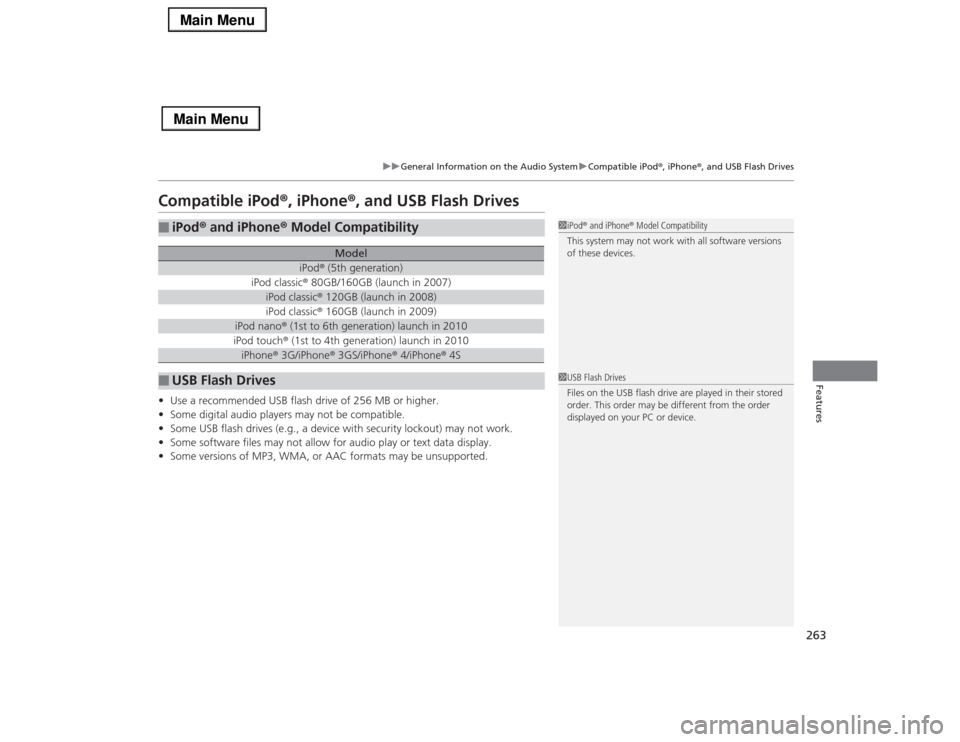
263
uuGeneral Information on the Audio SystemuCompatible iPod®, iPhone®, and USB Flash Drives
Features
Compatible iPod®, iPhone®, and USB Flash Drives•Use a recommended USB flash drive of 256 MB or higher.
•Some digital audio players may not be compatible.
•Some USB flash drives (e.g., a device with security lockout) may not work.
•Some software files may not allow for audio play or text data display.
•Some versions of MP3, WMA, or AAC formats may be unsupported.■
iPod® and iPhone® Model Compatibility
Model
iPod® (5th generation)
iPod classic® 80GB/160GB (launch in 2007)
iPod classic® 120GB (launch in 2008)iPod classic® 160GB (launch in 2009)
iPod nano® (1st to 6th generation) launch in 2010iPod touch® (1st to 4th generation) launch in 2010iPhone® 3G/iPhone® 3GS/iPhone® 4/iPhone® 4S
■
USB Flash Drives
1iPod® and iPhone® Model Compatibility
This system may not work with all software versions
of these devices.1USB Flash Drives
Files on the USB flash drive are played in their stored
order. This order may be different from the order
displayed on your PC or device.