audio Acura RLX 2015 Owners Manual
[x] Cancel search | Manufacturer: ACURA, Model Year: 2015, Model line: RLX, Model: Acura RLX 2015Pages: 521, PDF Size: 22.24 MB
Page 262 of 521

261
uuGeneral Information on the Audio System uRecommended CDs
Features
■Protecting CDs
Follow these precautions when handling or storing CDs:
• Store a CD in its case when it is not being played.
• When wiping a CD, use a soft clean cloth from the center to the outside edge.
• Handle a CD by its edge. Never touch either surface.
• Never insert foreign objects into the CD player.
• Keep CDs out of direct sunlight and extreme heat.
• Do not place stabilizer rings or labels on the CD.
• Avoid fingerprints, liquids, and felt-tip pens on the CD.
1Protecting CDsNOTICEDo not insert a damaged CD. It may be stuck inside
and damage the audio unit.Examples:●Damaged CDsBubbled/
Wrinkled
With Label/
Sticker Using
Printer Label
Kit
Sealed With Plastic Ring
●Poor quality
CDs
Chipped/
Cracked Warped Burrs
●Small CDs
3-inch
(8-cm)
CD●Bubbled, wrinkled, labeled, and
excessively thick CDs
Page 263 of 521
262
uuGeneral Information on the Audio System uCompatible iPod, iPhone, and USB Flash Drives
Features
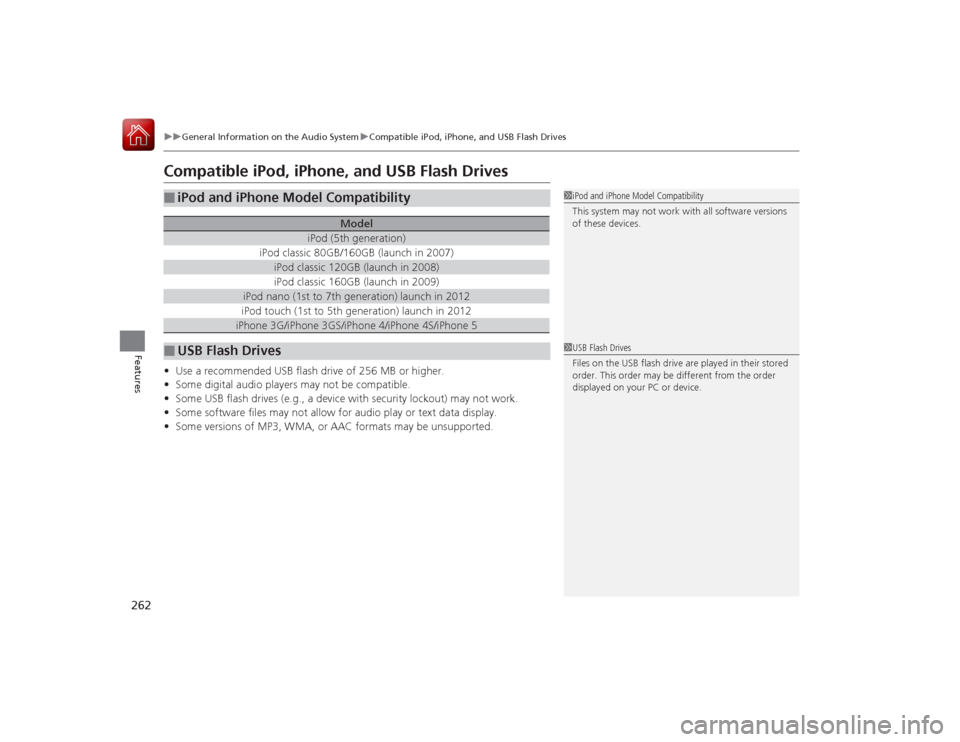
Compatible iPod, iPhone, and USB Flash Drives•Use a recommended USB flash drive of 256 MB or higher.
• Some digital audio players may not be compatible.
• Some USB flash drives (e.g., a device with security lockout) may not work.
• Some software files may not allow for audio play or text data display.
• Some versions of MP3, WMA, or AAC formats may be unsupported.■
iPod and iPhone Model Compatibility
Model
iPod (5th generation)
iPod classic 80GB/160GB (launch in 2007)
iPod classic 120GB (launch in 2008)iPod classic 160GB (launch in 2009)
iPod nano (1st to 7th generation) launch in 2012iPod touch (1st to 5th generation) launch in 2012iPhone 3G/iPhone 3GS/iPhone 4/iPhone 4S/iPhone 5
■
USB Flash Drives
1iPod and iPhone Model Compatibility
This system may not work with all software versions
of these devices.1USB Flash Drives
Files on the USB flash drive are played in their stored
order. This order may be different from the order
displayed on your PC or device.
Page 264 of 521
263
Continued
Features
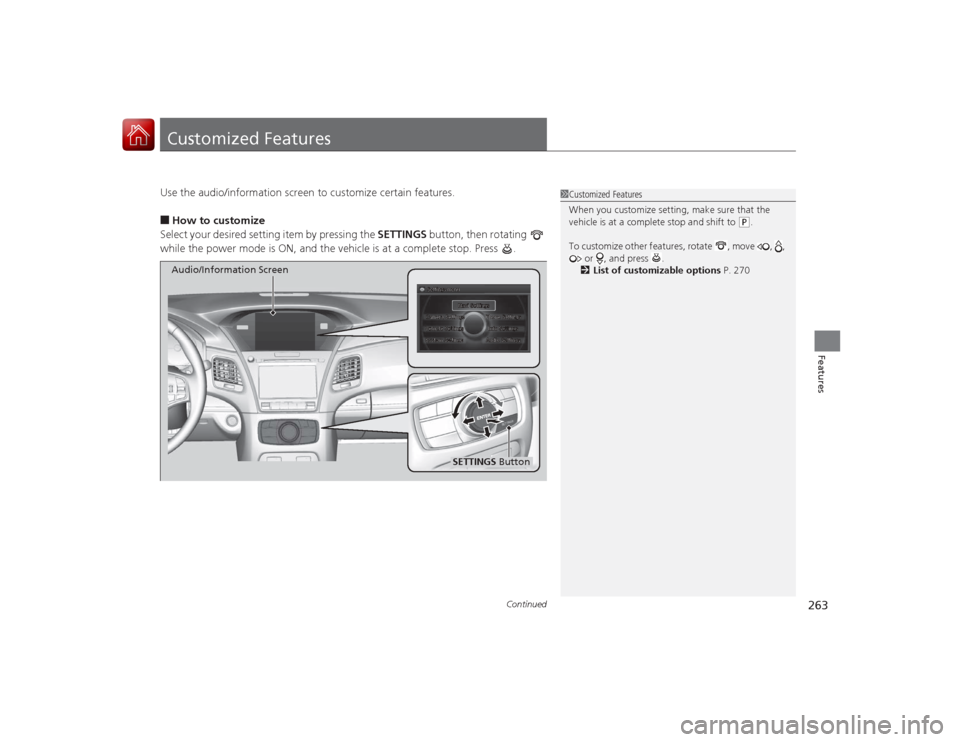
Customized FeaturesUse the audio/information screen to customize certain features.■How to customize
Select your desired setting item by pressing the SETTINGS button, then rotating
while the power mode is ON, and the vehicle is at a complete stop. Press .
1 Customized Features
When you customize setting, make sure that the
vehicle is at a complete stop and shift to
(P.
To customize other features, rotate , move , , or , and press .
2 List of customizable options P. 270
SETTINGS Button
Audio/Information Screen
Page 268 of 521
267
uuCustomized Features u
Continued
Features
Default
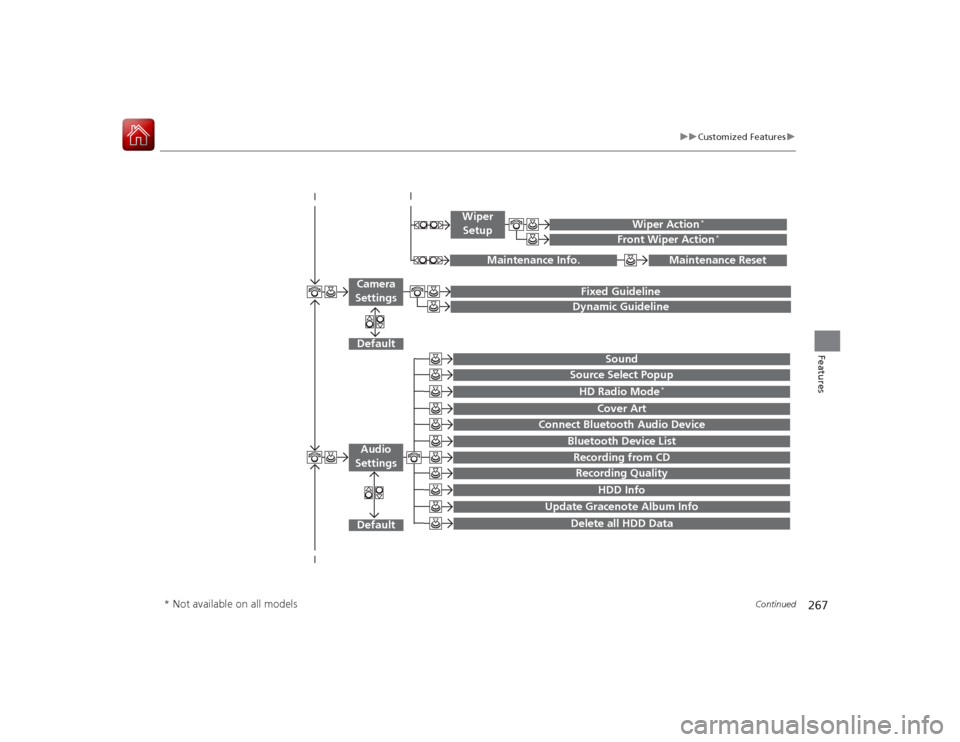
Fixed GuidelineDynamic Guideline
Default
Sound
Source Select PopupHD Radio Mode
*
Cover Art
Connect Bluetooth Audio Device
Bluetooth Device ListRecording from CDRecording Quality
HDD Info
Update Gracenote Album Info
Delete all HDD Data
Audio
Settings
Maintenance Reset
Maintenance Info.
Wiper Action
*
Front Wiper Action
*
Wiper Setup
Camera
Settings
* Not available on all models
Page 271 of 521
270
uuCustomized Features u
Features
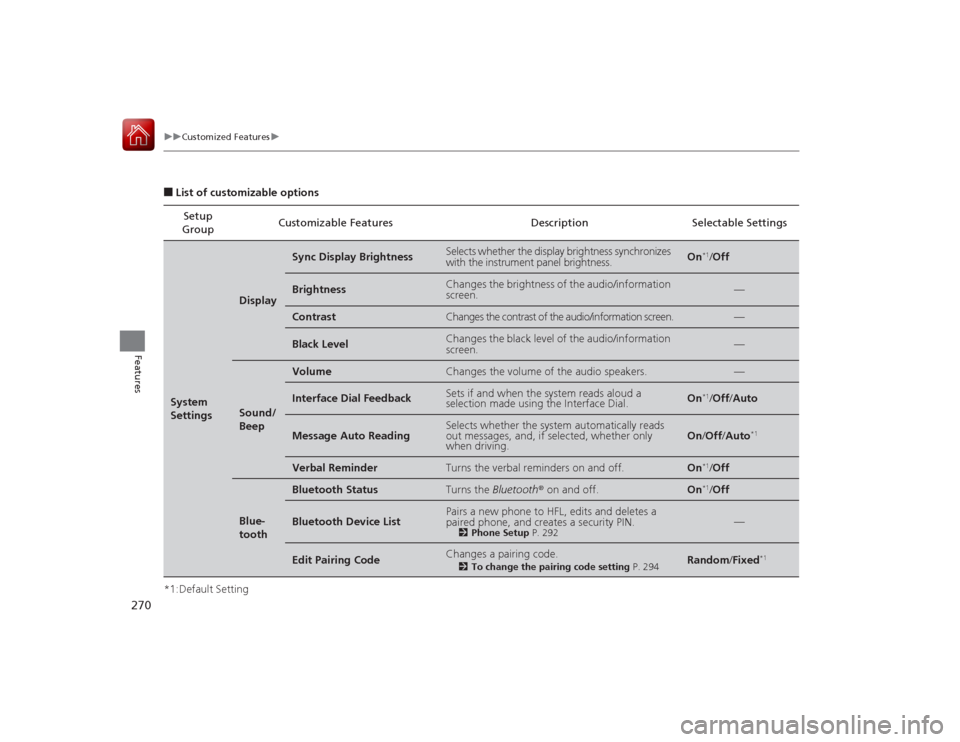
■List of customizable options
*1:Default Setting Setup
Group Customizable Features Description Selectable SettingsSystem
Settings
Display
Sync Display Brightness
Selects whether the display brightness synchronizes
with the instrument panel brightness.
On
*1/
Off
Brightness
Changes the brightness of the audio/information
screen.
—
Contrast
Changes the contrast of the audio/information screen.
—
Black Level
Changes the black level of the audio/information
screen.
—
Sound/
Beep
Volume
Changes the volume of the audio speakers.
—
Interface Dial Feedback
Sets if and when the system reads aloud a
selection made using the Interface Dial.
On
*1/Off /Auto
Message Auto Reading
Selects whether the system automatically reads
out messages, and, if selected, whether only
when driving.
On /Off /Auto
*1
Verbal Reminder
Turns the verbal reminders on and off.
On
*1/Off
Blue-
tooth
Bluetooth Status
Turns the Bluetooth ® on and off.
On
*1/Off
Bluetooth Device List
Pairs a new phone to HFL, edits and deletes a
paired phone, and creates a security PIN.
2 Phone Setup P. 292
—
Edit Pairing Code
Changes a pairing code.
2To change the pairing code setting P. 294
Random/Fixed
*1
Page 273 of 521
272
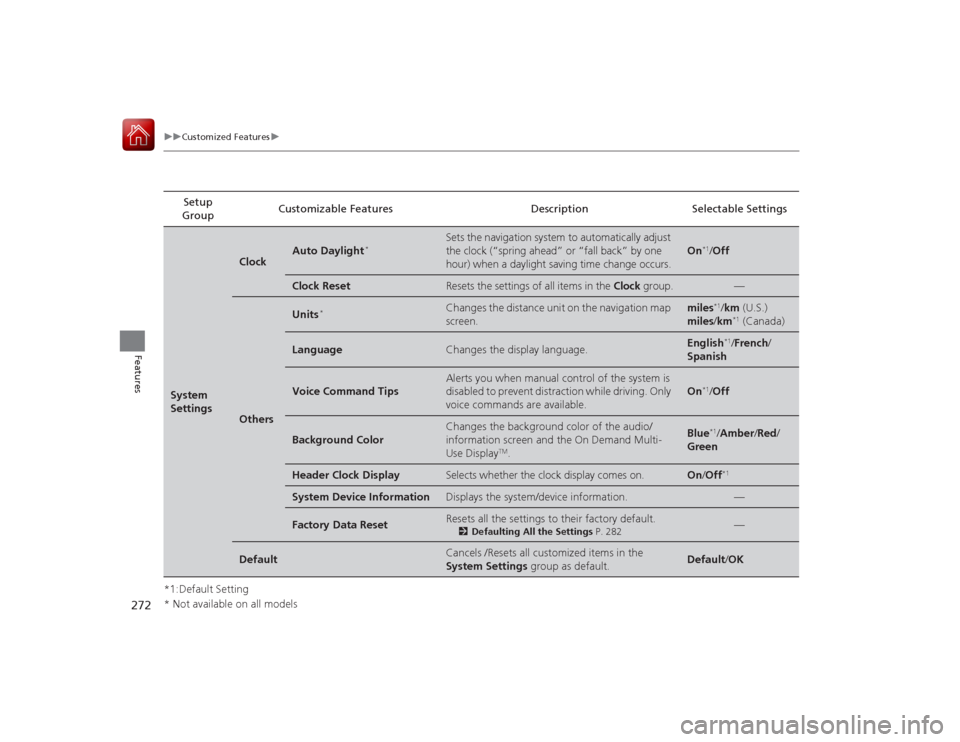
uuCustomized Features u
Features
*1:Default SettingSetup
Group Customizable Features Description Selectable SettingsSystem
Settings
Clock
Auto Daylight
*
Sets the navigation system to automatically adjust
the clock (“spring ahead” or “fall back” by one
hour) when a daylight saving time change occurs.
On
*1/
Off
Clock Reset
Resets the settings of all items in the Clock group.
—
Others
Units
*
Changes the distance unit on the navigation map
screen.
miles
*1/km (U.S.)
miles /km*1 (Canada)
Language
Changes the display language.
English
*1/French /
Spanish
Voice Command Tips
Alerts you when manual control of the system is
disabled to prevent distraction while driving. Only
voice commands are available.
On
*1/ Off
Background Color
Changes the background color of the audio/
information screen and the On Demand Multi-
Use Display
TM.
Blue
*1/Amber /Red/
Green
Header Clock Display
Selects whether the clock display comes on.
On /Off
*1
System Device Information
Displays the system/device information.
—
Factory Data Reset
Resets all the settings to their factory default.
2 Defaulting All the Settings P. 282
—
Default
Cancels /Resets all customized items in the
System Settings group as default.
Default/OK
* Not available on all models
Page 279 of 521
278
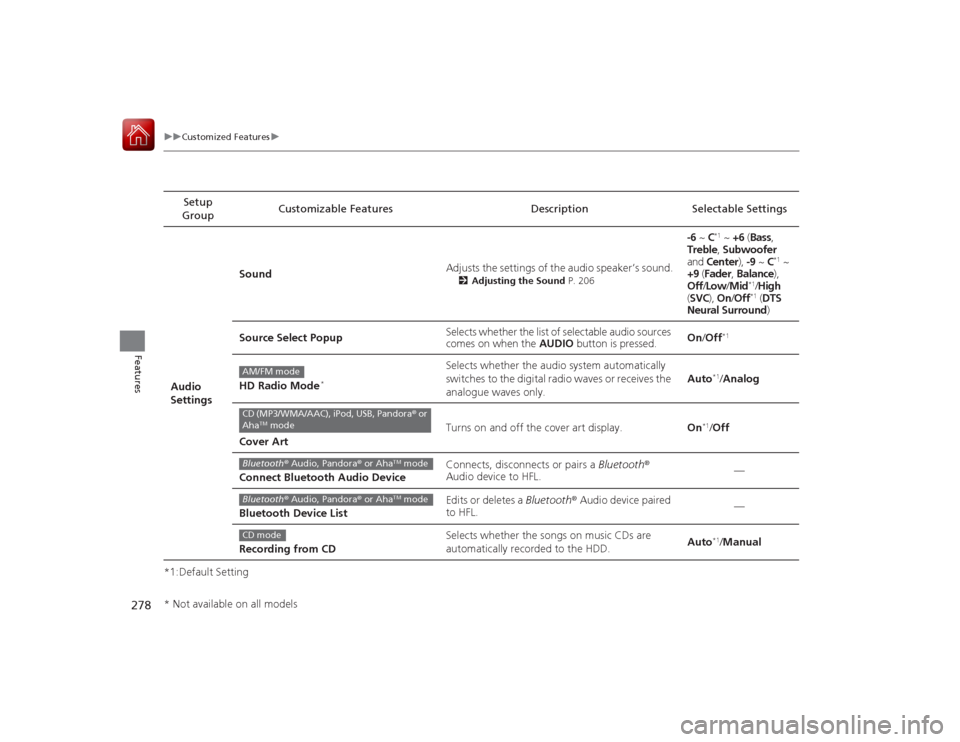
uuCustomized Features u
Features
*1:Default SettingSetup
Group Customizable Features
DescriptionSelectable Settings
Audio
Settings Sound
Adjusts the settings of the audio speaker’s sound.
2
Adjusting the Sound P. 206
-6 ~ C
*1 ~ +6 (Bass ,
Treble , Subwoofer
and Center ), -9 ~ C
*1 ~
+9 (Fader , Balance ),
Off /Low /Mid
*1/High
( SVC ), On/ Off*1 (DTS
Neural Surround)
Source Select Popup Selects whether the list of selectable audio sources
comes on when the
AUDIO button is pressed. On
/Off
*1
HD Radio Mode
*
Selects whether the audio system automatically
switches to the digital radio waves or receives the
analogue waves only. Auto
*1/
Analog
Cover Art Turns on and off the cover art display.
On
*1/Off
Connect Bluetooth Audio Device Connects, disconnects or pairs a
Bluetooth®
Audio device to HFL. —
Bluetooth Device List Edits or deletes a
Bluetooth® Audio device paired
to HFL. —
Recording from CD Selects whether the songs on music CDs are
automatically recorded to the HDD.
Auto*1/
Manual
AM/FM modeCD (MP3/WMA/AAC), iPod, USB, Pandora ® or
Aha
TM mode
Bluetooth ® Audio, Pandora® or Aha
TM mode
Bluetooth® Audio, Pandora® or Aha
TM mode
CD mode
* Not available on all models
Page 280 of 521
279
uuCustomized Features u
Continued
Features
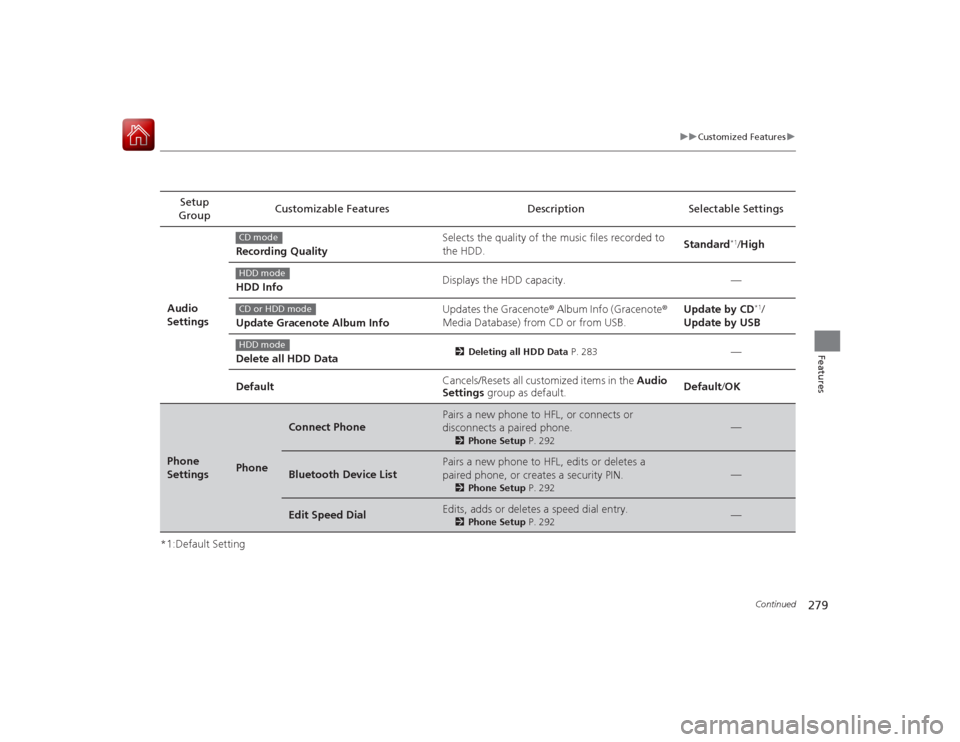
*1:Default SettingSetup
Group Customizable Features Description Selectable Settings
Audio
Settings Recording Quality
Selects the quality of the music files recorded to
the HDD.
Standard
*1/
High
HDD Info Displays the HDD capacity. —
Update Gracenote Album Info Updates the Gracenote
® Album Info (Gracenote ®
Media Database) from CD or from USB. Update by CD
*1/
Update by USB
Delete all HDD Data
2 Deleting all HDD Data P. 283
—
Default Cancels/Resets all customized items in the
Audio
Settings group as default. Default
/OK
Phone
Settings
Phone
Connect Phone
Pairs a new phone to HFL, or connects or
disconnects a paired phone.
2 Phone Setup P. 292
—
Bluetooth Device List
Pairs a new phone to HFL, edits or deletes a
paired phone, or creates a security PIN.
2Phone Setup P. 292
—
Edit Speed Dial
Edits, adds or deletes a speed dial entry.
2Phone Setup P. 292
—
CD modeHDD modeCD or HDD modeHDD mode
Page 283 of 521
282
uuCustomized Features uDefaulting All the Settings
Features
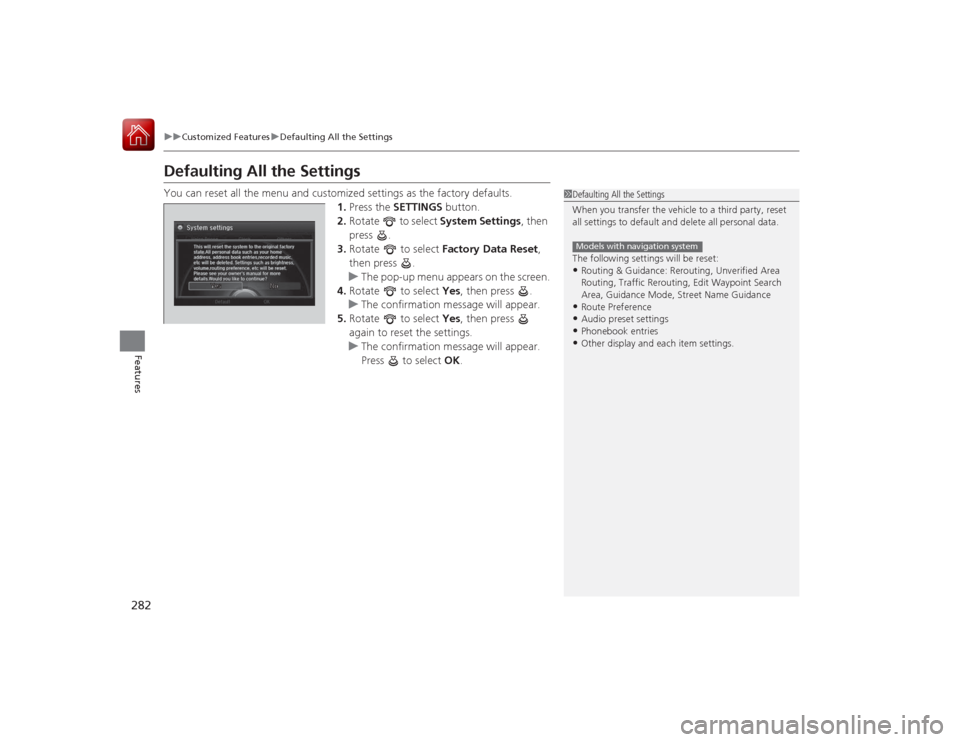
Defaulting All the SettingsYou can reset all the menu and customized settings as the factory defaults.
1.Press the SETTINGS button.
2. Rotate to select System Settings, then
press .
3. Rotate to select Factory Data Reset ,
then press .
u The pop-up menu appears on the screen.
4. Rotate to select Yes, then press .
u The confirmation message will appear.
5. Rotate to select Yes, then press
again to reset the settings.
u The confirmation message will appear.
Press to select OK.
1Defaulting All the Settings
When you transfer the vehicle to a third party, reset
all settings to default and delete all personal data.
The following settings will be reset:•Routing & Guidance: Rerouting, Unverified Area
Routing, Traffic Rerouting, Edit Waypoint Search
Area, Guidance Mode, Street Name Guidance•Route Preference•Audio preset settings•Phonebook entries•Other display and each item settings.Models with navigation system
Page 284 of 521
283
uuCustomized Features uDeleting all HDD Data
Features
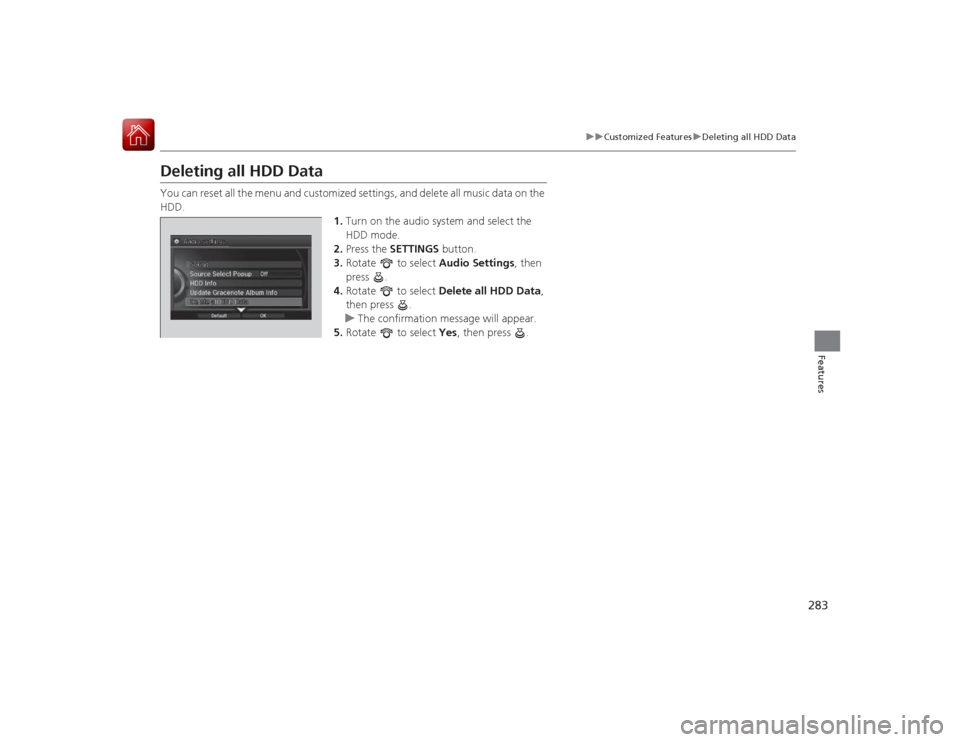
Deleting all HDD DataYou can reset all the menu and customized settings, and delete all music data on the
HDD.
1.Turn on the audio system and select the
HDD mode.
2. Press the SETTINGS button.
3. Rotate to select Audio Settings, then
press .
4. Rotate to select Delete all HDD Data ,
then press .
u The confirmation message will appear.
5. Rotate to select Yes, then press .