audio Acura RLX 2015 Owner's Manual
[x] Cancel search | Manufacturer: ACURA, Model Year: 2015, Model line: RLX, Model: Acura RLX 2015Pages: 521, PDF Size: 22.24 MB
Page 287 of 521
286Features
Bluetooth® HandsFreeLink ®Bluetooth® HandsFreeLink ® (HFL) allows you to place and receive phone calls using
your vehicle’s navigation
*/audio system, without handling your cell phone.
Using HFL
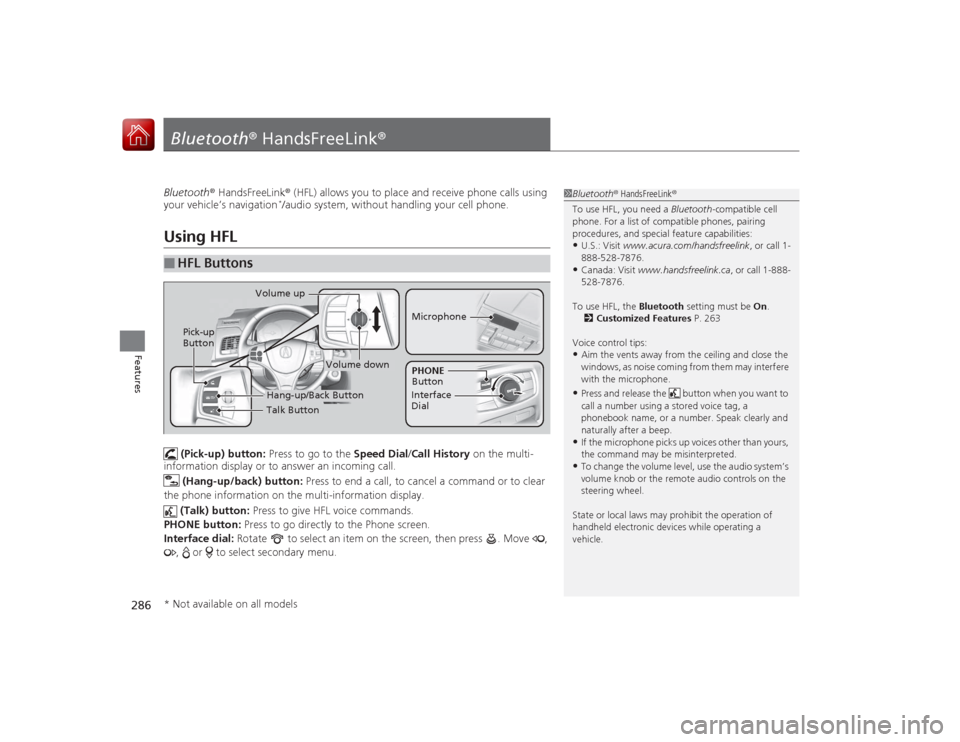
(Pick-up) button: Press to go to the Speed Dial/Call History on the multi-
information display or to answer an incoming call.
(Hang-up/back) button: Press to end a call, to cancel a command or to clear
the phone information on the multi-information display.
(Talk) button: Press to give HFL voice commands.
PHONE button: Press to go directly to the Phone screen.
Interface dial: Rotate to select an item on the screen, then press . Move ,
, or to select secondary menu.
■
HFL Buttons
1 Bluetooth ® HandsFreeLink ®
To use HFL, you need a Bluetooth-compatible cell
phone. For a list of compatible phones, pairing
procedures, and special feature capabilities:•U.S.: Visit www.acura.com/handsfreelink , or call 1-
888-528-7876.•Canada: Visit www.handsfreelink.ca , or call 1-888-
528-7876.
To use HFL, the Bluetooth setting must be On.
2 Customized Features P. 263
Voice control tips:•Aim the vents away from the ceiling and close the
windows, as noise coming from them may interfere
with the microphone.•Press and release the button when you want to
call a number using a stored voice tag, a
phonebook name, or a number. Speak clearly and
naturally after a beep.•If the microphone picks up voices other than yours,
the command may be misinterpreted.•To change the volume level, use the audio system’s
volume knob or the remote audio controls on the
steering wheel.
State or local laws may prohibit the operation of
handheld electronic devices while operating a
vehicle.
Talk Button
Volume up
MicrophoneHang-up/Back Button
Pick-up
Button
Volume down
Interface
DialPHONE
Button
* Not available on all models
Page 288 of 521
287
uuBluetooth ® HandsFreeLink ®u Using HFL
Features
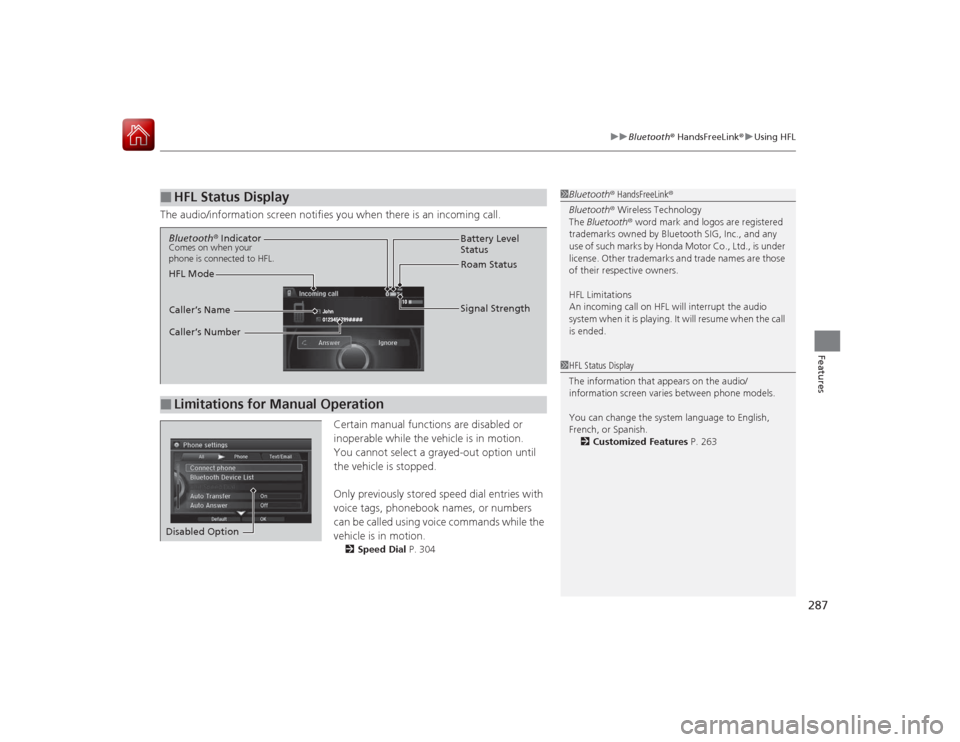
The audio/information screen notifies you when there is an incoming call.
Certain manual functions are disabled or
inoperable while the vehicle is in motion.
You cannot select a grayed-out option until
the vehicle is stopped.
Only previously stored speed dial entries with
voice tags, phonebook names, or numbers
can be called using voice commands while the
vehicle is in motion.
2Speed Dial P. 304
■
HFL Status Display
1Bluetooth ® HandsFreeLink ®
Bluetooth ® Wireless Technology
The Bluetooth® word mark and logos are registered
trademarks owned by Bluetooth SIG, Inc., and any
use of such marks by Honda Motor Co., Ltd., is under
license. Other trademarks and trade names are those
of their respective owners.
HFL Limitations
An incoming call on HFL will interrupt the audio
system when it is playing. It will resume when the call
is ended.1 HFL Status Display
The information that appears on the audio/
information screen varies between phone models.
You can change the system language to English,
French, or Spanish.
2 Customized Features P. 263
■
Limitations for Manual OperationBluetooth® IndicatorComes on when your
phone is connected to HFL.
Signal Strength
HFL Mode Battery Level
Status
Roam Status
Caller’s Name
Caller’s Number
Disabled Option
Page 293 of 521
uuBluetooth ® HandsFreeLink ®u HFL Menus
292Features
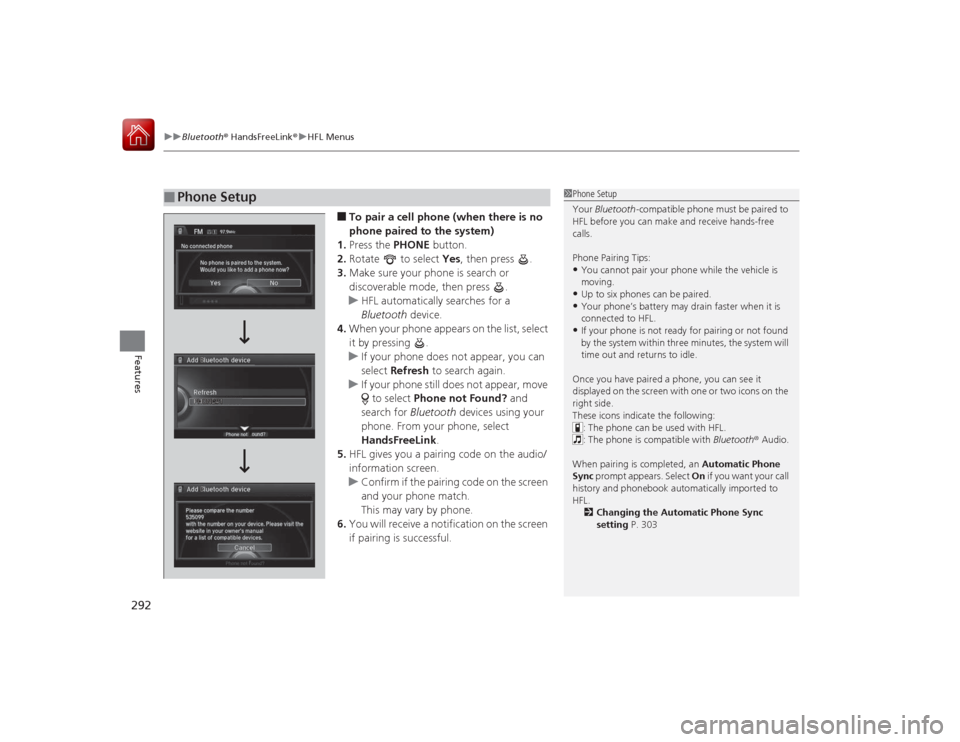
■To pair a cell phone (when there is no
phone paired to the system)
1. Press the PHONE button.
2. Rotate to select Yes, then press .
3. Make sure your phone is search or
discoverable mode, then press .
u HFL automatically searches for a
Bluetooth device.
4. When your phone appears on the list, select
it by pressing .
u If your phone does not appear, you can
select Refresh to search again.
u If your phone still does not appear, move
to select Phone not Found? and
search for Bluetooth devices using your
phone. From your phone, select
HandsFreeLink .
5. HFL gives you a pairing code on the audio/
information screen.
u Confirm if the pairing code on the screen
and your phone match.
This may vary by phone.
6. You will receive a notification on the screen
if pairing is successful.
■
Phone Setup
1Phone Setup
Your Bluetooth -compatible phone must be paired to
HFL before you can make and receive hands-free
calls.
Phone Pairing Tips:•You cannot pair your phone while the vehicle is
moving.•Up to six phones can be paired.•Your phone’s battery may drain faster when it is
connected to HFL.•If your phone is not ready for pairing or not found
by the system within three minutes, the system will
time out and returns to idle.
Once you have paired a phone, you can see it
displayed on the screen with one or two icons on the
right side.
These icons indicate the following: : The phone can be used with HFL.
: The phone is compatible with Bluetooth® Audio.
When pairing is completed, an Automatic Phone
Sync prompt appears. Select On if you want your call
history and phonebook automatically imported to
HFL.
2 Changing the Automatic Phone Sync
setting P. 303
Page 294 of 521
293
uuBluetooth ® HandsFreeLink ®u HFL Menus
Continued
Features
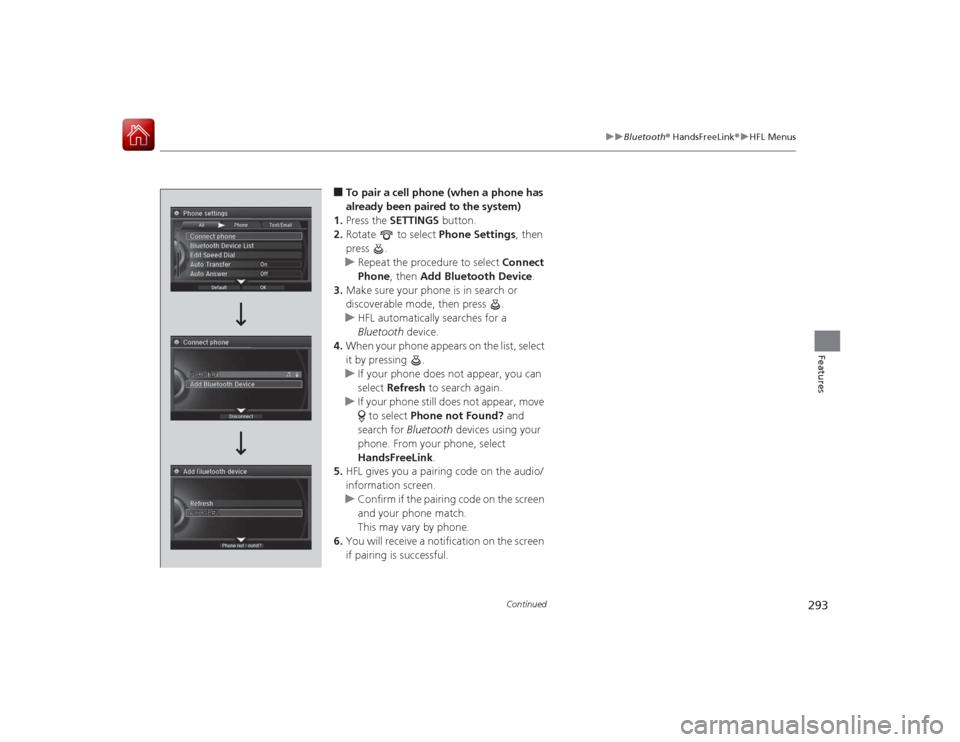
■To pair a cell phone (when a phone has
already been paired to the system)
1. Press the SETTINGS button.
2. Rotate to select Phone Settings, then
press .
u Repeat the procedure to select Connect
Phone , then Add Bluetooth Device .
3. Make sure your phone is in search or
discoverable mode, then press .
u HFL automatically searches for a
Bluetooth device.
4. When your phone appears on the list, select
it by pressing .
u If your phone does not appear, you can
select Refresh to search again.
u If your phone still does not appear, move
to select Phone not Found? and
search for Bluetooth devices using your
phone. From your phone, select
HandsFreeLink .
5. HFL gives you a pairing code on the audio/
information screen.
u Confirm if the pairing code on the screen
and your phone match.
This may vary by phone.
6. You will receive a notification on the screen
if pairing is successful.
Page 300 of 521
Continued
299
uuBluetooth ® HandsFreeLink ®u HFL Menus
Features
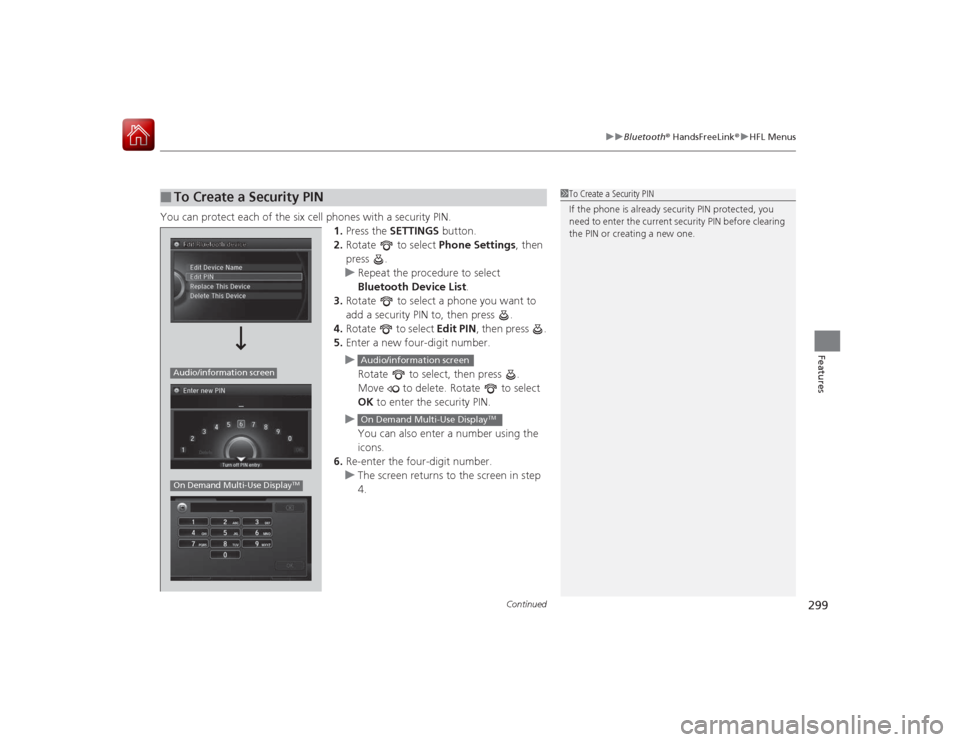
You can protect each of the six cell phones with a security PIN.
1.Press the SETTINGS button.
2. Rotate to select Phone Settings, then
press .
u Repeat the procedure to select
Bluetooth Device List .
3. Rotate to select a phone you want to
add a security PIN to, then press .
4. Rotate to select Edit PIN, then press .
5. Enter a new four-digit number.
u Rotate to select, then press .
Move to delete. Rotate to select
OK to enter the security PIN.
u You can also enter a number using the
icons.
6. Re-enter the four-digit number.
u The screen returns to the screen in step
4.■
To Create a Security PIN
1To Create a Security PIN
If the phone is already security PIN protected, you
need to enter the current security PIN before clearing
the PIN or creating a new one.
Audio/information screenOn Demand Multi-Use Display
TM
Audio/information screenOn Demand Multi-Use Display
TM
Page 301 of 521
300
uuBluetooth ® HandsFreeLink ®u HFL Menus
Features
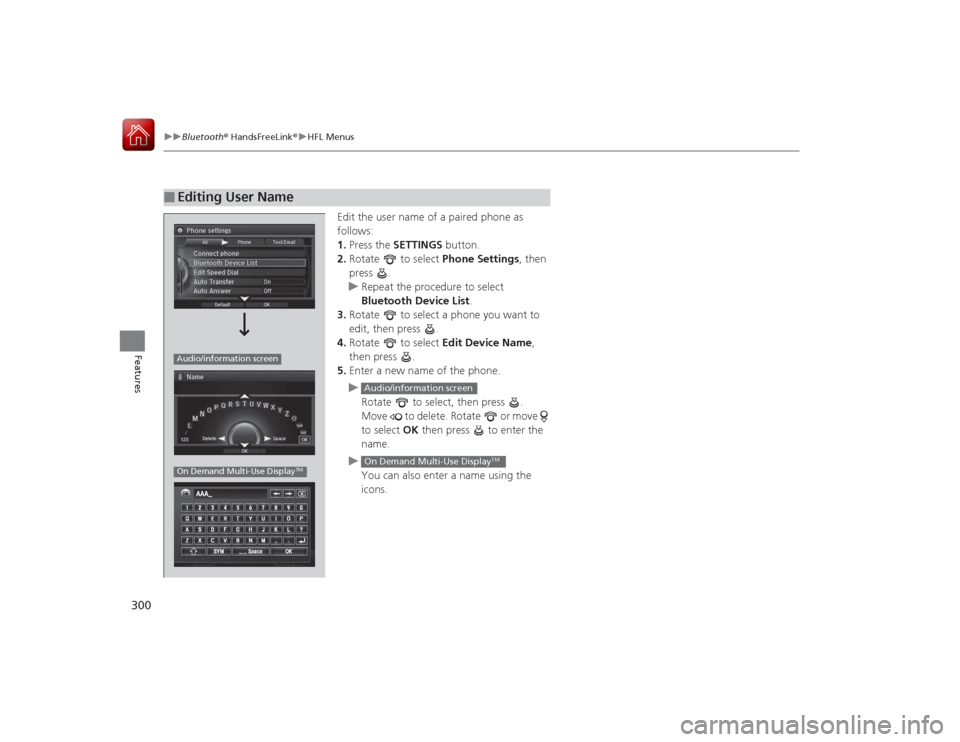
Edit the user name of a paired phone as
follows:
1. Press the SETTINGS button.
2. Rotate to select Phone Settings, then
press .
u Repeat the procedure to select
Bluetooth Device List .
3. Rotate to select a phone you want to
edit, then press .
4. Rotate to select Edit Device Name,
then press .
5. Enter a new name of the phone.
u Rotate to select, then press .
Move to delete. Rotate or move
to select OK then press to enter the
name.
u You can also enter a name using the
icons.
■
Editing User NameAudio/information screenOn Demand Multi-Use Display
TM
Audio/information screenOn Demand Multi-Use Display
TM
Page 313 of 521
uuBluetooth ® HandsFreeLink ®u HFL Menus
312Features
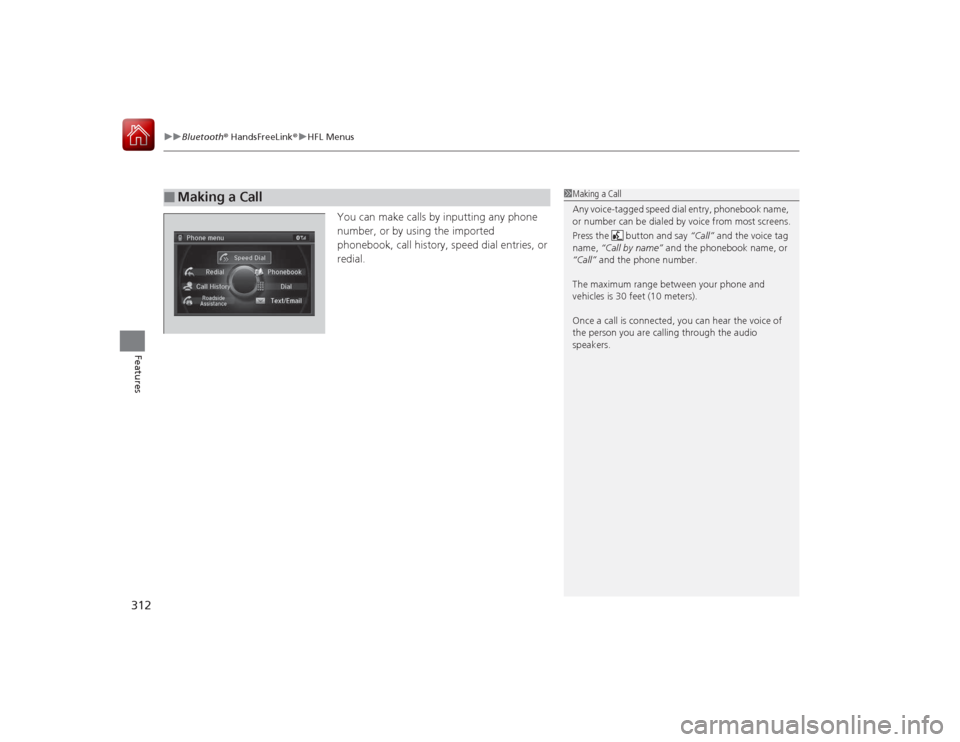
You can make calls by inputting any phone
number, or by using the imported
phonebook, call history, speed dial entries, or
redial.
■
Making a Call
1Making a Call
Any voice-tagged speed dial entry, phonebook name,
or number can be dialed by voice from most screens.
Press the button and say “Call” and the voice tag
name, “Call by name” and the phonebook name, or
“Call” and the phone number.
The maximum range between your phone and
vehicles is 30 feet (10 meters).
Once a call is connected, you can hear the voice of
the person you are calling through the audio
speakers.
Page 327 of 521
326Features
AcuraLink®
*
Is a subscription-based service th at provides convenient features such as voice
communication in case of emergency, online security, one-on-one operator
assistance, and the transmission of important messages regarding your vehicle’s
status.
For information on traffic rerouting and traffic information updates, provided by the
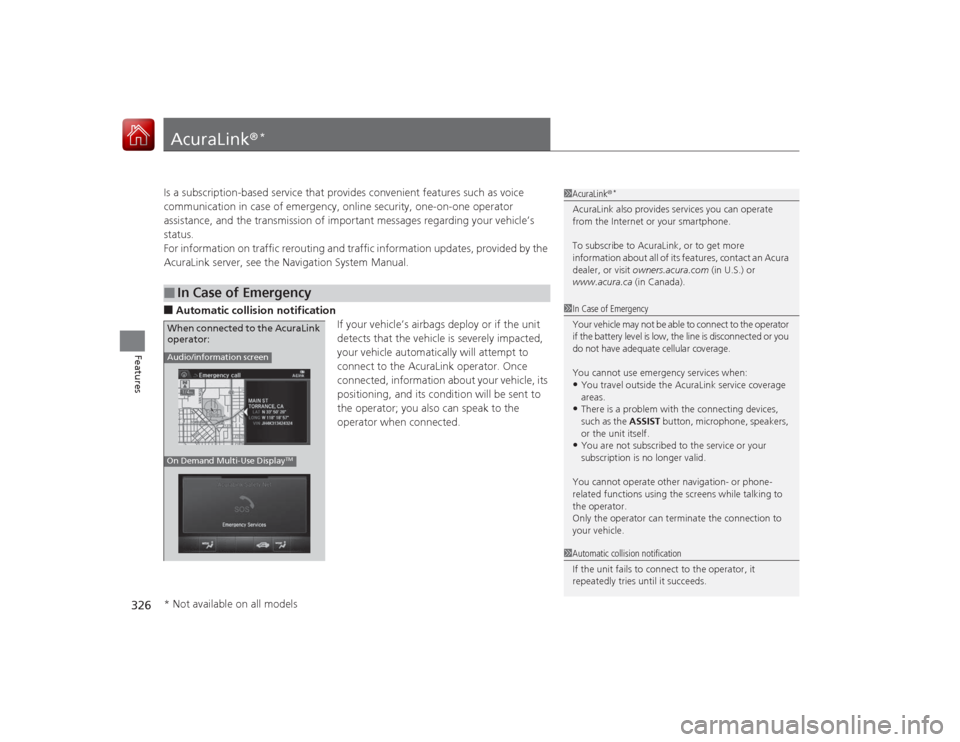
AcuraLink server, see the Navigation System Manual.■Automatic collision notification If your vehicle’s airbags deploy or if the unit
detects that the vehicle is severely impacted,
your vehicle automatically will attempt to
connect to the AcuraLink operator. Once
connected, information about your vehicle, its
positioning, and its condition will be sent to
the operator; you also can speak to the
operator when connected.■
In Case of Emergency
1AcuraLink ®
*
AcuraLink also provides services you can operate
from the Internet or your smartphone.
To subscribe to AcuraLink, or to get more
information about all of its features, contact an Acura
dealer, or visit owners.acura.com (in U.S.) or
www.acura.ca (in Canada).1In Case of Emergency
Your vehicle may not be able to connect to the operator
if the battery level is low, the line is disconnected or you
do not have adequate cellular coverage.
You cannot use emergency services when:•You travel outside the AcuraLink service coverage
areas.•There is a problem with the connecting devices,
such as the ASSIST button, microphone, speakers,
or the unit itself.•You are not subscribed to the service or your
subscription is no longer valid.
You cannot operate other navigation- or phone-
related functions using the screens while talking to
the operator.
Only the operator can terminate the connection to
your vehicle.
1 Automatic collision notification
If the unit fails to connect to the operator, it
repeatedly tries until it succeeds.
Audio/information screenOn Demand Multi-Use Display
TM
When connected to the AcuraLink
operator:* Not available on all models
Page 330 of 521

Continued
329
uuAcuraLink ®
*u
Features
Connect to the AcuraLink operator when trying to find a destination or for roadside
assistance.
1.Press the LINK button.
u Connection to the operator begins.
2. Talk to the operator.
u To disconnect, press the selector knob,
select End Call on the On Demand
Multi-Use Display
TM, or press the Hang-
up button.
■
Operator Assistance
1 Operator Assistance
Remain attentive to road conditions and driving
during operator assistance.
LINK ButtonAudio/information screen
when connected to the
AcuraLink operator.
Page 331 of 521
uuAcuraLink ®
*u
330Features
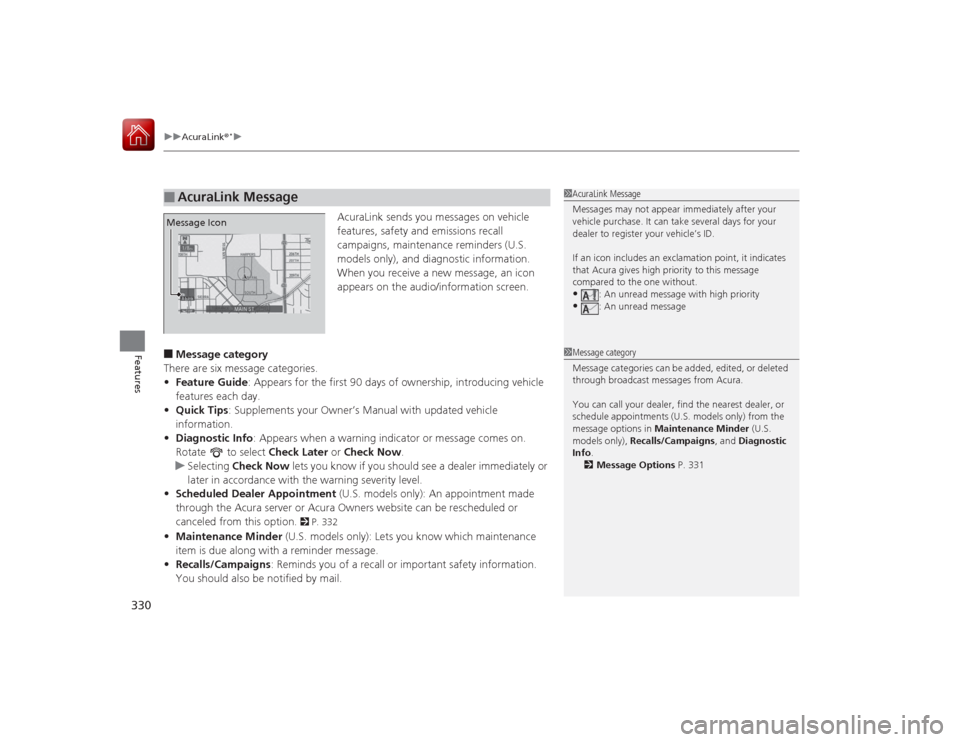
AcuraLink sends you messages on vehicle
features, safety and emissions recall
campaigns, maintenance reminders (U.S.
models only), and diagnostic information.
When you receive a new message, an icon
appears on the audio/information screen.
■Message category
There are six message categories.
• Feature Guide: Appears for the first 90 days of ownership, introducing vehicle
features each day.
• Quick Tips : Supplements your Owner’s Manual with updated vehicle
information.
• Diagnostic Info : Appears when a warning indicator or message comes on.
Rotate to select Check Later or Check Now .
u Selecting Check Now lets you know if you should see a dealer immediately or
later in accordance with the warning severity level.
• Scheduled Dealer Appointment (U.S. models only): An appointment made
through the Acura server or Acura Owners website can be rescheduled or
canceled from this option.
2 P. 332
• Maintenance Minder (U.S. models only): Lets you know which maintenance
item is due along with a reminder message.
• Recalls/Campaigns : Reminds you of a recall or important safety information.
You should also be notified by mail.■
AcuraLink Message
1 AcuraLink Message
Messages may not appear immediately after your
vehicle purchase. It can take several days for your
dealer to register your vehicle’s ID.
If an icon includes an exclamation point, it indicates
that Acura gives high priority to this message
compared to the one without.•
: An unread message with high priority
•
: An unread message
Message Icon
1Message category
Message categories can be added, edited, or deleted
through broadcast messages from Acura.
You can call your dealer, find the nearest dealer, or
schedule appointments (U.S. models only) from the
message options in Maintenance Minder (U.S.
models only), Recalls/Campaigns , and Diagnostic
Info .
2 Message Options P. 331