audio Acura RLX 2015 User Guide
[x] Cancel search | Manufacturer: ACURA, Model Year: 2015, Model line: RLX, Model: Acura RLX 2015Pages: 521, PDF Size: 22.24 MB
Page 123 of 521

uuLocking and Unlocking the Doors uLocking/Unlocking the Doors from the Inside
122Controls
Pull the front door inner handle.
u The door unlocks and opens in one
motion.
Unlocking and opening the driver’s door from the inner handle unlocks all the other
doors.
To avoid all the doors to be unlocked, use the lock tab on the driver’s door to unlock,
then lock again before opening the door. u This setting works for one time only. If you do not want all the doors to be
unlocked all the time, customize the Auto Door Unlock setting to Off using
the multi-information display or audio/information screen.
■
Unlocking Using the Inner Handle of Front Doors
1 Unlocking Using the Inner Handle of Front Doors
The inner front door handles are designed to allow
front seat occupants to open the door in one motion.
However this feature requires that front seat
occupants never pull a front door inner handle while
the vehicle is in motion.
Children should always ride in a rear seat where
childproof door locks are provided.
2 Childproof Door Locks P. 123
Inner Handle
Page 125 of 521

124
uuLocking and Unlocking the Doors uAuto Door Locking/Unlocking
Controls
Auto Door Locking/UnlockingYour vehicle locks all doors and unlocks the driver’s door automatically when a
certain condition is met.■Drive lock mode
All doors lock when the vehicle’s speed reaches about 10 mph (15 km/h).■Driver’s door open mode
All doors unlock when the driver’s door is opened.■
Auto Door Locking
■
Auto Door Unlocking
1 Auto Door Locking/Unlocking
You can turn off or change to another auto door
locking/unlocking setting using the audio/
information screen or multi-inf ormation display.
2 Customized Features P. 102, 263
Page 134 of 521

133
Continued
Controls
Operating the Switches Around the Steering WheelENGINE START/STOP Button■
Changing the Power Mode
1ENGINE START/STOP Button
ENGINE START/STOP Button Operating Range
You can start the engine when the keyless access
remote is inside the vehicle.
The engine may also run if the keyless access remote
is close to the door or window, even if it is outside the
vehicle.
ON mode:
Indicator in the button is off, if the engine is running.
If the keyless access remote battery is weak, beeper
sounds and the To Start, Hold Remote Near Start
Button message appears on the multi-infor mation
display. 2 If the Keyless Access Remote Battery is
Weak P. 475
Operating Range
VEHICLE OFF (LOCK)
Indicator in the button is off. The steering wheel
is locked. The power to all electrical components
is turned off.
Press the button without the shift lever in
( P.
Shift to
( P then press the button.
Press the button.
Without depressing
the brake pedal ACCESSORY
Indicator in the button is on. Indicator in the
button blinks (from ON to ACCESSORY). Operate
the audio system and other accessories in this
position.
ON
Indicator in the button is on. All electrical
components can be used.
Indicator
Page 147 of 521
146
uuOperating the Switches Around the Steering Wheel uDriving Position Memory System
Controls
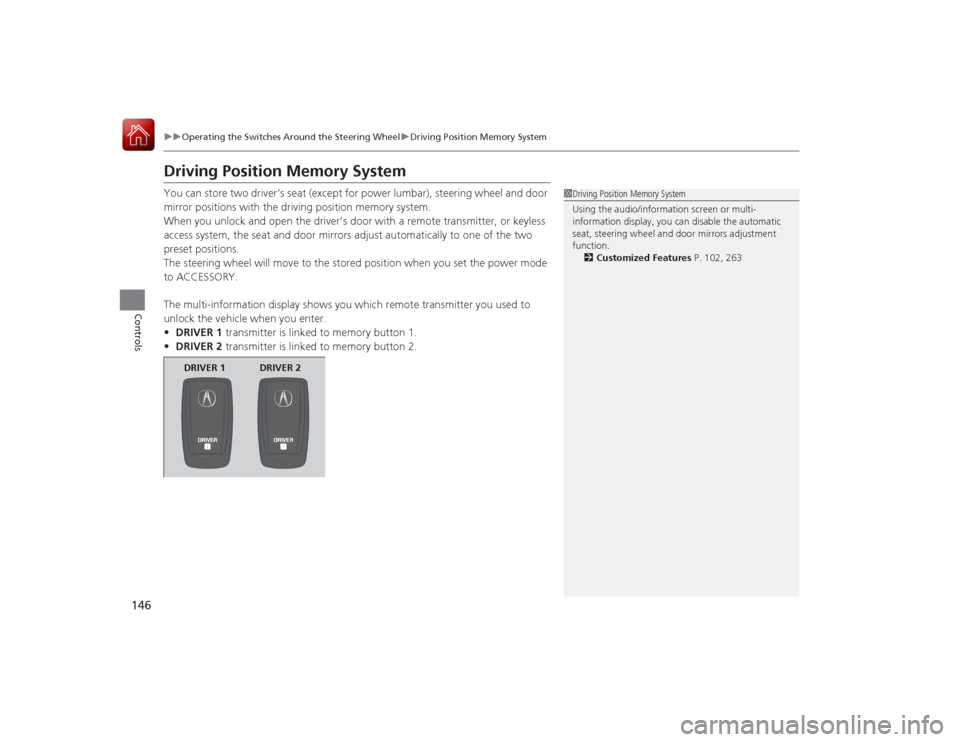
Driving Position Memory SystemYou can store two driver’s seat (except for power lumbar), steering wheel and door
mirror positions with the driving position memory system.
When you unlock and open the driver’s door with a remote transmitter, or keyless
access system, the seat and door mirrors adjust automatically to one of the two
preset positions.
The steering wheel will move to the stored position when you set the power mode
to ACCESSORY.
The multi-information display shows you which remote transmitter you used to
unlock the vehicle when you enter.
• DRIVER 1 transmitter is linked to memory button 1.
• DRIVER 2 transmitter is linked to memory button 2.
1Driving Position Memory System
Using the audio/information screen or multi-
information display, you can disable the automatic
seat, steering wheel and door mirrors adjustment
function.
2 Customized Features P. 102, 263
DRIVER 1 DRIVER 2
Page 163 of 521

uuInterior Lights/Interior Convenience Items uInterior Convenience Items
162Controls
You can lock the glove box, trunk, and/or
navigation
*/audio system, entering a PIN code
from the On Demand Multi-Use Display
TM.
To lock:
1. Select Shortcuts .
2. Select Valet.
3. Select the item you want to be PIN-
protected from the locked area, then select
OK .
■
Valet Mode
1Valet Mode
If you need to give the key to someone else, lock the
trunk pass-through cover first, and give the keyless
access remote without a built-in key as a valet key.
2 Trunk Pass-through Cover P. 170
Locked Area
* Not available on all models
Page 164 of 521

Continued
163
uuInterior Lights/Interior Convenience Items uInterior Convenience Items
Controls
4. The previous code is displayed. Select OK.
u You will receive a confirmation message
on the display. Select OK.
When you enter the PIN code for the first time
or if you want to change the code:
1. Select Shortcuts .
2. Select Valet.
3. Select the item you want to be PIN-
protected from the locked area, then select
OK .
4. Enter your selected four-digit PIN code,
then select OK.
5. You will be asked to enter the same four-
digit PIN code again. Enter, then select OK.
u You will receive a confirmation message
on the display. Select OK.
To unlock:
1. Select Valet.
2. Select Unlock .
3. Enter the four-digit PIN code you have
previously selected, then select OK.
1Valet Mode
The PIN code entering screen also appears when you
press:•The glove box open button•The trunk release button on the driver's door, on
the trunk, or on the remote
While the glove box or the trunk is PIN-protected.
If you have locked all the items of the locked area, the
PIN code entering screen appears with the power
mode in ACCESSORY.
You can cancel the valet mode when you manually
open the trunk. 2 When You Cannot Open the Trunk P. 494
If you have only set Navi, Phone, Audio PIN-
protected but forgot your four-digit PIN code, you
need to go to a dealer to have the set valet mode
reset.
Page 188 of 521
187
Features
This chapter describes how to operate technology features.
Audio SystemAbout Your Audio System ................ 188
USB Port .......................................... 189
Auxiliary Input Jack .......................... 190
Audio System Theft Protection ......... 191
Audio Remote Controls .................... 192
Audio System Basic Operation ........ 193
On Demand Multi-Use Display
TM....... 194
Audio/Information Screen ................ 202
Adjusting the Sound ........................ 206
Display Setup ................................... 207
Voice Control Operation .................. 208
Playing AM/FM Radio ....................... 216 Playing SiriusXM
® Radio ................... 221
Playing a CD .................................... 224
Playing Hard Disc Drive (HDD) Audio .... 227Playing an iPod ................................ 237
Song By Voice
TM (SBV) ...................... 241
Playing Internet Radio ...................... 245
Playing a USB Flash Drive ................. 248
Playing Bluetooth ® Audio................. 251
Audio Error Messages CD Player ......................................... 253
Hard Disc Drive (HDD) Audio ............ 254
iPod/USB Flash Drive ........................ 255
Pandora ®......................................... 256
Aha
TM Radio ..................................... 258
General Information on the Audio SystemSiriusXM ® Radio Service ................... 259
Recommended CDs ......................... 260Compatible iPod, iPhone, and USB Flash Drives ................................................262Customized Features
............................263
Defaulting All the Settings........................ 282
Deleting all HDD Data .............................. 283HomeLink
® Universal Transceiver
.......284
Bluetooth® HandsFreeLink ®
Using HFL ........................................ 286
HFL Menus ...................................... 288AcuraLink
®*...........................................326
* Not available on all models
Page 189 of 521

188Features
Audio SystemAbout Your Audio SystemSee the Navigation System Manual for information on the navigation system.
The audio system features AM/FM radio and the SiriusXM® Radio service. It can also
play audio CDs, WMA/MP3/AAC files, Hard Disc Drive (HDD) audio, USB flash drives,
and iPod, iPhone and Bluetooth® devices.
You can operate the audio system from the buttons and switches on the panel, the
icons on th e touchscreen interface.
1About Your Audio System
SiriusXM ® Radio is available on a subscription basis
only. For more information on SiriusXM ® Radio,
contact a dealer.
2 General Information on the Audio System
P. 259
SiriusXM ® Radio is available in the United States and
Canada, except Hawaii, Alaska, and Puerto Rico.
SiriusXM ® is a registered trademark of Sirius XM
Radio, Inc.
Video CDs, DVDs, and 3-inch (8-cm) mini CDs are not
supported.
iPod, iPhone and iTunes are trademarks of Apple Inc.
State or local laws may prohibit the operation of
handheld electronic devices while operating a
vehicle.
When the screen is viewed through polarized
sunglasses, a rainbow pattern may appear on the
screen due to optical character istics of the screen. If
this is disturbing, please operate the screen without
polarized sunglasses.
Models with navigation systemRemote Controls iPod
Page 190 of 521
189
uuAudio System uUSB Port
Features
USB Port
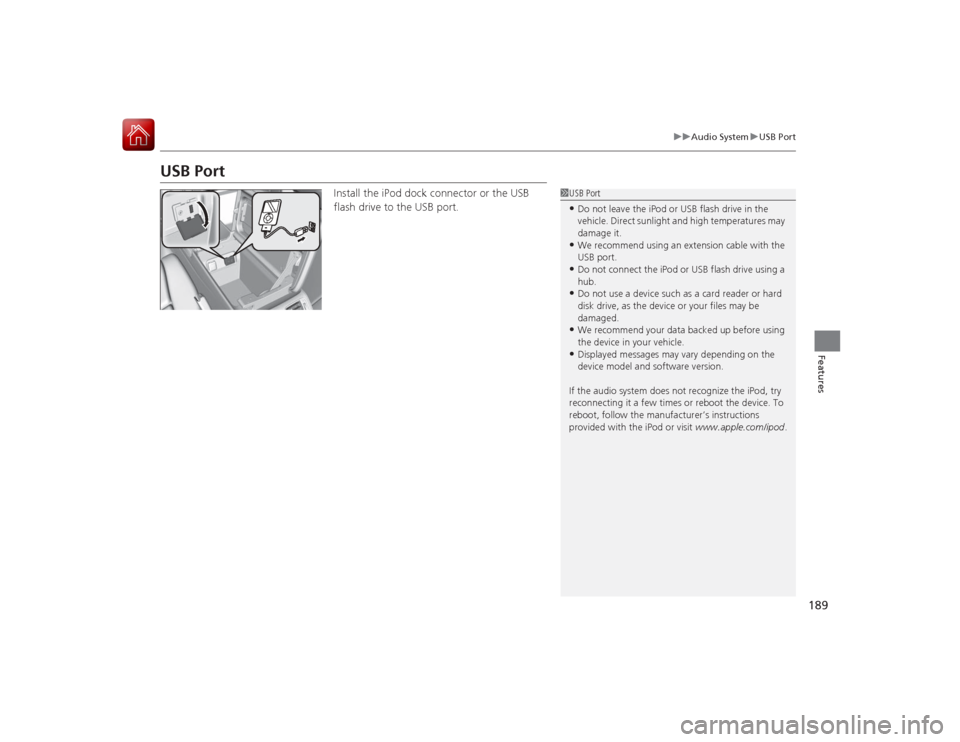
Install the iPod dock connector or the USB
flash drive to the USB port.
1USB Port•Do not leave the iPod or USB flash drive in the
vehicle. Direct sunlight and high temperatures may
damage it.•We recommend using an extension cable with the
USB port.•Do not connect the iPod or USB flash drive using a
hub.•Do not use a device such as a card reader or hard
disk drive, as the device or your files may be
damaged.•We recommend your data backed up before using
the device in your vehicle.•Displayed messages may vary depending on the
device model and software version.
If the audio system does not recognize the iPod, try
reconnecting it a few times or reboot the device. To
reboot, follow the manufacturer’s instructions
provided with the iPod or visit www.apple.com/ipod.
Page 191 of 521
190
uuAudio System uAuxiliary Input Jack
Features
Auxiliary Input Jack
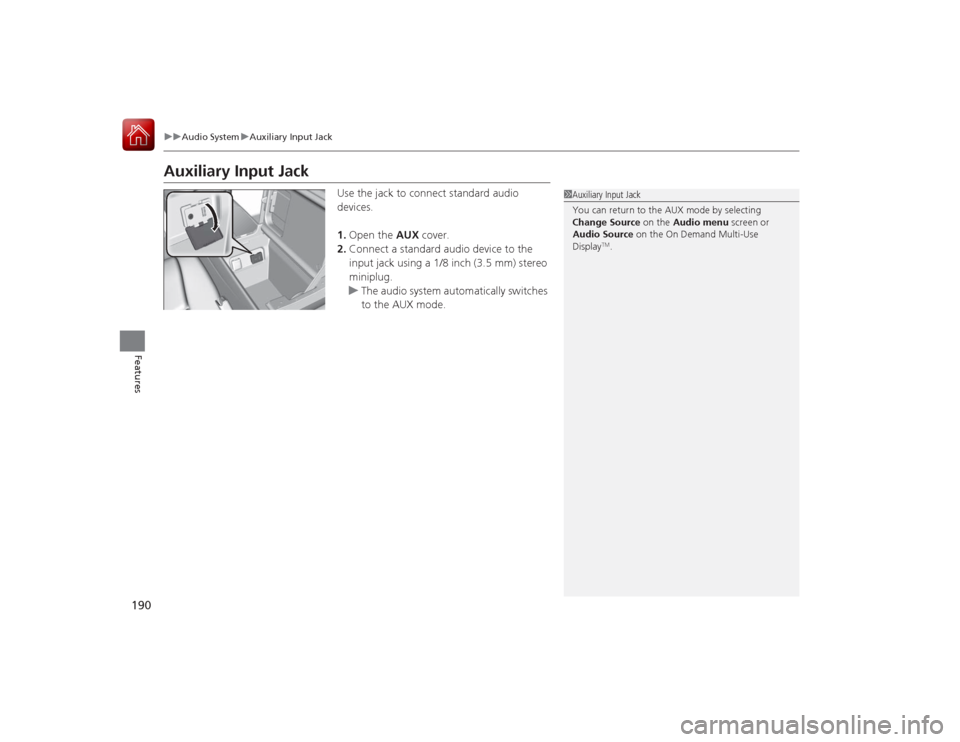
Use the jack to connect standard audio
devices.
1. Open the AUX cover.
2. Connect a standard audio device to the
input jack using a 1/8 inch (3.5 mm) stereo
miniplug.
u The audio system automatically switches
to the AUX mode.
1Auxiliary Input Jack
You can return to the AUX mode by selecting
Change Source on the Audio menu screen or
Audio Source on the On Demand Multi-Use
Display
TM.