audio Acura RLX 2015 Owner's Manual
[x] Cancel search | Manufacturer: ACURA, Model Year: 2015, Model line: RLX, Model: Acura RLX 2015Pages: 521, PDF Size: 22.24 MB
Page 3 of 521
ContentsThis owner’s manual should be considered a permanent part of the
vehicle and should remain with the vehicle when it is sold.
This owner’s manual covers all models of your vehicle. You may find
descriptions of equipment and features that are not on your
particular model.
Images throughout this owner’s manual (including the front cover)
represent features and equipment that are available on some, but
not all, models. Your particular model may not have some of these
features.
This owner’s manual is for vehicles sold in the United States and
Canada.
The information and specifications included in this publication were
in effect at the time of approval for printing. Honda Motor Co., Ltd.
reserves the right, however, to discontinue or change specifications
or design at any time without notice and without incurring any
obligation.
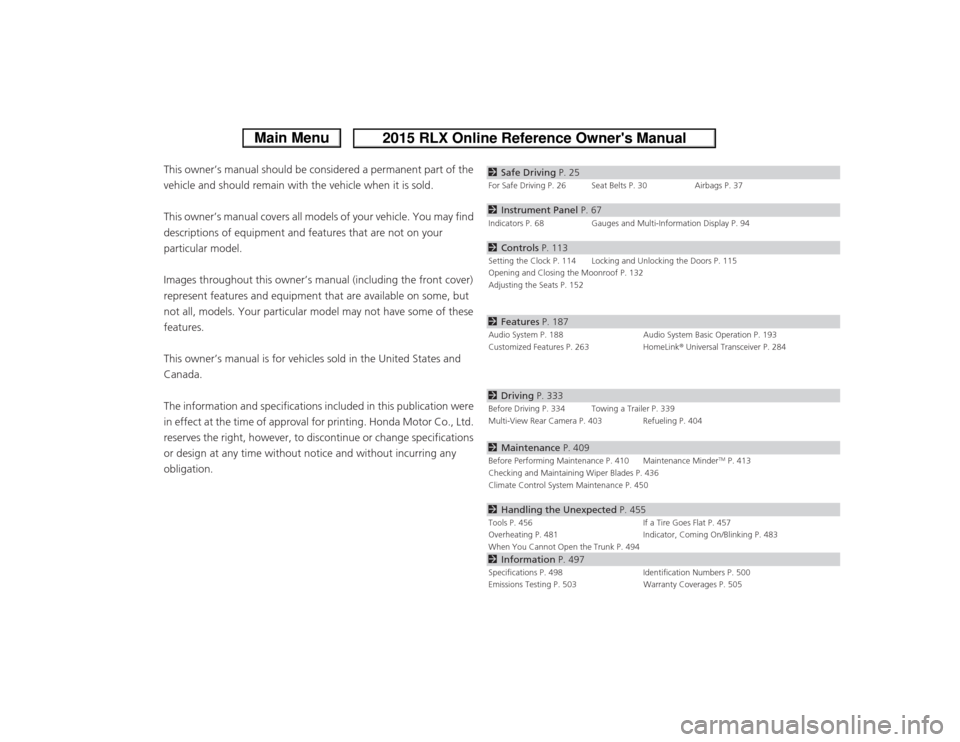
2Safe Driving P. 25For Safe Driving P. 26 Seat Belts P. 30 Airbags P. 372Instrument Panel P. 67Indicators P. 68 Gauges and Multi-Information Display P. 942Controls P. 113Setting the Clock P. 114 Locking and Unlocking the Doors P. 115
Opening and Closing the Moonroof P. 132
Adjusting the Seats P. 1522Features P. 187Audio System P. 188 Audio System Basic Operation P. 193
Customized Features P. 263 HomeLink® Universal Transceiver P. 2842 Driving P. 333Before Driving P. 334 Towing a Trailer P. 339
Multi-View Rear Camera P. 403 Refueling P. 4042Maintenance P. 409Before Performing Maintenance P. 410 Maintenance Minder
TM P. 413
Checking and Maintaining Wiper Blades P. 436
Climate Control System Maintenance P. 450
2 Handling the Unexpected P. 455Tools P. 456 If a Tire Goes Flat P. 457
Overheating P. 481 Indicator, Coming On/Blinking P. 483
When You Cannot Open the Trunk P. 4942 Information P. 497Specifications P. 498 Identification Numbers P. 500
Emissions Testing P. 503 Warranty Coverages P. 505
Page 4 of 521
Contents
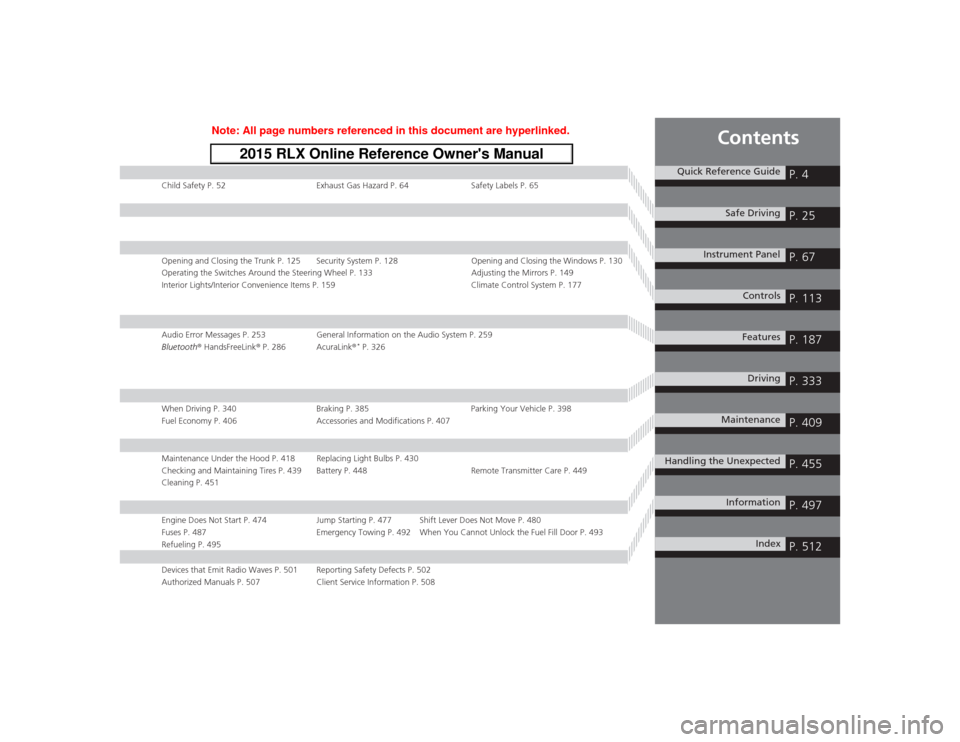
Child Safety P. 52Exhaust Gas Hazard P. 64Safety Labels P. 65Opening and Closing the Trunk P. 125 Security System P. 128 Opening and Closing the Windows P. 130
Operating the Switches Around the Steering Wheel P. 133 Adjusting the Mirrors P. 149
Interior Lights/Interior Convenience Items P. 159 Climate Control System P. 177Audio Error Messages P. 253General Information on the Audio System P. 259
Bluetooth® HandsFreeLink ® P. 286 AcuraLink ®
* P. 326
When Driving P. 340 Braking P. 385Parking Your Vehicle P. 398
Fuel Economy P. 406 Accessories and Modifications P. 407Maintenance Under the Hood P. 418 Replacing Light Bulbs P. 430
Checking and Maintaining Tires P. 439 Battery P. 448 Remote Transmitter Care P. 449
Cleaning P. 451Engine Does Not Start P. 474 Jump Starting P. 477 Shift Lever Does Not Move P. 480
Fuses P. 487 Emergency Towing P. 492 When You Cannot Unlock the Fuel Fill Door P. 493
Refueling P. 495Devices that Emit Radio Waves P. 501 Reporting Safety Defects P. 502
Authorized Manuals P. 507 Client Service Information P. 508
Quick Reference Guide
P. 4
Safe Driving
P. 25
Instrument Panel
P. 67
Controls
P. 113
Features
P. 187
Driving
P. 333
Maintenance
P. 409
Handling the Unexpected
P. 455
Information
P. 497
Index
P. 512
Page 5 of 521
4Quick Reference Guide
Quick Reference GuideVisual Index
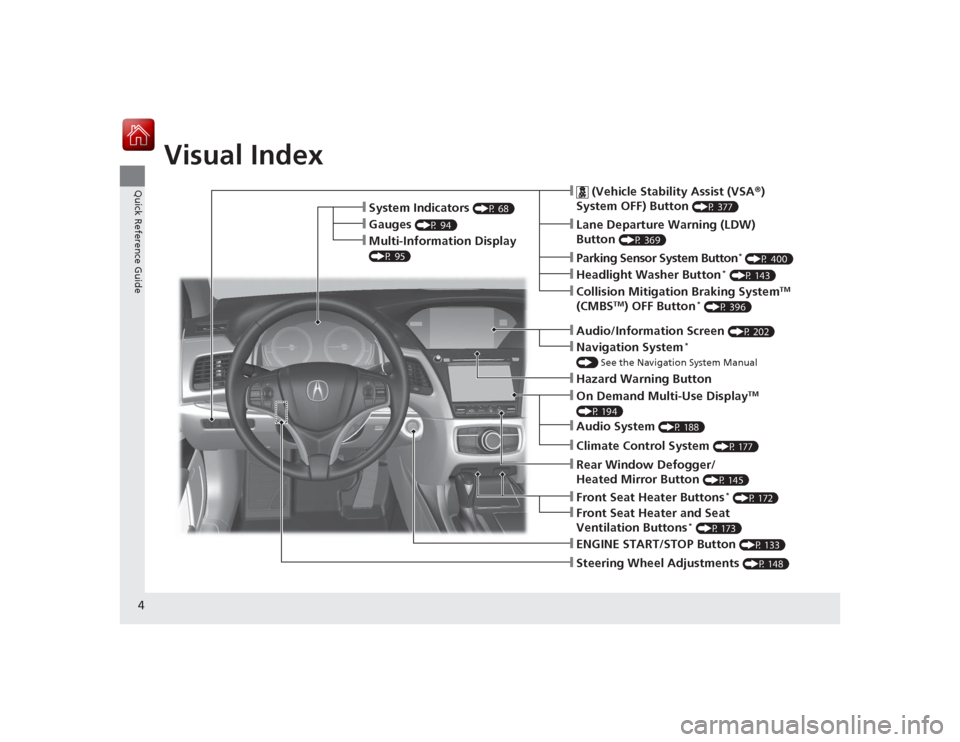
❙Steering Wheel Adjustments
(P 148)
❙ENGINE START/STOP Button
(P 133)
❙
(Vehicle Stability Assist (VSA®)
System OFF) Button
(P 377)
❙Lane Departure Warning (LDW)
Button
(P 369)
❙Parking Sensor System Button
* (P 400)
❙Collision Mitigation Braking System
TM
(CMBS
TM) OFF Button
* (P 396)
❙Navigation System
*
() See the Navigation System Manual❙Audio/Information Screen
(P 202)
❙Hazard Warning Button❙On Demand Multi-Use Display
TM
(P 194)❙Audio System
(P 188)
❙System Indicators
(P 68)
❙Gauges
(P 94)
❙Multi-Information Display (P 95)
❙Climate Control System
(P 177)
❙Rear Window Defogger/
Heated Mirror Button
(P 145)
❙Front Seat Heater Buttons
* (P 172)
❙Headlight Washer Button
* (P 143)
❙Front Seat Heater and Seat
Ventilation Buttons
* (P 173)
Page 6 of 521
5Quick Reference Guide
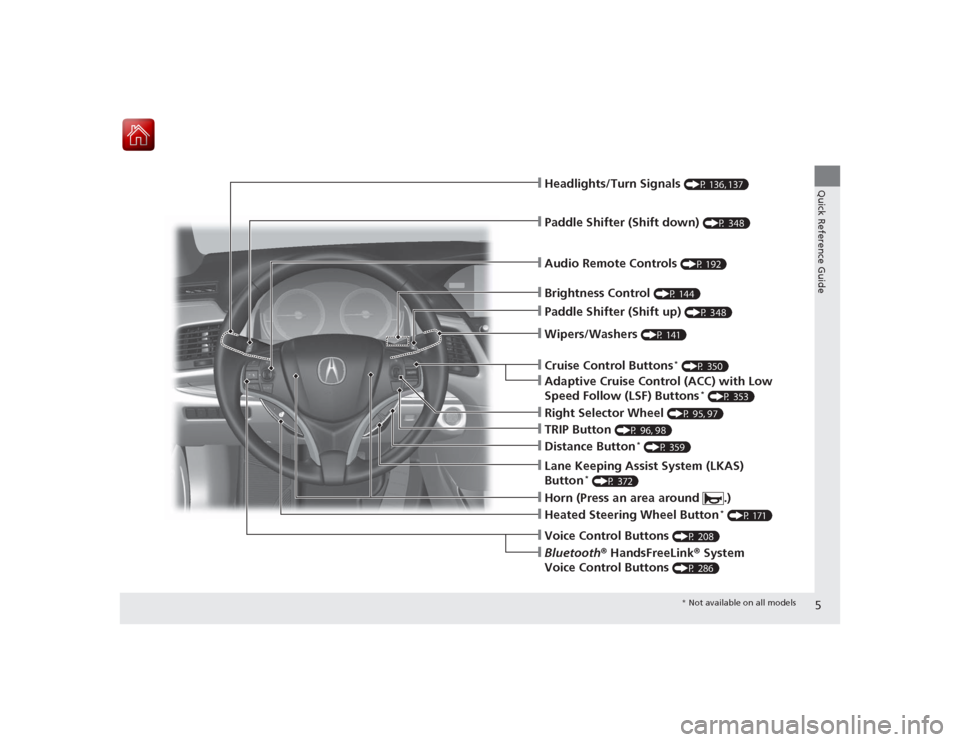
❙Wipers/Washers
(P 141)
❙Audio Remote Controls
(P 192)
❙Headlights/Turn Signals
(P 136, 137)
❙Paddle Shifter (Shift down)
(P 348)
❙Paddle Shifter (Shift up)
(P 348)
❙Horn (Press an area around .)❙Voice Control Buttons
(P 208)
❙Bluetooth® HandsFreeLink ® System
Voice Control Buttons
(P 286)
❙Brightness Control
(P 144)
❙Cruise Control Buttons
* (P 350)
❙Adaptive Cruise Control (ACC) with Low
Speed Follow (LSF) Buttons
* (P 353)
❙TRIP Button
(P 96, 98)
❙Distance Button
* (P 359)
❙Lane Keeping Assist System (LKAS)
Button
* (P 372)
❙Right Selector Wheel
(P 95, 97)
❙Heated Steering Wheel Button
* (P 171)
* Not available on all models
Page 12 of 521
11Quick Reference Guide
Controls
(P 113)
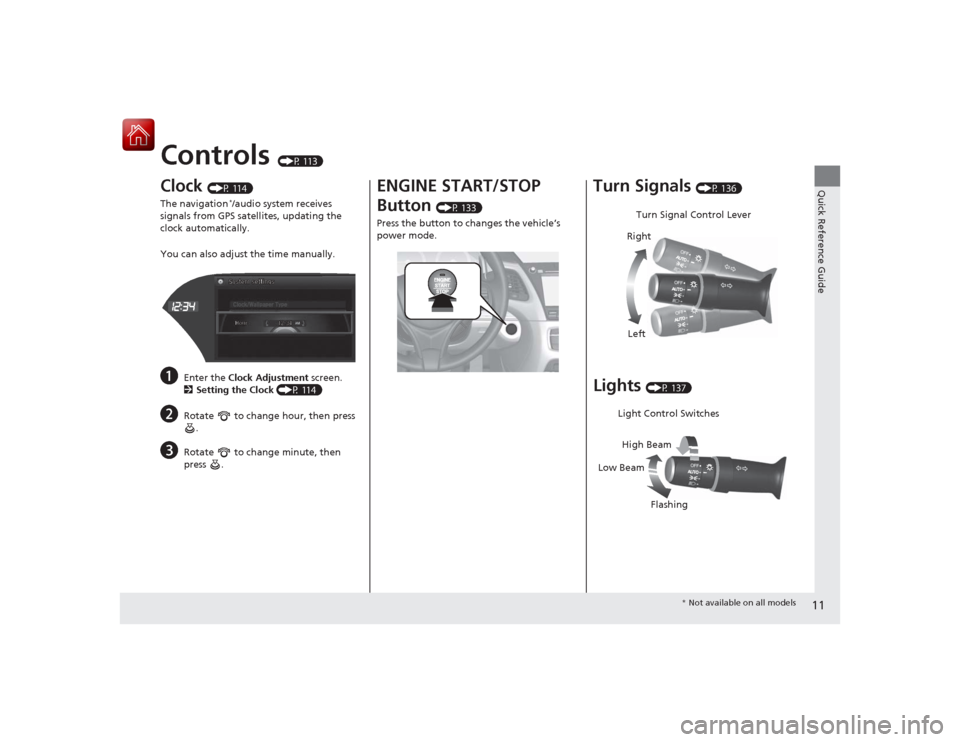
Clock
(P 114)
The navigation
*/audio system receives
signals from GPS satellites, updating the
clock automatically.
You can also adjust the time manually.
a
Enter the Clock Adjustment screen.
2 Setting the Clock (P 114)
b
Rotate to change hour, then press
.
c
Rotate to change minute, then
press .
ENGINE START/STOP
Button
(P 133)
Press the button to changes the vehicle’s
power mode.
Turn Signals
(P 136)
Lights
(P 137)Turn Signal Control Lever
Right
Left
Light Control Switches
Low Beam High Beam
Flashing
* Not available on all models
Page 16 of 521
15Quick Reference Guide
Features
(P 187)
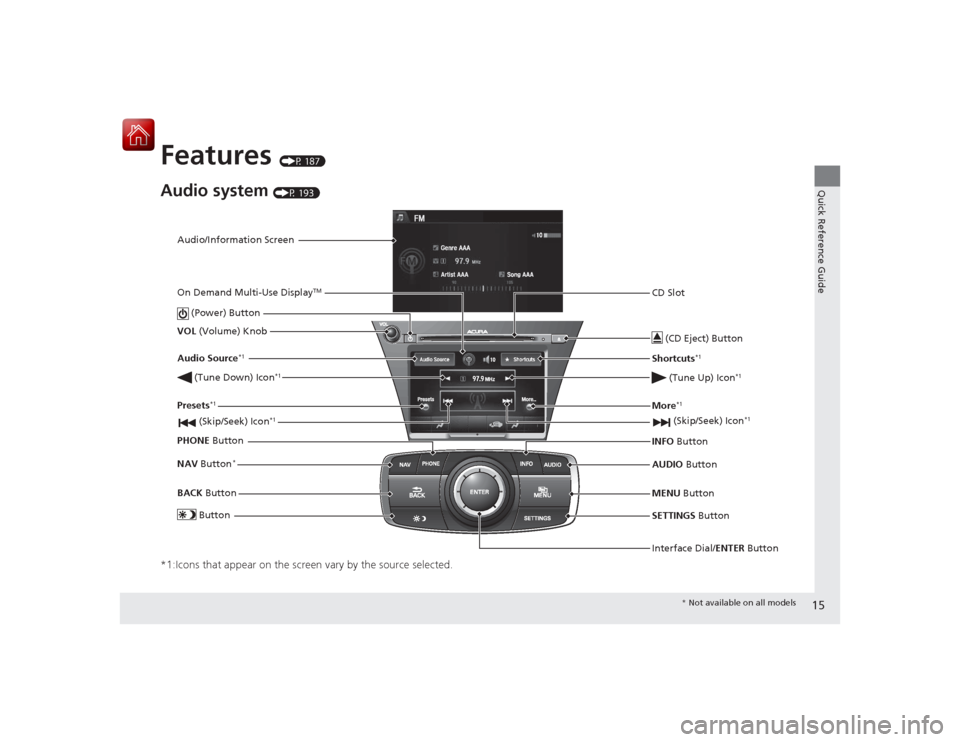
Audio system
(P 193)
*1:Icons that appear on the screen vary by the source selected.
Audio/Information ScreenInterface Dial/ENTER Button
(Power) Button
CD Slot
(CD Eject) ButtonSETTINGS Button
VOL
(Volume) Knob
BACK Button
NAV
Button
*
MENU Button
AUDIO
Button
INFO
Button
On Demand Multi-Use Display
TM
PHONE
Button
(Tune Down) Icon
*1
(Skip/Seek) Icon
*1
Audio Source
*1
(Skip/Seek) Icon
*1
Presets
*1
(Tune Up) Icon
*1
More
*1
Button
Shortcuts
*1
*
Not available on all models
Page 17 of 521
16Quick Reference Guide
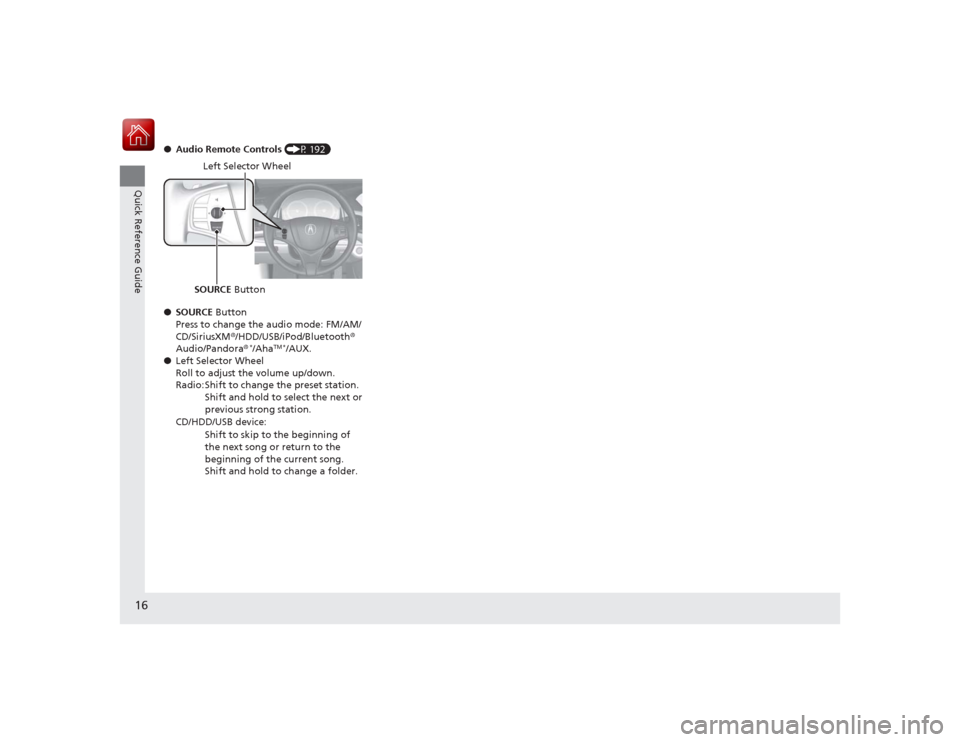
●Audio Remote Controls (P 192)
● SOURCE Button
Press to change the audio mode: FM/AM/
CD/SiriusXM ®/HDD/USB/iPod/Bluetooth®
Audio/Pandora®
*/Aha
TM *
/AUX.
● Left Selector Wheel
Roll to adjust the volume up/down.
Radio: Shift to change the preset station.
Shift and hold to select the next or
previous strong station.
CD/HDD/USB device: Shift to skip to the beginning of
the next song or return to the
beginning of the current song.
Shift and hold to change a folder.
Left Selector Wheel
SOURCE Button
Page 103 of 521

uuGauges and Multi- Information Display uMulti-Information Display
102Instrument Panel
Use the multi-information display to customize certain features.■How to customize
Select the Vehicle Settings screen by rolling the right selector wheel while the
power mode is in ON, and the vehicle is at a complete stop.
Push the right selector wheel.■
Customized Features
1 Customized Features
To customize other features, roll the right selector
wheel.
2 List of customizable options P. 105
2 Example of customization settings P. 110
Customization is possible when you see the driver’s
ID ( Driver 1 or Driver 2) on the screen.
The driver’s ID indicates which remote transmitter
you have used to unlock the driver’s door. The
customized settings are recalled every time you
unlock the driver’s door with that remote.
When you customize settings: Shift to
( P.
Customizing is also available from the audio/
information screen.
You cannot have Vehicle Settings displayed on the
multi-information display while the audio/
information screen shows the same menu. 2 Customized Features P. 263
Right Selector Wheel
Roll : Changes the
customize menus and
items.
Push : Enter the selected
item.
Models with
navigation
system
Models without
navigation
system
Multi-information Display: Goes to Vehicle Settings.
Page 115 of 521
114Controls
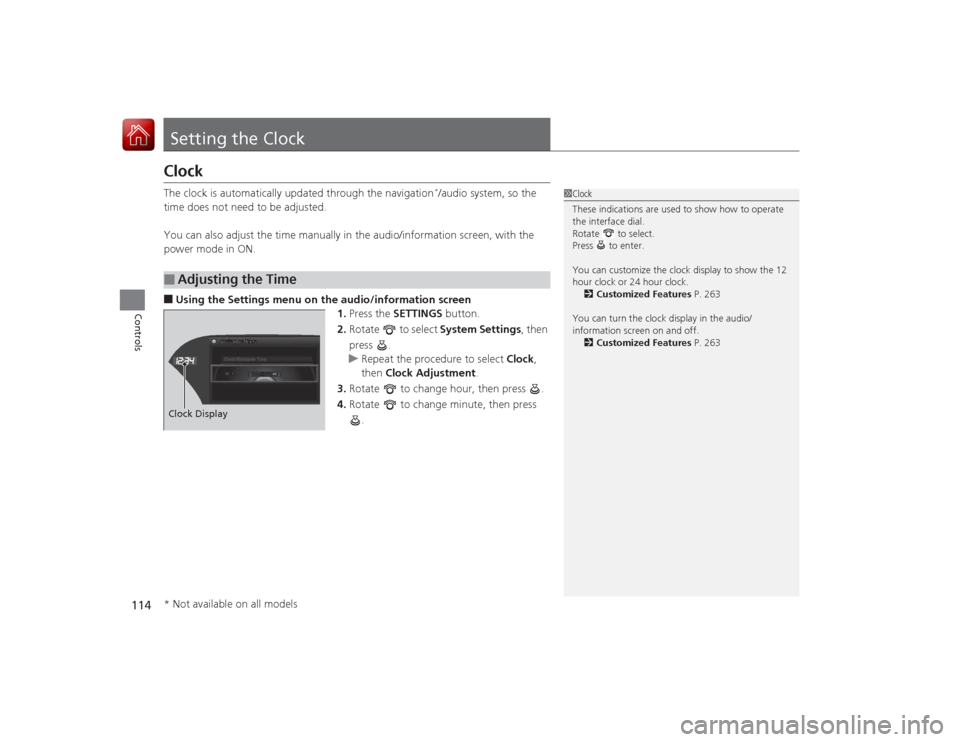
Setting the ClockClockThe clock is automatically updated through the navigation
*/audio system, so the
time does not need to be adjusted.
You can also adjust the time manually in the audio/information screen, with the
power mode in ON.
■Using the Settings menu on the audio /information screen
1. Press the SETTINGS button.
2. Rotate to select System Settings, then
press .
u Repeat the procedure to select Clock,
then Clock Adjustment .
3. Rotate to change hour, then press .
4. Rotate to change minute, then press
.■
Adjusting the Time
1Clock
These indications are used to show how to operate
the interface dial.
Rotate to select.
Press to enter.
You can customize the clock display to show the 12
hour clock or 24 hour clock.
2 Customized Features P. 263
You can turn the clock display in the audio/
information screen on and off. 2 Customized Features P. 263
Hour
Clock/Wallpaper TypeSystem settings
Clock Display* Not available on all models
Page 120 of 521

Continued
119
uuLocking and Unlocking the Doors uLocking/Unlocking the Doors from the Outside
Controls
■Unlocking the vehicle
Grab the driver’s door handle:u The driver’s door unlocks.
u Some exterior lights flash twice and the
beeper sounds twice.
Grab the front passenger’s or rear
* door
handle: u All the doors unlock.
u Some exterior lights flash twice and the
beeper sounds twice.
Press the trunk release button: u The trunk unlocks and opens.
u A beeper will sound.
2 Using the Trunk Release Button P. 125
Trunk
Release
Button
1Using the Keyless Access System•Even within the 32 inches (80 cm) radius, you may
not be able to lock/unlock the doors with the
keyless access remote if it is above or below the
outside handle.•The keyless access remote may not operate if it is
too close to the door and door glass.
If you do not open a door within 30 seconds of
unlocking the vehicle, the doors will automatically
relock.
When you go into the front side of the keyless access
system working range with all the doors locked, the
front and rear
* door outer handle ambient lights
come on for 30 seconds.
The lights do not come on if you have previously
stayed within the range for more than five minutes,
or the doors have been locked for a few days.
The feature activates again after you drive the
vehicle, then lock the doors.
The light flash, beep and unlock settings can be
customized using the audio/information screen or
multi-information display. 2 Customized Features P. 102, 263
* Not available on all models