change time Acura RLX 2015 Owner's Guide
[x] Cancel search | Manufacturer: ACURA, Model Year: 2015, Model line: RLX, Model: Acura RLX 2015Pages: 521, PDF Size: 22.24 MB
Page 194 of 521
193Features
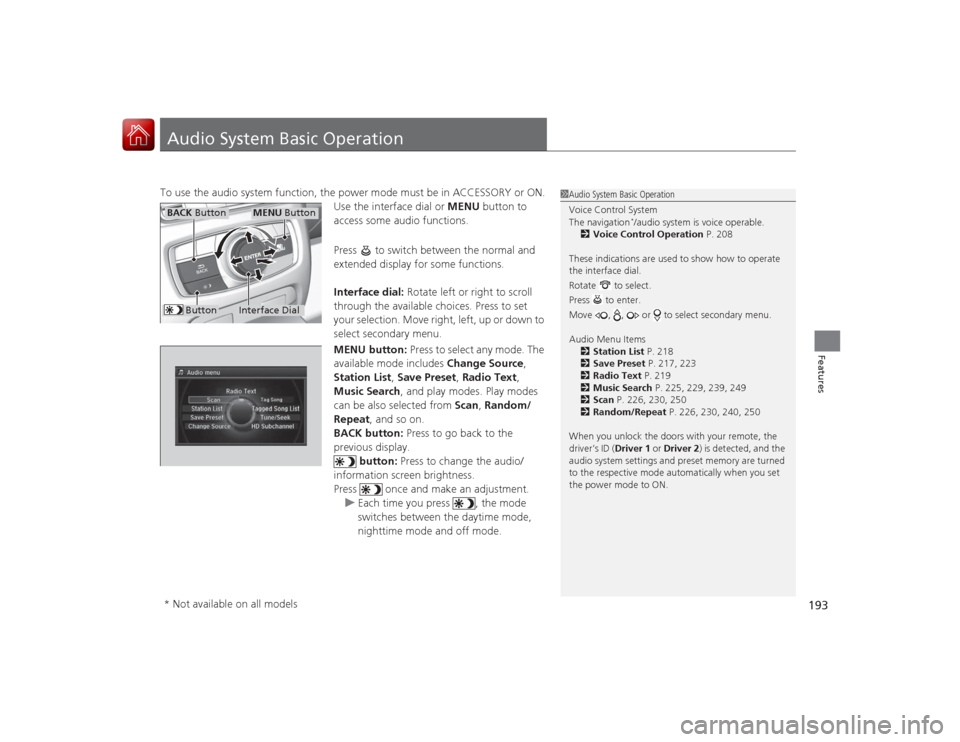
Audio System Basic OperationTo use the audio system function, the power mode must be in ACCESSORY or ON.Use the interface dial or MENU button to
access some audio functions.
Press to switch between the normal and
extended display for some functions.
Interface dial: Rotate left or right to scroll
through the available choices. Press to set
your selection. Move right, left, up or down to
select secondary menu.
MENU button: Press to select any mode. The
available mode includes Change Source,
Station List , Save Preset, Radio Text ,
Music Search , and play modes. Play modes
can be also selected from Scan, Random/
Repeat , and so on.
BACK button: Press to go back to the
previous display.
button: Press to change the audio/
information screen brightness.
Press once and make an adjustment. u Each time you press , the mode
switches between the daytime mode,
nighttime mode and off mode.
1Audio System Basic Operation
Voice Control System
The navigation
*/audio system is voice operable.
2 Voice Control Operation P. 208
These indications are used to show how to operate
the interface dial.
Rotate to select.
Press to enter.
Move , , or to select secondary menu.
Audio Menu Items 2 Station List P. 218
2 Save Preset P. 217, 223
2 Radio Text P. 219
2 Music Search P. 225, 229, 239, 249
2 Scan P. 226, 230, 250
2 Random/Repeat P. 226, 230, 240, 250
When you unlock the doors with your remote, the
driver’s ID (Driver 1 or Driver 2) is detected, and the
audio system settings and preset memory are turned
to the respective mode au tomatically when you set
the power mode to ON.
Interface Dial
MENU Button
BACK Button
Button
* Not available on all models
Page 202 of 521
201
uuAudio System Basic Operation uOn Demand Multi-Use Display
TM
Features
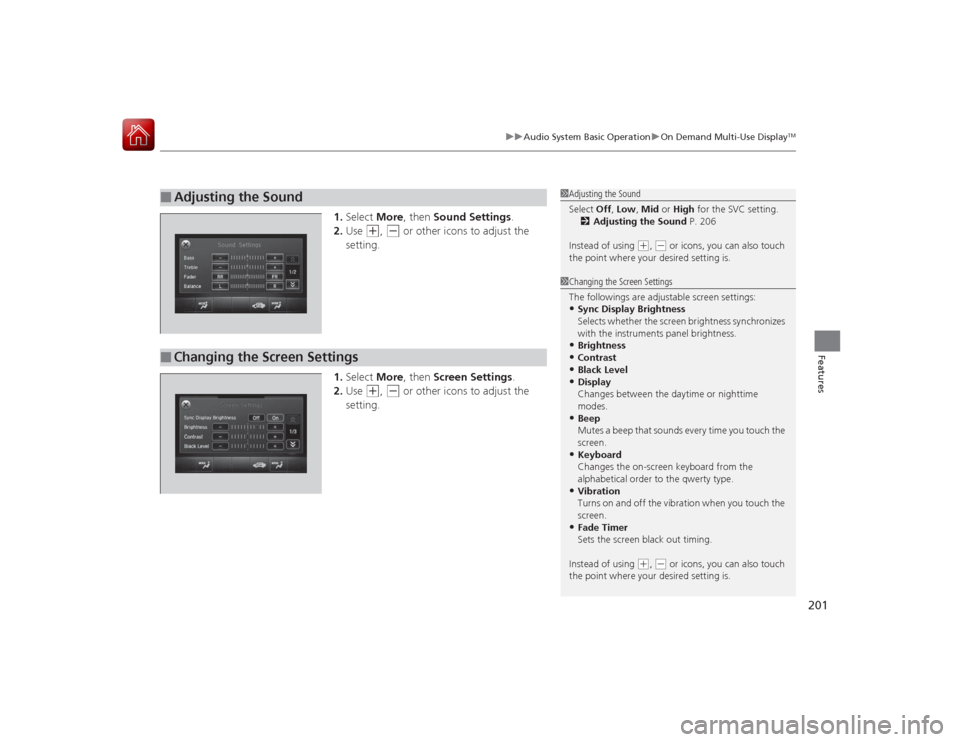
1. Select More, then Sound Settings.
2. Use
(+
, (-
or other icons to adjust the
setting.
1. Select More, then Screen Settings .
2. Use
(+
, (-
or other icons to adjust the
setting.
■
Adjusting the Sound
1 Adjusting the Sound
Select Off, Low , Mid or High for the SVC setting.
2 Adjusting the Sound P. 206
Instead of using
( +, (- or icons, you can also touch
the point where your desired setting is.
■
Changing the Screen Settings
1 Changing the Screen Settings
The followings are adjustable screen settings:•Sync Display Brightness
Selects whet her the screen brightness synchronizes
with the instruments panel brightness.•Brightness•Contrast•Black Level•Display
Changes between the daytime or nighttime
modes.•Beep
Mutes a beep that sounds every time you touch the
screen.•Keyboard
Changes the on-screen keyboard from the
alphabetical order to the qwerty type.•Vibration
Turns on and off the vibration when you touch the
screen.•Fade Timer
Sets the screen black out timing.
Instead of using
( +, (- or icons, you can also touch
the point where your desired setting is.
Page 205 of 521
uuAudio System Basic Operation uAudio/Information Screen
204Features
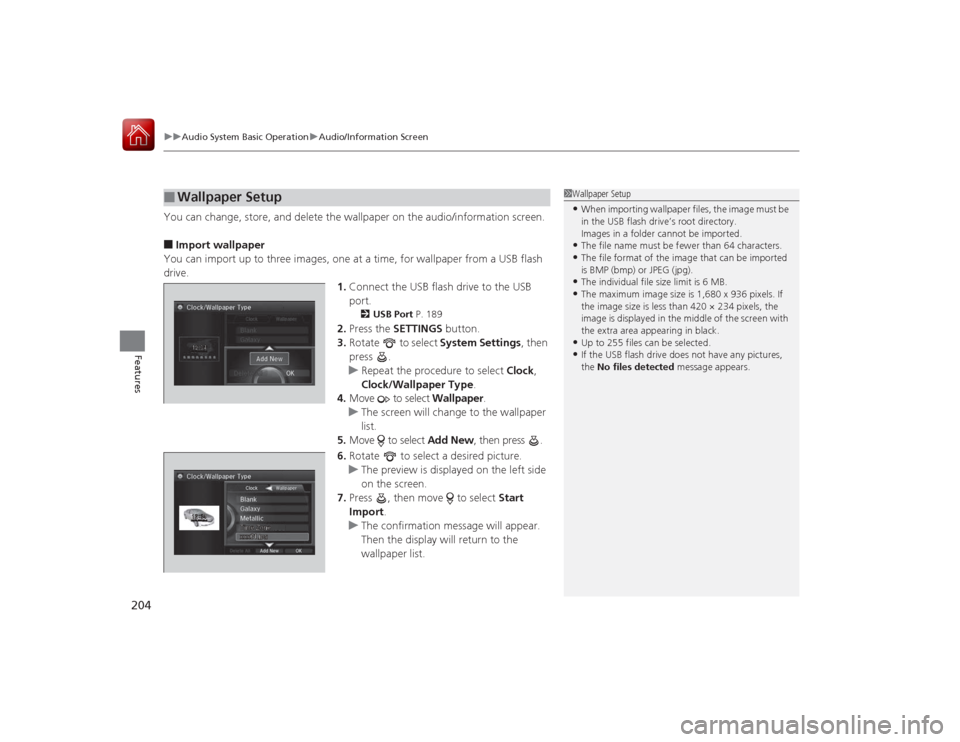
You can change, store, and delete the wallpaper on the audio/information screen.■Import wallpaper
You can import up to three images, one at a time, for wallpaper from a USB flash
drive. 1.Connect the USB flash drive to the USB
port.
2 USB Port P. 189
2.Press the SETTINGS button.
3. Rotate to select System Settings, then
press .
u Repeat the procedure to select Clock,
Clock/Wallpaper Type .
4. Move to select Wallpaper.
u The screen will change to the wallpaper
list.
5. Move to select Add New, then press .
6. Rotate to select a desired picture.
u The preview is displayed on the left side
on the screen.
7. Press , then move to select Start
Import .
u The confirmation message will appear.
Then the display will return to the
wallpaper list.
■
Wallpaper Setup
1Wallpaper Setup•When importing wallpaper files, the image must be
in the USB flash drive’s root directory.
Images in a folder cannot be imported.•The file name must be fewer than 64 characters.•The file format of the image that can be imported
is BMP (bmp) or JPEG (jpg).•The individual file size limit is 6 MB.•The maximum image size is 1,680 x 936 pixels. If
the image size is less than 420 × 234 pixels, the
image is displayed in the middle of the screen with
the extra area appearing in black.•Up to 255 files can be selected.•If the USB flash drive does not have any pictures,
the No files detected message appears.
Page 272 of 521
271
uuCustomized Features u
Continued
Features
*1:Default SettingSetup
Group Customizable Features Description Selectable SettingsSystem
Settings
Voice
Recog-
nition
Volume
Changes the volume of the voice prompt.
—
Voice Prompt
Turns the voice prompt on and off.
On
*1/
Off
Song by Voice
Turns the Song By Voice
TM on and off.
2 Song By Voice
TM (SBV) P. 241
On
*1/Off
Song by Voice Phonetic
Modification
Modifies a voice command for music stored in
the HDD or an iPod.
2 Phonetic Modification P. 243
—
Phonebook Phonetic
Modification
Modifies a voice command for the phonebook.
2Phonebook Phonetic Modification P. 307
—
Opening
Sound Volume
Changes the volume of the system’s startup sound.
—
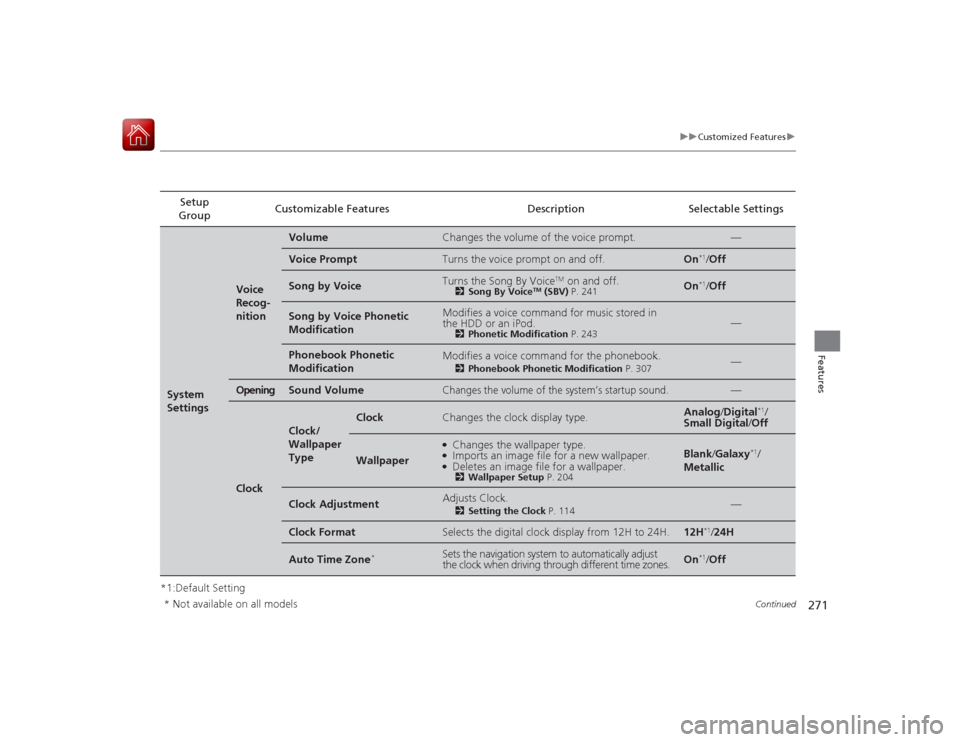
Clock
Clock/
Wallpaper
Type
Clock
Changes the clock display type.
Analog/Digital
*1/
Small Digital /Off
Wallpaper
●Changes the wallpaper type.●Imports an image file for a new wallpaper.●Deletes an image file for a wallpaper.2 Wallpaper Setup P. 204
Blank/Galaxy
*1/
Metallic
Clock Adjustment
Adjusts Clock.
2 Setting the Clock P. 114
—
Clock Format
Selects the digital clock display from 12H to 24H.
12H
*1/24H
Auto Time Zone
*
Sets the navigation system to automatically adjust
the clock when driving through different time zones.
On
*1/Off
* Not available on all models
Page 273 of 521
272
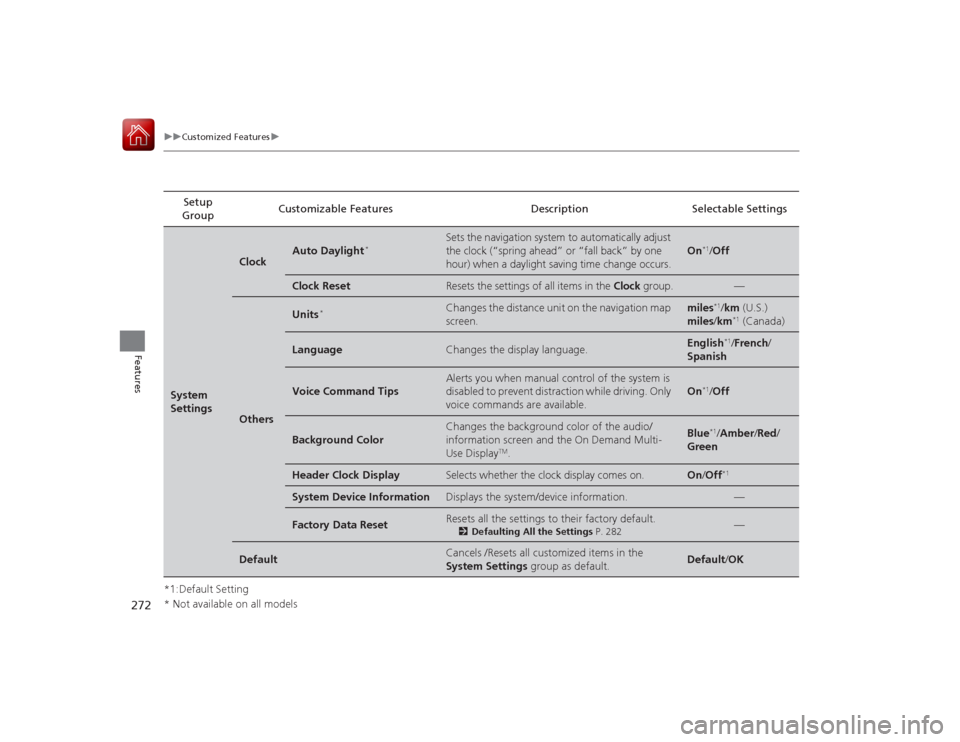
uuCustomized Features u
Features
*1:Default SettingSetup
Group Customizable Features Description Selectable SettingsSystem
Settings
Clock
Auto Daylight
*
Sets the navigation system to automatically adjust
the clock (“spring ahead” or “fall back” by one
hour) when a daylight saving time change occurs.
On
*1/
Off
Clock Reset
Resets the settings of all items in the Clock group.
—
Others
Units
*
Changes the distance unit on the navigation map
screen.
miles
*1/km (U.S.)
miles /km*1 (Canada)
Language
Changes the display language.
English
*1/French /
Spanish
Voice Command Tips
Alerts you when manual control of the system is
disabled to prevent distraction while driving. Only
voice commands are available.
On
*1/ Off
Background Color
Changes the background color of the audio/
information screen and the On Demand Multi-
Use Display
TM.
Blue
*1/Amber /Red/
Green
Header Clock Display
Selects whether the clock display comes on.
On /Off
*1
System Device Information
Displays the system/device information.
—
Factory Data Reset
Resets all the settings to their factory default.
2 Defaulting All the Settings P. 282
—
Default
Cancels /Resets all customized items in the
System Settings group as default.
Default/OK
* Not available on all models
Page 275 of 521
274
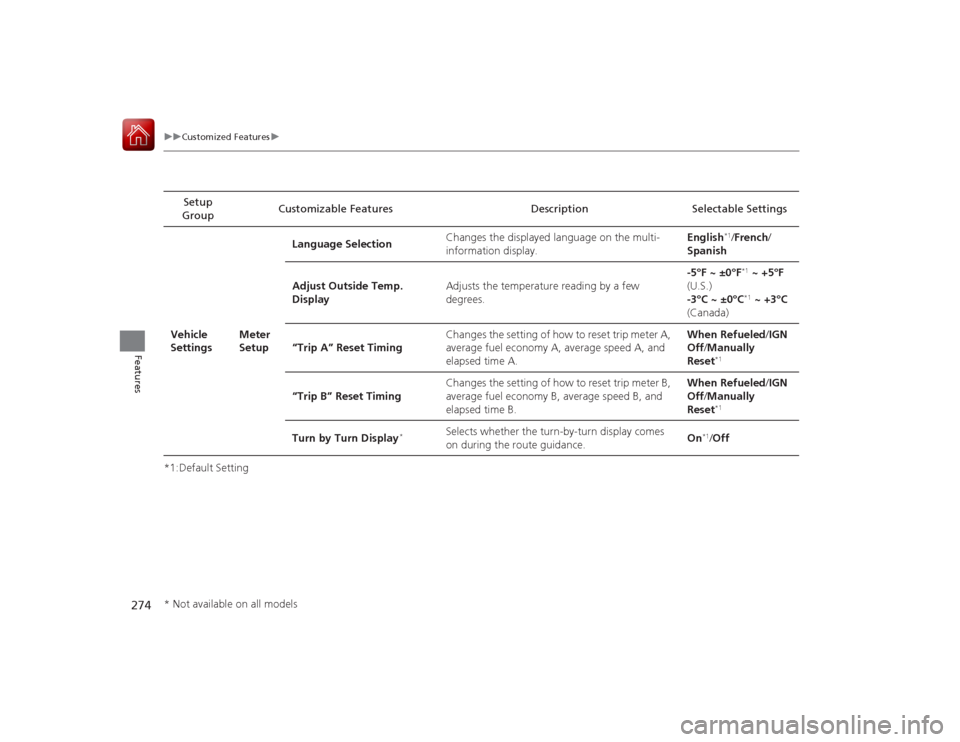
uuCustomized Features u
Features
*1:Default SettingSetup
Group Customizable Features Description Selectable Settings
Vehicle
Settings Meter
SetupLanguage Selection
Changes the displayed language on the multi-
information display. English
*1/
French /
Spanish
Adjust Outside Temp.
Display Adjusts the temperature reading by a few
degrees. -5°F ~ ±0°F*1
~ +5°F
(U.S.)
-3°C ~ ±0°C*1 ~ +3°C
(Canada)
“Trip A” Reset Timing Changes the setting of how to reset trip meter A,
average fuel economy A, average speed A, and
elapsed time A. When Refueled
/IGN
Off /Manually
Reset
*1
“Trip B” Reset Timing Changes the setting of how to reset trip meter B,
average fuel economy B, average speed B, and
elapsed time B. When Refueled
/IGN
Off /Manually
Reset
*1
Turn by Turn Display
*
Selects whether the turn-by-turn display comes
on during the route guidance. On
*1/
Off
* Not available on all models
Page 276 of 521
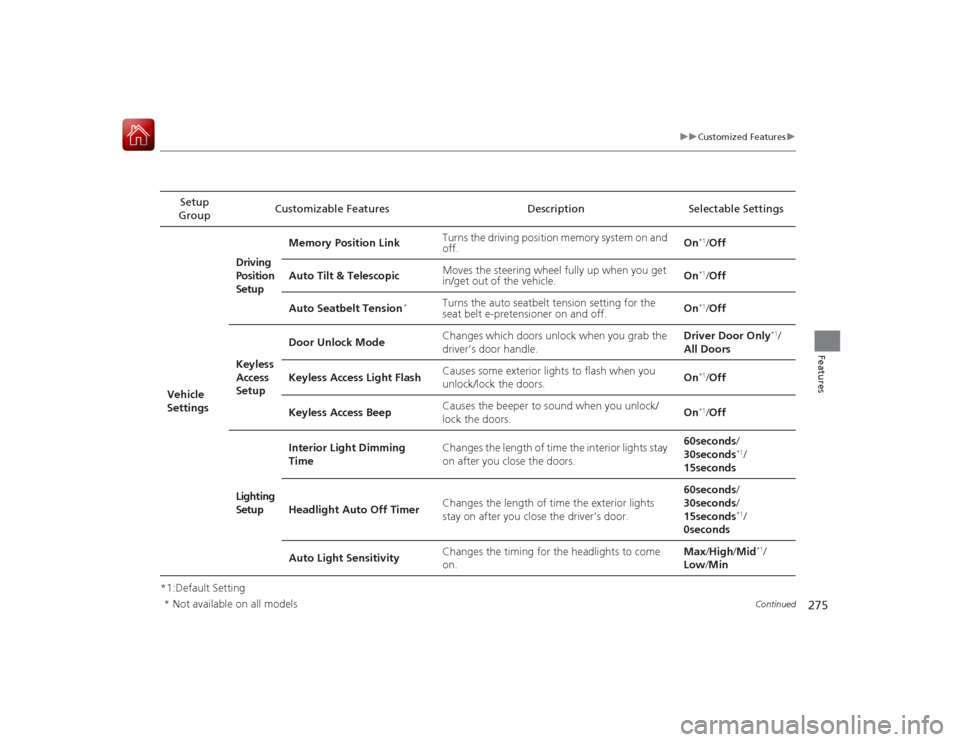
275
uuCustomized Features u
Continued
Features
*1:Default SettingSetup
Group Customizable Features Description Selectable Settings
Vehicle
Settings Driving
Position
Setup
Memory Position Link
Turns the driving position memory system on and
off. On
*1/
Off
Auto Tilt & Telescopic Moves the steering wheel fully up when you get
in/get out of the vehicle. On*1/
Off
Auto Seatbelt Tension
*
Turns the auto seatbelt tension setting for the
seat belt e-pretensioner on and off. On
*1/
Off
Keyless
Access
Setup Door Unlock Mode
Changes which doors unlock when you grab the
driver’s door handle. Driver Door Only
*1/
All Doors
Keyless Access Light Flash Causes some exterior lights to flash when you
unlock/lock the doors.
On
*1/
Off
Keyless Access Beep Causes the beeper to sound when you unlock/
lock the doors. On*1/
Off
Lighting
Setup Interior Light Dimming
Time
Changes the length of time the interior lights stay
on after you close the doors. 60seconds
/
30seconds
*1/
15seconds
Headlight Auto Off Timer Changes the length of time the exterior lights
stay on after you close the driver’s door. 60seconds
/
30seconds /
15seconds*1/
0seconds
Auto Light Sensitivity Changes the timing for the headlights to come
on. Max
/High /Mid
*1/
Low /Min
* Not available on all models
Page 277 of 521

276
uuCustomized Features u
Features
*1:Default SettingSetup
Group Customizable Features Description Selectable Settings
Vehicle
Settings Door
SetupAuto Door Lock
Changes the setting for the automatic locking
feature. With Vehicle Speed
*1/
Shift from P/ Off
Auto Door Unlock Changes the setting for when the doors unlock
automatically. All Doors When
Driver’s Door Opens*1/
All Doors When
Shifted to Park /All
Doors When Ignition
Switched Off /Off
Key And Remote Unlock
Mode Sets up either the driver’s door or all doors to
unlock on the first push of the remote. Driver Door
*1/
All
Doors
Keyless Lock Answer Back LOCK/UNLOCK- The exterior lights flash.
LOCK (2nd push)- The beeper sounds. On
*1/
Off
Security Relock Timer Changes the time it takes for the doors to relock
and the security system to set after you unlock
the vehicle without opening any door. 90seconds/
60seconds/
30seconds
*1
Auto Folding Door Mirror
*
Changes how you can fold the door mirrors.
Auto Fold With
Keyless
*1/Manual Only
Wiper
SetupWiper Action
*
Changes the setting for the automatic
intermittent wipers in the
AUTO position. Rain Sensing
*1/
Intermittent /Speed
Sensitive
Front Wiper Action
*
Changes the setting for the wipers in the INT
position. Speed Sensitive
*1/
Intermittent
* Not available on all models
Page 295 of 521
uuBluetooth ® HandsFreeLink ®u HFL Menus
294Features
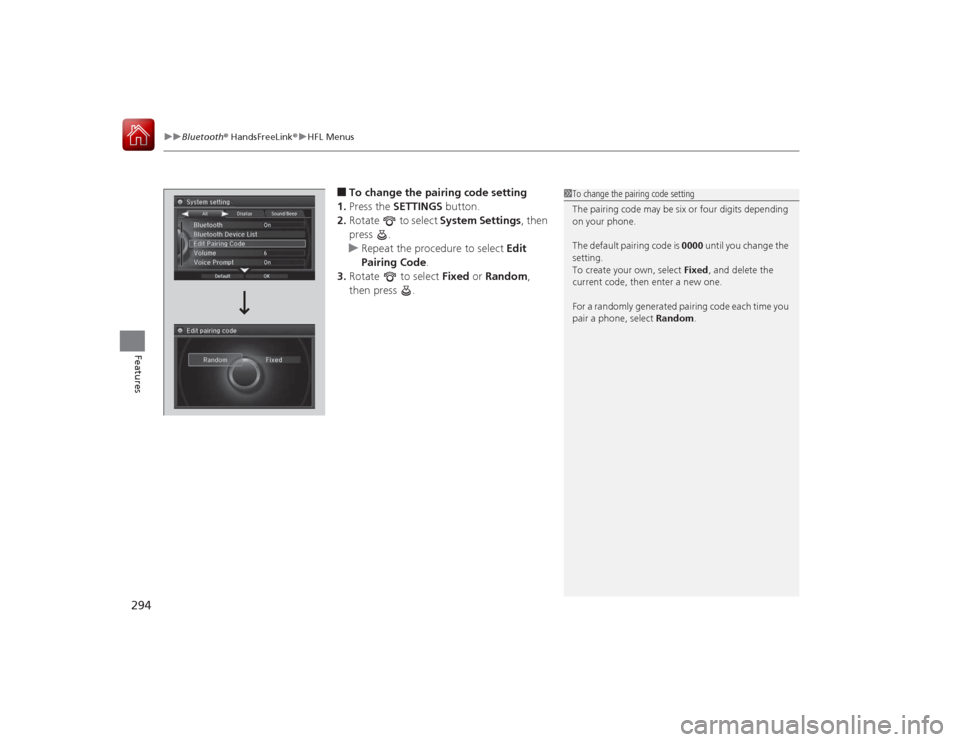
■To change the pairing code setting
1. Press the SETTINGS button.
2. Rotate to select System Settings, then
press .
u Repeat the procedure to select Edit
Pairing Code .
3. Rotate to select Fixed or Random ,
then press .
1 To change the pairing code setting
The pairing code may be six or four digits depending
on your phone.
The default pairing code is 0000 until you change the
setting.
To create your own, select Fixed, and delete the
current code, then enter a new one.
For a randomly generated pairing code each time you
pair a phone, select Random.
Page 360 of 521
359
uuWhen Driving uAdaptive Cruise Control (ACC) with Low Speed Follow (LSF)
*
Continued
Driving
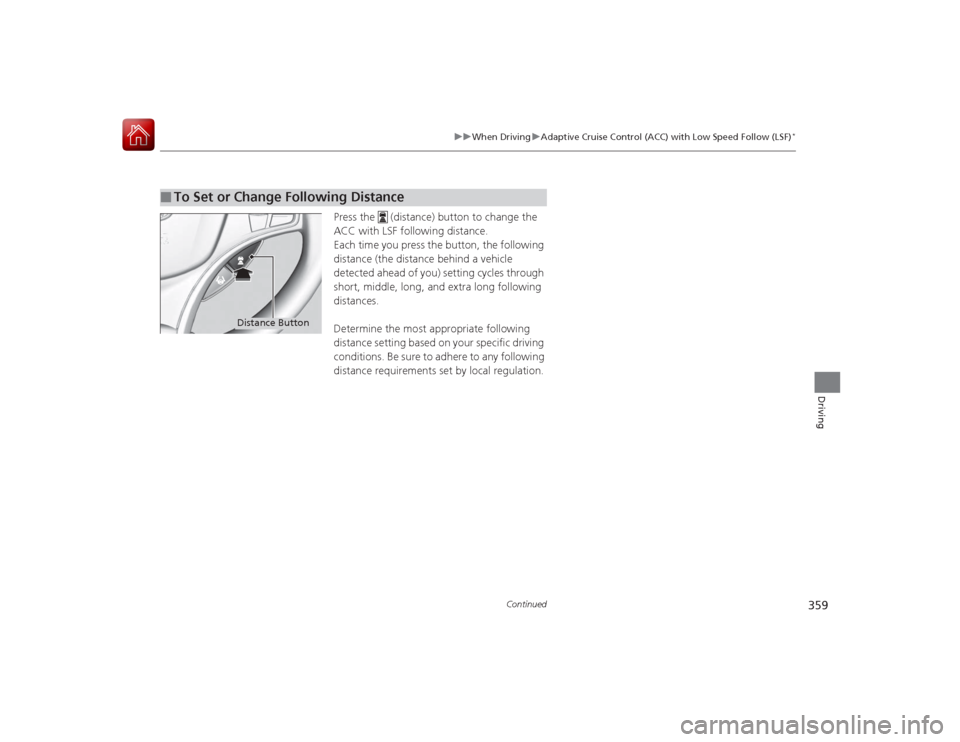
Press the (distance) button to change the
ACC with LSF following distance.
Each time you press the button, the following
distance (the distance behind a vehicle
detected ahead of you) setting cycles through
short, middle, long, and extra long following
distances.
Determine the most appropriate following
distance setting based on your specific driving
conditions. Be sure to adhere to any following
distance requirements set by local regulation.
■
To Set or Change Following Distance
Distance Button