phone Acura RLX 2016 User Guide
[x] Cancel search | Manufacturer: ACURA, Model Year: 2016, Model line: RLX, Model: Acura RLX 2016Pages: 581, PDF Size: 31.43 MB
Page 226 of 581
225
uuAudio System Basic Operation uAudio/Information Screen
Continued
Features
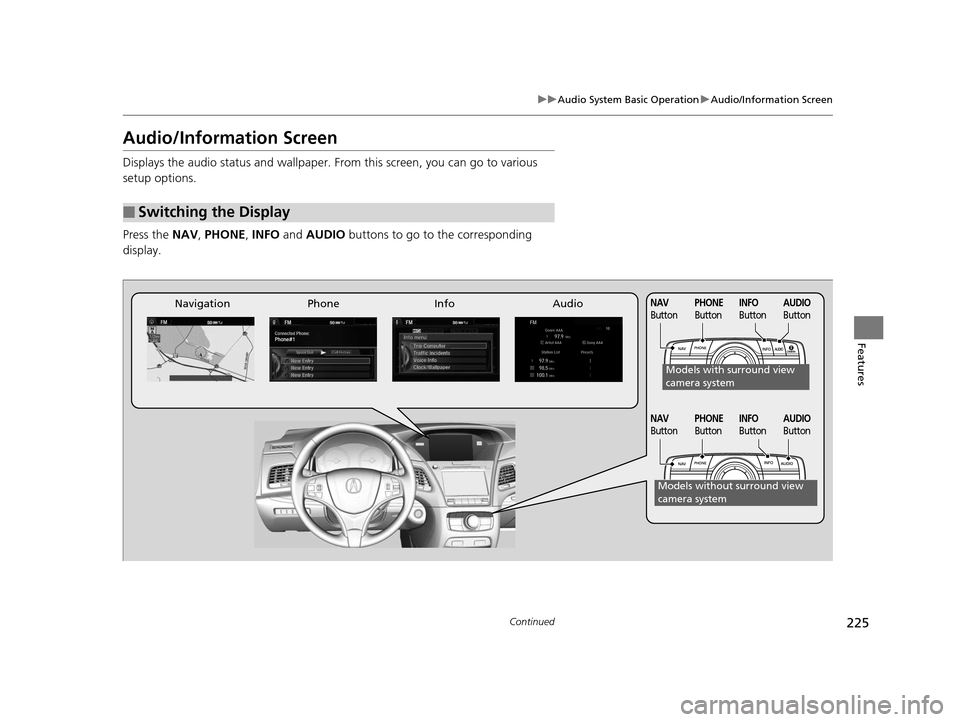
Audio/Information Screen
Displays the audio status and wallpaper. From this screen, you can go to various
setup options.
Press the NAV, PHONE , INFO and AUDIO buttons to go to the corresponding
display.
■Switching the Display
Audio
Info
Navigation PhoneAUDIO
ButtonNAV
ButtonPHONE
ButtonINFO
Button
Models with surround view
camera system
Models without surround view
camera system
AUDIO
ButtonNAV
ButtonPHONE
ButtonINFO
Button
16 ACURA RLX E-AWD-31TY36200.book 225 ページ 2015年5月22日 金曜日 午後3時 50分
Page 227 of 581

226
uuAudio System Basic Operation uAudio/Information Screen
Features
■Audio
Shows the current audio information.
■Navigation
Shows the navigation screen.
2 Refer to the Navigation System Manual
■Phone
Shows the HFL information.
2 Bluetooth ® HandsFreeLink® P. 313
■Info
Shows the Trip Computer or Clock/Wallpaper and other information. Rotate
to select an item, then press .
■Trip computer (Current Drive)
Shows the range, instant and average fuel economy, and EV/total drive of the
current trip, as well as the averag e fuel economy from your last trip.
■Trip computer (History of Trip A)
Shows the range, average fuel economy and distances traveled for the current trip, as well
as the average fuel economy and distances tr aveled during the last three driving cycles.
Each time you reset the trip meter A, the information on the display updates. The
history of the previous th ree driving cycles is kept.
■Deleting the history manually
1. Move on the History of Trip A screen to select Delete History, then press .
2. You will receive a confirmation message on the screen. Rotate to select Yes,
then press .
■Clock/Wallpaper
Shows a clock screen or an image you import.
16 ACURA RLX E-AWD-31TY36200.book 226 ページ 2015年5月22日 金曜日 午後3時 50分
Page 233 of 581

232
uuAudio System Basic Operation uVoice Control Operation
Features
Voice Control Operation
Your vehicle has a voice control system that allows hands-free operation of most of
the navigation system functions.
The voice control system uses the (Tal k) and (hang-up/back) buttons on the
steering wheel and a microphone near the map lights on the ceiling.
To achieve optimum voice recognition when using the voice control system:
• Make sure the correct screen is displa yed for the voice command that you are
using.
• Close the windows and moonroof.
• Adjust the dashboard and side vents so air does not blow onto the microphone
on the ceiling.
• Speak clearly in a clear, natural speakin g voice without pausing between words.
• Reduce any background noise if possible. The system may misinterpret your
command if more than one person is speaking at the same time.
• Refer to the Voice Help feature.
2 Refer to the Navigation System Manual
■Voice Recognition
1Voice Control Operation
When you press the button, a helpful prompt asks
what you would like to do. Press and release the
button again to bypass th is prompt and give a
command.
1 Voice Recognition
The voice control system can only be used from the
driver’s seat because the microphone unit removes
noises from the front passenger’s side.
16 ACURA RLX E-AWD-31TY36200.book 232 ページ 2015年5月22日 金曜日 午後3時 50分
Page 234 of 581
233
uuAudio System Basic Operation uVoice Control Operation
Continued
Features
The system accepts these commands on the
Voice Portal screen.
• Call Your contact name
• Call Phone Number
• Find nearest POI category name
• Go home
• Route menu
• Cancel route
The system accepts these commands on any
screen.
• Call by number
• Call by name
Contacts that are imported from your
phone to the vehicle ar e all made available
by voice. Voice tags ca n also be recorded for
each of your speed dial entries.
■Voice Portal Commands
■Phone Commands
2 Refer to the Navigation System Manual
The system accepts these commands on any
screen.
•Trip computer
• Power distribution monitor
• Traffic information
• Display clock
• Display wallpaper
■Navigation Commands
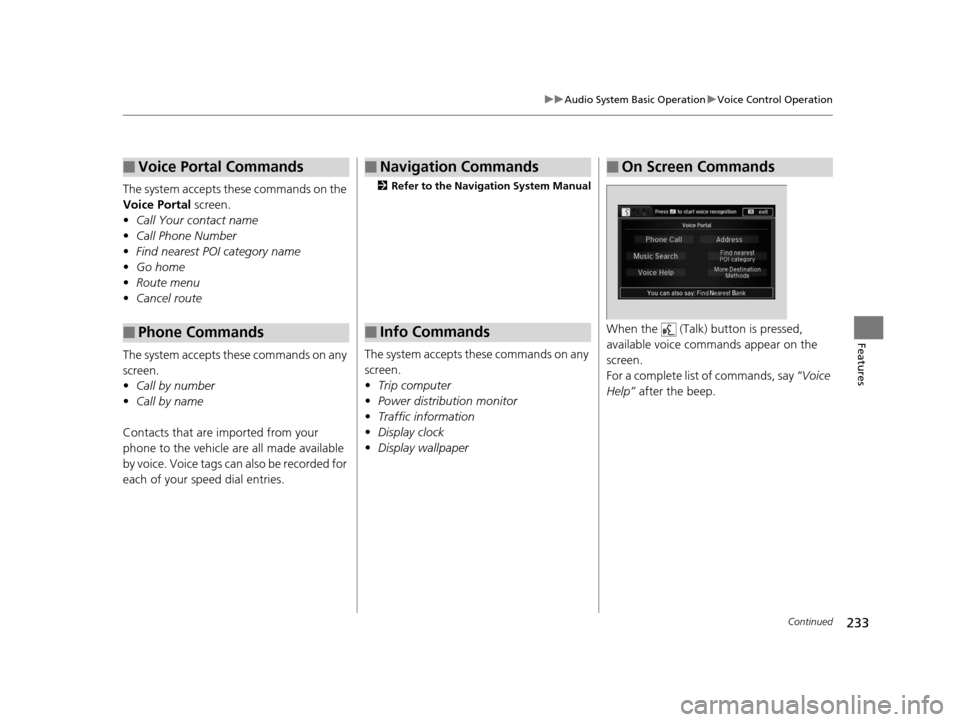
■Info CommandsWhen the (Talk) button is pressed,
available voice commands appear on the
screen.
For a complete list of commands, say “Voice
Help” after the beep.
■On Screen Commands
16 ACURA RLX E-AWD-31TY36200.book 233 ページ 2015年5月22日 金曜日 午後3時 50分
Page 237 of 581

236
uuAudio System Basic Operation uVoice Control Operation
Features
■iPod commands
• iPod play
• iPod play track # (#: 1 to 30)
• iPod skip forward
• iPod skip back
• iPod track shuffle
*1
•iPod album shuffle*1
•iPod track repeat*1
•iPod normal play
• What am I listening to?
• Who am I listening to?
• Who is this?
• What’s playing?
• Who’s playing?
• What album is this?
*1: These commands toggle the function
on and off, so the command may not match
your intended action.
■USB commands
• USB play
• USB play track # (#: 1 to 30)
• USB skip forward
• USB skip back
• USB track random
*1
•USB track repeat*1
•USB track scan*1
•USB folder up
• USB folder down
• USB folder random
*1
•USB folder repeat*1
•USB folder scan*1
•USB normal play
*1: These commands toggle the function
on and off, so the command may not match
your intended action.
■Bluetooth ® Audio commands
• Bluetooth Audio play
• Bluetooth Audio skip forward
• Bluetooth Audio skip back
• Bluetooth Audio group up
• Bluetooth Audio group down
• Bluetooth Audio pause
• Bluetooth Audio resume
• Bluetooth Audio track random
• Bluetooth Audio track repeat
NOTE:
Bluetooth ® Audio commands may not work
on some phones or Bluetooth ® Audio
devices.
■AUX commands
• Auxiliary play
16 ACURA RLX E-AWD-31TY36200.book 236 ページ 2015年5月22日 金曜日 午後3時 50分
Page 241 of 581
240
uuAudio System Basic Operation uPlaying AM/FM Radio
Features
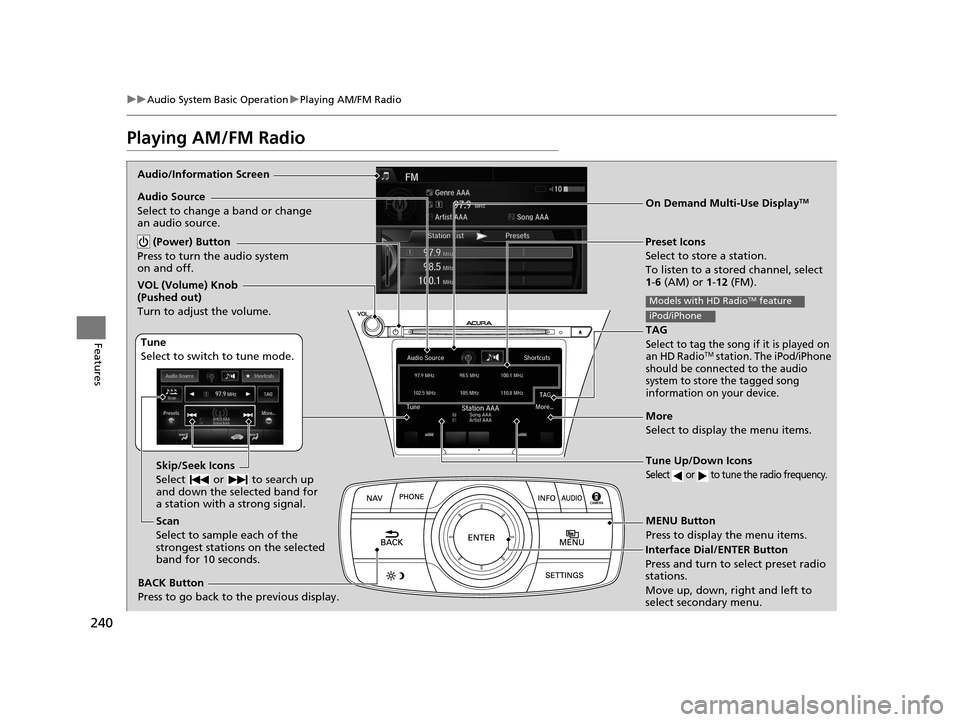
Playing AM/FM Radio
Audio/Information Screen
On Demand Multi-Use Display
TM
Tune Up/Down Icons
Select or to tune the radio frequency.
MENU Button
Press to display the menu items.
(Power) Button
Press to turn the audio system
on and off.
Audio Source
Select to change a band or change
an audio source.
Tune
Select to switch to tune mode. Preset Icons
Select to store a station.
To listen to a stored channel, select
1-
6 (AM) or 1 -12 (FM).
Skip/Seek Icons
Select or to search up
and down the selected band for
a station with a strong signal.
More
Select to display the menu items.
BACK Button
Press to go back to the previous display.
VOL (Volume) Knob
(Pushed out)
Turn to adjust the volume.
Interface Dial/ENTER Button
Press and turn to select preset radio
stations.
Move up, down, right and left to
select secondary menu.
TAG
Select to tag the song if it is played on
an HD RadioTM station. The iPod/iPhone
should be connected to the audio
system to store the tagged song
information on your device.
Models with HD RadioTM feature
iPod/iPhone
Scan
Select to sample each of the
strongest stations on the selected
band for 10 seconds.
16 ACURA RLX E-AWD-31TY36200.book 240 ページ 2015年5月22日 金曜日 午後3時 50分
Page 243 of 581
uuAudio System Basic Operation uPlaying AM/FM Radio
242
Features
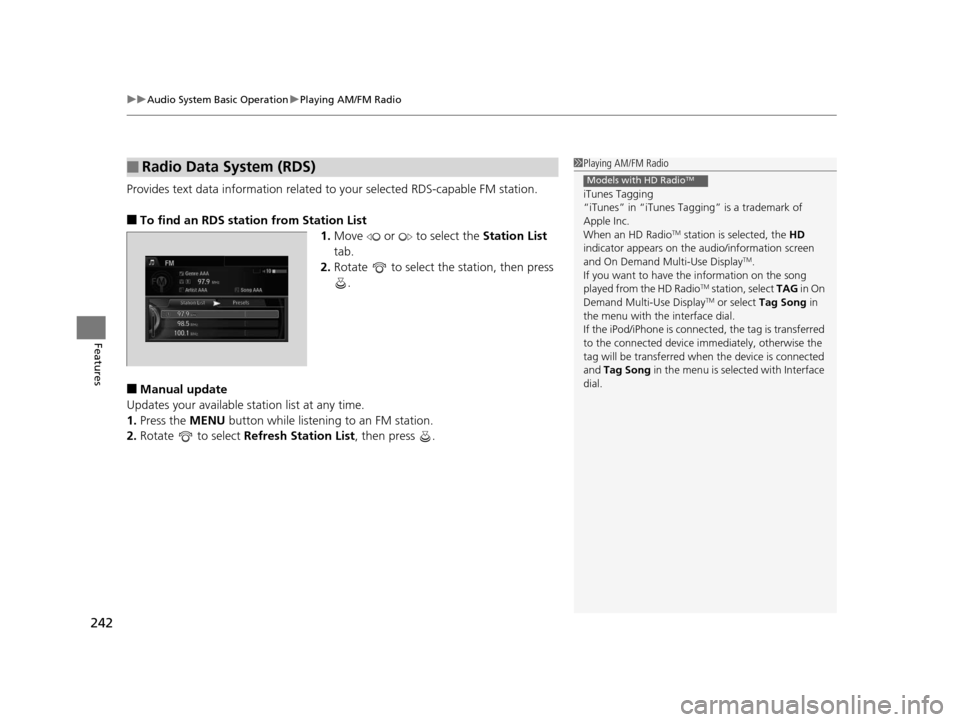
Provides text data information related to your selected RDS-capable FM station.
■To find an RDS station from Station List
1.Move or to select the Station List
tab.
2. Rotate to select th e station, then press
.
■Manual update
Updates your available station list at any time.
1. Press the MENU button while listening to an FM station.
2. Rotate to select Refresh Station List , then press .
■Radio Data System (RDS)1Playing AM/FM Radio
iTunes Tagging
“iTunes” in “iTunes Ta gging” is a trademark of
Apple Inc.
When an HD Radio
TM station is selected, the HD
indicator appears on the a udio/information screen
and On Demand Multi-Use Display
TM.
If you want to have the information on the song
played from the HD Radio
TM station, select TAG in On
Demand Multi-Use DisplayTM or select Tag Song in
the menu with the interface dial.
If the iPod/iPhone is connect ed, the tag is transferred
to the connected device i mmediately, otherwise the
tag will be transferred when the device is connected
and Tag Song in the menu is selected with Interface
dial.
Models with HD RadioTM
16 ACURA RLX E-AWD-31TY36200.book 242 ページ 2015年5月22日 金曜日 午後3時 50分
Page 244 of 581
243
uuAudio System Basic Operation uPlaying AM/FM Radio
Continued
Features
■Radio text
Display the radio text information of the selected RDS station.
1. Press the MENU button.
2. Rotate to select Radio Text, then press .
■Scan
Samples each of the strongest stations on the selected band for 10 seconds.
1. Press the MENU button.
2. Rotate to select Scan, then press .
To turn off scan, press to select Cancel Scan, or press the BACK button.
2Playing AM/FM Radio P. 240
To turn off scan, select Stop Scan.
■Tag song to device
You can store the TAG information in the connected iPod/iPhone.
If the iPod/iPhone is not connected to the audio system, the information is stored in
the audio unit temporarily, then once the de vice is connected to the system, data is
transferred to the iPod/iPhone.
To store the TAG information to th e iPod/iPhone, or the audio system:
1. Press the MENU button.
2. Rotate to select Tag Song, then press .
3. Select the song for which you wa nt to save the information.
Interface Dial
On Demand Multi-Use DisplayTM
Models with HD RadioTM
16 ACURA RLX E-AWD-31TY36200.book 243 ページ 2015年5月22日 金曜日 午後3時 50分
Page 267 of 581

uuAudio System Basic Operation uSong By VoiceTM (SBV)
266
Features
■Searching for music using SBV
1.Set the Song By Voice setting to On.
2. Press the (Talk) button and say “Music
Search” to activate the SBV feature for the
HDD and iPod.
3. Press the button and say a command.
u Example 1: Say “(List) ‘Artist A’“ to view a
list of songs by that artist. Select the
desired song to start playing.
u Example 2: Say “Play ‘Artist A’“ to start
playing songs by that artist.
4. To cancel SBV, press the (hang-up/back)
button on the steering wheel. The selected
song continues playing.
Once you have canceled this mode, you need
to press the button and say “Music Search”
again to re-activate this mode.1 Searching for music using SBV
Song By Voice
TM Commands List
2 Song By VoiceTM commands P. 234
NOTE:
Song By Voice
TM commands are available for tracks
stored on the HDD or iPod.
You can add phonetic modi fications of difficult
words so that it is easier for SBV to recognize artists,
songs, albums, and composers in voice commands. 2 Phonetic Modification P. 267
16 ACURA RLX E-AWD-31TY36200.book 266 ページ 2015年5月22日 金曜日 午後3時 50分
Page 268 of 581
Continued267
uuAudio System Basic Operation uSong By VoiceTM (SBV)
Features
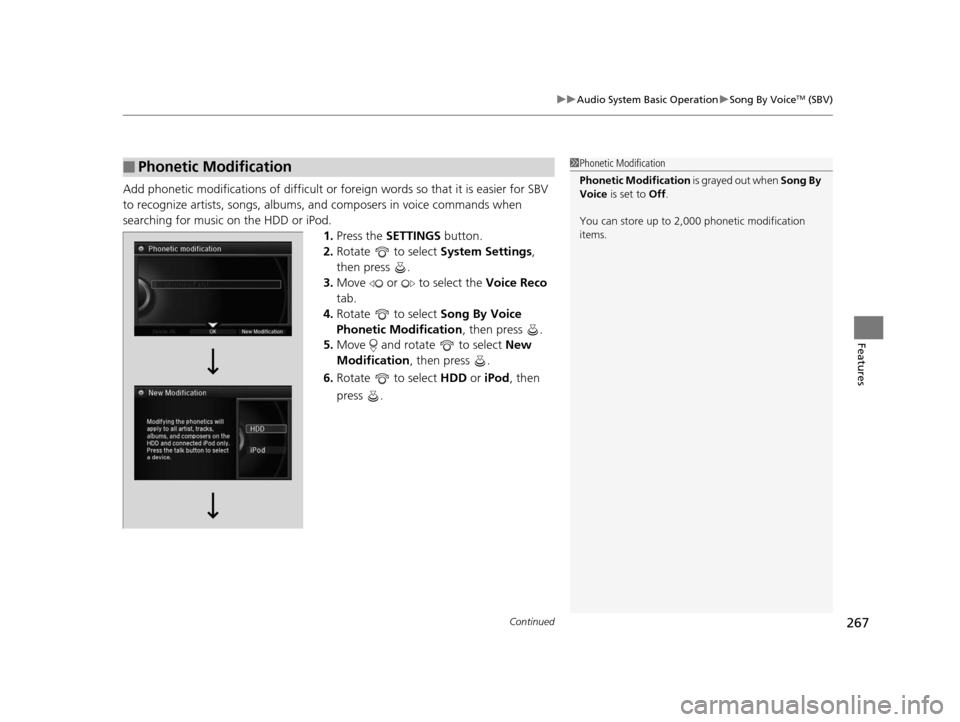
Add phonetic modifications of difficult or fo reign words so that it is easier for SBV
to recognize artists, songs, albums, and composers in voice commands when
searching for music on the HDD or iPod. 1.Press the SETTINGS button.
2. Rotate to select System Settings,
then press .
3. Move or to select the Voice Reco
tab.
4. Rotate to select Song By Voice
Phonetic Modification , then press .
5. Move and rotate to select New
Modification , then press .
6. Rotate to select HDD or iPod , then
press .
■Phonetic Modification1 Phonetic Modification
Phonetic Modification is grayed out when Song By
Voice is set to Off.
You can store up to 2, 000 phonetic modification
items.
16 ACURA RLX E-AWD-31TY36200.book 267 ページ 2015年5月22日 金曜日 午後3時 50分