instrument panel Acura RLX 2017 Workshop Manual
[x] Cancel search | Manufacturer: ACURA, Model Year: 2017, Model line: RLX, Model: Acura RLX 2017Pages: 557, PDF Size: 37.97 MB
Page 113 of 557

112
uuGauges and Multi-Information Display uMulti-Information Display
Instrument Panel
4. Roll the right selector wheel until “Trip A”
Reset Timing appears on the display, then
push the right selector wheel.
u The display switches to the
customization setup screen, where you
can select When Refueled , IGN Off,
Manually Reset , or Exit .
5. Roll the right selector wheel and select
When Refueled , then push the right
selector wheel.
u The When Refueled Setup screen
appears, then the di splay returns to the
customization menu screen.
6. Roll the right selector wheel until Exit
appears on the display, then push the right
selector wheel.
7. Repeat Step 6 until you return to the
normal screen.
17 ACURA RLX-31TY26300.book 112 ページ 2016年6月17日 金曜日 午前8時12分
Page 144 of 557
143
uuOperating the Switches Around the Steering Wheel uLight Switches
Controls
The headlights automatically come on when the wipers are used several times within
a certain intervals with the headlight switch in AUTO.
The headlights automatically go off a few minutes later if the wipers are stopped.
The headlights, all other exterior lights, a nd the instrument panel lights turn off 15
seconds after you set the po wer mode to VEHICLE OFF (LOCK), take the remote with
you, and close the driver's door.
If you set the power mode to VEHICLE OFF (LOCK) with the headlight switch on, but
do not open the door, the lights turn off after 10 minutes (three minutes, if the
switch is in the AUTO position).
The lights turn on again when you unlock or open the driver’s door. If you unlock
the door, but do not open it within 15 seconds, the lights go off. If you open the
driver’s door, you will hear a lights on reminder chime.
■Headlight Integration with Wipers*
■Automatic Lighting Off Feature
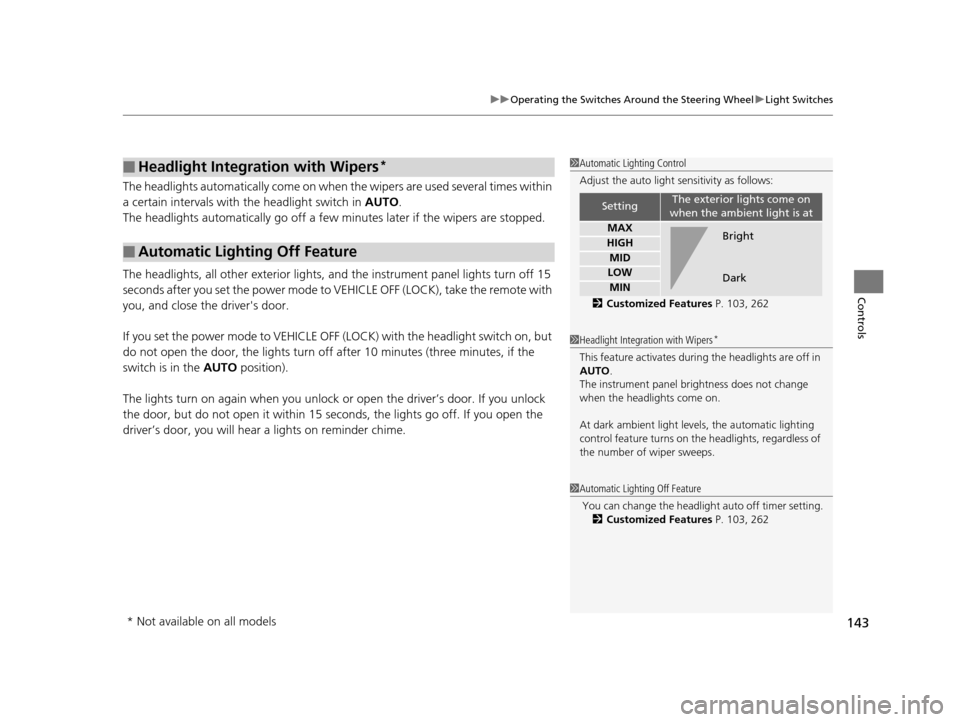
1 Automatic Lighting Control
Adjust the auto light sensitivity as follows:
2 Customized Features P. 103, 262
SettingThe exterior lights come on
when the ambient light is at
MAX
HIGH
MID
LOW
MIN
Bright
Dark
1 Headlight Integration with Wipers*
This feature activates during the headlights are off in
AUTO .
The instrument panel br ightness does not change
when the headlights come on.
At dark ambient light levels, the automatic lighting
control feature turns on the headlights, regardless of
the number of wiper sweeps.
1 Automatic Lighting Off Feature
You can change the headli ght auto off timer setting.
2 Customized Features P. 103, 262
* Not available on all models
17 ACURA RLX-31TY26300.book 143 ページ 2016年6月17日 金曜日 午前8時12分
Page 149 of 557

148
uuOperating the Switches Around the Steering Wheel uBrightness Control
Controls
Brightness Control
When the power mode is in ON, you can use
the
(+ or (- button to adjust instrument
panel brightness.
To brighten: Press the
(+ button.
To dim: Press the
(- button.
You will hear a beep when the brightness
reaches minimum or maximum. The multi-
information display will return to its original
state several seconds after you adjust the
brightness.
■Brightness level indicator
The brightness level is shown on the multi-
information display while you are adjusting it.
1 Brightness Control
Instrument panel brightne ss varies, depending on
whether the exterior lights are on or off. The
instrument panel dims to reduce glare when they are
on.
When it is bright out side and the headlight
integration with the wi per is activated, the
instrument panel bri ghtness does not change.
Pushing or rolling the right selector wheel changes to
a different display.
If you press the
( + button until the brightness display
is up to max, the beeper sounds. This cancels the
reduced instrument panel brightness when the
parking lights are on.
The brightness can be set differently for when the
exterior lights are on, and when they are off.
( + Button
(- Button
17 ACURA RLX-31TY26300.book 148 ページ 2016年6月17日 金曜日 午前8時12分
Page 153 of 557
152
uuOperating the Switches Around the Steering Wheel uAdjusting the Steering Wheel
Controls
Adjusting the Steering Wheel
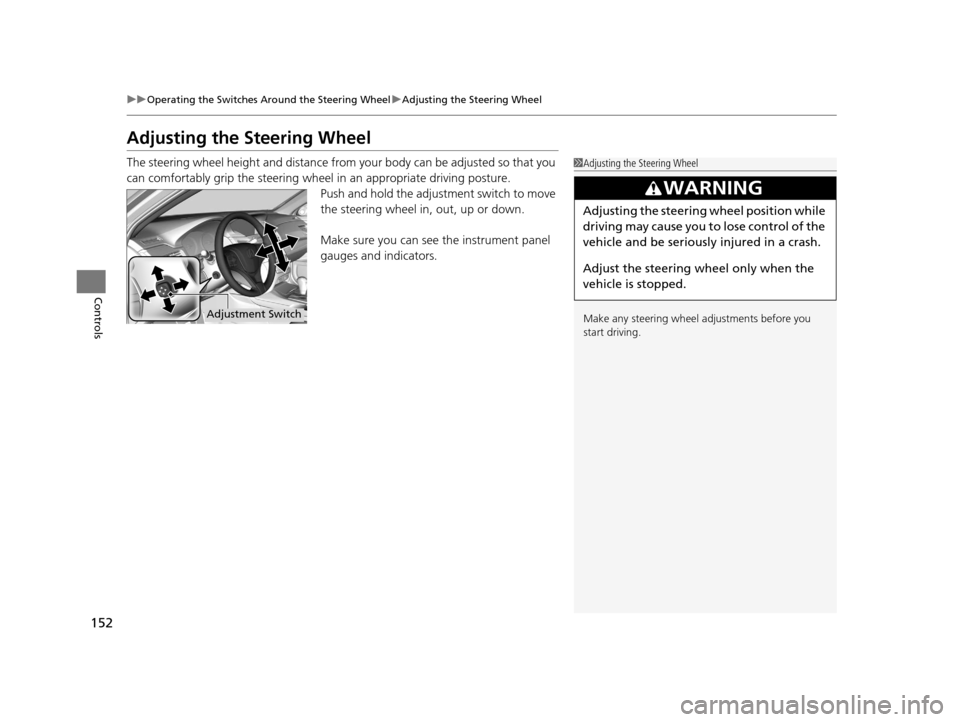
The steering wheel height and distance from your body can be adjusted so that you
can comfortably grip the steering wheel in an appropriate driving posture.
Push and hold the adjustment switch to move
the steering wheel in, out, up or down.
Make sure you can see the instrument panel
gauges and indicators.1Adjusting the Steering Wheel
Make any steering wheel adjustments before you
start driving.
3WARNING
Adjusting the steering wheel position while
driving may cause you to lose control of the
vehicle and be seriously injured in a crash.
Adjust the steering wheel only when the
vehicle is stopped.
Adjustment Switch
17 ACURA RLX-31TY26300.book 152 ページ 2016年6月17日 金曜日 午前8時12分
Page 205 of 557
uuAudio System Basic Operation uOn Demand Multi-Use DisplayTM
204
Features
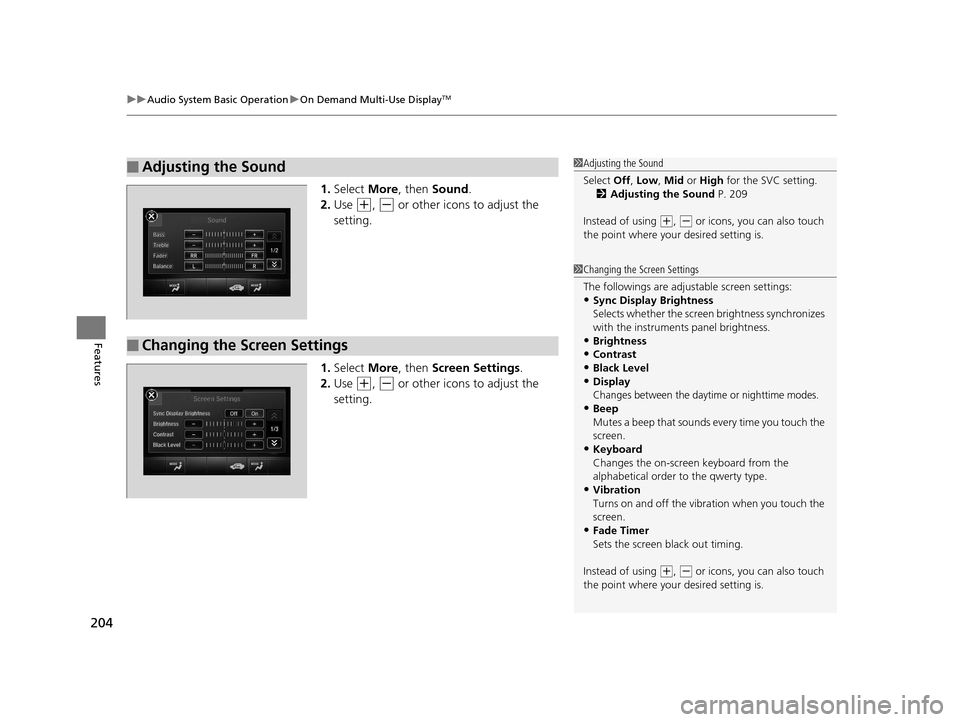
1. Select More, then Sound .
2. Use
(+, (- or other icons to adjust the
setting.
1. Select More, then Screen Settings .
2. Use
(+, (- or other icons to adjust the
setting.
■Adjusting the Sound1 Adjusting the Sound
Select Off, Low , Mid or High for the SVC setting.
2 Adjusting the Sound P. 209
Instead of using
( +, (- or icons, you can also touch
the point where your desired setting is.
■Changing the Screen Settings
1Changing the Screen Settings
The followings are adjustable screen settings:
•Sync Display Brightness
Selects whether the screen brightness synchronizes
with the instruments panel brightness.
•Brightness
•Contrast•Black Level
•Display
Changes between the daytime or nighttime modes.•Beep
Mutes a beep that sounds every time you touch the
screen.
•Keyboard
Changes the on-screen keyboard from the
alphabetical order to the qwerty type.
•Vibration
Turns on and off the vibration when you touch the
screen.
•Fade Timer
Sets the screen black out timing.
Instead of using
( +, (- or icons, you can also touch
the point where your desired setting is.
17 ACURA RLX-31TY26300.book 204 ページ 2016年6月17日 金曜日 午前8時12分
Page 273 of 557
272
uuCustomized Features u
Features
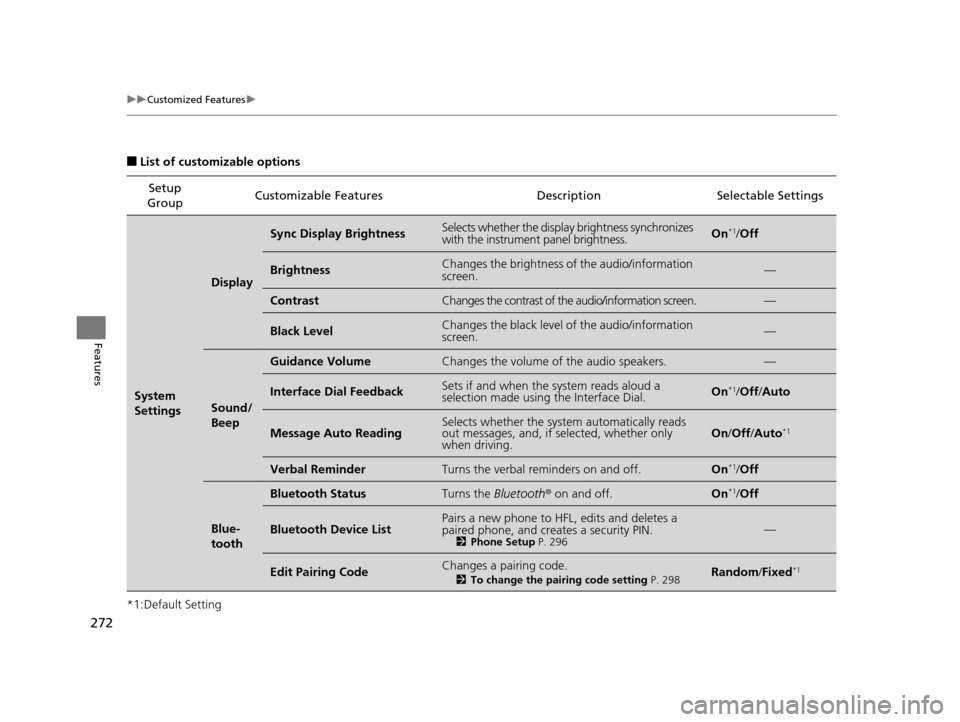
■List of customizable options
*1:Default Setting Setup
Group Customizable Features Descri
ption Selectable Settings
System
Settings
Display
Sync Display BrightnessSelects whether the display brightness synchronizes
with the instrument panel brightness.On*1/Off
BrightnessChanges the brightness of the audio/information
screen.—
ContrastChanges the contrast of th e audio/information screen.—
Black LevelChanges the black level of the audio/information
screen.—
Sound/
Beep
Guidance VolumeChanges the volume of the audio speakers.—
Interface Dial FeedbackSets if and when the system reads aloud a
selection made using the Interface Dial.On*1/Off /Auto
Message Auto ReadingSelects whether the system automatically reads
out messages, and, if selected, whether only
when driving.On /Off /Auto*1
Verbal ReminderTurns the verbal reminders on and off.On*1/Off
Blue-
tooth
Bluetooth StatusTurns the Bluetooth ® on and off.On*1/Off
Bluetooth Device ListPairs a new phone to HFL, edits and deletes a
paired phone, and creates a security PIN.
2 Phone Setup P. 296—
Edit Pairing CodeChanges a pairing code.
2To change the pairing code setting P. 298Random/Fixed*1
17 ACURA RLX-31TY26300.book 272 ページ 2016年6月17日 金曜日 午前8時12分
Page 357 of 557
356
uuWhen Driving uCruise Control*
Driving
Cruise Control*
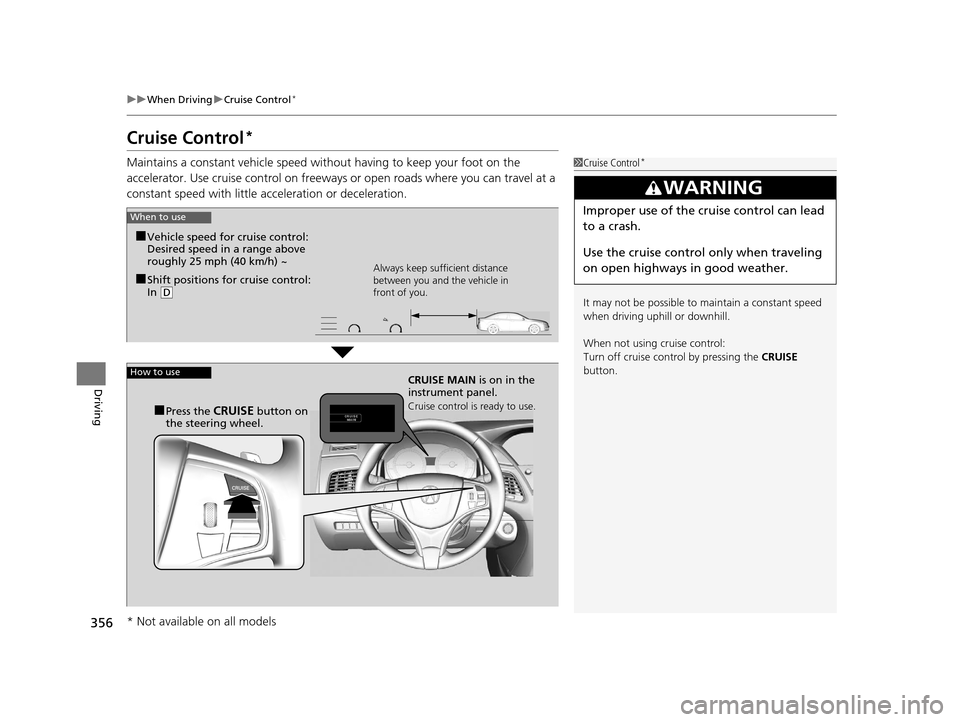
Maintains a constant vehicle speed without having to keep your foot on the
accelerator. Use cruise control on freeways or open roads where you can travel at a
constant speed with little acceleration or deceleration.1Cruise Control*
It may not be possible to maintain a constant speed
when driving uphill or downhill.
When not using cruise control:
Turn off cruise control by pressing the CRUISE
button.
3WARNING
Improper use of the cruise control can lead
to a crash.
Use the cruise control only when traveling
on open highways in good weather.When to use
■Shift positions for cruise control:
In ( D Always keep sufficient distance
between you and the vehicle in
front of you.
■Vehicle speed for cruise control:
Desired speed in a range above
roughly 25 mph (40 km/h) ~
How to useCRUISE MAIN
is on in the
instrument panel.
Cruise control is ready to use.■Press the CRUISE button on
the steering wheel.
* Not available on all models
17 ACURA RLX-31TY26300.book 356 ページ 2016年6月17日 金曜日 午前8時12分
Page 360 of 557
359
uuWhen Driving uFront Sensor Camera*
Continued
Driving
Front Sensor Camera*
The camera, used in systems such as LKAS, RDM, ACC with LSF, and CMBSTM, is
designed to detect an object that tri ggers any of the systems to operate its
functions.
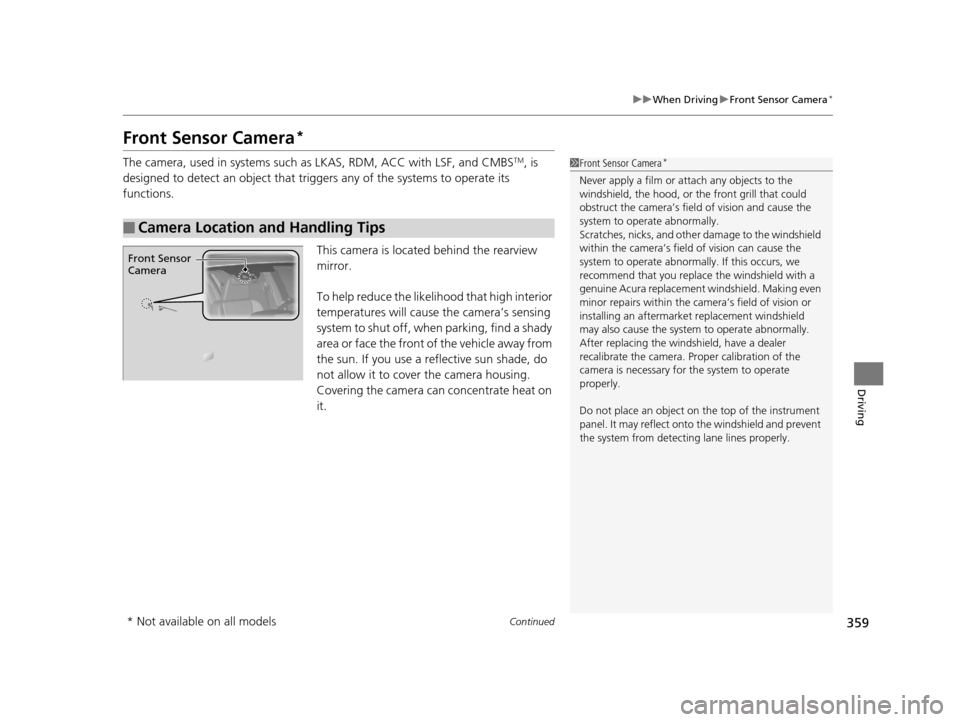
This camera is located behind the rearview
mirror.
To help reduce the likelihood that high interior
temperatures will cause the camera’s sensing
s y s t e m t o s h u t o f f , w h e n p a r k i n g , f i n d a s h a d y
area or face the front of the vehicle away from
the sun. If you use a reflective sun shade, do
not allow it to cover the camera housing.
Covering the camera can concentrate heat on
it.
■Camera Location and Handling Tips
1Front Sensor Camera*
Never apply a film or attach any objects to the
windshield, the hood, or the front grill that could
obstruct the camera’s fiel d of vision and cause the
system to operate abnormally.
Scratches, nicks, and othe r damage to the windshield
within the camera’s fiel d of vision can cause the
system to operate abnormall y. If this occurs, we
recommend that you replac e the windshield with a
genuine Acura replacement windshield. Making even
minor repairs within the ca mera’s field of vision or
installing an aftermarke t replacement windshield
may also cause the system to operate abnormally.
After replacing the winds hield, have a dealer
recalibrate the camera. Pr oper calibration of the
camera is necessary for the system to operate
properly.
Do not place an object on the top of the instrument
panel. It may reflect onto the windshield and prevent
the system from detecting lane lines properly.
Front Sensor
Camera
* Not available on all models
17 ACURA RLX-31TY26300.book 359 ページ 2016年6月17日 金曜日 午前8時12分
Page 363 of 557
uuWhen Driving uAdaptive Cruise Control (ACC) with Low Speed Follow (LSF)*
362
Driving
1Adaptive Cruise Control (ACC) with Low Speed Follow (LSF)*
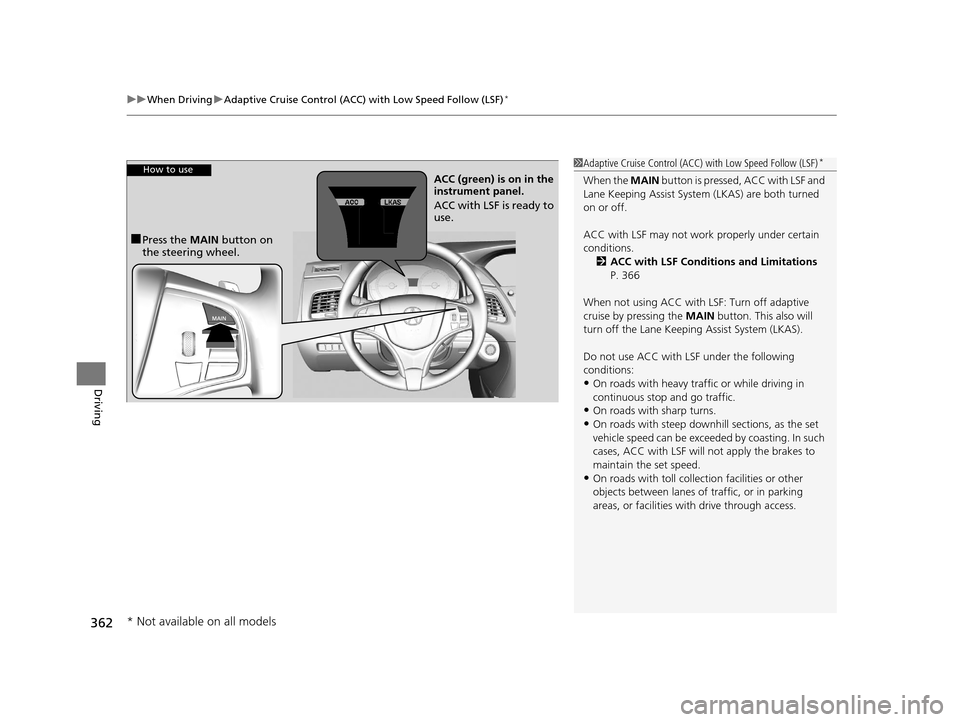
When the MAIN button is pressed, ACC with LSF and
Lane Keeping Assist System (LKAS) are both turned
on or off.
ACC with LSF may not work properly under certain
conditions. 2 ACC with LSF Conditions and Limitations
P. 366
When not using ACC with LSF: Turn off adaptive
cruise by pressing the MAIN button. This also will
turn off the Lane Keeping Assist System (LKAS).
Do not use ACC with LSF under the following
conditions:
•On roads with heavy traf fic or while driving in
continuous stop and go traffic.
•On roads with sharp turns.
•On roads with steep downhill sections, as the set
vehicle speed can be exceeded by coasting. In such
cases, ACC with LSF will not apply the brakes to
maintain the set speed.
•On roads with toll collection facilities or other
objects between lanes of traffic, or in parking
areas, or faci lities with driv e through access.
How to use
■Press the MAIN button on
the steering wheel. ACC (green) is on in the
instrument panel.
ACC with LSF is ready to
use.
* Not available on all models
17 ACURA RLX-31TY26300.book 362 ページ 2016年6月17日 金曜日 午前8時12分
Page 381 of 557
uuWhen Driving uLane Departure Warning (LDW)
380
Driving
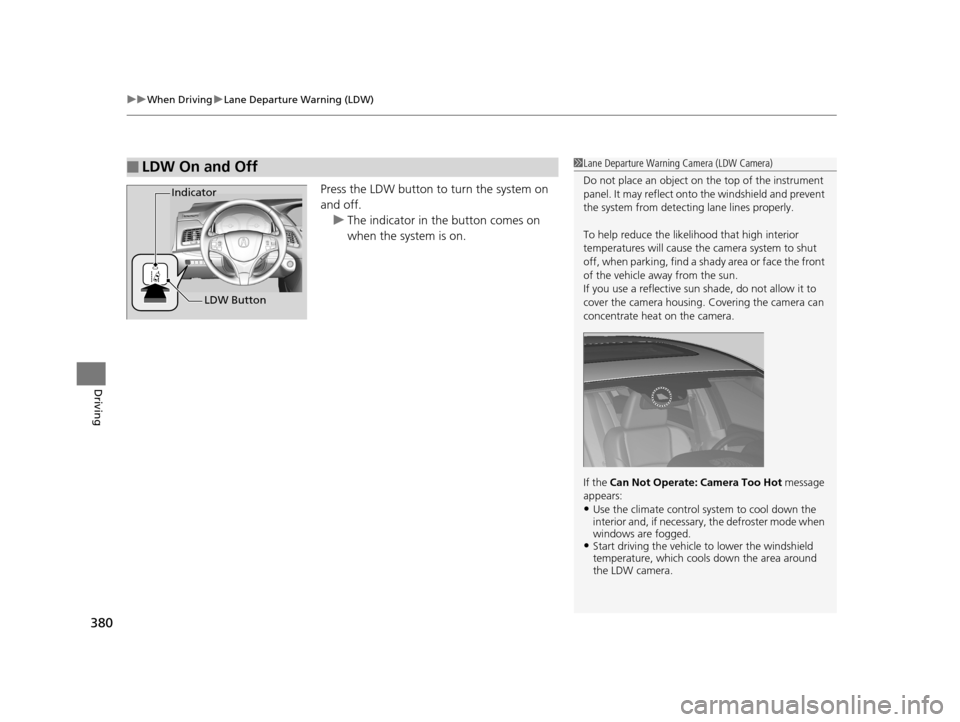
Press the LDW button to turn the system on
and off. u The indicator in the button comes on
when the system is on.
■LDW On and Off1Lane Departure Warning Camera (LDW Camera)
Do not place an object on the top of the instrument
panel. It may reflect onto the windshield and prevent
the system from detecting lane lines properly.
To help reduce the likel ihood that high interior
temperatures will cause the camera system to shut
off, when parking, find a sh ady area or face the front
of the vehicle away from the sun.
If you use a reflective sun shade, do not allow it to
cover the camera housing. Covering the camera can
concentrate heat on the camera.
If the Can Not Operate: Camera Too Hot message
appears:
•Use the climate control system to cool down the
interior and, if necessary , the defroster mode when
windows are fogged.
•Start driving the vehicle to lower the windshield
temperature, which cool s down the area around
the LDW camera.
LDW Button
Indicator
17 ACURA RLX-31TY26300.book 380 ページ 2016年6月17日 金曜日 午前8時12分