wheel Acura RLX 2017 Manual Online
[x] Cancel search | Manufacturer: ACURA, Model Year: 2017, Model line: RLX, Model: Acura RLX 2017Pages: 557, PDF Size: 37.97 MB
Page 427 of 557

426
Driving
Multi-View Rear Camera*
About Your Multi-View Rear Camera
The audio/information screen can display your vehicle’s rear view. The display
automatically changes to the rear view when the shift lever is moved to
(R.
You can view three different camera angl es on the rearview display. Press the
interface dial to switch the angle.
If Top View is last used before you turn the power mode to OFF, Wide mode is
selected next time you turn the pow er on and move the shift lever to
(R.
■Multi-View Rear Camera Display Area
1About Your Multi-View Rear Camera
The rear camera view is restricted. You cannot see
the corner ends of the bum per or what is underneath
the bumper. Its unique le ns also makes objects
appear closer or farther than they actually are.
Visually confirm that it is safe to drive before backing
up. Certain conditions (such as weather, lighting, and
high temperatures) may also re strict the rear view. Do
not rely on the rearview display which does not give
you all information about conditions at the back of
your vehicle.
If the camera lens is cove red with dirt or moisture,
use a soft, moist cloth to keep the lens clean and free
of debris.
You can change the Fixed Guideline and Dynamic
Guideline settings. 2 Customized Features P. 262
Fixed Guideline
On : Guidelines appear when you shift into
(R.
Off : Guidelines do not appear when the dynamic
guideline is off.
Dynamic Guideline
On : Guidelines move according to the steering wheel
direction.
Off : Guidelines do not move.
Top Down View Mode Normal View Mode Wide View Mode
Guidelines
Bumper
Camera
Approx. 118 inches (3 m)Approx. 79 inches (2 m)Approx. 39 inches (1 m)
Approx. 20 inches (50 cm)
* Not available on all models
17 ACURA RLX-31TY26300.book 426 ページ 2016年6月17日 金曜日 午前8時12分
Page 431 of 557
uuSurround View Camera System*uDisplaying an Image From the Surround View Cameras
430
Driving
Following can be displayed when the system is on.
Guide lines: Help you to get a sense of a distance between your vehicle and the
rear surroundings. The distan ce may appear differently than the actual distance.
Projection lines: Indicate vehicle direction while the steering wheel is in the current
position.
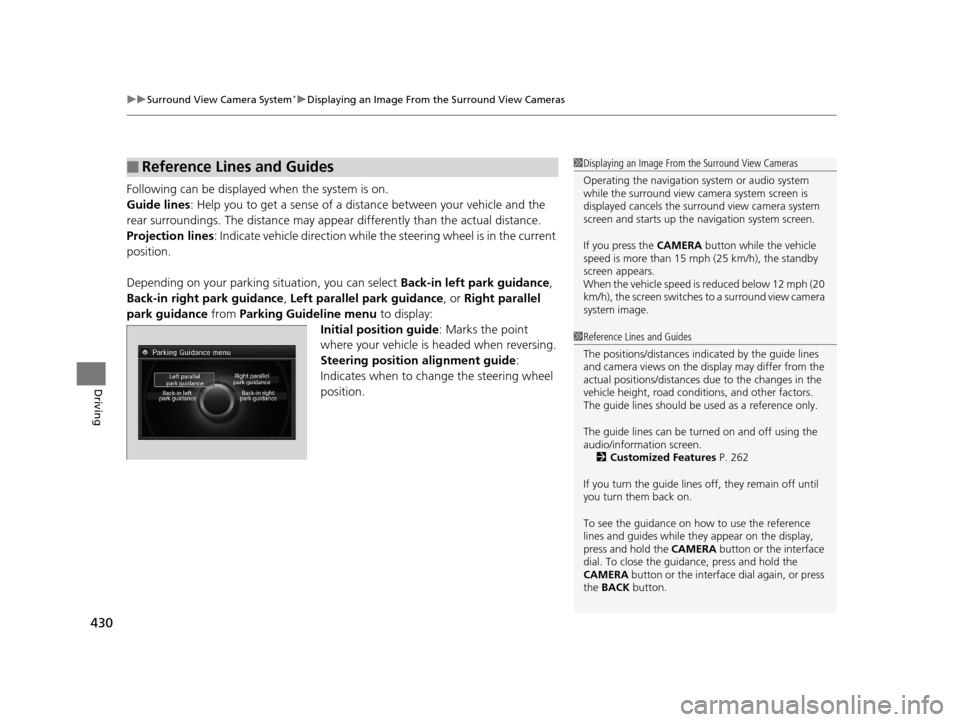
Depending on your parking situation, you can select Back-in left park guidance,
Back-in right park guidance , Left parallel park guidance , or Right parallel
park guidance from Parking Guideline menu to display:
Initial position guide : Marks the point
where your vehicle is headed when reversing.
Steering position alignment guide :
Indicates when to change the steering wheel
position.
■Reference Lines and Guides1 Displaying an Image From the Surround View Cameras
Operating the navigation system or audio system
while the surround view camera system screen is
displayed cancels the surr ound view camera system
screen and starts up the navigation system screen.
If you press the CAMERA button while the vehicle
speed is more than 15 mph (25 km/h), the standby
screen appears.
When the vehicle speed is reduced below 12 mph (20
km/h), the screen switches to a surround view camera
system image.
1 Reference Lines and Guides
The positions/distances indi cated by the guide lines
and camera views on the display may differ from the
actual positions/distances due to the changes in the
vehicle height, road conditions, and other factors.
The guide lines should be used as a reference only.
The guide lines can be tu rned on and off using the
audio/information screen. 2 Customized Features P. 262
If you turn the guide lines off, they remain off until
you turn them back on.
To see the guidance on how to use the reference
lines and guides while they appear on the display,
press and hold the CAMERA button or the interface
dial. To close the guidance, press and hold the
CAMERA button or the interface dial again, or press
the BACK button.
17 ACURA RLX-31TY26300.book 430 ページ 2016年6月17日 金曜日 午前8時12分
Page 432 of 557

431
uuSurround View Camera System*uWhen Parking Your Vehicle
Continued
Driving
When Parking Your Vehicle
The display automatically changes to the rear view when the shift lever is moved to
(R.
■Checking for Obstacles at the Back of Your Vehicle1When Parking Your Vehicle
The ground view can be disp layed even with the door
mirrors folded. However, the viewable angle and
blind spot change.
Do not refer to the surround view camera system
when the door mirrors are folded.
Folded
Not folded
Rear Wide View
Rear Normal View Rear Ground View
When the
steering wheel is
turned more
than 90 degrees.
The projection lines
appear approx. 10
inches (25 cm) outside
the vehicle body.
Blind spots
appear in
black.
Press the CAMERA
button.
Approximate distances
the guide lines indicate
Approximate distances the
projection lines indicate 39 inches (1 m)
79 inches (2 m)
118 inches
(3 m)
20 inches
(50 cm)
118 inches
(3 m)
1
Checking for Obstacles at the Back of Your Vehicle
When moving the shift lever from/to
(R, you may
experience a delay in sw itching between the audio/
information screen and a rear view image.
17 ACURA RLX-31TY26300.book 431 ページ 2016年6月17日 金曜日 午前8時12分
Page 433 of 557

uuSurround View Camera System*uWhen Parking Your Vehicle
432
Driving1. With your vehicle at a complete stop, press the CAMERA button, then press the
MENU button. Rotate to select Back- in left park guidance or Back-in right
park guidance . Press .
2. Move the vehicle forward perpendicular to the parking space and stop where the
initial positioning guide in the display is at the center of the parking space.
3. Turn the steering wheel fully to the left (if the parking space is on the passenger
side) at a stop.
u The steering position alignment guide is displayed.
4. Slowly move the vehicle forward.
u
Stop the vehicle when the steering position alignment guide enters the parking space.
5. Turn the steering wheel fully to the right (if the parking space is on the passenger
side) at a stop. Start reve rsing the vehicle slowly.
6. Stop the vehicle when it is parallel to the parking lines.
7. Return the steering wheel to its center po sition, then reverse the vehicle slowly
until it is parked within the space.
■Reversing into a Parking Space Marked with Parking Lines1 Reversing into a Parking Space Marked with Parking Lines
If the steering position ali gnment guide does not fit in
the parking lines, the parking space is too small for
the vehicle.
Reference lines can be usef ul only when the parking
space is in a rectangular shape with straight parking
marks and when vehicles in the next parking spaces
are within the spaces.
Must be wider than approx. 8 feet (2.5 m)
The initial positioning
guide must come here.
Must be wider than approx. 20 feet (6 m) Make sure the guides
are within the parking
space when reversing.Initial
Positioning
Guide
Steering Position
Alignment Guide
A
B
C
Steering position alignment
guide enters the parking
space. (Step 4)
17 ACURA RLX-31TY26300.book 432 ページ 2016年6月17日 金曜日 午前8時12分
Page 434 of 557

Continued433
uuSurround View Camera System*uWhen Parking Your Vehicle
Driving1. Press the CAMERA button, then press the MENU button. Rotate to select
Left parallel park guidance or Right Parallel park guidance. Press .
2. Move the vehicle forward parallel to the parking space and stop when the initial
positioning guide shown in the display overlaps the front corner of the space.
3. Turn the steering wheel fully to the right (if the parking space is on the passenger
side) at a stop.
u The steering position alig nment guide is displayed.
4. Slowly reverse the vehicle.
u Stop the vehicle when the steering position alignment guide overlaps the
sideline of the parking space.
5. Turn the steering wheel fully to the left (if the parking space is on the passenger
side) at a stop. Revers e the vehicle slowly.
6. Stop the vehicle when it is parallel to the parking lines.
7. Return the steering wheel to its center pos ition, then reverse the vehicle slowly
until it is parked within the space.
■Parallel Parking into a Parking Space Marked with Parking Lines1Parallel Parking into a Parking Space Marked with Parking Lines
Reference lines can be usef ul only when the parking
space is in a rectangular shape with straight parking
marks and when vehicles in the next parking spaces
are within the spaces.
Initial
Positioning
Guide
Steering Position
Alignment Guide
Must be wider than approx. 20 feet (6 m)
Must be
wider than
approx. 8
feet (2.5 m)
Must be longer than approx. 21 feet (6.5 m)
A B
C
Initial
positioning
guide
overlaps the
front corner
of the space.
(Step 2)
17 ACURA RLX-31TY26300.book 433 ページ 2016年6月17日 金曜日 午前8時12分
Page 435 of 557

uuSurround View Camera System*uWhen Parking Your Vehicle
434
Driving
You can display the front ground view screen using all the four cameras for the
system. Pressing the CAMERA button when the vehicle speed is at below 12 mph
(20 km/h) changes the image as follows.
■Checking for the Sides of Your Vehicle1 Checking for the Sides of Your Vehicle
When the vehicle speed exceeds 15 mph (25 km/h),
the front or side view on the screen automatically
switches to the audio information screen. The front
or side view screen resumes when the vehicle speed
is reduced below 12 mph (20 km/h).
0 mph (0 km/h)
Down Up Camera
Screen
Camera
Screen
Audio/information
Screen
Audio/information
Screen 15 mph (25 km/h)
0 mph (0 km/h) 12 mph (20 km/h)
Side
View Front Wide View Front Ground View
Press and hold the
CAMERA button.
A Combined Image of
Both Side Views
Approximate distance
the reference line
indicates. Blind spots
appear in black.
Projection lines
appear.
Press the CAMERA
button.
When the
steering wheel
is turned.
approx. 3 feet (1 m)
17 ACURA RLX-31TY26300.book 434 ページ 2016年6月17日 金曜日 午前8時12分
Page 442 of 557
441
Maintenance
This chapter discusses basic maintenance.
Before Performing MaintenanceInspection and Maintenance ............ 442
Safety When Performing Maintenance..... 443Parts and Fluids Used in Maintenance Service ........................................... 444
Maintenance Minder
TM..................... 445
Maintenance Under the Hood
Maintenance Items Under the Hood ..... 450Opening the Hood ........................... 451
Engine Compartment Cover ............. 452
Recommended Engine Oil ................ 453
Oil Check ......................................... 454
Adding Engine Oil ............................ 455
Changing the Engine Oil and Oil Filter ..... 456Engine Coolant ................................ 458
Transmission Fluid ............................ 460
Brake Fluid ....................................... 461
Refilling Window Washer Fluid......... 461
Replacing Light Bulbs ....................... 462
Checking and Maintaining Wiper
Blades .......................................... 468
Checking and Maintaining Tires
Checking Tires ................................. 471
Tire and Loading Information Label ...... 472Tire Labeling .................................... 472DOT Tire Quality Grading (U.S. Vehicles)....... 474
Wear Indicators ............................... 476
Tire Service Life ................................ 476
Tire and Wheel Replacement ........... 477
Tire Rotation .................................... 478
Winter Tires ..................................... 479
Battery ............................................... 480
Remote Transmitter Care Replacing the Button Battery ........... 481
Climate Control System Maintenance.... 483Cleaning
Interior Care .................................... 484
Exterior Care.................................... 486
Accessories and Modifications................ 488
17 ACURA RLX-31TY26300.book 441 ページ 2016年6月17日 金曜日 午前8時12分
Page 447 of 557

446
uuMaintenance MinderTMuTo Use Maintenance MinderTM
Maintenance
To Use Maintenance MinderTM
Maintenance items, which should be serviced at the same time that you replace the
engine oil, appear on the multi-information display.
You can view them on the engine oil life screen at any time.
1. Set the power mode to ON.
2. Roll the right selector wheel until the engine oil life appears on the multi-
information display.
■Displaying the Engine Oil Life and Maintenance Items1 Displaying the Engine Oil Life and Maintenance Items
Based on the engine ope rating conditions, the
remaining engine oi l life is calculated and displayed
as a percentage.
Displayed Engine Oil
Life (%)Calculated Engine Oil Life (%)
100 100 to 91
9090 to 81
80 80 to 71
7070 to 61
60 60 to 51
5050 to 41
40 40 to 31
3030 to 21
20 20 to 16
1515 to 11
10 10 to 6
55 to 1
0 0
Remaining Engine Oil Life
Maintenance Service Items
Right Selector Wheel
17 ACURA RLX-31TY26300.book 446 ページ 2016年6月17日 金曜日 午前8時12分
Page 448 of 557
447
uuMaintenance MinderTMuTo Use Maintenance MinderTM
Continued
Maintenance
The system message indicator ( ) comes on along with the Maintenance Minder message.
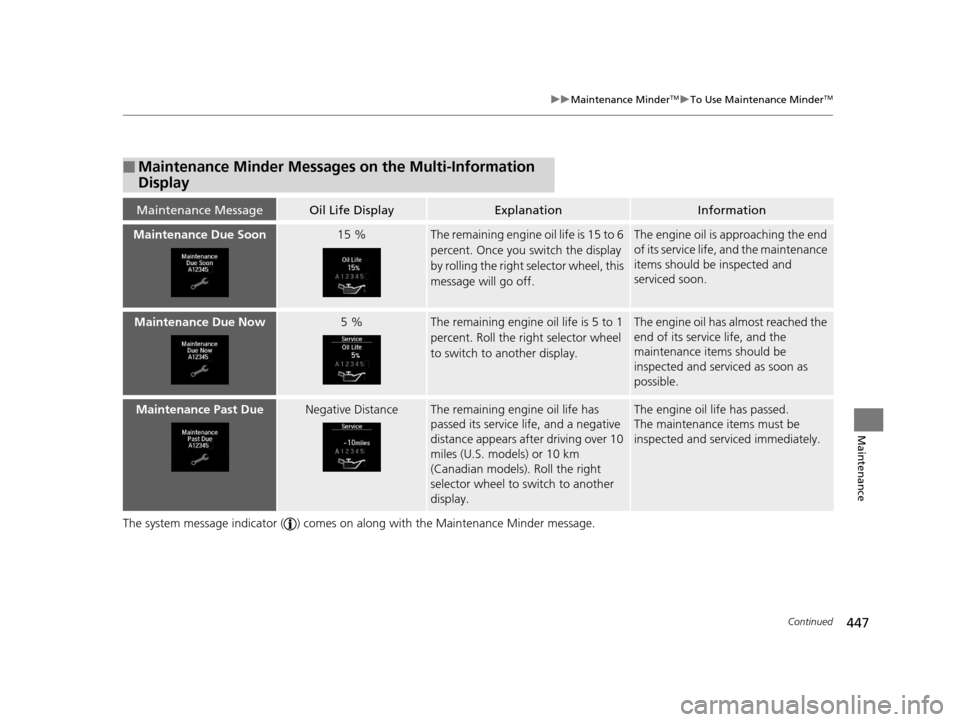
■Maintenance Minder Messages on the Multi-Information
Display
Maintenance MessageOil Life DisplayExplanationInformation
Maintenance Due Soon15 %The remaining engine oil life is 15 to 6
percent. Once you switch the display
by rolling the right selector wheel, this
message will go off.The engine oil is approaching the end
of its service life, and the maintenance
items should be inspected and
serviced soon.
Maintenance Due Now5 %The remaining engine oil life is 5 to 1
percent. Roll the right selector wheel
to switch to another display.The engine oil has almost reached the
end of its service life, and the
maintenance items should be
inspected and serviced as soon as
possible.
Maintenance Past DueNegative DistanceThe remaining engine oil life has
passed its service life, and a negative
distance appears after driving over 10
miles (U.S. models) or 10 km
(Canadian models). Roll the right
selector wheel to switch to another
display.The engine oil life has passed.
The maintenance items must be
inspected and serviced immediately.
17 ACURA RLX-31TY26300.book 447 ページ 2016年6月17日 金曜日 午前8時12分
Page 450 of 557
449
uuMaintenance MinderTMuTo Use Maintenance MinderTM
Maintenance
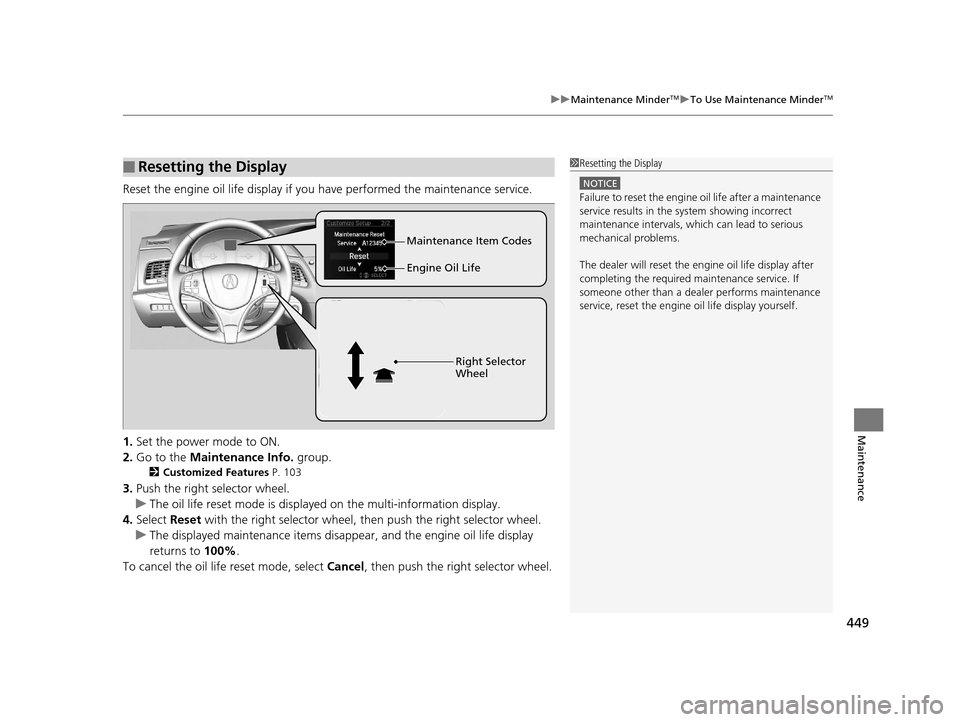
Reset the engine oil life display if you have performed the maintenance service.
1. Set the power mode to ON.
2. Go to the Maintenance Info. group.
2Customized Features P. 103
3.Push the right selector wheel.
u The oil life reset mode is displayed on the multi-information display.
4. Select Reset with the right selector wheel, th en push the right selector wheel.
u The displayed maintenance items disapp ear, and the engine oil life display
returns to 100%.
To cancel the oil life reset mode, select Cancel, then push the right selector wheel.
■Resetting the Display1Resetting the Display
NOTICE
Failure to reset the engine oil life after a maintenance
service results in the sy stem showing incorrect
maintenance intervals, which can lead to serious
mechanical problems.
The dealer will reset the en gine oil life display after
completing the required ma intenance service. If
someone other than a deal er performs maintenance
service, reset the engine oil life display yourself.
Engine Oil Life Maintenance Item Codes
Right Selector
Wheel
17 ACURA RLX-31TY26300.book 449 ページ 2016年6月17日 金曜日 午前8時12分