adjust Acura TLX 2015 User Guide
[x] Cancel search | Manufacturer: ACURA, Model Year: 2015, Model line: TLX, Model: Acura TLX 2015Pages: 75, PDF Size: 24.55 MB
Page 26 of 75
44 || 45
AUDIO AND CONNECTIVITY
AUDIO AND CONNECTIVITY
TABLE OF
CONTENTS
INDEX
VISUAL INDEX
VOICE COMMAND INDEX
SAFETY
INFORMATION
CLIENT
INFORMATION
INSTRUMENT PANEL
SPECIFICATIONS
VEHICLE
CONTROLS
MAINTENANCE
AUDIO AND
CONNECTIVITY
HANDLING THE UNEXPECTED
BLUETOOTH®
HANDSFREELINK®
DRIVING
ACURALINK®
NAVIGATION
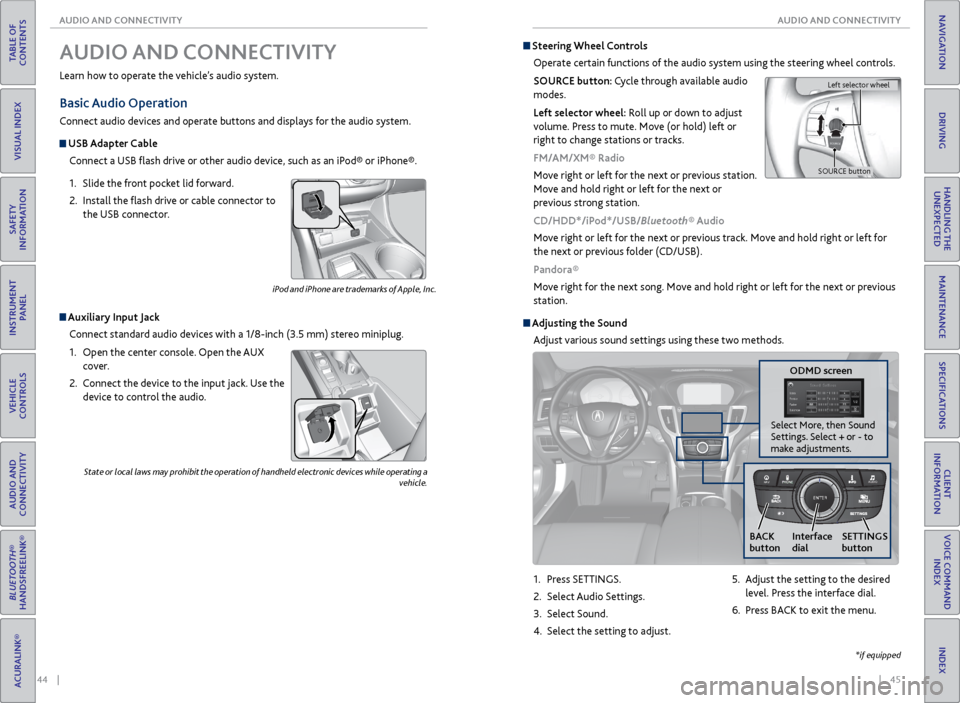
1. Press SETTINGS.
2. Select Audio Settings.
3. Select Sound.
4. Select the setting to adjust.
Steering Wheel Controls
Operate certain functions of the audio system using the steering wheel controls.
SOURCE button: Cycle through available audio
modes.
Left selector wheel: Roll up or down to adjust
volume. Press to mute. Move (or hold) left or
right to change stations or tracks.
FM/AM/XM® Radio
Move right or left for the next or previous station.
Move and hold right or left for the next or
previous strong station.
CD/HDD*/iPod*/USB/Bluetooth® Audio
Move right or left for the next or previous track. Move and hold right or left for
the next or previous folder (CD/USB).
Pandora®
Move right for the next song. Move and hold right or left for the next or previous
station.
Adjusting the Sound
Adjust various sound settings using these two methods.
Left selector wheel
SOURCE button
*if equipped
ODMD screen
NAVAUDI OAUDIONAV
SETTINGS
button
BACK
button Interface
dial
Select More, then Sound
Settings. Select + or - to
make adjustments.
5.
Adjust the setting to the desired
level. Press the interface dial.
6. Press BACK to exit the menu.
State or local laws may prohibit the operation of handheld electronic devices while operating a
vehicle.
AUDIO AND CONNECTIVITY
Learn how to operate the vehicle’s audio system.
Basic Audio Operation
Connect audio devices and operate buttons and displays for the audio system.
USB Adapter Cable
Connect a USB flash drive or other audio device, such as an iPod® or iPhone®.
1. Slide the front pocket lid forward.
2. Install the flash drive or cable connector to
the USB connector.
Auxiliary Input Jack
Connect standard audio devices with a 1/8-inch (3.5 mm) stereo miniplug.
1. Open the center console. Open the AUX
cover.
2. Connect the device to the input jack. Use the
device to control the audio.
iPod and iPhone are trademarks of Apple, Inc.
Page 27 of 75
46 || 47
AUDIO AND CONNECTIVITY
AUDIO AND CONNECTIVITY
TABLE OF
CONTENTS
INDEX
VISUAL INDEX
VOICE COMMAND INDEX
SAFETY
INFORMATION
CLIENT
INFORMATION
INSTRUMENT PANEL
SPECIFICATIONS
VEHICLE
CONTROLS
MAINTENANCE
AUDIO AND
CONNECTIVITY
HANDLING THE UNEXPECTED
BLUETOOTH®
HANDSFREELINK®
DRIVING
ACURALINK®
NAVIGATION
NAVAUDI OAUDIONAV
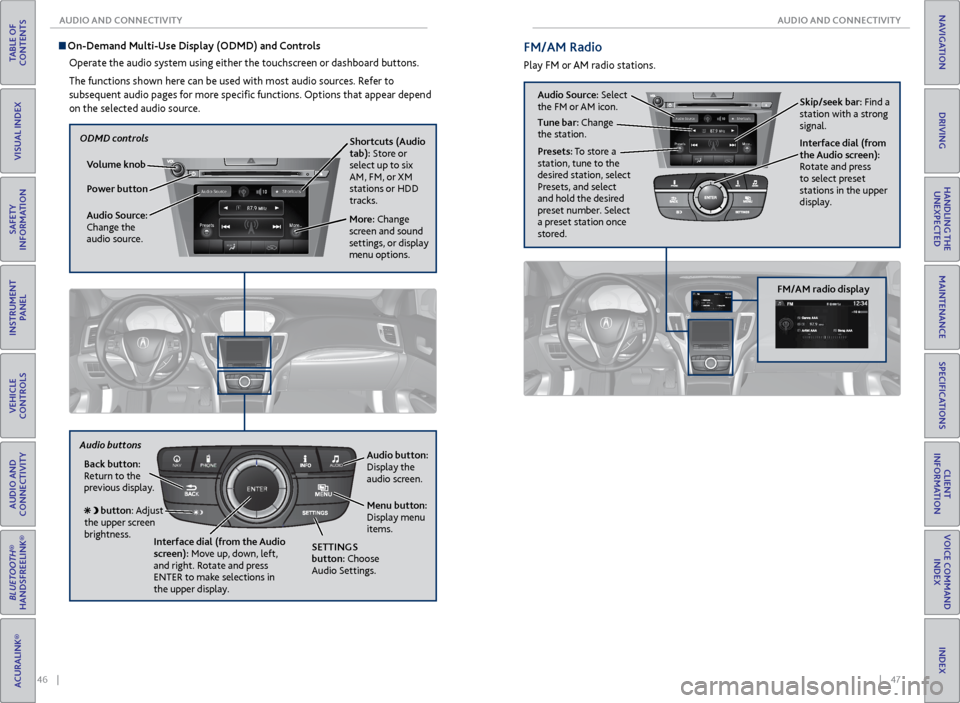
On-Demand Multi-Use Display (ODMD) and Controls
Operate the audio system using either the touchscreen or dashboard buttons.
The functions shown here can be used with most audio sources. Refer to
subsequent audio pages for more specific functions. Options that appear depend
on the selected audio source.
Power button Shortcuts (Audio
tab): Store or
select up to six
AM, FM, or XM
stations or HDD
tracks.
More: Change
screen and sound
settings, or display
menu options.
Volume knob
Audio Source:
Change the
audio source.
Back button:
Return to the
previous display.
Audio button:
Display the
audio screen.
Menu button:
Display menu
items.
Interface dial (from the Audio
screen): Move up, down, left,
and right. Rotate and press
ENTER to make selections in
the upper display.
button: Adjust
the upper screen
brightness.
Audio buttons
SETTINGS
button: Choose
Audio Settings.
ODMD controls
Audio Source: Select
the FM or AM icon. Skip/seek bar: Find a
station with a strong
signal.
Tune bar: Change
the station.
Presets: To store a
station, tune to the
desired station, select
Presets, and select
and hold the desired
preset number. Select
a preset station once
stored. Interface dial (from
the Audio screen):
Rotate and press
to select preset
stations in the upper
display.
FM/AM Radio
Play FM or AM radio stations.
FM/AM radio display
Page 29 of 75
50 || 51
AUDIO AND CONNECTIVITY
AUDIO AND CONNECTIVITY
TABLE OF
CONTENTS
INDEX
VISUAL INDEX
VOICE COMMAND INDEX
SAFETY
INFORMATION
CLIENT
INFORMATION
INSTRUMENT PANEL
SPECIFICATIONS
VEHICLE
CONTROLS
MAINTENANCE
AUDIO AND
CONNECTIVITY
HANDLING THE UNEXPECTED
BLUETOOTH®
HANDSFREELINK®
DRIVING
ACURALINK®
NAVIGATION
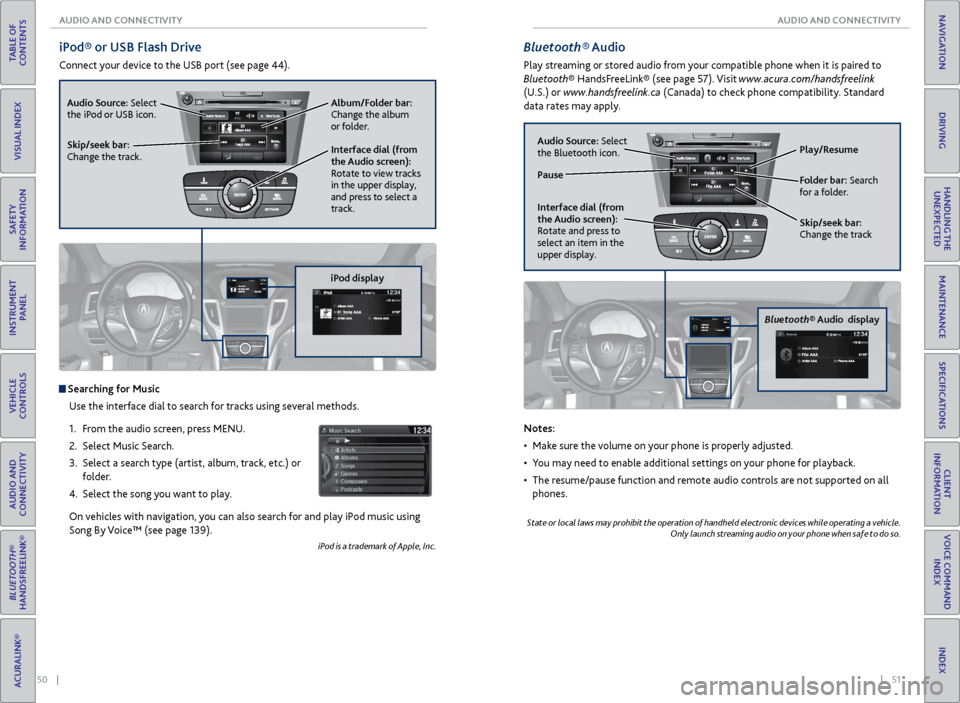
iPod® or USB Flash Drive
Connect your device to the USB port (see page 44).
Album/Folder bar:
Change the album
or folder.
Skip/seek bar:
Change the track. Audio Source: Select
the iPod or USB icon.
Interface dial (from
the Audio screen):
Rotate to view tracks
in the upper display,
and press to select a
track.
Searching for MusicUse the interface dial to search for tracks using several methods.
1. From the audio screen, press MENU.
2. Select Music Search.
3. Select a search type (artist, album, track, etc.) or
folder.
4. Select the song you want to play.
On vehicles with navigation, you can also search for and play iPod music using
Song By Voice™ (see page 139).
iPod is a trademark of Apple, Inc.
iPod display
Bluetooth® Audio
Play streaming or stored audio from your compatible phone when it is paired to
Bluetooth® HandsFreeLink® (see page 57). Visit www.acura.com/handsfreelink
(U.S.) or www.handsfreelink.ca (Canada) to check phone compatibility. Standard
data rates may apply.
Bluetooth® Audio display Play/Resume
Folder bar: Search
for a folder.
Skip/seek bar:
Change the track
Interface dial (from
the Audio screen):
Rotate and press to
select an item in the
upper display. Audio Source:
Select
the Bluetooth icon.
Pause
Notes:
• Make sure the volume on your phone is properly adjusted.
• You may need to enable additional settings on your phone for playback.
• The resume/pause function and remote audio controls are not supported on all
phones.
State or local laws may prohibit the operation of handheld electronic devices while operating a vehicle. Only launch streaming audio on your phone when safe to do so.
Page 31 of 75
| 55
TABLE OF
CONTENTS
INDEX
VISUAL INDEX
VOICE COMMAND INDEX
SAFETY
INFORMATION
CLIENT
INFORMATION
INSTRUMENT PANEL
SPECIFICATIONS
VEHICLE
CONTROLS
MAINTENANCE
AUDIO AND
CONNECTIVITY
HANDLING THE UNEXPECTED
BLUETOOTH®
HANDSFREELINK®
DRIVING
ACURALINK®
NAVIGATION
54 | AUDIO AND CONNECTIVITY
TABLE OF
CONTENTS
INDEX
VISUAL INDEX
VOICE COMMAND INDEX
SAFETY
INFORMATION
CLIENT
INFORMATION
INSTRUMENT PANEL
SPECIFICATIONS
VEHICLE
CONTROLS
MAINTENANCE
AUDIO AND
CONNECTIVITY
HANDLING THE UNEXPECTED
BLUETOOTH®
HANDSFREELINK®
DRIVING
ACURALINK®
NAVIGATION
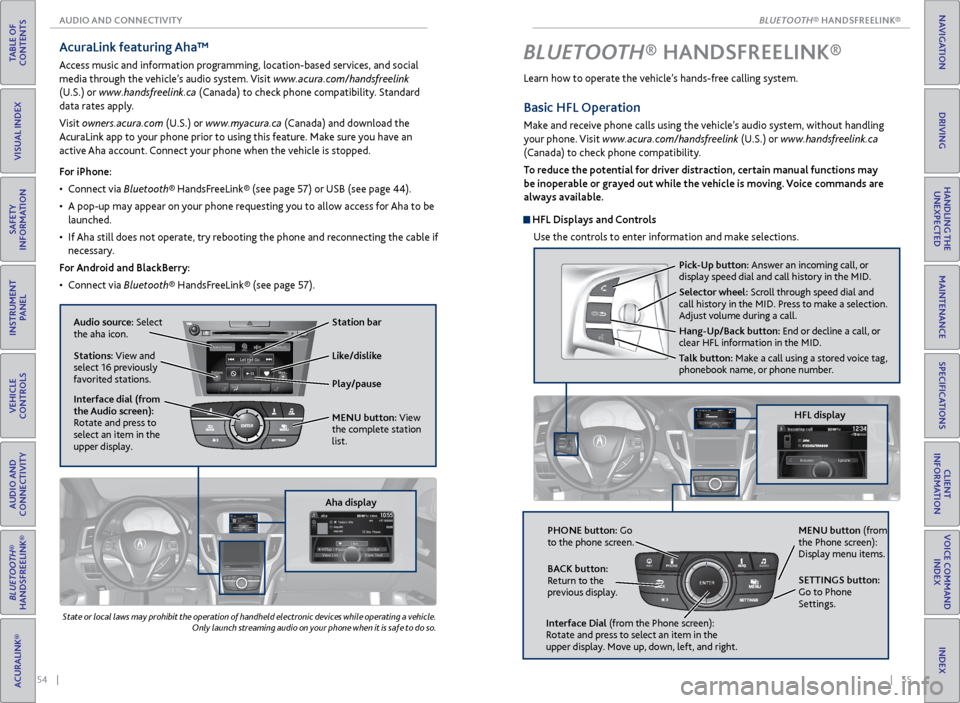
AcuraLink featuring Aha™
Access music and information programming, location-based services, and social
media through the vehicle’s audio system. Visit www.acura.com/handsfreelink
(U.S.) or www.handsfreelink.ca (Canada) to check phone compatibility. Standard
data rates apply.
Visit owners.acura.com (U.S.) or www.myacura.ca (Canada) and download the
AcuraLink app to your phone prior to using this feature. Make sure you have an
active Aha account. Connect your phone when the vehicle is stopped.
Play/pause
State or local laws may prohibit the operation of handheld electronic devices while operating a vehicle. Only launch streaming audio on your phone when it is safe to do so.
For iPhone:
• Connect via Bluetooth® HandsFreeLink® (see page 57) or USB (see page 44).
• A pop-up may appear on your phone requesting you to allow access for Aha to be
launched.
• If Aha still does not operate, try rebooting the phone and reconnecting the cable if
necessary.
For Android and BlackBerry:
• Connect via Bluetooth® HandsFreeLink® (see page 57).
Audio source: Select
the aha icon. Station bar
Like/dislike
Stations: View and
select 16 previously
favorited stations.
Interface dial (from
the Audio screen):
Rotate and press to
select an item in the
upper display. MENU button:
View
the complete station
list.
Aha display
NAVAUDI OAUDIONAV
BLUETOOTH® HANDSFREELINK ®
Learn how to operate the vehicle’s hands-free calling system.
HFL display
Pick-Up button: Answer an incoming call, or
display speed dial and call history in the MID.
Selector wheel: Scroll through speed dial and
call history in the MID. Press to make a selection.
Adjust volume during a call.
Hang-Up/Back button: End or decline a call, or
clear HFL information in the MID.
Talk button: Make a call using a stored voice tag,
phonebook name, or phone number.
PHONE button: Go
to the phone screen.
BACK button:
Return to the
previous display.
Interface Dial (from the Phone screen):
Rotate and press to select an item in the
upper display. Move up, down, left, and right. MENU button (from
the Phone screen):
Display menu items.
SETTINGS button:
Go to Phone
Settings.
Basic HFL Operation
Make and receive phone calls using the vehicle’s audio system, without handling
your phone. Visit www.acura.com/handsfreelink (U.S.) or www.handsfreelink.ca
(Canada) to check phone compatibility.
To reduce the potential for driver distraction, certain manual functions may
be inoperable or grayed out while the vehicle is moving. Voice commands are
always available.
HFL Displays and Controls
Use the controls to enter information and make selections.
BLUETOOTH
Page 32 of 75
56 || 57
TABLE OF
CONTENTS
INDEX
VISUAL INDEX
VOICE COMMAND INDEX
SAFETY
INFORMATION
CLIENT
INFORMATION
INSTRUMENT PANEL
SPECIFICATIONS
VEHICLE
CONTROLS
MAINTENANCE
AUDIO AND
CONNECTIVITY
HANDLING THE UNEXPECTED
BLUETOOTH®
HANDSFREELINK®
DRIVING
ACURALINK®
NAVIGATION
Voice Command Tips
• When using the Talk button, wait for a beep before saying a command.
• To bypass the system prompts, simply press the Talk button again to say your
command.
• When the Talk button is pressed, all available voice commands are highlighted
in yellow.
• Speak in a clear, natural voice.
• Reduce all background noise.
• Adjust the dashboard and side vents away from the microphone in the ceiling.
Fan speed may be temporarily reduced during voice recognition operation.
• Close the windows and moonroof.
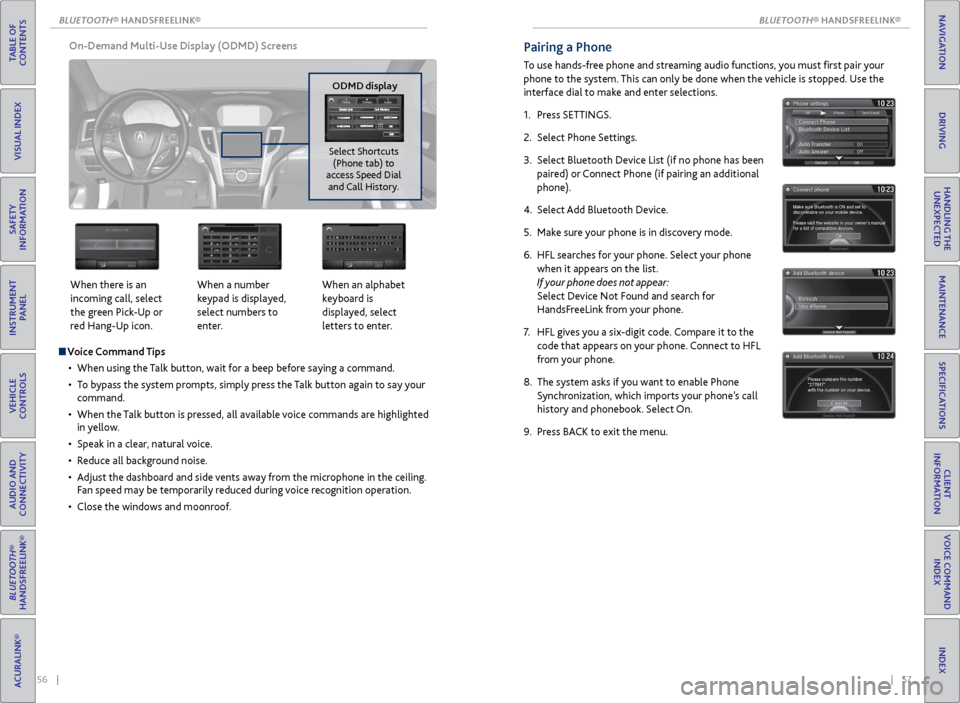
On-Demand Multi-Use Display (ODMD) Screens
When there is an
incoming call, select
the green Pick-Up or
red Hang-Up icon. When a number
keypad is displayed,
select numbers to
enter.When an alphabet
keyboard is
displayed, select
letters to enter.
ODMD display
Select Shortcuts (Phone tab) to
access Speed Dial and Call History.
Pairing a Phone
To use hands-free phone and streaming audio functions, you must first pair your
phone to the system. This can only be done when the vehicle is stopped. Use the
interface dial to make and enter selections.
1. Press SETTINGS.
2. Select Phone Settings.
3. Select Bluetooth Device List (if no phone has been
paired) or Connect Phone (if pairing an additional
phone).
4. Select Add Bluetooth Device.
5. Make sure your phone is in discovery mode.
6. HFL searches for your phone. Select your phone
when it appears on the list.
If your phone does not appear:
Select Device Not Found and search for
HandsFreeLink from your phone.
7. HFL gives you a six-digit code. Compare it to the
code that appears on your phone. Connect to HFL
from your phone.
8. The system asks if you want to enable Phone
Synchronization, which imports your phone’s call
history and phonebook. Select On.
9. Press BACK to exit the menu.
BLUETOOTH
Page 36 of 75
| 65
NAVIGATION
TABLE OF
CONTENTS
INDEX
VISUAL INDEX
VOICE COMMAND INDEX
SAFETY
INFORMATION
CLIENT
INFORMATION
INSTRUMENT PANEL
SPECIFICATIONS
VEHICLE
CONTROLS
MAINTENANCE
AUDIO AND
CONNECTIVITY
HANDLING THE UNEXPECTED
BLUETOOTH®
HANDSFREELINK®
DRIVING
ACURALINK®
NAVIGATION
64 |
TABLE OF
CONTENTS
INDEX
VISUAL INDEX
VOICE COMMAND INDEX
SAFETY
INFORMATION
CLIENT
INFORMATION
INSTRUMENT PANEL
SPECIFICATIONS
VEHICLE
CONTROLS
MAINTENANCE
AUDIO AND
CONNECTIVITY
HANDLING THE UNEXPECTED
BLUETOOTH®
HANDSFREELINK®
DRIVING
ACURALINK®
NAVIGATION
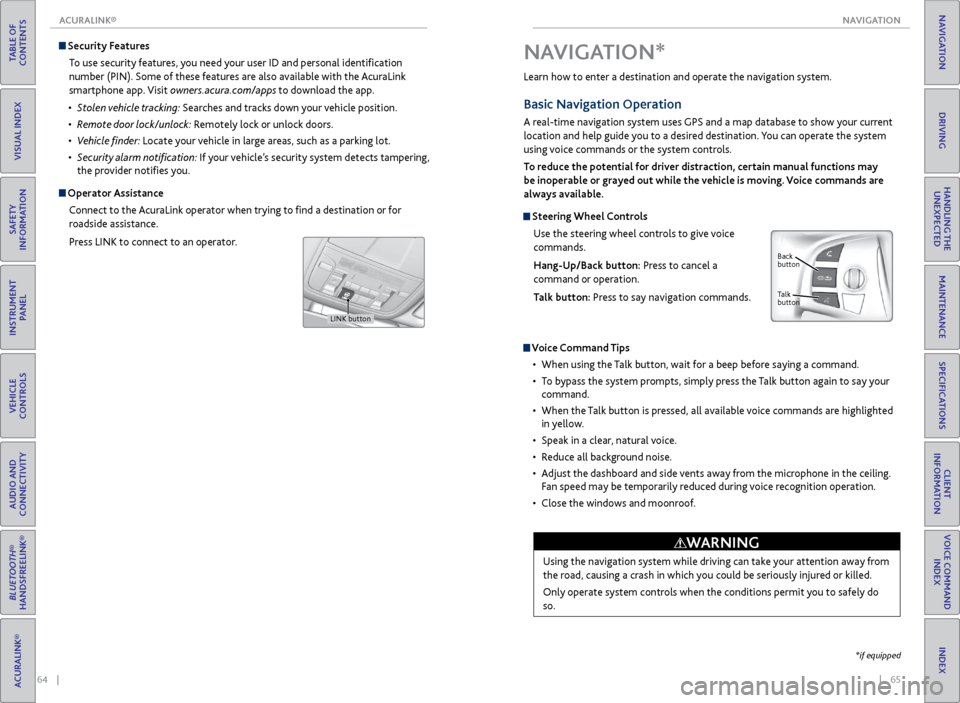
Security Features
To use security features, you need your user ID and personal identification
number (PIN). Some of these features are also available with the AcuraLink
smartphone app. Visit owners.acura.com/apps to download the app.
• Stolen vehicle tracking: Searches and tracks down your vehicle position.
• Remote door lock/unlock: Remotely lock or unlock doors.
• Vehicle finder: Locate your vehicle in large areas, such as a parking lot.
• Security alarm notification: If your vehicle’s security system detects tampering,
the provider notifies you.
Operator Assistance
Connect to the AcuraLink operator when trying to find a destination or for
roadside assistance.
Press LINK to connect to an operator.
LINK button
Learn how to enter a destination and operate the navigation system.
Basic Navigation Operation
A real-time navigation system uses GPS and a map database to show your current
location and help guide you to a desired destination. You can operate the system
using voice commands or the system controls.
To reduce the potential for driver distraction, certain manual functions may
be inoperable or grayed out while the vehicle is moving. Voice commands are
always available.
Steering Wheel Controls
Use the steering wheel controls to give voice
commands.
Hang-Up/Back button: Press to cancel a
command or operation.
Talk button: Press to say navigation commands.
Voice Command Tips
• When using the Talk button, wait for a beep before saying a command.
• To bypass the system prompts, simply press the Talk button again to say your
command.
• When the Talk button is pressed, all available voice commands are highlighted
in yellow.
• Speak in a clear, natural voice.
• Reduce all background noise.
• Adjust the dashboard and side vents away from the microphone in the ceiling.
Fan speed may be temporarily reduced during voice recognition operation.
• Close the windows and moonroof.
Using the navigation system while driving can take your attention away from
the road, causing a crash in which you could be seriously injured or killed.
Only operate system controls when the conditions permit you to safely do
so.
WARNING
NAVIGATION*
Talk
button Back
button
*if equipped
ACURALINK®
Page 37 of 75
66 || 67
NAVIGATION
NAVIGATION
TABLE OF
CONTENTS
INDEX
VISUAL INDEX
VOICE COMMAND INDEX
SAFETY
INFORMATION
CLIENT
INFORMATION
INSTRUMENT PANEL
SPECIFICATIONS
VEHICLE
CONTROLS
MAINTENANCE
AUDIO AND
CONNECTIVITY
HANDLING THE UNEXPECTED
BLUETOOTH®
HANDSFREELINK®
DRIVING
ACURALINK®
NAVIGATION
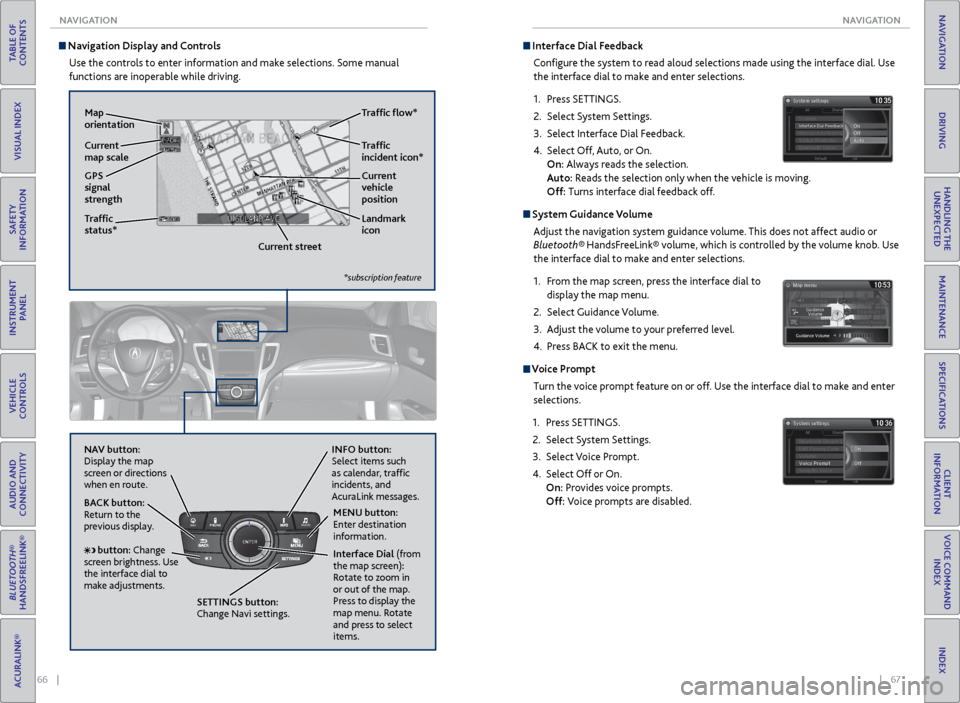
Navigation Display and Controls
Use the controls to enter information and make selections. Some manual
functions are inoperable while driving.
NAVAUDI OAUDIONAV
NAV button:
Display the map
screen or directions
when en route. INFO button:
Select items such
as calendar, traffic
incidents, and
AcuraLink messages.
BACK button:
Return to the
previous display.
SETTINGS button:
Change Navi settings. MENU button:
Enter destination
information.
button: Change
screen brightness. Use
the interface dial to
make adjustments. Interface Dial (from
the map screen):
Rotate to zoom in
or out of the map.
Press to display the
map menu. Rotate
and press to select
items.
GPS
signal
strength Traffic
incident icon*
Traffic
status* Traffic flow*
Current
map scale Current
vehicle
position
Map
orientation
Current streetLandmark
icon
*subscription feature
Interface Dial Feedback
Configure the system to read aloud selections made using the interface dial. Use
the interface dial to make and enter selections.
1. Press SETTINGS.
2. Select System Settings.
3. Select Interface Dial Feedback.
4. Select Off, Auto, or On.
On: Always reads the selection.
Auto: Reads the selection only when the vehicle is moving.
Off: Turns interface dial feedback off.
System Guidance Volume
Adjust the navigation system guidance volume. This does not affect audio or
Bluetooth® HandsFreeLink® volume, which is controlled by the volume knob. Use
the interface dial to make and enter selections.
1. From the map screen, press the interface dial to
display the map menu.
2. Select Guidance Volume.
3. Adjust the volume to your preferred level.
4. Press BACK to exit the menu.
Voice Prompt
Turn the voice prompt feature on or off. Use the interface dial to make and enter
selections.
1. Press SETTINGS.
2. Select System Settings.
3. Select Voice Prompt.
4. Select Off or On.
On: Provides voice prompts.
Off: Voice prompts are disabled.
Page 40 of 75
72 || 73
DRIVING
DRIVING
TABLE OF
CONTENTS
INDEX
VISUAL INDEX
VOICE COMMAND INDEX
SAFETY
INFORMATION
CLIENT
INFORMATION
INSTRUMENT PANEL
SPECIFICATIONS
VEHICLE
CONTROLS
MAINTENANCE
AUDIO AND
CONNECTIVITY
HANDLING THE UNEXPECTED
BLUETOOTH®
HANDSFREELINK®
DRIVING
ACURALINK®
NAVIGATION
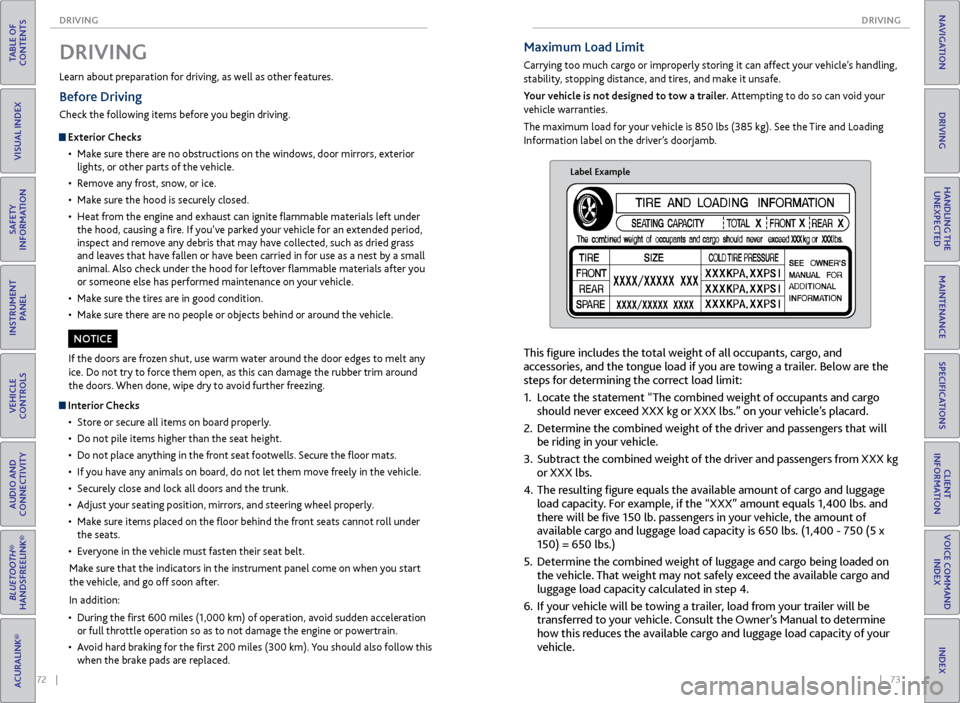
Maximum Load Limit
Carrying too much cargo or improperly storing it can affect your vehicle’s handling,
stability, stopping distance, and tires, and make it unsafe.
Your vehicle is not designed to tow a trailer. Attempting to do so can void your
vehicle warranties.
The maximum load for your vehicle is 850 lbs (385 kg). See the Tire and Loading
Information label on the driver’s doorjamb.
Label Example
This figure includes the total weight of all occupants, cargo, and
accessories, and the tongue load if you are towing a trailer. Below are the
steps for determining the correct load limit:
1. Locate the statement “The combined weight of occupants and cargo
should never exceed XXX kg or XXX lbs.” on your vehicle’s placard.
2. Determine the combined weight of the driver and passengers that will
be riding in your vehicle.
3. Subtract the combined weight of the driver and passengers from XXX kg
or XXX lbs.
4. The resulting figure equals the available amount of cargo and luggage
load capacity. For example, if the “XXX” amount equals 1,400 lbs. and
there will be five 150 lb. passengers in your vehicle, the amount of
available cargo and luggage load capacity is 650 lbs. (1,400 - 750 (5 x
150) = 650 lbs.)
5. Determine the combined weight of luggage and cargo being loaded on
the vehicle. That weight may not safely exceed the available cargo and
luggage load capacity calculated in step 4.
6. If your vehicle will be towing a trailer, load from your trailer will be
transferred to your vehicle. Consult the Owner’s Manual to determine
how this reduces the available cargo and luggage load capacity of your
vehicle.
Learn about preparation for driving, as well as other features.
DRIVING
If the doors are frozen shut, use warm water around the door edges to melt any
ice. Do not try to force them open, as this can damage the rubber trim around
the doors. When done, wipe dry to avoid further freezing.
NOTICE
Interior Checks
• Store or secure all items on board properly.
• Do not pile items higher than the seat height.
• Do not place anything in the front seat footwells. Secure the floor mats.
• If you have any animals on board, do not let them move freely in the vehicle.
• Securely close and lock all doors and the trunk.
• Adjust your seating position, mirrors, and steering wheel properly.
• Make sure items placed on the floor behind the front seats cannot roll under
the seats.
• Everyone in the vehicle must fasten their seat belt.
Make sure that the indicators in the instrument panel come on when you start
the vehicle, and go off soon after.
In addition:
• During the first 600 miles (1,000 km) of operation, avoid sudden acceleration
or full throttle operation so as to not damage the engine or powertrain.
• Avoid hard braking for the first 200 miles (300 km). You should also follow this
when the brake pads are replaced.
Before Driving
Check the following items before you begin driving.
Exterior Checks
• Make sure there are no obstructions on the windows, door mirrors, exterior
lights, or other parts of the vehicle.
• Remove any frost, snow, or ice.
• Make sure the hood is securely closed.
• Heat from the engine and exhaust can ignite flammable materials left under
the hood, causing a fire. If you’ve parked your vehicle for an extended period,
inspect and remove any debris that may have collected, such as dried grass
and leaves that have fallen or have been carried in for use as a nest by a small
animal. Also check under the hood for leftover flammable materials after you
or someone else has performed maintenance on your vehicle.
• Make sure the tires are in good condition.
• Make sure there are no people or objects behind or around the vehicle.
Page 41 of 75
74 || 75
DRIVING
DRIVING
TABLE OF
CONTENTS
INDEX
VISUAL INDEX
VOICE COMMAND INDEX
SAFETY
INFORMATION
CLIENT
INFORMATION
INSTRUMENT PANEL
SPECIFICATIONS
VEHICLE
CONTROLS
MAINTENANCE
AUDIO AND
CONNECTIVITY
HANDLING THE UNEXPECTED
BLUETOOTH®
HANDSFREELINK®
DRIVING
ACURALINK®
NAVIGATION
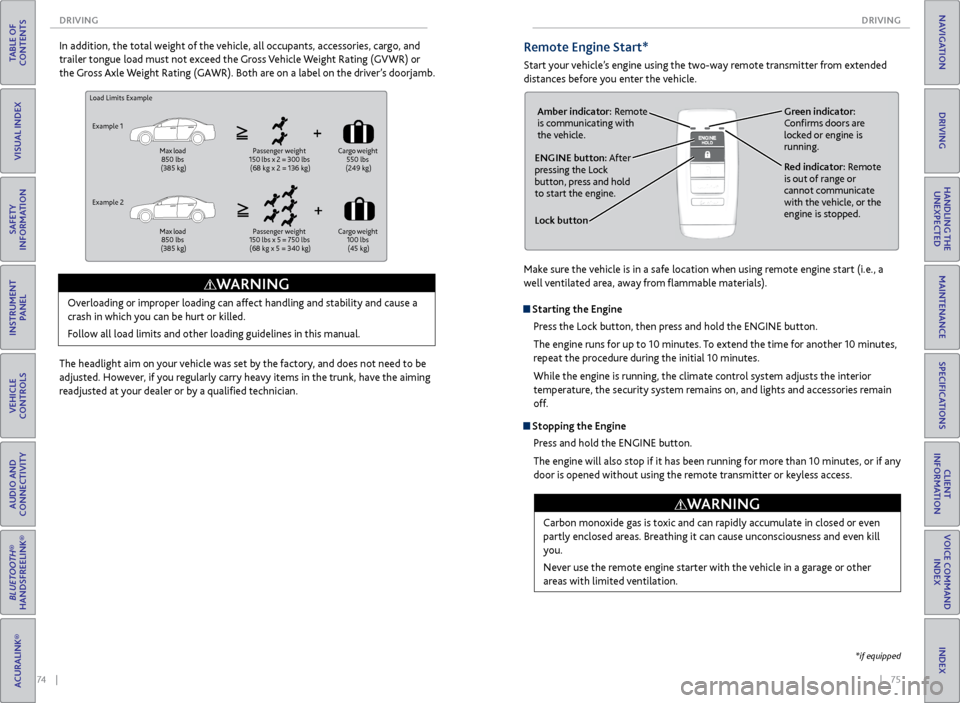
Load Limits Example
Example 1
Max load
850 lbs
(385 kg) Passenger weight
150 lbs x 2 = 300 lbs
(68 kg x 2 = 136 kg) Cargo
weight
550 lbs
(249 kg)
Example 2
Max load
850 lbs
(385 kg) Passenger weight
150 lbs x 5 = 750 lbs
(68 kg x 5 = 340 kg) Cargo
weight
100 lbs (45 kg)
Overloading or improper loading can affect handling and stability and cause a
crash in which you can be hurt or killed.
Follow all load limits and other loading guidelines in this manual.
WARNING
In addition, the total weight of the vehicle, all occupants, accessories, cargo, and
trailer tongue load must not exceed the Gross Vehicle Weight Rating (GVWR) or
the Gross Axle Weight Rating (GAWR). Both are on a label on the driver’s doorjamb.
The headlight aim on your vehicle was set by the factory, and does not need to be
adjusted. However, if you regularly carry heavy items in the trunk, have the aiming
readjusted at your dealer or by a qualified technician.Remote Engine Start*
Start your vehicle’s engine using the two-way remote transmitter from extended
distances before you enter the vehicle.
Lock button
ENGINE button: After
pressing the Lock
button, press and hold
to start the engine.Red indicator: Remote
is out of range or
cannot communicate
with the vehicle, or the
engine is stopped.
Amber indicator: Remote
is communicating with
the vehicle.
Green indicator:
Confirms doors are
locked or engine is
running.
Starting the Engine
Press the Lock button, then press and hold the ENGINE button.
The engine runs for up to 10 minutes. To extend the time for another 10 minutes,
repeat the procedure during the initial 10 minutes.
While the engine is running, the climate control system adjusts the interior
temperature, the security system remains on, and lights and accessories remain
off.
Stopping the EnginePress and hold the ENGINE button.
The engine will also stop if it has been running for more than 10 minutes, or if any
door is opened without using the remote transmitter or keyless access.
Carbon monoxide gas is toxic and can rapidly accumulate in closed or even
partly enclosed areas. Breathing it can cause unconsciousness and even kill
you.
Never use the remote engine starter with the vehicle in a garage or other
areas with limited ventilation.
WARNING
*if equipped
Make sure the vehicle is in a safe location when using remote engine start (i.e., a
well ventilated area, away from flammable materials).
Page 46 of 75
84 || 85
DRIVING
DRIVING
TABLE OF
CONTENTS
INDEX
VISUAL INDEX
VOICE COMMAND INDEX
SAFETY
INFORMATION
CLIENT
INFORMATION
INSTRUMENT PANEL
SPECIFICATIONS
VEHICLE
CONTROLS
MAINTENANCE
AUDIO AND
CONNECTIVITY
HANDLING THE UNEXPECTED
BLUETOOTH®
HANDSFREELINK®
DRIVING
ACURALINK®
NAVIGATION
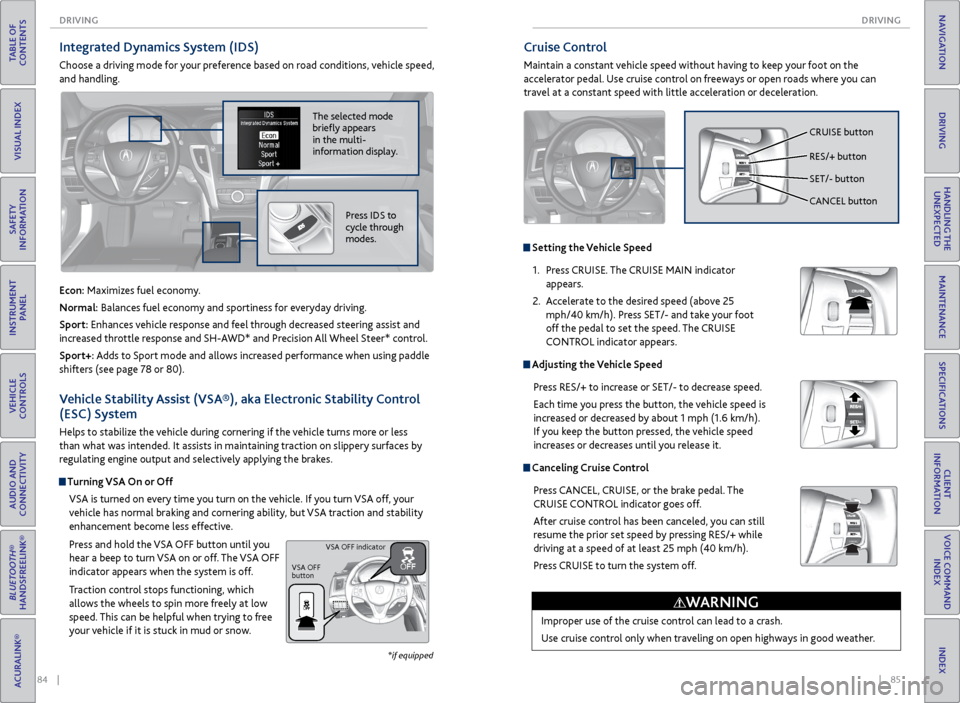
Cruise Control
Maintain a constant vehicle speed without having to keep your foot on the
accelerator pedal. Use cruise control on freeways or open roads where you can
travel at a constant speed with little acceleration or deceleration.
Improper use of the cruise control can lead to a crash.
Use cruise control only when traveling on open highways in good weather.
WARNING
Setting the Vehicle Speed1. Press CRUISE. The CRUISE MAIN indicator
appears.
2. Accelerate to the desired speed (above 25
mph/40 km/h). Press SET/- and take your foot
off the pedal to set the speed. The CRUISE
CONTROL indicator appears.
Adjusting the Vehicle Speed
Press RES/+ to increase or SET/- to decrease speed.
Each time you press the button, the vehicle speed is
increased or decreased by about 1 mph (1.6 km/h).
If you keep the button pressed, the vehicle speed
increases or decreases until you release it.
Canceling Cruise ControlPress CANCEL, CRUISE, or the brake pedal. The
CRUISE CONTROL indicator goes off.
After cruise control has been canceled, you can still
resume the prior set speed by pressing RES/+ while
driving at a speed of at least 25 mph (40 km/h).
Press CRUISE to turn the system off.
CRUISE button
RES/+ button
SET/- button
CANCEL button
Integrated Dynamics System (IDS)
Choose a driving mode for your preference based on road conditions, vehicle speed,
and handling.
Vehicle Stability Assist (VSA®), aka Electronic Stability Control
(ESC) System
Helps to stabilize the vehicle during cornering if the vehicle turns more or less
than what was intended. It assists in maintaining traction on slippery surfaces by
regulating engine output and selectively applying the brakes.
Turning VSA On or OffVSA is turned on every time you turn on the vehicle. If you turn VSA off, your
vehicle has normal braking and cornering ability, but VSA traction and stability
enhancement become less effective.
Press and hold the VSA OFF button until you
hear a beep to turn VSA on or off. The VSA OFF
indicator appears when the system is off.
Traction control stops functioning, which
allows the wheels to spin more freely at low
speed. This can be helpful when trying to free
your vehicle if it is stuck in mud or snow.
VSA OFF
button VSA OFF indicator
The selected mode
briefly appears
in the multi-
information display.
Econ: Maximizes fuel economy.
Normal: Balances fuel economy and sportiness for everyday driving.
Sport: Enhances vehicle response and feel through decreased steering assist and
increased throttle response and SH-AWD* and Precision All Wheel Steer* control.
Sport+: Adds to Sport mode and allows increased performance when using paddle
shifters (see page 78 or 80).
Press IDS to
cycle through
modes.
*if equipped